




Best Speech-to-Text Tools for Writers With Wrist Pain
If your writing setup is mostly on PC, compare the best dictation software for Windows for long-form drafting, revisions, and everyday writing tasks.
Summary of the article
If wrist pain is slowing down your writing, speech-to-text tools can take a lot of pressure off your hands. The best fit depends on where you write, how much editing help you want, and whether you need a tool that works everywhere or only inside one app.
Voicy: Best for writers who want one speech-to-text tool that works across Mac, Windows, and browser workflows.
Dragon Professional: Best for Windows users who want deep voice commands and do not mind a steeper setup.
Google Docs Voice Typing: Best free option if you already write mostly in Google Docs.
Microsoft Word Dictate: Best for writers already paying for Microsoft 365.
Apple Dictation: Best built-in option for short writing sessions on Apple devices.
If you want the short recommendation, start with the tool that matches where you already write. If you bounce between documents, email, notes, and AI tools, Voicy is the strongest all-around pick.
Best Speech-to-Text Tools for Writers With Wrist Pain
Best speech-to-text tools for writers with wrist pain can do more than save time. They can make writing feel possible again on bad hand days.
If your wrists flare up after an hour at the keyboard, the usual advice is not enough. Better posture helps. Breaks help. But sometimes the real fix is typing less.
That is where dictation tools come in. The right one lets you draft chapters, emails, notes, and outlines with your voice, then make light edits instead of hammering the keyboard for hours.
In this guide, I focused on tools that fit real writing work. Not just transcription. Actual drafting, editing, and daily use.
If you are new to this, you may also want our guides on how to relieve wrist pain from typing, voice typing apps, and speech-to-text on Mac.
How I picked the best speech-to-text tools for writers with wrist pain
I looked at five things: how accurate the text is, how little setup it takes, how well it works for long-form writing, whether it reduces keyboard use in real life, and how painful the tradeoffs are.
For writers with wrist pain, the details matter. A tool that only works in one app can still help, but it will not replace much typing if you also live in email, notes, or research tabs. A tool with poor punctuation can create a new problem by forcing lots of cleanup.
I also checked the current search results. Most ranking pages list general dictation apps for writers. Very few speak directly to wrist pain, repetitive strain, or the need to cut editing overhead. That gap is where this article tries to be more useful.
1. Voicy, best overall for writers who need speech-to-text everywhere
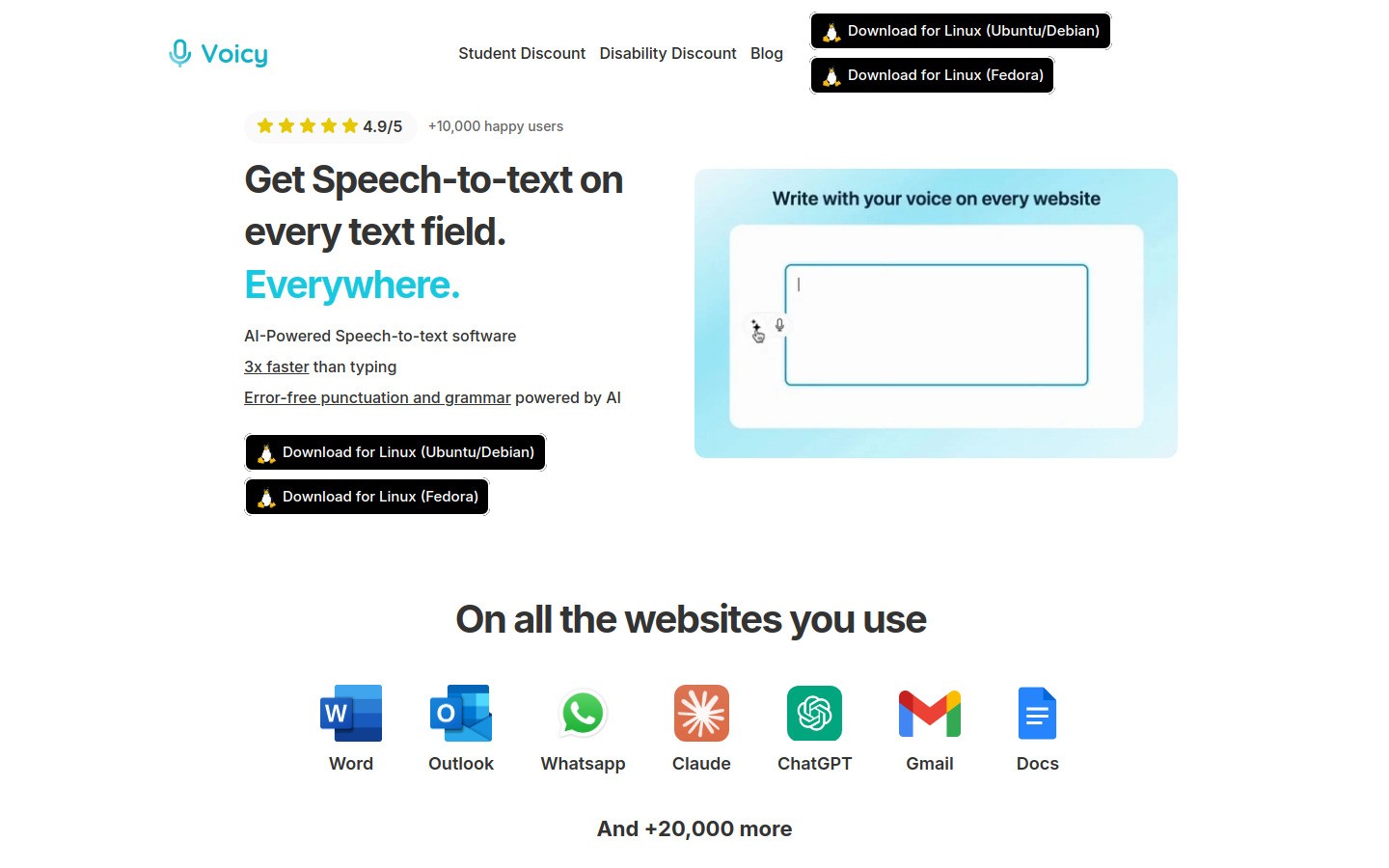
Voicy is the best speech-to-text tool for writers with wrist pain if you want one setup that follows you across your writing day. It works on Mac, Windows, and as a browser extension, so you are not boxed into a single editor.
That matters more than it sounds. Many writers draft in Google Docs, then answer email, move ideas into Notion, and polish sections inside ChatGPT or Claude. If your tool only works in one place, your hands still end up doing too much work.
What stands out:
Works across Mac, Windows, and browser extension workflows
Cloud-based transcription with automatic punctuation and cleanup
Useful for drafting, brainstorming, and rewriting rough copy fast
Free trial available
Pros: Very flexible, easy to fit into an existing workflow, strong for first drafts, and good when wrist pain makes long typing sessions unrealistic.
Cons: Not fully free, needs an internet connection for cloud transcription, and some writers will still want a quick manual edit pass at the end.
Pricing: $8.49/month, $82/year, or $260 lifetime.
Best for: Writers who move between multiple apps and want fewer keyboard-heavy transitions.
If you use Google Docs often, see speech-to-text in Google Docs. If you draft with AI help, see speech-to-text in ChatGPT and speech-to-text in Claude.
2. Dragon Professional, best for heavy Windows dictation users
Dragon Professional is still one of the best-known dictation tools for serious users. It has been around for years, and it shows in both good and bad ways.
The good part is deep voice control. You can dictate, move around a document, and trigger editing commands without touching the keyboard much. That can be a huge relief if your wrists get worse during the edit phase, not just the draft phase.
The downside is that Dragon can feel heavy. Setup takes longer. The interface feels older. And if you just want to open your laptop and start talking, it may feel like too much tool for the job.
Pros: Strong voice commands, mature dictation system, useful for writers who want hands-free control beyond plain text entry.
Cons: Windows-focused, more expensive than casual users want, steeper learning curve, and not the cleanest modern experience.
Best for: Writers on Windows with chronic wrist pain who are willing to invest time in setup for deeper control.
3. Google Docs Voice Typing, best free option for Google Docs writers
Google Docs Voice Typing is the easiest free starting point for many writers. If you already draft articles, notes, or chapters in Google Docs, you can test voice writing without buying anything.
It is simple, and that is the appeal. Open a doc, turn on voice typing, and start speaking. For someone dealing with wrist pain, that low-friction start matters.
But the limit is obvious. It mostly helps inside Google Docs. The minute you switch to email, project notes, or another editor, the relief drops because your keyboard comes back into the picture.
Pros: Free, easy to start, decent accuracy for everyday writing, great for outlines and rough drafts.
Cons: Limited to Google Docs, lighter editing power, and less useful if your writing workflow spreads across multiple tools.
Best for: Writers who mostly live in Docs and want a no-cost way to reduce typing strain.
4. Microsoft Word Dictate, best for Microsoft 365 users
Microsoft Word Dictate is a smart pick if Word is already your main writing home. It comes bundled into a tool many writers already pay for, and it handles basic dictation and punctuation well enough for everyday work.
It is also a practical choice for writers who send a lot of work through Word comments, tracked changes, or shared Office files. You stay in the same system and do not need to teach yourself a whole new app.
Still, it has the same basic weakness as Google Docs Voice Typing. It helps most inside its own ecosystem. That is useful, but not ideal if your pain shows up across your full workday.
Pros: Convenient for existing Microsoft 365 users, solid for document drafting, familiar interface.
Cons: Best inside Microsoft apps, not the most flexible cross-app option, accuracy can vary with mic quality and connection.
Best for: Writers who already use Word as their default drafting and editing space.
5. Apple Dictation, best built-in option for Apple users
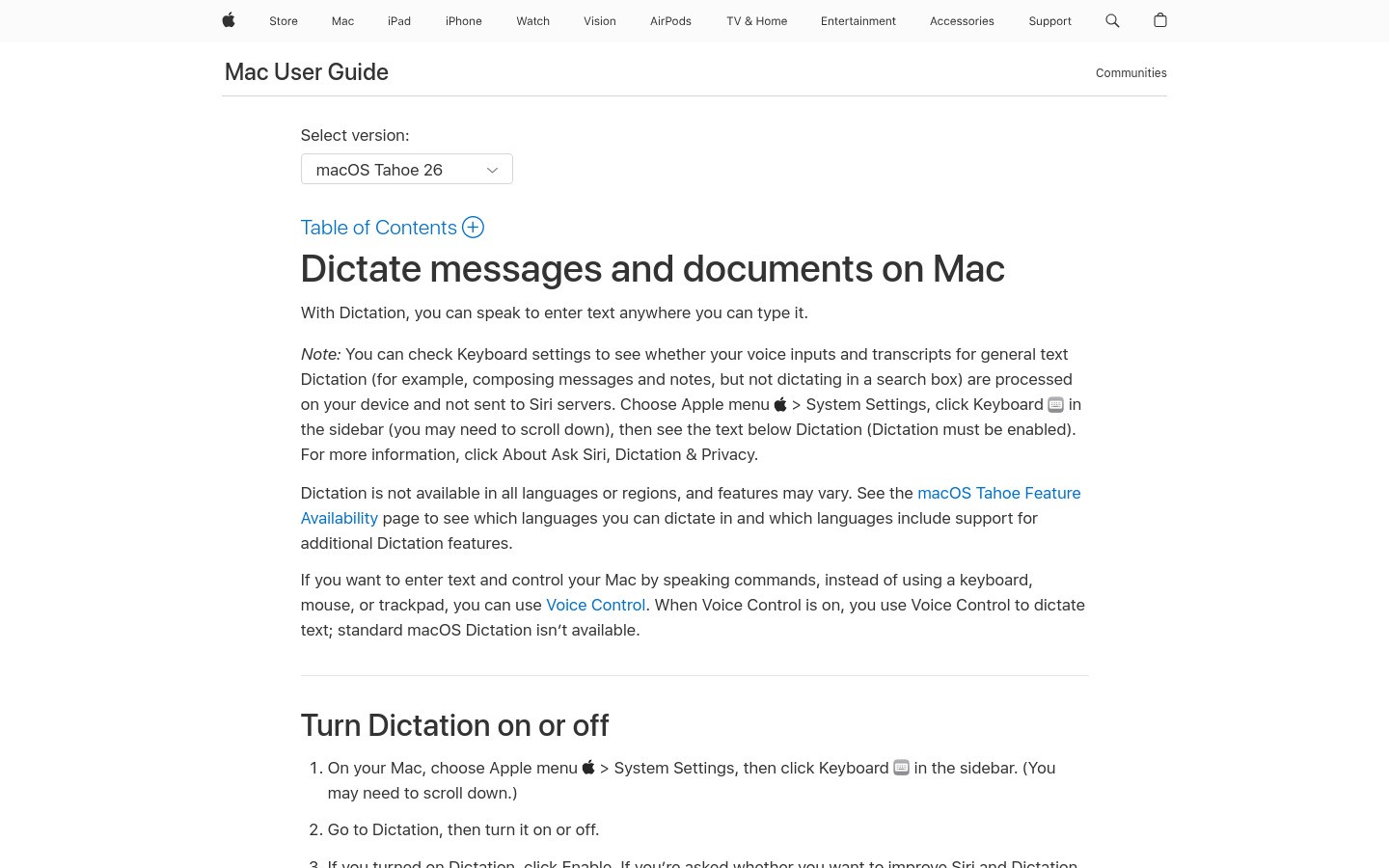
Apple Dictation gets points for being right there. If you use a Mac, iPhone, or iPad, you can turn it on fast and start testing whether voice writing helps your wrists.
That makes it a good first experiment. You do not need to install much. You can try a short blog draft, a batch of emails, or some journaling and see how your hands feel after.
The problem is ceiling, not access. Apple Dictation is fine for shorter tasks, but many writers outgrow it once they need steadier accuracy, smoother formatting, or a workflow that covers more than the basics.
Pros: Built in, easy to access, good for testing the habit of dictation without extra cost.
Cons: Less powerful for long-form writing, fewer advanced controls, and not the best fit for writers who want a full daily workflow replacement.
Best for: Apple users who want to try voice writing before paying for a dedicated tool.
Quick comparison table
Tool | Best for | Main limitation |
|---|---|---|
Cross-app writing with less keyboard use | Paid after free trial | |
Deep Windows voice control | Heavier setup and higher cost | |
Free drafting in Google Docs | Mostly limited to Docs | |
Writers already using Word | Best inside Microsoft apps | |
Quick built-in option on Apple devices | Less capable for long writing sessions |
How to choose the right speech-to-text tool when wrist pain is the real problem
If wrist pain is mild and you just need relief during drafting, a built-in option may be enough. Start cheap. See if dictation becomes a habit before you buy anything.
If your pain is more serious, or you are trying to avoid long flare-ups, look for the tool that removes the most keyboard time across your whole day. That is usually more important than shaving a few dollars off the price.
Ask yourself three simple questions:
Do I write in one app, or five?
Do I need clean first drafts, or mostly rough capture?
Is editing with my hands still the part that hurts most?
Your answer points to the right fit pretty fast.
My recommendation for most writers with wrist pain
For most people, the best speech-to-text tool for writers with wrist pain is the one that works beyond a single document window. That is why Voicy comes out on top here.
It is not because every writer needs the most advanced setup. It is because wrist pain usually shows up across the whole workflow. Drafting, replying, outlining, rewriting, all of it counts.
If you want a no-cost test, start with Google Docs Voice Typing or Apple Dictation. If you already know typing is the bottleneck and you want a stronger daily fix, start with Voicy.
Conclusion
The best speech-to-text tools for writers with wrist pain do two jobs at once. They help you write faster, and they help you protect your hands.
That second part matters more. A tool is only helpful if it lets you keep writing on days when the keyboard feels like the enemy.
If you want the broadest relief across real writing work, try Voicy. If you want to ease in gently, test a built-in option first and see how much strain disappears when your voice does the heavy lifting.


