




Google Docs Voice Typing Not Working? Fix Mic Permissions and Admin Blocks
TL;DR
If Google Docs voice typing is not working, first check Chrome microphone permission for
docs.google.com.If you see "no permission to enable voice typing," your browser, operating system, Google account, or school/work admin may be blocking the microphone.
Google Docs Voice Typing works best in a supported desktop browser, with the document language set to the language you are speaking.
If your school or company blocks voice typing, you may need an admin to allow microphone access. You usually cannot fix that from your own account.
If Docs keeps breaking, Voicy for Google Docs speech to text can be a cross-app workaround. Voicy has a free trial, but it is not a free app.
Answer first: Open your Google Doc in Chrome, click the microphone icon in the address bar or go to Chrome settings, and allow microphone access for docs.google.com. Then reload the document, go to Tools > Voice typing, pick the right language, and click the microphone again. If the option is missing or says you have no permission, check your computer microphone settings and ask your school or work admin if voice typing is blocked.
Google Docs Voice Typing is simple when it works. When it fails, the error is often vague.
This guide walks through the common fixes in the right order, from easy checks to admin restrictions.
Start by checking Google Docs, Chrome, and microphone permissions before changing tools.
1. Make sure you are using Google Docs the right way
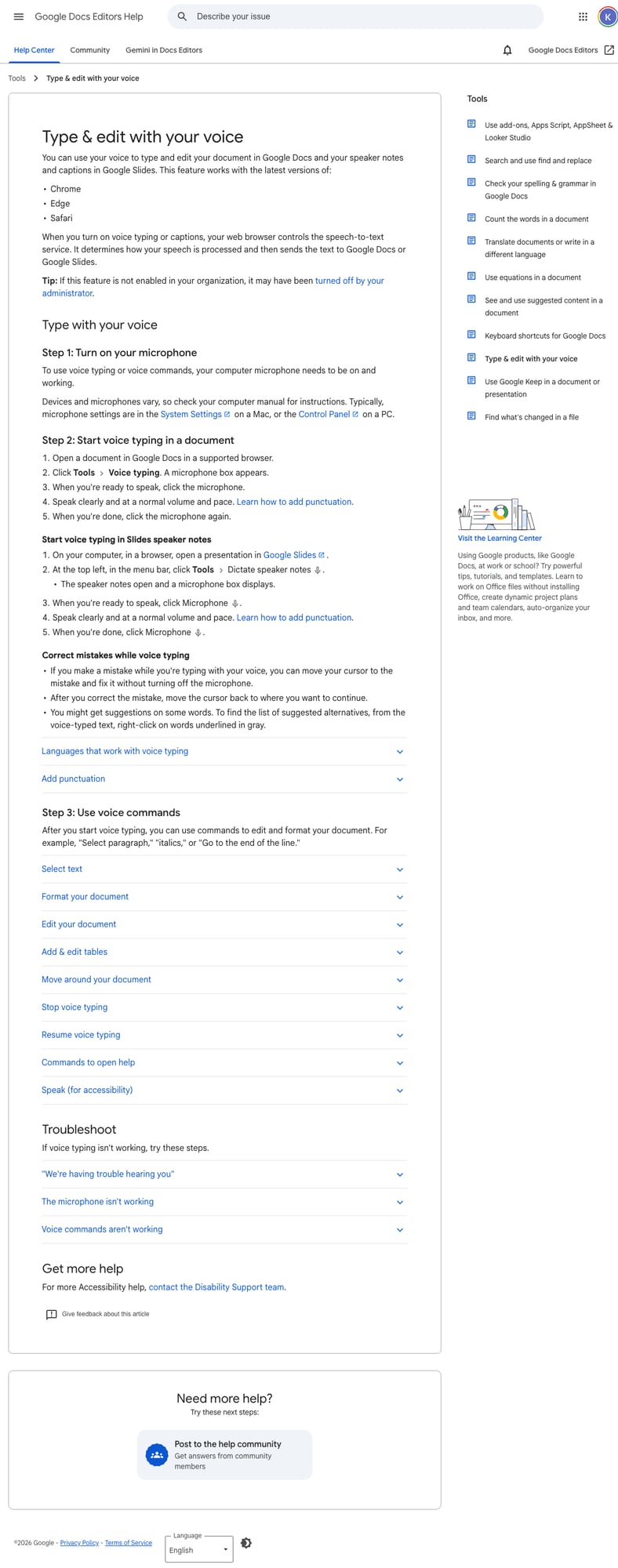
Google's Voice Typing help page says to open a document in Google Docs in a supported browser, then click Tools > Voice typing. A microphone box should appear. You click the microphone, speak clearly, and click it again when you are done.
Start with these quick checks:
Use Google Docs on a desktop or laptop browser, not the mobile Docs app.
Open a real Google Docs document, not a PDF preview or view-only file.
Make sure you have edit access to the document.
Try a new blank document to rule out a document-specific issue.
Reload the tab after changing any permission setting.
If Tools > Voice typing is there but the mic does nothing, keep going. That is usually a permission or microphone input problem.
2. Allow microphone access in Chrome
The most common fix is to allow Chrome to use your microphone for Google Docs.
Open your Google Doc in Chrome.
Click the icon to the left of the address bar.
Find Microphone.
Set it to Allow.
Reload the Google Docs tab.
Try Tools > Voice typing again.
You can also check it from Chrome settings:
Open Chrome settings.
Go to Privacy and security > Site settings > Microphone.
Make sure sites can ask to use your microphone.
Remove
docs.google.comfrom the blocked list if it is there.Choose the right microphone if Chrome shows more than one input.
Google's Chrome microphone help page says blocked sites can be changed back to Allow from site settings. After you change it, reload Docs. The browser will not always apply the new setting until the page reloads.
3. Check your computer microphone settings
Chrome can be allowed, but your computer can still block the mic.
On Mac
Open System Settings.
Go to Privacy & Security > Microphone.
Turn on access for Chrome.
Quit Chrome and open it again.
On Windows
Open Settings.
Go to Privacy & security > Microphone.
Turn on microphone access.
Allow desktop apps to access the microphone.
Close and reopen Chrome.
If you use a headset, make sure it is connected before opening Chrome. Then check that Chrome is using that headset mic, not a built-in laptop mic or monitor mic.
4. Fix "no permission to enable voice typing"
The message "no permission to enable voice typing" usually means one of four things:
Chrome blocked microphone access for Google Docs.
Your computer blocked microphone access for Chrome.
Your Google account is managed by a school or workplace.
Your browser profile, extension, or policy is blocking voice features.
Try the permission fixes above first. If you are using a school or work account, test with a personal Google account on the same computer. If voice typing works there, your managed account is probably restricted.
In that case, ask your admin to check Google Workspace and browser policies for microphone access, Docs features, and voice typing. If you are on a school Chromebook, the setting may be locked on purpose.
5. Check the browser and language
Google Docs Voice Typing is a browser feature inside Docs. If the browser is old, unsupported, or controlled by policy, the mic can fail.
Use this checklist:
Update Chrome to the latest version.
Try Chrome even if your normal browser is Edge, Safari, Firefox, Brave, or Arc.
Turn off extensions for a test, especially privacy, ad blocker, script blocker, and meeting tools.
Try an Incognito window with extensions disabled.
Make sure the Voice Typing language matches what you are speaking.
Make sure your Google Doc language also matches the document you are writing.
If voice typing only fails in one browser profile, create a fresh Chrome profile and test there. That can tell you if the problem is an extension or a saved site setting.
6. Test whether the microphone works outside Google Docs
Before blaming Google Docs, test the mic somewhere else.
Record a short voice memo on your computer.
Join a test meeting and check the mic meter.
Try another website that asks for mic access.
Unplug and reconnect your headset.
Restart the browser if another app used the mic first.
If the mic fails everywhere, the issue is your device or operating system. If it works everywhere except Google Docs, the issue is probably browser permission, Docs, account policy, or language settings.
7. What to do if your school or workplace blocks it
Managed Google accounts can limit what you can do. Your admin may block microphone access, Chrome permissions, extensions, or specific Google Docs features.
You cannot always override that yourself. Try these steps:
Ask whether voice typing is allowed for your account.
Ask whether
docs.google.comcan use the microphone.Ask whether Chrome extensions are blocked.
Ask whether you can use voice typing on a personal device for non-sensitive work.
Do not bypass school or work policy for private or regulated information.
If you need dictation for accessibility, say that clearly when you ask. Schools and companies often have a separate process for accessibility tools.
8. Use Voicy when you need dictation outside Google Docs
Google Docs Voice Typing is built for Google Docs. That is the limit. It is not meant to be a full dictation tool for Gmail, Slack, Notion, Microsoft Word, ChatGPT, forms, or desktop apps.
Voicy is useful when Docs voice typing works sometimes, but not everywhere you write. You can click where you want text, use your Voicy shortcut, speak, and put the text into Google Docs or other apps.
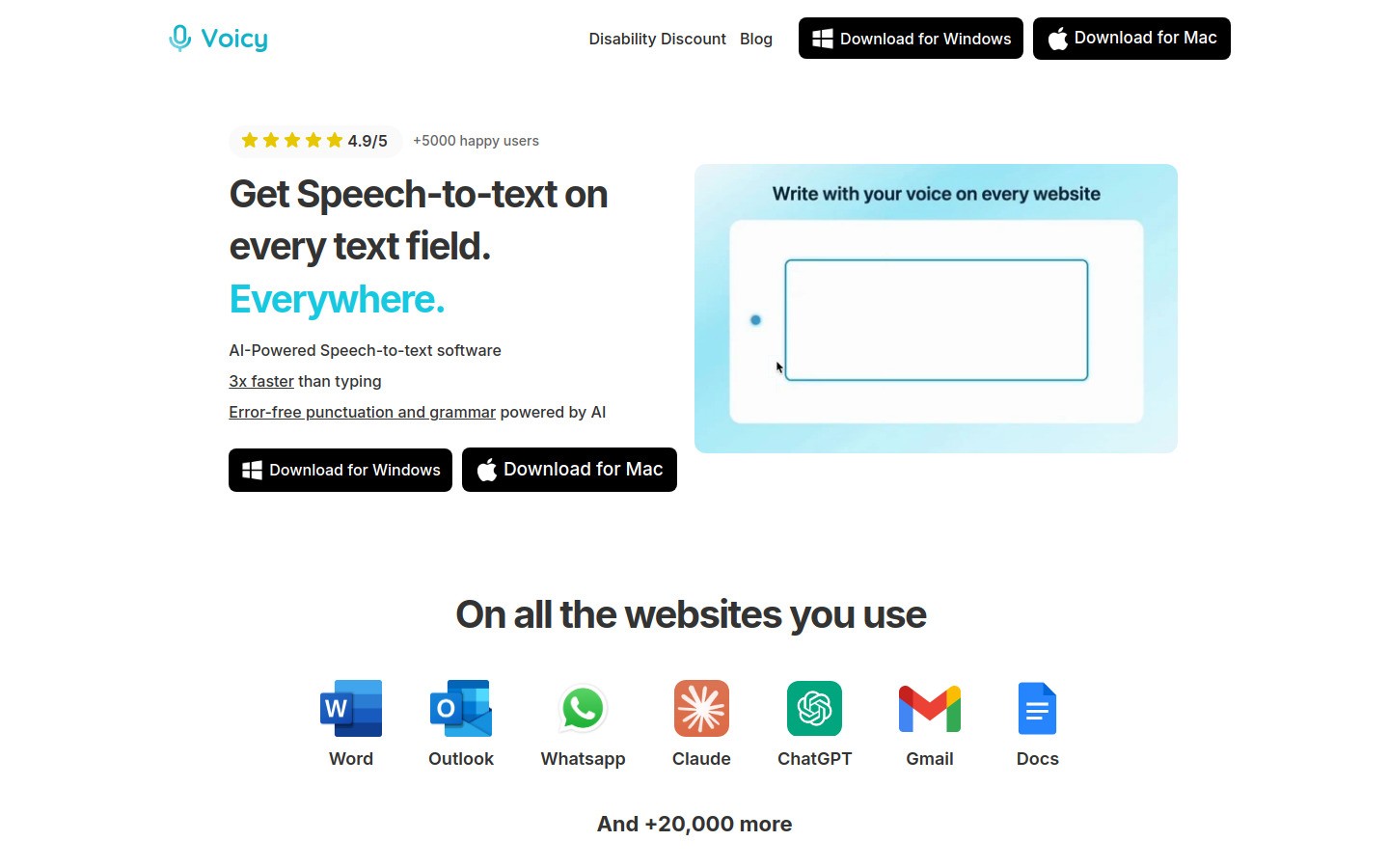
Voicy is useful when you need dictation outside Google Docs too.
Voicy is a good fit if:
You write in more than one app each day.
You need dictation in browser fields outside Docs.
You want file transcription as well as live dictation.
You want a cross-app workaround when Google Docs voice typing keeps failing.
Voicy has a free trial, but it is not a free app. If you only need free dictation inside Google Docs, fix Google Docs Voice Typing first.
Quick troubleshooting checklist
Open Google Docs in Chrome.
Check that you can edit the document.
Allow mic access for
docs.google.com.Allow Chrome mic access in Mac or Windows settings.
Pick the right microphone in Chrome.
Reload the document after permission changes.
Update Chrome.
Disable extensions for a test.
Match the voice typing language to your speech.
Ask your school or work admin if the setting is locked.
Frequently asked questions
Why is Google Docs voice typing not working?
Most of the time, Google Docs voice typing fails because the microphone is blocked in Chrome, blocked by your operating system, using the wrong input device, or restricted by a school or work account.
How do I enable voice typing in Google Docs?
Open a Google Doc in a supported desktop browser, click Tools > Voice typing, choose your language, click the microphone, and speak clearly.
How do I fix no permission to enable voice typing?
Allow microphone access for docs.google.com in Chrome, allow Chrome microphone access in your computer settings, then reload the document. If you use a managed school or work account, ask your admin if voice typing is blocked.
Why is Voice Typing missing from the Tools menu?
It may be missing if you are not in a real editable Google Doc, your browser is unsupported or out of date, your account is managed, or the document is view-only.
Does Google Docs voice typing work on mobile?
The Google Docs Voice Typing menu is a desktop Docs feature. On phones, use your keyboard's built-in dictation, such as Gboard voice typing or iPhone dictation.
Why does Google Docs hear me but type the wrong words?
Check the selected voice typing language, reduce background noise, move closer to the mic, and use a better headset. Also check that Chrome is using the correct microphone.
Can my school or company block Google Docs voice typing?
Yes. A school or company admin can control Chrome, Google Workspace, extensions, and microphone permissions. If the setting is locked, you need admin help.
What is the best workaround if Google Docs voice typing keeps failing?
If you need dictation across many apps, use a cross-app dictation tool like Voicy. It works with Google Docs and other places you write, and it has a free trial.


