




TL;DR
A voice typing dictionary helps speech-to-text tools spell your names, acronyms, product terms, medical words, legal phrases, and industry jargon correctly.
Start with 30 to 50 high-friction terms, not a giant dictionary. Add the words you actually dictate every week.
Test your list with real sentences. A term that works alone can still fail inside a messy paragraph.
If you need an editable dictionary, check that feature before you commit to a tool. If you need fast everyday dictation across apps, test Voicy with your real work and review the output.
Short answer: a voice typing dictionary is a saved list of words and phrases your dictation tool should expect. It is also called custom vocabulary, custom dictionary, or speech-to-text vocabulary. It is most useful for proper nouns, acronyms, client names, medical terms, legal phrases, code words, product names, and any word that keeps coming out wrong. The best setup is small, practical, and tested against the exact sentences you say at work.
Voice dictation gets weird in a very specific way. It can handle a normal sentence, then completely butcher the one word that matters.
A client name becomes a common word. A drug name turns into three nonsense syllables. A product acronym arrives in lowercase, spaced out, or simply wrong.
That is where a voice typing dictionary helps. This guide explains what to add, how to structure your custom vocabulary, where built-in tools fall short, and how to test whether a dictation app can handle your real terms before you trust it with daily work.
What is a voice typing dictionary?
A voice typing dictionary is a personal word list for speech-to-text. It tells your dictation tool which names, phrases, acronyms, and specialist terms are normal for you, even if they are rare in everyday speech.
Some tools call this custom vocabulary. Others call it a custom dictionary, personal dictionary, or speech recognition vocabulary.
Different tools handle this in different ways. Some use a classic custom dictionary. Some let you record pronunciations. Some learn from corrections over time. Some use modern context and AI cleanup instead of a visible word list.
The goal is the same: fewer fixes after you speak.
When do you need a dictation dictionary?
You need a dictation dictionary when your errors are predictable. If the same words fail again and again, a vocabulary list can save a lot of cleanup.
The clearest signs are:
Proper nouns keep getting respelled, such as client names, teammates, schools, companies, or patients.
Acronyms are expanded, lowercased, or split into letters you did not want.
Industry terms are replaced by common words that sound similar.
Your tool handles casual notes but struggles with work documents.
You spend more time correcting terms than shaping the actual message.
For general accuracy fixes, pair this with the Voicy guide to fixing voice typing issues. Vocabulary is only one part of accuracy. Mic quality, room noise, speaking pace, and the app you dictate into still matter.
What should you add to a voice typing dictionary?
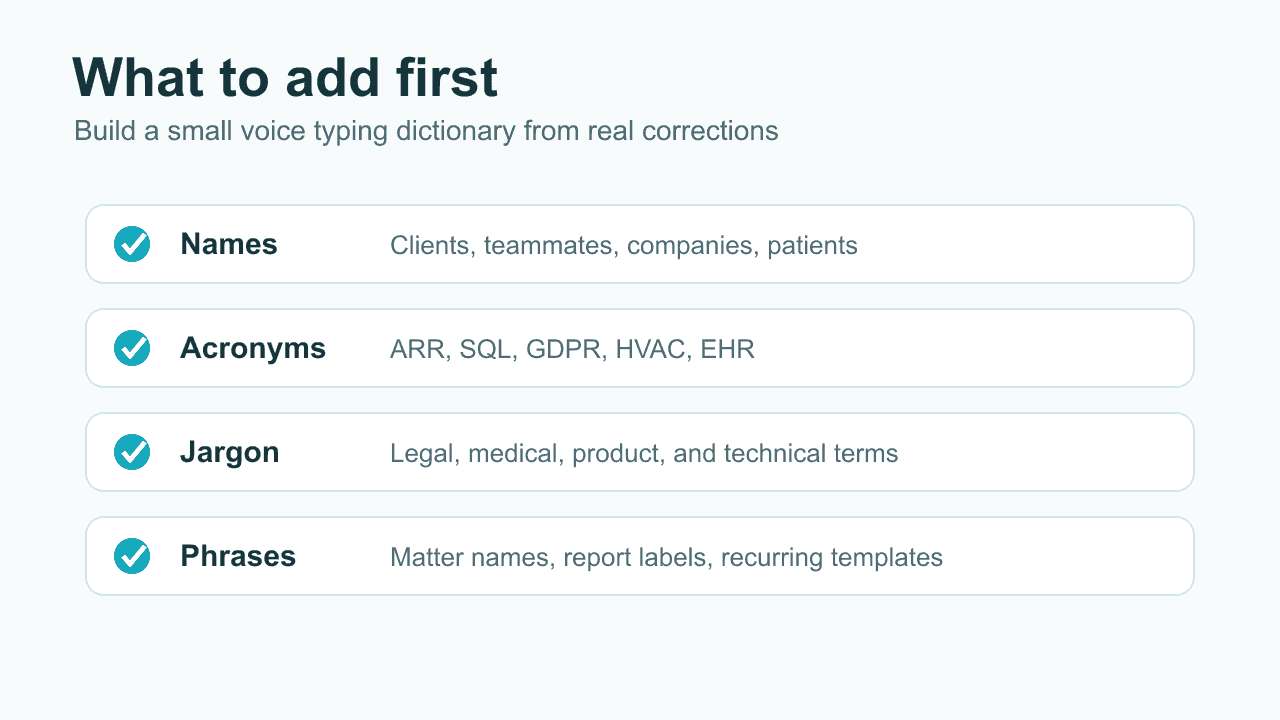
Add terms that are common in your work and costly when wrong. Do not add every unusual word you know. A bloated vocabulary is harder to maintain and may not improve accuracy.
Category | Examples | Why it matters |
|---|---|---|
Names | Client names, patient names, teammate names, company names | Names are easy to mishear and embarrassing to misspell. |
Acronyms | ARR, SQL, GDPR, HVAC, EHR, CAC | Dictation tools often lowercase acronyms or spell them as words. |
Professional terms | metformin, estoppel, Kubernetes, dysgraphia | Specialist words are less common in general speech models. |
Product words | Plan names, feature names, SKUs, internal project names | Brand and product spelling usually needs exact casing. |
Recurring phrases | Matter names, templates, call notes, report labels | Longer phrases reduce fixes in repeated workflows. |
How to build a custom vocabulary that actually works
Build your vocabulary from real mistakes. The words that annoy you every day deserve priority over rare words that only look impressive in a list.
1. Collect one week of corrections
Keep a tiny note called "dictation fixes." Each time your speech-to-text tool gets a term wrong, add the correct version and the wrong version.
For example:
"Mira" became "mirror"
"CAC" became "cack"
"Kubernetes" became "Cooper Netties"
"Belleroche Holdings" became "Bella roach holdings"
This list is more useful than a generic internet vocabulary list because it reflects your accent, microphone, job, and daily documents.
2. Start with 30 to 50 terms
A small list is easier to test. It also forces you to choose the words that create the most cleanup.
Put your most painful terms at the top: names, acronyms, and words that change the meaning of a sentence when wrong.
3. Add phrases, not only single words
Speech recognition works from context. If a word only appears inside a recurring phrase, add the phrase too.
For example, "Northstar Analytics" is better than only "Northstar" if you usually say the full company name. "motion for summary judgment" is better than only "judgment" if the full legal phrase keeps coming up.
4. Include casing and punctuation preferences
Custom vocabulary is not only about recognition. It is also about formatting.
If you need "GDPR" instead of "gdpr," "TypeScript" instead of "typescript," or "E11.9" instead of "E eleven point nine," write the exact form you want.
5. Test with real paragraphs
Do not test by saying one term at a time. That makes almost any tool look better than it is.
Read a real note, email, or paragraph with five to ten custom terms inside it. Then check what failed. The best vocabulary list is the one that survives normal messy speech.
How do popular dictation tools handle custom vocabulary?
The main difference is control. Some tools give you a visible vocabulary editor. Others rely on system learning, pronunciation recording, or AI context.
Apple Voice Control lets Mac users add vocabulary items and record pronunciations for phrases. This can help when you use Voice Control often and need Mac-level accessibility features.
Microsoft voice typing is convenient for Windows, but its dictionary control is limited compared with specialist dictation products. If you rely on it heavily, test repeated corrections and see whether it adapts in your workflow.
Dragon Professional is still known for deeper vocabulary customization, especially for Windows users in professional settings. The tradeoff is cost, setup time, and a heavier product.
Wispr Flow is a modern AI dictation app that markets personal vocabulary and writing cleanup. It is worth comparing if custom terms are one of your top buying criteria.
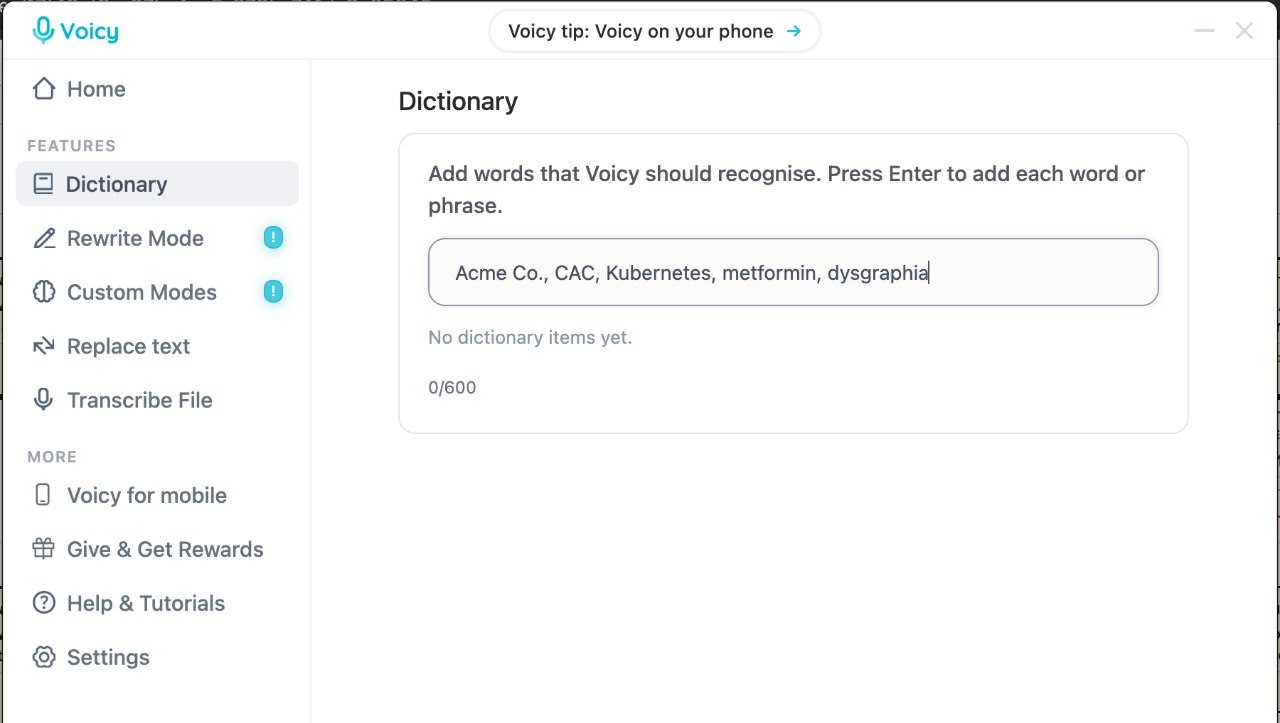
Voicy is a better fit when you care about fast dictation across Mac, Windows, browser workflows, iOS, and Android, plus live dictation and file upload transcription. Voicy is cloud-based and offers a free trial, then paid plans. If your must-have feature is a manually managed dictionary, verify that requirement during testing before you switch.
For a broader buying view, see the Voicy guide to the best dictation software and the voice recognition accuracy comparison.
Custom vocabulary examples by job
The right list depends on the work. A lawyer, therapist, developer, and sales rep should not use the same dictionary.
Medical and clinical notes
Medical vocabulary should focus on medications, conditions, procedures, dosage formats, abbreviations, and clinic-specific templates.
Example list: metformin, lisinopril, atorvastatin, tachycardia, dysphagia, PHQ-9, GAD-7, E11.9, follow-up in two weeks.
If you work in healthcare, read the medical dictation software guide before choosing a tool. Accuracy and privacy review matter more when records are sensitive.
Legal writing
Legal vocabulary should include party names, court names, matter numbers, common Latin terms, and recurring document phrases.
Example list: estoppel, res judicata, prima facie, subpoena duces tecum, appellant, appellee, motion for summary judgment, without prejudice.
Software and technical writing
Developer vocabulary should include tools, frameworks, commands, libraries, product names, and casing rules.
Example list: Kubernetes, kubectl, PostgreSQL, TypeScript, WebSocket, GraphQL, OAuth, npm install, CI/CD, localhost.
For technical prompts and documentation, dictation works best when you speak in chunks. Say the idea first, then clean up exact syntax by hand.
Sales and customer success
Sales vocabulary should include account names, product names, CRM fields, competitor names, and common next-step phrases.
Example list: ACME Logistics, Q4 expansion, procurement review, mutual action plan, ARR, renewal risk, implementation call.
What should you test before choosing a dictation app?
Test the exact terms that would make you angry if they were wrong. A polished demo is not enough.
Use this quick test:
Write a 150-word sample note with 10 custom terms.
Dictate it in the app you are testing.
Count only meaningful term errors, not tiny style choices.
Correct the terms and dictate a second version.
Check whether the app improves or repeats the same mistakes.
If your work happens in browser tools, test inside those tools too. For example, try dictating into Google Docs, your email app, a CRM note, and an AI chat box. A tool that works in one clean editor can still feel clumsy in the places you actually write.
How to keep your vocabulary clean over time
Treat your custom vocabulary like a living work tool. It should stay small enough that you understand what is in it.
Review it once a month and remove:
Old client names you no longer use
Terms the tool now recognizes without help
Duplicate spellings
Rare words that add clutter but not value
A clean list makes testing easier. It also helps when you switch tools later because you can bring your highest-value terms with you.
FAQs
What is custom vocabulary in voice dictation?
Custom vocabulary in voice dictation is a saved list of words, names, acronyms, and phrases that a speech-to-text tool should recognize and spell correctly. It is useful when generic dictation keeps mishearing specialist terms.
Does custom vocabulary improve speech-to-text accuracy?
Yes, it can improve accuracy for specific terms that fail often. It will not fix every dictation problem, so you should also check microphone quality, background noise, speaking pace, and app support.
What words should I add first?
Add the words you correct most often: names, acronyms, product terms, professional jargon, and recurring phrases. Start with 30 to 50 terms and expand only when you find repeated errors.
Is a custom vocabulary the same as voice training?
No. Custom vocabulary tells the tool which words to expect. Voice training teaches some tools how you pronounce words and speak. Some apps support one, both, or neither.
Can I use custom vocabulary in Google Docs voice typing?
Google Docs voice typing does not offer the same deep custom vocabulary controls as specialist dictation tools. You can still use substitutions and manual correction workflows, but it is limited if your main need is a managed dictionary.
Is Voicy good for custom vocabulary?
Voicy is best evaluated as a cloud-based dictation app for writing across Mac, Windows, browser workflows, iOS, and Android, with live dictation and file upload transcription. If you specifically need a visible custom dictionary, test that requirement during the free trial before making it your daily tool.
Final take
Custom vocabulary is worth setting up when the same terms keep breaking your dictation. Start small, use real corrections, test in full sentences, and keep the list clean.
If your main frustration is broad daily writing, try Voicy with the actual notes, emails, docs, and uploaded files you care about. If your main requirement is a formal editable dictionary, make that the first thing you test in any dictation app.


