




Best Voice Typing Tools for Legal Writing (2026)
Summary of the article
Voicy is the best fit for most legal writing because it works across apps on Mac, Windows, and the browser extension, and it has a free trial.
Dragon Legal Anywhere is the strongest pick for firms that need deep legal vocabulary and can handle a higher price.
Microsoft Word Dictate is a solid option if most of your drafting already happens in Word.
Google Docs Voice Typing is the easiest free place to test voice drafting, but it stays inside Google Docs.
Apple Dictation is handy for Mac users who want something built in, but it is not the best choice for heavy legal writing.
If you write motions, client emails, case notes, or time entries all day, the best voice typing tools for legal writing can save real time. The catch is simple: lawyers do not just need fast dictation. You need good handling for names, citations, formatting, and app switching.
This guide compares the best voice typing tools for legal writing in 2026. It focuses on five tools that fit real legal work, with honest tradeoffs for each.
How we picked the best voice typing tools for legal writing
We looked at four things:
Accuracy with legal words and names
Whether the tool works in the apps lawyers already use
Ease of editing and formatting by voice
Cost for solo lawyers and small teams
Search intent here is clear. People looking for the best voice typing tools for legal writing want a practical shortlist, not a long theory lesson. So this post keeps it simple and comparison-first.
What legal writers need from voice typing
Legal writing is not casual writing.
A tool might do fine on a grocery list and still fail on party names, statute numbers, or dense client notes. That is why lawyers should care less about flashy AI claims and more about these basics:
Works in more than one app
Handles long drafts without slowing you down
Lets you clean up text quickly
Feels safe enough for sensitive work
If you want a broader overview first, see Voicy's voice typing app guide and its guide to legal transcription software.
Best voice typing tools for legal writing
1) Voicy, best for everyday legal drafting across apps
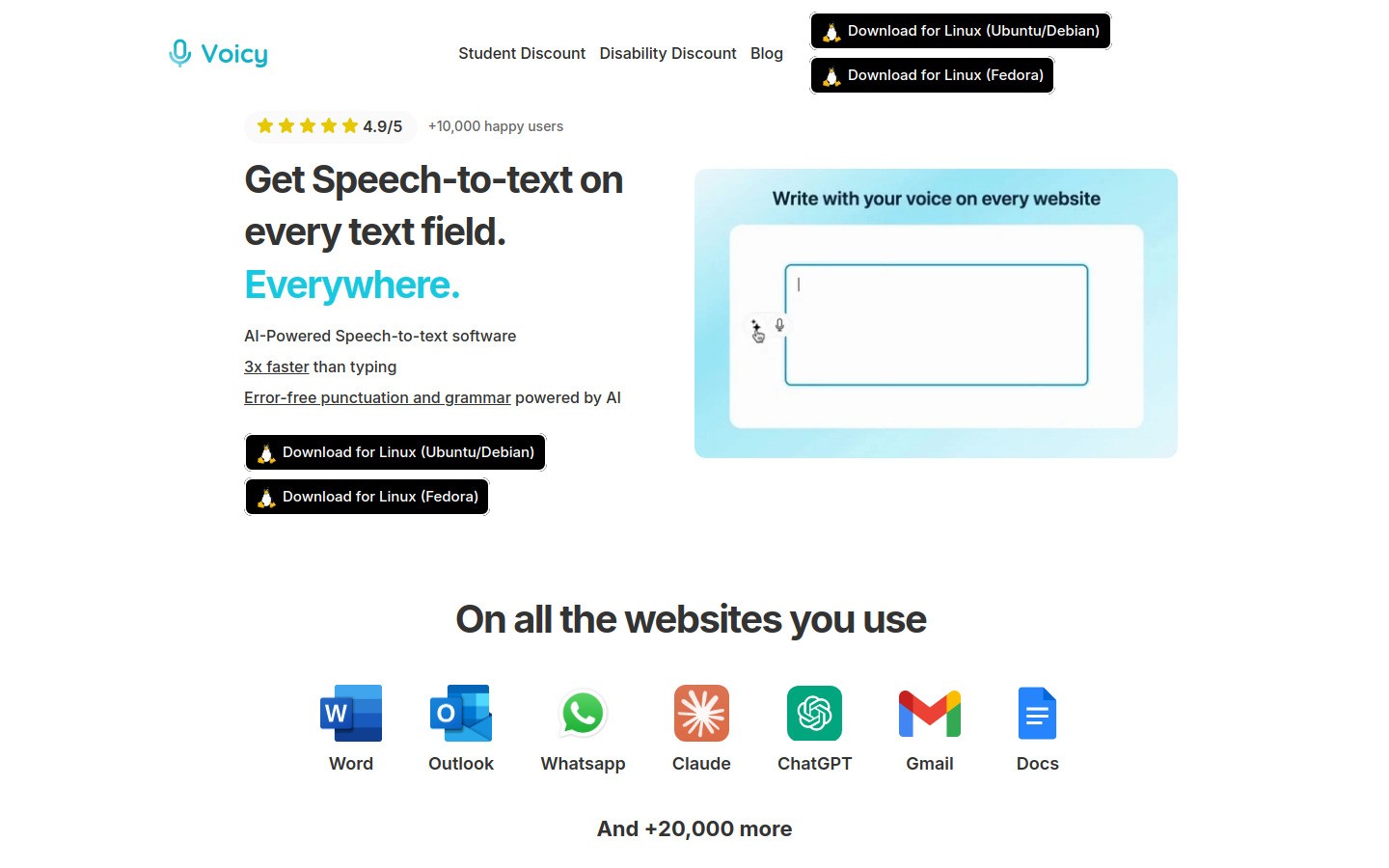
Voicy is the best all-around pick for most legal writing because it is built for daily drafting, not just one document editor.
You can use it for client emails, demand letters, memo drafts, internal notes, and time entries. That matters when your day jumps from Word to email to a browser tab and back again.
Why it works well for legal writing
Works on Mac, Windows, and browser extension
Fits cross-app workflows better than single-editor tools
Lets you draft first, then clean up wording after
Free trial available
Pros
Good fit for lawyers who switch apps all day
Lower cost than many enterprise legal dictation tools
Easier to start than older dictation software
Cons
Cloud-based transcription, so firms should review privacy policy and internal rules
Not a court reporter replacement
Pricing: $8.49/month, $82/year, or $260 lifetime.
Best for: Solo lawyers, small firms, and legal staff who need faster drafting in many apps.
For related workflows, see speech to text in Google Docs and the Voicy homepage.
2) Dragon Legal Anywhere, best for firms that need deep legal vocabulary
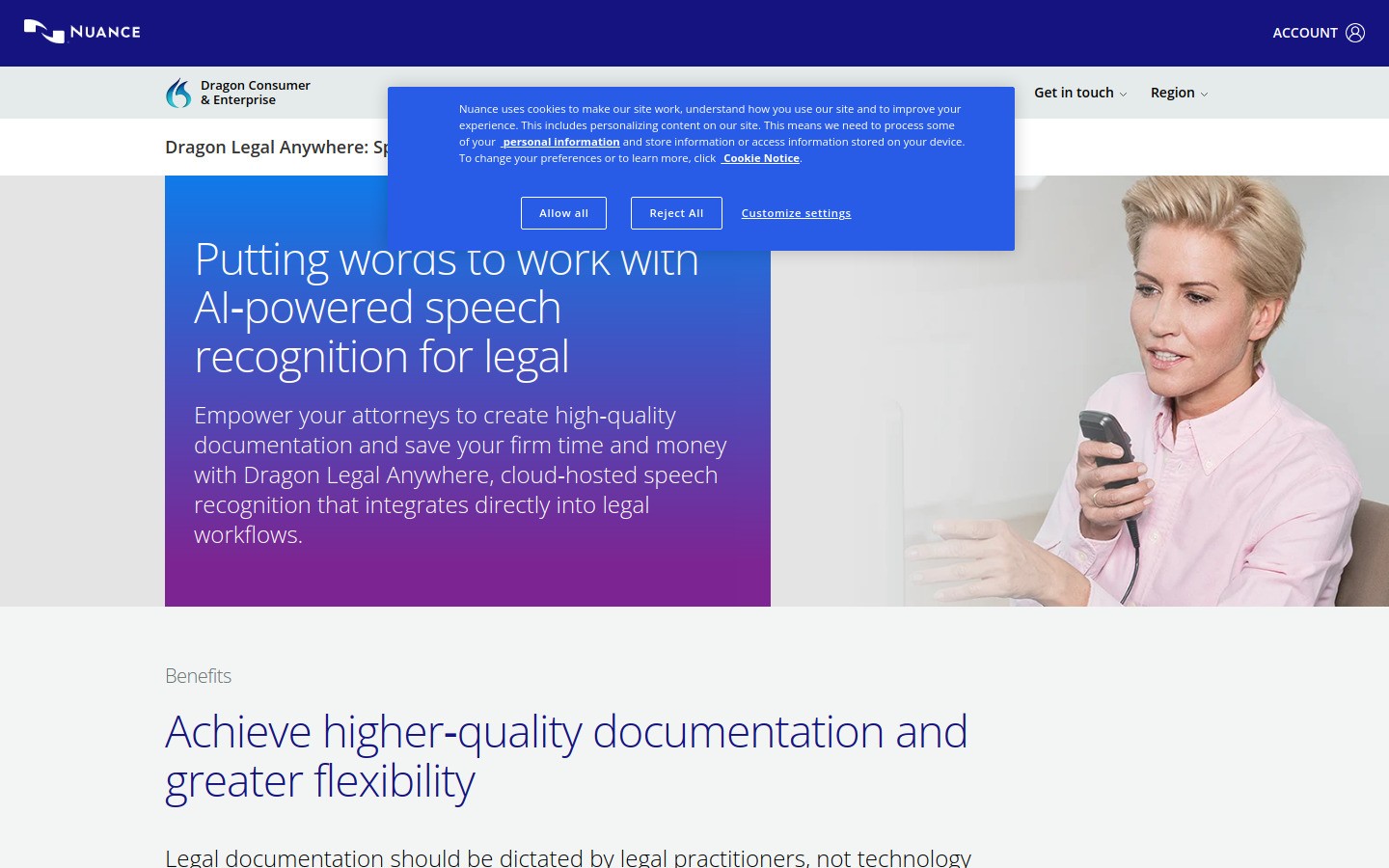
Dragon Legal Anywhere is the name lawyers hear most often when legal dictation comes up. That is for good reason.
It is built for legal work and has a stronger legal-first reputation than general voice typing tools. If your firm writes a high volume of formal documents, Dragon is still one of the safest shortlists to test.
Pros
Strong legal vocabulary support
Good fit for firms with heavy dictation habits
Mature product with a long track record
Cons
Higher cost than lighter tools
Setup and training can feel heavier
Can be more tool than a solo lawyer needs
Best for: Firms that want legal-first dictation and do a lot of formal document drafting.
3) Microsoft Word Dictate, best if your legal writing lives in Word
Microsoft Word Dictate is a practical choice for lawyers who already spend most of the day inside Microsoft Word.
It is simple. Open Word, click Dictate, and start speaking. If your drafting workflow already stays inside Microsoft 365, that simplicity is a real plus.
Pros
Easy to access in Word
Familiar for firms already paying for Microsoft 365
Good for straightforward memo and letter drafting
Cons
Best inside Microsoft apps, not everywhere else
Less flexible for mixed workflows across practice tools and browsers
Legal terminology may still need cleanup
Best for: Lawyers who draft mainly in Word and want the lowest-friction starting point.
4) Google Docs Voice Typing, best free test drive
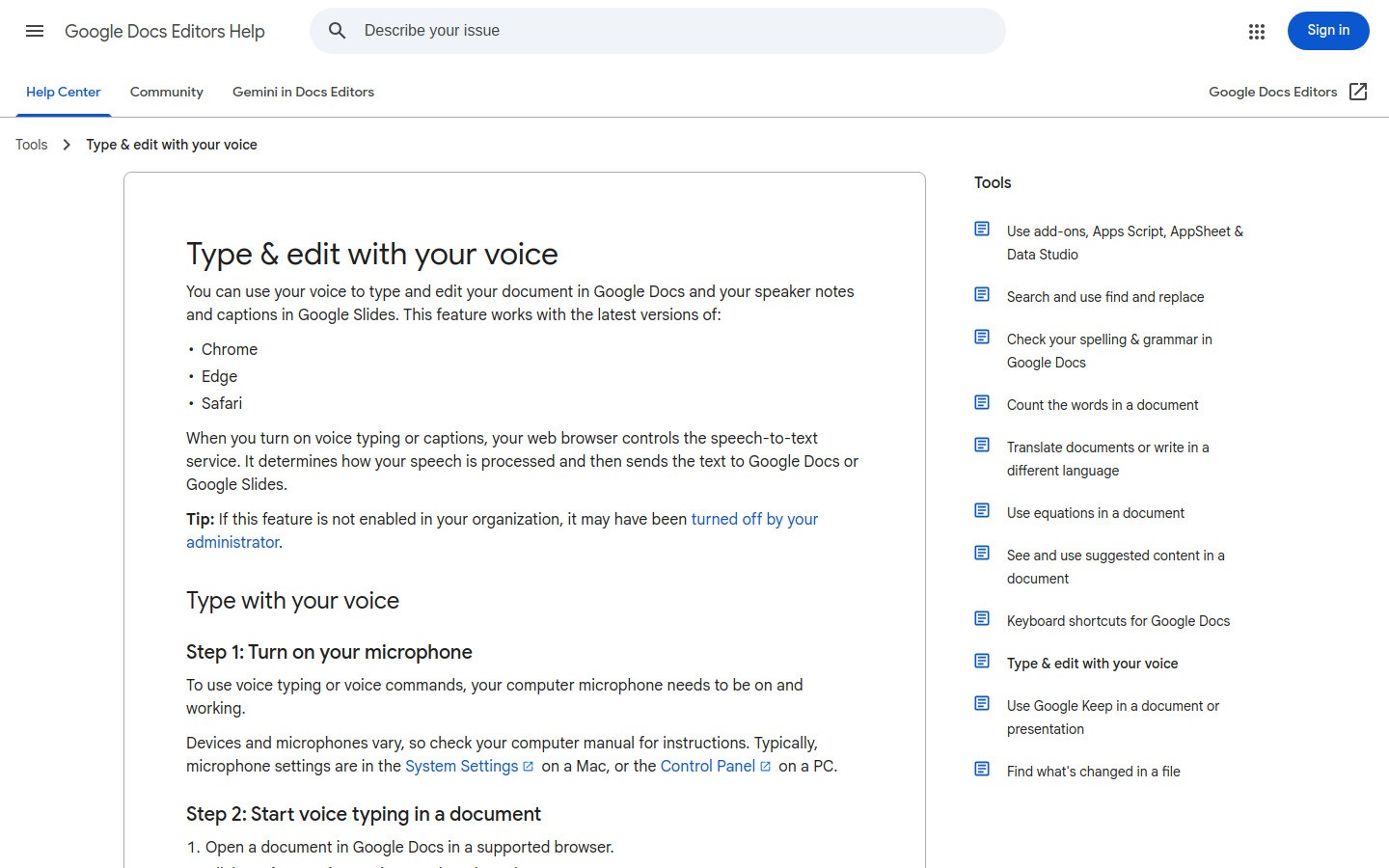
Google Docs Voice Typing is still one of the easiest free tools to try.
If you want to test whether speaking your first draft feels natural, this is a good starting place. It is especially useful for rough outlines, meeting summaries, and early drafts that do not need perfect formatting.
Pros
Free
Fast to start
Good for rough drafting and outlines
Cons
Locked to Google Docs
Not ideal for lawyers who move between many systems
Formatting and names may need manual fixes
Best for: Students, clerks, and lawyers testing voice drafting for the first time.
5) Apple Dictation, best built-in option for light Mac use
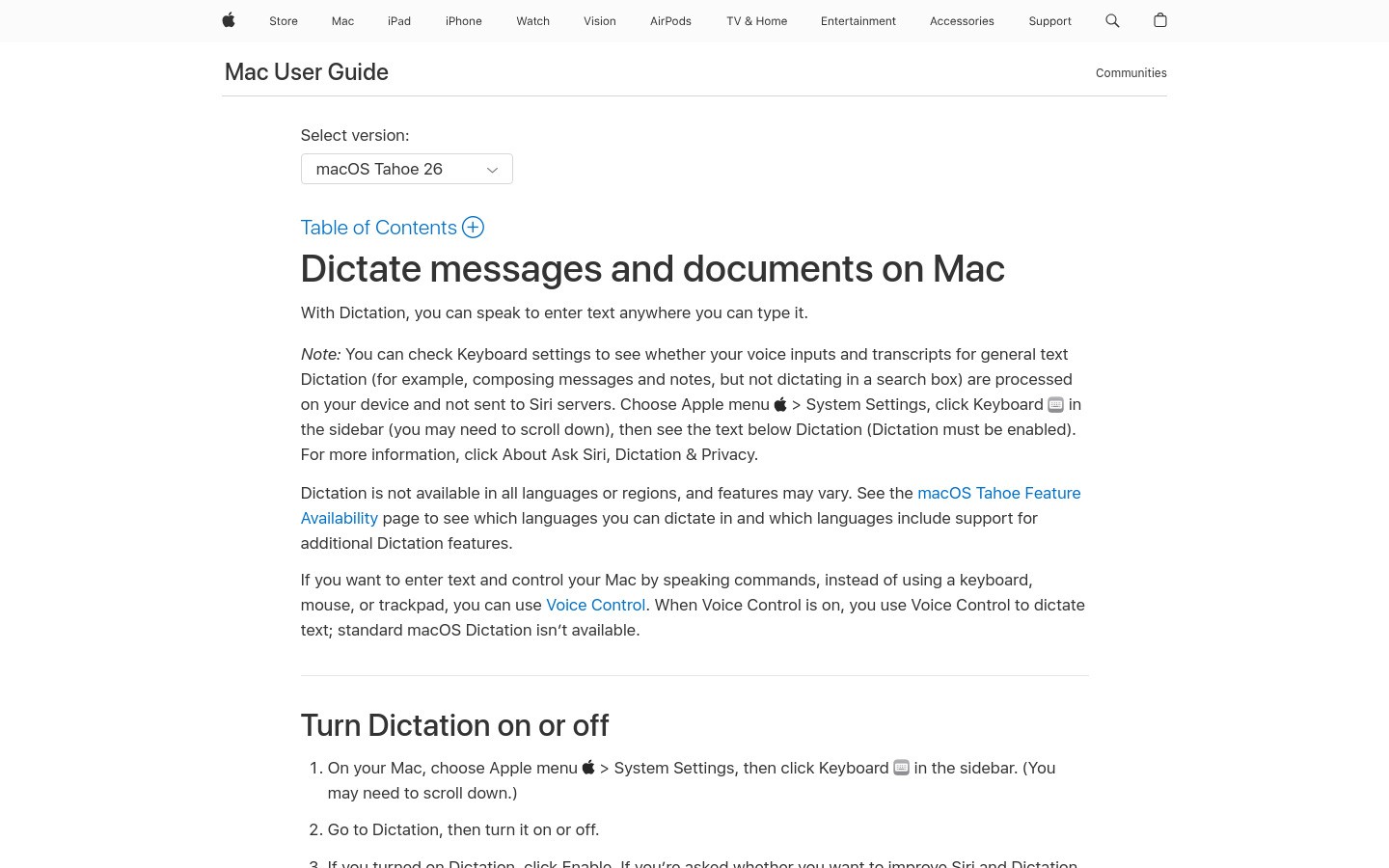
Apple Dictation is useful because it is already there on a Mac.
For quick notes or short email drafts, it can be enough. For long legal writing sessions, though, many lawyers outgrow it fast.
Pros
Built into macOS
No extra purchase for basic use
Good for short notes and quick drafts
Cons
Not the strongest option for heavy legal writing
Less specialized than legal-first tools
Long sessions can still lead to cleanup work
Best for: Mac users who want a built-in option before paying for a dedicated tool.
Quick comparison table
Tool | Best for | Main strength | Main limit |
|---|---|---|---|
Voicy | Everyday legal drafting | Works across apps | Cloud-based transcription |
Dragon Legal Anywhere | Formal legal document workflows | Legal vocabulary depth | Higher cost and setup |
Microsoft Word Dictate | Word-first lawyers | Easy inside Word | Limited outside Microsoft apps |
Google Docs Voice Typing | Free testing | No-cost starting point | Docs-only workflow |
Apple Dictation | Light Mac use | Built in | Weaker for heavy legal writing |
Which tool should most lawyers choose?
If you want one simple answer, start here:
Choose Voicy if you want the best mix of price, flexibility, and daily usability.
Choose Dragon Legal Anywhere if your firm wants a more legal-specific system and can spend more.
Choose Word Dictate if most of your writing already stays inside Microsoft Word.
Choose Google Docs Voice Typing if you want a free first test.
Choose Apple Dictation if you only need light built-in help on a Mac.
That is the real split in this market. The best voice typing tools for legal writing are not all trying to do the same job.
Tips for using voice typing in legal writing
A few habits make a big difference:
1. Use voice for the first draft
Do not aim for perfect language on sentence one. Speak the argument first. Edit after.
2. Build a name-check habit
Always review party names, client names, and citations before sending anything.
3. Match the tool to the job
Use a cross-app tool for daily work. Use a built-in tool only if your needs are light.
4. Keep privacy in view
For client-sensitive work, review retention, access, and policy settings before rolling a tool out across a firm.
Final take
The best voice typing tools for legal writing help you draft faster without creating a cleanup mess later.
For most lawyers, Voicy is the strongest balance of speed, price, and cross-app usefulness. If your firm needs a more traditional legal dictation product, Dragon Legal Anywhere is still worth serious testing.
Start with one real task this week: a client email, a case note, or a motion outline. That is the fastest way to see whether voice drafting will actually stick.
FAQ
What is the best voice typing tool for legal writing?
For most lawyers, the best voice typing tool for legal writing is the one that works across the apps you already use. Voicy is a strong all-around choice, while Dragon Legal Anywhere is stronger for firms that want deeper legal vocabulary support.
Is voice typing accurate enough for legal writing?
It can be, but you still need a review step. Names, citations, and exact wording should always be checked before anything goes to a client, court, or partner.
Is there a free voice typing tool for legal writing?
Yes. Google Docs Voice Typing and Apple Dictation are free starting points. They are useful for testing, but they are more limited than paid tools built for heavy daily drafting.
Can lawyers use voice typing for client work?
Yes, but firms should review privacy and data handling rules first. That matters even more when a tool uses cloud-based transcription.


