Cover image, white text on blue background that reads, "The 10 best voice typing apps for 2026."

10 Best Voice Typing Apps for 2026 (Ultimate Guide)

Typing is slow. Your thoughts flow faster than your fingers can move, and by the time you've typed a sentence, the next three ideas are already gone.

The right voice typing app fixes this. You speak naturally, and polished text appears—up to three times faster than typing. No more hand strain, no more lost ideas.

We tested 12 voice typing apps across Mac, Windows, Android, and iPhone to find the best options for 2026. Here's what actually works.

TL;DR: Quick Recommendations

The best voice typing app depends on where and how you work:

  • Best overall (desktop): Voicy — 99%+ accuracy, works in every app on Mac/Windows, AI commands to edit with your voice ($8.49/month)

  • Best for Mac users: Wispr Flow — Polished dictation with AI formatting, popular among professionals ($15/month)

  • Best free (desktop): Apple Dictation or Windows Voice Typing — Built into your OS, surprisingly good for basic dictation

  • Best free (browser): Google Docs Voice Typing — No downloads, works in Chrome

  • Best free (mobile): Gboard — Works offline, 900+ languages

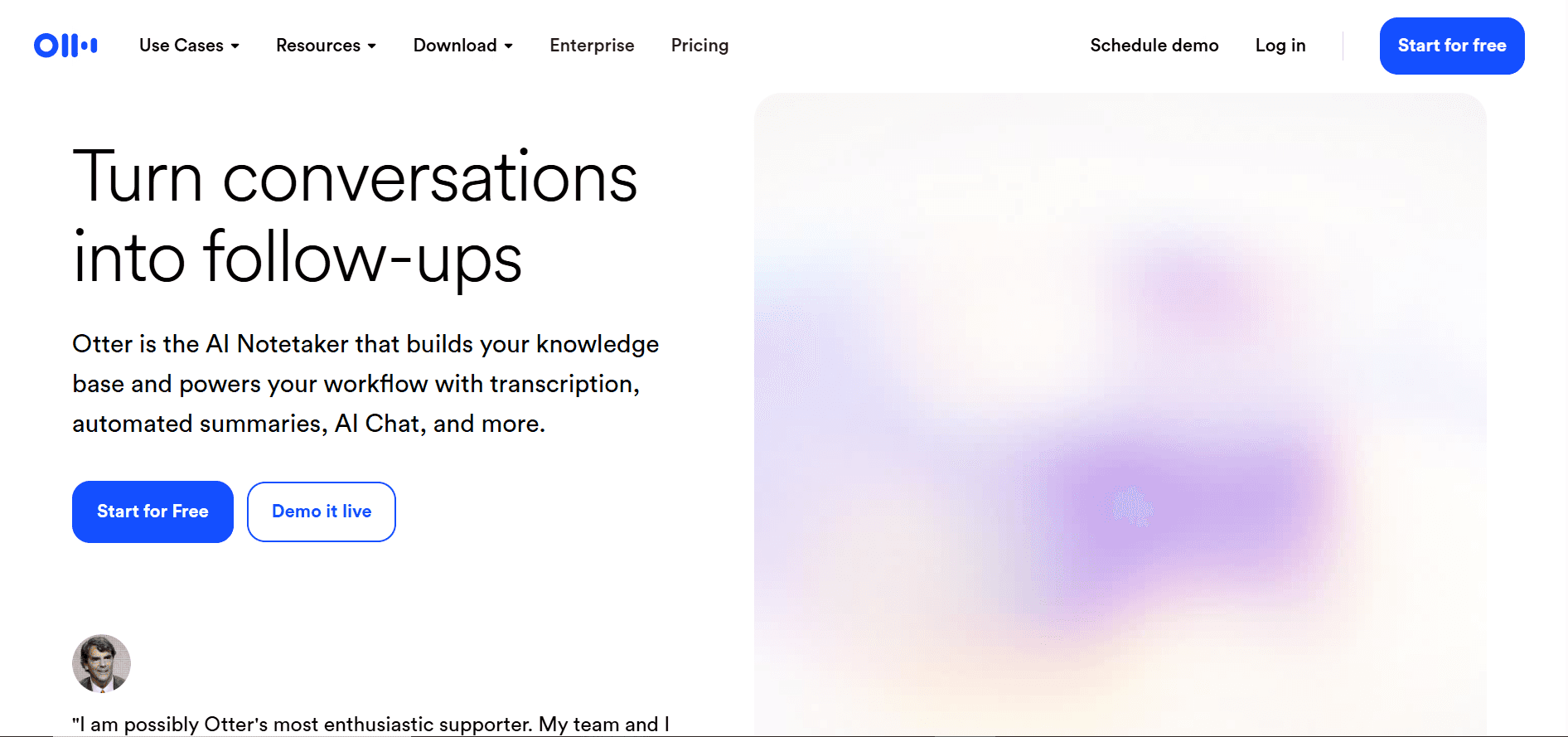
  • Best for meetings: Otter.ai — Speaker identification, AI summaries, Zoom/Teams integration

  • Best for professionals (mobile): Dragon Anywhere — Custom vocabulary, 99%+ accuracy ($14.99/month)

Quick decision guide:

  • Work in Google Docs? Use built-in Voice Typing (free)

  • Use Microsoft Office? Use Word Dictate (included with 365)

  • Need it everywhere on desktop? Try Voicy (works in all apps)

  • Just on your phone? Download Gboard (free)

  • Transcribe meetings? Get Otter.ai (free plan available)

  • On a Mac and want premium dictation? Compare Voicy vs Wispr Flow

How Voice Typing Apps Work

Voice typing apps use Automatic Speech Recognition (ASR) to convert your spoken words into text. The latest AI models—like OpenAI's Whisper and GPT-4o Transcribe—have pushed accuracy rates above 97%, making voice typing genuinely practical for everyday work.

Here's the basic process:

  1. You speak into your microphone (built-in or external)

  2. The app captures the audio and sends it to an AI model (cloud or local)

  3. The model transcribes your speech, adds punctuation, and formats the text

  4. The text appears wherever your cursor is—email, document, chat, or any other app

The biggest difference between apps comes down to where the processing happens (cloud vs. local), how smart the formatting is (raw transcript vs. polished text), and where you can use it (one app vs. system-wide).

1. Voicy - Best Overall Voice Typing App

Voicy is an AI-powered voice typing app that works across every application on your Mac or Windows computer. Press one keyboard shortcut, speak naturally, and polished text appears at your cursor—whether you're in Gmail, Slack, Word, Google Docs, or any other program.

What sets Voicy apart from other voice typing apps is its AI command system. You don't just dictate—you can tell Voicy to "rephrase this professionally," "make this shorter," or "fix the grammar." It's like having an AI editor built into your voice.

Key Features

99%+ Accuracy: Powered by the latest AI models, Voicy handles accents, technical terms, and natural speech patterns with minimal errors. It automatically adds punctuation and fixes grammar as you speak.

Works Everywhere: Unlike browser-only tools, Voicy works in any application on your computer. Email clients, code editors, note-taking apps, messaging platforms—anywhere you can type, Voicy can dictate.

AI Voice Commands: Say things like "rephrase this as a formal email" or "summarize what I just said." Voicy doesn't just transcribe—it helps you write better.

50+ Languages: Switch between languages naturally. Voicy detects and transcribes in over 50 languages without manual switching.

Privacy-Focused: Audio is processed and immediately discarded. Your voice data is never stored or used for training.

Our Take

Voicy is the best choice for anyone who wants voice typing that works everywhere on their desktop. The AI commands genuinely save time—instead of dictating and then manually editing, you can refine text with your voice. The main limitation is that there's no mobile app (Mac and Windows desktop + Chrome extension only), so mobile-heavy users will need a companion app like Gboard.

The free trial gives you 40 minutes of recording to test everything before committing.

Feature

Details

Accuracy

Over 99% in 50+ languages

Works On

Mac, Windows, Chrome Extension

Special Feature

AI commands to edit and rephrase with your voice

Best For

Professionals, writers, content creators

Price

$8.49/month or $220 lifetime

Free Trial

40 minutes of recording

Website

usevoicy.com

2. Wispr Flow - Best for Mac Power Users

Wispr Flow is a popular AI dictation app that's gained a strong following, especially among Mac users. It offers system-wide voice typing with AI-powered formatting that cleans up your speech into polished text.

Flow adapts to the context of the app you're using—it formats differently for emails vs. Slack messages vs. documents. It also has an editing mode where you can correct and rephrase text using voice commands.

Key Features

Context-Aware Formatting: Flow adjusts its output based on whether you're writing an email, a Slack message, or a document. Less manual cleanup needed.

Editing Mode: Correct mistakes and rephrase sentences using voice commands, similar to Voicy's AI command feature.

Team Plans: Wispr offers team pricing, making it suitable for businesses that want to roll out voice typing across their organization.

Cross-Platform: Available on Mac, Windows, and iOS.

What to Know

Wispr Flow costs $15/month—nearly double the price of Voicy for similar functionality. Some Reddit users have reported reliability issues and the "first word missing" problem, where the app occasionally drops the beginning of your sentence. The two-key activation (vs. single-key in some competitors) can also feel clunky.

That said, it's a polished product with good support and regular updates. If you're already using it and happy, there's no strong reason to switch.

Feature

Details

Accuracy

High (AI-powered)

Works On

Mac, Windows, iOS

Special Feature

Context-aware formatting by app

Best For

Mac users, teams

Price

Free plan available; $15/month for Pro

Website

wisprflow.ai

3. Apple Dictation — Best Free Voice Typing for Mac & iPhone

Every Mac, iPhone, and iPad has a surprisingly capable voice typing tool built right in. Apple Dictation has improved dramatically with Apple Intelligence, offering auto-punctuation and decent accuracy without installing anything.

On Mac, press the microphone key (or Fn twice) to start dictating anywhere. On iPhone, tap the microphone icon on the keyboard. It processes speech on-device for privacy, and you can even use it offline with Enhanced Dictation.

Key Features

Completely Free: Included with macOS, iOS, and iPadOS. No subscription, no account needed.

On-Device Processing: Your voice stays on your device. Great for privacy-conscious users.

Voice Commands: Say "period," "comma," "new paragraph," "caps on/off," and more to format text as you speak.

Works Everywhere: System-wide on Apple devices—any text field in any app.

Limitations

Apple Dictation works well for short bursts—texts, emails, quick notes—but struggles with longer dictation sessions. It doesn't handle complex formatting, has no AI editing commands, and accuracy drops with technical vocabulary. For serious dictation work, you'll want a dedicated voice typing app like Voicy or Wispr Flow. But for casual use? It's hard to beat free.

If you're on a Mac and want to compare your options, see our full guide to speech-to-text on Mac.

4. Windows Voice Typing — Best Free Voice Typing for Windows

Windows 11 has a built-in voice typing tool that's genuinely useful. Press Windows + H anywhere and start talking. It works in any text field across the entire operating system.

Microsoft has upgraded this significantly with AI-powered auto-punctuation and improved accuracy. For basic dictation on Windows, you might not need anything else.

Key Features

Free and Built-In: No downloads, no accounts. Just press Win+H.

Auto-Punctuation: Adds periods, commas, and question marks automatically based on your speech patterns.

Voice Commands: Say "delete that," "new line," "select all," and other editing commands.

Deep OS Integration: Works in any Windows application—Edge, Notepad, Office, Chrome, everything.

Limitations

Like Apple Dictation, Windows Voice Typing is great for quick tasks but falls short for extended professional use. It's sensitive to microphone quality, lacks AI editing features, and can't handle specialized vocabulary. For more robust Windows speech-to-text, a dedicated app like Voicy gives you better accuracy and more features.

5. Google Docs Voice Typing — Best Free Browser-Based Option

Google Docs has a free voice typing tool built right in. No downloads needed—just open a document and start talking. It uses Google's speech recognition engine, which handles accents and natural speech well.
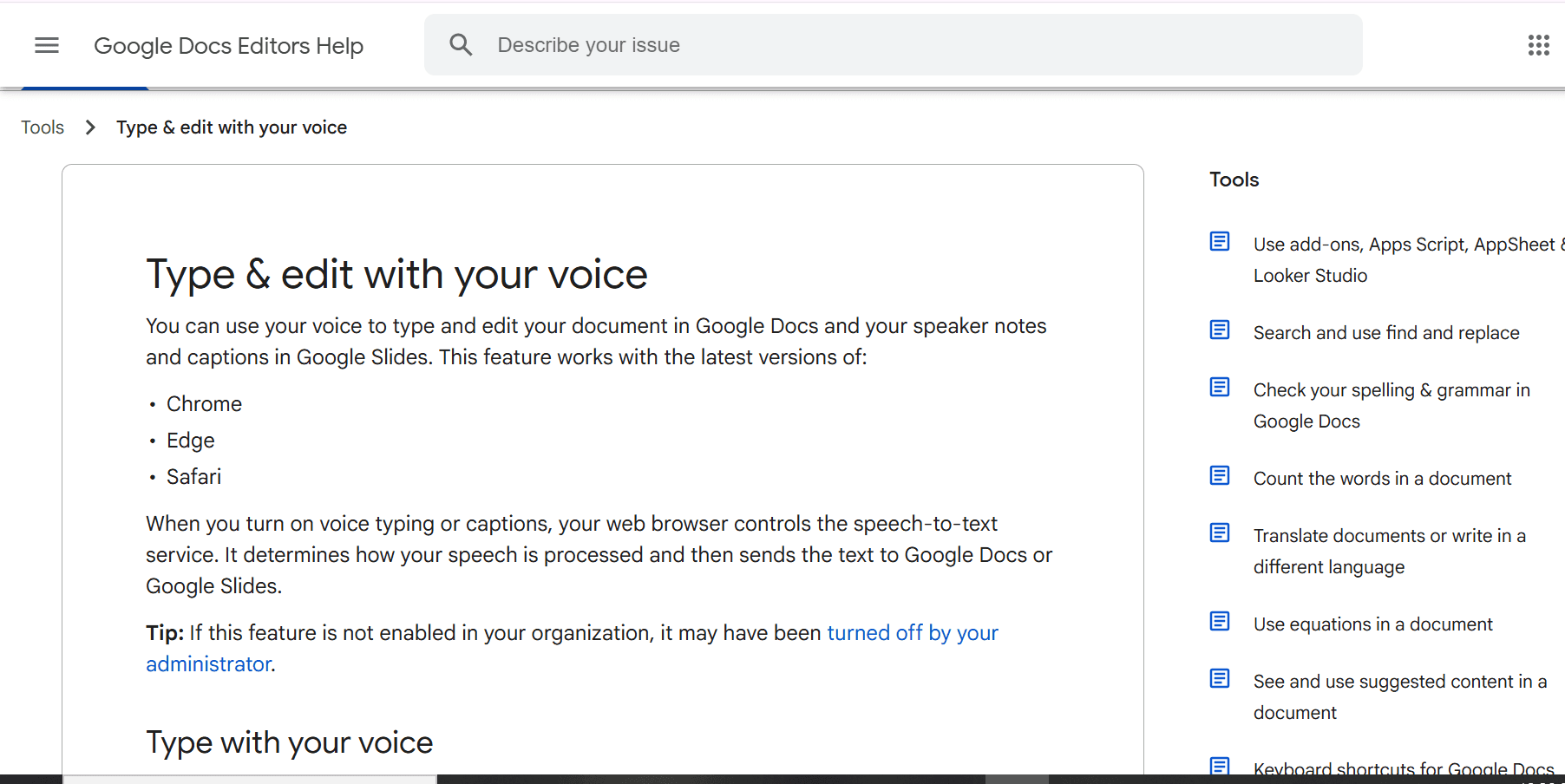
Click Tools → Voice Typing in any Google Doc, and a microphone icon appears. Click it, start speaking, and text flows into your document.

Key Features

Zero Setup: Works in any browser with a Google account. No installation needed.

Voice Commands: Say "period," "comma," "new line," or "new paragraph" to format as you go. In English, you can also say "select all," "bold," and other editing commands.

Multiple Languages: Supports dozens of languages for dictation.

Real-Time Collaboration: Since it's in Google Docs, sharing and collaborating is seamless.

What to Know

Google Docs Voice Typing only works inside Google Docs—you can't use it in Gmail, Slack, or other apps. You need an internet connection, and voice commands only work in English. It's great for drafting documents but not for system-wide voice typing.

For a complete walkthrough, see our guide to speech-to-text in Google Docs.

6. Gboard — Best Free Voice Typing App for Mobile

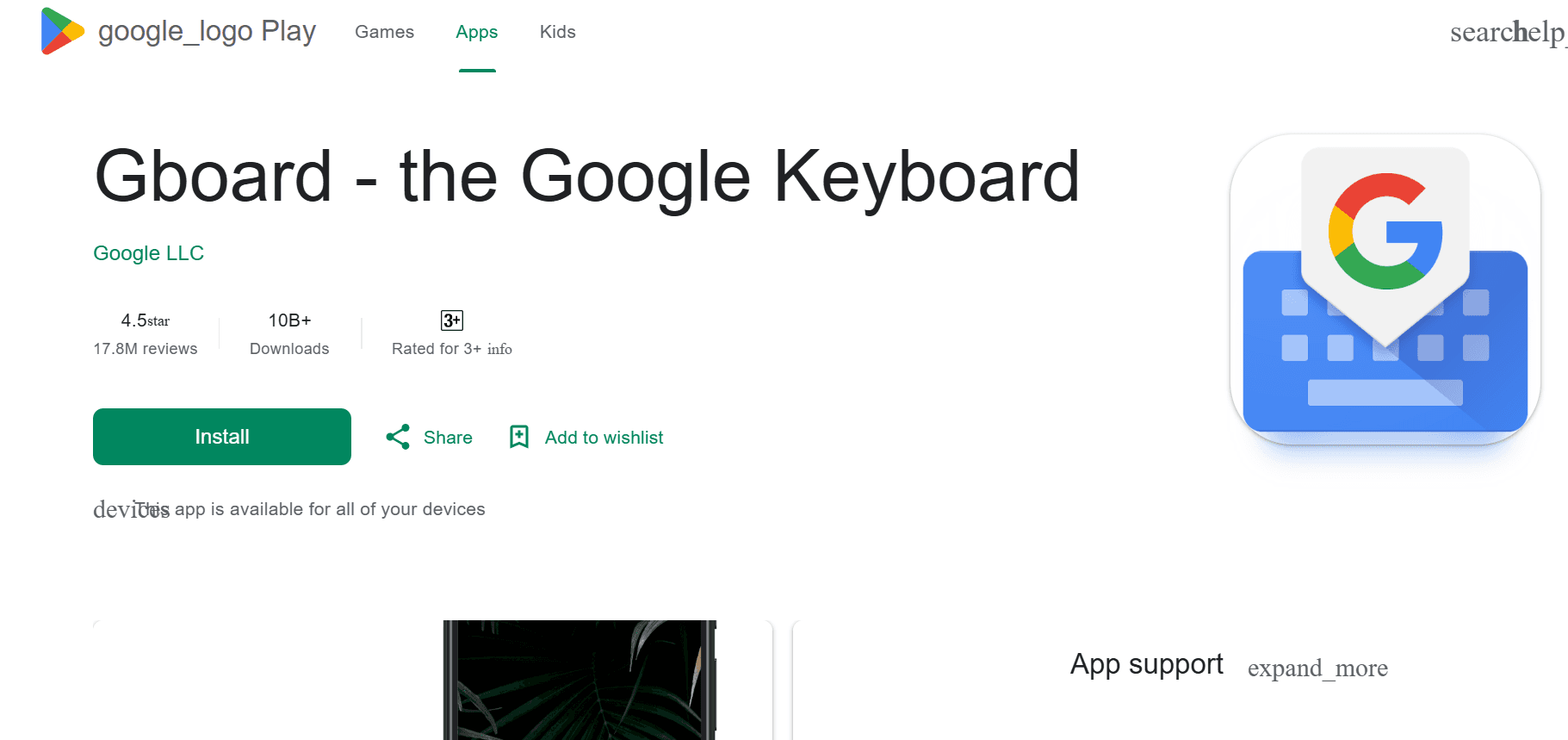
Gboard is Google's smart keyboard for phones, and its voice typing is excellent. Tap the microphone icon and start speaking—text appears in real-time with solid accuracy.

What makes Gboard stand out among mobile voice typing apps is offline support. On Android, you can download a language pack and dictate without an internet connection. That's rare for free apps.

Key Features

Works Offline: Download a language pack and dictate anywhere, even without internet (Android only).

900+ Languages: The broadest language support of any voice typing keyboard.

Glide Typing: When you're not using voice, slide your finger across letters for fast text input.

Cross-Platform: Available on both Android and iPhone.

Worth Knowing

Gboard is the best voice typing app for Android if you're looking for something free. It comes pre-installed on most Android phones, learns your writing patterns over time, and gets regular updates from Google. On iPhone, it works well but loses some features (like offline voice typing).

The main limitation: it's a keyboard app, so it only works for mobile text input. For desktop voice typing, you'll need a separate solution.

7. Microsoft SwiftKey — Best Smart Keyboard with Voice Typing

SwiftKey is Microsoft's AI keyboard for phones. It combines smart predictions, adaptive autocorrect, and voice typing in one package. The more you use it, the better it gets at understanding how you communicate.

Key Features

Learns Your Style: SwiftKey studies your writing patterns and predicts what you'll type next. Over time, it adapts to your vocabulary and phrasing.

Built-in Translator: Translate as you type without switching apps—useful for multilingual conversations.

Cloud Sync: Your personalized settings follow you across devices.

Voice Typing: Solid accuracy with the benefit of SwiftKey's prediction engine cleaning up your text.

The Bottom Line

SwiftKey is free on Android and iPhone. The voice typing is accurate, and the smart predictions save time when you switch between voice and manual typing. A great choice if you want one keyboard that does everything on mobile.

8. Microsoft Word Dictate — Best for Office Users

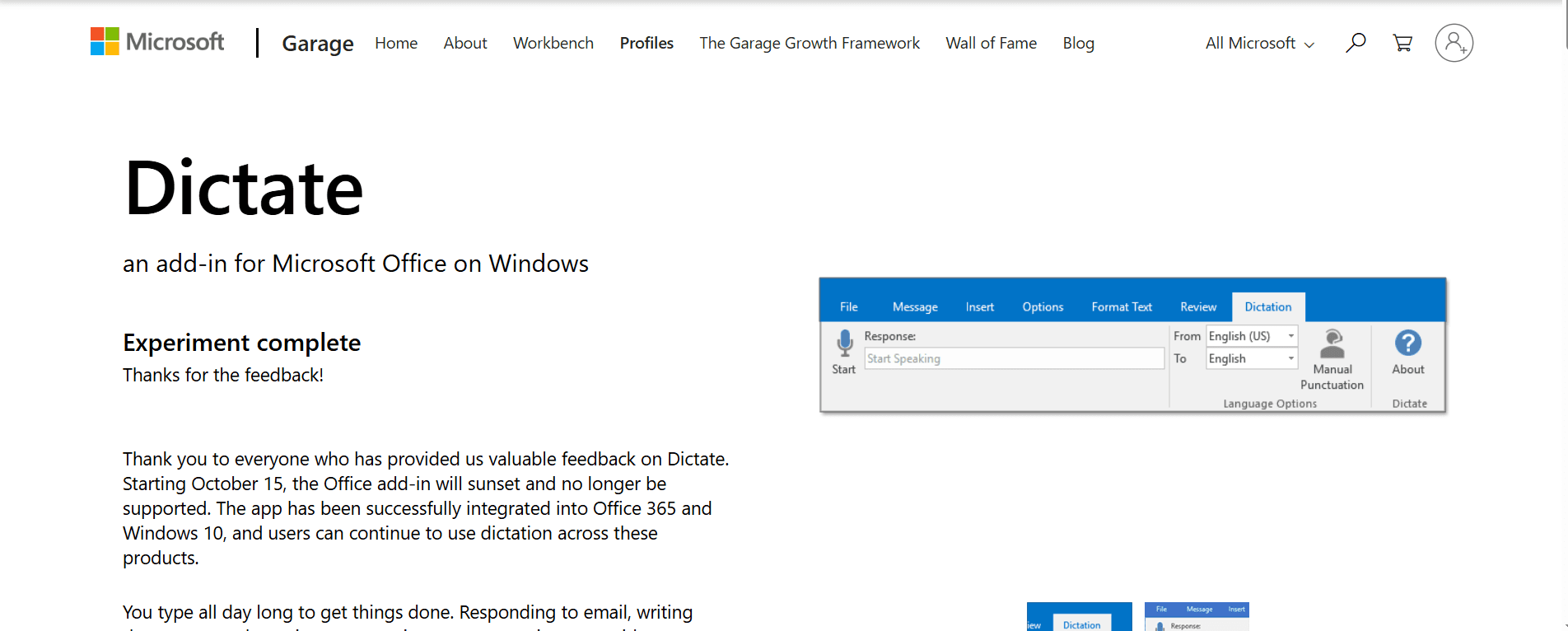
If you have a Microsoft 365 subscription, Word, Outlook, and PowerPoint all have powerful dictation built in. Click the Dictate button (or press Alt+`) and start speaking. Auto-punctuation is on by default, and voice commands let you format as you go.

Key Features

Auto-Punctuation: Word adds periods, commas, and question marks automatically based on your speech.

50+ Languages: Dictate in dozens of languages with solid accuracy.

Voice Commands: Say "bold that," "start a list," "new line," or "undo" to format and edit documents hands-free.

Enterprise Security: IT teams can manage privacy settings and data policies.

What to Consider

You need a Microsoft 365 subscription, but if you already have one, this feature is included at no extra cost. It works great within Office apps but doesn't help you outside of them. For a more detailed walkthrough, see our guide to voice typing in Microsoft Word.

9. Dragon Anywhere — Best Professional Mobile Dictation

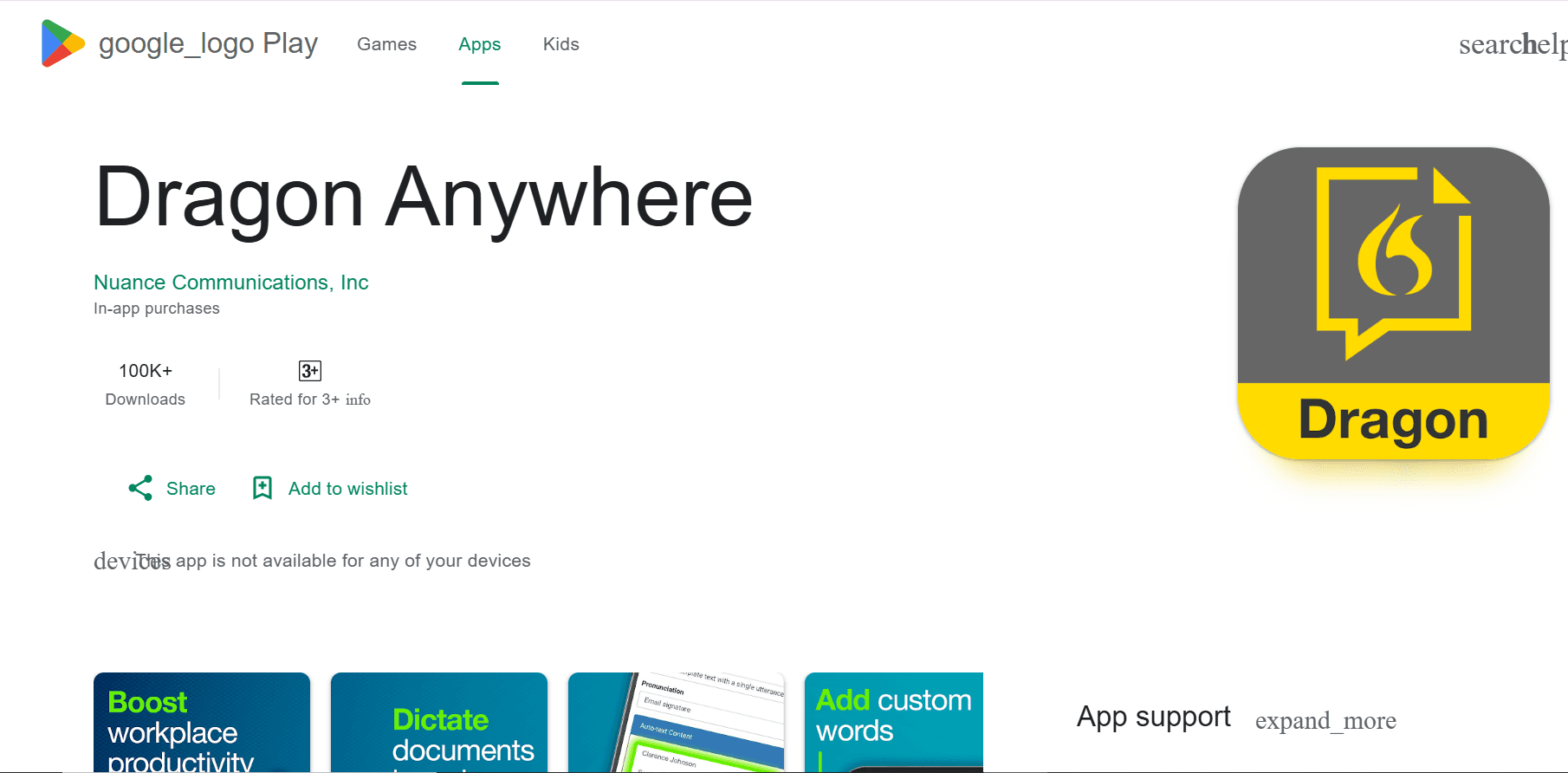
Dragon Anywhere is the mobile version of the legendary Dragon speech recognition software. It's purpose-built for professionals who dictate heavily—lawyers, doctors, journalists, and executives who need near-perfect accuracy with specialized vocabulary.

Key Features

No Word Limit: Dictate for as long as you want without interruption. Most free apps cut you off after a few minutes.

Custom Vocabulary: Add medical terms, legal phrases, company names, or any industry-specific jargon. Dragon learns and recognizes them perfectly.

Cloud Sync: Your custom vocabulary and documents sync with desktop Dragon installations.

Professional Accuracy: Over 99% accuracy right out of the box, improving further as it learns your voice.

The Cost

Dragon Anywhere costs $14.99/month—the most expensive app on this list. But for professionals who dictate thousands of words daily and need specialized vocabulary support, the accuracy and reliability justify the price. No free app comes close for medical or legal dictation.

10. Otter.ai — Best for Meetings and Interviews

Otter.ai isn't a traditional voice typing app—it's a meeting transcription tool. If your main need is capturing conversations, lectures, or interviews, Otter is purpose-built for that.

Key Features

Speaker Identification: Otter automatically labels who said what. Essential for meetings with multiple participants.

AI Summaries: Get key points and action items extracted from long meetings without reading the full transcript.

Live Collaboration: Team members can follow along and add comments during live transcription.

Integrations: Works with Zoom, Google Meet, Microsoft Teams, and Slack. It can automatically join and transcribe your scheduled meetings.

Best Use

Otter shines in collaborative environments. The free plan gives you 300 minutes per month. Paid plans start at $16.99/month for more minutes and advanced features like custom vocabulary and team management.

Not ideal for document writing or real-time dictation—it's optimized for capturing conversations.

11. Speechnotes — Best for Quick Browser Dictation

Speechnotes is a simple, free, browser-based voice typing app. Open the website, click the microphone, and start talking. No account required, no downloads needed.

Why People Like It

Zero Setup: Just open speechnotes.co and start dictating. No sign-up, no installation.

Punctuation Toolbar: Click buttons to add punctuation instead of saying voice commands.

Auto-Save: Your notes save automatically in the browser as you dictate.

Export Options: Download as text file or send directly to Google Drive.

What to Know

The free version has ads. Premium ($9.90/year) removes them. Speechnotes works best in Chrome and is great for students or anyone who needs quick, no-fuss dictation without committing to an app.

12. Voice In — Best Chrome Extension for Voice Typing

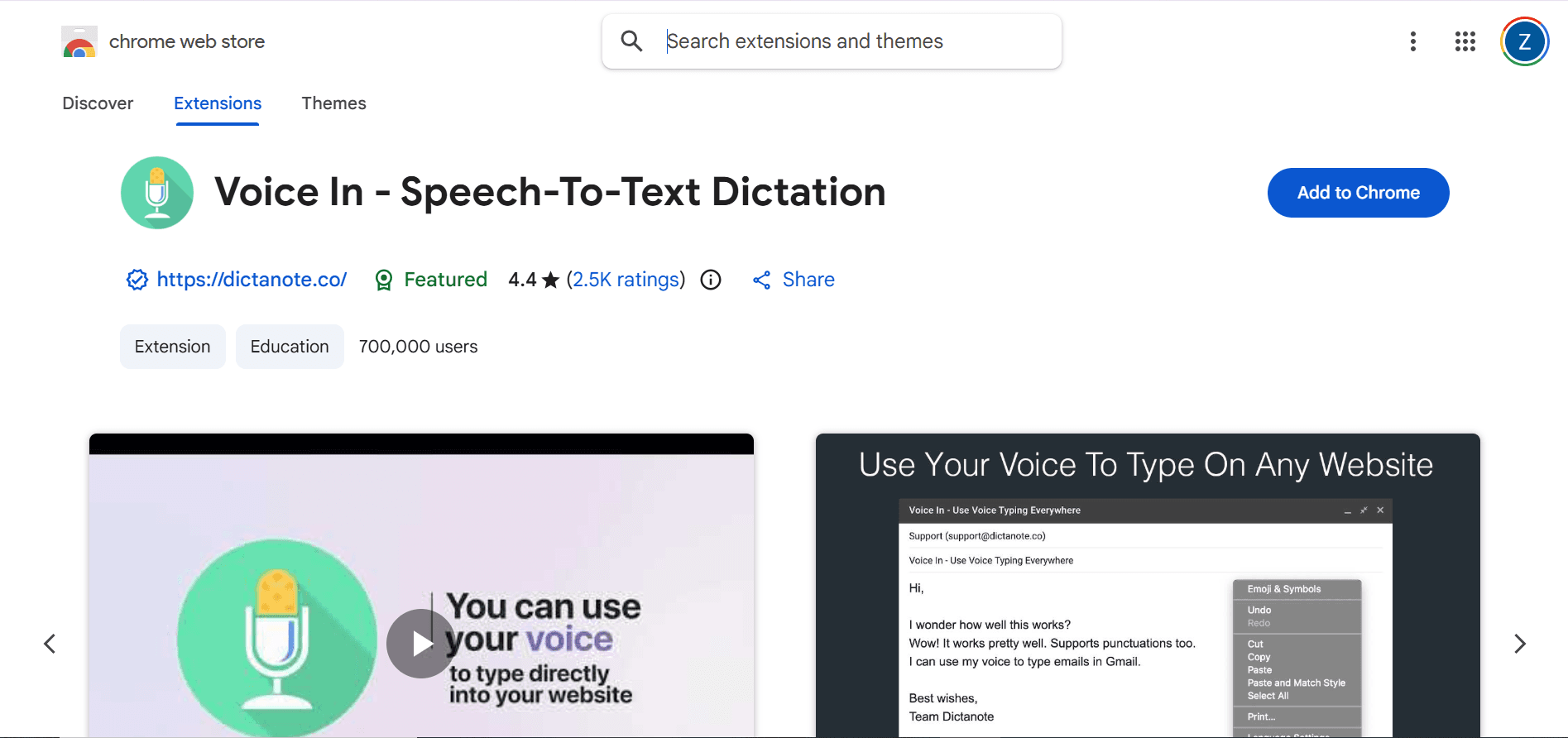
Voice In is a Chrome and Edge extension that adds voice typing to any website. Unlike Google Docs Voice Typing (which only works in Docs), Voice In works on Gmail, Twitter, LinkedIn, Notion, Slack web—anywhere you type in your browser.

Key Features

Works on Any Website: Email, social media, web apps, forums—any text field in Chrome or Edge.

50+ Languages: Great for multilingual users who switch between languages.

Custom Commands: Create text shortcuts like "sig" expanding to your full email signature.

On-Device Processing: Some processing happens locally for better privacy.

The Details

Voice In has a free version with basic features. Premium costs $48/year and removes limits on dictation length. It's a solid choice if you primarily work in your browser and don't need system-wide dictation.

Voice Typing Apps Comparison Table

App

Accuracy

Platforms

Best For

AI Features

Price

Voicy

99%+

Mac, Windows, Chrome

All desktop work

AI commands, auto-punctuation

$8.49/mo

Wispr Flow

High

Mac, Windows, iOS

Mac power users

Context-aware formatting

$15/mo

Apple Dictation

Good

Mac, iPhone, iPad

Casual Apple users

Auto-punctuation

Free

Windows Voice

Good

Windows 11

Casual Windows users

Auto-punctuation

Free

Google Docs

Good

Browser (Chrome)

Document drafting

Voice commands

Free

Gboard

High

Android, iPhone

Mobile typing

Offline mode

Free

SwiftKey

Good

Android, iPhone

Smart keyboard users

Predictive text

Free

Word Dictate

Good

Windows, Mac, Web

Office 365 users

Voice commands

Included w/ 365

Dragon Anywhere

99%+

Android, iPhone

Professionals

Custom vocabulary

$14.99/mo

Otter.ai

High

Web, iOS, Android

Meetings, teams

Speaker ID, summaries

Free + $16.99/mo

Speechnotes

Good

Browser

Quick notes

Auto-save

Free

Voice In

Good

Chrome, Edge

Browser-based work

Custom commands

Free + $48/yr

Best Voice Typing App by Platform

Best Voice Typing App for Android

Android users have strong options for voice typing. Gboard leads as the best free voice typing app for Android—it works offline, comes pre-installed, and supports 900+ languages. For professionals who need higher accuracy and custom vocabulary, Dragon Anywhere is the premium choice at $14.99/month.

SwiftKey is another solid option that learns your writing style and combines voice input with smart predictions.

Best Voice Typing App for iPhone

iPhone users should start with Apple Dictation—it's free, built-in, and works system-wide. For better accuracy and AI features, Voicy's Chrome extension works on mobile Safari, and Gboard adds Google's voice typing to any iPhone app.

Best Voice Typing Software for Mac

Mac users have the most options. Apple Dictation handles basic needs for free. For professional use, both Voicy and Wispr Flow offer system-wide AI dictation. Voicy costs $8.49/month vs. Wispr Flow's $15/month, with similar core functionality. See our detailed Mac speech-to-text guide for a full comparison.

Best Voice Typing Software for Windows

Windows Voice Typing (Win+H) covers basic dictation. For professional work, Voicy is the top desktop voice typing app for Windows—it works in every application and adds AI editing commands. See our Windows speech-to-text guide for setup instructions.

How to Choose the Right Voice Typing App

For Professional Work

Need perfect accuracy for important documents? Choose Voicy for desktop or Dragon Anywhere for mobile. They minimize errors and save editing time. The AI features in Voicy also help you rephrase and polish text without switching to a separate editor.

For Meetings and Interviews

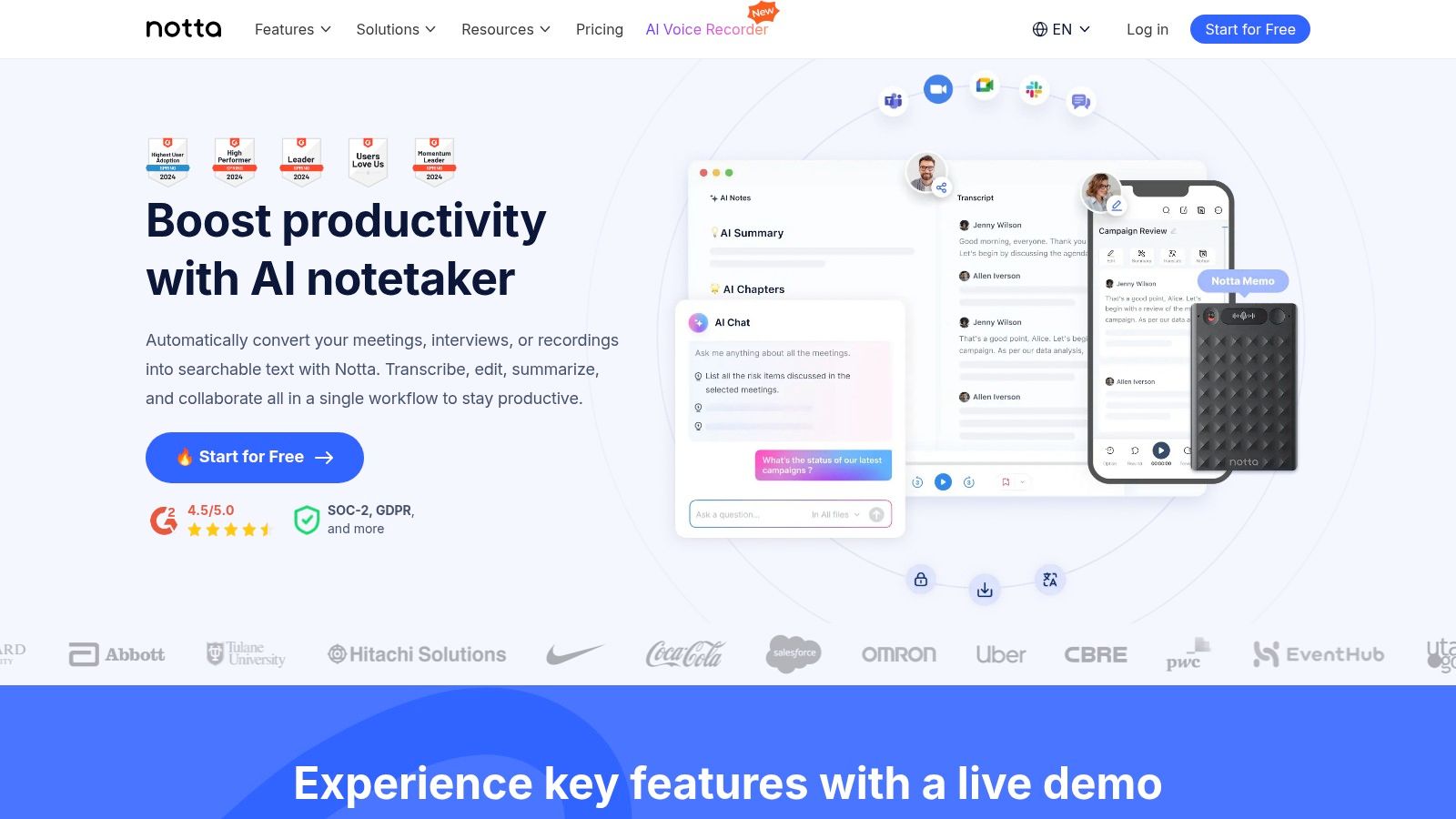
Spend your day in meetings? Otter.ai or Notta.ai are your best bets. They identify speakers, create organized notes, and integrate with Zoom and Teams.

For Mobile and Casual Use

Just want to reply to texts and jot down ideas? Gboard or SwiftKey work great. They're free, fast, and already on your phone. Apple Dictation is also excellent for iPhone users.

For Web-Based Work

Live in your browser? Voice In adds voice typing to any website. For Google Docs specifically, the built-in Voice Typing feature is free and reliable.

On a Budget

Start with the free tools built into your device: Apple Dictation, Windows Voice Typing, Google Docs Voice Typing, or Gboard. They're surprisingly capable for basic dictation. When you hit their limits, Voicy's free trial lets you experience premium voice typing before committing.

Looking for a quick side-by-side of the top talk-to-text tools? See our focused best talk to text apps comparison.

Tips for Better Voice Typing

Whichever app you choose, these tips will improve your experience:

  • Use a decent microphone. Built-in laptop mics work, but a headset or external mic dramatically improves accuracy. Even a $20 headset makes a difference.

  • Find a quiet environment. Background noise is the #1 accuracy killer. Close windows, mute notifications, or use a noise-canceling microphone.

  • Speak naturally. Don't over-enunciate. Modern AI models work best with natural speech patterns. Talk as if you're explaining something to a friend.

  • Learn a few commands. Even learning "period," "comma," "new paragraph," and "delete that" will make you noticeably faster.

  • Practice for a week. Voice typing feels weird at first. Give it 5-7 days of consistent use before judging. Most people see a huge productivity jump after the adjustment period.

Frequently Asked Questions

What is the best voice typing app overall?

Voicy is the best overall voice typing app for desktop users. It works across all applications on Mac and Windows, offers 99%+ accuracy in 50+ languages, and includes AI commands to edit and rephrase text with your voice. For mobile, Gboard is the best free option.

What is the best voice typing app for Android?

Gboard is the best free voice typing app for Android. It works offline, supports 900+ languages, and comes pre-installed on most phones. For professionals who need higher accuracy and custom vocabulary, Dragon Anywhere offers premium features at $14.99/month.

Is there a free voice typing app?

Yes. Apple Dictation (Mac/iPhone), Windows Voice Typing (Win+H), Google Docs Voice Typing, Gboard, and Speechnotes are all completely free. Each has different strengths—Apple and Windows options work system-wide, Google Docs works in the browser, and Gboard is best for mobile.

Can I use voice typing on my computer?

Absolutely. Every major operating system has built-in voice typing. On Mac, use Apple Dictation (Fn key twice). On Windows, press Win+H. For more advanced features, Voicy works across all desktop applications with AI-powered accuracy and editing commands.

What is the most accurate voice typing software?

Voicy and Dragon Anywhere both achieve over 99% accuracy. Voicy excels for general desktop use with AI features, while Dragon Anywhere is better for professional mobile dictation with custom vocabulary support for medical, legal, and technical terms.

Is voice typing faster than regular typing?

Yes—significantly. The average person types about 40 words per minute but speaks at 125-150 words per minute. That means voice typing can be up to 3x faster. It also reduces hand strain and lets you capture ideas as they come, without the friction of typing slowing down your thoughts.

How do I enable voice typing on my phone?

On Android: Gboard is usually pre-installed. Just tap the microphone icon on the keyboard. On iPhone: tap the microphone icon on the built-in iOS keyboard, or download Gboard for Google's voice typing engine.

What voice typing app works offline?

Gboard works offline on Android phones after downloading a language pack. Apple Dictation with Enhanced Dictation enabled works offline on Mac. Windows Voice Typing also has offline capabilities. Most third-party apps like Voicy and Wispr Flow require an internet connection for cloud-based AI processing.

Can voice typing apps work in any language?

Language support varies. Gboard leads with 900+ languages. Voicy supports 50+ languages. Google Docs Voice Typing handles dozens. Dragon Anywhere focuses primarily on English with limited additional language support. Always check the app's language list before committing.

What's the difference between voice typing and transcription?

Voice typing is real-time: you speak and text appears at your cursor immediately, just like typing but with your voice. Transcription converts pre-recorded audio files into text after the fact. Apps like Voicy and Gboard are voice typing tools. Apps like Otter.ai and audio-to-text converters focus on transcription.

Do voice typing apps work with accents?

Modern AI-powered voice typing apps handle accents well. Models like OpenAI's Whisper were trained on hundreds of thousands of hours of diverse speech. Apps like Voicy, Wispr Flow, and Google's tools all perform well with various English accents and non-native speakers.

Is my voice data private when using voice typing apps?

It depends on the app. Cloud-based apps like Voicy process audio and immediately discard it—nothing is stored. Apple Dictation and Windows Voice Typing can process on-device for maximum privacy. Free tools like Google Docs Voice Typing send audio to Google's servers. Always check the privacy policy of any voice typing app you use for sensitive work.

Final Thoughts

Voice typing helps you work faster and think more clearly. Instead of struggling with typing, you capture ideas as they come—at up to three times the speed of a keyboard.

The right voice typing app reduces strain on your hands and gives you more energy for creative thinking instead of mechanical typing. Whether you go with a free built-in option or a premium tool like Voicy, the key is to start using it consistently.

Ready to boost your productivity? Voicy offers the best accuracy and AI features for desktop users. Try the free trial and see the difference voice typing makes.

Want voice typing in specific apps? Check out our guides to voice typing in Google Docs, dictation in Microsoft Word, and voice typing in Gmail.

Image of reviewer

Nicholas Cino

Truly amazing extension. Works wonders and is really fast! Reduces time of writing complex emails by about 80%!

Image of reviewer

CL Cobb

I've tried other products like it, and, so far, Voicy is the most user-friendly, and it really improves my workflow.

Image of reviewer

Pam Lang

This is the tool that I was looking for. It is amazing. I've gotten so lazy about typing anywhere. Thank you, thank you, thank you for this product!

Image of reviewer

Steve Moore

Voicy is an absolute game-changer! This voice-to-text extension delivers exceptional accuracy, capturing my words perfectly every time. The speed is impressive.

Image of reviewer

Victor Rodriguez

Almost instant replies from the creator, great support great app!

Image of reviewer

Crystal Willis

I love Voicy!! The extension and the desktop app have saved me so much time. I have tried several different voice-to-text apps. None of them compares to Voicy!

Voicy - Speech-to-Text on Every Website | Startup Fame
Featured on Twelve Tools
Image of reviewer

Nicholas Cino

Truly amazing extension. Works wonders and is really fast! Reduces time of writing complex emails by about 80%!

Image of reviewer

CL Cobb

I've tried other products like it, and, so far, Voicy is the most user-friendly, and it really improves my workflow.

Image of reviewer

Pam Lang

This is the tool that I was looking for. It is amazing. I've gotten so lazy about typing anywhere. Thank you, thank you, thank you for this product!