




How to Use ChatGPT to Write Emails and Save Time
Staring at a blank email, waiting for the right words to appear? Many professionals now use ChatGPT to break through writer's block and save hours every week.
Summary of the article
The four-part prompt formula:
1. Role - Who should the AI be? (friendly support agent, formal project manager)
2. Context - Who's the recipient? What's your relationship? Any previous conversations?
3. Task - What does the email need to do? (confirm meeting, ask for feedback, follow up)
4. Tone - Be specific beyond "formal" or "casual" (empathetic yet firm, upbeat and encouraging)
Smart ways to use ChatGPT:
Summarize threads - Copy long email chains and ask for key decisions and action items
Build templates - Create reusable frameworks for client onboarding or weekly reports
Edit drafts - Use commands like "make this more concise" or "strengthen the call to action"
Common mistakes to avoid:
Generic prompts get robotic results
Always personalize and edit AI drafts
Never include confidential information in prompts
Fact-check names, dates, and details before sending
Pro tip: Dictate detailed prompts instead of typing them for faster results.
Recent surveys show that over 5.4% of ChatGPT users rely on it to write emails or letters. That makes email writing more popular than creative writing on the platform.
Use voice dictation to write better ChatGPT emails faster
Short answer: ChatGPT writes better emails when your prompt has real context. Dictating that context is often faster than typing it, especially when you need to explain the recipient, the situation, the tone, and the exact outcome you want.
Instead of typing a tiny prompt like "write a follow-up email," speak the whole brief. A detailed voice prompt gives ChatGPT more useful raw material and usually produces a draft that needs less editing.
A simple voice-to-ChatGPT email workflow
Say the situation out loud. Include who the email is for, what happened, and what you need from them.
Ask ChatGPT for a first draft. Tell it the tone, length, and call to action.
Read the draft once. Check names, dates, claims, and anything sensitive.
Dictate the final edits. Use short instructions like "make the opener warmer" or "make the ask more direct."
This works well for sales follow-ups, support replies, client updates, job outreach, and difficult emails where you know what you mean but do not want to type it from scratch.
If most of your email work happens in Gmail or Outlook, see the Voicy guides for dictation for Gmail and speech to text in Outlook. If you use ChatGPT all day, the speech to text in ChatGPT workflow is the fastest place to start.
Turn ChatGPT Into Your Writing Partner
When you give ChatGPT clear instructions, it becomes a powerful tool for your daily work. You can create clearer, better emails in seconds instead of minutes.
To get great results from ChatGPT, include these four things in your prompt:
Context: Who are you writing to and why?
The Task: What does the email need to do?
The Tone: Should it be formal, friendly, or urgent?
Key Details: Include names, dates, or project info.
This simple formula helps ChatGPT give you a solid draft that's 90% ready to send.
The real power of AI for emails is doing the heavy lifting up front. You get a strong draft you can quickly personalize and send.
Want to use AI in more areas? Check out our guides on leveraging ChatGPT for lead generation and using dictation for Gmail.
Write Prompts That Get Results
Ever ask ChatGPT to "write a follow-up email" and get something that sounds robotic? The problem isn't the AI—it's your instructions.
Stop treating ChatGPT like a search engine. Treat it like a new team member who needs a clear brief. Vague requests get vague answers. Detailed prompts get drafts that are almost ready to send.
The secret is giving it four key pieces of information.
The Four Parts of a Great Prompt
Think of these four elements as must-haves for any prompt. Miss one, and your result won't be as good.
Role: Who should the AI be? A friendly support agent? A formal project manager? An upbeat marketer? This sets the foundation for the whole response.
Context: What's the background? Tell ChatGPT who the recipient is, your relationship with them, and any previous conversations. This is the most important part for avoiding robotic language.
Task: What's the goal? Be clear about what the email needs to do. Confirm a meeting? Ask for feedback? Follow up on an invoice?
Tone: How should the email feel? Go beyond "formal" or "casual." Try phrases like "empathetic yet firm," "upbeat and encouraging," or "concise and professional."
A good prompt is like a creative brief. Clear role, context, task, and tone turn ChatGPT from a simple tool into a strategic writing partner.
See the Difference Detail Makes
Here's how adding details transforms your email drafts:
Email Scenario | Basic Prompt | Detailed Prompt |
|---|---|---|
Follow-up After a Sales Call | "Write a follow-up email." | "Act as a helpful sales rep. I just had a 30-minute demo with Sarah from Acme Corp. Write a follow-up email that recaps our discussion about their inventory issues and mentions the case study. Keep it friendly and professional." |
Overdue Invoice | "Write an email about an overdue invoice." | "You're an accounts manager. Draft a polite but firm email to John Doe at Innovate Inc. about invoice #1234, due last Friday. This is the second reminder. Ask for an expected payment date. Be professional and direct." |
Project Update | "Draft a project update email." | "Be a project manager giving a weekly update to David. We finished the design mockups for their new website (Phase 1). We're on track and need their feedback next. Sound confident and reassuring." |
See the pattern? More detail in means better results out.
Pro-tip: Dictating detailed prompts is faster than typing. Learn more in our guide to speech-to-text in ChatGPT.
Master Tone for Any Situation
Spent 20 minutes rewriting an email because you're worried it sounds too harsh? Or too casual? Using ChatGPT to draft emails can help, but only if you know how to direct it.
Just asking for a "professional" tone is too vague. You'll get a bland, robotic draft that sounds like a corporate greeting card.
Get specific. Think of it like directing an actor—give them motivation and context for a better performance. Same goes for AI prompts.

In fact, 58% of adults under 30 have already tried ChatGPT, showing a big shift in professional communication. Learn more from Pew Research Center.
Use Specific Tone Words
The real power comes from adding specific emotional language to your prompts. This helps you handle tricky professional situations with skill.
Here are some common scenarios:
Delivering Bad News: Instead of "write a formal email," try: "Draft an email about project delays with empathetic transparency. Acknowledge the inconvenience but stay confident about the new timeline."
Declining a Request: Rather than "write a polite no," use: "Compose a gracious decline to a speaking invitation. Be warm and appreciative, suggest alternatives, and keep the door open for future opportunities."
Chasing a Response: Skip "write a reminder email" and go with: "Create a friendly but firm follow-up about an unanswered proposal. Show understanding but also urgency. Make it clear we need a decision by Friday."
These specific instructions help ChatGPT match the exact feeling you need for each situation.
Smart Ways to Use ChatGPT for Email
ChatGPT can do more than fill a blank page. Use it to streamline the parts of your email workflow that eat up time and energy.
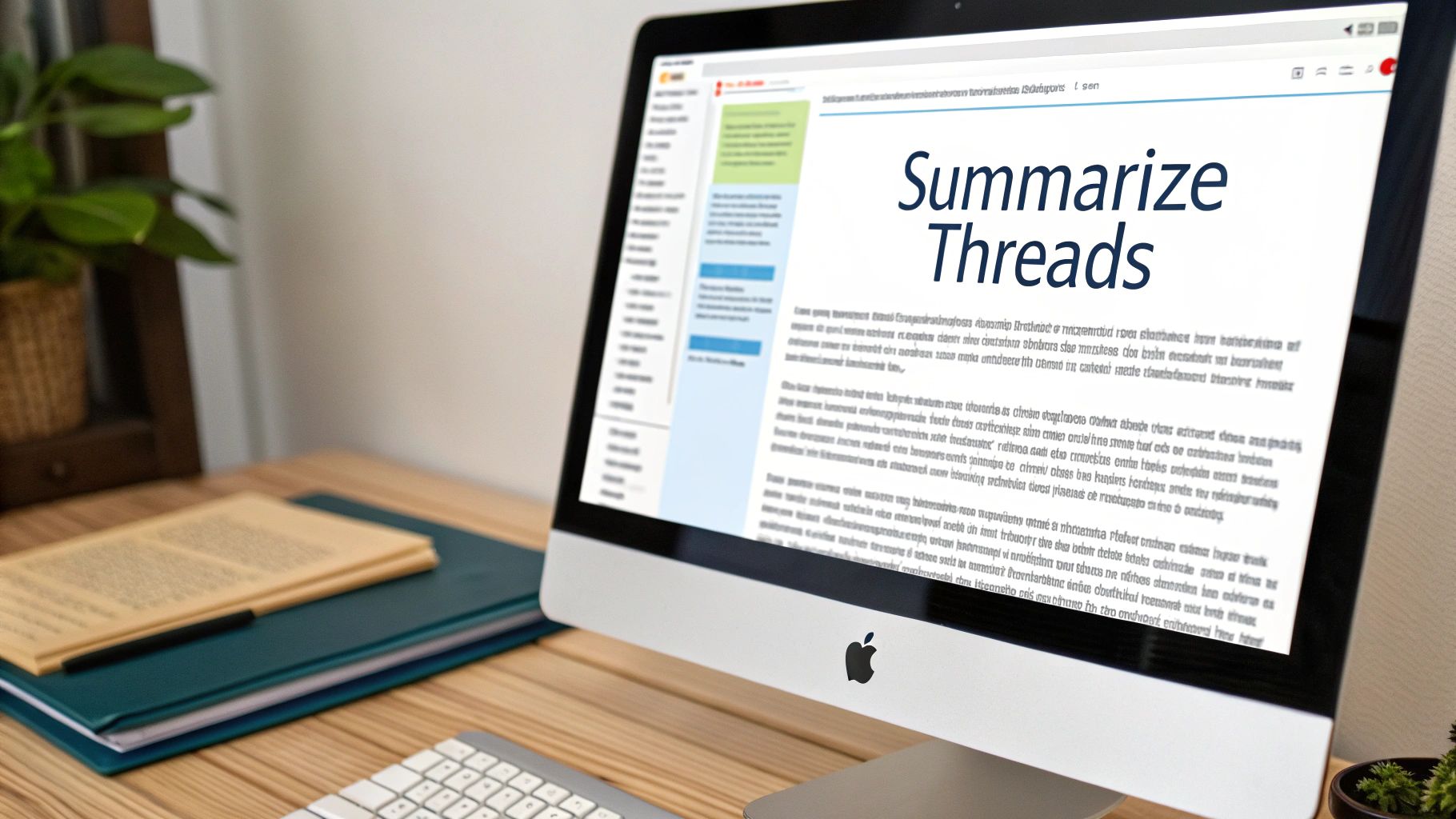
Summarize Long Email Threads
Ever been dropped into a long email chain and told to "get up to speed"? Instead of scrolling for 20 minutes, copy the whole thread and feed it to ChatGPT with a simple command.
Here's a prompt I use: "Summarize the key decisions, action items, and outstanding questions from this email conversation. List action items by owner."
You get a clean, useful summary that tells you exactly what's been decided and what you need to do next.
Build Reusable Email Templates
For tasks you do repeatedly, templates are a game-changer. Think about common situations: welcoming new clients, sending project updates, or following up on late replies.
Let ChatGPT build the foundation instead of writing from scratch every time.
Client Onboarding: Ask it to draft a welcome email with next steps, team introductions, and links to important documents.
Weekly Reports: Have it structure an update with sections for "What we accomplished," "Priorities for next week," and "Any roadblocks."
Think of ChatGPT as an architect for your communication. Building smart templates helps you standardize your workflow so every message is consistent and high-quality.
Use ChatGPT as Your Editor
This might be the most powerful technique: turn AI into your editing partner. Paste in a draft and give it specific instructions.
Here are commands I use constantly:
"Make this more concise." It cuts fluff and tightens sentences.
"Strengthen the call to action." It rephrases requests to be more direct and persuasive.
"Check for clarity and suggest improvements." Perfect for getting a second pair of eyes on your writing.
This works even faster when you combine it with other tools. Our guide on using voice typing in Microsoft Outlook) shows how to dictate your thoughts and polish them with AI—no keyboard needed.
Avoid These Common Mistakes
Using ChatGPT to write emails saves time, but it's not perfect. Copying and pasting without editing leads to awkward, unprofessional messages.
One big mistake is writing lazy, generic prompts. Tell ChatGPT to "write a follow-up email," and you'll get a bland, robotic draft. You need to give context: who the email is for, your relationship with them, and what you want to achieve.
Another mistake is thinking you're done after hitting "generate." An AI draft is just a starting point. You always need to edit it to add your own voice and make sure it sounds like you.
Think of ChatGPT's draft as raw material. Your job is to refine it, add personal touches, and check every detail. This human review is non-negotiable for maintaining credibility.
Finally, never put sensitive information in your prompts. No confidential client details, no personal data, and no company secrets.
Your Quick Checklist for Smart AI Use
Run through this before hitting send on any AI-assisted email:
Context is King: Did you give the AI a clear role, task, and tone?
Personalize Everything: Does this sound like you, or like a machine?
Fact-Check All Claims: Are names, dates, and facts 100% accurate?
Protect Sensitive Data: Did you remove all confidential info from your prompt?
Prefer Claude for writing help? Voicy also supports Claude voice input, so you can speak a detailed prompt and edit the transcript before sending it.
Your Common Questions Answered
Can ChatGPT Write Emails in Other Languages?
Yes, absolutely. ChatGPT handles emails in Spanish, French, German, Japanese, and dozens of other languages really well.
For best results, give the prompt in your target language or specify it in English. Try: "Write a formal email in German to a client about a project delay."
Pro-tip: For important emails, have a native speaker review them. They can catch subtle tone and phrasing issues to make sure your message lands right.
Is It Safe for Confidential Work Emails?
You should never paste sensitive, confidential, or personal information into the public version of ChatGPT. Those conversations can be used to train the AI model.
A safer approach is to anonymize your prompts.
Use placeholders like "[Client Name]" and "[Company]" instead of real names. After ChatGPT generates the draft, swap in the real details.
For businesses needing more security, paid versions like ChatGPT Team or Enterprise offer stronger privacy controls.
How Do I Stop AI Emails from Sounding Robotic?
Nobody wants emails that sound like a machine wrote them. The key is giving ChatGPT a sample of your own writing.
Here's what works:
Start with: "Analyze my writing style from the text below, then write a new email in the same tone."
Paste in a short snippet of an email you've written.
You can also give direct style commands like "Use a friendly, direct tone, keep sentences short, and add one relevant emoji." The more specific you are, the closer it sounds to your natural voice.
Ready to make your email workflow faster and smarter? Voicy lets you dictate detailed prompts, edit drafts, and send polished emails without ever touching your keyboard. Start transforming your communication today at https://usevoicy.com.
Before you ask AI to rewrite a message, it helps to understand the basic professional email format for office emails.


