




If your search started with Dragon, read our Dragon NaturallySpeaking alternatives guide before choosing a modern talk-to-text tool for daily writing.
TL;DR – The Best Talk to Text Software at a Glance
Looking for the best talk to text software or the right talk to text program for work, school, or daily writing? Here are our top picks for 2026:
Quick answer: The best talk-to-text app for most work writing is Voicy, because it works across Mac, Windows, browser workflows, iOS, and Android, and it supports live dictation plus uploaded audio file transcription. If you want a free built-in option, try Apple Dictation, Windows Voice Typing, or Google Docs Voice Typing. Choose Otter.ai if your main job is meeting transcription instead of writing in any app.
Best talk to text program for most people: Choose Voicy if you need a talk-to-text program that writes in any app, works on Mac, Windows, browser workflows, iOS, and Android, and can also transcribe uploaded audio files. Choose Apple Dictation, Windows Voice Typing, or Google Docs Voice Typing if you only need a basic free tool.
Voicy – Best overall talk to text app
Microsoft Word Dictate – Best free option for Office users
Dragon Professional – Best for medical and legal professionals
Otter.ai – Best for meeting transcription
Wispr Flow – Good for teams (team plans)
Google Docs Voice Typing – Best free browser-based option
Apple Dictation – Best free option for Mac and iPhone
Windows Voice Typing – Best free option for Windows
Speechnotes – Best simple web app (no account needed)
Notta – Best for multilingual transcription
Best next step: if you want one voice to text software option that works across Word, Gmail, Google Docs, browser fields, and desktop apps, go to the Voicy dictation app page for pricing, supported platforms, the free trial, and setup.
What Is Talk to Text Software?
Talk to text software converts your spoken words into written text. You speak into a microphone and the software types what you say in real time.
You might also hear it called "voice typing," "voice typing app," "speech to text," "dictation software," or "voice to text software." They all describe the same thing: tools that turn your voice into written words.
Why use it? Because talking is 3-4x faster than typing. Most people type about 40 words per minute but speak at 125-150 words per minute. That speed difference adds up fast when you're writing emails, documents, or notes all day.
Modern talk to text apps and voice to text software use AI to understand context, add punctuation automatically, fix grammar, and even rephrase your words. They are far more capable than the clunky voice recognition software of five years ago.
Talk-to-text, text speaking, and speech recognition software: what is the difference?
Most people use these terms to mean the same basic workflow: speak into your device and turn your words into written text. The difference is usually the use case.
A talk-to-text app is best when you want to write messages, emails, notes, or documents by speaking. Text speaking software often points to the same category, especially when people are looking for a writing tool instead of a transcription editor. A voice-to-text program is usually a desktop app for longer writing sessions, while speech recognition software can include broader accessibility, commands, and dictation features.
If your main goal is faster writing, choose a tool that works where you already type. Voicy is built for everyday dictation across work apps, so you can draft in Gmail, Google Docs, Slack, Notion, ChatGPT, and browser text fields without changing your writing workflow.
Talk to Text Programs vs Talk to Text Software
Talk to text programs, talk to text software, voice-to-text programs, and dictation programs usually mean the same thing. They are tools that listen to your voice and turn it into typed words.
The main difference is how each tool works. Some programs are built into one app, like Microsoft Word Dictate or Google Docs Voice Typing. Others work across your whole computer, like Voicy, Apple Dictation, Windows Voice Typing, and Dragon.
For most writing work, a system-wide talk-to-text program is better. You can dictate emails, documents, notes, browser fields, and messages without moving text between apps.
Voice Dictation App, Speech Dictation App, or Dictation Application?
A voice dictation app, speech dictation app, and dictation application all do the same basic job: they turn your spoken words into editable text. The difference is usually where the tool works.
A basic speech dictation app may only work inside one place, like Google Docs or Microsoft Word. A full dictation application works across more of your day: email, documents, browser forms, notes, chat apps, and saved audio files.
That is why app coverage matters more than the label. If you only dictate inside one document, a built-in tool may be enough. If you want one voice dictation app for daily writing, choose something that works across desktop, browser, and mobile workflows, like Voicy.
For a broader desktop category view, compare dedicated dictation software. For app-first buyers, the dictation app page is the better next step.
Text Speaking Software, Text Speaking App, and Talk to Text: Which One Do You Need?
Text speaking software, text speaking app, talk to text, voice-to-text software, and speech recognition software often point to the same need: you want to speak and get clean written text back. The right tool depends on where you need the words to appear.
Choose a cross-app dictation tool if you write in email, documents, forms, chat, notes, tickets, or AI prompts. Choose a meeting transcription tool if you mainly need notes from calls. Choose a built-in free tool if you only dictate short text inside one system.
For most work writing, Voicy's dictation app is the simplest route because it works across Mac, Windows, browser workflows, iOS, and Android. It also supports uploaded audio file transcription, so it covers live dictation and saved recordings in one workflow.
Search term | Best-fit meaning | Best next step |
|---|---|---|
Text speaking software | Software that turns speech into editable text. | |
Text speaking app | An app for speaking messages, notes, drafts, and documents. | |
Talk to text | The everyday phrase for dictating instead of typing. | |
Speech recognition software | A broader category that may include dictation, commands, accessibility, or transcription. |
Voice to Text Program vs Voice to Text Software: Which Should You Choose?
Voice to text program and voice to text software usually mean the same thing: an app that turns spoken words into typed text. The useful difference is where it works.
Pick a simple voice-to-text program if you only need quick notes in one place. Pick full dictation software if you write across Gmail, Google Docs, Microsoft Word, Slack, Notion, browser fields, tickets, and desktop apps.
For most daily writing, the better choice is a cross-app tool like Voicy. It works across Mac, Windows, browser workflows, iOS, Android, and uploaded audio files, so you do not have to move text between tools all day.
If you want a desktop-first buying guide, compare the broader dictation software category. If you want the app-first route, start with the Voicy dictation app page.
How We Tested These Talk to Text Apps and Programs
We didn't just read product pages. We used each tool extensively.
Here's what we tested:
Accuracy – We spoke the same 200-word script into each app. We tested with different accents and speech speeds.
Speed – How fast did text appear? Was there noticeable lag?
Ease of use – Could we start talking right away, or was there a setup process?
Punctuation – Did it add periods and commas correctly without being told?
Platform support – Where does it work? System-wide, browser-only, or specific apps?
Price – Is the paid version worth upgrading from free alternatives?
We tested in quiet rooms and noisy coffee shops. We used built-in laptop mics and external headsets. The results below reflect real-world usage, not lab conditions.
1. Voicy – Best Overall Talk to Text App
Price: $8.49/month, $82/year, or $260 lifetime
Platforms: Mac, Windows, browser extension, iOS, and Android
Best for: Anyone who wants one speech-to-text app for desktop, browser, and mobile writing
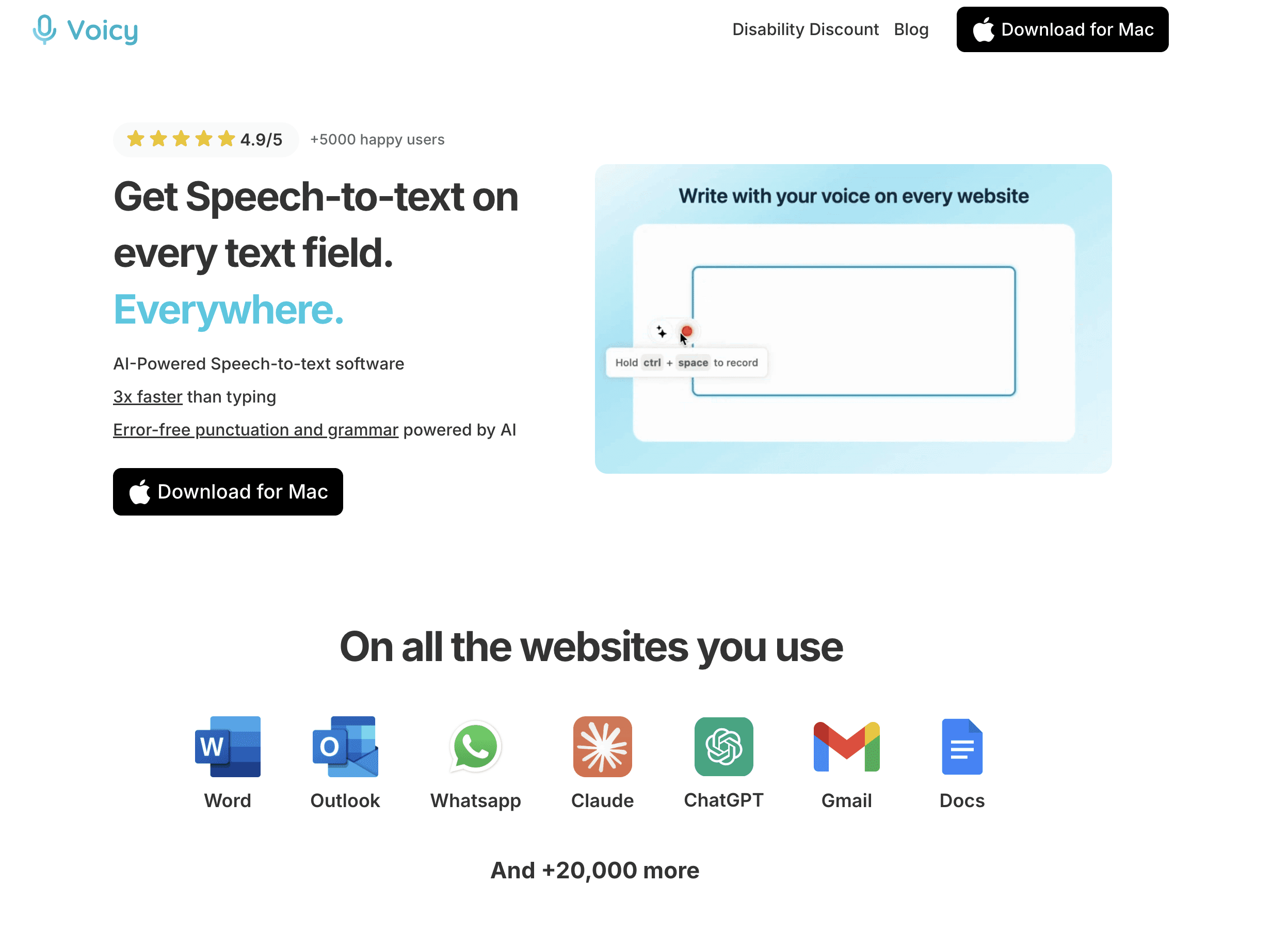
Voicy is our top pick because it works in every application on your computer. Most talk to text programs only work in specific apps. Voicy works in Gmail, Slack, Notion, Google Docs, Word, code editors, and any text field.
Voicy also supports file upload transcription, so you can turn recorded audio into text as well as dictate live. That makes it useful as both a writing tool and a speech-to-text app for saved recordings.
Works Everywhere
Press one hotkey and start talking. Voicy types into whatever app is in focus. No switching windows, no copy-pasting. Just talk and watch your words appear wherever your cursor is.
99%+ Accuracy
Powered by the latest AI models, Voicy understands context. It knows when you mean "their" vs "there" vs "they're." It handles technical terms, names, and accents with minimal errors. Automatic punctuation and grammar correction are built in.
AI Voice Commands
This is what separates Voicy from basic talk to text tools. Select any text and say "make this more professional" or "shorten this paragraph" or "fix the grammar." Voicy doesn't just transcribe - it helps you write better. It's like having an AI editor built into your voice.
50+ Languages
Voicy works in over 50 languages and can detect language switches automatically. No need to manually change settings when switching between English and another language.
Pros: Works in any application, excellent accuracy across accents, AI editing commands are a genuine productivity boost, automatic punctuation, cloud-based transcription, and file upload support
Cons: Requires internet for cloud processing; not the right fit if you need fully offline dictation
Bottom line: If you want one talk to text app for cross-app dictation, AI cleanup, file transcription, and mobile support, Voicy is the best overall pick. The free trial gives you time to test the accuracy and workflow before choosing a paid plan.
2. Wispr Flow – Best Talk to Text for Teams
Price: Free plan available (slightly limited); $15/month for Pro
Platforms: Mac, Windows, iOS
Best for: Mac-centric professionals and teams
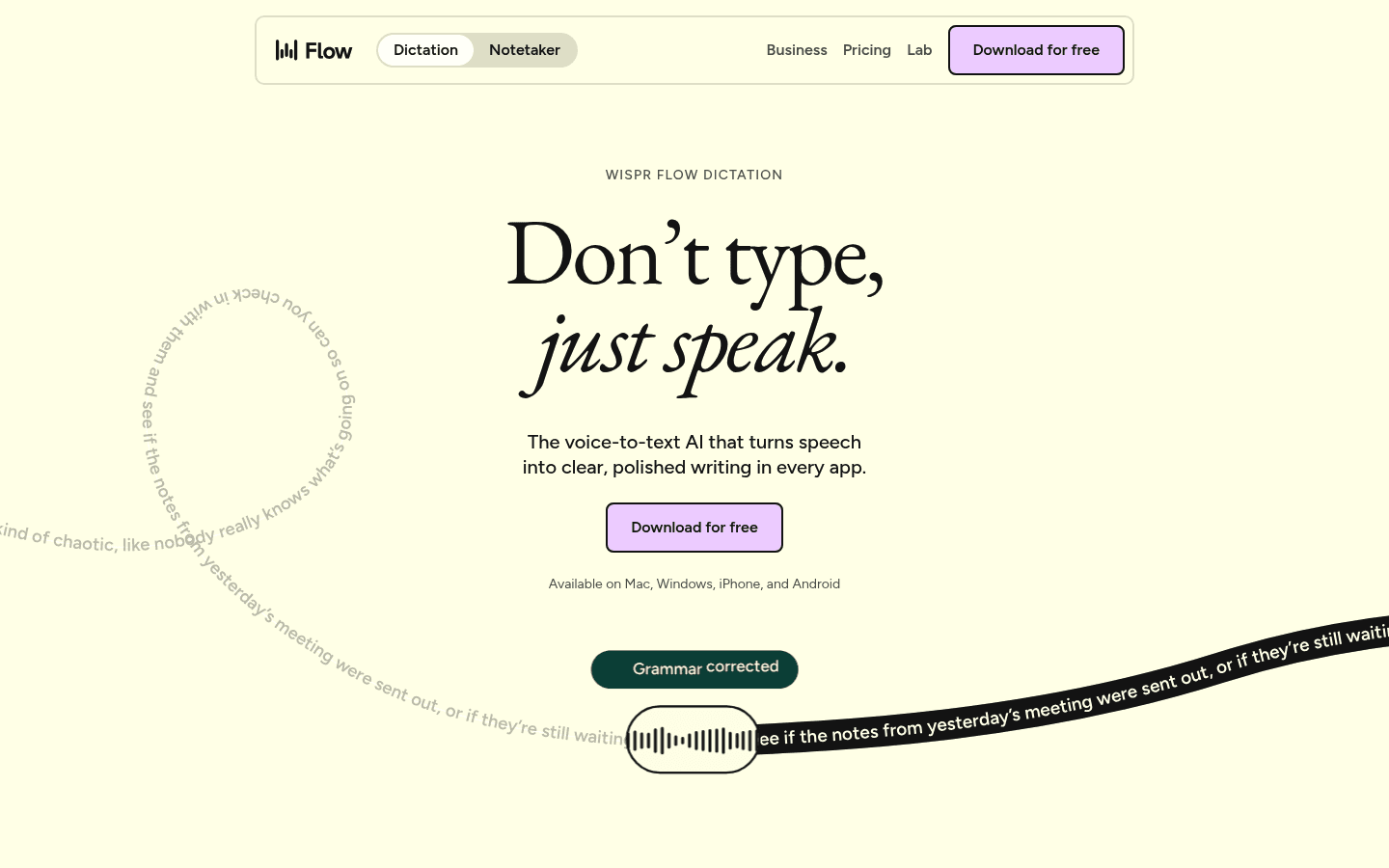
Wispr Flow is a polished AI dictation app with a strong following, especially among Mac users and teams. It is a good option if you want team plans or prefer its interface, but Voicy is the better fit if you want lower pricing, file transcription, and broader platform coverage including browser, iOS, and Android support.
Context-Aware Formatting
Flow adapts its output based on where you're typing. Writing an email? It formats more formally. Messaging on Slack? It keeps things casual. This context-awareness reduces the amount of manual editing needed.
Editing Mode
Like Voicy's AI commands, Flow lets you correct and rephrase text using voice commands. Select text and tell it what to change.
Team Plans
Wispr offers team pricing, making it suitable for businesses rolling out voice typing across their organization. Individual users can start with the free plan.
Pros: Context-aware formatting, good team plans, polished interface, iOS app available
Cons: $15/month is nearly double Voicy's price for similar features, some users report first-word-missing issues, two-key activation can feel clunky
Bottom line: A strong competitor to Voicy with good team features. The higher price and occasional reliability issues keep it at #2.
3. Microsoft Word Dictate – Best Free Talk to Text
Price: Free (with Microsoft 365 subscription)
Platforms: Windows, Mac, Web, iOS, Android
Best for: People already using Microsoft Word and Office
Microsoft bought Nuance (the company behind Dragon) in 2022. That expertise now powers Word's talk to text feature, and it's surprisingly good.
Click the microphone button in Word's toolbar or press Alt+`. Start talking. Watch your words appear on screen with auto-punctuation. It also works in Outlook, PowerPoint, and other Office apps.
The accuracy is impressive - around 99% in our testing with clear speech. Voice commands let you say things like "bold that" or "start a list" to format without touching the keyboard.
Pros: Free with Microsoft 365, excellent accuracy, works across all Office apps, good voice commands, cross-platform
Cons: Only works in Microsoft apps (not system-wide), requires internet, no custom vocabulary
Bottom line: The best free talk to text option if you live in the Microsoft ecosystem. For a detailed walkthrough, see our guide to talk to text in Microsoft Word.
Want setup tips and keyboard shortcuts for talk to text in Word? Our complete tutorial on how to dictate in Microsoft Word covers everything you need to get started fast.
4. Dragon Professional – Best Talk to Text for Professionals

Price: $15/month (mobile), $55/month or $700 one-time (Windows desktop)
Platforms: Windows, iOS, Android
Best for: Doctors, lawyers, and professionals with specialized vocabulary
Dragon has been the gold standard in talk to text software for decades. It's expensive, but professionals in medicine, law, and law enforcement swear by it. If you're considering alternatives, see our best Dragon alternatives for 2026.
Dragon comes in specialized editions. Dragon Medical knows terms like "Guillain-Barré syndrome" and "bronchoalveolar lavage." Dragon Legal understands case citations and legal jargon. These specialized vocabularies are why professionals pay the premium.
Unlike other tools, Dragon learns your specific speech patterns over time. It adapts to your accent, vocabulary, and pronunciation. The more you use it, the better it gets at understanding you specifically.
Pros: Highest accuracy for specialized vocabularies, learns your voice over time, works in any Windows app, offline mode, decades of refinement
Cons: Expensive, no Mac desktop support, requires training time, steep learning curve, aging interface
Bottom line: The professional's choice when specialized vocabulary accuracy matters more than price. If you're dictating clinical notes or legal briefs daily, Dragon pays for itself.
5. Otter.ai – Best for Meeting Transcription
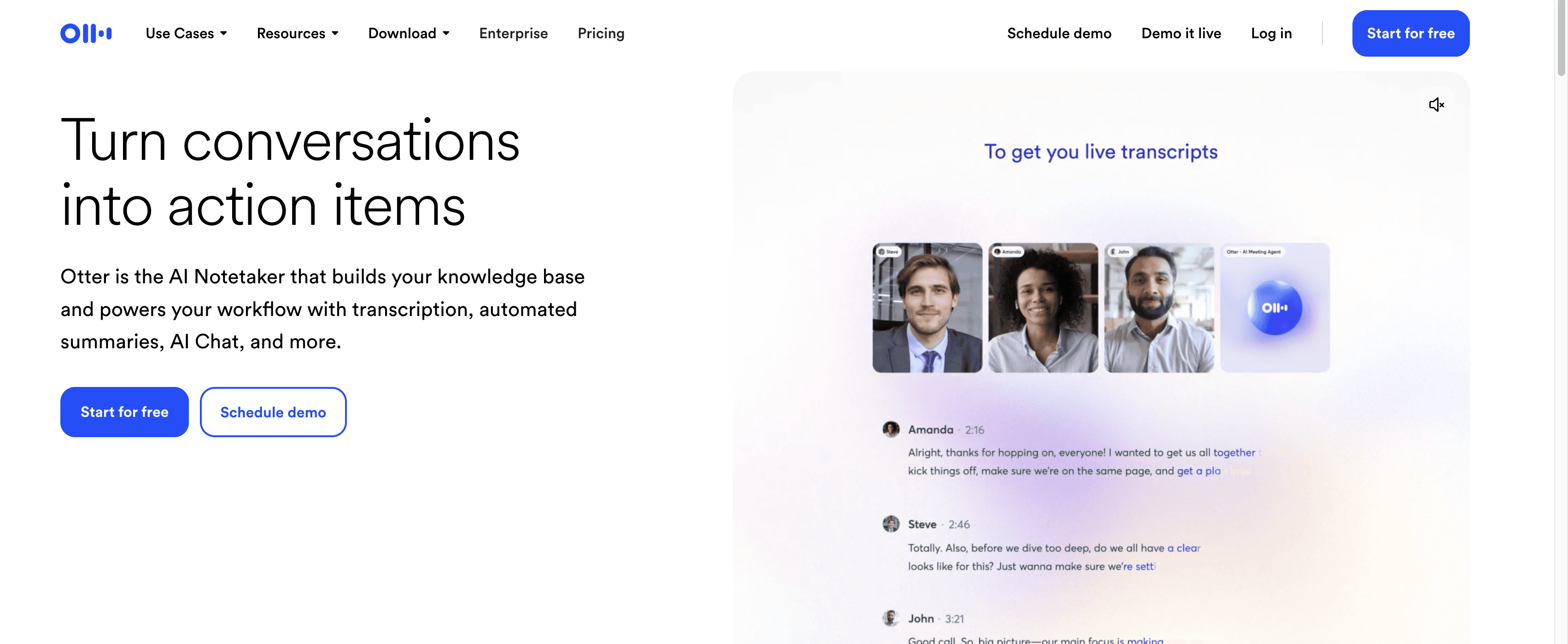
Price: Free tier (300 min/month), $16.99/month Pro
Platforms: Web, iOS, Android
Best for: Recording and transcribing meetings and interviews
Otter isn't a traditional talk to text app - it's built for transcribing conversations. If your main need is capturing what's said in meetings, lectures, or interviews, Otter is purpose-built for that.
Otter joins your Zoom, Google Meet, or Teams calls automatically. It transcribes everything in real time, identifying different speakers. After the meeting, you get a full, searchable transcript with AI-generated summaries and action items.
Pros: Excellent meeting transcription, automatic speaker identification, AI summaries and action items, integrates with Zoom/Meet/Teams/Slack, good free tier
Cons: Not designed for document writing or real-time dictation, requires internet, accuracy drops with background noise
Bottom line: Perfect for meetings, but not a general talk to text tool. Pair it with Voicy or another dictation app for writing tasks.
6. Google Docs Voice Typing – Best Free Browser-Based Option
Price: Free
Platforms: Web (Chrome, Edge, Safari)
Best for: Quick talk to text in Google Docs
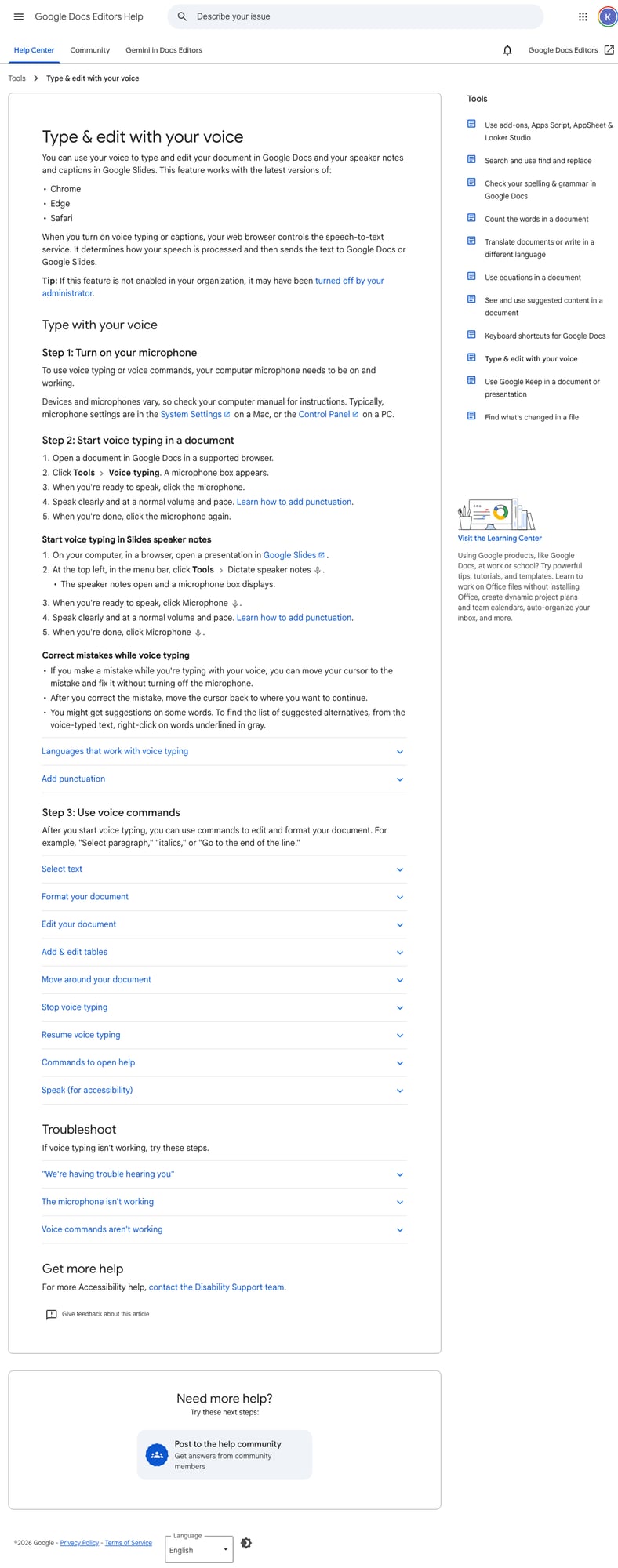
Google's voice typing is simple and completely free. Open a Google Doc, click Tools → Voice typing, and start talking. Google has trained its speech recognition on billions of voice queries, resulting in solid accuracy for everyday use.
Voice commands work in English: say "period," "comma," "new paragraph," "select all," "bold," and more. For other languages, basic dictation works but voice commands are limited.
Pros: Completely free, good accuracy, no installation required, works in Chrome/Edge/Safari
Cons: Only works inside Google Docs (not Gmail, Slack, or other apps), limited voice commands outside English, requires internet
Bottom line: Great for occasional talk to text in Google Docs. For a complete walkthrough, see our step-by-step guide to speech-to-text in Google Docs.
7. Apple Dictation – Best Free Talk to Text for Mac & iPhone
Price: Free (built into macOS and iOS)
Platforms: Mac, iPhone, iPad, Apple Watch
Best for: Apple users who want convenient, free talk to text
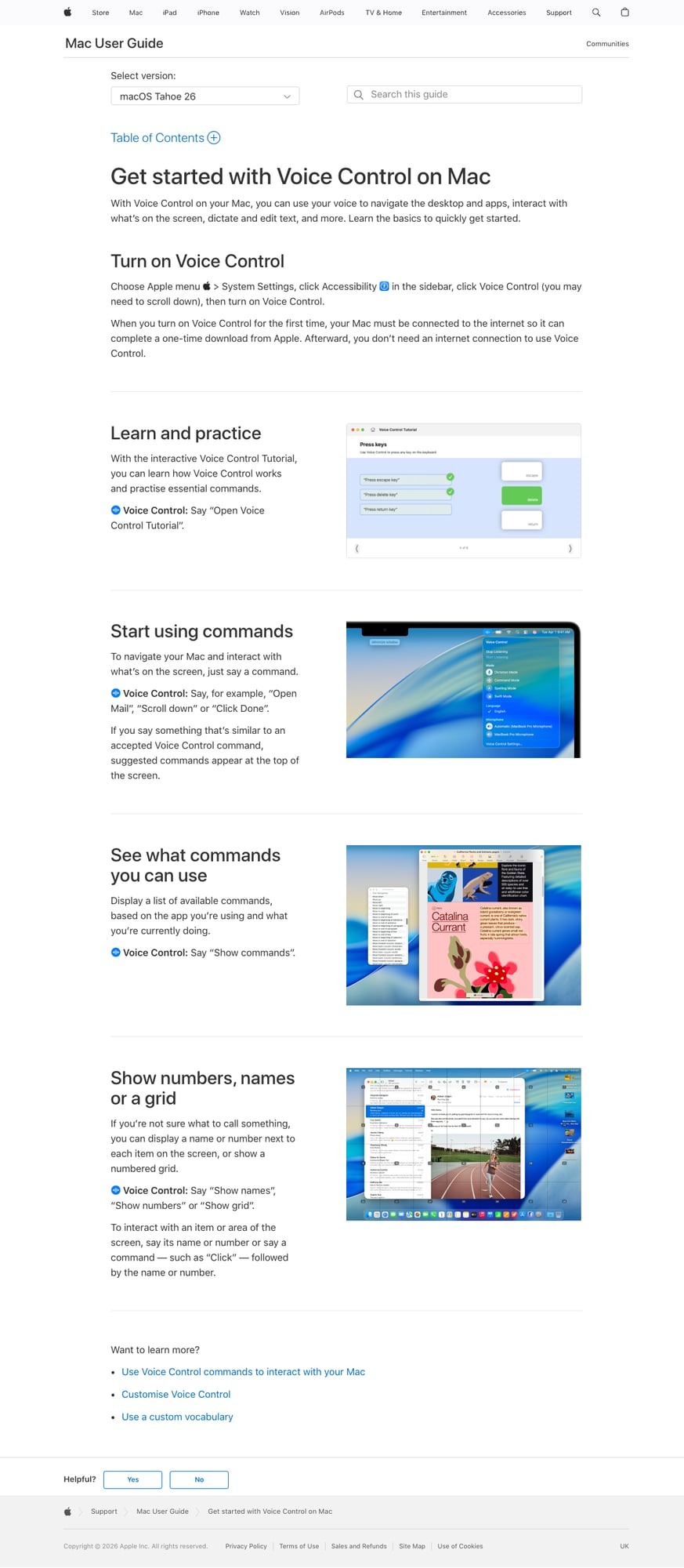
Every Mac, iPhone, and iPad has a capable talk to text feature built right in. Apple Dictation has improved significantly with Apple Intelligence, adding auto-punctuation and better accuracy.
On Mac, press the microphone key (or Fn twice) to start talking in any app. On iPhone, tap the microphone icon on the keyboard. It processes speech on-device for privacy, and Enhanced Dictation lets you work offline.
Pros: Free and built-in, works in all apps system-wide, on-device processing (great privacy), offline mode with Enhanced Dictation, 30+ languages
Cons: Apple devices only, no custom vocabulary, struggles with longer sessions, no AI editing commands
Bottom line: The easiest starting point for Apple users. For more advanced features, upgrade to Voicy - the top-rated dictation app for Mac. See our full Mac speech-to-text comparison for more options, or learn how to master dictation on Mac.
8. Windows Voice Typing – Best Free Talk to Text for Windows
Price: Free (built into Windows 11)
Platforms: Windows 10, Windows 11
Best for: Windows users who want free, system-wide talk to text
Windows 11 has a capable built-in talk to text tool. Press Windows + H anywhere and start speaking. It works in any text field across the entire operating system.
Microsoft has upgraded this significantly with AI-powered auto-punctuation. Windows 11 also introduced Voice Access for complete hands-free computer control - navigate menus, click buttons, and scroll pages, all by voice.
Pros: Free and built-in, works in all Windows apps, auto-punctuation, Voice Access for full hands-free control
Cons: Accuracy is sensitive to microphone quality, Windows only, no custom vocabulary, less accurate than dedicated tools
Bottom line: A solid free starting point for Windows users. For better accuracy and AI features, see our Windows speech-to-text guide.
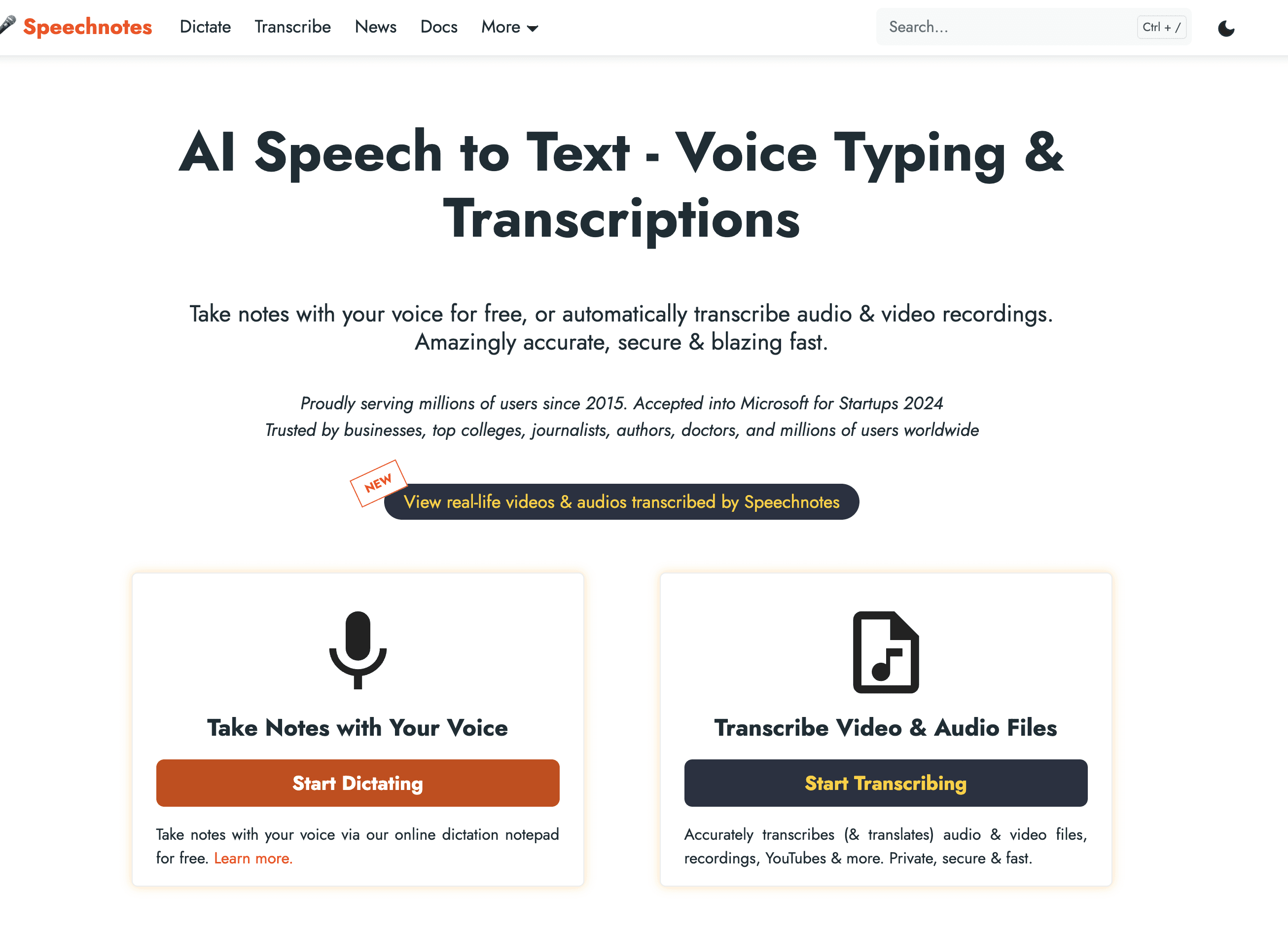
9. Speechnotes – Best Simple Web App
Price: Free (with ads), $9.90/year premium
Platforms: Web, Android
Best for: Quick, no-signup talk to text
Sometimes you just need to convert speech to text without installing anything or creating an account. Speechnotes delivers exactly that.
Go to speechnotes.co. Click the microphone. Start talking. That's it. Your notes auto-save in the browser, and you can export as text or send to Google Drive.
Pros: No signup or installation needed, clean interface, free to use, auto-save, works in Chrome
Cons: Ads in free version, limited features, browser-only, best in Chrome
Bottom line: The fastest way to start using talk to text right now. Zero friction.
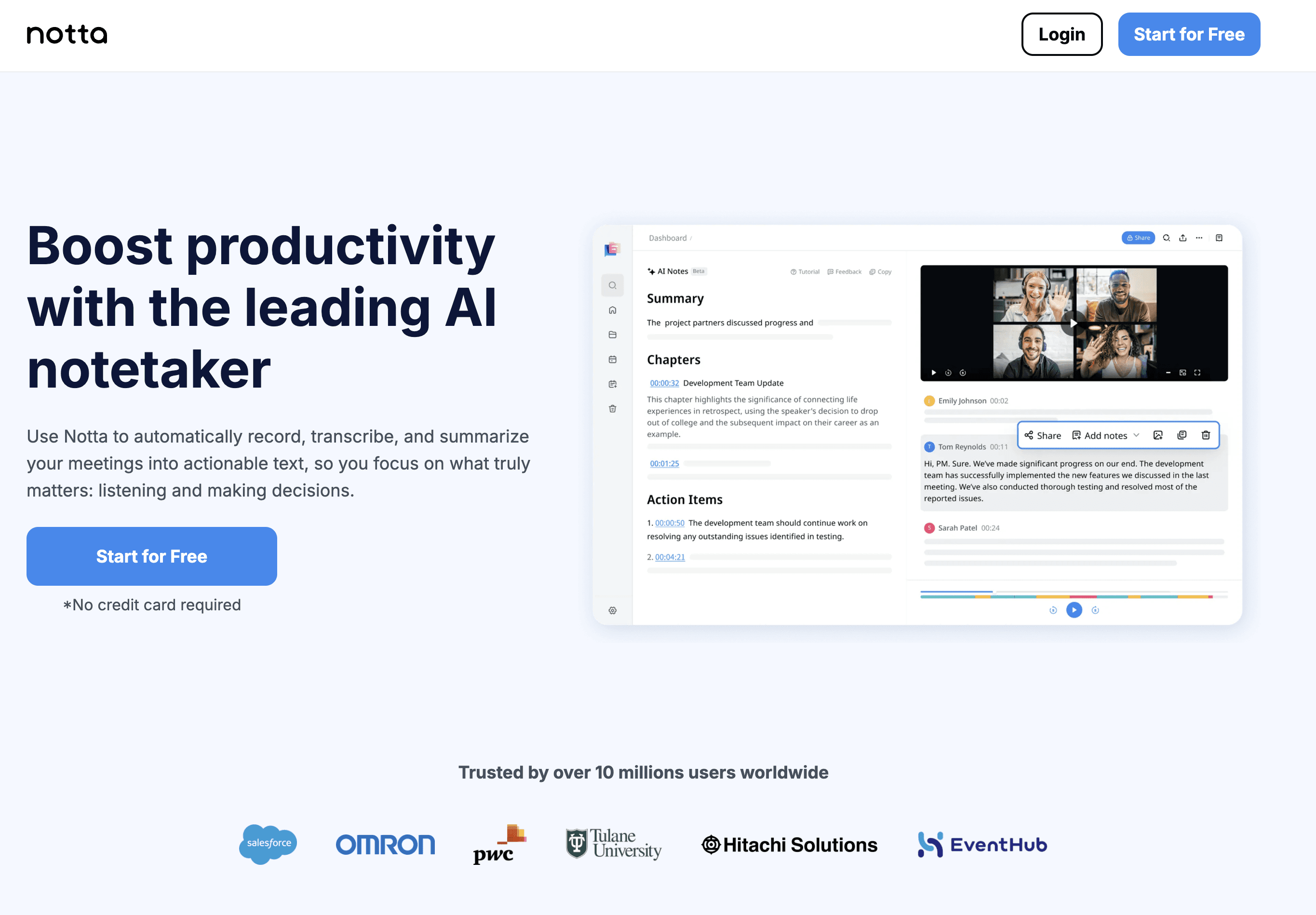
10. Notta – Best for Multilingual Talk to Text
Price: Free tier, $13.99/month Pro
Platforms: Web, iOS, Android
Best for: People who work across multiple languages
Notta supports over 100 languages and can transcribe bilingual conversations. If you regularly switch between languages in your work, Notta handles that transition better than most tools.
Like Otter, Notta focuses on meeting transcription with automatic speaker identification. It can also transcribe uploaded audio and video files, making it useful for journalists and researchers.
Pros: 100+ languages, bilingual transcription, speaker identification, audio/video file upload, translation features
Cons: Free tier is limited, meeting-focused (not ideal for real-time document writing), less accurate than English-focused tools for non-English languages
Bottom line: The best choice for multilingual talk to text needs. Pair with a desktop tool like Voicy for document writing.
Talk to Text Software Comparison
App | Accuracy | Platforms | Best For | Price |
|---|---|---|---|---|
99%+ | Mac, Windows, browser, iOS, Android | Cross-app writing + file transcription | $8.49/mo | |
Wispr Flow | High | Mac, Windows, iOS | Mac users, teams | $15/mo |
Word Dictate | ~99% | All platforms | Office users | Included w/ 365 |
Dragon Pro | 99%+ | Windows, mobile | Medical/legal pros | $15-55/mo |
Otter.ai | High | Web, iOS, Android | Meetings | Free + $16.99/mo |
Google Docs | Good | Browser | Document drafting | Free |
Apple Dictation | Good | Mac, iPhone, iPad | Apple users | Free |
Windows Voice | Good | Windows 11 | Windows users | Free |
Speechnotes | Good | Browser, Android | Quick notes | Free |
Notta | Good | Web, iOS, Android | Multilingual | Free + $13.99/mo |
Comparing talk to text programs for real work? See the Voicy dictation app page to compare plans, supported platforms, and the free trial, or browse our wider dictation software comparison if you want more desktop-focused options.
Best Talk to Text Programs by Use Case
The best talk-to-text program depends on where you need to write. Use this quick guide if you are comparing speech-to-text tools by job, not just by brand.
Best all-around talk-to-text program: Voicy, because it works across desktop apps, browser fields, iOS, Android, and uploaded audio files.
Best free dictation program for Mac: Apple Dictation, because it is built into macOS and iOS.
Best free voice-to-text program for Windows: Windows Voice Typing, because it works in most Windows text fields.
Best browser speech-to-text tool: Google Docs Voice Typing for drafts inside Google Docs, or a browser extension when you need website-wide dictation.
Best professional dictation program: Dragon Professional, especially for legal and medical terms.
Best meeting transcription tool: Otter.ai or Notta, because they are built for calls, speakers, and summaries.
How to Choose the Right Talk to Text Software
The best talk to text software depends on how you work. Here is a quick buyer-focused guide:
Want one paid speech-to-text app for desktop, browser, and mobile? → Voicy ($8.49/mo)
Already using Microsoft 365? → Try Word Dictate first (it's included)
Work in medicine or law? → Dragon Professional is worth the investment
Need meeting transcription? → Otter.ai or Notta
Want something free on Mac? → Apple Dictation (press Fn twice)
Want something free on Windows? → Windows Voice Typing (press Win+H)
Just need quick browser dictation? → Google Docs Voice Typing or Speechnotes
Work in multiple languages? → Notta (100+ languages)
Tips for Better Talk to Text Results
No matter which talk to text app you choose, these tips will improve your results:
Use a decent microphone. Built-in laptop mics work, but a headset dramatically improves accuracy. Even a $20 headset makes a noticeable difference. See our guide to the best microphones for dictation.
Speak naturally. Don't speak like a robot. Modern AI handles natural speech better than over-enunciated words.
Reduce background noise. Find a quiet space or use a noise-canceling microphone. Less noise = fewer errors.
Learn the basic commands. Knowing "period," "comma," "new paragraph," and "delete that" saves significant editing time.
Give it a week. Talk to text feels strange at first. Most people see a huge productivity jump after 5-7 days of consistent use. If you run into problems, our voice typing troubleshooting guide covers the most common fixes.
Budget time to review. No talk to text app is 100% perfect. A quick proofread catches the occasional error.
FAQ
What is text speaking software?
Text speaking software is software that turns spoken words into written text. Most people use the phrase when they mean talk-to-text software, voice-to-text software, dictation software, or speech recognition software.
What is the best text speaking app?
The best text speaking app is the one that works where you already write. Voicy is a strong paid choice for Mac, Windows, browser workflows, iOS, Android, live dictation, and uploaded audio file transcription.
Is talk to text the same as speech recognition software?
Talk to text is usually the everyday name for dictation: you speak and the app types. Speech recognition software is a broader category that can also include voice commands, accessibility controls, meeting transcription, or custom vocabularies.
Should I choose a talk-to-text app or a transcription app?
Choose a talk-to-text app if you want to write emails, documents, notes, forms, or prompts by speaking. Choose a transcription app if you mainly need transcripts from meetings, interviews, or recorded files.
What is the best voice to text program?
The best voice to text program for most daily writing is one that works where you already type. Voicy is the strongest paid option when you need dictation across desktop apps, browser fields, mobile, and uploaded files. Built-in tools are fine if you only need short free dictation in one app.
Is voice to text software different from dictation software?
Not really. Voice to text software, dictation software, talk to text apps, and speech-to-text tools all describe the same core job: turning speech into editable text. The real choice is whether you need one-app dictation or a cross-app workflow.
What is a voice dictation app?
A voice dictation app is software that turns your speech into written text. You speak into a microphone, and the app types the words into a document, email, browser field, or note.
What is a speech dictation app?
A speech dictation app is another name for a voice typing app or talk to text app. Some speech dictation apps only work inside one product, while tools like Voicy work across desktop apps, browser fields, iOS, Android, and uploaded audio files.
What is the best dictation application for everyday writing?
Voicy is the best dictation application for everyday writing if you want one tool for emails, docs, browser forms, notes, and mobile workflows. Built-in options like Apple Dictation, Windows Voice Typing, and Google Docs Voice Typing are good free starting points, but they are more limited.
What are talk to text programs?
Talk to text programs are apps or built-in tools that turn speech into written text. They are also called talk to text software, voice-to-text programs, speech-to-text tools, voice typing apps, or dictation programs.
What is talk to text?
Talk to text is technology that converts your spoken words into written text in real time. You speak into a microphone and the software types out what you say. It's also known as voice typing, speech to text, or dictation. Modern talk to text apps use AI to add punctuation, fix grammar, and understand context automatically.
What's the difference between talk to text and dictation software?
They are basically the same thing. "Talk to text" is the more casual term, while "dictation software" or "voice to text software" sounds more commercial. All three describe tools that turn your voice into typed text.
What is the best talk to text app?
Voicy is the best overall talk to text app for desktop users - it works in every application on Mac and Windows with 99%+ accuracy and AI editing commands. For mobile, Apple Dictation (iPhone) and Gboard (Android) are the best free options.
What is the best talk to text program for work?
Voicy is the best talk-to-text program for most work because it works across Mac, Windows, browser workflows, iOS, and Android. It can handle live dictation, AI cleanup, and uploaded audio file transcription.
Is there a free talk to text app?
Yes. Apple Dictation, Windows Voice Typing, Google Docs Voice Typing, and Speechnotes are all completely free. Microsoft Word Dictate is free if you have a Microsoft 365 subscription. Each works differently - Apple and Windows options are system-wide, Google Docs is browser-only.
Is talk to text accurate?
Modern talk to text apps achieve 95-99% accuracy in good conditions. Premium tools like Voicy and Dragon Professional hit 99%+ with clear speech and a decent microphone. Free tools like Apple Dictation and Google Docs Voice Typing typically achieve 93-97% accuracy.
Can a talk to text program transcribe uploaded files?
Some can. Voicy supports file upload transcription as well as live dictation. Otter.ai and Notta also handle recorded audio, but they are more focused on meetings and transcripts than writing in every app.
Can talk to text apps work offline?
Some can. Apple Dictation (with Enhanced Dictation), Windows Voice Typing, and Dragon Professional all work offline. Cloud-based tools like Voicy, Wispr Flow, and Google Docs Voice Typing require an internet connection for AI processing.
Is talking faster than typing?
Yes, significantly. Most people speak at 125-150 words per minute but type only 40 WPM. Even accounting for corrections, talk to text is typically 2-3x faster than typing for most tasks.
Does talk to text work with accents?
Modern AI-powered tools handle accents much better than older software. Models like OpenAI's Whisper were trained on hundreds of thousands of hours of diverse speech. Voicy, Wispr Flow, and Microsoft Word Dictate all perform well across various English accents and non-native speakers.
Can talk to text handle medical terminology?
Dragon Medical is specifically designed for healthcare documentation and handles clinical terminology natively. General tools like Voicy and Microsoft Word Dictate handle common medical terms well, but Dragon Medical remains the gold standard for clinical dictation.
Is my voice data private when using talk to text?
It depends on the app. Apple Dictation can process some dictation on device, while cloud-based tools send audio for processing. Voicy uses cloud-based transcription, so check your privacy needs before dictating sensitive material. Google Docs Voice Typing also relies on Google services.
Can I use talk to text for programming?
It's possible but challenging. Speaking punctuation and special characters is cumbersome. Some specialized tools like Talon are designed specifically for coding by voice. For general talk to text when coding, Voicy works well with coding tools like Claude Code for writing comments, documentation, and commit messages.
What talk to text app works on any website?
Voicy works in any application including web browsers. For browser-only solutions, the Voice In Chrome extension adds talk to text to any website. Google Docs Voice Typing only works inside Google Docs.
The Bottom Line
Talk to text software has come a long way. The best tools now feel much closer to real writing software than old-school voice recognition utilities.
For most people comparing talk to text programs, Voicy is the strongest all-around choice. It works across desktop apps, browser workflows, iOS, and Android, has excellent accuracy, supports file transcription, and adds AI editing commands at $8.49/month.
If you're in the Microsoft ecosystem, Word Dictate is a solid free option. Apple and Windows users should try their built-in tools first. Professionals in medicine or law should invest in Dragon.
Whatever you choose, start using talk to text today. Once you experience writing at 3x speed, you won't want to go back to typing everything. For a deeper dive into desktop options, see our full best dictation software guide.
Ready to try the best talk to text software for desktop work? See the Voicy dictation app and compare plans, platforms, and setup.
Looking for voice typing in specific apps? Check out our guides to talk to text in Google Docs, talk to text in Microsoft Word, and voice typing in Gmail.


