




Tired of typing all day? Your keyboard is the problem.
How about writing 3x faster, with zero mistakes, and perfect punctuation?
Just use your voice.
Voice to text Chrome extensions help you type faster and easier. You can write emails, create documents, and take notes just by talking. It's perfect for anyone who spends hours at their computer.
This guide shows you the 10 best voice to text Chrome extensions.
We'll look at how accurate they are, what makes them special, and which ones work best for you. For teams that want to work better together, understanding effective virtual meeting best practices is important. Voice-to-text tools help you capture and track important decisions.
We'll help you find the right tool for your needs. Each option includes details, screenshots, and direct links. You can start using them right away.
Whether you're a writer, professional, or student, this guide will help you work smarter. If you use other browsers, you might also want to check out our dedicated guide for voice to text in Firefox.
If you want the workflow-focused version of this topic, with more detail on dictating into Gmail, Google Docs, Slack, Notion, ChatGPT, and Claude, also see our speech-to-text Chrome extension page.
Chrome users: when Voicy is the better route
Use a built-in Chrome voice typing tool when you only need occasional speech input in one Google app. Use Voicy's speech-to-text Chrome extension when you want live dictation across browser tabs, file upload transcription, and the same account on Mac, Windows, iOS, and Android.
Voicy is cloud-based and offers a free trial. It is not a zero-cost Chrome extension. Current paid options are $8.49/month, $82/year, or $260 lifetime.
Chrome users: when Voicy is the better route
Use a built-in Chrome voice typing tool when you only need occasional speech input in one Google app. Use Voicy's speech-to-text Chrome extension when you want live dictation across browser tabs, file upload transcription, and the same account on Mac, Windows, iOS, and Android.
Voicy is cloud-based and offers a free trial. It is not a fully Chrome extension with a free trial. Current paid options are $8.49/month, $82/year, or $260 lifetime.
Short Version of the Article
The right voice to text Chrome extension depends on your main use case and workflow needs.
If you want simple, accurate dictation anywhere:
Voicy - 99%+ accuracy, 50+ languages, AI commands to edit and format text, works everywhere on your computer
Voice In - Works on 10,000+ websites, reliable with great language support, affordable Pro version with custom commands
Speechnotes - Free, easy to use, no account needed, floating mic button for quick dictation
If you need meeting transcription and collaboration:
Otter.ai - Joins Google Meet and Zoom automatically, identifies speakers, AI notetaker with action items
Notta - Transcribes browser tabs and meetings, AI summaries, cloud workspace for team collaboration
Tactiq - Google Meet and Zoom focus, powerful AI summaries, 10 free meetings per month
Transkriptor - Records meetings and lectures, 100+ languages, speaker separation, multiple export formats
If you need advanced control and customization:
Speech Recognition Anywhere - Custom voice commands and scripts, text-to-speech, great for power users and accessibility
Nuance Dragon Web Extension - Enterprise-grade for healthcare and legal professionals (requires Dragon license)
LipSurf - Full browser voice control beyond dictation, privacy-focused, community plugins available
Key insight: Match the tool to your primary task. Quick emails and notes? Choose Voicy or Voice In. Meeting transcription? Go with Otter.ai or Tactiq. Need hands-free browser control? Pick LipSurf. Don't get overwhelmed by features you won't use - the best extension is the one that fits seamlessly into how you already work.
1. Voicy
Voicy is a powerful AI dictation tool that works everywhere you need it. It comes as a voice to text Chrome extension and also works on Mac, Windows, browser extension, iOS, and Android.
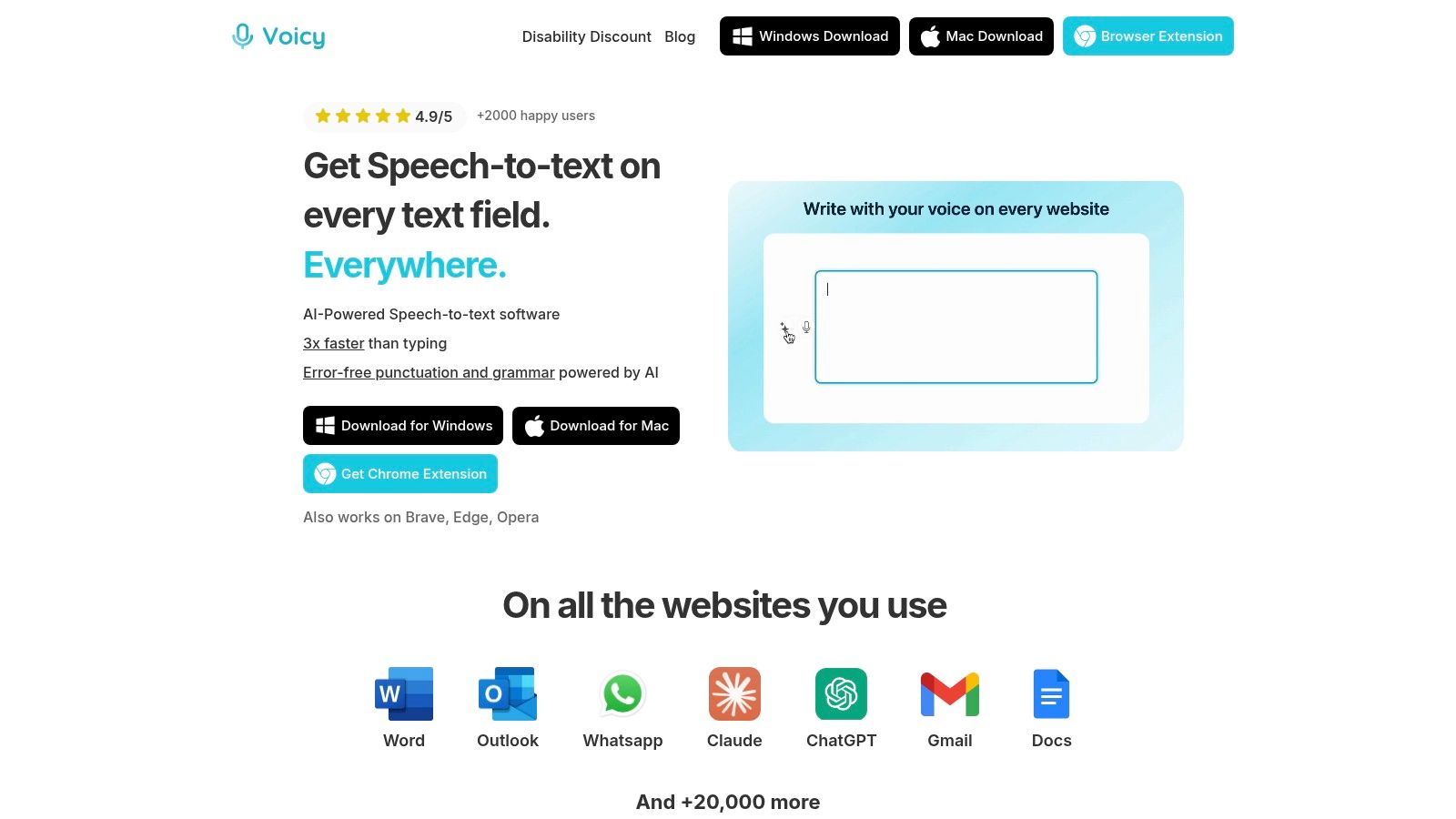
Voicy gives you over 99% accuracy. It works in more than 50 languages. You can use it anywhere your cursor can type. From Google Docs to social media, Voicy works everywhere.
What makes Voicy special? You can use AI commands with your voice.
Type a rough draft, then say "Make this more professional" or "Summarize the key points." The AI will fix your text instantly. This is perfect for writing polished emails or reports without touching your keyboard.
If Chrome is your main workspace, our speech-to-text Chrome extension guide goes deeper on use cases like Gmail, Slack, Notion, ChatGPT, and Claude.
What You Get
Works Everywhere: Use it on Mac, Windows, or as a Chrome extension. Same great experience on all devices.
Smart AI Commands: Edit, rephrase, and format text just by talking. Go way beyond basic dictation.
Super Accurate: Works in 50+ languages with automatic punctuation and grammar fixes.
Voicy is perfect for professionals, students, and writers who want to work faster and reduce typing strain.
Website: https://usevoicy.com
2. Voice In – Speech-to-Text Dictation (Dictanote)
Voice In is a popular voice to text Chrome extension that works almost anywhere on the web. It's been around for a while and people trust it.
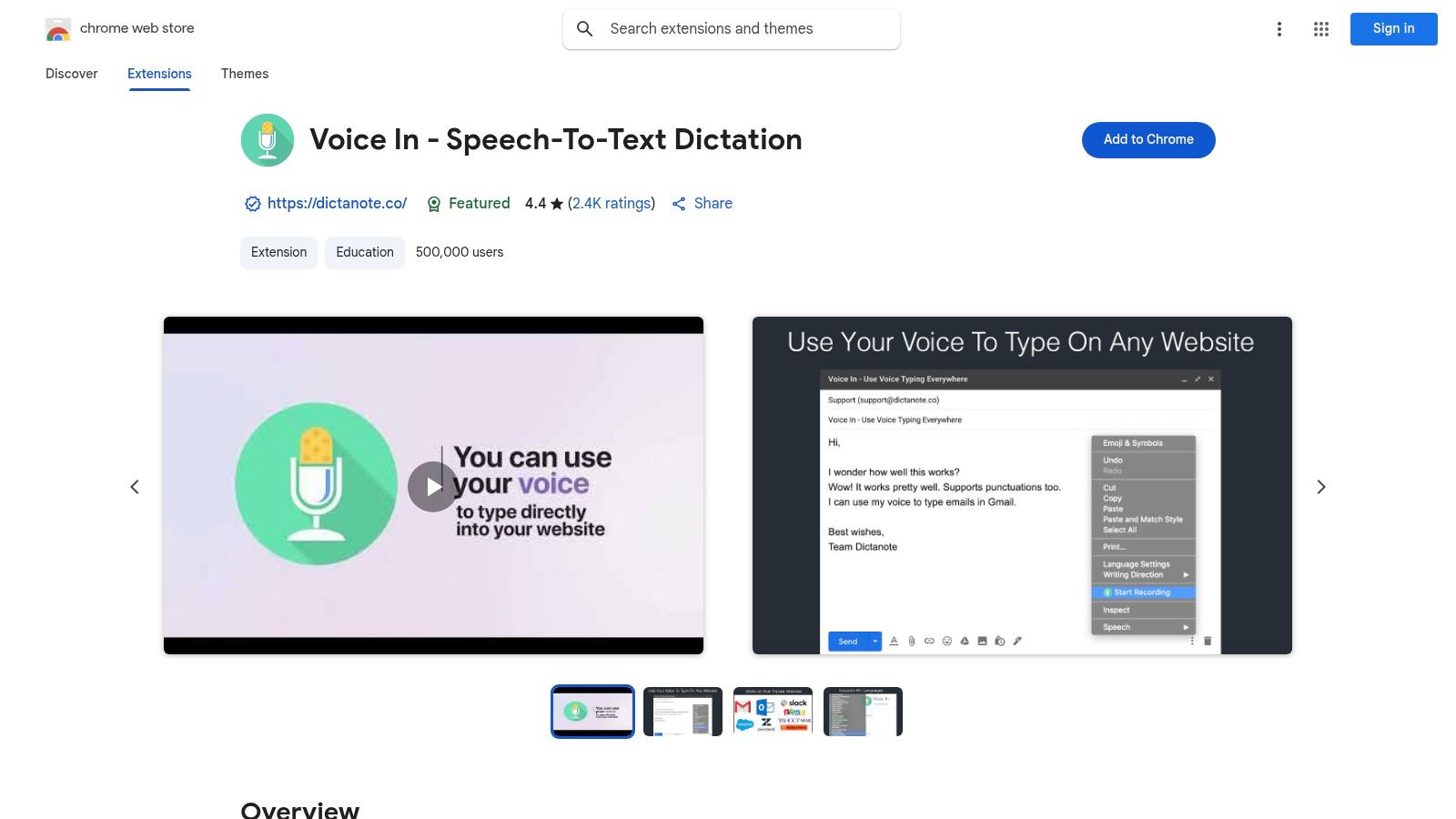
It works on over 10,000 websites. This includes Gmail, Google Docs, and many business tools. Great for professionals and students who need reliable dictation every day.
You can use voice commands for formatting. Say "new paragraph" or "add comma" and it works instantly.
The free version is solid. But the Pro version unlocks custom commands and text macros. These features help you work even faster.
What You Get
Voice In works in over 50 languages. It has great documentation and reliable support. You can learn more about how Voice In compares to other speech-to-text Chrome extensions to see if it fits your needs.
Good Parts: Works on thousands of websites. Long history of updates. Great language support.
Watch Out For: Best features cost money in the Pro version.
Pro Tip: Test the free version on all your favorite websites before buying Pro.
Website: https://chromewebstore.google.com/detail/voice-in-speech-to-text-d/pjnefijmagpdjfhhkpljicbbpicelgko
3. Otter.ai Chrome Extension
Otter.ai is built for meetings. This voice to text Chrome extension captures everything said in your video calls and creates searchable transcripts.
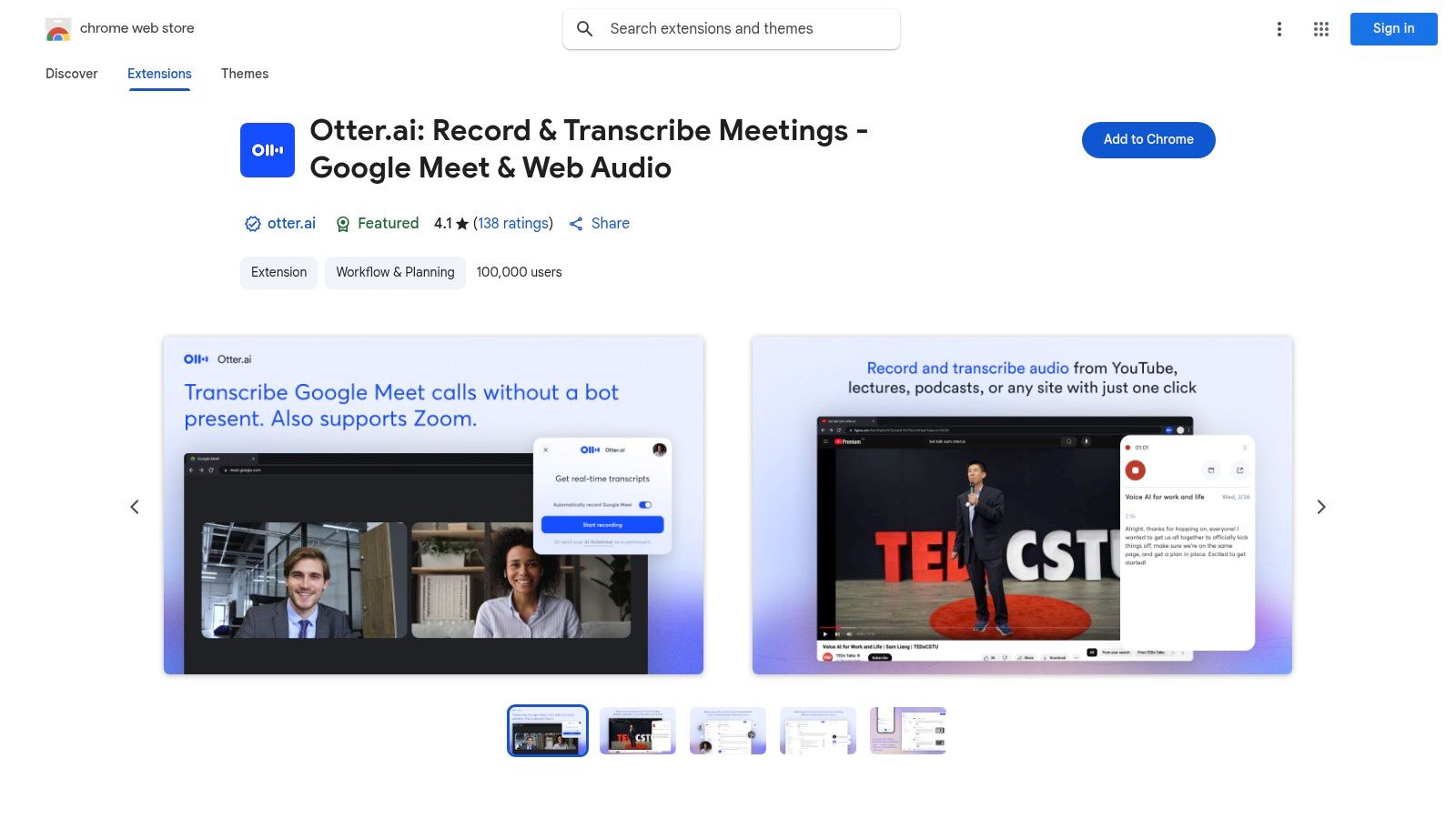
It works with Google Meet and Zoom. The extension joins your calls automatically to record conversations. This is perfect for professionals, students, and teams who need meeting records without taking notes by hand.
All transcripts are saved to your Otter.ai account. They're searchable and interactive. You can even transcribe audio from browser tabs. Great for webinars, podcasts, or online videos.
What You Get
The Otter AI Notetaker can join meetings automatically through Google Calendar. It identifies different speakers too. You can add highlights, comments, and action items right in the transcript. This turns it into a team workspace.
Good Parts: Strong meeting tools. Team sharing. Good free tier with essential features.
Watch Out For: More transcription minutes and custom vocabulary need a paid plan. The bot may need consent from meeting participants.
Pro Tip: Tell meeting participants you're using Otter.ai before the call starts. This keeps everything transparent.
Website: https://chromewebstore.google.com/detail/otterai-record-and-transc/bnmojkbbkkonlmlfgejehefjldooiedp
4. Notta for Chrome
Notta is a powerful voice to text Chrome extension that captures audio from any browser tab. It turns webinars, YouTube videos, and podcasts into text you can edit.
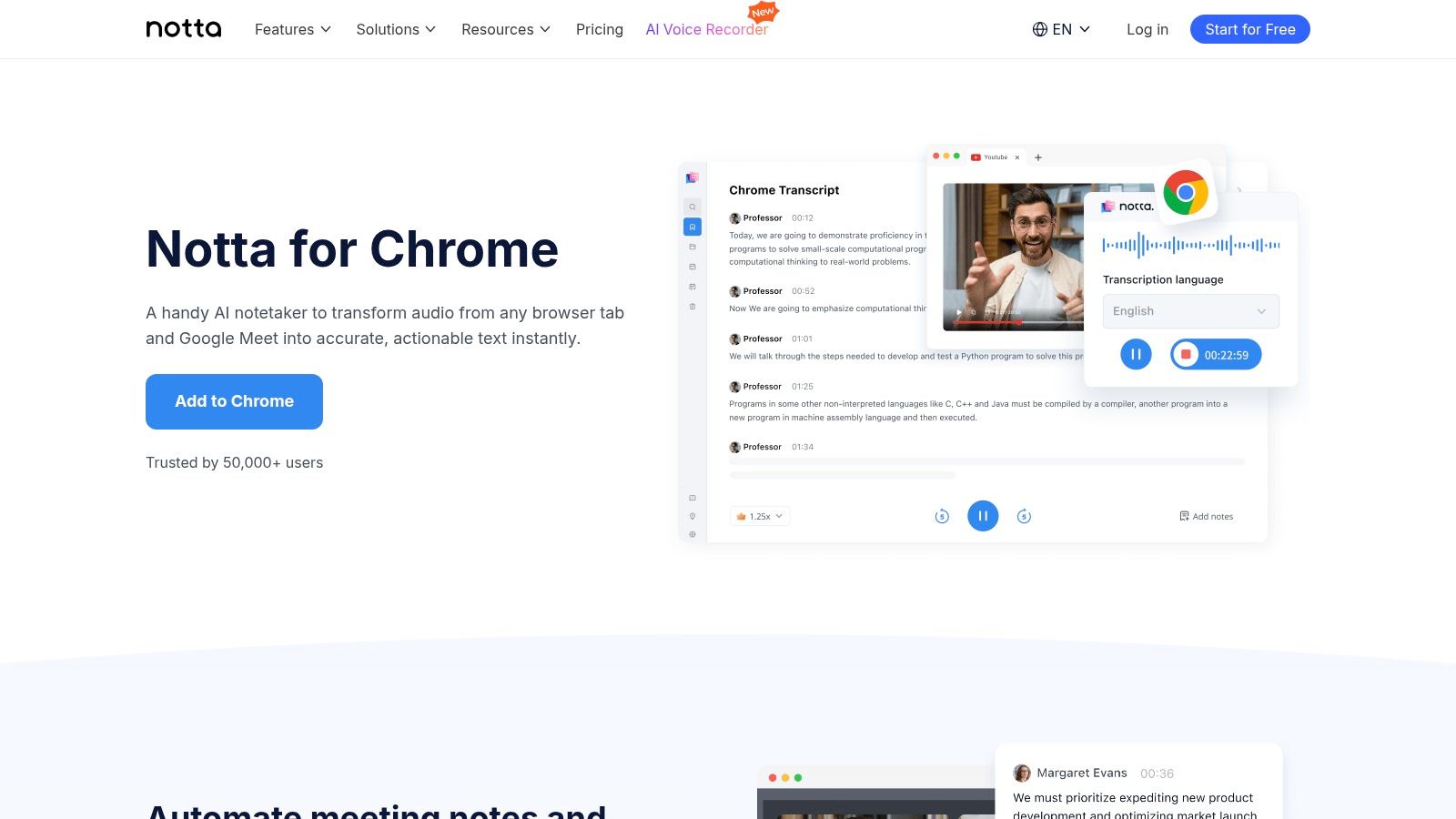
It also has a Notta Bot for Google Meet calls. This makes it perfect for professionals and students who need detailed meeting records.
All transcripts save to a cloud workspace. You can edit, search, and work with others on your transcriptions. The AI-powered summarization creates quick takeaways and action items. This saves you tons of review time.
What You Get
Notta works in over 50 languages. The interface is clean and easy to use. You can export transcripts in many formats. You do need to sign in with an account. The free tier has usage limits.
Good Parts: Transcribes tab audio and scheduled meetings. Clean editor with AI summaries.
Watch Out For: Needs an account sign-in. Free version has limits.
Pro Tip: Use the Notta Bot for Google Meet to create shareable transcripts. You don't need to be the meeting host.
Website: https://www.notta.ai/en/chrome-extension/
5. Transkriptor Chrome Extension
Transkriptor records and transcribes audio from your browser. This voice to text Chrome extension is perfect for meetings, lectures, and online content.
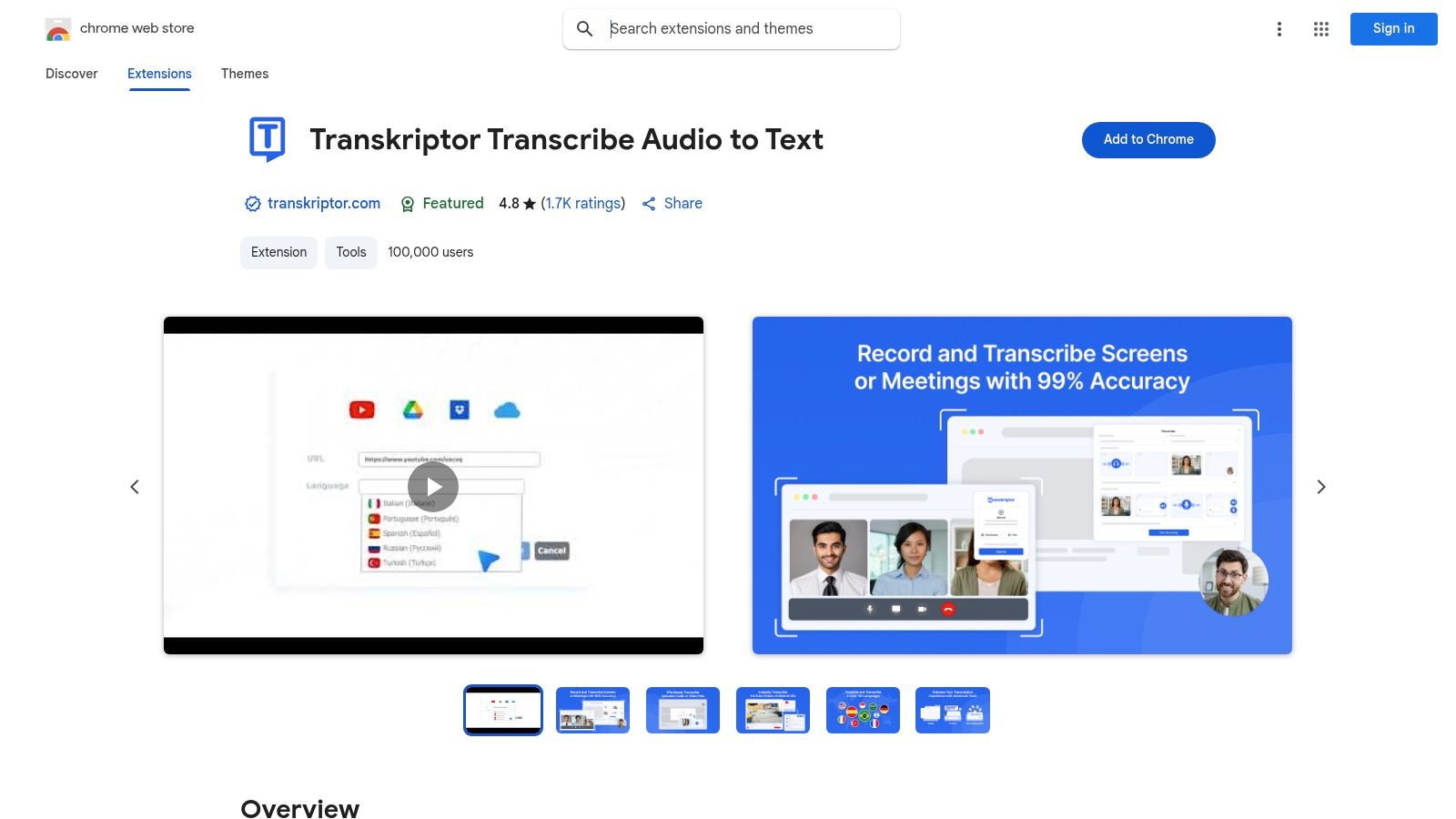
It captures audio from tabs, screens, or your microphone with one click. Advanced AI creates accurate transcripts in over 100 languages. This tool focuses on transcription, not real-time dictation.
The interface is clean and guides you from recording to transcription easily. A free trial lets you test it out. But the best features like AI summaries and speaker separation need a paid subscription.
What You Get
After transcribing, the AI can create meeting summaries automatically. It identifies different speakers. You can export text in multiple formats. This includes SRT for video captions and DOCX for reports. Perfect for content creators and teams.
Good Parts: Supports 100+ languages. Many export options (TXT, SRT, DOCX). AI summaries and speaker identification.
Watch Out For: Full accuracy and advanced features need a paid subscription. Built for transcription, not real-time dictation.
Pro Tip: Use one-click recording to capture Google Meet or Zoom calls. Then use the AI summary to make quick meeting notes.
Website: https://chromewebstore.google.com/detail/transkriptor-transcribe-a/pbajmiiebklfjhkeahpgjdlgclelihjh
6. Tactiq – AI Chrome Extension
Tactiq is a powerful voice to text Chrome extension made for online meetings. It's not for general dictation. Its strength is giving you live, real-time transcriptions for Google Meet and Zoom.
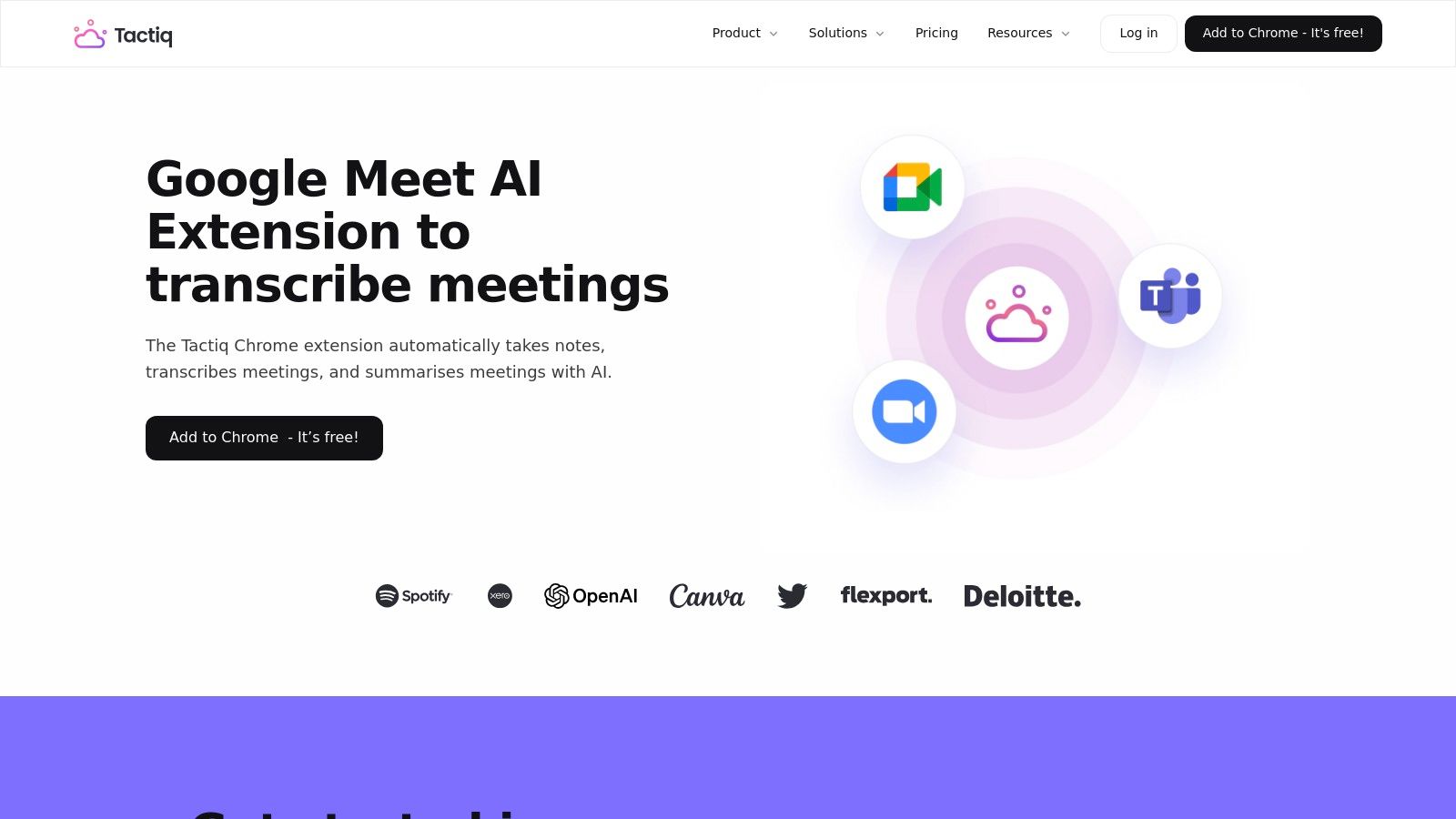
It turns spoken conversations into organized, actionable text. Perfect for professionals, teams, and students who need to capture every detail from virtual meetings. No more manual note-taking.
The tool launches automatically in your meeting window. AI features set it apart. It generates summaries, identifies action items, and creates agendas from the transcript. It's a complete meeting assistant.
What You Get
Tactiq's AI analyzes meetings after they end. It uses AI prompts to turn hours of conversation into short summaries. It highlights key decisions and lists follow-up tasks. This saves time and ensures nothing gets lost. For more productivity tools, check out the best AI Chrome extensions for 2025.
Good Parts: Great integration with Google Meet and Zoom. Powerful AI summaries and action items. 10 free meetings per month.
Watch Out For: Made for meetings only. Not good for general dictation in other browser tabs.
Pro Tip: Use custom AI prompts to create specific summaries. Like extracting all action items or key decisions.
Website: https://chromewebstore.google.com/detail/tactiq-ai-chrome-extensio/fggkaccpbmombhnjkjokndojfgagejfb
7. Speechnotes – Voice Typing Anywhere
Speechnotes is a simple voice to text Chrome extension that focuses on ease of use. It gives you a floating microphone button and keyboard shortcuts for quick dictation.
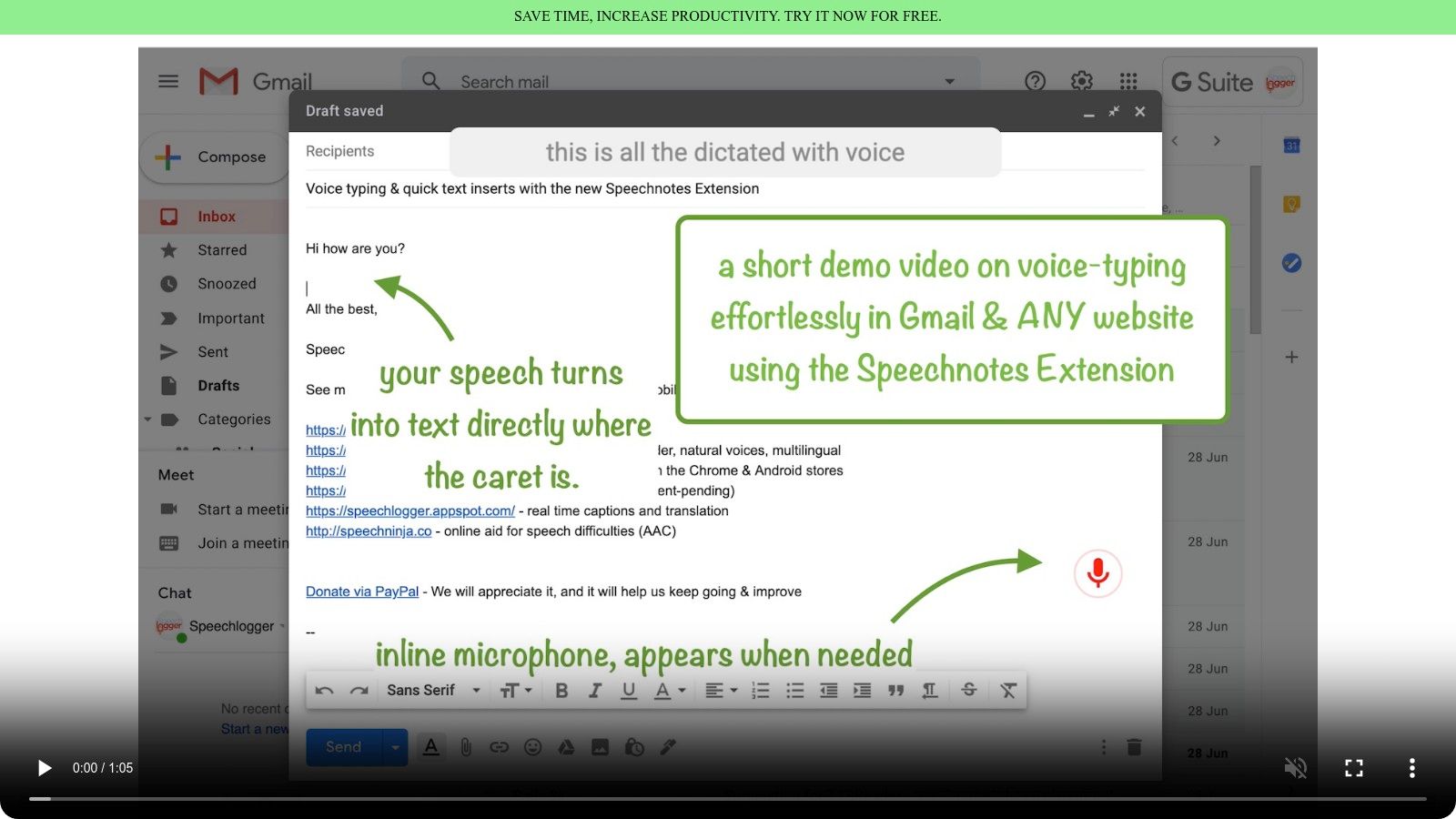
You don't need an account to get started with basic features. Just install and go. Speechnotes also has an online notepad. This is great for longer dictation sessions and even lets you transcribe audio files. One of the more versatile options for students. Learn about more great Chrome extensions for students.
What You Get
Keyboard shortcuts let you start and stop dictation easily. This makes your workflow hands-free and efficient. It works well on most websites. But some complex apps like Google Docs might need the Speechnotes notepad instead.
Good Parts: Very easy to use. No account needed for basic features. Affordable premium plans for advanced features.
Watch Out For: May have compatibility issues on complex web applications. Sometimes needs workarounds.
Pro Tip: Use the Speechnotes online notepad for long content. It saves your work automatically and has better dictation controls.
Website: https://speechnotes.co/x/
8. Speech Recognition Anywhere
Speech Recognition Anywhere is a robust voice to text Chrome extension for power users. It's made by Sea Breeze Computers. It lets you create custom voice commands, scripts, and macros for hands-free browsing and writing.
Get Speech Recognition Anywhere
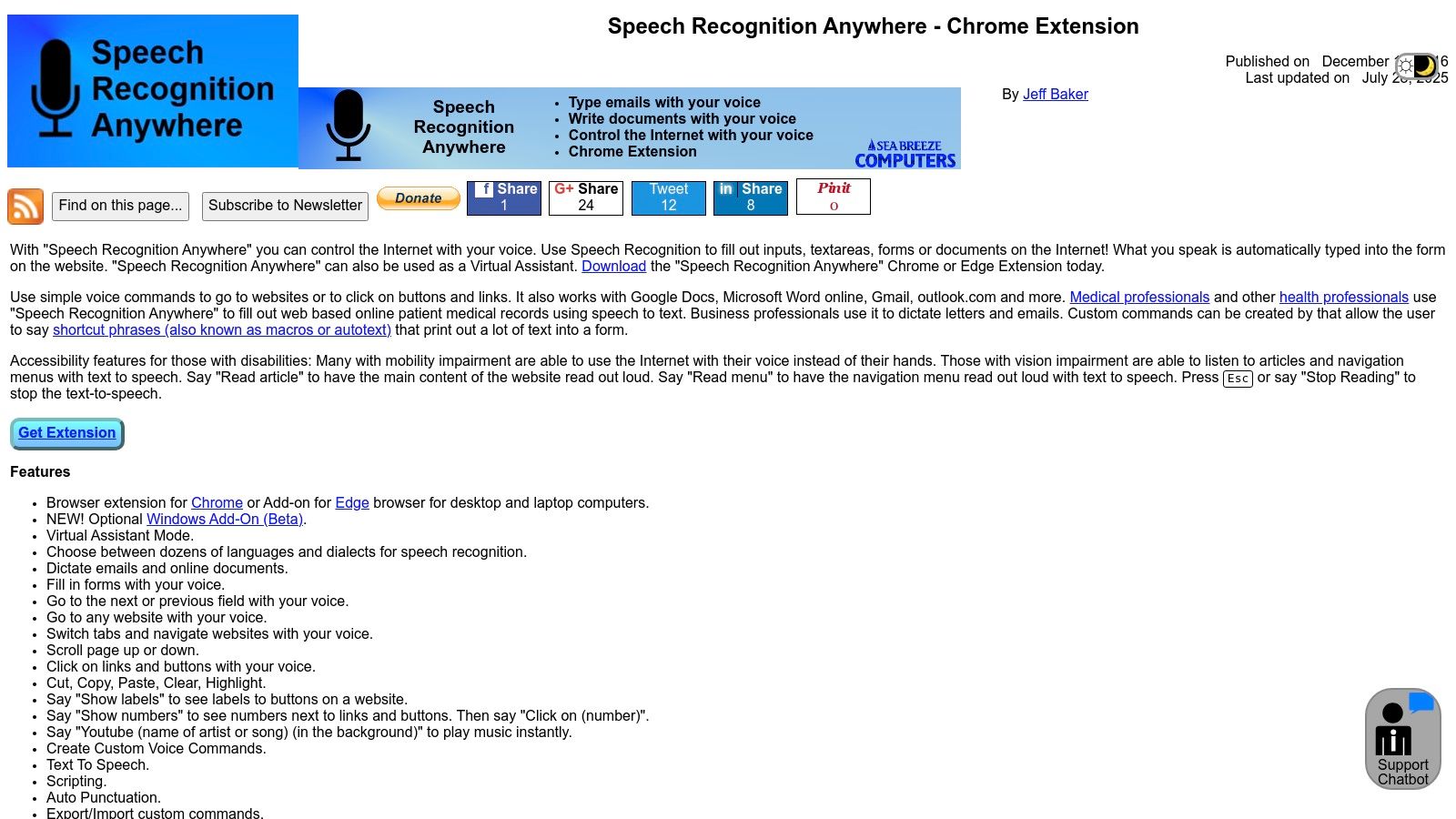
It works with complex web apps like Google Docs. Perfect for professionals and users with specific accessibility needs.
The scripting capability is the main advantage. This sets it apart from simpler tools. The interface feels more technical than others. But it gives you serious control for automating repetitive tasks. You need a subscription for full features.
What You Get
Text-to-speech reads back dictated text. This helps you proofread and edit without looking at the screen. Combined with advanced commands, it's ideal for building an efficient voice-controlled workflow.
Good Parts: Deep customization with scripts and macros. Great for hands-free workflows.
Watch Out For: Needs a subscription for full features. Interface may feel intimidating for casual users.
Pro Tip: Start with pre-built commands for punctuation and formatting. Master the basics before creating custom scripts.
Website: https://www.seabreezecomputers.com/speech/
9. Nuance Dragon Web Extension
The Nuance Dragon Web Extension is for users of Nuance's professional Dragon dictation software. It's not a standalone tool. It connects the desktop app to Chrome.
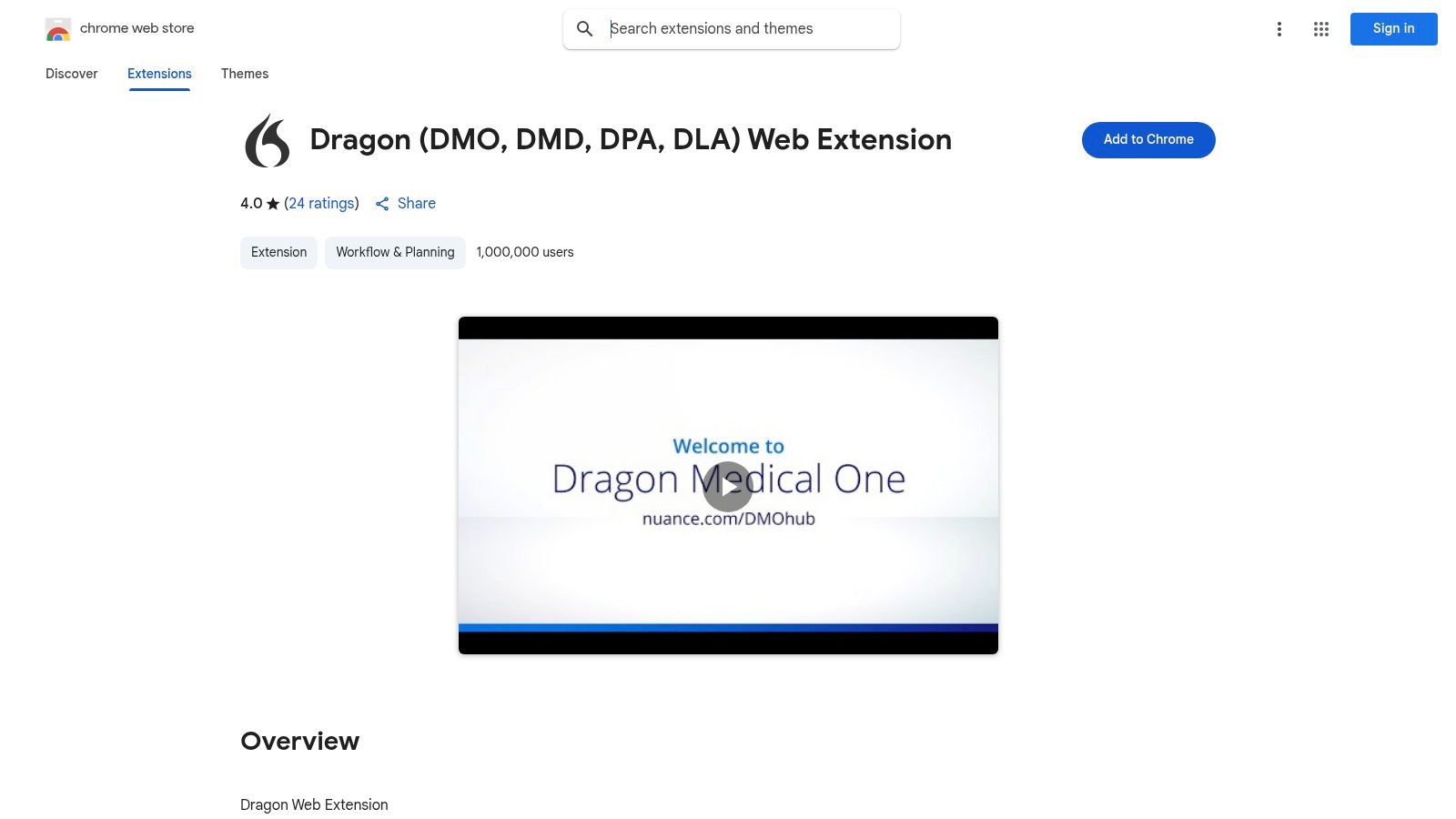
This integration is crucial for professionals in healthcare, legal, and business. They rely on Dragon's industry-specific vocabularies and commands. They can dictate into web-based systems like electronic health records (EHRs) and case management software.
This extension enables full text control in web forms. It allows hands-free navigation and editing. It maintains the high accuracy Dragon users depend on. Works with Dragon Medical One, Professional Anywhere, and Legal Anywhere.
What You Get
The main advantage is a consistent, high-quality dictation experience. Existing Dragon customers can move between desktop and web apps smoothly. It works with modern web editors and enterprise platforms.
Good Parts: Enterprise-grade dictation. Supported by the robust Nuance/Dragon ecosystem.
Watch Out For: Completely depends on an existing Dragon license. No value as a standalone extension.
Pro Tip: Check which Dragon version you have before installing. Make sure this extension matches your software.
Website: https://chromewebstore.google.com/detail/dragon-dmo-dmd-dpa-dla-we/feolagkacappiaieohahjkeaikhjjcfa
10. LipSurf – Voice Control for the Browser
LipSurf goes way beyond simple dictation. It's a complete voice control system for your browser. While it offers great voice-to-text, its main strength is hands-free navigation.

You can click links, scroll pages, and manage tabs using spoken commands. This makes it an ideal voice to text Chrome extension for comprehensive accessibility or productivity needs.
The extension gets more powerful through community plugins. These add custom commands for specific websites like YouTube or Gmail. This customization offers a tailored voice-controlled experience. But users have reported availability issues on the Chrome Web Store in the past.
What You Get
LipSurf focuses on browser automation and control, not just transcription. It has a "dictation mode" activated by a wake word. It switches seamlessly between text entry and command execution. Its privacy-first model doesn't sell your data. This is great for security-conscious users.
Good Parts: Powerful browser control beyond basic dictation. Privacy-focused subscription with no ads. Community plugins available.
Watch Out For: Has faced delisting issues on Chrome Web Store. Support and updates have varied over time.
Pro Tip: Explore community plugins for your most-used websites. This dramatically increases productivity.
Website: https://www.lipsurf.com/
Voice-to-Text Chrome Extensions Comparison
Product | What It Does Best | Quality & Experience | Price | Best For | What Makes It Special |
|---|---|---|---|---|---|
🏆 Voicy | 99%+ accuracy, 50+ languages, AI grammar | Polished, works everywhere | Visit website for pricing | Professionals, writers, multilingual users | AI commands change tone and style instantly |
Voice In | Real-time typing, 40–50+ languages | Mature and reliable | Pro features cost extra | General dictation | Format commands, works on thousands of sites |
Otter.ai | Live meeting transcription, calendar AI | Strong for teams | Free basic, paid plans available | Teams, meeting attendees | AI notetaker, captures webinar audio |
Notta for Chrome | Transcribes tab audio, cloud workspace | Clean editor, AI summaries | Free tier limits, sign-in required | Meeting users, multimedia listeners | AI summary, team collaboration |
Transkriptor | Multi-format export, 100+ languages | Well documented | Paid plans for best features | Meeting notes, captioners | Speaker separation, many export formats |
Tactiq | Google Meet focus, AI summaries | Polished interface | Free 10 meetings/month, paid upgrades | Meeting participants | Action items, tagging, sharing |
Speechnotes | Floating mic, keyboard shortcuts | Easy, no account needed | Affordable premium plans | Casual users, students | Web notepad, simple controls |
Speech Recognition Anywhere | Custom commands, scripting | Powerful but technical | Subscription-based | Power users, hands-free workflows | Text-to-speech, deep customization |
Nuance Dragon | Enterprise dictation, EHR/legal focus | Enterprise-grade | Requires Dragon license | Medical, legal professionals | Full web control, professional integration |
LipSurf | Dictation + full browser voice control | Privacy-focused, powerful | Subscription required | Hands-free browser users, accessibility | Extensive voice navigation, plugins |
For AI prompt workflows, Voicy can also add Claude voice support in the browser, letting you dictate prompts directly into Claude.
If you came here looking for a Siri for Chrome alternative, our Chrome speech-to-text guide explains the difference between voice search, browser dictation, and AI writing commands.
For desktop and mobile options beyond browser extensions, compare the best talk-to-text apps for everyday writing.
The Final Word: Choosing Your Voice-to-Text Tool
Finding the right voice to text Chrome extension depends on your needs. We've shown you 10 of the best tools available today.
From meeting assistants like Otter.ai and Tactiq to complete browser control with LipSurf, each extension has something unique to offer. There's no single "best" solution. Only the best fit for what you need.
The key is matching a tool's strengths to your daily tasks. A student taking quick notes needs something different than a project manager transcribing video calls. A writer who wants custom commands has different needs than someone looking for accessibility features.
Choosing Your Perfect Tool
Think about the practical realities of your workflow. Ask yourself these questions:
What's Your Main Use? Are you writing emails and documents? Transcribing meetings? Controlling your browser? Tools like Voicy excel at general writing. Transkriptor is built for media transcription.
How Important Is Accuracy? Do you need near-perfect transcription? Do you need multiple languages or specific dialects? Check which speech recognition engines each extension uses.
What Apps Do You Use? How well will this tool work with Google Docs, Gmail, or Notion? Extensions like Voice In work on thousands of websites.
What's Your Budget? Looking for a free solution like Speechnotes? Or willing to invest in premium features and higher usage limits?
Your Next Steps
The best way to find your perfect match is to try them yourself. Pick two or three extensions from our list that look most promising. Install their free versions or start a trial.
Use each one for a day in your normal routine. Dictate an email. Transcribe a short video. Take notes during a meeting.
Pay attention to the details: How easy is the interface? How fast does it process your speech? Does it interrupt your flow or make it better?
This hands-on testing is the only way to know which voice to text Chrome extension will work best for you. It'll save you time, reduce physical strain, and help you work more efficiently. For more ways to reclaim your hours, check out our guide to the best time management tools.
Ready to experience the next level of dictation? For powerful AI transcription, intelligent text transformation, and seamless integration everywhere you work, give Voicy a try. See how its advanced features can improve your workflow by visiting Voicy and starting with a free trial.
If you mostly use Google Docs, we also have a dedicated guide to voice typing in Google Docs that covers both the built-in feature and Chrome extension alternatives.
Want more than just voice typing? Check out our full list of the 15 best Chrome extensions for productivity - covering task management, focus tools, and more.
The same Chrome extension ecosystem also helps Opera and Edge users. See our guides to Opera voice typing extensions and Edge browser extensions.
For a wider productivity stack, see the best Chrome extensions for productivity. Pair a voice-to-text extension with a blocker, password manager, and task capture tool before adding more AI extensions.


