




There are thousands of developer tools out there.
This guide shows you the 12 best Mac apps for developers in 2026.
We tested them.
We read the reviews.
We looked at what professional developers actually use every day.
You'll get real pros and cons for each tool. We'll tell you what's free and what costs money. You'll see which apps work best together. And we'll help you build a setup that actually boosts your productivity.
Whether you're coding iOS apps or building web services, these tools will help you work faster and smarter.
Short version of the article
The best Mac apps for developers depend on what you're building and how you work.
If you want productivity and workflow boosters:
Raycast - Lightning-fast launcher with 1,300+ extensions, mostly free
Tower - Visual Git client with undo, $69/year
Voicy - Speech-to-text that works everywhere on Mac, 3x faster for writing docs and emails than typing
If you need containers, APIs, and databases:
Docker Desktop - Run containers and microservices, free for small businesses
Postman - Test and build APIs without writing test code, free tier is generous
TablePlus - Beautiful database manager for 15+ database types, $79/year
If you want design and collaboration:
Figma - Designer-developer collaboration, free tier available
Slack - Team chat with 2,600+ integrations, free for small teams
If you want essential development tools:
Xcode - Free from Apple, required for iOS and Mac development
Homebrew - Must-have package manager, installs everything with one command
iTerm2 - Powerful terminal with split panes and search, totally free
Visual Studio Code - Most popular code editor, works for every language, completely free
Your To-Do: Start with the productivity tools that amplify everything else (Raycast, Tower). Add specialized tools for your stack (Docker, Postman, TablePlus). Finish with the essential foundations (Xcode, Homebrew, iTerm2, VS Code). The productivity multipliers at the top will make you faster at everything. The essentials at the bottom are free and give you a complete development environment.
Best next step: if your main bottleneck is writing docs, prompts, commit messages, or Slack updates on Mac, go straight to Voicy for Mac for pricing, setup, and supported workflows.
1. Raycast
Raycast is Spotlight on steroids. It's a productivity launcher that makes everything on your Mac faster.
Press your hotkey. Type a few letters. Launch apps instantly. Way faster than clicking through folders.
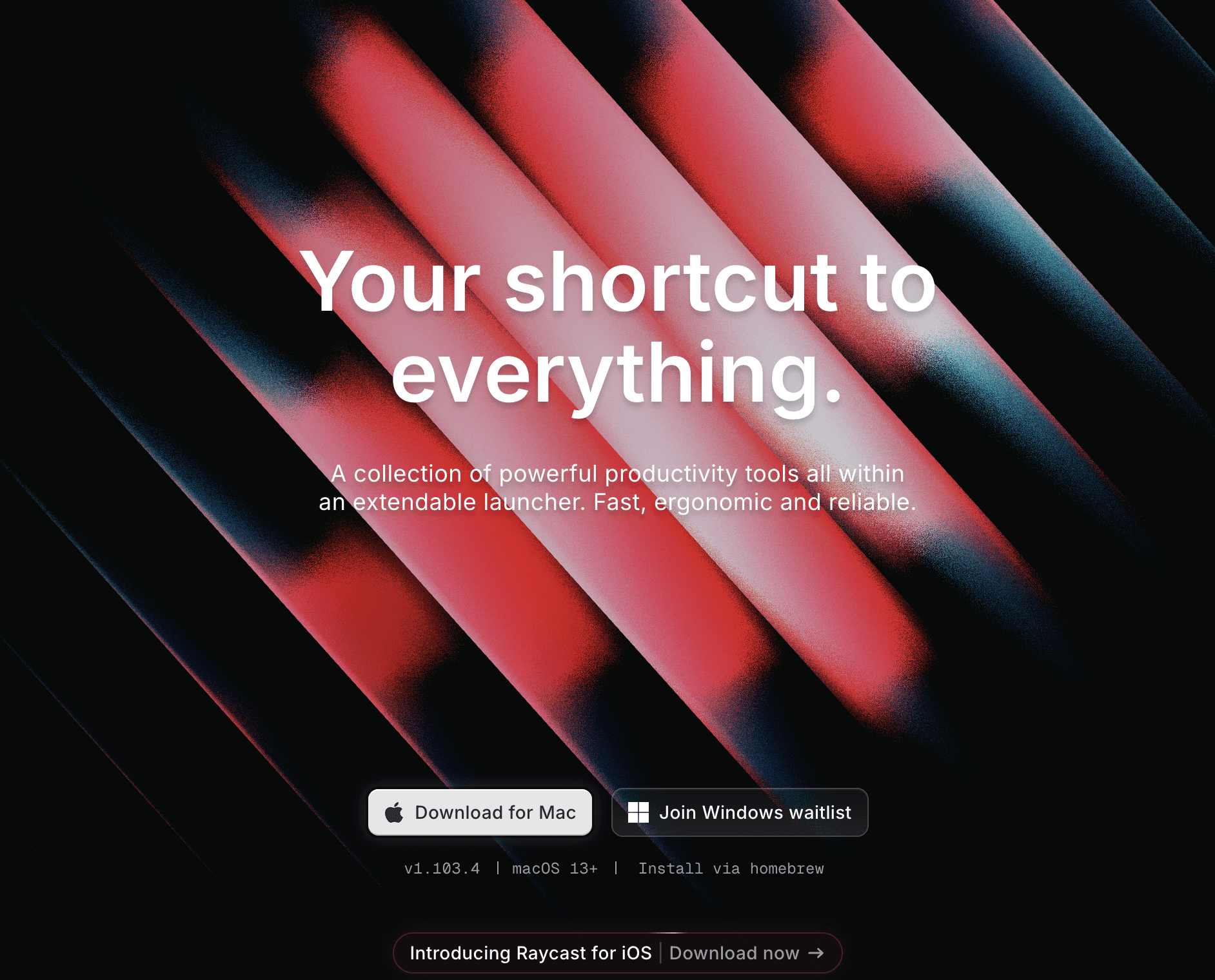
But Raycast does way more than launch apps. Search your calendar. Create meeting links. Search GitHub issues. Control Spotify. All from one search bar.
The extension store has 1,300+ extensions. They're built by developers for developers. GitHub integration. Jira search. Slack messages. Docker container management.
The clipboard history is amazing. It remembers everything you've copied. Search through it. Paste something from yesterday. No more re-copying things.
Window management built-in. Snap windows to halves or quarters with keyboard shortcuts. Organize your workspace instantly.
Pros & Cons
Pros | Cons |
|---|---|
Mostly Free: Core features cost nothing | Pro Features Locked: AI and cloud sync need Pro |
Super Fast: Instant responses, no lag | Extension Overload: Too many can be confusing |
Developer-Focused: Built by and for developers | Keyboard Required: Not great if you prefer mouse |
Website: https://www.raycast.com/
2. Tower
Tower makes Git visual. It turns confusing Git commands into drag-and-drop actions.
Branching in Tower is actually understandable. You see your branches. You see the commits. You drag to merge. It makes sense.
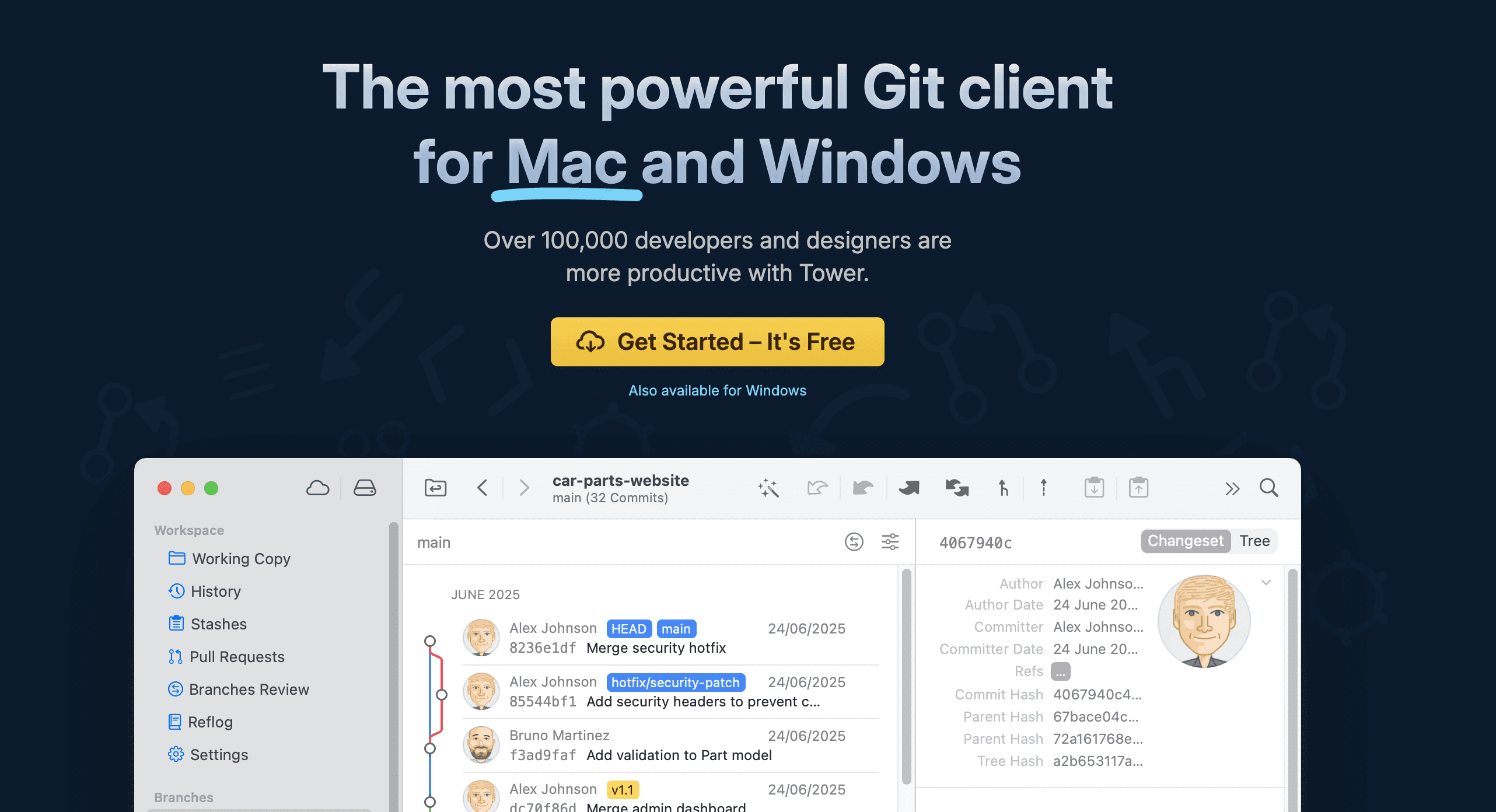
The undo button is magical. Messed up a merge? Undo. Accidentally committed to the wrong branch? Undo. Tower keeps you safe.
Staging files is visual. See your changes side by side. Stage individual lines if you want. No more git add -p confusion.
Pull request integration works with GitHub, GitLab, and Bitbucket. Create PRs right from Tower. Review them. Merge them.
The file history view shows everything. Who changed what. When. Why. Click any commit to see the full diff.
Pros & Cons
Pros | Cons |
|---|---|
Undo Everything: Mistakes become reversible | Costs Money: $69/year subscription |
Visual Git: Understand Git through pictures | Some Things Slower: Terminal is faster for experts |
Beginner Friendly: Great for learning Git | No Linux Version: Mac and Windows only |
Website: https://www.git-tower.com/
3. Voicy (Voice-to-Text Solution)
Voicy isn't a traditional Mac developer tool. But it's incredibly useful for the non-coding parts of development.
Writing prompts
Writing docs
And those annoying commit messages
This is a speech-to-text app that works everywhere on your Mac. Every app. Every text field. No exceptions.
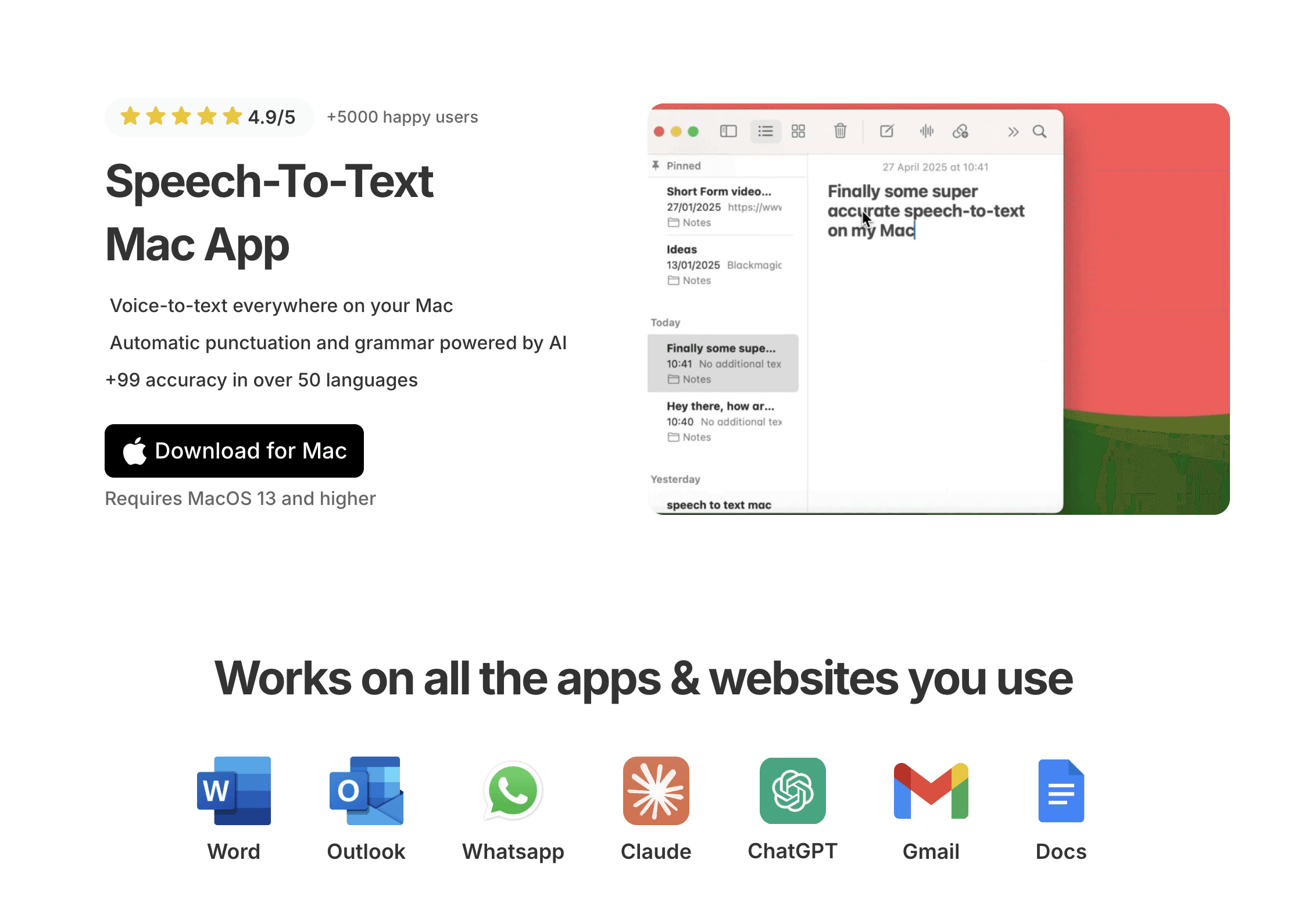
Press your keyboard shortcut. Speak. Press again to stop. Voicy transcribes your words with 99% accuracy. It adds punctuation automatically. It fixes grammar. It just works.
For the full Mac experience, check out Voicy for Mac. For a complete setup guide, see our Mac speech-to-text guide.
Want the product page instead of the roundup? Visit the Voicy for Mac landing page for feature details, pricing, and setup.
Why developers use Voicy:
Writing documentation is tedious. Voicy makes it 3x faster. Speak your README file. Dictate your API docs. Record technical explanations.
Code comments are important but annoying to type. Speak them instead. Function documentation? Just talk it out.
Bug reports need detail. Describing complex issues by voice is easier than typing. You capture everything you're seeing.
Team communication is constant. Slack messages. Email replies. Stand-up updates. Voicy speeds up all of it.
Commit messages deserve detail. Good commit messages help your team. They help future you. Voicy makes writing good messages painless.
Important note: Voicy is NOT for coding. It doesn't understand programming syntax. It can't dictate Python or JavaScript. It's for text - documentation, comments, messages, notes.
For actual code? Use your keyboard. For everything else? Voicy saves time.
Why Voicy Complements Your Mac Development Workflow
Developers type all day. Your hands get tired. Some developers deal with RSI or carpal tunnel.
Voicy gives your hands a break. Use it for the high-word-count tasks. Documentation. Email. Slack. Leave coding to the keyboard.
It works with your workflow. No app switching. No breaking your flow. Just press your hotkey when you need it.
Pros & Cons
Pros | Cons |
|---|---|
Works Everywhere: Every Mac app, every text field | Not for Coding: Can't dictate actual code |
Fast and Accurate: 99% accuracy, instant results | Needs Internet: Cloud-based processing |
Saves Time: 3x faster than typing for docs | Subscription Required: $8.49/month after trial |
Website: https://usevoicy.com/dictation-for-mac
4. Docker Desktop
Docker Desktop brings containerization to your Mac. It lets you run your app in containers that work the same everywhere.
Containers solve the "works on my machine" problem. Your code runs the same on your Mac, your teammate's Mac, and the production server. No more environment issues.
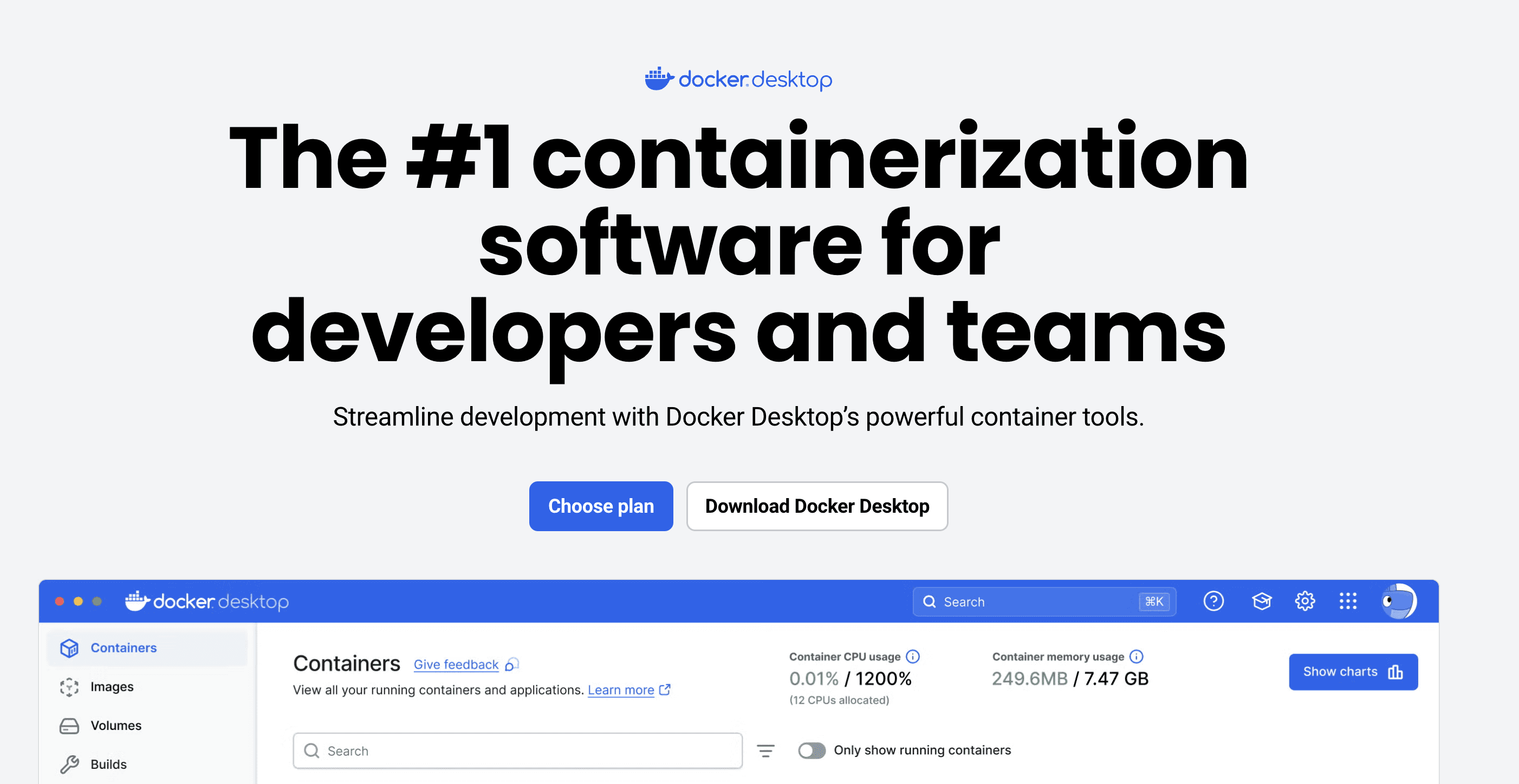
Docker Desktop includes everything you need. Docker Engine runs your containers. Docker Compose handles multi-container apps. Kubernetes support for orchestration.
The GUI makes Docker approachable. See your containers. Check their resource usage. Start and stop them with clicks instead of commands.
It runs great on Apple Silicon. Optimized for M1, M2, M3, and M4 chips. Fast container startup. Low battery drain.
Pros & Cons
Pros | Cons |
|---|---|
Industry Standard: Everyone uses Docker | Uses Lots of RAM: Can eat 4-8GB easily |
Free for Small Teams: No cost under 250 employees | License Changed: Not free for all businesses anymore |
Apple Silicon Optimized: Runs fast on M-series chips | Complex for Beginners: Containerization takes time to learn |
Website: https://www.docker.com/products/docker-desktop/
5. Postman
Postman makes API development easy. You can test APIs without writing a single line of test code.
Building an API? Postman helps you design it. Testing someone else's API? Postman sends requests and shows responses. Need to document your API? Postman auto-generates docs.
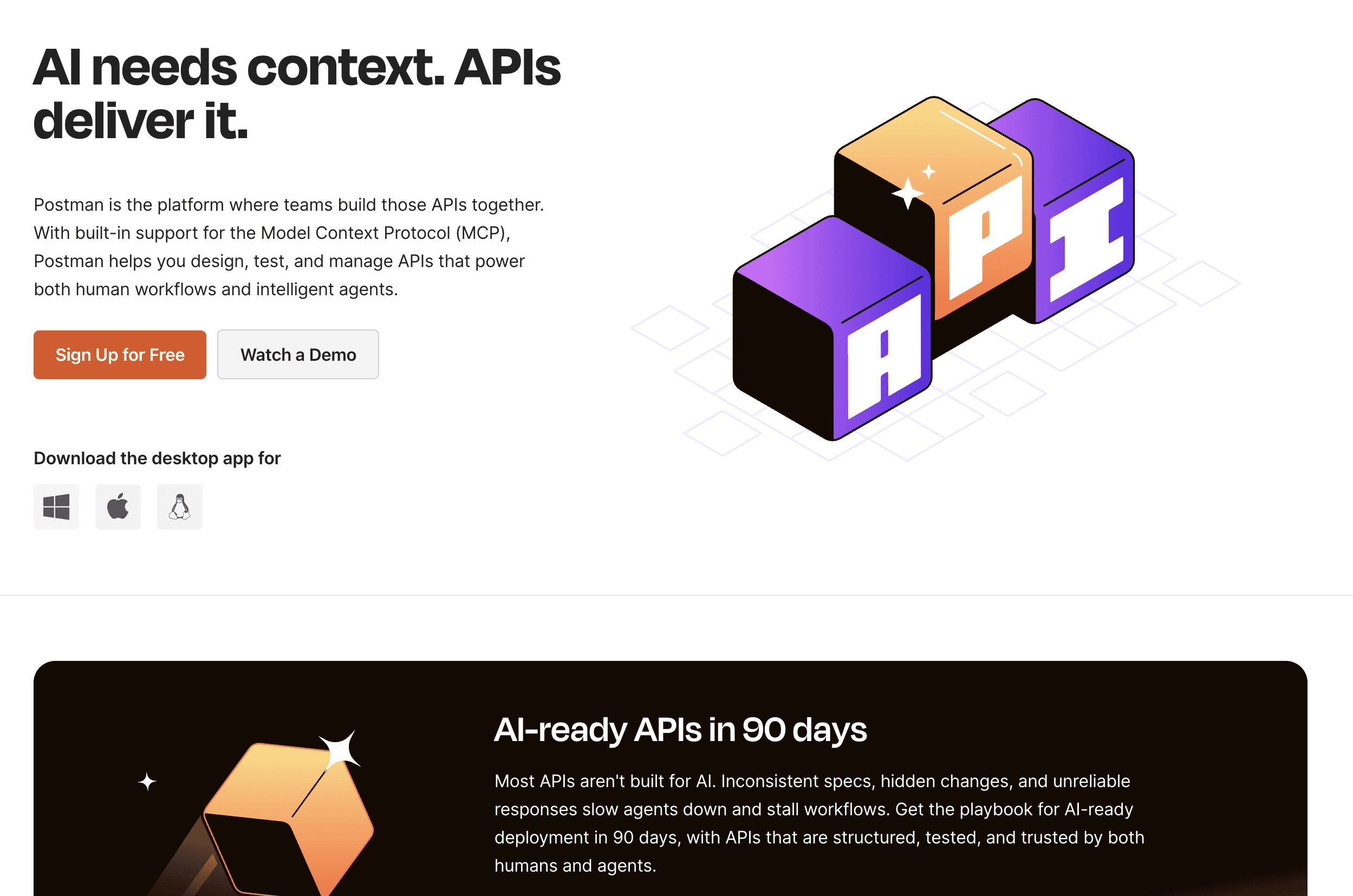
The visual interface means you don't need to remember curl commands. Click, type, send. You see the response instantly. JSON, XML, whatever - it formats everything beautifully.
Collections organize your API endpoints. Group them by feature. Share them with your team. Run entire test suites with one click.
The free tier is incredibly generous. Unlimited API requests. Three team members. That's enough for most small projects.
Pros & Cons
Pros | Cons |
|---|---|
Easy to Learn: Visual interface, no coding needed | Overkill for Simple Tests: Too much for quick API checks |
Great Free Tier: Most features free, unlimited requests | Advanced Features Cost Money: Team features need paid plans |
Team Collaboration: Share collections, work together | Gets Heavy: Slows down with huge collections |
Website: https://www.postman.com/
6. Figma
Figma bridges the gap between designers and developers. It's a design tool, but developers use it every day.
Designers create the UI in Figma. Developers open the same file and see exact specs. Colors, spacing, fonts - everything is there. No more guessing. No more back-and-forth emails.

The Developer Mode gives you code. CSS for web. Swift for iOS. It's not perfect code, but it's a great starting point.
Real-time collaboration means you see designers working live. They see your comments instantly. Multiple people editing at once. It actually works.
Figma runs in the browser or as a native Mac app. Your choice. Both work great.
Pros & Cons
Pros | Cons |
|---|---|
Designer-Developer Handoff: Specs and code in one place | Needs Internet: Limited features offline |
Free Tier Works: Three files free, unlimited viewers | Large Files Lag: Slow with complex designs |
Code Export: Get CSS, iOS, Android code snippets | Learning Curve: Takes time to master |
Website: https://www.figma.com/
7. TablePlus
TablePlus is the database manager that doesn't make you want to cry. It's beautiful, fast, and supports 15+ database types.
One app for MySQL, PostgreSQL, SQLite, MongoDB, Redis, and more. No more juggling different tools for different databases.
Screenshot of TablePlus database manager
The interface is clean. No overwhelming menus. No cluttered screens. Just your data, clearly displayed.
Editing is inline. Click a cell, change it, see the preview before you commit. The query editor has smart autocomplete. It knows your table names and column names.
Security is built-in. SSH tunneling keeps your connections safe. Multiple connection types supported.
Pros & Cons
Pros | Cons |
|---|---|
One App, Many Databases: 15+ databases in one tool | Free Version Limited: Only 2 tabs, 2 windows |
Beautiful Interface: Clean, modern, easy to use | Annual Updates Cost: $49/year to keep updating |
Fast Performance: Native Mac app, not web-based | Missing Some Features: No ER diagram creation |
Website: https://tableplus.com/
8. Slack
Slack is how development teams communicate. It's way better than email for quick questions and collaboration.
Channels organize conversations by topic. #general for announcements. #engineering for tech talk. #random for fun. Everything has a place.
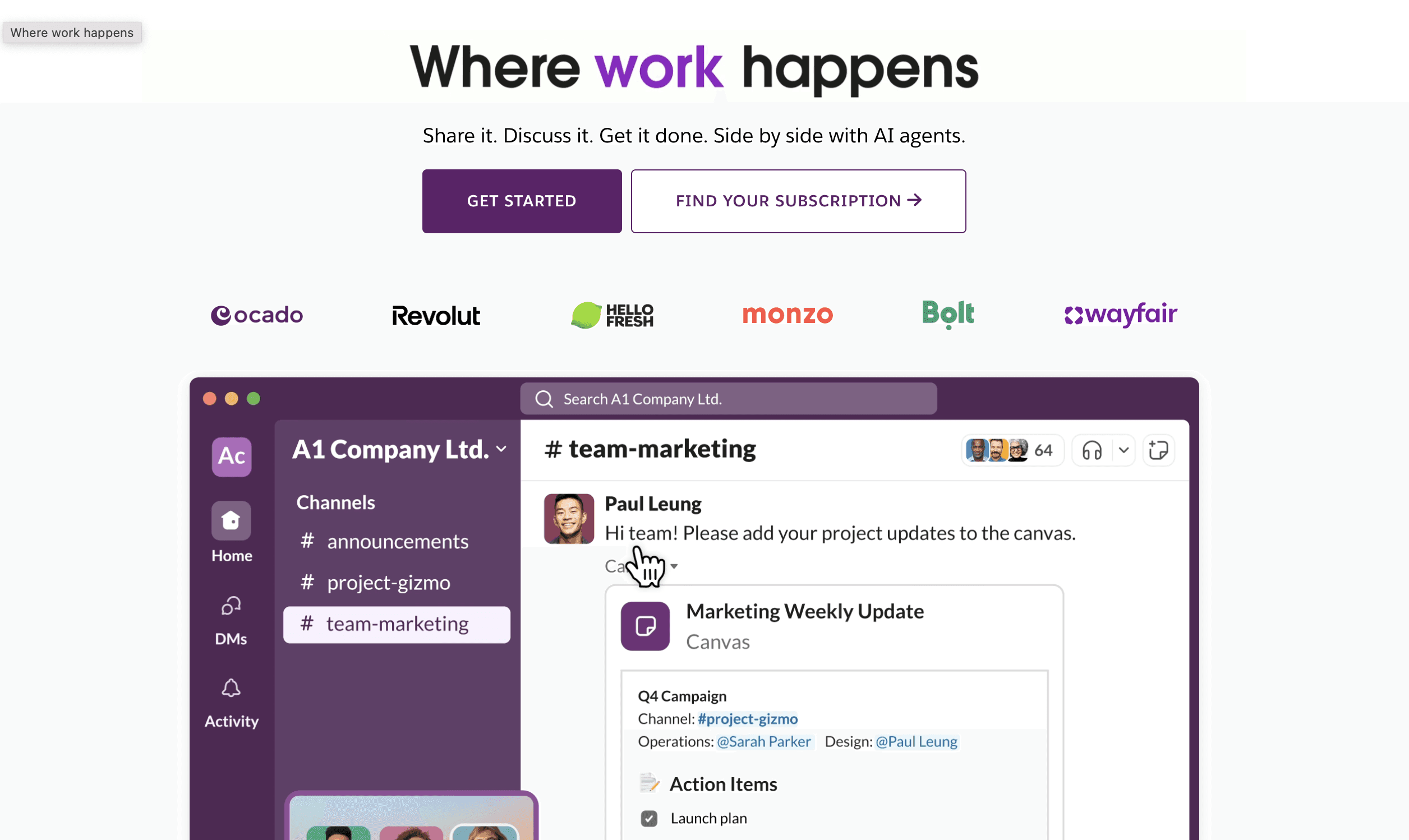
The integrations make Slack powerful. GitHub notifies you about pull requests. Jira updates appear automatically. Deploy notifications pop up. Your tools talk to your team.
Search actually works. Find that conversation from three months ago. Search by person, channel, date, or keyword. It's all there.
Huddles are quick voice calls. No scheduling. No Zoom links. Just click and talk. Perfect for pair programming or quick sync-ups.
Code snippets format beautifully. Share code in Slack and it syntax highlights. Way better than pasting into regular chat.
Pros & Cons
Pros | Cons |
|---|---|
Great for Remote Teams: Keeps everyone connected | Can Be Distracting: Constant notifications |
Powerful Integrations: 2,600+ apps connect | Free Tier Limits: Only 90 days of history |
Excellent Search: Find anything quickly | Gets Expensive: Costs add up for big teams |
Website: https://slack.com/
9. Xcode
Xcode is Apple's official IDE. If you're building iOS, Mac, or Apple Watch apps, you need it. There's no other way.
It includes everything for Apple development. The Swift compiler. The iOS Simulator. Interface Builder for designing UIs. All Apple's frameworks.
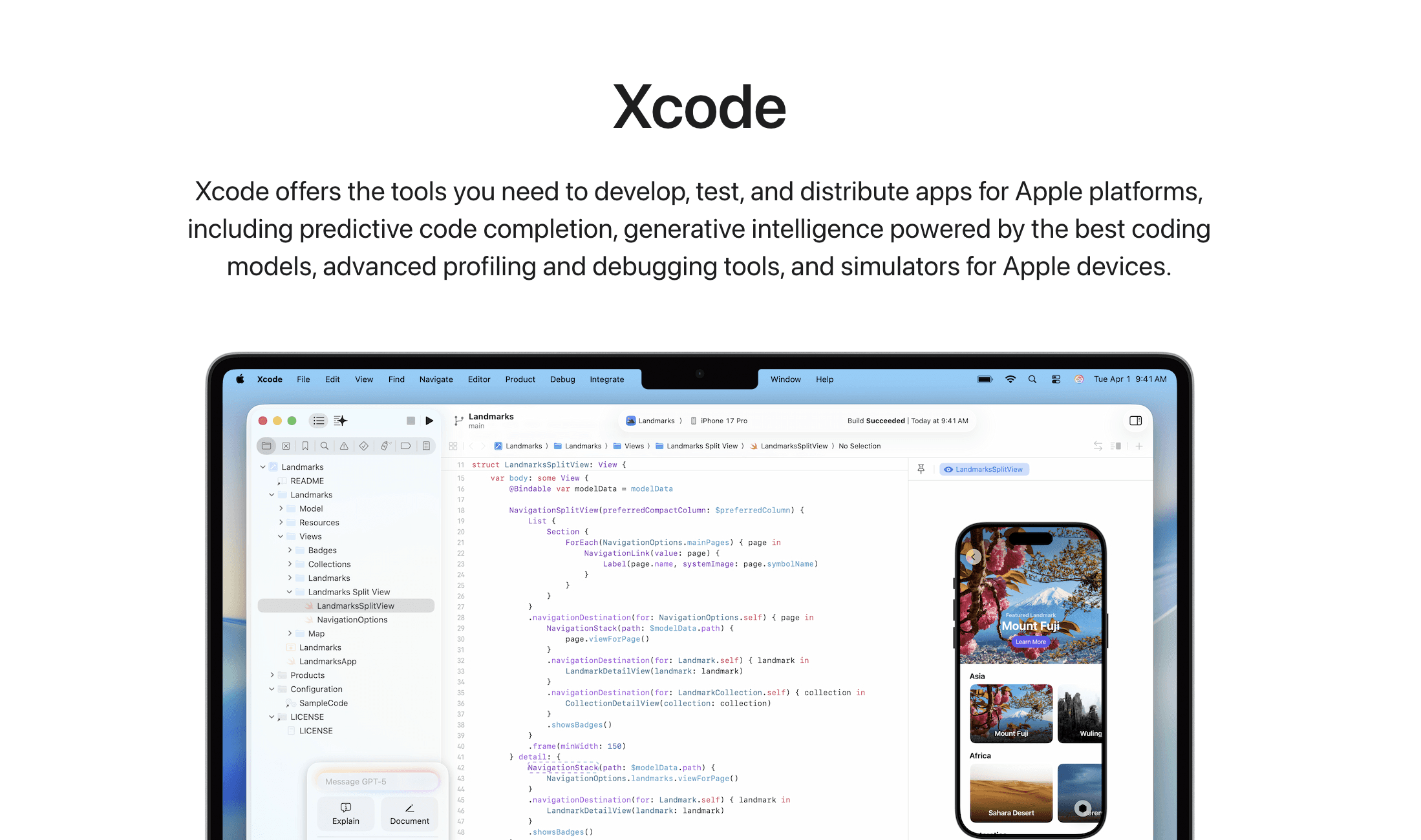
The iOS Simulator is incredibly useful. Test your iPhone app without an iPhone. See it on different screen sizes. Rotate it. Simulate location changes.
SwiftUI preview is live. Change your code and see the UI update instantly. No building. No waiting. Just instant feedback.
Instruments helps you find performance problems. Memory leaks. Slow code. Battery drain. It shows you exactly where the issues are.
Xcode is free. Download it from the App Store. No subscriptions. No limits. Completely free.
Pros & Cons
Pros | Cons |
|---|---|
Completely Free: No cost from Apple | Huge Download: Over 12GB to install |
Required for iOS: Only way to build iPhone apps | Mac Only: Can't develop on Windows or Linux |
iOS Simulator: Test without physical devices | Can Be Slow: Indexing takes forever sometimes |
Website: https://developer.apple.com/xcode/
10. Homebrew
Homebrew is the package manager every Mac developer installs first. It makes installing command-line tools stupidly simple.
Need Git? brew install git. Done. Want Node.js? brew install node. Installed. Python? brew install python. That easy.
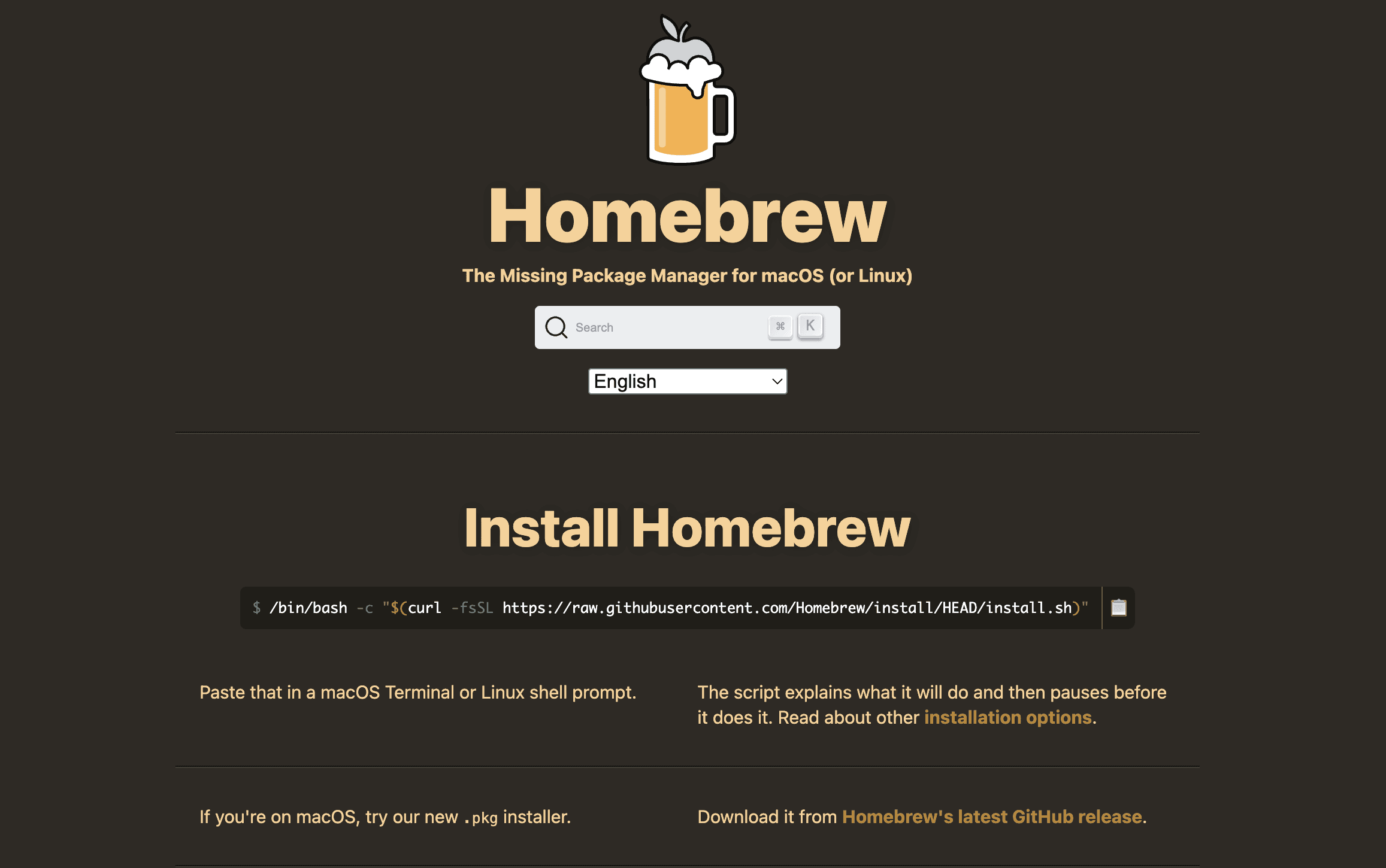
No more downloading installers. No more clicking through installation wizards. No more hunting for the right download link.
Homebrew has over 7,000 packages. Developer tools. Languages. Databases. Command-line utilities. Everything.
Updating is just as easy. brew upgrade updates everything you've installed. One command. All your tools stay current.
Homebrew Cask installs Mac GUI apps too. brew install --cask visual-studio-code installs VS Code. brew install --cask docker gets Docker Desktop.
Pros & Cons
Pros | Cons |
|---|---|
Completely Free: Open source, always free | Terminal Knowledge Needed: Command-line only |
Huge Package Library: 7,000+ packages available | Occasional Breaks: Updates can cause conflicts |
Simple Commands: Install anything with one line | No GUI: Some users want a visual interface |
Website: https://brew.sh/
11. iTerm2
iTerm2 makes the Mac terminal actually useful. It replaces the default Terminal app with something way more powerful.
Split your terminal into multiple panes. Run servers in one pane while you code in another. No more switching between windows.
The search feature alone is worth it. Command history search means you find that complex command from last week in seconds. No more scrolling forever.
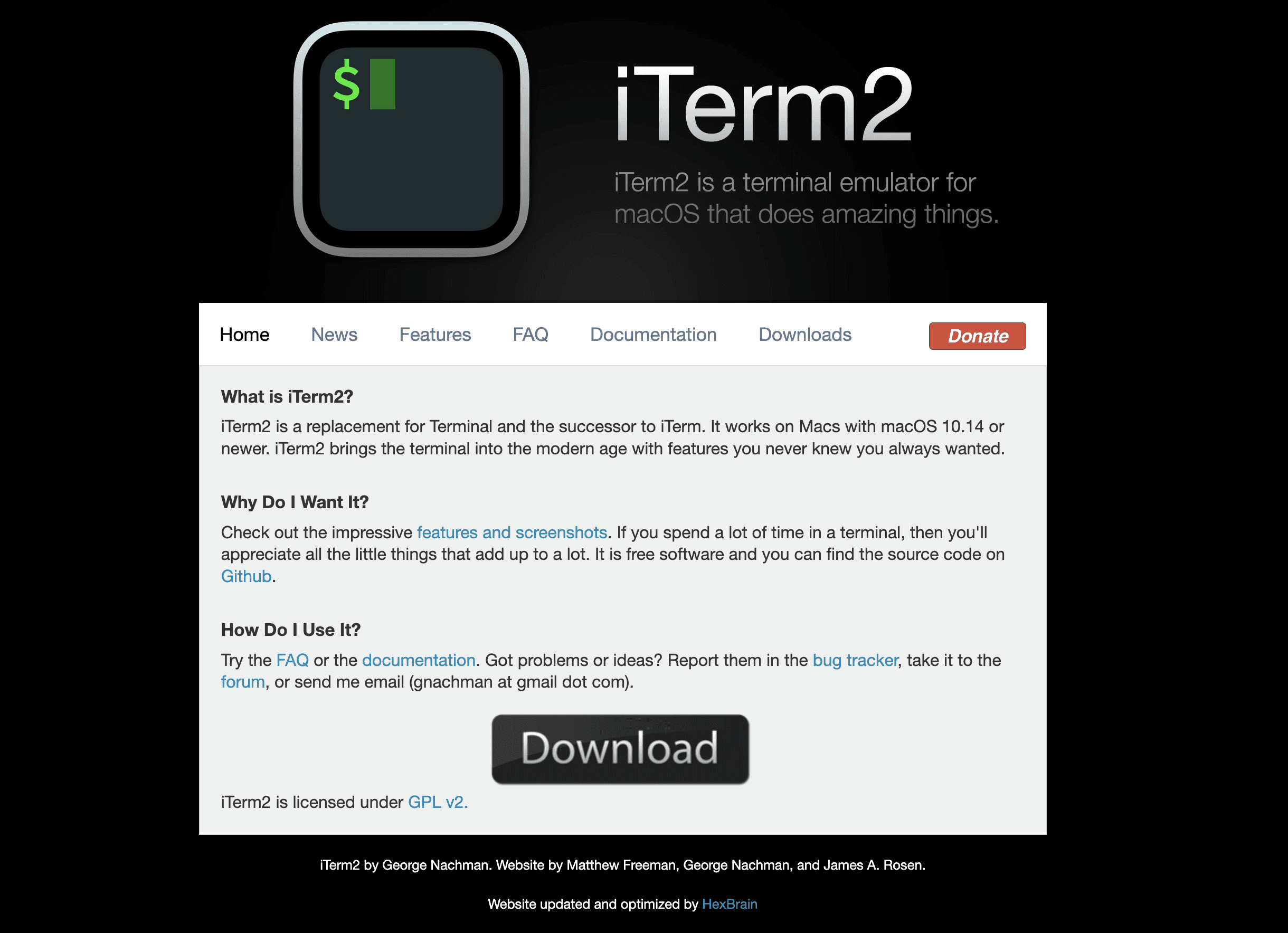
iTerm2 remembers your sessions. Computer crash? Reopen iTerm2 and everything comes back. All your tabs. All your panes. Right where you left off.
You can customize everything. Different profiles for different projects. Themes that look exactly how you want. Hotkey access means you press one key combo and boom - instant terminal.
Pros & Cons
Pros | Cons |
|---|---|
Totally Free: Open source, no hidden costs | Learning Curve: More complex than default Terminal |
Split Panes Rock: Multiple terminals in one window | Too Many Options: Can be overwhelming at first |
Super Stable: Rarely crashes, handles heavy use | Needs Setup: Works best after some configuration |
Website: https://iterm2.com/
12. Visual Studio Code
VS Code is the most popular code editor in the world. It's free, fast, and works for every programming language.
This isn't just a text editor. It's a full development environment. You get smart code completion that actually understands your code. Built-in debugging with breakpoints. Git integration that makes version control simple.
The real power comes from extensions. There are over 40,000 of them. Want to code in Python? There's an extension. Need to work with Docker containers? There's an extension. Want AI coding help? Extensions for that too.
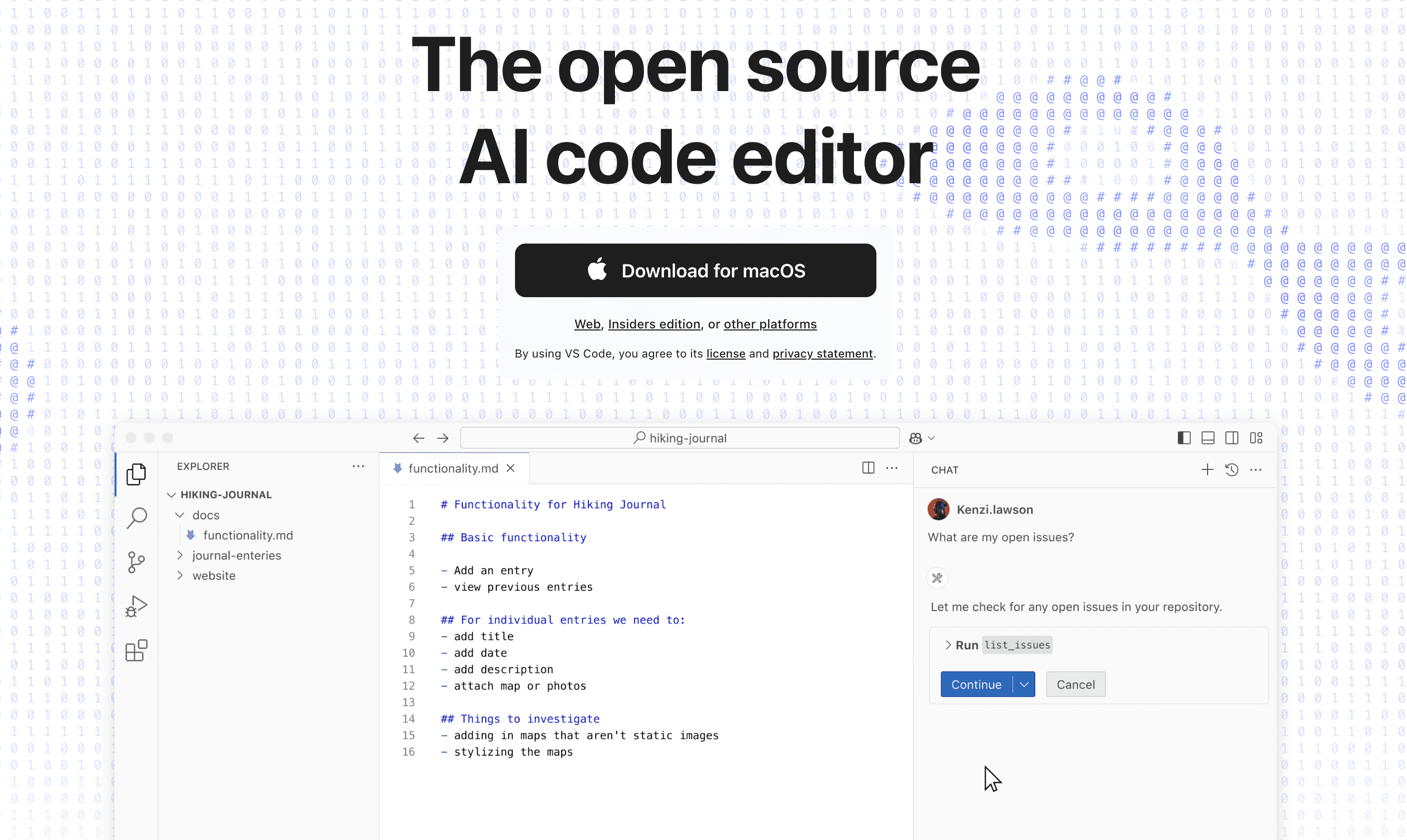
VS Code runs natively on Apple Silicon. This means it's fast and doesn't drain your battery. You can split your screen into multiple editors. The integrated terminal means you never leave the app.
It syncs your settings across computers. Install VS Code on your MacBook and your Mac Studio. Everything stays the same.
For developers who want speech-to-text for code comments and documentation, check out Voicy for Mac for a setup that works cleanly with VS Code.
Pros & Cons
Pros | Cons |
|---|---|
Completely Free: No cost, open source, always will be | Extensions Add Weight: Too many extensions slow it down |
Huge Extension Library: 40,000+ extensions for everything | Setup Takes Time: Needs configuration for best experience |
Regular Updates: New features and fixes every month | Update Interruptions: Frequent restart requests for updates |
Website: https://code.visualstudio.com/
Key Feature Comparison of 12 Mac Developer Apps
App | Category | Price | Best For |
|---|---|---|---|
Raycast | Productivity | Free-$8/mo | Fast app launching |
Tower | Version Control | $69/year | Visual Git |
Voicy | Speech-to-Text | $6.99-12.99/mo | Documentation & communication |
Docker Desktop | Containers | Free-$24/mo | Running containers |
Postman | API Testing | Free-$35/mo | API development |
Figma | Design | Free-$45/mo | Designer collaboration |
TablePlus | Database | $79/year | Database management |
Slack | Communication | Free-$15/mo | Team collaboration |
Xcode | IDE | FREE | Apple development |
Homebrew | Package Manager | FREE | Installing tools |
iTerm2 | Terminal | FREE | Advanced terminal features |
Visual Studio Code | Code Editor | FREE | All-purpose coding |
Building Your Perfect Mac Development Setup
The best Mac apps for developers aren't the ones with the most features. They're the ones that fit your workflow.
Start with productivity multipliers: Raycast and Tower transform how you work. Raycast makes everything faster. Tower makes Git actually understandable. These tools amplify everything else you do.
Add your voice: Voicy cuts documentation time by 3x. Use it for README files, bug reports, commit messages, and team communication. Your hands will thank you.
Layer in specialized tools: Docker Desktop for containers. Postman for APIs. TablePlus for databases. Figma for design collaboration. Slack for team communication. Add these as your projects demand them.
Build on the essentials: Xcode for Apple development. Homebrew for package management. iTerm2 for terminal power. Visual Studio Code for editing. These four are free and give you a complete foundation.
Why Mac Wins for Developers in 2025
Apple Silicon changed everything. M1, M2, M3, and M4 chips give you desktop performance in a laptop. Amazing battery life. Cool and quiet operation. Power when you need it.
Building your own voice-powered app? Check our comparison of the best speech-to-text APIs for developers.
Developers using Claude Code for AI-assisted coding can speed up their prompts massively with voice - see how Voicy enables speech-to-text in Claude Code.
Developers who suffer from wrist strain or RSI can dramatically reduce keyboard use - see our guide on dictation app for Mac.
The Unix foundation means your Mac terminal just works. No WSL complexity like Windows. No compatibility issues. It's a developer-friendly OS right out of the box.
You can develop for every platform on a Mac. iOS and Mac apps? Obviously. Android apps? Absolutely. Web development? Perfect. Windows apps? Use Parallels. One computer does it all.
The ecosystem integration is real. AirDrop files to your iPhone instantly. Copy on your Mac, paste on your iPad. Your development environment moves with you.
These twelve apps make a great Mac developer setup even better. Many are free. The paid ones are worth it. Together, they create a workflow that just works.
Try the productivity tools first. Download Raycast and Tower today. See how much faster you work. Then add the essentials - Homebrew, iTerm2, VS Code, and Xcode. Build from there.
Your best work happens when your tools get out of the way. These Mac apps do exactly that.
For a broader workflow stack, see the best time management apps for planning, focus, meetings, and writing.
If your developer workflow involves docs, tickets, commit messages, or prompts, compare Voicy for Mac with our broader voice-to-text software guide. Dictation is most useful for the writing around code, not for speaking syntax all day.


