The Best Chrome Extensions for Productivity in 2026 At A Glance
uBlock Origin Lite - Best for cleaner browsing, fewer ads, and fewer trackers.
Todoist - Best for capturing tasks from any webpage.
1Password - Best polished password manager for work and personal accounts.
Bitwarden - Best free password manager with strong cross-device support.
Grammarly - Best for grammar, tone, and cleaner professional writing.
Voicy - Best for writing faster with speech-to-text in browser text fields.
OneTab - Best for reducing tab overload without losing your open pages.
Momentum - Best for a calmer new tab and daily focus prompt.
StayFocusd - Best for putting hard limits on distracting sites.
Clockify - Best for simple project-based time tracking.
Notion Web Clipper - Best for saving research into Notion.
Raindrop.io - Best for organizing bookmarks and research links.
Loom - Best for quick async screen recordings.
Dark Reader - Best for dark mode and less eye strain.
Vimium - Best for keyboard-first browser navigation.
Inbox When Ready - Best for checking Gmail without getting pulled into your inbox.
For most people, the best Chrome productivity extensions in 2026 are uBlock Origin Lite, Todoist, 1Password or Bitwarden, Grammarly, OneTab, Momentum, and Voicy. These productivity tools Chrome extensions cover cleaner browsing, task capture, password management, writing quality, tab control, focus, and faster speech-to-text writing.
If writing is your biggest bottleneck, add Voicy as the speech-to-text pick. It helps you write faster in Gmail, Google Docs, Slack, ChatGPT, Claude, and other browser text fields, but it works best as part of a broader productivity setup rather than as your only browser tool.
Chrome extensions are useful when they remove friction from something you already do every day. The best ones stay quiet until you need them. The worst ones add clutter, slow down the browser, or become another dashboard you forget to open.
This guide focuses on extensions that solve a clear browser-workflow problem: blocking distractions, capturing tasks, writing better, managing passwords, tracking time, saving research, controlling tabs, and reducing visual noise.
Best Chrome Productivity Extensions at a Glance
Tool | Best for | Free plan | Main downside |
|---|---|---|---|
uBlock Origin Lite | Cleaner browsing | Yes | Less flexible than the older uBlock Origin |
Todoist | Task capture | Yes | Best only if you keep a real task system |
1Password | Password management | Trial only | Paid subscription required |
Bitwarden | Free password management | Yes | Less polished than 1Password |
Grammarly | Writing quality | Yes | Suggestions can interrupt your writing flow |
Voicy | Speech-to-text writing speed | Free trial | Most useful if you write often in browser text fields |
OneTab | Tab overload | Yes | Not a full project workspace |
Momentum | New tab focus | Yes | Lightweight, not a full task manager |
Which productivity tools Chrome extensions should you choose first?
The best productivity tools Chrome extensions are the ones that fix a daily browser problem, not the ones with the longest feature list. Start with one extension for each bottleneck: browsing, tasks, passwords, writing, tabs, and focus.
If your bottleneck is... | Start with | Why it helps |
|---|---|---|
Noisy pages and ads | It makes everyday browsing cleaner with almost no setup. | |
Forgotten follow-ups | It turns pages, emails, and ideas into tasks before they disappear. | |
Login friction | A password manager saves time and reduces risky password reuse. | |
Writing too slowly | It lets you dictate emails, docs, prompts, notes, and replies in browser text fields. | |
Too many tabs | It clears the tab bar without throwing away your open pages. | |
Distraction loops | They add either a gentle focus prompt or a hard site limit. |
If Chrome is where you write most of the day, pair Grammarly for cleanup with Voicy's speech-to-text Chrome extension for faster first drafts. If you also write outside the browser, compare the full dictation app instead.
Favorite Chrome Extensions for Productivity: The Short List
If you only install a few favorite Chrome extensions, start with one blocker, one task capture tool, one password manager, one writing helper, and one focus tool. That gives you the biggest productivity lift without turning Chrome into a cluttered toolbar.
A practical setup is uBlock Origin Lite for cleaner pages, Todoist for tasks, Bitwarden or 1Password for passwords, Grammarly for writing polish, and Voicy when typing is the slow part of your browser work.
Do not install every extension on this list at once. Add the one that fixes your current bottleneck, use it for a week, then decide whether it deserves a permanent spot.
How We Chose These Chrome Productivity Extensions
A good productivity extension should save more time than it costs. That sounds obvious, but many extensions fail that test after the first week.
We prioritized five things:
Real utility: The extension has to solve a clear daily problem.
Low overhead: It should not make Chrome feel slower or more cluttered.
Easy setup: You should get value without spending an hour configuring it.
Trust and permissions: Broad browser access should have an obvious reason.
Staying power: The tool should still feel useful after the novelty wears off.
That is also why this list is not only AI tools. AI can help, but the biggest browser productivity wins are often simpler: fewer ads, fewer forgotten tasks, fewer weak passwords, fewer messy tabs, and less typing when you have a lot to write.
1. uBlock Origin Lite - Best Chrome Extension for Cleaner Browsing
Price: Free | Best for: blocking ads, trackers, pop-ups, and distracting page clutter.
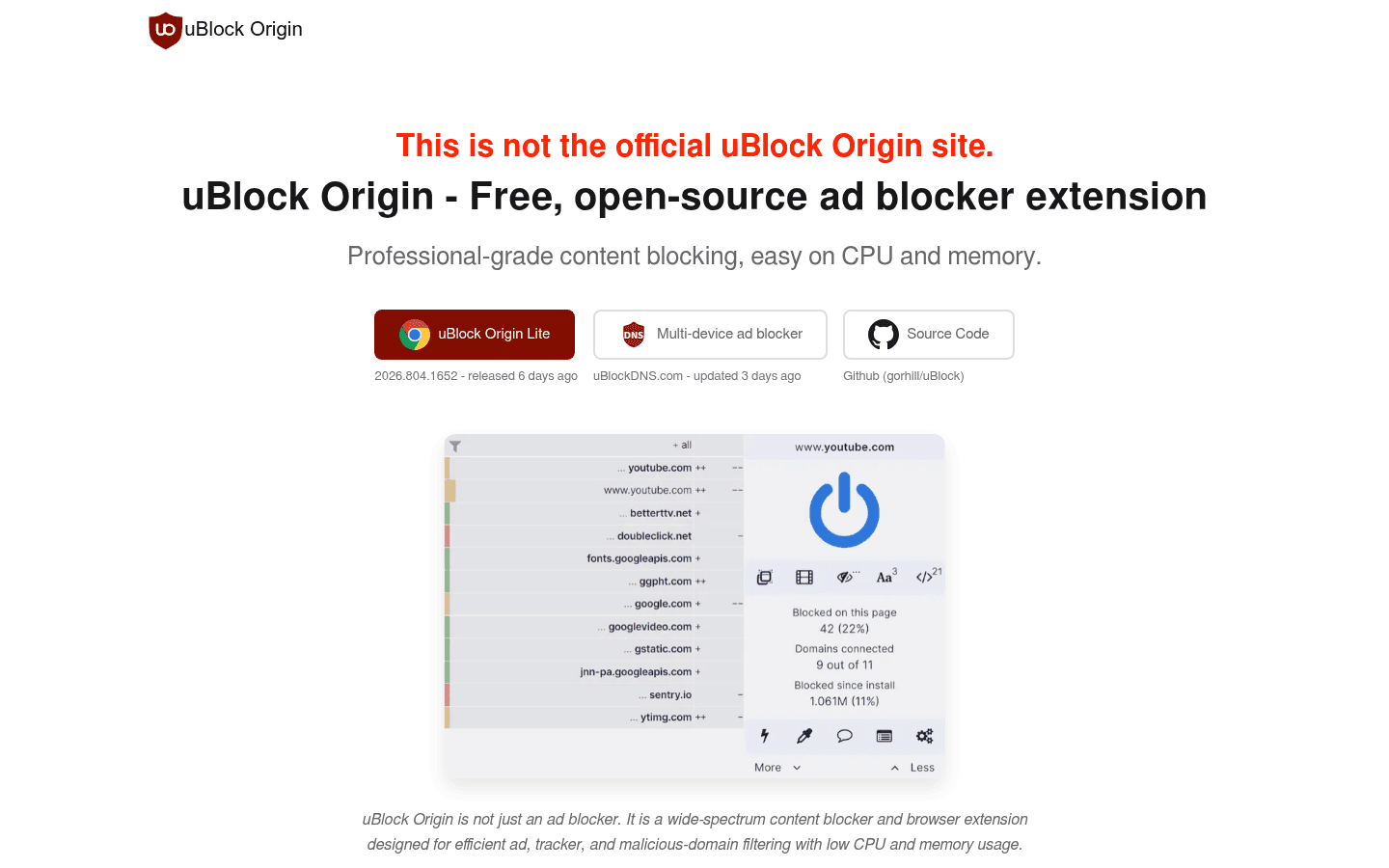
uBlock Origin Lite is the first Chrome productivity extension most people should install. It makes noisy pages cleaner, reduces tracking, and can make browsing feel faster because fewer scripts and ad units load.
The important 2026 detail is Chrome's extension platform change. uBlock Origin Lite is the Manifest V3-friendly version built for modern Chrome.
 What works:
Blocks many ads, trackers, and unwanted page elements.
Runs quietly after setup.
Free and open source.
Main downside: It is less configurable than the older uBlock Origin, and some websites may need to be allowed manually if something breaks.
Verdict: Install this first if your browser feels slow, noisy, or visually exhausting.
2. Todoist - Best Chrome Extension for Task Management
Price: Free plan, Pro from $5/month billed yearly | Best for: turning pages, emails, and ideas into tasks fast.
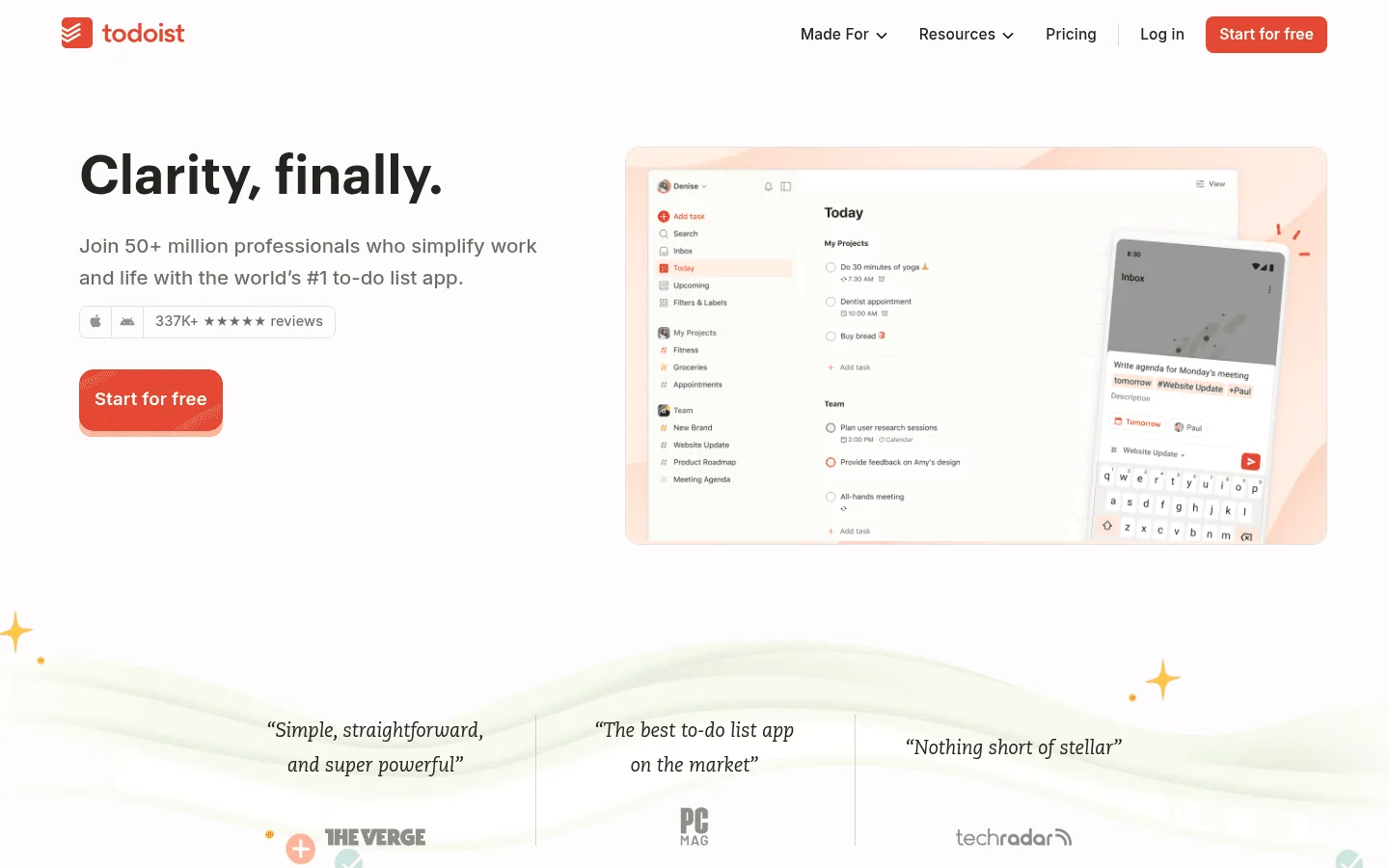
Todoist is one of the easiest ways to capture tasks without leaving the page you are on. The Chrome extension can save the current webpage as a task, add a due date, and put it in the right project.
This is useful when your work creates follow-ups all day: articles to read, invoices to send, bugs to file, or people to reply to.
 What works:
Fast task capture from any webpage.
Natural language dates like "tomorrow" or "next Friday".
Good apps on desktop and mobile, so your list follows you.
Main downside: Todoist helps only if you maintain the task system. If you never review your list, it becomes a nicer-looking pile.
Verdict: Use Todoist if your biggest productivity problem is forgetting small follow-ups while you browse.
3. 1Password - Best Chrome Extension for Password Management
Price: Paid, with trial | Best for: strong passwords, autofill, secure notes, and team/family accounts.
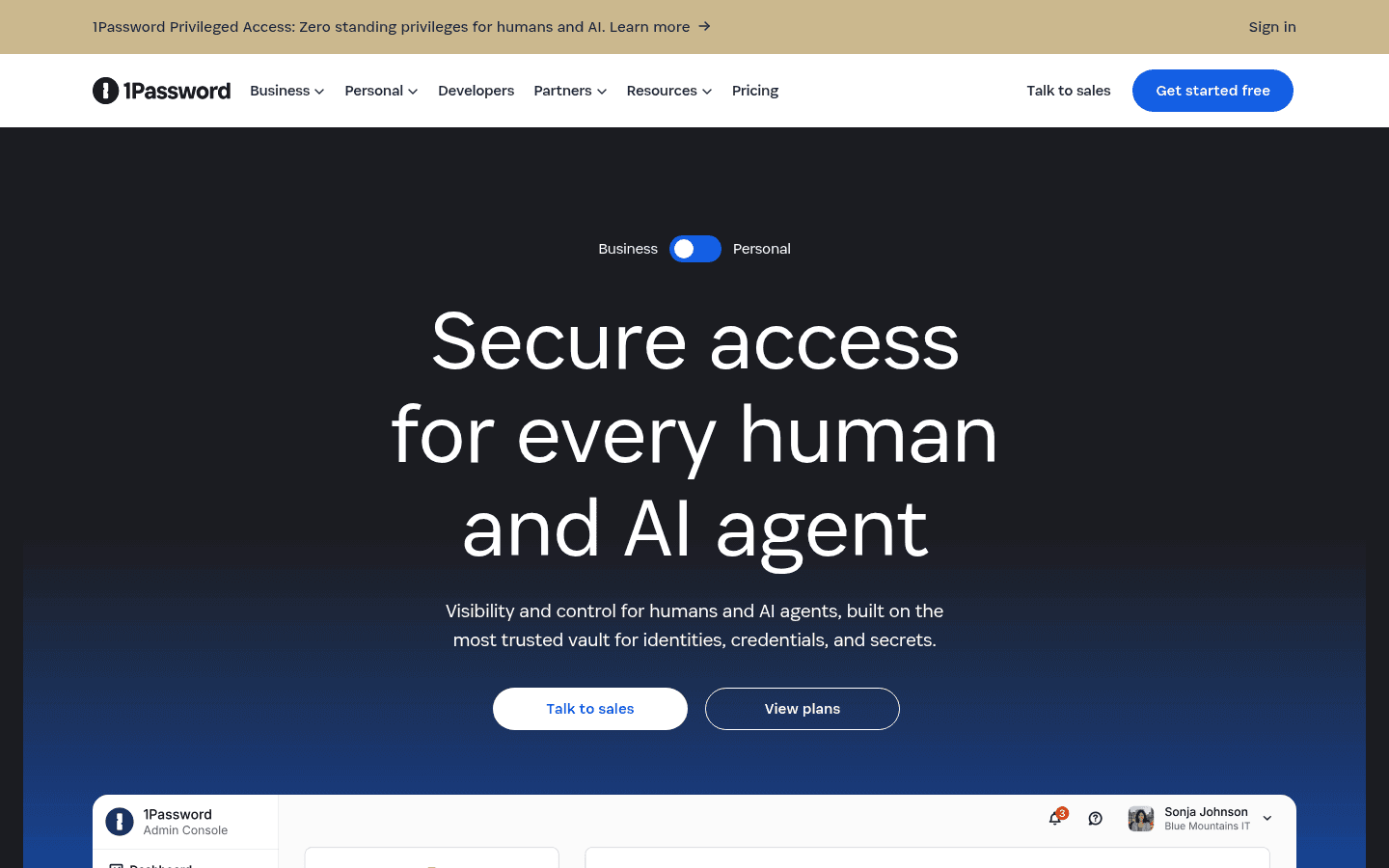
1Password saves time and lowers security risk at the same time. The Chrome extension autofills logins, creates strong passwords, and keeps private information in one encrypted vault.
It is not flashy, but it removes one of the most common daily annoyances: finding, resetting, or reusing passwords.
 What works:
Reliable autofill across most sites.
Strong password generator.
Useful for families, teams, and shared vaults.
Main downside: There is no forever-free plan for regular use. If price matters most, Bitwarden is the better first look.
Verdict: Pick 1Password if you want the smoothest password-manager experience and do not mind paying for it.
4. Bitwarden - Best Free Chrome Extension for Passwords
Price: Free plan, Premium available | Best for: secure password management on a budget.
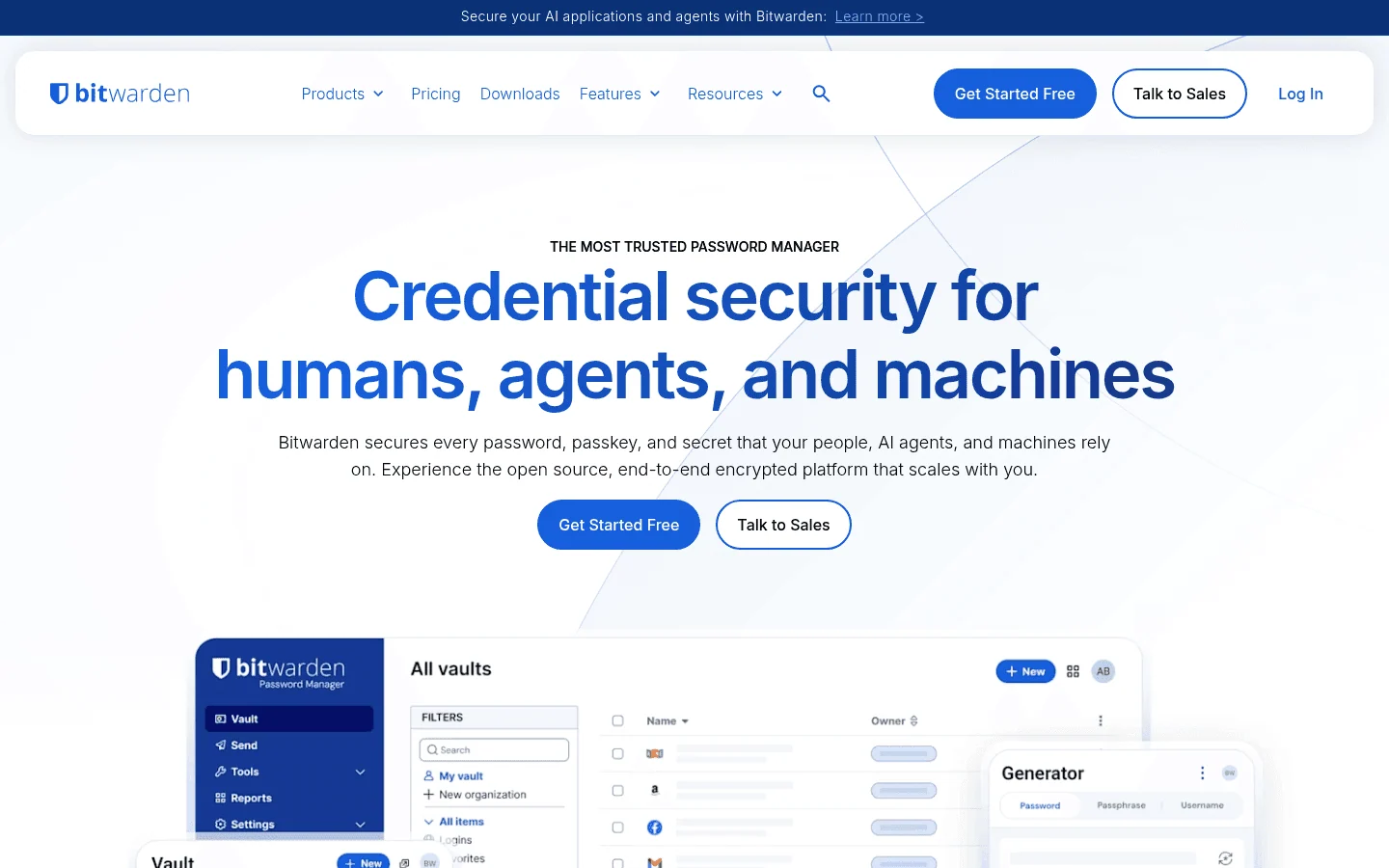
Bitwarden gives most people what they need from a password manager without forcing an expensive plan. The Chrome extension handles password saving, autofill, and generation across your browser.
It is also open source, which many security-conscious users prefer.
 What works:
Strong free plan.
Works across devices.
Good password generation and vault features.
Main downside: It feels less polished than 1Password, especially for users who want a very guided setup.
Verdict: Choose Bitwarden if you want strong password hygiene without adding another big subscription.
5. Grammarly - Best Chrome Extension for Better Writing
Price: Free plan, Pro from $12/month billed yearly | Best for: grammar, spelling, tone, and clarity checks.
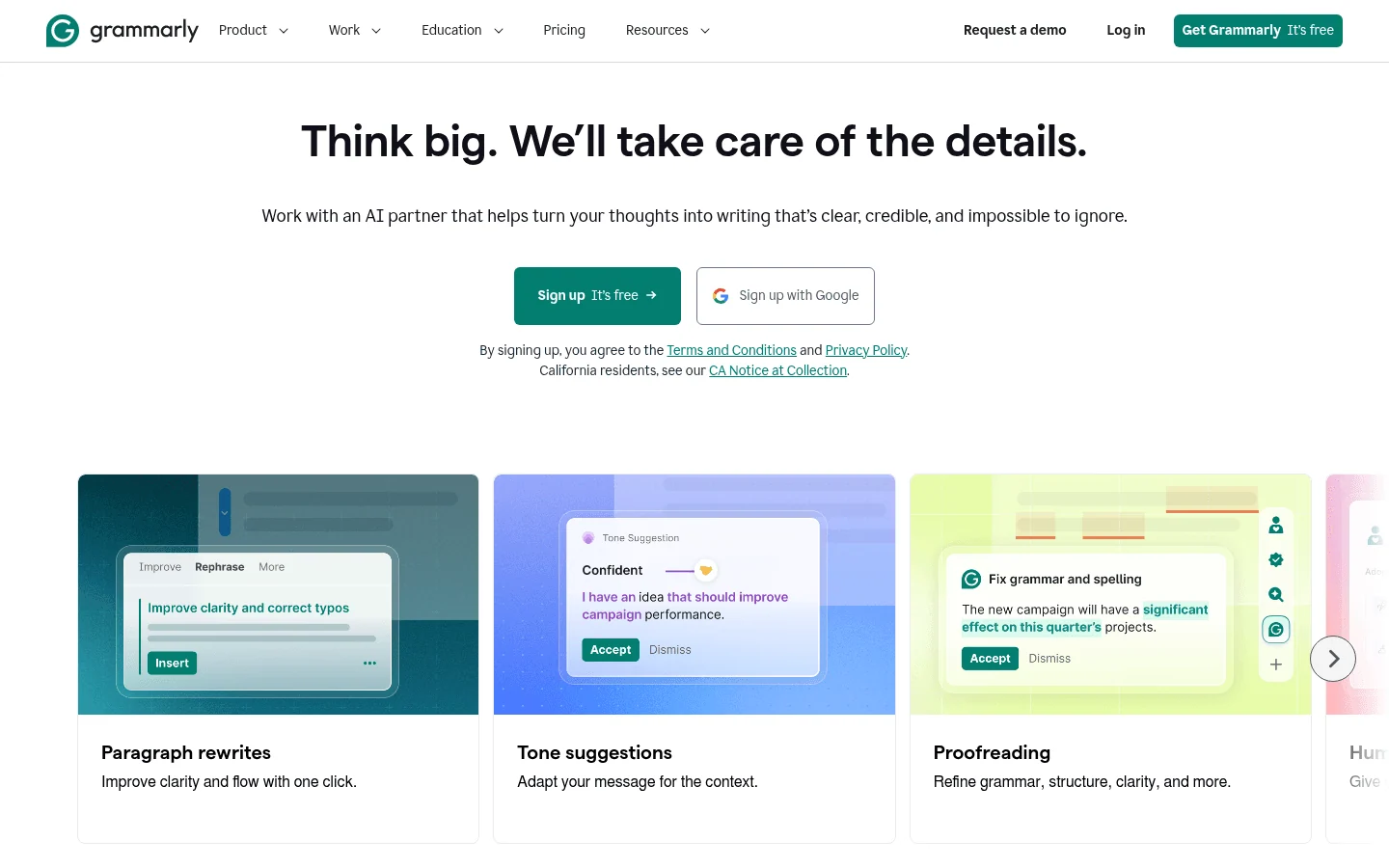
Grammarly works in text fields across Gmail, Google Docs, social posts, forms, and many other websites. It catches spelling and grammar issues as you write, then suggests clearer phrasing when needed.
For people who send a lot of emails or client messages, the value is simple: fewer embarrassing mistakes and less time rereading every sentence.
 What works:
Real-time grammar and spelling checks.
Tone and clarity suggestions.
Useful free tier for basic writing cleanup.
Main downside: Suggestions can get in the way, and not every rewrite matches your voice.
Verdict: Use Grammarly if your browser work includes emails, docs, proposals, comments, or social posts.
6. Voicy - Best Chrome Extension for Speech-to-Text
Price: Free trial, then paid plans | Best for: writing faster in browser text fields.
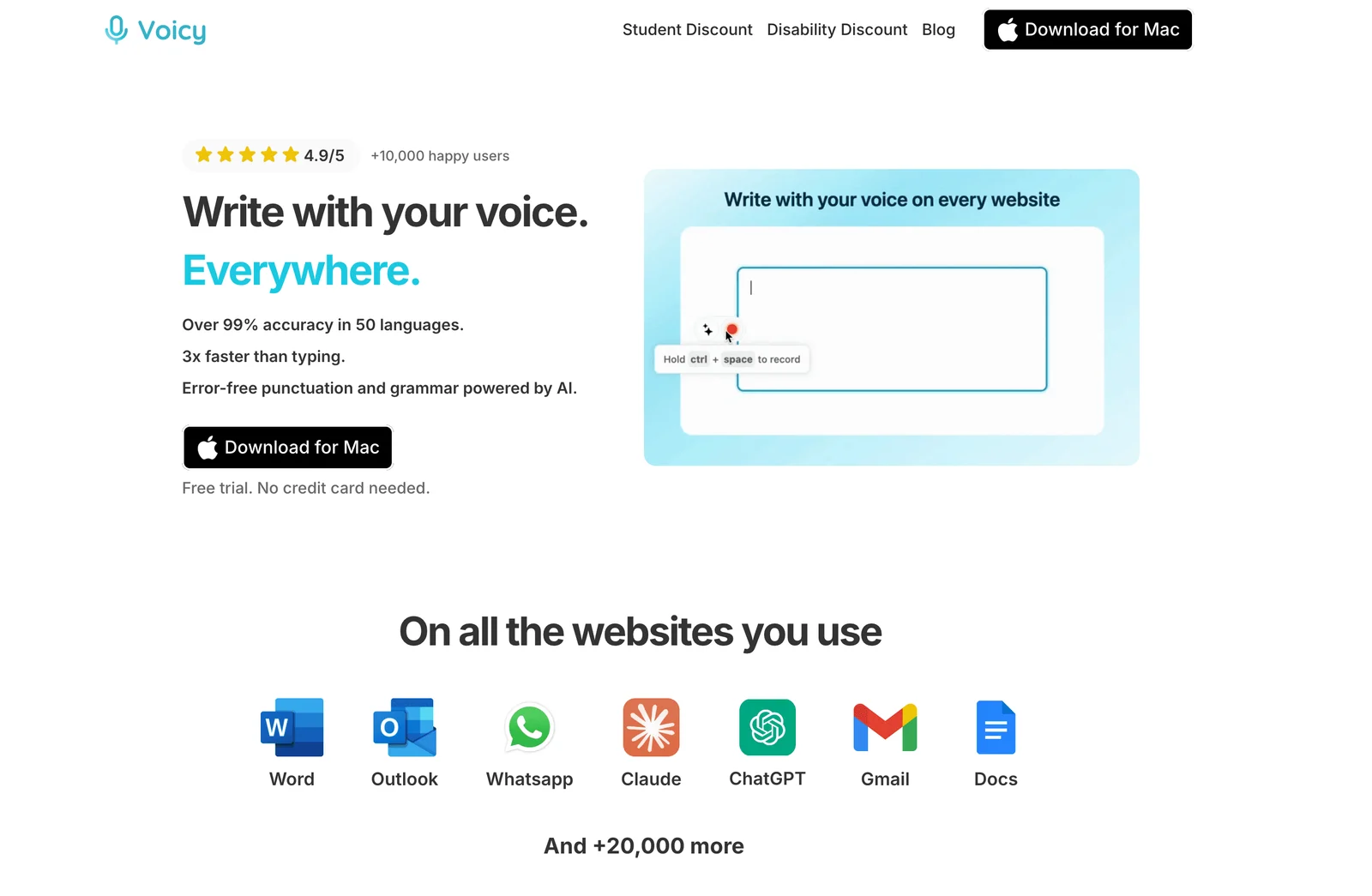
Voicy adds speech-to-text to web apps where you normally type. It works in places like Gmail, Google Docs, Slack, ChatGPT, Claude, and other browser text fields.
Most people type much slower than they speak. If your work involves long emails, prompts, documents, notes, support replies, or comments, speech-to-text can remove a lot of typing friction.
 What works:
Speech-to-text in browser text fields.
Automatic punctuation and AI cleanup.
Works alongside the Voicy Mac, Windows, Linux, iOS, and Android apps.
Supports live dictation and file upload transcription.
Main downside: Voicy is best if writing is a daily bottleneck. If you only type a few short lines per day, a simpler built-in dictation tool may be enough.
Verdict: Add Voicy if you want to write faster in the browser without manually typing every sentence. If you also want voice typing outside Chrome, compare the full Voicy dictation app.
7. OneTab - Best Chrome Extension for Tab Overload
Price: Free | Best for: collapsing many open tabs into one list.
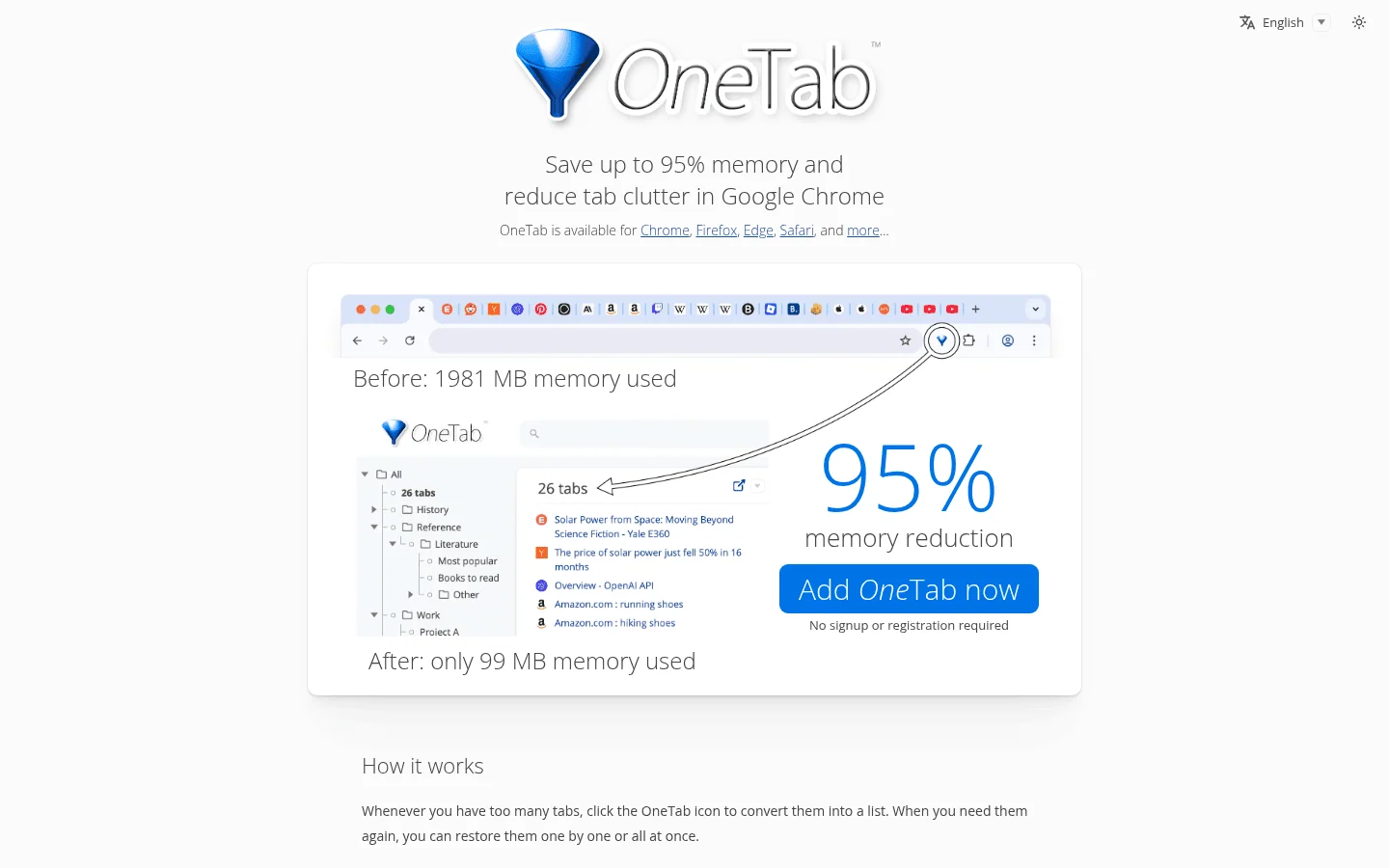
OneTab is simple: click the extension and it turns your open tabs into a saved list. That clears the tab bar and can reduce memory use without making you lose the pages.
It is especially useful when research turns into 40 open tabs and you need a reset without closing everything forever.
 What works:
Fast tab cleanup.
Easy restore when you need a page again.
No complex workspace setup.
Main downside: It is not a full project management or workspace tool. If you want team browser workspaces, look at Workona or Toby.
Verdict: Use OneTab if your browser slows down because you never close tabs.
8. Momentum - Best Chrome Extension for a Focused New Tab
Price: Free plan, Plus available | Best for: replacing the default new tab with a calmer dashboard.
Momentum changes your new tab page into a focus screen with time, weather, a main focus prompt, and a simple task area.
That may sound small, but it helps if opening a new tab often turns into checking social feeds, news, or random bookmarks.
 What works:
Daily focus prompt.
Calmer new tab experience.
Simple to-do support without a big setup.
Main downside: Momentum is more of a focus reminder than a serious task manager.
Verdict: Use Momentum if new tabs are one of your main distraction traps.
9. StayFocusd - Best Chrome Extension for Blocking Distractions
Price: Free | Best for: limiting time on distracting websites.
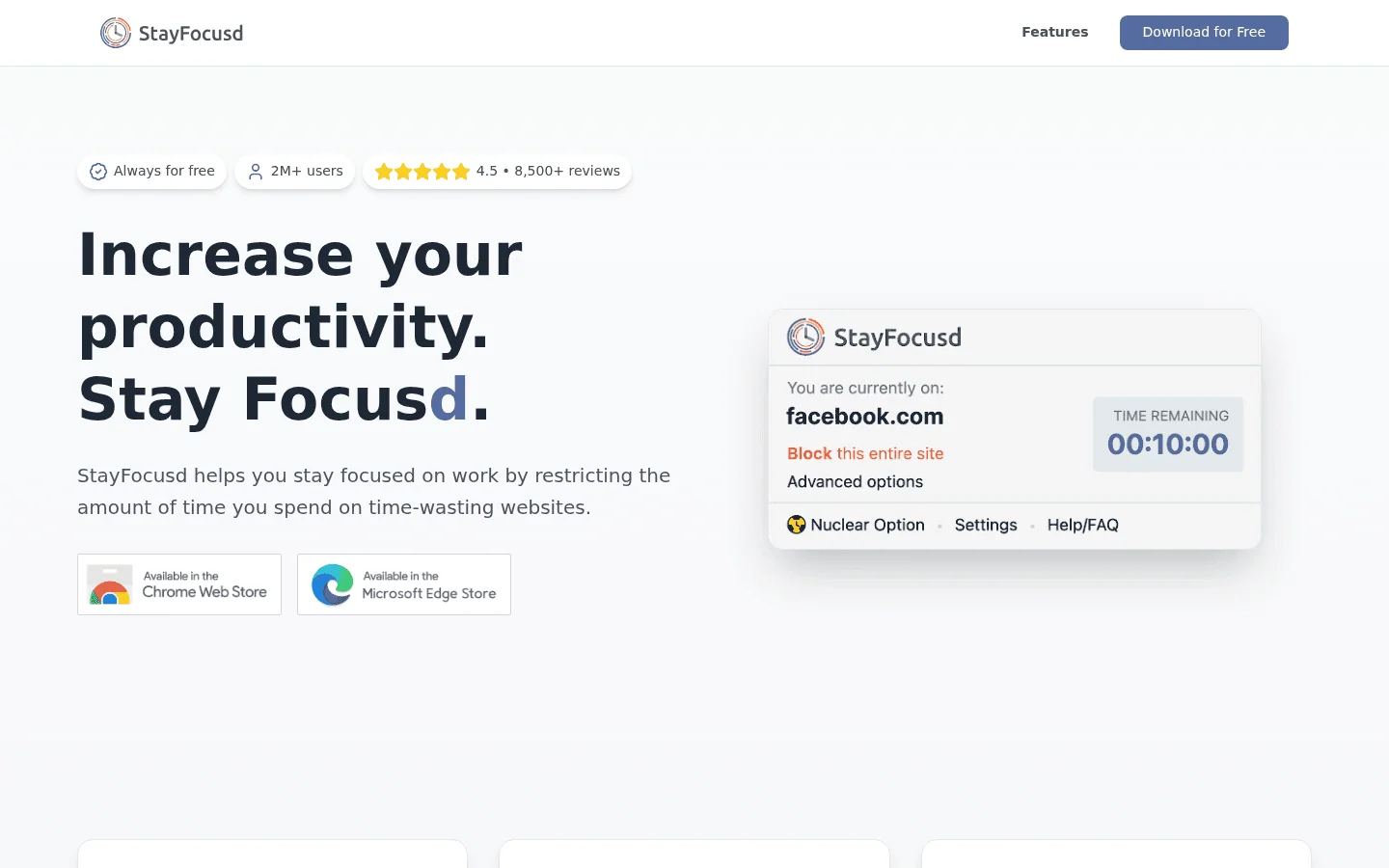
StayFocusd lets you set time limits for websites that steal attention. After your allowed time is gone, those sites are blocked for the rest of the day.
It is not gentle, which is the point. If you can always bypass your focus system in two clicks, it is probably not a system.
 What works:
Hard limits for distracting sites.
Custom rules for pages, paths, or entire domains.
Useful for deep work blocks.
Main downside: You have to configure it honestly. Weak limits do not help much.
Verdict: Pick StayFocusd if distraction control matters more than a pretty interface.
10. Clockify - Best Chrome Extension for Time Tracking
Price: Free plan, paid plans available | Best for: tracking project time from the browser.
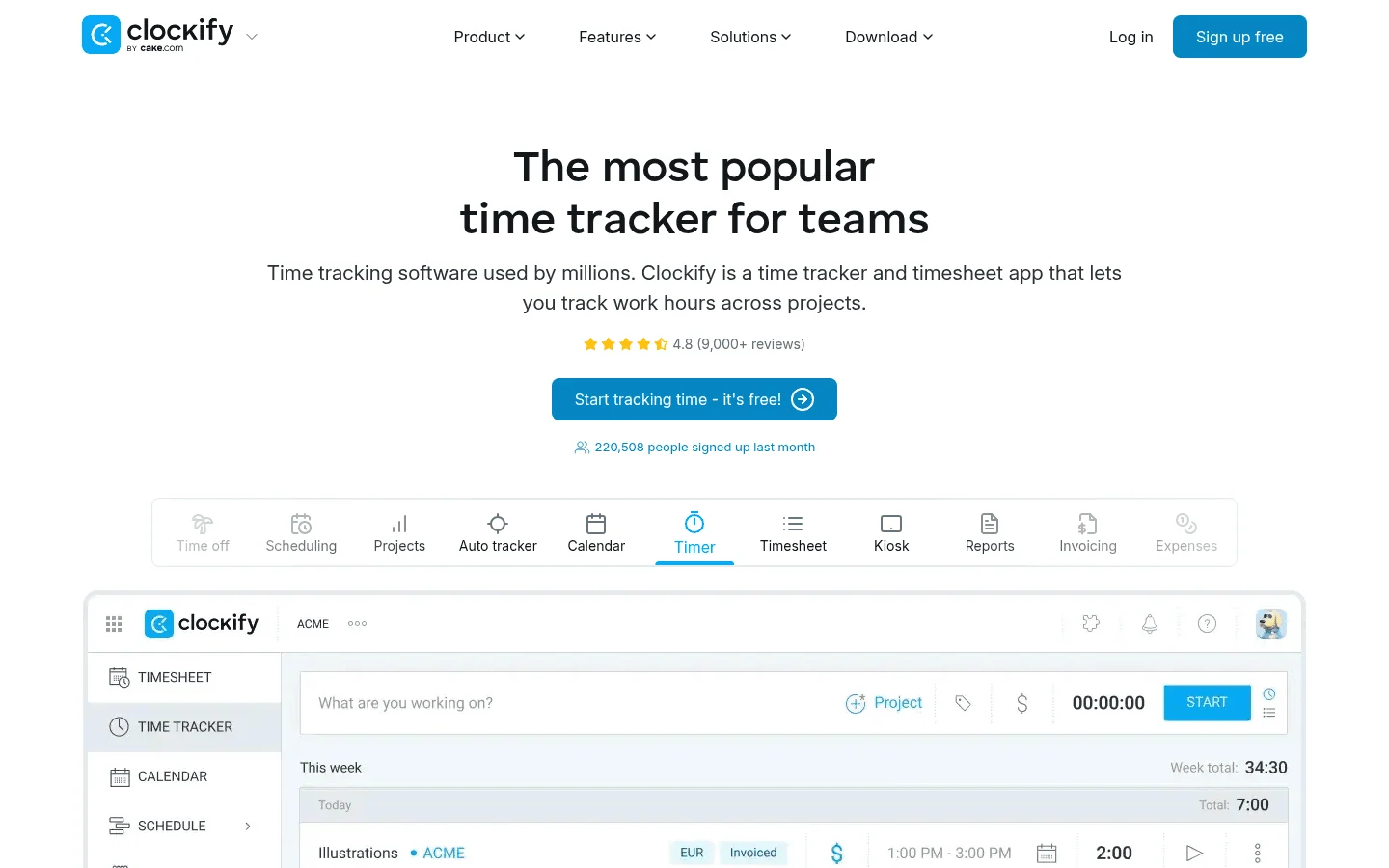
Clockify adds a timer to your browser so you can track work by project, client, or task. It is useful for freelancers, agencies, consultants, and anyone who wants to know where the day went.
The Chrome extension works best when you already have a reason to track time, such as billing, project planning, or weekly review.
 What works:
One-click timer.
Manual time entries.
Reports by project and client.
Main downside: Time tracking is useful only if you remember to start and stop the timer.
Verdict: Use Clockify if you need better visibility into billable or project time.
11. Notion Web Clipper - Best Chrome Extension for Saving Research
Price: Free extension | Best for: saving web pages into Notion.
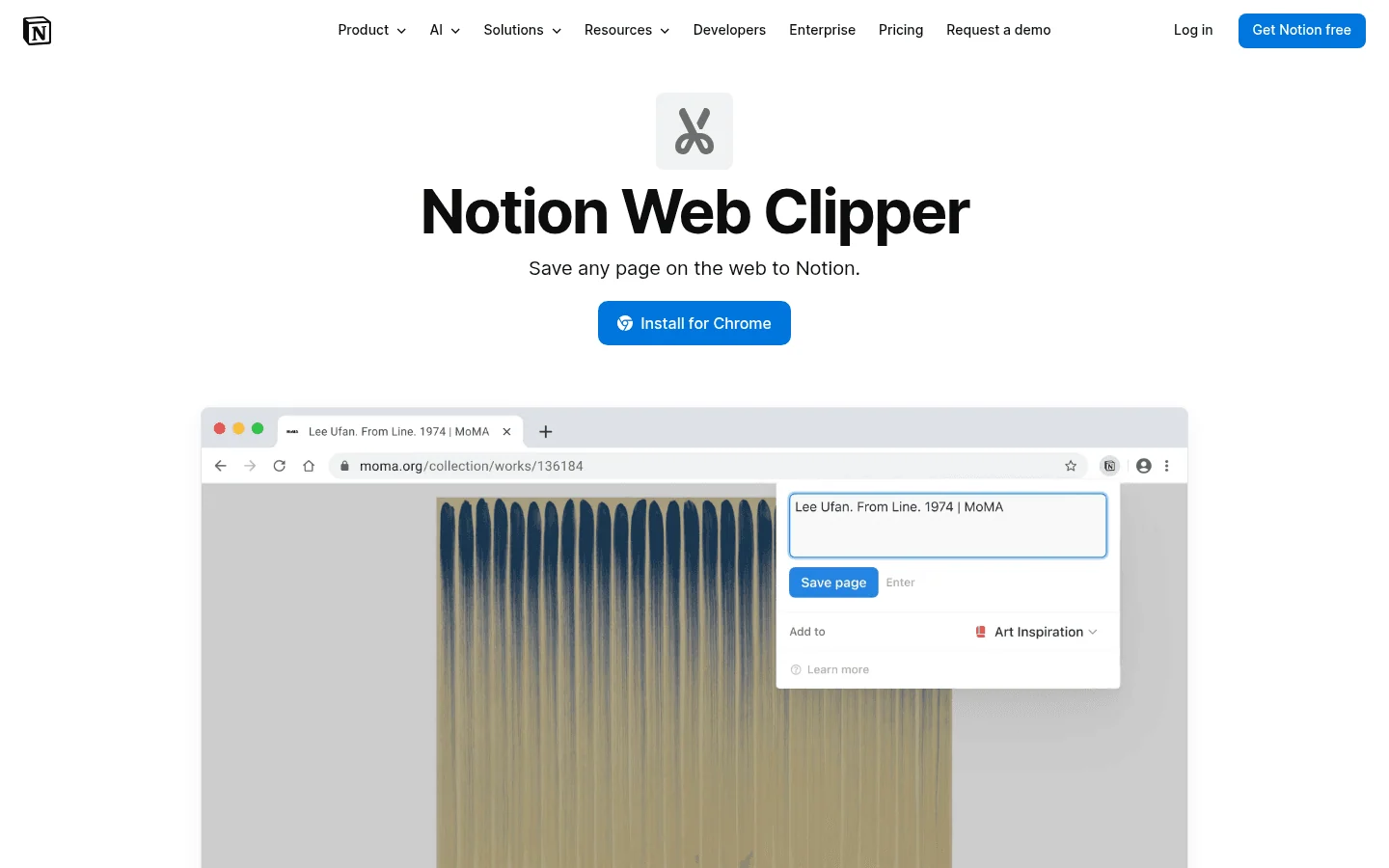
Notion Web Clipper saves articles, pages, and research directly into a Notion workspace. If Notion is already your notes or knowledge-base system, the extension is an obvious add-on.
It is better than leaving reference material scattered across bookmarks, tabs, and random messages to yourself.
 What works:
One-click saving to Notion.
Useful for research databases.
Works well for content, product, and student workflows.
Main downside: It is only valuable if you actually use Notion.
Verdict: Use it if Notion is where your research already lives.
12. Raindrop.io - Best Chrome Extension for Bookmark Organization
Price: Free plan, Pro available | Best for: organized bookmarks and saved research links.
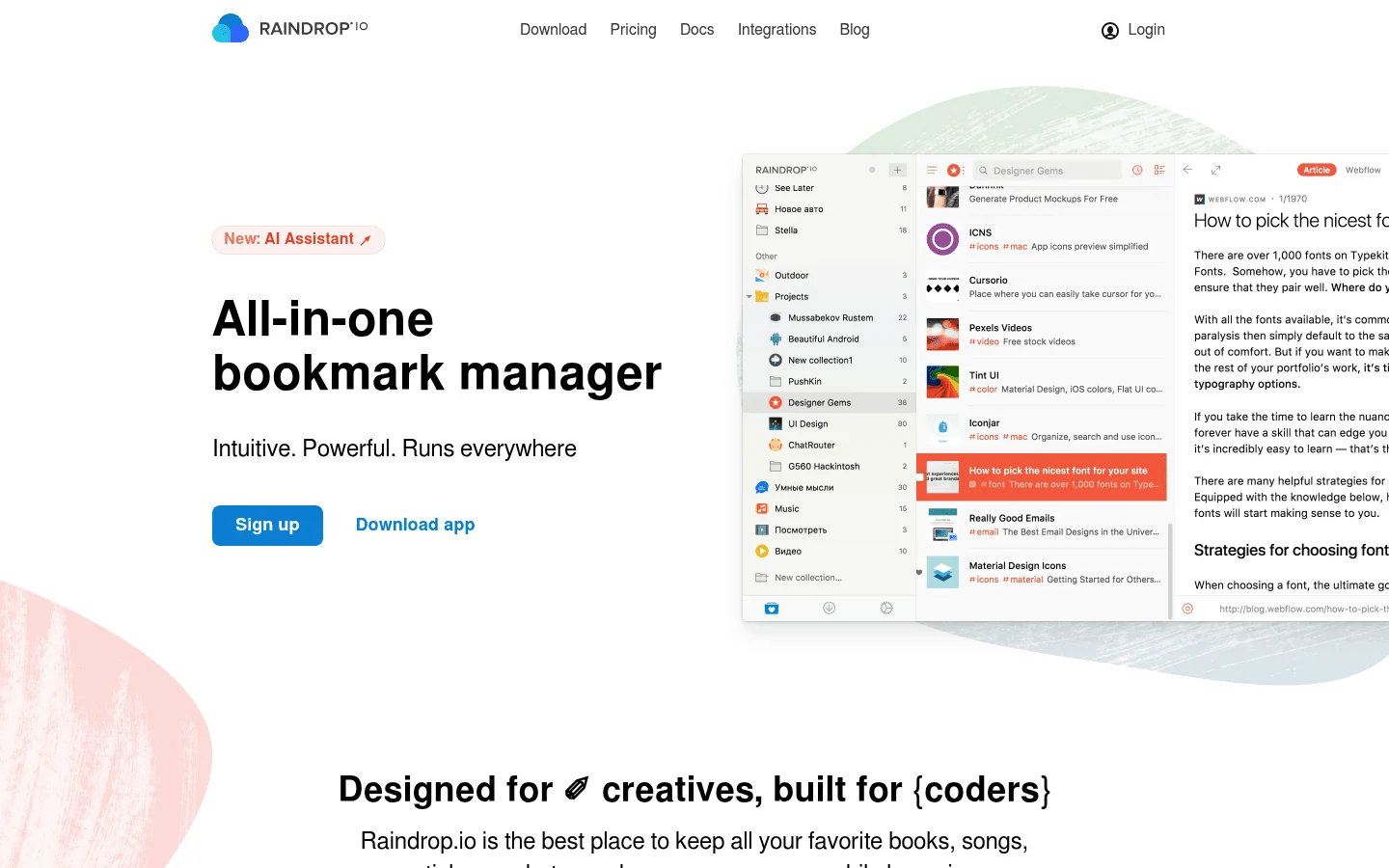
Raindrop.io is a stronger bookmark manager for people who save lots of links. You can organize pages into collections, add tags, search saved links, and keep research cleaner than Chrome's default bookmarks bar.
This is useful if your job involves recurring research, competitor tracking, inspiration boards, or resource libraries.
 What works:
Clean bookmark collections.
Tags and search.
Good cross-device support.
Main downside: It adds another library to maintain, so it works best for people who save a lot.
Verdict: Pick Raindrop.io if browser bookmarks are too messy for your research workflow.
13. Loom - Best Chrome Extension for Async Video Updates
Price: Free plan, paid plans available | Best for: quick screen recordings.
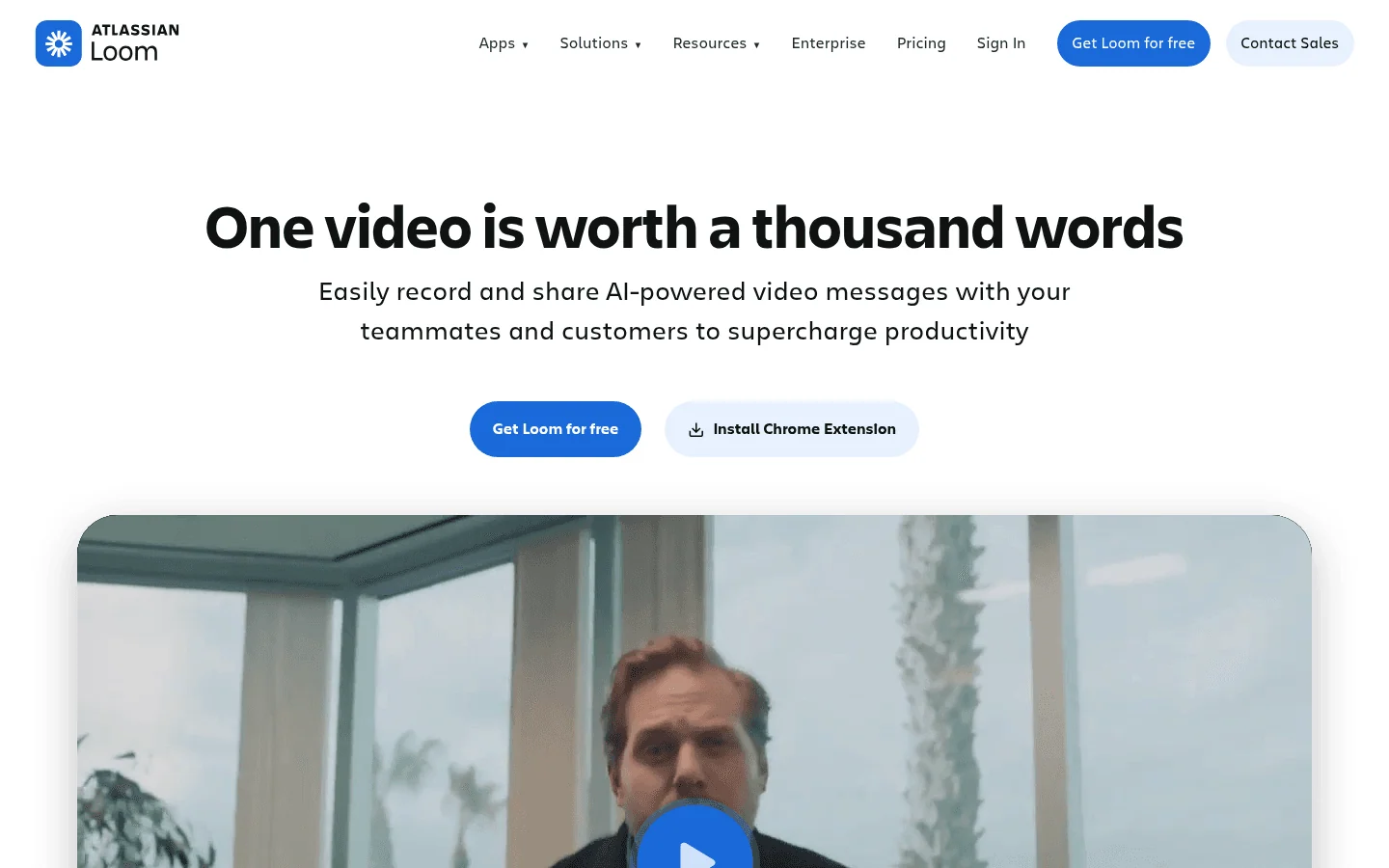
Loom helps you explain something with a short video instead of a long message. The Chrome extension is handy for recording browser workflows, product feedback, bug reports, training notes, or client walkthroughs.
A two-minute screen recording can often replace a messy email thread.
 What works:
Fast screen and camera recording.
Easy sharing links.
Great for remote and async teams.
Main downside: Videos can become a crutch. If a message is only one sentence, write the sentence.
Verdict: Use Loom when showing is faster than typing.
14. Dark Reader - Best Chrome Extension for Eye Strain
Price: Free and open source | Best for: dark mode across most websites.
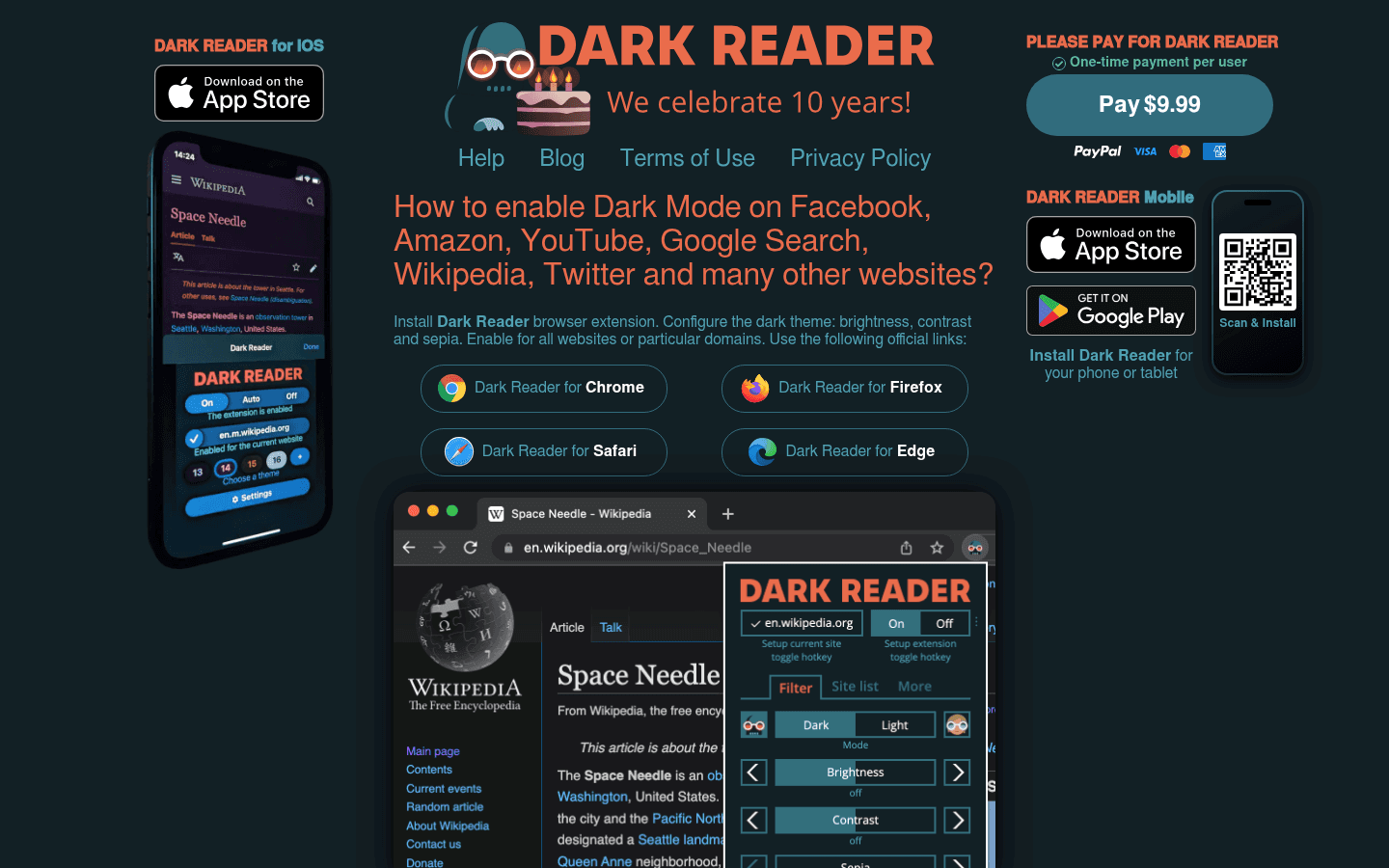
Dark Reader applies dark mode to websites that do not have it. You can adjust brightness, contrast, sepia, and site-specific settings.
It is not going to manage your tasks, but it can make long browser sessions more comfortable.
 What works:
Dark mode on most sites.
Per-site controls.
Helpful for late work sessions and bright pages.
Main downside: Some websites can look odd or need manual tweaks.
Verdict: Use Dark Reader if bright pages make browser work tiring.
15. Vimium - Best Chrome Extension for Keyboard Navigation
Price: Free and open source | Best for: browsing without reaching for the mouse.
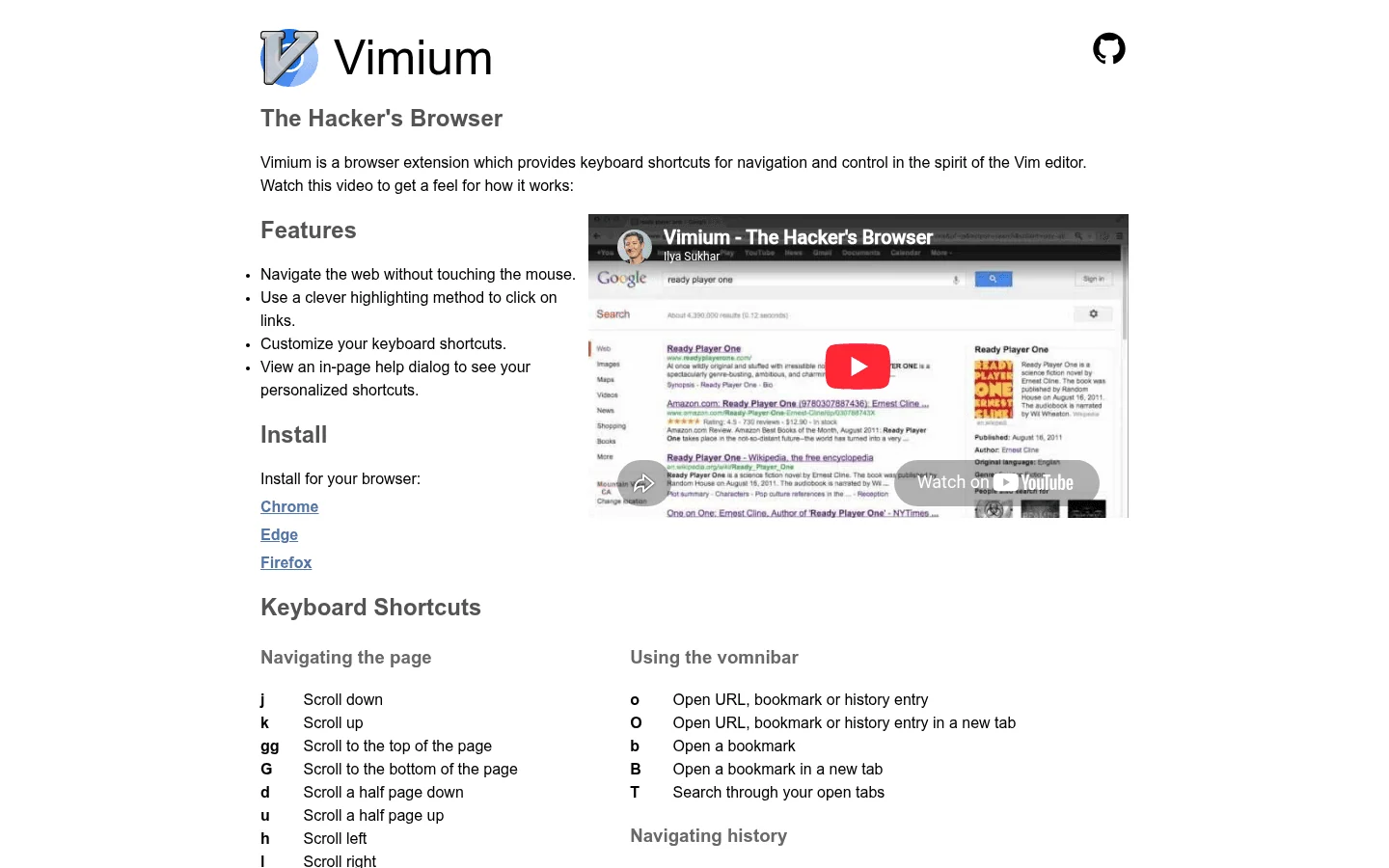
Vimium adds keyboard shortcuts for clicking links, scrolling, switching tabs, opening pages, and navigating browser history.
It has a learning curve, but power users can move around the web much faster once the commands stick.
 What works:
Keyboard-first link navigation.
Fast tab and history controls.
Great for developers, writers, and keyboard-heavy users.
Main downside: It is not beginner-friendly. You need to learn the shortcuts.
Verdict: Use Vimium if keyboard speed matters to your workflow.
16. Inbox When Ready - Best Chrome Extension for Gmail Focus
Price: Free plan, Pro available | Best for: using Gmail without staring at your inbox all day.
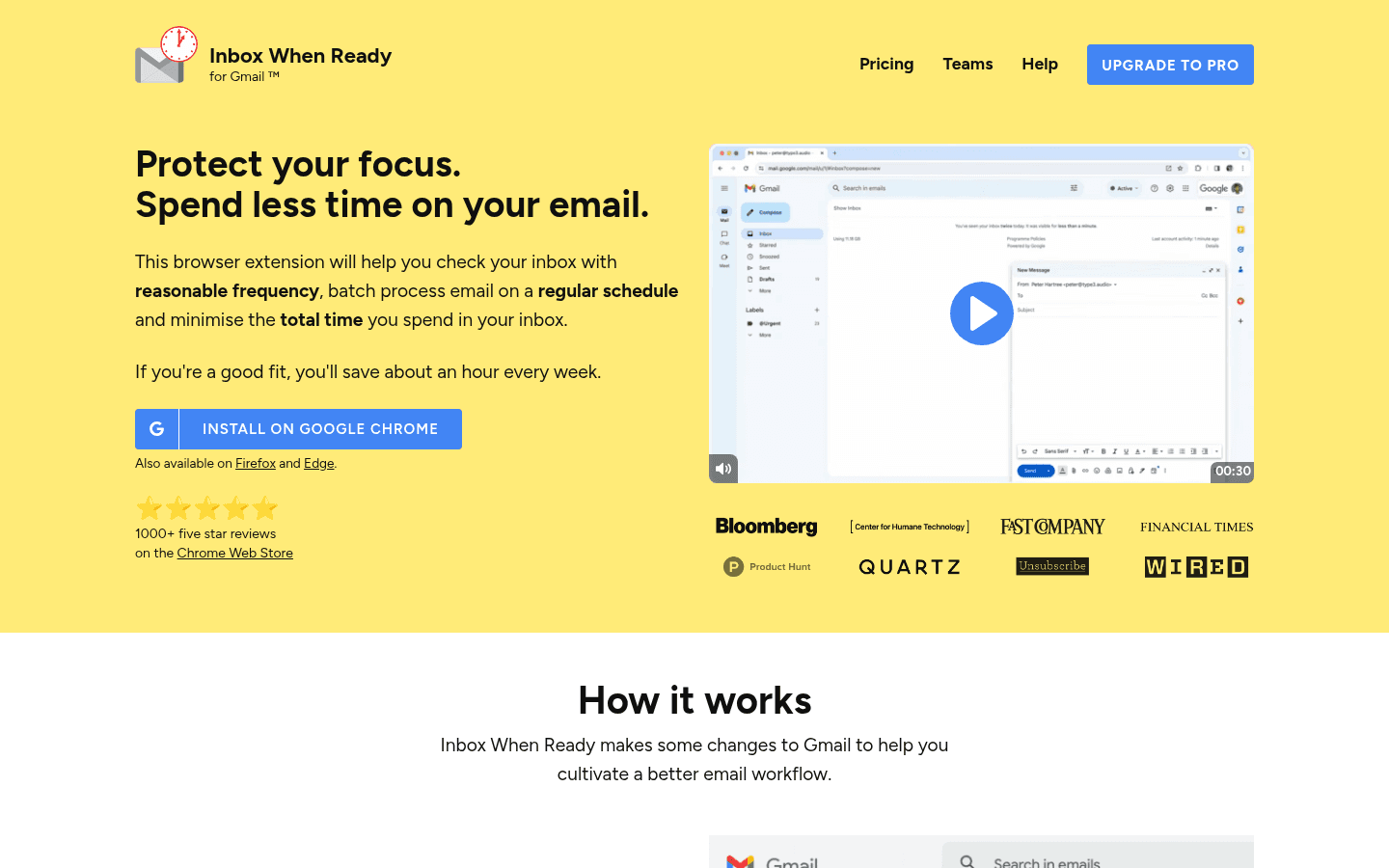
Inbox When Ready hides your Gmail inbox until you choose to show it. You can still search, compose, and send emails without being pulled into every new message.
This is a good fit if email is both necessary and distracting.
 What works:
Hides the inbox by default.
Allows focused email writing and searching.
Useful for people who check Gmail too often.
Main downside: It is Gmail-specific, so people who use another email app need a different workflow.
Verdict: Use Inbox When Ready if Gmail keeps breaking your focus. If you use another email app, look for the same pattern: write and search without leaving the inbox open all day.
How Many Chrome Extensions Should You Install?
Install fewer than you think. A good starter stack is five to seven extensions, not twenty.
Start with one tool for each real bottleneck:
Cleaner browsing: uBlock Origin Lite
Tasks: Todoist
Passwords: 1Password or Bitwarden
Writing quality: Grammarly
Writing speed: Voicy
Tabs: OneTab
Focus: Momentum or StayFocusd
After that, add tools only when a problem appears often enough to matter. If the problem is typing volume, use Voicy in Chrome for browser fields or the full Voicy dictation app when you want speech-to-text across more of your workday.
Are Chrome Productivity Extensions Safe?
Chrome extensions can be safe, but you should treat browser access seriously. Some extensions need broad permissions because they work across text fields or pages. Others ask for more than they need.
Before installing, check four things:
Is the publisher a known company or trusted open-source project?
Does the extension have recent updates?
Do the requested permissions match what the extension does?
Do you still use it after a week?
If an extension is unused, remove it. A smaller browser setup is usually faster, cleaner, and safer.
How to Install and Manage Chrome Extensions
To install a Chrome extension, open the Chrome Web Store, search for the extension, and click Add to Chrome. After installing, click the puzzle icon in the Chrome toolbar to pin the extensions you use most.
To manage or remove extensions, go to chrome://extensions. From there, you can disable, remove, or inspect each extension's permissions.
Most Chrome extensions also work in Chromium-based browsers like Brave, Microsoft Edge, Opera, and Vivaldi. If you use one of those browsers, you can usually install from the Chrome Web Store too.
Chrome is only one Chromium setup. If you use a different browser, compare our guides to Opera browser extensions, Edge extensions, and Brave browser extensions.
FAQs about productivity Chrome extensions
What are the best productivity tools Chrome extensions?
The best productivity tools Chrome extensions usually cover six jobs: cleaner browsing, task capture, password management, writing help, tab control, and focus. A simple starter stack is uBlock Origin Lite, Todoist, Bitwarden or 1Password, Grammarly, Voicy, OneTab, and Momentum.
What productivity Chrome extensions should I install first?
Install uBlock Origin Lite first if Chrome feels noisy, Todoist if you forget tasks, a password manager if logins slow you down, and OneTab if tabs get out of control. Add Voicy when typing is the slow part of your browser work.
What is the best Chrome extension for writing faster?
Voicy is the best fit when you want to write faster by speaking instead of typing. It supports browser speech-to-text, live dictation, and file upload transcription across Mac, Windows, Browser Extension, iOS, and Android, with cloud transcription by default, an offline dictation mode in the Mac, Windows, and Linux apps, and a free trial before paid plans.
Are productivity Chrome extensions worth it?
Yes, if each extension solves a problem you hit every week. They are not worth it when they add dashboards, permissions, or toolbar clutter without saving real time.
Should I use a Chrome extension or a full productivity app?
Use a Chrome extension for quick browser actions, like saving a page, filling a password, blocking a site, or dictating into a text field. Use a full app when you need cross-device workflows, deeper settings, or dictation outside Chrome.
Final Recommendation
The best Chrome productivity setup is not the biggest one. It is the one that removes your biggest daily friction points without adding clutter.
For most people, start with uBlock Origin Lite, Todoist, a password manager, Grammarly, OneTab, and Momentum. Then add Voicy if writing speed is a real bottleneck in your day.
If you want more browser-specific options, read our guides to speech-to-text for Chrome, voice-to-text Chrome extensions, AI Chrome extensions, Opera extensions, and Vivaldi extensions.
Microsoft users can also compare the best Edge browser extensions, since many Chrome productivity tools work in Edge with little extra setup.
 Download for free
 Download for free
 Download for Ubuntu/Debian
 Add to Chrome for free
 Download for free