
Want to use voice typing in Google Docs? Open a Google Doc, go to Tools > Voice typing, click the microphone, and start speaking.
That built-in option is free and good for quick drafts. Use Voicy when you want automatic punctuation, cleaner long-form writing, and the same speech-to-text workflow outside Google Docs.
Ways to use speech to text in Google Docs
Google Docs Voice Typing
✅ Free and built into Google Docs
✅ Best answer for "where is voice typing in Google Docs?"
✅ Works for quick drafts, notes, and simple paragraphs
❌ You need to say punctuation out loud
❌ Can be blocked by browser, microphone, or admin settings
Voicy
✅ Dictate directly into Google Docs
✅ Automatic punctuation and accurate words, no cleanup needed
✅ Works across Google Docs, Gmail, forms, notes, Slack, Outlook, and more
❌ Needs a quick install
❌ Paid after the free trial
Mobile keyboard dictation
✅ Free on iPhone and Android
✅ Good for quick edits in the Google Docs app
❌ The microphone is on your keyboard, not inside Google Docs
❌ Long documents are uncomfortable on mobile
Method 1: Use Google Docs Voice Typing
Use this when you want the free built-in Google Docs method.
Step 1: Open Google Docs
Open docs.google.com in an up-to-date Chrome, Edge, or Safari browser.
Create a new document or open the document you want to edit.
Step 2: Open Voice typing
In the menu bar, click:
Tools
Voice typing
You can also try the shortcut:
Windows or Chromebook: Ctrl + Shift + S
Mac: Command + Shift + S
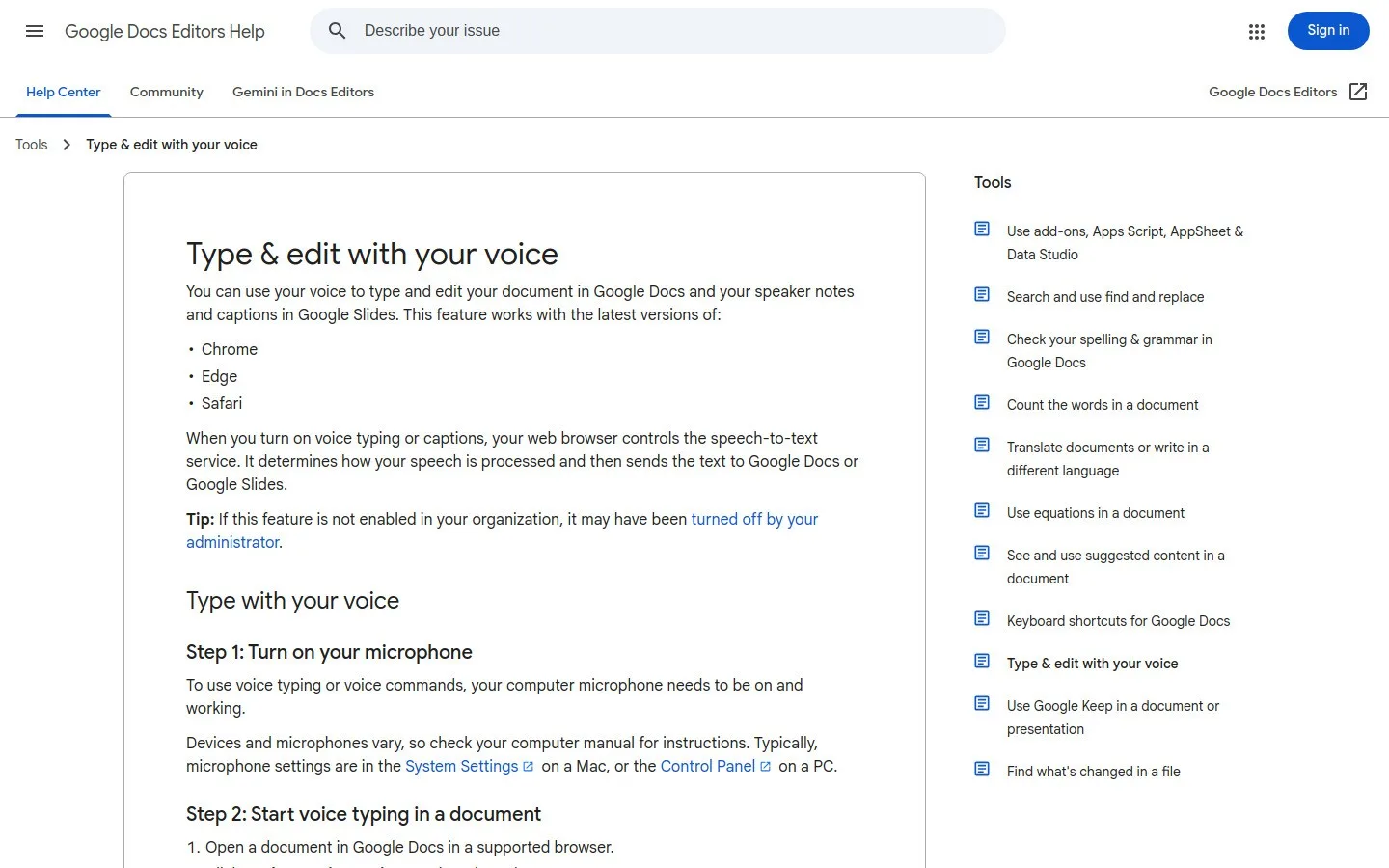
Step 3: Allow microphone access
If your browser asks for microphone permission, choose Allow.
If you use a work or school account, your admin may need to allow microphone access.
Step 4: Click the microphone
A microphone panel appears beside your document. Before recording, select the language you will speak from its language menu. Choose the matching regional option when one is available.
Click the microphone. It turns red when Google Docs is listening.
Step 5: Speak your text
Speak clearly.
With Google Docs Voice Typing, say punctuation out loud:
"period"
"comma"
"question mark"
"new line"
"new paragraph"
Step 6: Stop and review
Click the microphone again to stop.
Then review names, punctuation, spacing, and any words Google misheard.
Method 2: Use Voicy in Google Docs
Use this when you write longer documents, don't want to say punctuation out loud, or want the same voice workflow in other apps.
Step 1: Download Voicy
Download Voicy and choose the version for your device.
Voicy is available for Mac, Windows, Chrome extension, Linux, iOS, and Android.
Step 2: Open Google Docs
Open your Google Doc.
Click where you want the dictated text to appear.
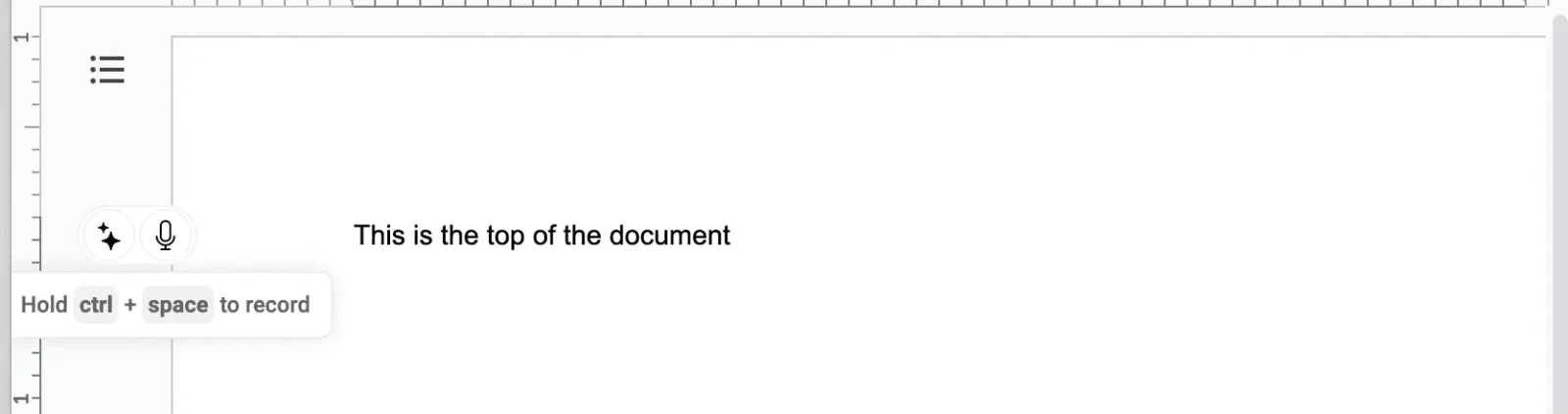
Step 3: Start dictating with Voicy
Start dictation from Voicy using the mic button or keyboard shortcut.
Then speak naturally. Voicy adds punctuation automatically, so you don't need to say "comma" or "period."
Step 4: Keep writing
Use Voicy for:
essays
meeting notes
long drafts
emails you draft in Docs
research notes
content outlines
The same setup also works in Gmail, forms, notes, and other writing fields.
Method 3: Use mobile keyboard dictation in Google Docs
Use this for quick edits on your phone.
Step 1: Open the Google Docs app
Open Google Docs on iPhone or Android.
Then open the document you want to edit.
Step 2: Tap where you want text
Tap inside the document.
Your phone keyboard should appear.
Step 3: Tap the keyboard microphone
Tap the microphone on your iPhone or Android keyboard.
This microphone belongs to your keyboard, not Google Docs.
Step 4: Speak your text
Speak the sentence or paragraph you want to add.
Tap the microphone again when you're done.
Step 5: Review the text
Check names, numbers, punctuation, and spacing before you close the document.
Mobile dictation is useful for quick edits, but it is not ideal for long writing sessions.
Which Google Docs dictation method should you use?
Method | Use it when | Best for | Main limit |
|---|---|---|---|
Google Docs Voice Typing | You want the free built-in option. | Quick drafts and simple dictation. | You need to say punctuation out loud. |
Voicy | You write in Google Docs often. | Longer drafts, cleaner punctuation, cross-app writing. | Needs setup and a paid plan after trial. |
Mobile keyboard dictation | You are editing from your phone. | Quick changes and short notes. | Uncomfortable for long documents. |
If you only need a free quick draft, start with Google Docs Voice Typing.
If Google Docs is where you write every day, Voicy is the smoother workflow.
Speech to Text in Google Docs: Google Voice Typing vs. Voicy
Here's how Google's built-in voice typing and Voicy compare feature by feature:
| Feature | Google Voice Typing | Voicy |
|---|---|---|
| Accuracy | ~90–95% | 99%+ |
| Automatic punctuation | No (say it out loud) | Yes |
| Browser support | Latest Chrome, Edge and Safari | Chrome, Edge, Brave, Opera and Vivaldi via the browser extension; desktop apps also work across browser text fields |
| Works outside Google Docs | Not a system-wide dictation tool; Google also supports voice typing in Slides speaker notes | Yes, across other apps and website text fields |
| AI writing assistant | Not part of Voice Typing | Yes (built-in) |
| Languages | 100+ | 50+ |
| Desktop app | No separate dictation app | Yes (Mac, Windows, and Linux) |
| Accent handling | Basic | Advanced (AI-powered) |
| Price | Free | Free trial, then paid plans |
Google's Voice Typing documentation lists its current browser support and available languages.
Google Docs vs Voicy: the workflow difference
Google Docs Voice Typing is a built-in option for dictating into your document. Voicy adds automatic punctuation, AI writing features, and a shared dictation workflow across the other apps where you write.
Start with Google's free tool for occasional drafts. If Google Docs is part of your daily writing workflow and you want the same setup in email, notes and other apps, see Voicy for Google Docs for the product walkthrough and trial details.
Common Google Docs voice typing issues
Issue | What to check | Fix |
|---|---|---|
Voice typing is missing | Browser, account type, admin settings, and whether the document is editable. | Try the latest Chrome first, refresh the document, or ask your admin to allow microphone access. |
Microphone permission is blocked | Browser site permissions and computer microphone permissions. | Allow microphone access for Google Docs, then refresh the page. |
Google Docs uses the wrong microphone | Your browser's selected input device. | Choose the correct microphone in browser settings and test it in another app. |
Punctuation is missing | Whether you are using Google's built-in tool or Voicy. | Say punctuation out loud with Google Docs Voice Typing. Use Voicy if you want automatic punctuation. |
Words are merged or spaced oddly | Speaking pace, pauses, and background noise. | Pause between sentences and review the text. For longer work, use Voicy. |
Voice typing stops listening | Silence, browser focus, and internet connection. | Click the microphone again. Keep the Google Doc active while speaking. |
Fix microphone permissions in Google Docs
If Google Docs cannot start listening, check the browser and computer permissions separately:
- Open the site controls beside the document's address and allow microphone access for Google Docs. Reload the document after changing the permission.
- Check the input device selected in your browser or computer sound settings. Test the same microphone in another app to confirm it picks up your voice.
- On Mac, check System Settings → Privacy & Security → Microphone. On Windows, check the microphone permissions in Settings → Privacy (Windows 10) or Privacy & security (Windows 11). Allow access for the browser you are using.
- Reopen Tools → Voice typing. If the option is still missing on a work or school account, ask the administrator whether voice typing is enabled.
Google's voice typing help covers supported browsers, languages, and voice commands.
Languages, punctuation, and longer documents
Choose your speaking language before starting a new passage. If recognition suddenly becomes poor, check that the microphone panel still shows the intended language. Punctuation support varies by language; test one short sentence before dictating a full page.
For an English document, try saying “new paragraph” when you move to a new idea. Google's editing and formatting commands require English account and document languages. Keep a keyboard nearby for names, references, and precise formatting.
For longer writing, dictate one section at a time and keep your outline visible. Stop between sections to check names and paragraph breaks. You do not need to change tools for a quick note; choose Voicy for Google Docs when automatic punctuation and using the same dictation workflow across your other apps matter more.
Offline document editing and offline dictation are separate features. Check the requirements of your chosen speech tool before relying on it without an internet connection.
Get better results with accents, names, and longer drafts
Use the same microphone and speaking language for a short test before recording a full section. Keep the microphone at a consistent distance and reduce nearby conversations or music. Speak at your normal conversational pace; exaggerating every syllable can interrupt the flow of a sentence.
If recognition is poor, first check the selected language and regional variant. Try a sentence containing a name or term you use often, then compare the output. For recurring errors, keep a short list of names and technical terms to correct during your editing pass. If you are comparing tools, use that same passage in each one and compare how much correction it needs.
For an essay or report, put the headings in the document first. Dictate the main point under each heading, pause, and review that paragraph before moving on. Keep citations, figures and final formatting for a separate pass. Our guide to writing faster has more ways to structure that drafting process.
If the microphone or text insertion still fails after the checks above, use the voice typing troubleshooting guide. To use the same writing habit elsewhere, follow the guides for Gmail, Microsoft Word, or HubSpot notes.
FAQ
How do I turn on voice typing in Google Docs?
Open a Google Doc, click Tools > Voice typing, then click the microphone that appears. If the option is missing, check your browser, microphone permission, and Google Workspace admin settings.
What is the shortcut for Google Docs voice typing?
The common shortcut is Ctrl + Shift + S on Windows and Chromebook, or Command + Shift + S on Mac. If the shortcut does not work, open Tools > Voice typing from the menu.
Why is Google Docs voice typing not working?
The most common causes are blocked microphone permission, the wrong microphone selected, an unsupported or outdated browser, a work or school admin restriction, or an unstable internet connection.
Does Google Docs voice typing work outside Chrome?
Google's support page says voice typing works in the latest versions of Chrome, Edge, and Safari. If it does not appear, Chrome is usually the safest browser to try first.
How do I add punctuation in Google Docs voice typing?
With the built-in Google Docs tool, say punctuation out loud, such as period, comma, question mark, new line, or new paragraph. Voicy adds punctuation automatically.
Can I use Voicy in Google Docs?
Yes. Voicy can help you dictate directly into Google Docs with automatic punctuation, cleaner formatting, and the same voice workflow across other writing apps.
Does Google Docs voice typing work on mobile?
Yes, but it uses your phone keyboard microphone rather than the desktop Tools > Voice typing menu. Open the Google Docs app, tap where you want text, then tap the microphone on your keyboard.
For macOS setup, use the Mac speech-to-text guide. If the built-in tool fails, follow Mac Dictation troubleshooting.