
Gmail doesn't have a built-in voice typing button on desktop, but you can still dictate emails in Gmail. The right method depends on your device and how much cleanup you want after speaking.
If you want the fastest direct Gmail workflow, use Voicy. If you want a free native option, use Mac Dictation or Windows Voice Typing inside the Gmail compose box. If you are on your phone, use the microphone on your iPhone or Android keyboard.
Ways to dictate emails in Gmail
Here are the main options. Pick the one that matches how you write.
Voicy
✅ Dictate directly in the Gmail compose box.
✅ Automatic punctuation and accurate words, no cleanup needed.
✅ Works across Gmail, Docs, Slack, Outlook, and more.
❌ Needs a quick install.
❌ Paid after the free trial.
Native desktop dictation
✅ Free on Mac and Windows.
✅ Works in the Gmail compose box.
✅ Starts with your Mac Dictation shortcut or Windows + H.
❌ You may have to say punctuation out loud.
❌ Longer emails need cleanup.
Google Docs Voice Typing
✅ Free.
✅ A calm place to draft long emails.
❌ Extra copy-paste step into Gmail.
❌ Spoken punctuation is still needed.
Mobile keyboard dictation
✅ Free, and already on your phone.
✅ Great for quick replies.
❌ Often gets names and numbers wrong.
❌ Uncomfortable for long emails.
Method 1: Dictate in Gmail with Voicy
This is the fastest option: you speak, and the text appears right in your email.
Step 1: Download Voicy (free trial)
Download Voicy for free.
Voicy is available for Mac, Windows, Chrome extension, Linux, iOS, and Android.
Step 2: Open Gmail and click Compose
Open Gmail and:
Click Compose, or open a reply.
Click inside the email body.
Place the cursor where you want the dictated text to appear.
Step 3: Start dictating and speak your email
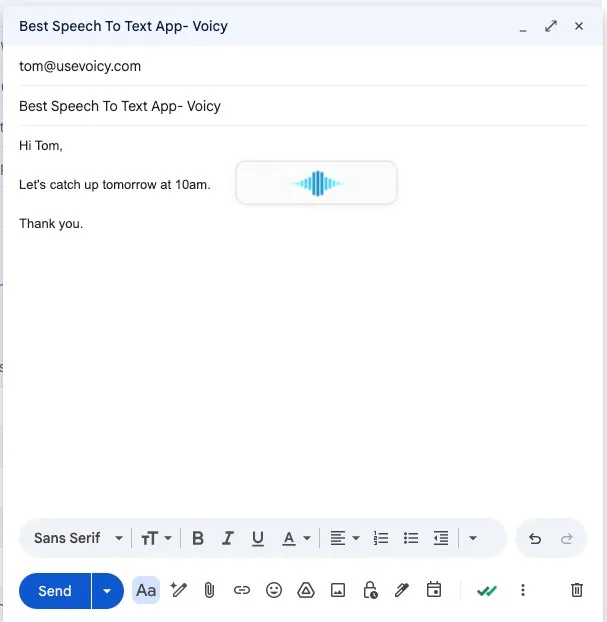
Click the Voicy mic button that appears over the Gmail compose window, or press your Voicy keyboard shortcut. Then speak naturally.
Say one idea at a time.
Pause briefly between paragraphs.
Let Voicy handle punctuation and formatting.
Step 4: Send your email
Add your recipients and subject line, then send.
Method 2: Use Mac Dictation in Gmail
Mac Dictation is the free built-in option on macOS. It can place dictated text into the Gmail compose box, so it is useful for short replies or rough drafts.
Step 1: Turn on Dictation on your Mac
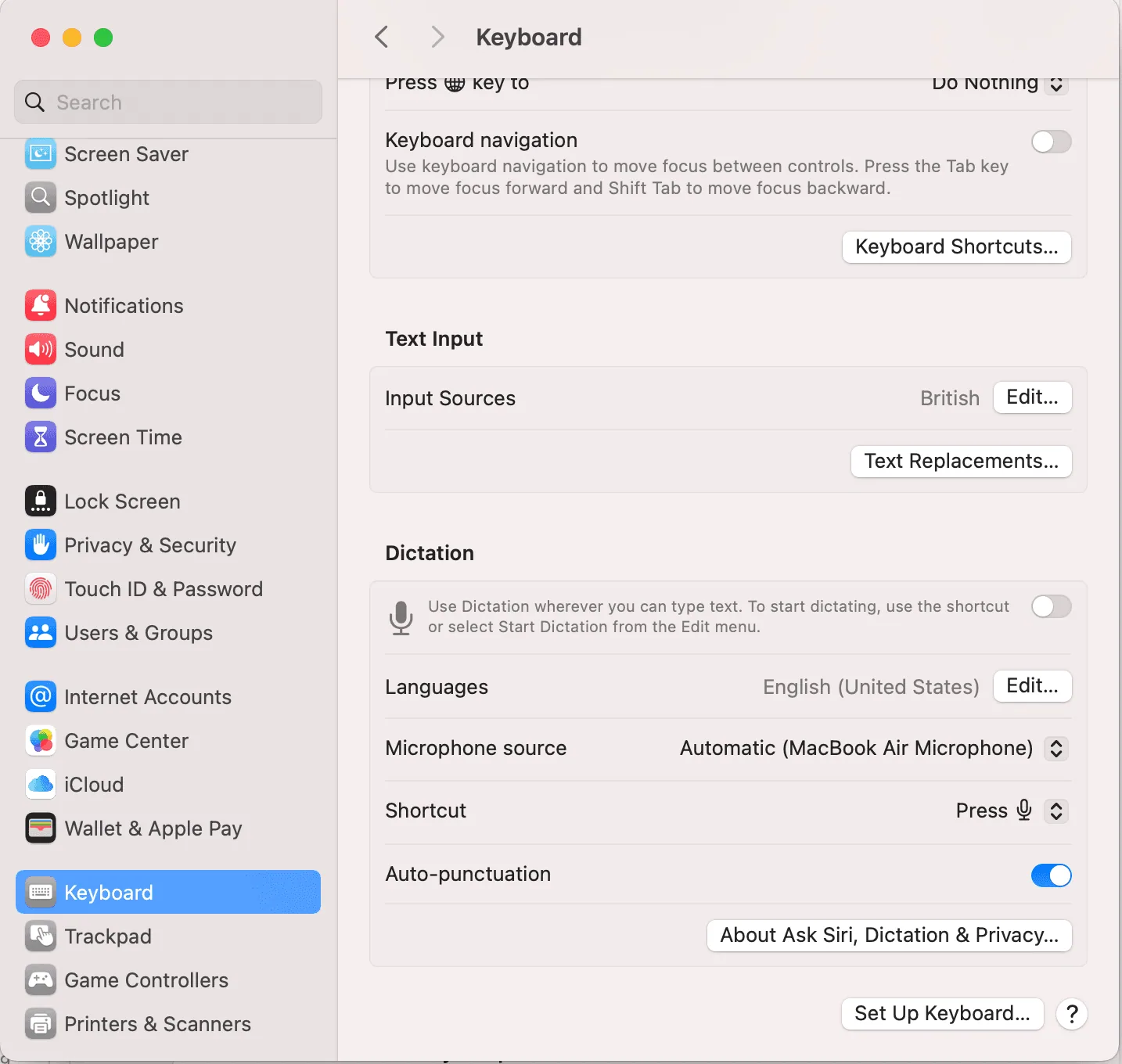
Open System Settings, go to Keyboard, and turn on Dictation. Choose the shortcut you want to use.
Step 2: Open Gmail in your browser
Go to Gmail, click Compose, and click inside the email body.
Step 3: Start Mac Dictation and speak
Use your Dictation shortcut and start speaking.
Use the microphone key, press the Control key twice, or use the shortcut you selected in settings.
Wait for the small dictation control to appear.
Dictate one or two sentences at a time.
Say punctuation such as “period,” “comma,” or “new paragraph” when needed.
Step 4: Review before sending
Mac Dictation is useful, but it may not format every email the way you want. Check names, punctuation, and paragraph breaks before you send.
Method 3: Use Windows Voice Typing in Gmail
Windows Voice Typing is the free built-in option for Windows. It works in browser text fields, including the Gmail compose box.
Step 1: Open Gmail in your browser
Open Gmail in Chrome, Edge, or another browser. Click Compose or open a reply.
Step 2: Click inside the email body
Place your cursor where you want the dictated text to appear.
Step 3: Press Windows + H and speak
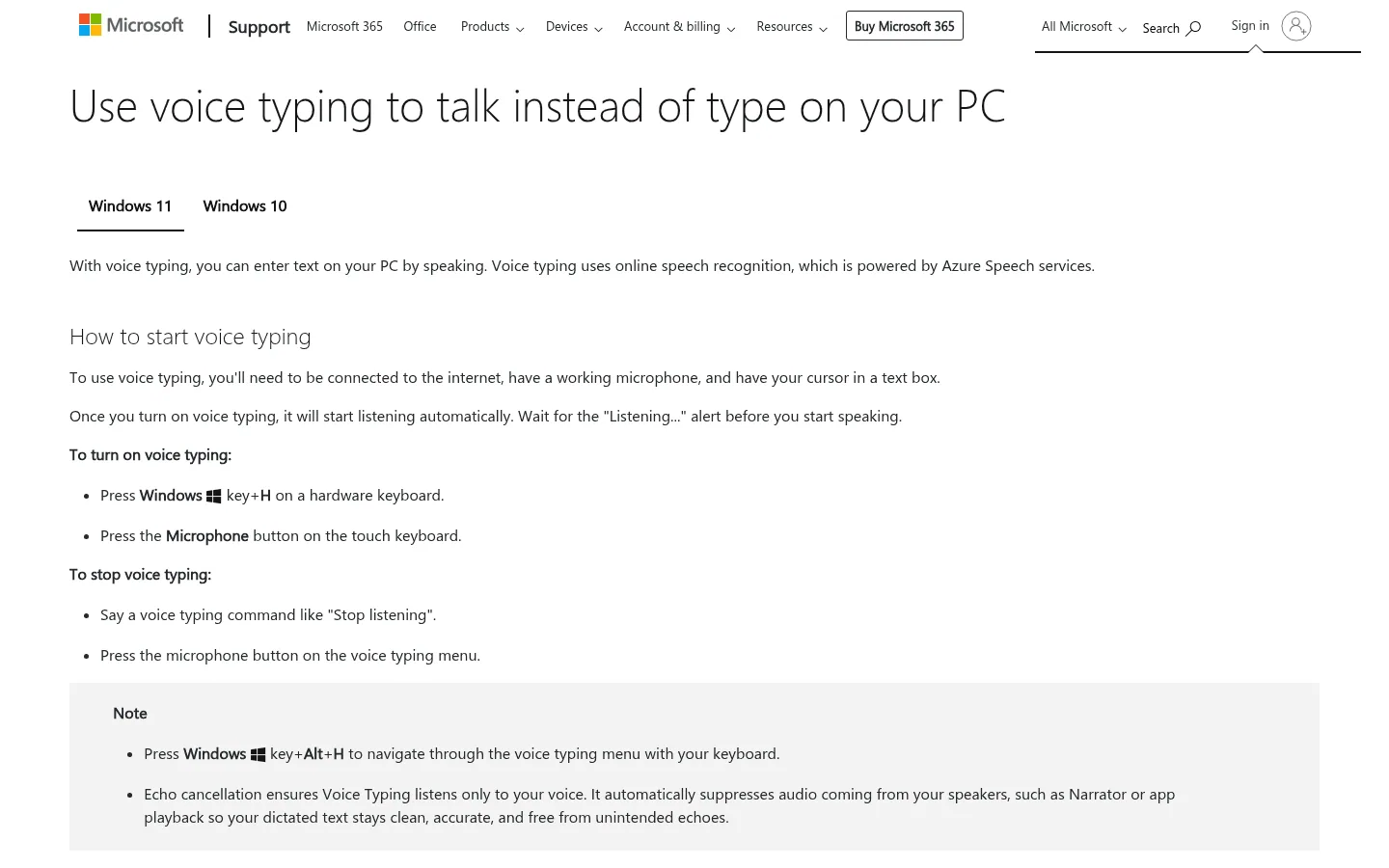
Press Windows + H to open Voice Typing.
Click the microphone if dictation doesn't start automatically.
Speak your message in short sections.
Pause between ideas so the email is easier to clean up.
Step 4: Review and send
Check punctuation, line breaks, names, and any technical terms. Then send the email when it looks right.
Method 4: Optional Google Docs drafting workaround
Use this only if you prefer drafting outside your inbox. It adds a copy-and-paste step; the other desktop methods write directly into Gmail.
Step 1: Open a Google Doc
Create a blank Google Doc in Chrome.
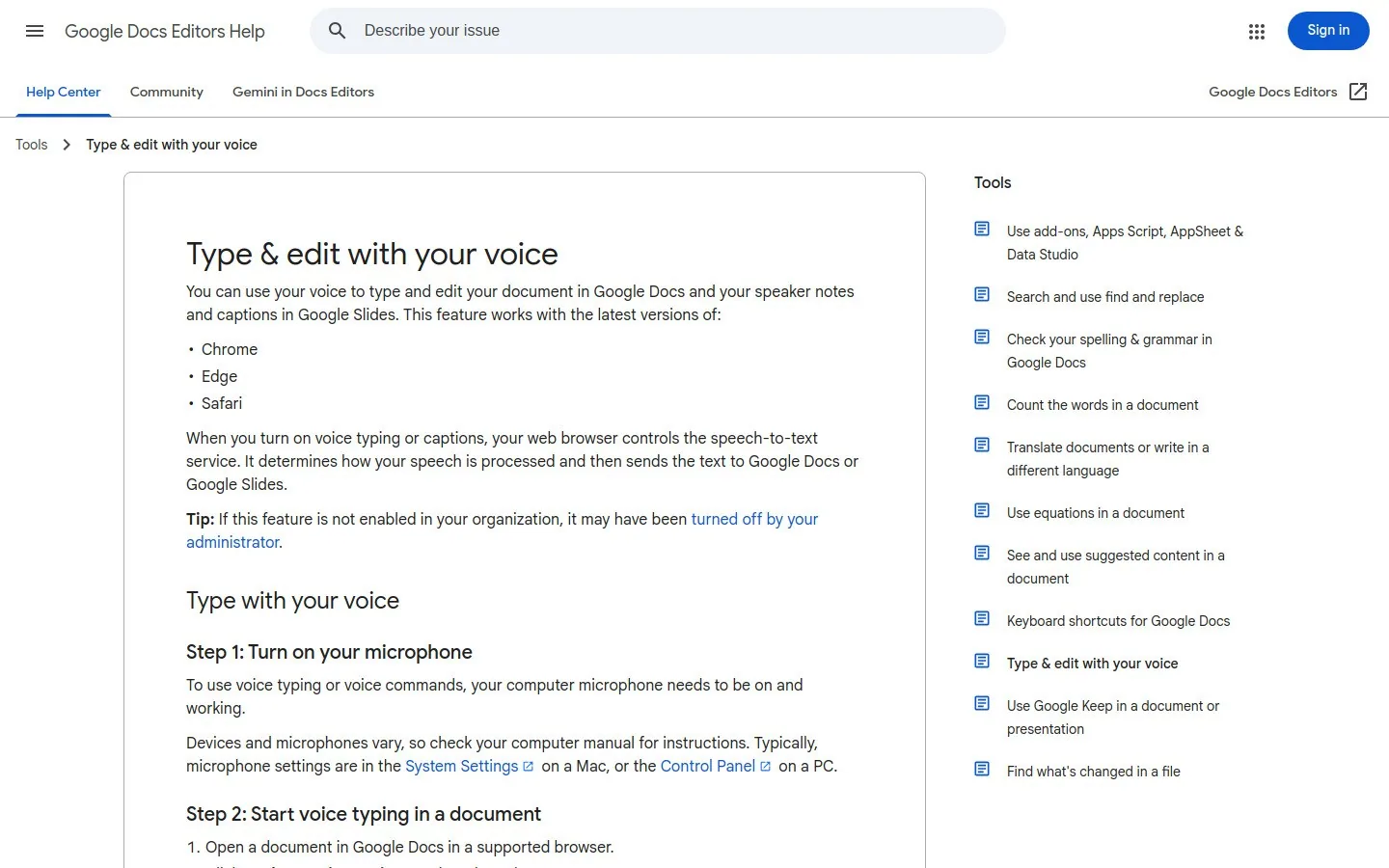
Step 2: Open Voice Typing and dictate your draft
In Google Docs:
Go to Tools.
Select Voice typing.
Click the microphone.
Speak your email draft.
Step 3: Clean up the draft
Review punctuation, paragraph breaks, names, and links while you are still in Google Docs.
Step 4: Paste the draft into Gmail
Copy the finished text, paste it into a Gmail compose window, add your subject line and recipients, then send.
Method 5: Use native dictation in the Gmail mobile app
On iPhone and Android, Gmail can use your keyboard's microphone. This is best for short replies when you are away from your computer.
Step 1: Open the Gmail app
Open Gmail on your iPhone or Android phone. Tap Compose or open a reply.
Step 2: Tap inside the email body
Place the cursor where you want your dictated message to appear.
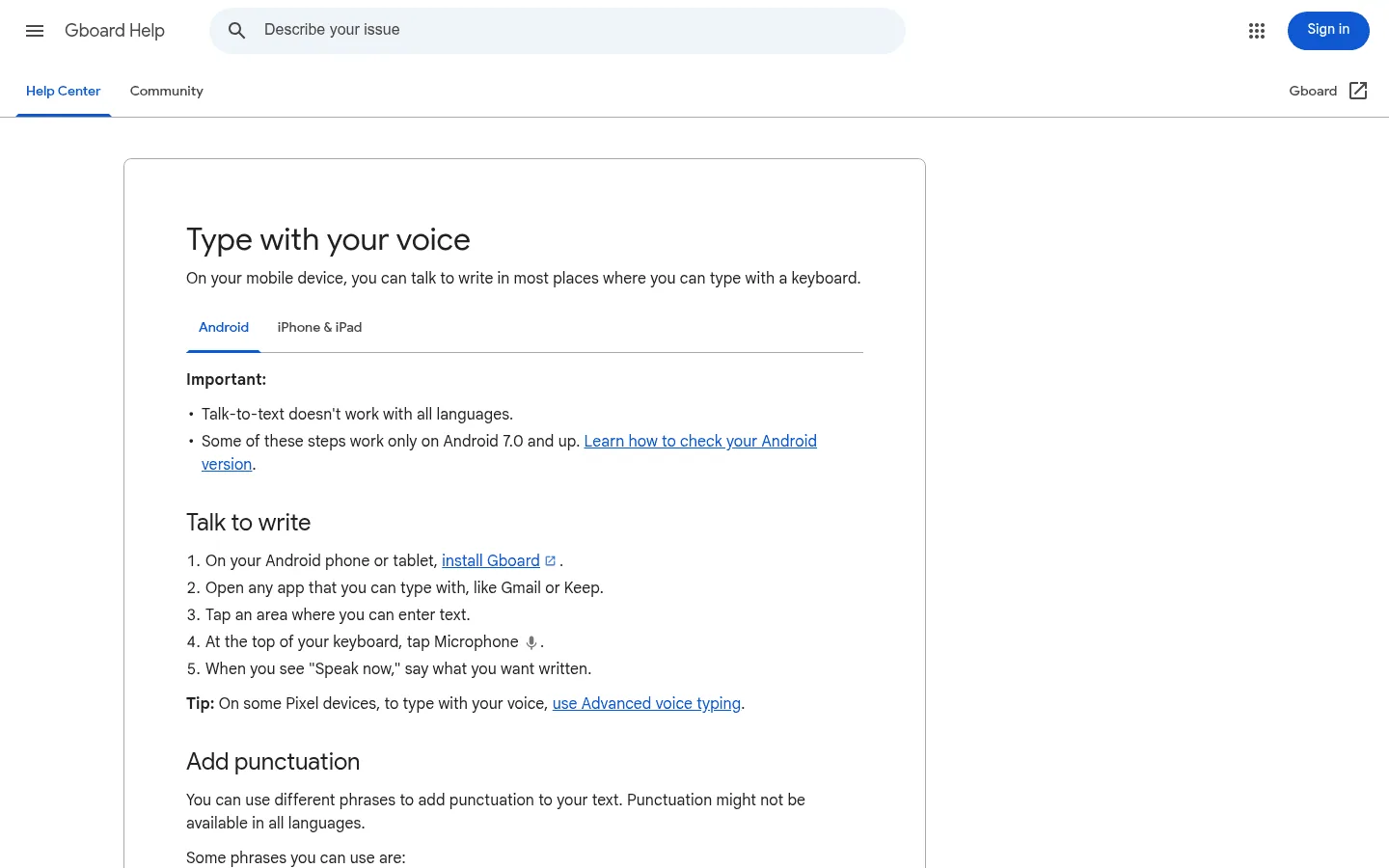
Step 3: Tap the keyboard microphone and speak
Tap the microphone on your iPhone keyboard, Gboard, or Android keyboard.
If you don't see the microphone, check your keyboard or microphone permissions.
Say your email in short chunks.
Use mobile dictation for simple replies, confirmations, and quick updates.
Step 4: Review and send
Check the text carefully before sending. Mobile dictation can miss names, numbers, and punctuation.
Which Gmail dictation method should you use?
Still not sure? Here's a quick side-by-side.
Method | Best for | Main tradeoff |
|---|---|---|
Voicy | Regular Gmail writing, longer emails, and cleaner dictation across apps. | Needs a quick install and is paid after the free trial. |
Mac Dictation | Free Gmail dictation on macOS. | You may need to say punctuation and clean up formatting. |
Windows Voice Typing | Free short replies on Windows. | Long emails usually need cleanup. |
Google Docs Voice Typing | Drafting a longer email outside your inbox. | You need to copy and paste the finished draft into Gmail. |
Mobile keyboard dictation | Quick replies from your phone. | Less comfortable for long or sensitive emails. |
Choose Voicy for Gmail if you write emails every day and want direct dictation with automatic punctuation. Choose a native option if you only need a quick free method for short replies.
Troubleshooting Gmail voice typing
Issue | What to check | Fix |
|---|---|---|
The microphone doesn't start | Your browser, system, Gmail, or keyboard may not have microphone permission. | Allow microphone access, refresh Gmail, and test your microphone in another app. |
Dictation appears in the wrong place | Your cursor may be in the subject line, recipient field, or another text box. | Click inside the Gmail email body before starting dictation. |
The text has poor punctuation | Native tools may require spoken punctuation such as “period,” “comma,” or “new paragraph.” | Use spoken punctuation with native tools, or use Voicy for automatic punctuation. |
Names or technical terms are wrong | Dictation tools can mishear names, company names, product names, numbers, and technical terms. | Slow down for important words, then manually review sensitive details before sending. |
Frequently asked questions
Does Gmail have built-in voice typing?
Gmail doesn't have its own built-in desktop voice typing button like Google Docs. But you can still dictate in Gmail using Voicy, Mac Dictation, Windows Voice Typing, or your phone keyboard's microphone.
How do I use voice typing in Gmail on desktop?
Open Gmail, click inside the compose box, then use Voicy, Mac Dictation, or Windows Voice Typing. On Windows, press Windows + H. On Mac, use the Dictation shortcut you set in System Settings.
Where is the microphone icon in Gmail?
Gmail doesn't have a microphone icon on desktop. On your phone, the mic is on your keyboard, not inside Gmail. Voicy adds dictation directly in the Gmail compose box on desktop.
Can I use Google Docs Voice Typing for Gmail?
Yes. You can dictate your email in Google Docs, clean it up, then copy and paste it into Gmail. This is useful for longer emails, but it adds an extra step.
What is the best way to dictate emails in Gmail?
For frequent Gmail writing, Voicy is the best fit because it works directly in your writing workflow and adds automatic punctuation. For occasional short emails, Mac Dictation or Windows Voice Typing may be enough.
Does Gmail voice typing work on mobile?
Yes. Open the Gmail app, tap into the email body, and use the microphone on your iPhone or Android keyboard.
Why is voice typing not working in Gmail?
The most common causes are missing microphone permission, the cursor not being inside the email body, browser issues, or an inactive dictation tool. Refresh Gmail, check microphone access, and test your microphone in another app.
Is Gmail dictation private?
Privacy depends on the dictation method you use. Built-in OS dictation, browser tools, and third-party apps can process audio differently. Check the privacy policy of the tool you choose before dictating sensitive emails.
 Download for free
 Download for free
 Download for free