
Mac has built-in speech to text with Apple Dictation.
Use it for quick notes, searches, and short messages. Use Voicy when you write longer emails, documents, notes, or prompts and want cleaner punctuation across your Mac apps.
Ways to use speech to text on Mac
Apple Dictation
✅ Free and built into macOS
✅ Works in most places where you can type
✅ Good for short notes, searches, and quick replies
❌ You may need to say punctuation out loud
❌ Longer writing usually needs review
Voicy
✅ Dictate into Gmail, Outlook, Word, Google Docs, Slack, Notion, Safari, Chrome, and more
✅ Automatic punctuation and accurate words, no cleanup needed
✅ Works beyond Mac too: Windows, Chrome, Linux, and iPhone
❌ Needs a quick install
❌ Paid after the free trial
Voice Control
✅ Best for hands-free Mac control and accessibility
✅ Lets you navigate, click, and dictate with voice commands
❌ More setup than basic Dictation
❌ Heavier than most people need for simple writing
Method 1: Use Apple Dictation on Mac
Use this when you want the free built-in option.
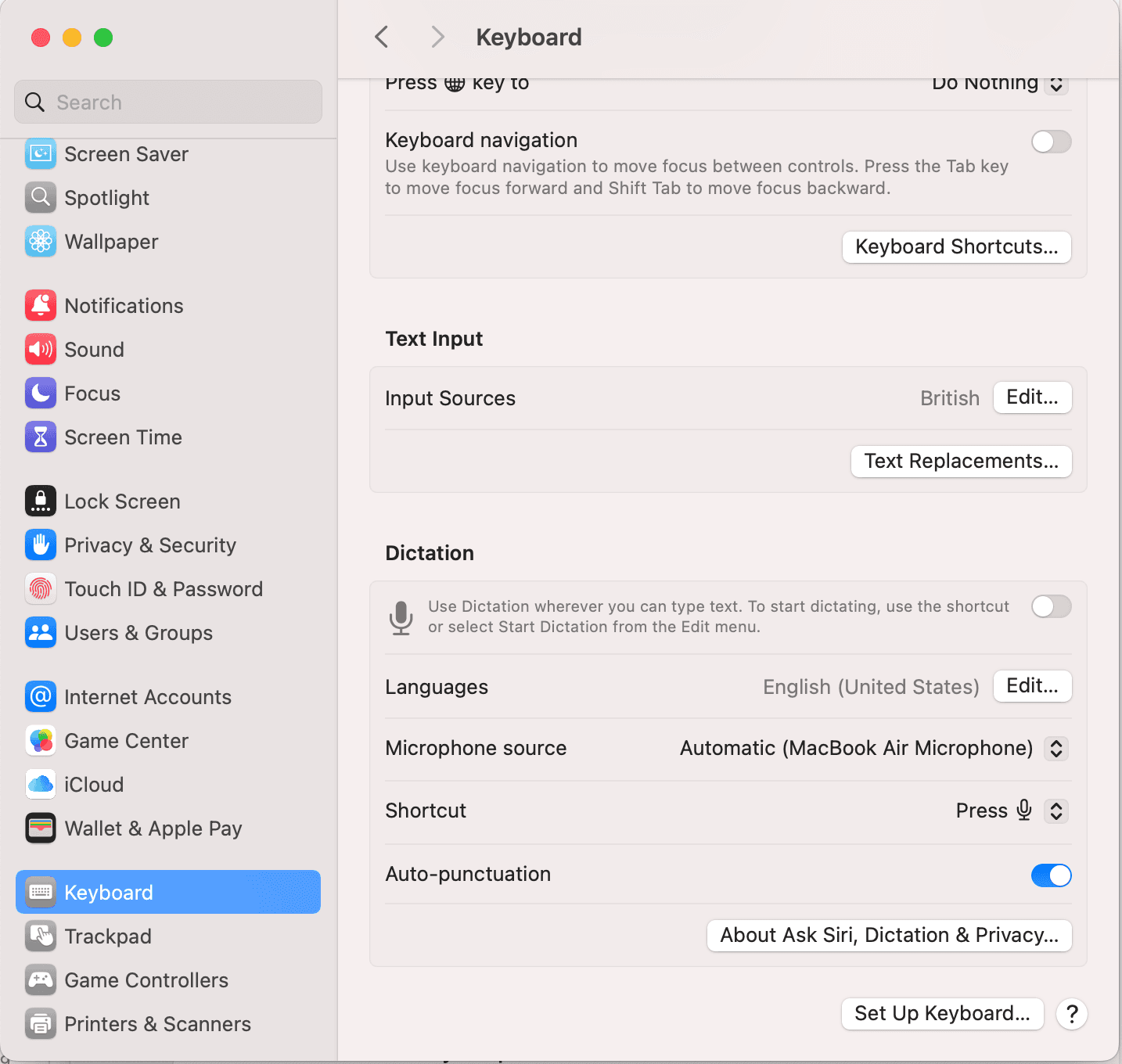
Step 1: Turn on Dictation
Open System Settings.
Then go to:
Keyboard
Dictation
Turn Dictation on
Choose your language, microphone, and shortcut.
Step 2: Open the app where you want to write
Open any app or website with a text field.
For example:
Notes
Mail
Pages
Microsoft Word
Gmail or Outlook in the browser
Google Docs
Slack, Notion, ChatGPT, or Claude
Step 3: Click where the text should appear
Click inside the exact field before you start.
Dictation inserts text where your cursor is.
Step 4: Start dictating
Use the shortcut you selected in Dictation settings.
Speak clearly at a natural pace.
Mac Dictation supports automatic punctuation in supported languages. Check the Auto-punctuation setting under System Settings → Keyboard → Dictation. You can also say punctuation commands such as:
"period"
"comma"
"question mark"
"new paragraph"
You do not need to sound like a robot. Speak at a steady pace and say words clearly, as if you were talking to someone in the same room.
Step 5: Review the text
Check punctuation, names, numbers, and formatting before sending or saving.
Method 2: Use Voicy on Mac
Use this when you write a lot on your Mac and want cleaner text with less manual cleanup.
Step 1: Download Voicy
Download Voicy and choose the Mac version.
Voicy is available for Mac, Windows, Chrome extension, Linux, iOS, and Android.
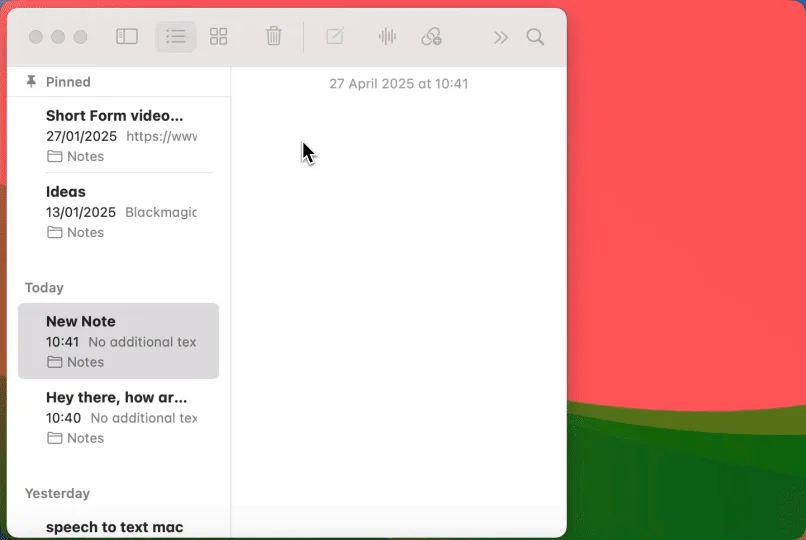
Step 2: Open the app where you want to write
Open the app or website where you normally type.
For example:
Gmail or Outlook
Google Docs or Word
Slack or Notion
Safari or Chrome forms
ChatGPT, Claude, or other AI tools
Step 3: Click inside the text field
Click where the text should appear.
Voicy types into the active field.
Step 4: Start dictating
Use the Voicy mic button or your Voicy keyboard shortcut.
Speak naturally. Voicy adds punctuation automatically, so you do not need to say every comma and period.
Step 5: Keep writing across your Mac
Use the same workflow in your Mac apps, browser tabs, documents, and messages.
You do not need a separate dictation setup for every app.
Method 3: Use Voice Control on Mac
Use this when you want hands-free control, not just typing.
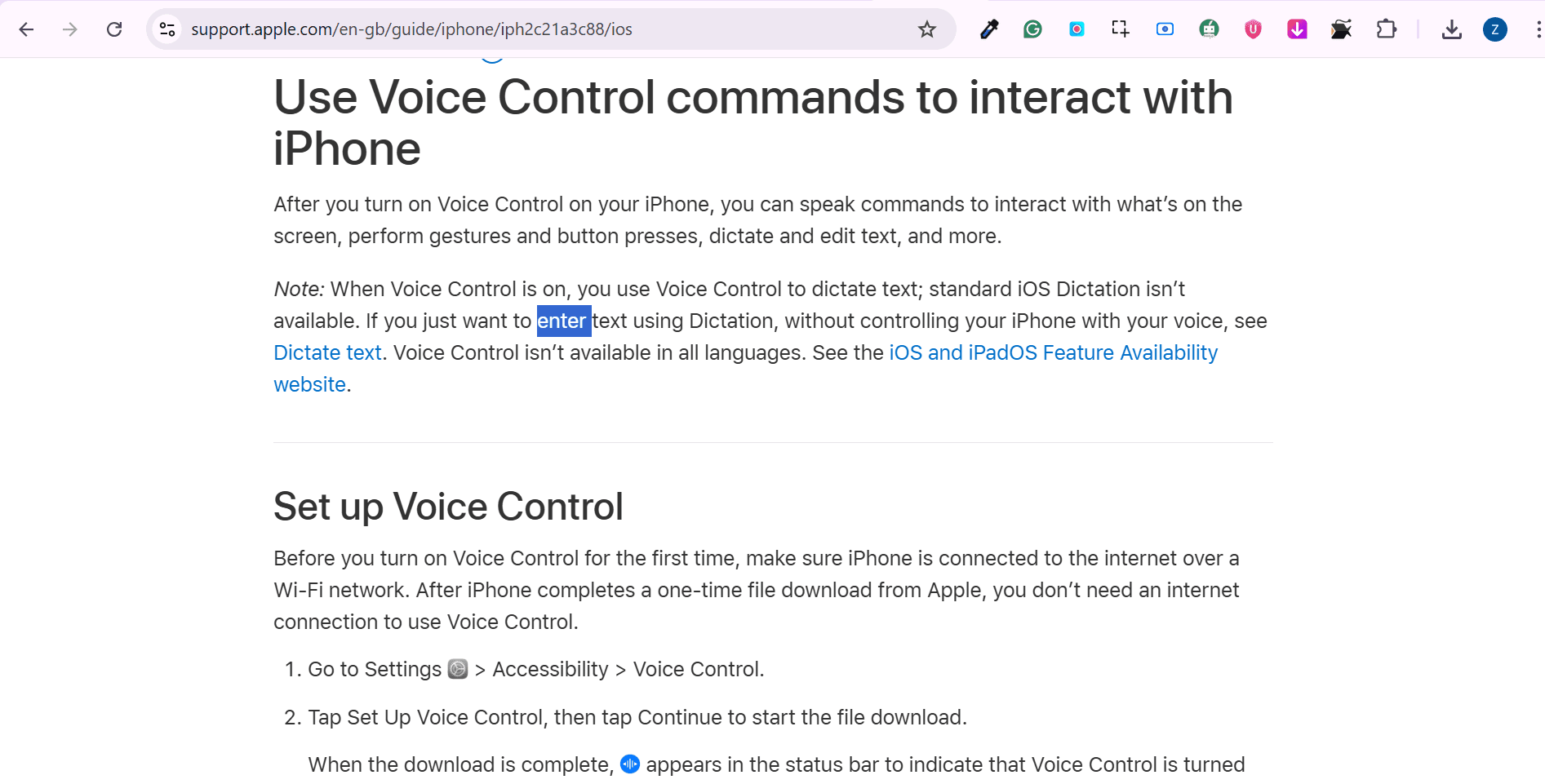
Step 1: Turn on Voice Control
Open System Settings.
Then go to:
Accessibility
Voice Control
Turn Voice Control on
Your Mac may download language files the first time you use it.
Step 2: Choose your language and microphone
Confirm the language and input device.
Use a clear microphone if you plan to work hands-free for long sessions.
Step 3: Try basic commands
Start with simple commands like:
"Open Notes"
"Click File"
"Scroll down"
"New paragraph"
"Delete that"
To see or add your own commands, open Voice Control settings > Commands. Use the plus button to add a command, then choose the phrase and action you want.
Step 4: Dictate into a text field
Open a text field, speak your text, and use Voice Control commands to edit or move around.
This is more powerful than Dictation, but it also takes longer to learn.
Set your Mac dictation shortcut, microphone, and language
Choose a shortcut you will remember
Open System Settings → Keyboard → Dictation and check the Shortcut setting. Choose a combination that does not conflict with the app where you write. You can also start Dictation from Edit → Start Dictation in an app that supports it. Test the shortcut in Notes before using it in a longer document.
Select the right microphone
Check the microphone source in Dictation settings. If you use a headset or USB microphone, make sure the selected input matches it. Speak a short test sentence; if the Mac cannot hear you, open System Settings → Sound → Input and check the input level while speaking. Recheck the device after connecting or disconnecting a headset.
A headset with a boom mic keeps the microphone close to your mouth as you move. If room noise or echo affects your dictation, try a short sentence with the headset and compare it with the built-in mic.
Add or switch languages
Use the Languages controls in Dictation settings to add the languages you need. When more than one is enabled, choose the intended language from the dictation control before speaking. Test names and a short sentence after switching. Available features vary by language, so confirm punctuation behavior in your own setup.
Apple's Mac Dictation guide explains the current settings and supported options.
Useful Mac dictation commands
| What you want | What to say or use | Tool |
|---|---|---|
| A line break | “New line” | Apple Dictation |
| A new paragraph | “New paragraph” | Apple Dictation |
| A comma or question mark | “Comma” or “question mark” | Apple Dictation; availability varies by language |
| To discover editing or navigation commands | Say “Show commands” | Voice Control |
| To stop listening | Use the current tool's stop control or keyboard shortcut | Dictation or Voicy |
Apple Dictation inserts text. Voice Control adds hands-free navigation and editing commands. Use the command list for the tool you have actually turned on rather than expecting every Voice Control command to work in ordinary Dictation.
When dictation works in one Mac app but not another
Start with a short sentence in Notes. If that works, return to the other app and click inside an editable text field. A selected document, search result, or read-only view is not the same as an active insertion point.
For browser apps, check the browser's microphone permission as well as the Mac setting. If you use Voice Control, remember that it handles dictation while enabled; check which tool is listening before changing shortcuts. Reopen the affected app after changing permissions and repeat the short test.
For daily writing across email, documents, and browser fields, Voicy for Mac gives you one dictation workflow without learning separate controls for each app.
Which Mac speech-to-text method should you use?
Method | Use it when | Main tradeoff |
|---|---|---|
Apple Dictation | You want a free built-in option for short Mac text fields. | Longer writing usually needs cleanup. |
Voicy | You write often and want automatic punctuation across Mac apps. | Needs setup and a paid plan after trial. |
Voice Control | You want to control your Mac hands-free. | More setup and learning curve. |
If you only need a quick sentence, start with Apple Dictation.
If you write long emails, documents, notes, and AI prompts every day, Voicy is the smoother workflow.
If you need hands-free navigation for accessibility, use Voice Control.
Common Mac speech-to-text issues
Issue | What to check | Fix |
|---|---|---|
Dictation does not start | Dictation setting and shortcut | Open System Settings > Keyboard > Dictation and confirm Dictation is on and a shortcut is selected. |
Mac cannot hear you | Microphone input and permissions | Check System Settings > Sound > Input, then confirm microphone permissions in Privacy & Security. |
Text appears in the wrong field | Cursor location | Click inside the exact field before starting Dictation or Voicy. |
Punctuation is missing | Which tool you are using | Check automatic punctuation in your dictation settings where supported; otherwise speak punctuation commands. Review the result. |
Voice Control feels too complicated | Whether you need control or only text entry | Use Apple Dictation or Voicy if you only want to write with your voice. |
Offline dictation and privacy on Mac
Offline document editing and offline speech recognition are separate capabilities. Before relying on dictation during travel, check the tool, language and mode you intend to use.
For Apple Dictation, open System Settings → Keyboard and read the information beneath Dictation. Apple says this shows whether general text dictation is processed on your device or needs an internet connection. Use About Ask Siri, Dictation & Privacy for the details that apply to your setup. See Apple's dictation troubleshooting guide.
For a third-party app, check its processing mode and privacy policy separately. An app offering offline dictation may still use online services for other features. Review Voicy's privacy policy when deciding whether it fits your work.
Voicy offers optional offline dictation in its Mac, Windows, and Linux apps. Download a model before going offline; Mac offline mode requires macOS 15 or later. AI tools and file transcription still need internet. See the offline-mode setup guide.
A practical offline test is to finish setup while connected, open a local Notes document, disconnect, and dictate a non-sensitive sentence. Confirm that text appears before depending on the workflow. This checks the feature you need without assuming that browser tools, AI commands or file uploads share the same offline behavior.
Choose a Mac dictation tool for your actual work
Start with a paragraph you would normally type: a client email, a project update, or a set of study notes. Include a few names, numbers and terms that matter to you. Test it in the app where you will use dictation most often, then judge the result by the editing it needs.
- Short notes and occasional replies: start with Apple Dictation and check whether the built-in controls meet your needs.
- Longer writing across several apps: compare punctuation, correction time and how easily you can start another recording. The Voicy Mac page explains its setup and trial.
- Hands-free navigation: practice Voice Control's navigation and editing commands as well as text entry. This is a different requirement from getting a paragraph onto the page.
- Existing audio recordings: look for file transcription. Playing an interview into a live dictation microphone is not the same workflow as uploading the source recording.
For a wider shortlist, see dictation apps for Mac and MacBook. Compare current language support, processing options and pricing before choosing.
Put dictation into a repeatable writing routine
For an email, say the reason for writing first, add the supporting detail, and finish with the action you need. Stop recording before checking the recipient, dates and attachments. For a report, create headings with the keyboard, dictate the first draft under each one, then edit the document as a whole.
For example, dictate a project note in Notes: “Customer interviews are complete. Alex will summarize the findings by Friday. Our next step is to decide which onboarding issue to fix first.” Review the name and deadline, then move the finished paragraph into your working document.
If you mainly write in a browser, use the Safari guide or Google Docs guide for that context. For persistent Mac setup problems, follow the Mac dictation setup and fixes guide.
FAQ
Does Mac have built-in speech to text?
Yes. Mac has built-in Dictation. Turn it on in System Settings > Keyboard > Dictation, then use your shortcut in any text field.
What is the shortcut for speech to text on Mac?
The shortcut depends on your settings. Open System Settings > Keyboard > Dictation and check the Shortcut menu.
What is the difference between Dictation and Voice Control on Mac?
Dictation is for entering text. Voice Control is for controlling your Mac and dictating text hands-free.
Can I use speech to text in Word, Gmail, and Google Docs on Mac?
Yes. Click into the text field first, then start Mac Dictation or Voicy. Voicy is better for longer writing with automatic punctuation.
Why is speech to text not working on my Mac?
Check that Dictation is on, your microphone works, the app has microphone permission, and your shortcut is set correctly.
Is Apple Dictation free?
Yes. Apple Dictation is included with macOS.
 Download for free