
Windows 10 and 11 both have built-in speech-to-text. Press Windows + H in a text box, speak, and Windows will type what you say.
For quick notes, the built-in tool is enough. For longer emails, documents, notes, and prompts, Voicy is usually cleaner because it adds punctuation automatically and works across your writing apps.
Ways to use speech-to-text on Windows
Windows Voice Typing
✅ Free and built into Windows 10 and 11
✅ Opens with Windows + H
✅ Works in many text boxes, including Word, Notepad, Gmail, Outlook, and browser fields
❌ You may need to say punctuation out loud
❌ Longer emails and documents usually need cleanup
Voicy for Windows
✅ Dictate in Windows apps, browser fields, documents, emails, notes, and AI prompts
✅ Automatic punctuation and accurate words, no cleanup needed
✅ Works on Windows, Mac, Chrome, Linux, and iPhone
❌ Needs a quick install
❌ Paid after the free trial
Windows Speech Recognition
✅ Built into Windows for voice commands, dictation, and hands-free control
✅ Useful for accessibility workflows
❌ Takes more setup than Windows Voice Typing
❌ Feels heavier if you only want to write a few lines
Method 1: Use Windows Voice Typing
This is the fastest free option. Use it when you want to dictate a short email, note, search, or paragraph without installing anything.
Step 1: Click where you want the text to appear
Open the app you want to write in.
For example:
Microsoft Word
Notepad
Gmail
Outlook
Google Docs
A browser text box
Click inside the text field before you start.
Step 2: Press Windows + H
Press Windows + H on your keyboard.
The Windows Voice Typing toolbar should appear near the top or bottom of your screen.
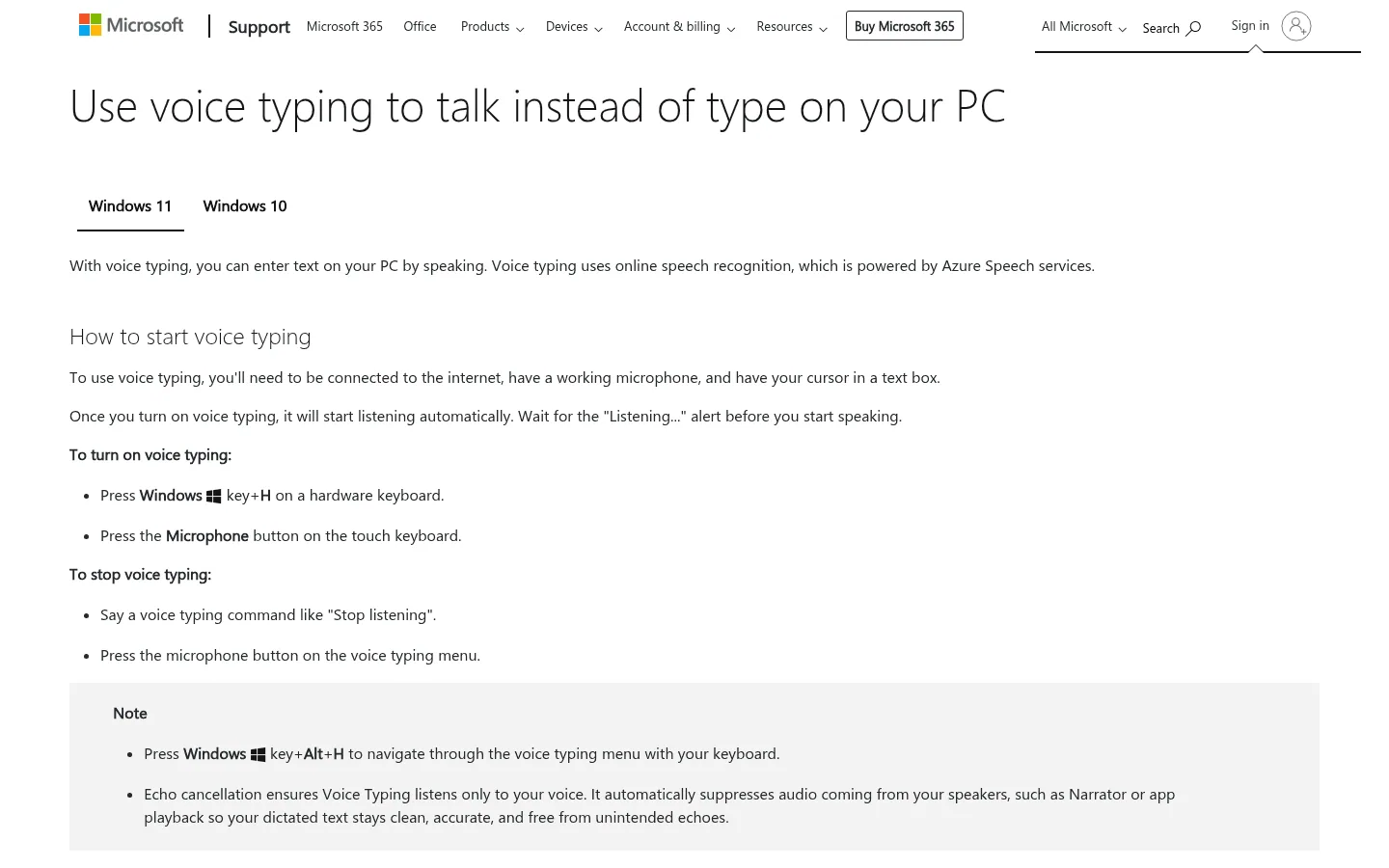
Step 3: Start dictating
If dictation does not start automatically:
Click the microphone button in the toolbar.
Speak at a normal pace.
Watch the text appear in the active field.
Step 4: Add punctuation
Windows Voice Typing may need spoken punctuation, especially on Windows 10 or in apps where automatic punctuation is inconsistent.
Say:
"comma" for ,
"period" for .
"question mark" for ?
"new line" for a new line
Step 5: Review the text
Check the text before you send or save it.
Windows Voice Typing is useful, but names, numbers, punctuation, and longer sentences can still need cleanup.
Method 2: Use Voicy for Windows
Use Voicy when you write often and want cleaner text inside the apps you already use. It is the better fit for longer emails, documents, notes, and prompts where cleanup slows you down.
Step 1: Download Voicy
Download Voicy for free. Pick the Windows version and finish the quick setup.
Voicy is available for Mac, Windows, Chrome extension, Linux, iOS, and Android.
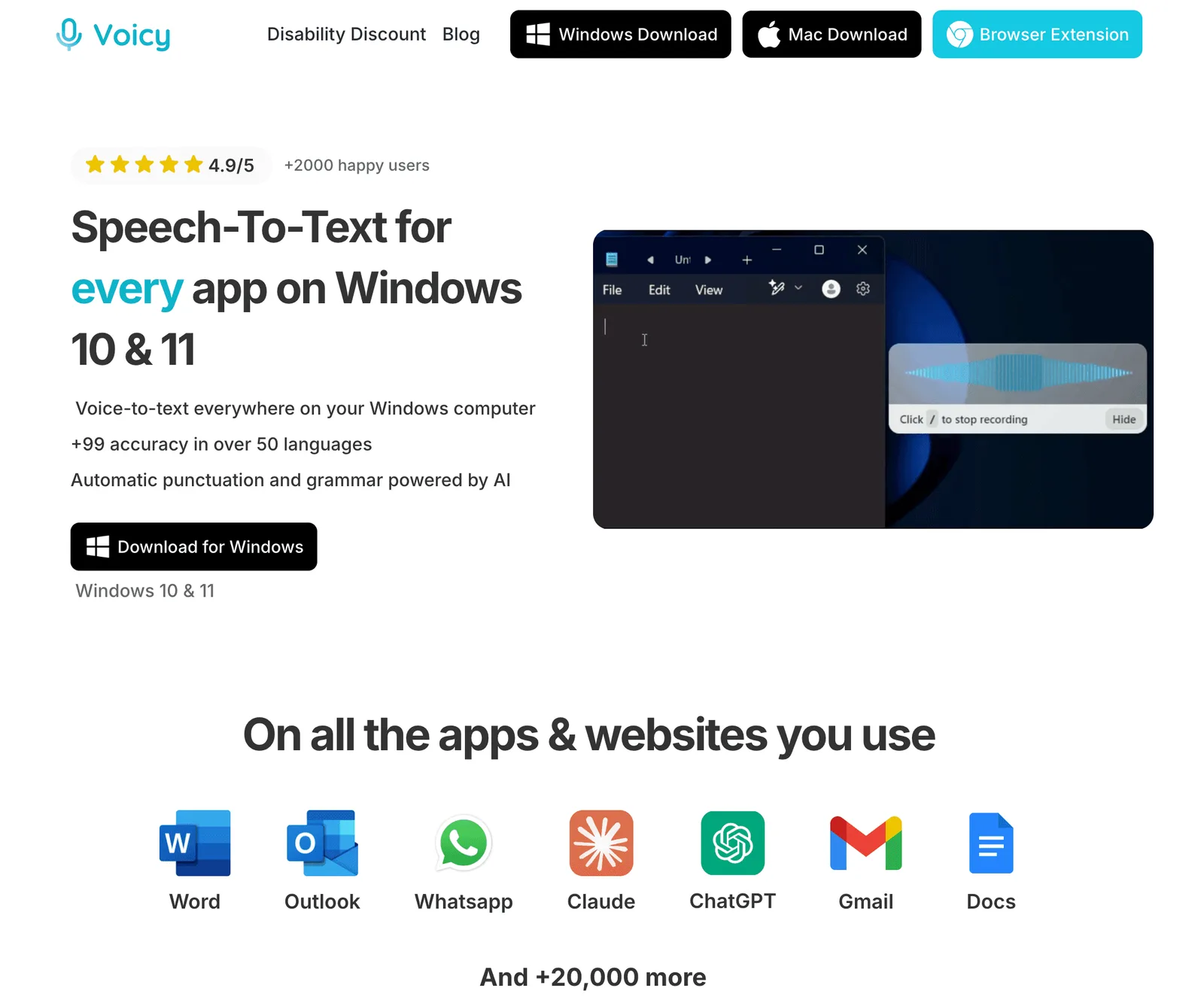
Step 2: Open the app where you want to write
Open Word, Gmail, Outlook, Notion, Slack, ChatGPT, or any other place where you write.
Click inside the text field.
Step 3: Start dictating
Use the Voicy shortcut or mic button.
Then speak naturally.
Voicy turns your speech into polished text with punctuation already added.
Step 4: Keep writing wherever you work
Use the same workflow across your Windows apps.
You do not need to draft in one place and paste somewhere else.
Method 3: Use Voice Access or Windows Speech Recognition
Use this route when you want to operate your computer by voice as well as enter text. For a quick paragraph, Windows + H is the shorter setup.
Windows 11: Set up Voice Access
Open Settings → Accessibility → Speech → Voice access. Follow the first-run prompts to download the speech model and select your microphone. An internet connection is needed for the initial download; Voice Access can then recognize speech on the device.
Use its interactive guide to practice selecting controls and entering text. This is a separate setup from the legacy Speech Recognition training wizard. Microsoft provides the current steps in its Voice Access guide.
Windows 10: Check the legacy Speech Recognition option
Where available, open Control Panel → Ease of Access → Speech Recognition → Start Speech Recognition and follow the microphone and training prompts. These instructions describe the older Windows tool, not Windows 11 Voice Access.
Use the tool supported by your Windows version. On newer Windows 11 systems, Voice Access replaces the legacy Windows Speech Recognition workflow.
Which Windows speech-to-text method should you use?
Still not sure? Here's a quick side-by-side.
Method | Use it when | Main tradeoff |
|---|---|---|
Windows Voice Typing | You want free, quick dictation with the Windows + H shortcut. | Longer writing usually needs cleanup. |
Voicy for Windows | You write daily in Word, Gmail, Outlook, docs, notes, forms, or AI tools. | Needs a quick install and a paid plan after the free trial. |
Voice Access / Windows Speech Recognition | You want hands-free control, accessibility support, or voice commands. | More setup than simple dictation. |
If you only need a quick note, start with Windows + H.
If you write every day and want cleaner text with less editing, use Voicy.
Common Windows speech-to-text issues
Issue | What to check | Fix |
|---|---|---|
Windows + H does not open voice typing | Speech settings and Windows version | Check online speech recognition under Settings > Privacy > Speech on Windows 10, or Privacy & security > Speech on Windows 11. Then retry in an editable text field. |
The microphone does not pick up your voice | Input device and microphone permission | Open Settings > System > Sound. Choose the right microphone under Input and test it. |
Text appears in the wrong place | The active text field | Click inside the exact field where you want the words to appear before starting dictation. |
Punctuation is missing | Whether your tool adds punctuation automatically | With Windows Voice Typing, say punctuation out loud when needed. With Voicy, punctuation is added automatically. |
Names, numbers, or technical terms are wrong | Background noise, mic position, and term complexity | Move closer to the mic, use a quieter room, and check proper nouns before sending. For daily writing, use Voicy for cleaner first drafts. |
The wrong language is detected | Windows language and keyboard settings | Check Settings > Time & language > Language & region. Install the speech language you want to use. |
Dictation works in Word but not elsewhere | Whether you are using Word Dictate or Windows Voice Typing | Word Dictate is built into Microsoft Word. Windows Voice Typing uses Windows + H and works across many apps and browser fields. |
Tips for better voice typing on Windows
Use a quiet room. Background noise makes every dictation tool worse.
Keep the mic close. Laptop microphones work, but a headset is often clearer.
Speak in short chunks. One idea at a time is easier to capture and edit.
Check names and numbers. Native tools often miss proper nouns, dates, and product names.
Use the right tool for the job. Windows Voice Typing is fine for quick notes. Voicy is better for regular writing.
Privacy and Windows speech-to-text
Windows speech features can use different privacy settings depending on your version and setup.
Before dictating sensitive content:
Review Settings > Privacy & Security > Speech.
Check microphone permissions.
Read the privacy policy for any third-party dictation app you use.
Do not assume every speech feature works offline.
Voicy uses cloud transcription by default, and its Mac, Windows, and Linux apps also include an optional offline dictation mode. Check Voicy's privacy policy before using it for sensitive documents.
Frequently asked questions
How do I turn on speech-to-text in Windows 10 and 11?
Click inside a text field and press Windows + H. If voice typing does not open, check online speech recognition under Settings > Privacy > Speech on Windows 10, or Privacy & security > Speech on Windows 11.
What is the Windows speech-to-text shortcut?
The main Windows speech-to-text shortcut is Windows + H. Click inside the text field first, then press the shortcut to open Voice Typing.
Does Windows 10 have speech-to-text?
Yes. Windows 10 supports built-in dictation. Click where you want to type, press Windows + H, and start speaking.
Does Windows 11 have speech-to-text?
Yes. Windows 11 includes Voice Typing for dictation and voice access for broader hands-free control.
Can I use speech-to-text in Microsoft Word?
Yes. Click inside your Word document and press Windows + H. For cleaner long documents, use a dedicated Word dictation workflow like Voicy for Microsoft Word.
Why is Windows voice typing not working?
The usual causes are blocked microphone permissions, the wrong input device, disabled speech settings, or a text field that is not active. Check your microphone, click into the field again, then press Windows + H.
Is Windows speech-to-text free?
Yes. Windows Voice Typing is included with Windows 10 and 11. Voicy has a free trial, then paid plans after the trial.
Is Voice Access the same as Voice Typing?
No. Voice Typing is the quick Windows + H dictation tool. Voice Access is a broader accessibility tool for controlling Windows with your voice.
Does Windows speech-to-text work offline?
Some older Windows speech features can work locally, but newer voice typing features may use online speech services. Check your Windows speech settings before using it for sensitive work.
What is better than Windows Voice Typing?
If you only need short notes, Windows Voice Typing is fine. If you write emails, documents, reports, or prompts every day, Voicy is usually better because it adds punctuation automatically and works across your writing apps.
 Download for free
 Download for free
 Download for free