
Summary
If Windows dictation is not working, test Win+H in an editable Notepad document while connected to the internet. Then check the selected microphone, mute switch, microphone access and input language. For everyday writing across apps, Voicy for Windows offers another dictation workflow, including optional offline dictation after a model download.
Short answer: why is Windows dictation not working?
Windows voice typing needs a working microphone, an internet connection, a supported input language and a cursor in an editable text box. If any of those is missing, Win+H can open without writing anything. Wait until the panel says Listening before you speak.
Start with the quick checks below. If you have never set up dictation, use our Windows 10 and 11 speech-to-text setup guide first. These fixes cover the Windows shortcut, not every app’s own microphone button.
Quick checklist for Windows dictation not working
| What happens? | Try this first |
|---|---|
| Win+H does not open | Click inside a new Notepad document, then press the Windows key and H together. |
| The panel opens but no text appears | Wait for Listening, confirm the field accepts typing, and test the microphone input. |
| Windows cannot hear you | Check the hardware mute switch, selected input and microphone privacy settings. |
| A connection or “something went wrong” message appears | Reconnect to the internet, reopen voice typing and record the exact message if it returns. |
| It writes in the wrong language | Press Win+Space and select a supported input language that matches your speech. |
| Only one app fails | Compare the same sentence in Notepad. Check the failing app’s editable field or its own dictation feature. |
| A Dictate or speech option is greyed out | Identify whether it belongs to Win+H, Word Dictate or Voice Access before changing settings. |
1. Test Win+H in a blank Notepad document
A simple text box helps you separate a Windows problem from an app problem. You do not need a special document or a Microsoft 365 subscription to test the Windows shortcut.
- Open Notepad and create a new document.
- Click in the document, type one letter, then delete it.
- Make sure your PC is online.
- Press Win+H and wait for Listening.
- Say a short sentence, such as “Please send the notes tomorrow.”
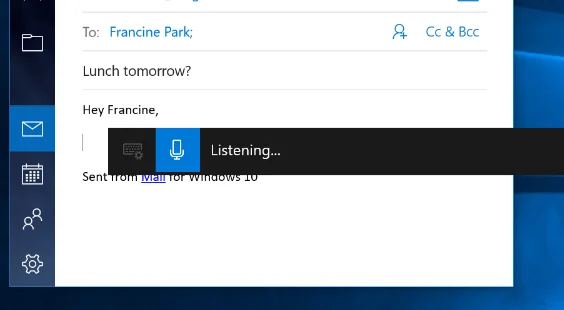
Windows 10: the dictation toolbar shows “Listening” over an editable message. Microsoft product screenshot, reproduced in full from Microsoft Support; not a new test capture.
If the sentence appears, Windows voice typing is working in that field. Return to the app where it failed, click inside the writing area and try again. A read-only document, selected toolbar or unfocused browser tab gives dictation nowhere to put the words.
If the panel does not open, check whether the Windows key works on its own. Some keyboards have a Windows-key lock or gaming mode. Also check any shortcut-remapping software you deliberately installed; do not start resetting Windows services.
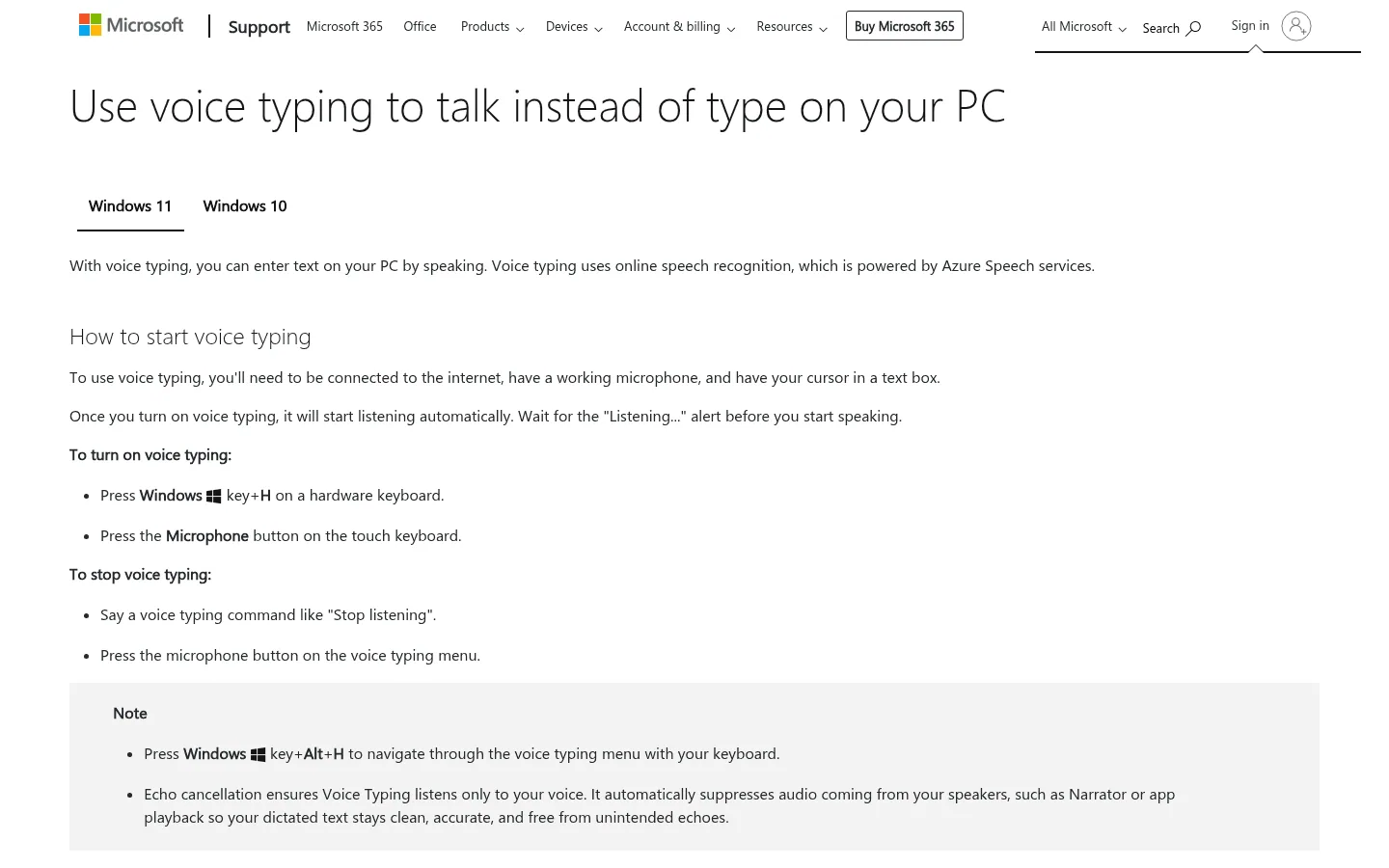
Microsoft’s voice typing guide confirms the connection, microphone and text-box requirements.
2. Check the microphone input and mute switch
If Windows is listening to a disconnected headset or a muted webcam, changing the dictation language will not help. Test the audio input first.
- Open Settings → System → Sound.
- Under Input, select the microphone you want to use.
- Speak normally and check the input level or microphone test.
- Check the headset’s mute button and any keyboard microphone-mute key.
- Reconnect a USB or Bluetooth microphone if Windows no longer detects it.
On Windows 11, also open the voice typing panel’s settings and check its Default microphone selection if shown. Choose the same device you just tested.
No input movement? Try the built-in microphone or another known working mic. If neither records sound, solve the Windows audio or device problem before comparing dictation apps. A new app cannot repair a broken microphone.
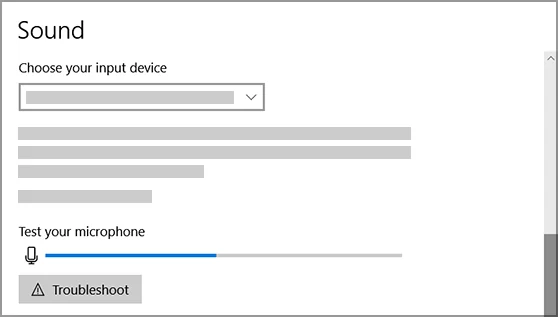
Windows 10: select the input device and watch the microphone test meter. Full screenshot from Microsoft Support; the greyed example details are part of Microsoft’s original image. Windows 11 uses a different settings layout.
3. Allow microphone access in Windows privacy settings
Windows can detect a microphone while blocking apps from using it. Check the system access switches rather than only the volume slider.
- Windows 11: Settings → Privacy & security → Microphone.
- Windows 10: Settings → Privacy → Microphone.
Turn on microphone access and the relevant app-access switches. Check desktop-app access for desktop software too. Reopen the app after changing its permission, then repeat the Notepad test.
An app’s own browser-based dictation can also need permission for that website. That is a separate check from native Win+H: do not change every browser permission when the Windows microphone test itself fails.
If a switch is locked or says your organization manages it, ask your work or school IT team. Do not bypass device policy or disable security software to make dictation run.
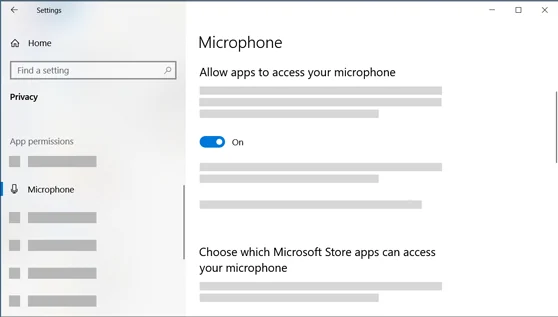
Windows 10: Privacy → Microphone, with app access switched on. Full screenshot from Microsoft Support, with the original example details unchanged. On Windows 11, use Privacy & security → Microphone instead.
4. Check the connection and online speech setting
Standard Windows voice typing uses online speech recognition. A working microphone alone is not enough when the PC has lost its connection.
Open a new web page to check the network, reconnect if needed, then close and reopen the voice typing panel. If the message returns only on a work network, give IT the exact error rather than turning off the firewall.
On Windows 10, check Settings → Privacy → Speech → Online speech recognition for built-in dictation. Windows 11 puts online speech controls under Privacy & security → Speech; follow any consent prompt shown by your installed version. Voice Access is a different feature and does not use this same online dictation path.
“Something went wrong” does not identify one universal cause. If it persists, note the full wording, any error code and whether other online services work. Reinstalling language packs or deleting registry keys is not a sensible first response.
5. Match the input language to what you speak
The Windows display language and the active typing language are not always the same. Voice typing follows the supported input language you have selected.
- Press Win+Space to switch between installed input languages.
- Choose the language you are about to speak.
- If it is missing, open Settings → Time & language → Language & region on Windows 11, or Language on Windows 10.
- Add the language you need, then select it before testing again.
Check Microsoft’s supported voice typing languages for your Windows version. Availability differs between Windows 10 dictation and Windows 11 voice typing.
Windows 11 voice typing does not require the optional speech-recognition language feature. Do not wait for an unnecessary speech download to fix Win+H. Voice Access has its own model download, which is a separate setup.
6. Fix listening-but-no-text and one-app failures
If the microphone test passes but no words appear, check where the cursor is. Click inside the document body, not the file name, toolbar or a read-only preview. Type a word manually to confirm that the field accepts text.
Try the same sentence in Notepad. If that works, save your work and reopen the failing app or reload its page. Test a fresh document before changing system-wide settings.
For poor results rather than missing text, move closer to the mic and reduce room noise. Speak in short phrases, check the selected language and review names or numbers before sending. Punctuation settings can help formatting, but they will not fix an audio input that Windows cannot hear.
7. Check which dictation tool is greyed out
A grey microphone button in Microsoft Word Dictate is not the same as Win+H failing. Word’s own feature has its own account, connection and microphone requirements. Try Win+H in Notepad to find out whether the problem extends beyond Word.
Voice Access is Windows 11’s accessibility tool for controlling the PC and writing with speech. It needs an internet connection for its first language-model download, then can work offline. Follow the Voice Access setup guide if that is the tool you opened.
On supported Copilot+ PCs, a dimmed Fluid dictation option can mean its model is still downloading. That is not evidence that every greyed-out voice typing control has the same cause.
Legacy Windows Speech Recognition has been replaced by Voice Access on current Windows 11 versions. Do not try to restore the old training wizard as a Win+H fix; older Windows versions may still have it.
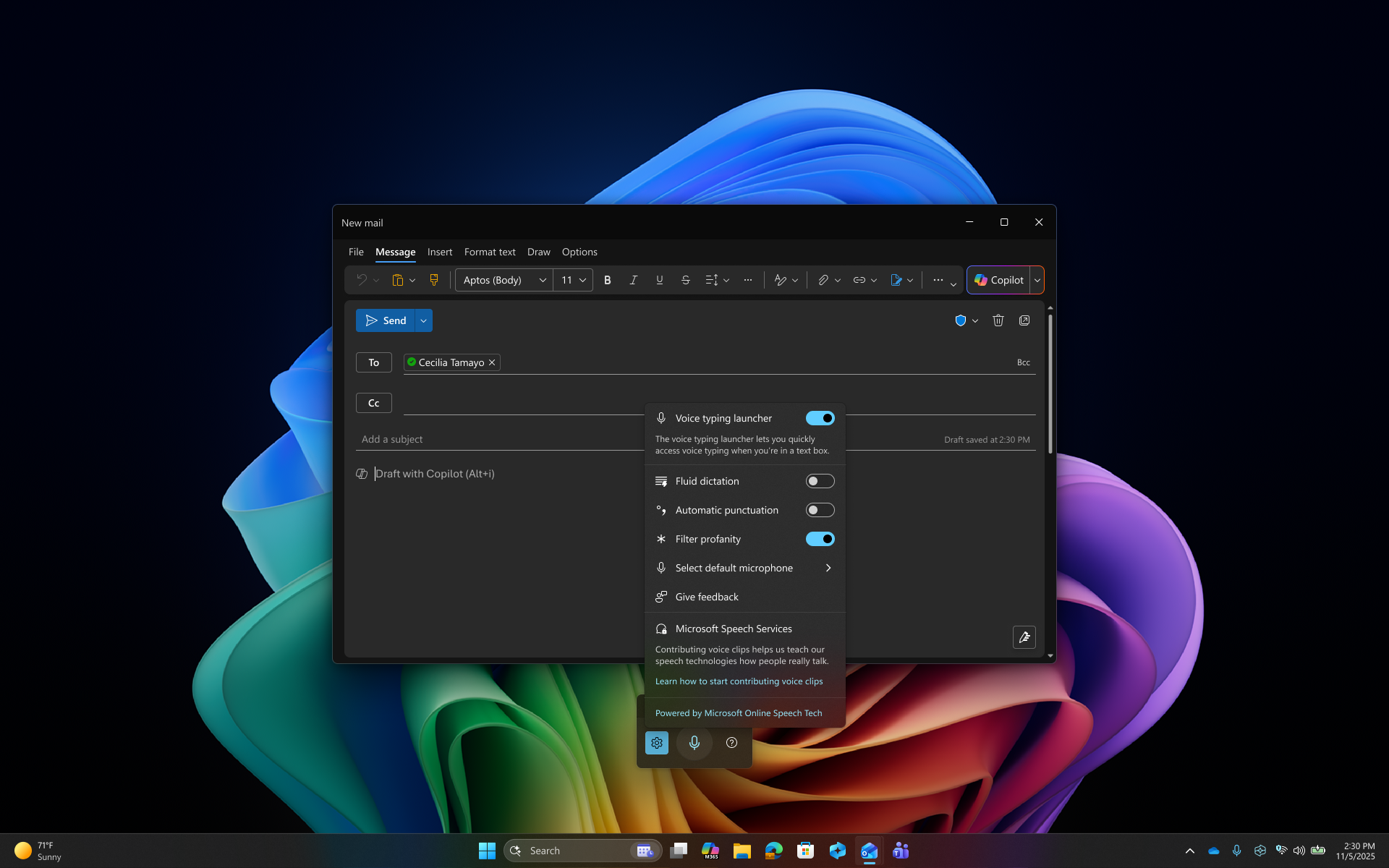
Windows 11: Microsoft’s full screenshot shows the voice typing settings, including Fluid dictation and Select default microphone. Open the full-size image to read the settings. Source: Microsoft Support. Reproduced without cropping or annotations; availability varies by PC and Windows version.
8. Restart safely, check updates, and collect the right details
Save your work and restart the PC if the checks above have not helped. Then check Windows Update for updates available to your device. This is a maintenance step, not a guaranteed fix for every speech error.
If you still need support, collect these four details:
- Your Windows version and build, shown by typing winver in Start.
- The exact error message or a screenshot of it.
- Whether the microphone input test detects your voice.
- Whether Win+H writes a sentence in Notepad.
Windows 10’s ordinary support ended on October 14, 2025. Dictation can still run, but that does not mean the PC receives standard security support. ESU and LTSC have separate coverage terms.
9. Use Voicy for everyday writing across Windows apps
If you want one dictation workflow for emails, documents and browser text fields, Voicy for Windows is a practical alternative to Win+H. Use it for the writing you do throughout the day, not just as a last resort after a Windows error.
You can dictate a reply, move to a document and continue writing with the same app. Automatic punctuation helps turn speech into readable text, and online AI tools can help you rewrite a draft. Check the result before sending, especially names, figures and specialist terms.
To get started:
- Download and install Voicy using the Windows installation guide.
- Allow microphone access, then choose your microphone and dictation shortcut.
- Click in an editable field and record a short sentence.
- Stop recording and review the inserted text.
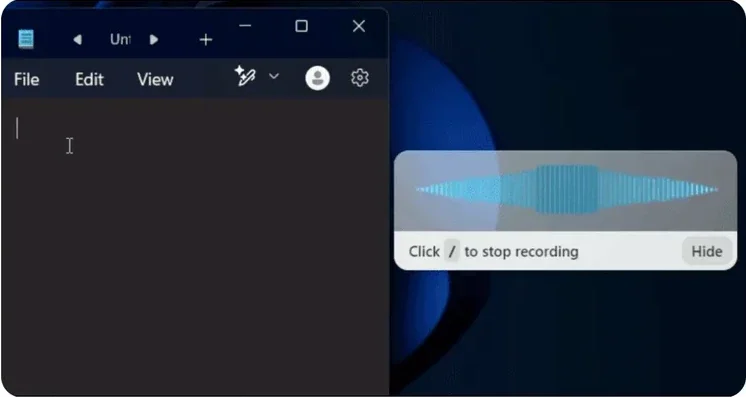
For writing without a connection, open Voicy Offline mode, download a model while online, and wait until it is ready. Basic dictation can then run on the Windows computer. AI rewriting and file transcription remain separate online actions.
Voicy includes a free trial, then paid plans. Try it with your own microphone and everyday apps to see whether the workflow fits; it is not a promise to fix hardware faults or make every sentence error-free.
Frequently asked questions
Why is Windows dictation not working?
Check the internet connection, selected microphone, microphone access and supported input language. Click inside an editable Notepad document, press Win+H and wait for Listening before speaking.
Why does Win+H open but not type?
The cursor may be outside an editable field, the microphone may not be receiving sound, or the online speech connection may have failed. Test a short sentence in a new Notepad document and check the microphone input level.
Does Windows voice typing work offline?
Standard Win+H voice typing needs an internet connection. Windows 11 Voice Access can work offline after its initial language-model download. Voicy also offers optional offline desktop dictation after downloading a model.
Do I need a speech language pack for Windows 11 voice typing?
No. Microsoft says the optional speech-recognition language feature is not required for Windows 11 voice typing. Select a supported input language with Win+Space; Voice Access has a separate model download.
Why is the Dictate button greyed out?
First identify the tool. Word Dictate, Windows voice typing and Voice Access have different requirements. A dimmed Fluid dictation option on a supported Copilot+ PC can indicate that its model is downloading; that explanation does not apply to every greyed-out microphone.
Is Windows Speech Recognition the same as Voice Access?
No. Voice Access is the newer Windows 11 accessibility feature for PC control and text entry. It has replaced legacy Windows Speech Recognition on current Windows 11 versions. Win+H voice typing is a separate text-entry feature.
What can I use instead of Windows voice typing?
Voicy for Windows is an alternative for everyday dictation across apps, with automatic punctuation and optional offline dictation. Windows 11 Voice Access is another option if you need voice control of the PC as well as text entry.
Is Voicy free to use on Windows?
Voicy has a free trial, then paid plans. Its desktop offline mode requires a model download before offline dictation. AI rewriting and file transcription need an internet connection.
Bottom line
Start with an online Win+H test in Notepad. A moving microphone level, correct permissions, supported input language and editable field give you a useful baseline. If only one app fails, focus on that app instead of resetting Windows.
For a daily writing tool across apps, try Voicy for Windows. Choose online or supported offline dictation to suit where you work, then review your text before you send it.
 Download for free