

TL;DR
The best Linux Ubuntu productivity apps cover a few clear jobs, not a hundred features you will never use.
- LibreOffice: write documents, build spreadsheets, and export PDFs.
- Voicy: dictate drafts and replies in Linux apps.
- Planify: keep today's tasks separate from the rest of your projects.
- Obsidian: link local notes into a useful work reference.
- Thunderbird: bring email, calendars, and tasks into one desktop app.
- KeePassXC: keep passwords in an encrypted database you control.
- Flameshot: mark up screenshots for clear bug reports and feedback.
- Pika Backup: schedule backups of your working files.
Our verdict: Start with LibreOffice, Planify, and a backup routine. Add Obsidian if you need a reference library, or Voicy if getting words onto the page is the slow part. On Ubuntu, package choice and your desktop session matter more than downloading the longest app list.
A fresh Ubuntu desktop can leave you with two copies of an app, three update paths, and a screenshot shortcut that does nothing. That is not much of an upgrade over the clutter you left behind.
This guide focuses on daily desk work: planning, writing, email, passwords, feedback, and keeping your files safe. It targets Ubuntu Desktop rather than every Ubuntu flavor. We reviewed official documentation and install sources; these are editorial picks, not results from hands-on speed or battery tests.
How should you install productivity apps on Ubuntu?
Use one package source per app when you can. Ubuntu's App Center is a useful starting point, but check whether a listing is a Snap or a Debian package before you install it. The official App Center listing explains its app discovery and update features.
Snap is preinstalled on recent standard Ubuntu releases. That does not mean every app has an official Snap, or that every Ubuntu flavor has the same defaults. A store listing's publisher and permissions still matter.
Flatpak is another route, but it needs setup on a standard Ubuntu installation. Follow the current Ubuntu setup guide before using the Flatpak picks below. Do not expect App Center to become a Flatpak manager just because you installed Flatpak.
A downloaded AppImage is different again: you make the file executable and run it. Its update process and system-library needs vary by app. Avoid a random terminal command promising to fix every AppImage on every Ubuntu release.
Before choosing a capture or dictation tool, check Settings → About for your system details. Wayland and X11 handle global shortcuts, screen capture, and simulated typing differently. A tool opening successfully is not proof that those features work in your target app.
Ubuntu productivity apps compared
| App | Best job | Price | Suggested install route | Main tradeoff |
|---|---|---|---|---|
| LibreOffice | Documents and spreadsheets | Free | Ubuntu package or official Snap | Complex imported layouts need review |
| Voicy | Voice drafting | Trial; $8.49/month, $82/year, $260 lifetime | Official Linux download flow | AI tools and file transcription need internet |
| Planify | Personal tasks and projects | Free app | Project-linked Flatpak | Sync services have their own rules |
| Obsidian | Linked local notes | Free core app; paid extras | Official DEB or AppImage | Easy to overbuild your note system |
| Thunderbird | Email and calendar | Free app | Official Snap or Linux download | Work accounts can restrict access |
| KeePassXC | Local password vault | Free | Official download or linked Flatpak | You own backup and recovery |
| Flameshot | Annotated screenshots | Free | Documented Ubuntu package | Wayland capture and hotkeys need checks |
| Pika Backup | Personal-file backups | Free | Project-linked Flatpak | Not a full-system restore tool |
Prices and documentation were checked on October 24, 2026. Optional storage, hosting, and third-party accounts can cost extra.
1. LibreOffice: the sensible first install for office work
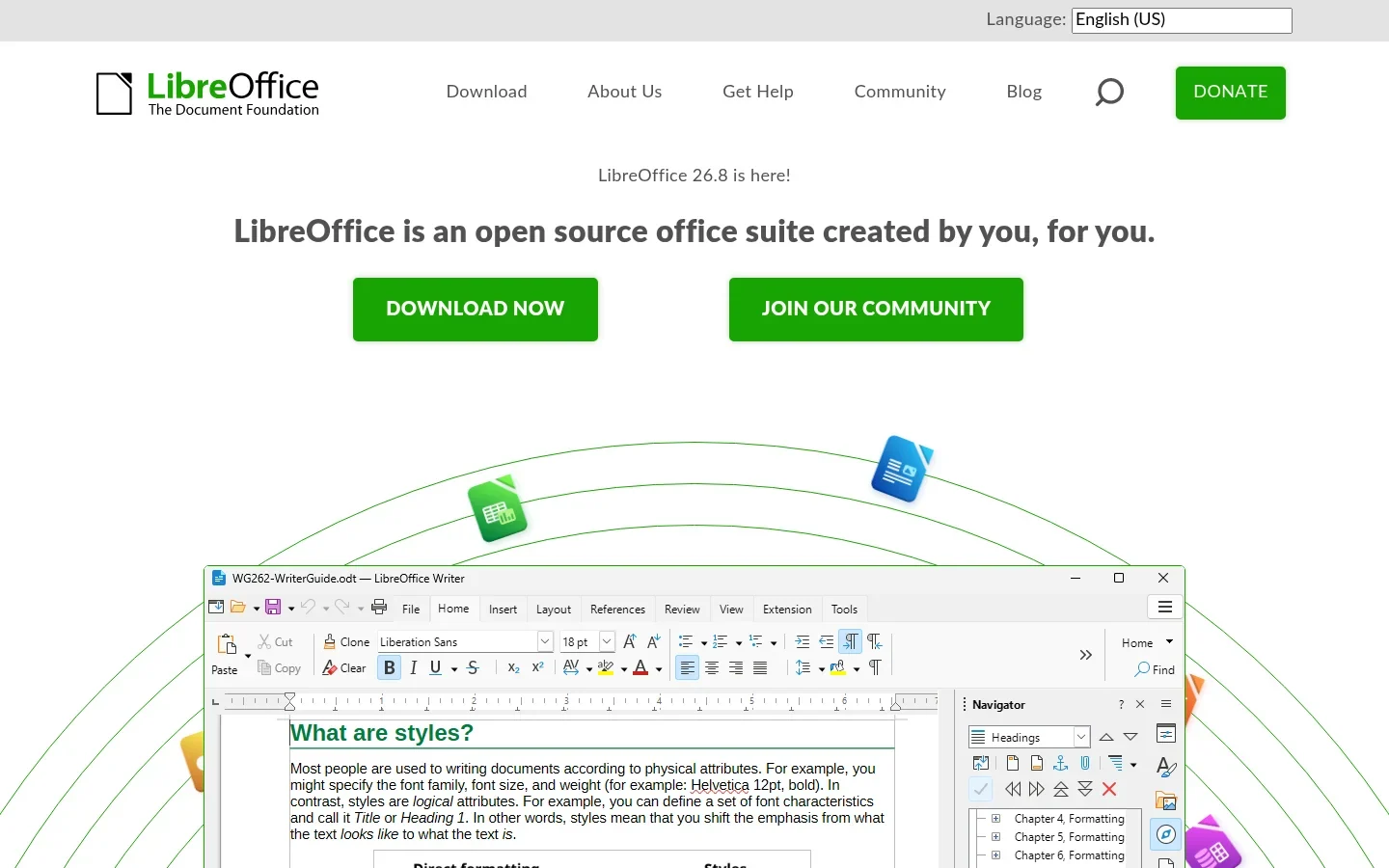
LibreOffice is the best starting point if your work ends in a document, spreadsheet, or PDF. Writer, Calc, and Impress cover common office tasks without a subscription or a browser tab.
Try one real document before moving your whole workflow. Open a report with tables, edit a formula-heavy sheet, and export a PDF. Check fonts and page breaks, especially when someone else must edit the original file later.
Why it earns a place: local editing, a broad office toolkit, and PDF export in one package. It also works without a connection once installed.
The catch: file compatibility is not the same as identical layout. Complex templates, macros, and unusual fonts deserve a careful check rather than a blanket promise.
Price and installation: free and open source. Use Ubuntu's LibreOffice package or the LibreOffice Snap listing; the official Linux installation guide explains other routes. Keep one main install so file associations stay clear.
Pick it if: you need to finish office work, not build a new workflow around a cloud subscription.
2. Voicy: turn spoken drafts into text
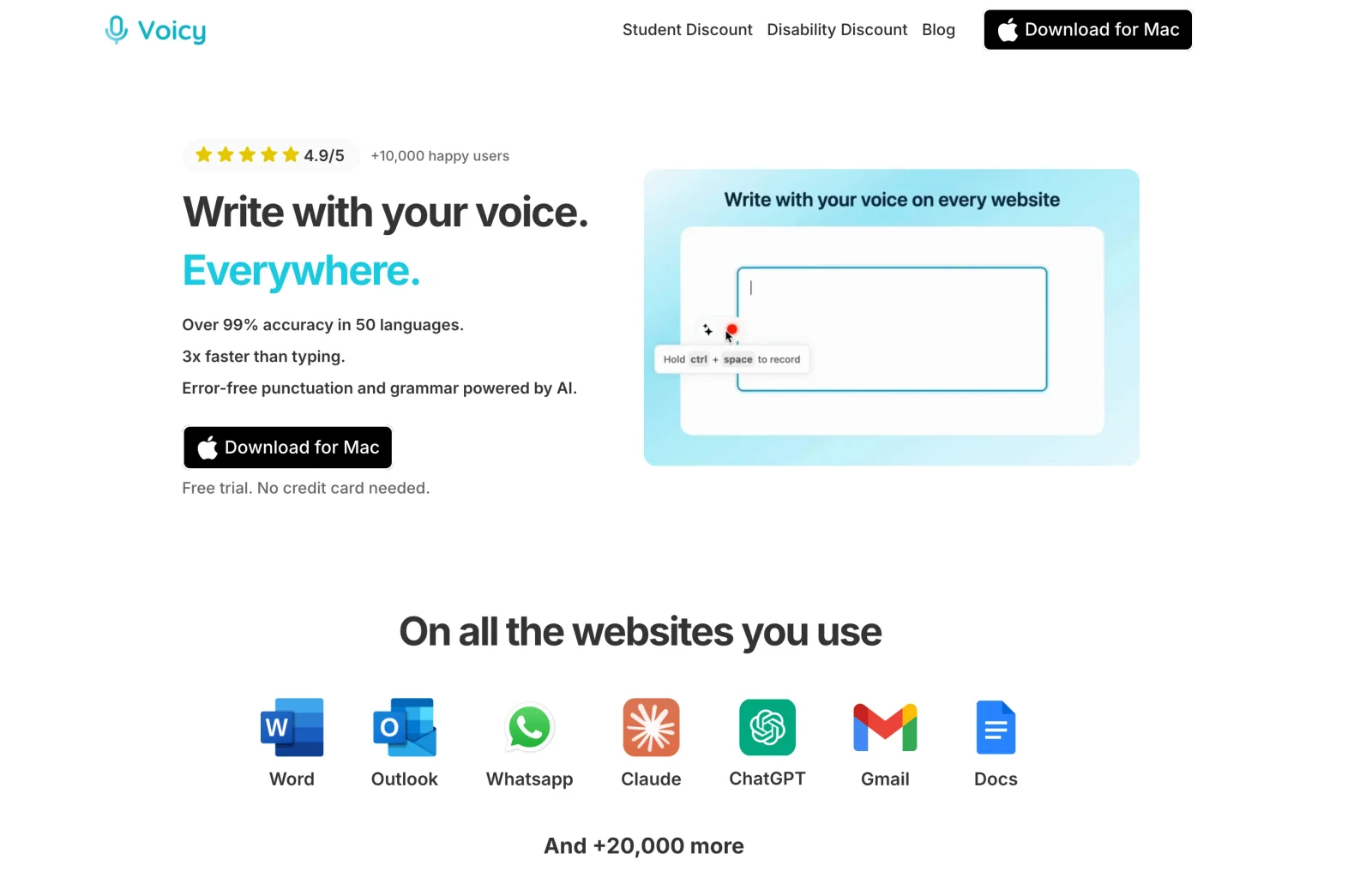
Voicy is a Linux desktop dictation app for writing in the apps you already use. It makes sense when composing an email or rough draft is slower than saying what you mean.
Use it to get the first version down, then edit. Dictation still needs a quiet enough space, a working microphone, and a review of names, figures, and sensitive details. It is not a reason to send an unchecked message.
Voicy's current Linux page lists Ubuntu support and both Wayland and X11. That is product documentation, not a claim that we tested every desktop combination. During the trial, check the recording shortcut and text insertion in your actual editor and email app.
Pros: desktop dictation, automatic punctuation, and file upload transcription. Cloud transcription is the default; basic offline dictation is available after downloading a model.
The catch: offline does not cover every feature. Voicy's offline-mode guide says AI rewriting, file transcription, and retrying old recordings are online actions. Confirm the model's supported languages in the app.
Price and installation: free trial, then $8.49/month, $82/year, or $260 lifetime. Start from the Linux download page and use the package it offers for your setup. We are not promising a Snap or Flatpak listing.
Pick it if: typing is the bottleneck. If you mainly need tasks or backups, buy neither dictation nor another note app to solve that problem. For alternatives, read the Linux speech-to-text comparison.
3. Planify: a task list with enough room to grow
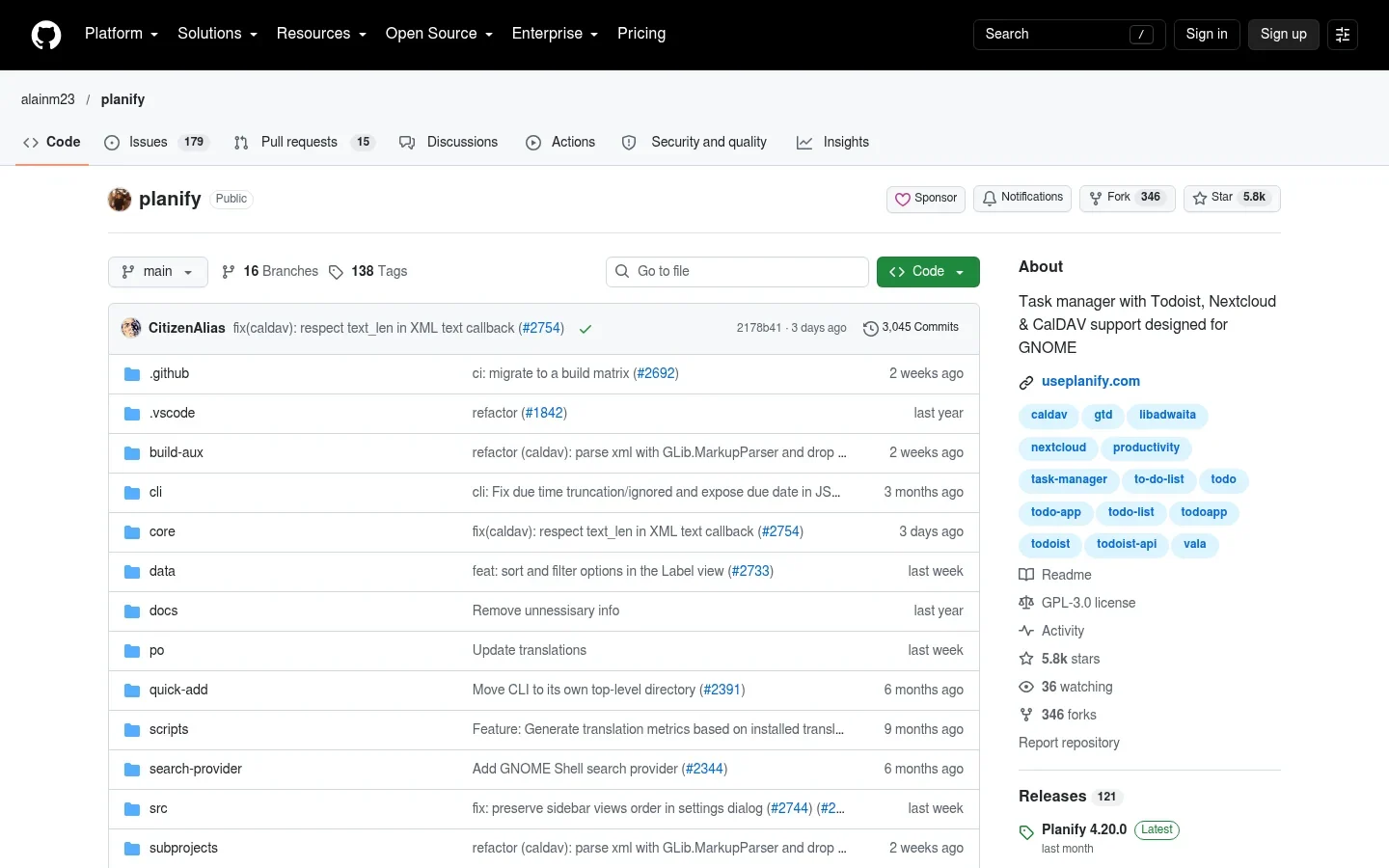
Planify is a good fit for Ubuntu users who want projects, due dates, reminders, and a clear daily list. Its GTK interface suits a GNOME-based desktop without making you plan your life inside a spreadsheet.
Make a project for a current job, then add three next actions. “Send the revised quote” is useful. “Work on business” is not. The app helps organize those actions; it cannot decide which work deserves your time.
Useful features: sections, recurring tasks, labels, and an offline workflow. The project also documents sync integrations if you need tasks on more than one device.
The catch: the free app does not make every connected service free. Sync setup and account limits belong to the service you choose. Start locally if you just need a dependable daily checklist.
Price and installation: free and open source. Follow the project's Flathub link after setting up Flatpak. This is a simpler beginner route than compiling the project and resolving its build dependencies.
Pick it if: your notes are full of unfinished tasks that need dates and checkboxes instead.
4. Obsidian: notes you can connect and keep

Obsidian stores notes as local Markdown files and lets you link them together. It is useful for research, project decisions, and technical notes that you need to find again months later.
Create one note for a project and link it to meeting notes, decisions, and reference material. The benefit is the trail between ideas, not how impressive the graph looks.
What works well: local files, backlinks, search, and room to extend the app. You can keep writing when your connection drops.
The catch: plugins and elaborate templates can become a project of their own. Start with the core app. Sync is also a separate decision, not something to assume just because your notes are on disk.
Price and installation: the core app is free, including commercial use under the current pricing policy. Sync and Publish are optional paid services. The official download page offers DEB, AppImage, and Snap options and labels its Flatpak as community maintained.
If voice notes tend to pile up instead of becoming useful text, see our guide to dictating into Obsidian.
Pick it if: your main problem is remembering why you made a decision, not remembering that a task exists.
5. Thunderbird: fewer tabs for email and appointments
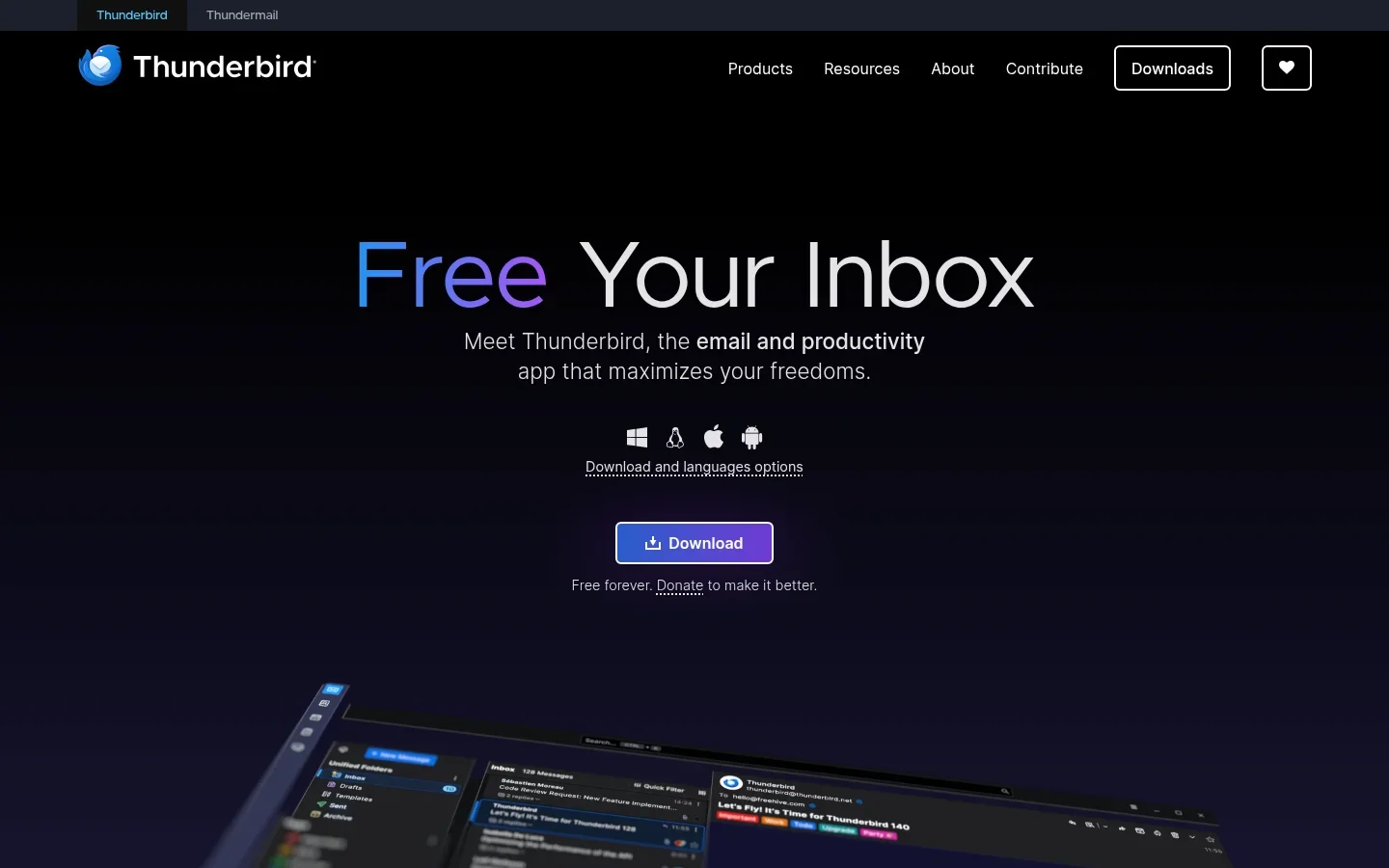
Thunderbird brings multiple mail accounts, calendars, and tasks into one desktop workspace. It is a practical choice when a row of webmail tabs keeps pulling you away from your work.
Set up your main account first. Send a test message, accept a calendar invite, and check that the right folder receives sent mail. Add the rest only once that basic loop works.
Pros: a unified desktop inbox, search, filters, and calendar support. You can organize messages without treating every email as a new browser task.
The catch: an employer's login and security rules can limit what works. Do not assume a work account will support every calendar or mail feature simply because a personal account does.
Price and installation: Thunderbird Desktop is free. Its official download page lists Linux downloads, Snap, and Flatpak. On Ubuntu 24.04, the distribution moved Thunderbird to Snap; do not assume an APT command means a native DEB app. Check the package source on your own release.
Pick it if: you handle several inboxes and want email to have one home.
6. KeePassXC: passwords without a required cloud vault
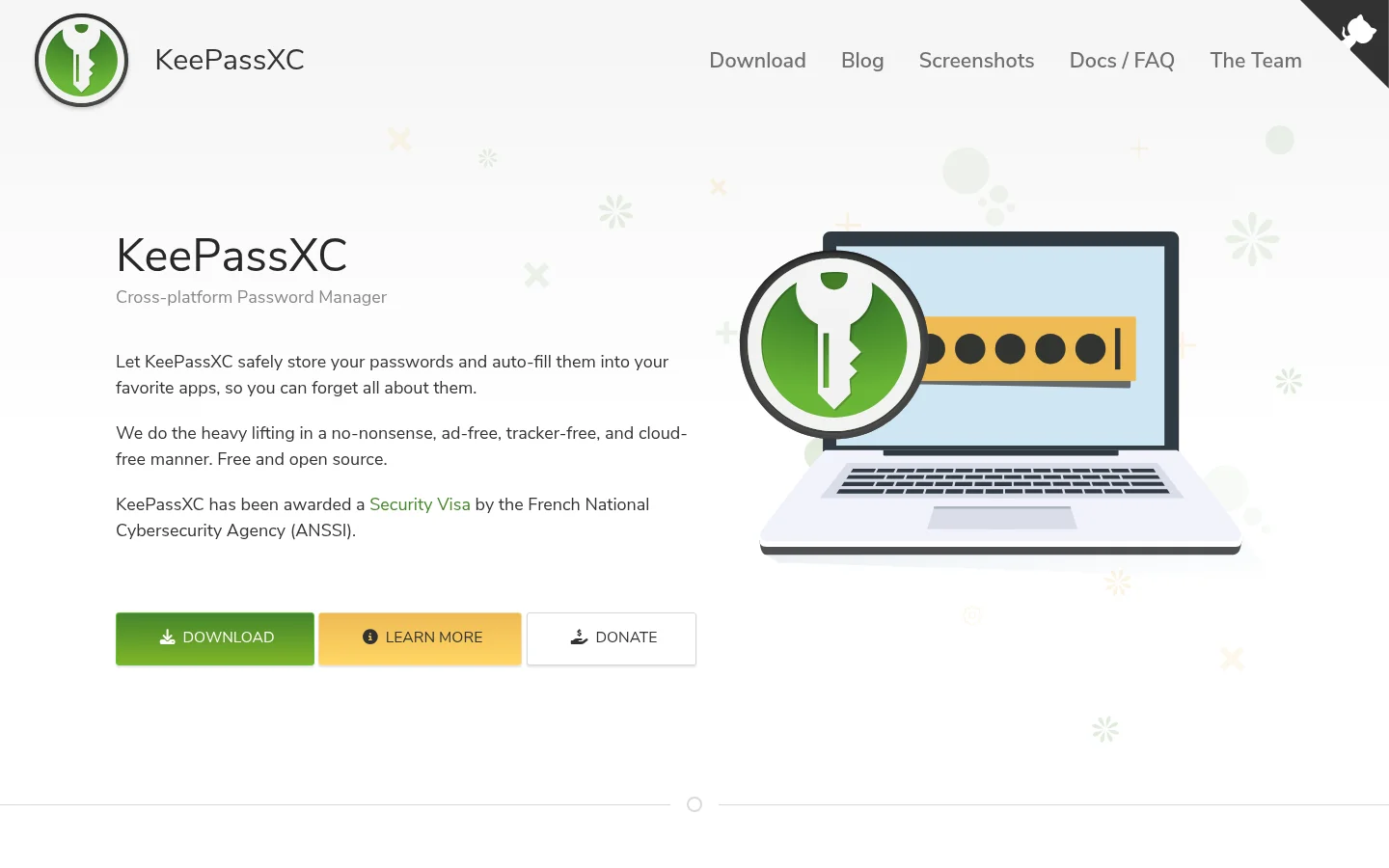
KeePassXC puts your passwords in a local encrypted database. It is a strong choice if you want control over the file and do not want a password-manager subscription.
Use distinct passwords, set a strong master password, and make a safe backup of the database. Losing the only copy or its unlock information is a much bigger problem than forgetting one website password.
Pros: password generation, searchable entries, and browser integration. Keeping credentials in one managed vault beats scattering them through text files.
The catch: you are responsible for syncing and recovery. Auto-Type and browser integration are different features; check their requirements on your desktop and browser package. Do not assume X11-style global typing behaves the same under Wayland.
Price and installation: free and open source. The official download page lists Linux options, including AppImages and a linked Flatpak. Follow its current guidance and the user guide for integration.
Pick it if: control matters more to you than having a provider manage the vault's storage.
7. Flameshot: explain the problem in one screenshot
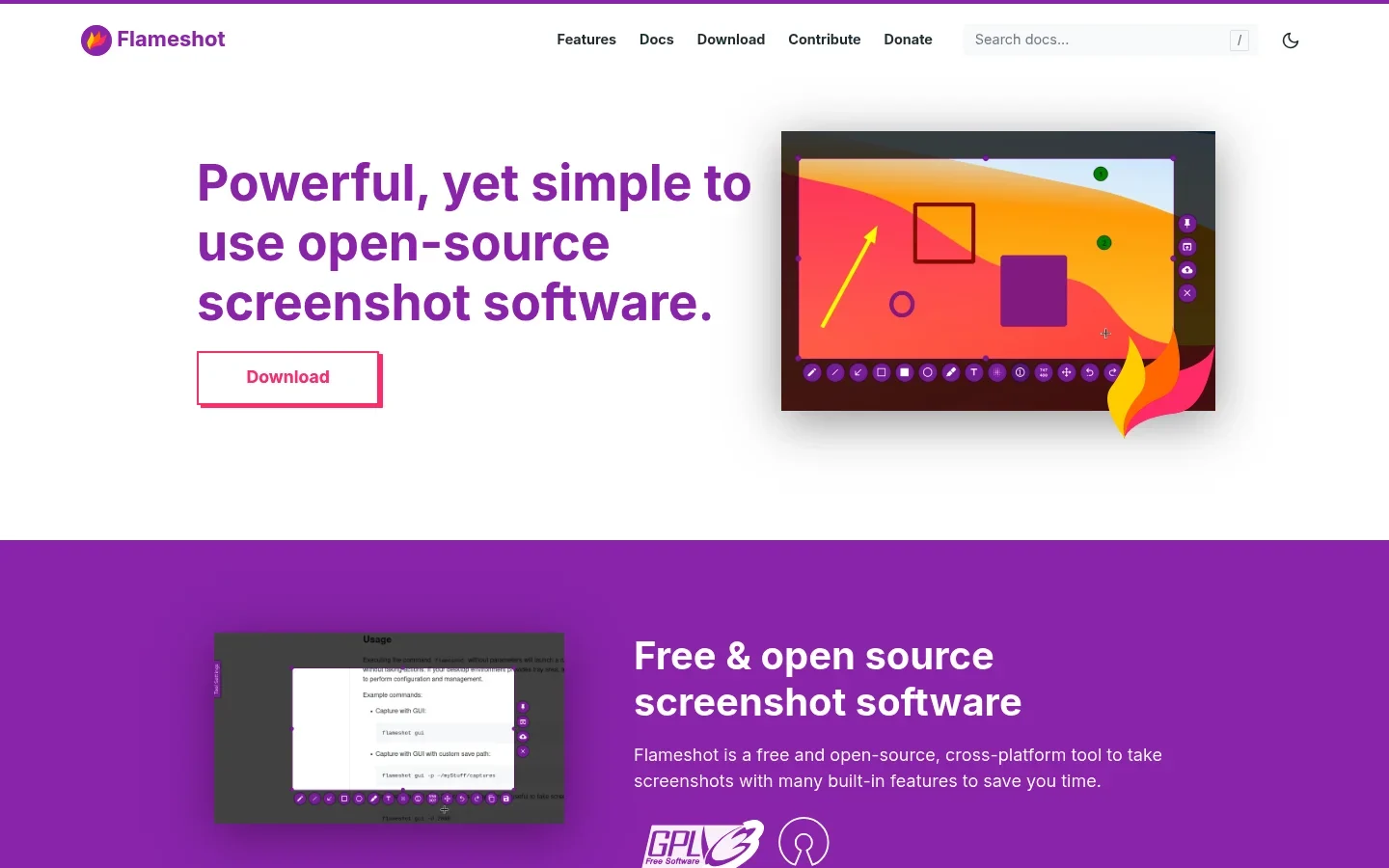
Flameshot is useful when a screenshot needs an arrow, a box, or a short note before you share it. A marked-up image can replace several vague messages about which button is broken.
Use Ubuntu's built-in capture tool if a plain screenshot does the job. Add Flameshot when you regularly send visual feedback, bug reports, or quick instructions.
Pros: capture and annotation in one short workflow. You do not need to open a full image editor to point at the right field.
The catch: Ubuntu's GNOME Wayland session needs special care. Screen-capture permissions, portals, and shortcut behavior can affect it. The project's Wayland troubleshooting guide documents these limits; do not disable desktop security just to avoid a prompt.
Price and installation: free and open source. Follow the Linux installation guide for the Ubuntu package route. Set a shortcut only after a manual capture works.
Pick it if: screenshots are part of your job. Skip it if you capture your screen twice a year.
8. Pika Backup: protect the work, not just the setup
Pika Backup backs up personal files locally or to a supported remote location. It belongs on a productivity list because a lost project can erase far more time than a faster keyboard shortcut saves.
Choose your working folders, set a schedule, and try restoring a small file. That last step matters: a completed backup message is not the same as knowing how to recover your work.
Pros: scheduled backups, encryption, incremental storage, and browsing saved archives. A separate drive is a reasonable starting point for a small local workflow.
The catch: Pika is not a complete system-recovery tool. A backup left only on the laptop's internal disk also does not protect you from losing that laptop.
Price and installation: free and open source; backup hardware or remote storage can cost extra. Use the official app page and its Flathub package. Check that the folders you care about are included.
Pick it if: you have files you cannot afford to recreate. That is almost everyone doing real work.
FAQ
What are the best free productivity apps for Ubuntu?
LibreOffice, Planify, Thunderbird, KeePassXC, Flameshot, and Pika Backup are free apps. Obsidian's core app is also free, while its Sync and Publish services cost extra. Voicy has a free trial rather than a permanent free plan.
Should I use Snap, Flatpak, or DEB on Ubuntu?
Choose a trusted, maintained source for each app rather than one format for everything. Snap is included on recent standard Ubuntu releases; Flatpak needs separate setup. Check the publisher, permissions, and update method, and avoid installing duplicate copies without a reason.
Do these apps work on Wayland?
Ordinary editing and special desktop features are different questions. Screen capture, global shortcuts, Auto-Type, and dictation insertion need checking on your exact session. Flameshot documents Wayland caveats, while Voicy lists Wayland support; neither replaces a quick test of your own workflow.
Can Voicy dictate offline on Ubuntu?
Yes. Download a model and enable offline mode for basic dictation. Cloud transcription is the default, and AI rewriting, file transcription, and retrying old recordings still need an internet connection.
Which apps should I install first?
Start with the app that handles your main output, usually LibreOffice, then add Planify and a file-backup routine. Add the other tools only when you can name a specific task they will improve.
Build a smaller Ubuntu toolkit
You do not need all eight apps today. Open a real piece of work, find the slow or fragile part, and choose one tool for it. Keep the install source clear and test the feature you actually need.
For a writing-heavy day, LibreOffice plus Planify is a useful base. If you want to speak the first draft, try Voicy for Linux in your normal app before paying. Then make sure that draft is backed up.
 Download for Ubuntu/Debian
 Download for free
 Download for free