

TL;DR
The best Linux Fedora productivity apps cover the work you do each day, not just desktop tweaks. Start with these eight:
- LibreOffice: write reports, build spreadsheets, and make slides.
- Voicy: dictate drafts instead of typing every word.
- Planify: keep today's tasks in a clear visual list.
- Thunderbird: bring mail, calendars, and contacts together.
- Papers: read and mark up PDFs in a simple GNOME-style app.
- Xournal++: write notes by hand and sketch over PDFs.
- KeePassXC: keep passwords in a local encrypted vault.
- Pika Backup: protect your work with scheduled file backups.
Our verdict: For Fedora Workstation, start with LibreOffice, Planify, and Pika Backup. That covers making things, finishing them, and keeping them safe. Add Voicy if long emails or first drafts are your main bottleneck; add Xournal++ if you think best with a pen.
Fedora gives you plenty of ways to install apps. That is helpful until you end up with two copies of the same program and no idea which one opens your files.
This guide focuses on a practical Fedora Workstation desk, with its GNOME desktop in mind. Other Fedora editions can use many of the same apps, but the package steps below are for a normal DNF-based install, not a universal recipe for every Fedora image.
How we chose these Fedora productivity apps
We checked official app pages, Fedora package listings, and upstream install guides on October 24, 2026. These are editorial recommendations, not results from a hands-on speed test. The screenshots show official websites or upstream product pages, not a pretend Fedora test machine.
We chose one app per main job where possible. Papers and Xournal++ overlap on PDFs, but they solve different problems: quick reading versus handwritten work. You do not need both unless you do both.
Quick comparison
| App | Best use | Price | Suggested Fedora route | Main catch |
|---|---|---|---|---|
| LibreOffice | Documents and spreadsheets | Free | Fedora package | Complex office files can need cleanup |
| Voicy | Voice-first writing | Free trial; paid plans | Official RPM | Test shortcuts and text insertion in your session |
| Planify | Daily tasks | Free app | Flathub | Connected services have their own limits |
| Thunderbird | Mail and calendar | Free app | Fedora package | Work account policies can block setup |
| Papers | Reading and PDF notes | Free | Flathub | Not a full PDF editor |
| Xournal++ | Pen notes and PDF sketches | Free | Fedora package | Not a shared live notebook |
| KeePassXC | Local passwords | Free | Fedora package | You manage backup and sync |
| Pika Backup | Personal file backups | Free app | Flathub | Not a whole-system recovery tool |
1. LibreOffice: the sensible office starting point
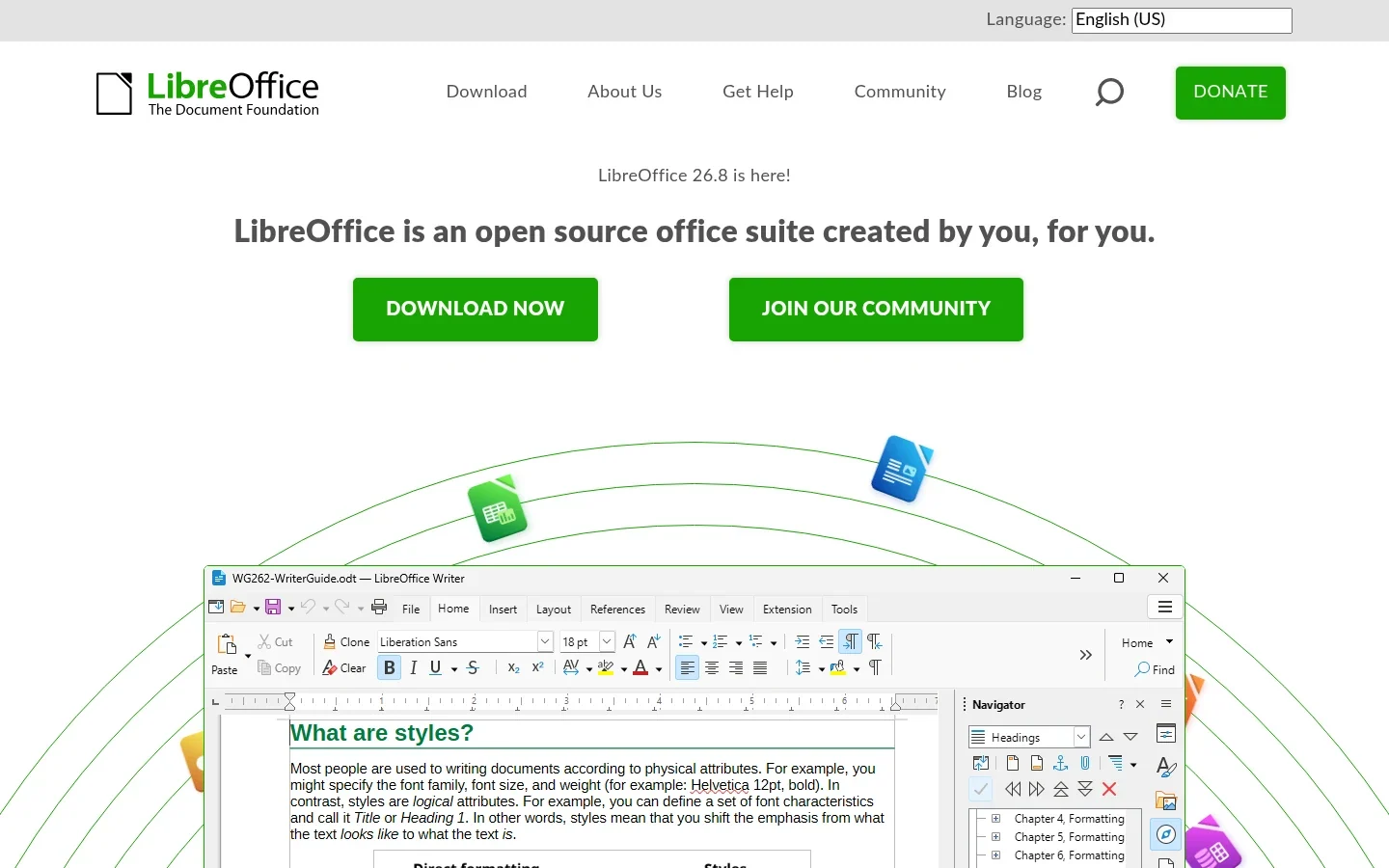
LibreOffice is the best first install if your Fedora work includes reports, budgets, or slides. Writer, Calc, and Impress cover those jobs without a subscription. A local document stays usable when your connection drops.
Start with one real file from your week. Open a report from a colleague, edit a table, then export it as a PDF. That small check tells you more than a long feature list.
- Useful strengths: document styles, spreadsheets, presentations, and PDF export in one suite.
- Best for: students, writers, and small teams that exchange standard office files.
- Limitation: complex layouts, fonts, and macros can behave differently from the app that created the file. Do not promise exact formatting without checking.
- Price: free and open source.
- Install: Fedora publishes the libreoffice package. On a DNF-based system, use
sudo dnf install libreoffice.
Pick it if: you want one dependable place to do ordinary office work. You do not need a second suite just because one exists.
2. Voicy: speak the first draft
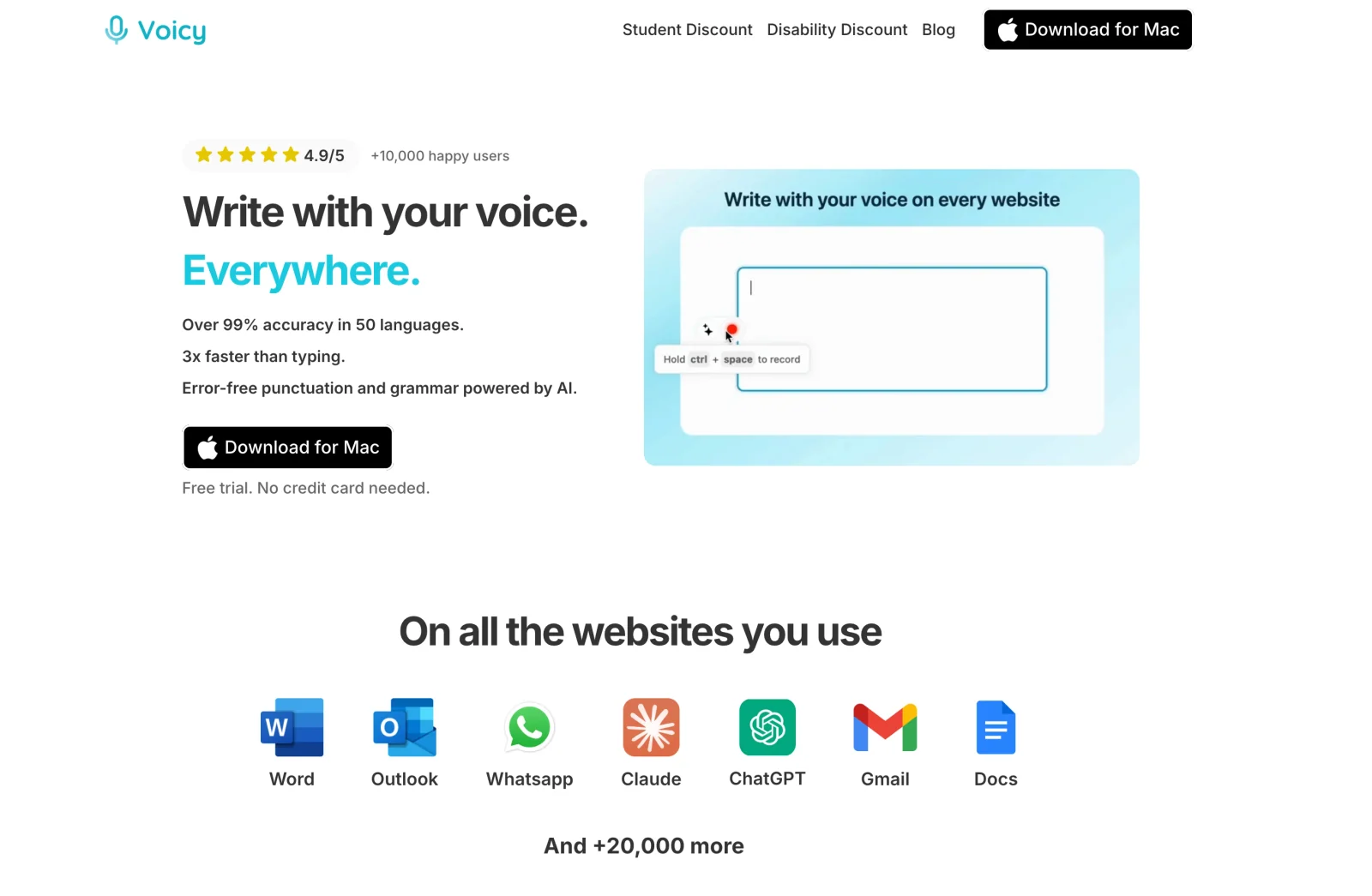
Voicy is a useful add-on when writing takes longer than thinking. It offers a Linux desktop app for dictation across your work apps, plus file upload transcription. Use it to get a rough email or report section down, then edit the result.
The current product supports cloud transcription and a distinct desktop offline mode. Offline mode needs a one-time model download and supports 25 languages. Cloud and offline features are not a reason to assume the same results or language coverage.
- Useful strengths: live dictation, punctuation, and a choice of cloud or offline desktop transcription.
- Best for: long replies, first drafts, and reducing the amount you type.
- Limitation: the Linux page advertises Wayland and X11 support, but this guide did not test every compositor or app. Try your shortcut, microphone, and text insertion in the actual apps you use. Cloud mode sends audio for processing; use the documented offline mode when local processing is needed.
- Price: free trial, then $8.49/month, $82/year, or $260 lifetime. It is not a permanently free app.
- Install: download the official x86_64 RPM and follow Voicy's Fedora steps. Do not treat an RPM as a package for every CPU or Fedora edition.
Pick it if: the blank page is slowing you down. See the Linux dictation guide and Google Docs voice typing guide for common writing workflows.
The current offline guide draws a useful line: basic dictation can run locally, but AI rewriting needs internet. File transcription is an online feature that needs a paid plan and accepts recordings up to 60 minutes long.
3. Planify: a task list that belongs on this desktop
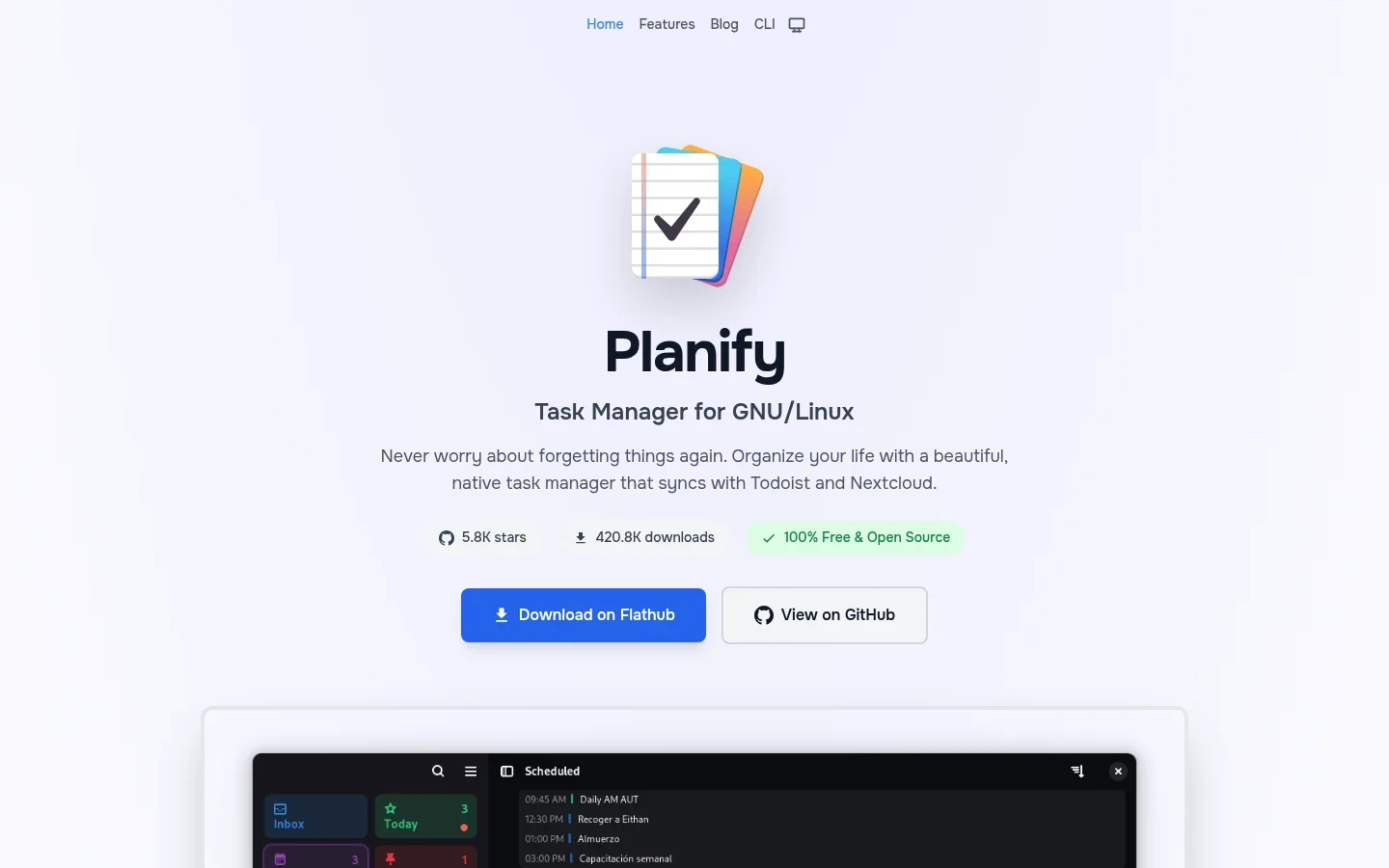
Planify makes a good match for a GNOME-style workflow. It puts projects, due dates, and the next task in a visual interface instead of making you build a system from scratch.
Keep the setup small. Create one work project, put three tasks in today, and leave the rest out of view. A list that contains every possible chore is not a useful plan for this afternoon.
- Useful strengths: reminders, recurring tasks, project sections, and offline work.
- Best for: people who want a clear daily plan rather than a terminal-based task system.
- Limitation: sync depends on the service you connect. The app being free does not make every connected service free or the same.
- Price: free and open source; optional external services have distinct terms.
- Install: use the upstream-linked Planify Flathub listing. Confirm the Flathub source is enabled in your software app.
Pick it if: you keep losing action items between email and notes. If your existing task list works, keep it instead.
4. Thunderbird: fewer inbox tabs
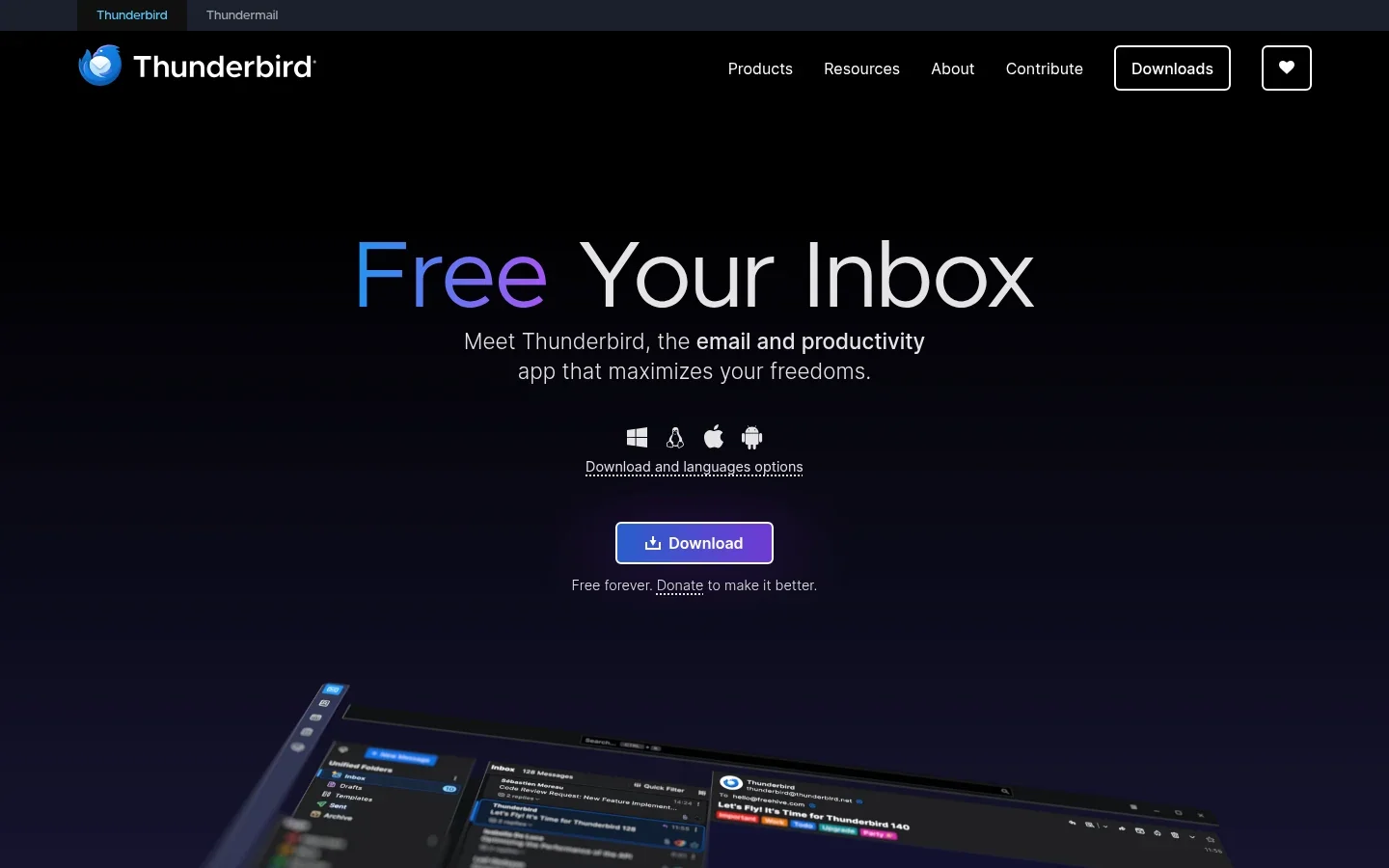
Thunderbird puts mail, calendars, and contacts in one app. That makes it a useful choice when several accounts turn your browser into a row of unread counts.
Set up folders and calendar reminders before adding extensions. The benefit here is a calmer work routine, not another app to customize all weekend.
- Useful strengths: multiple accounts, message filters, search, calendars, and contacts.
- Best for: people who need email open all day but do not want it mixed into their research tabs.
- Limitation: your employer's login and security policies still apply. Check account compatibility before moving your workflow.
- Price: the desktop app is free. An email provider or distinct hosted service can charge.
- Install: use Fedora's thunderbird package with
sudo dnf install thunderbird.
Pick it if: mail and appointments belong together in your day. For browser-based email, our Gmail dictation guide explains a voice-first alternative for drafting replies.
5. Papers: read the PDF, make the note, move on
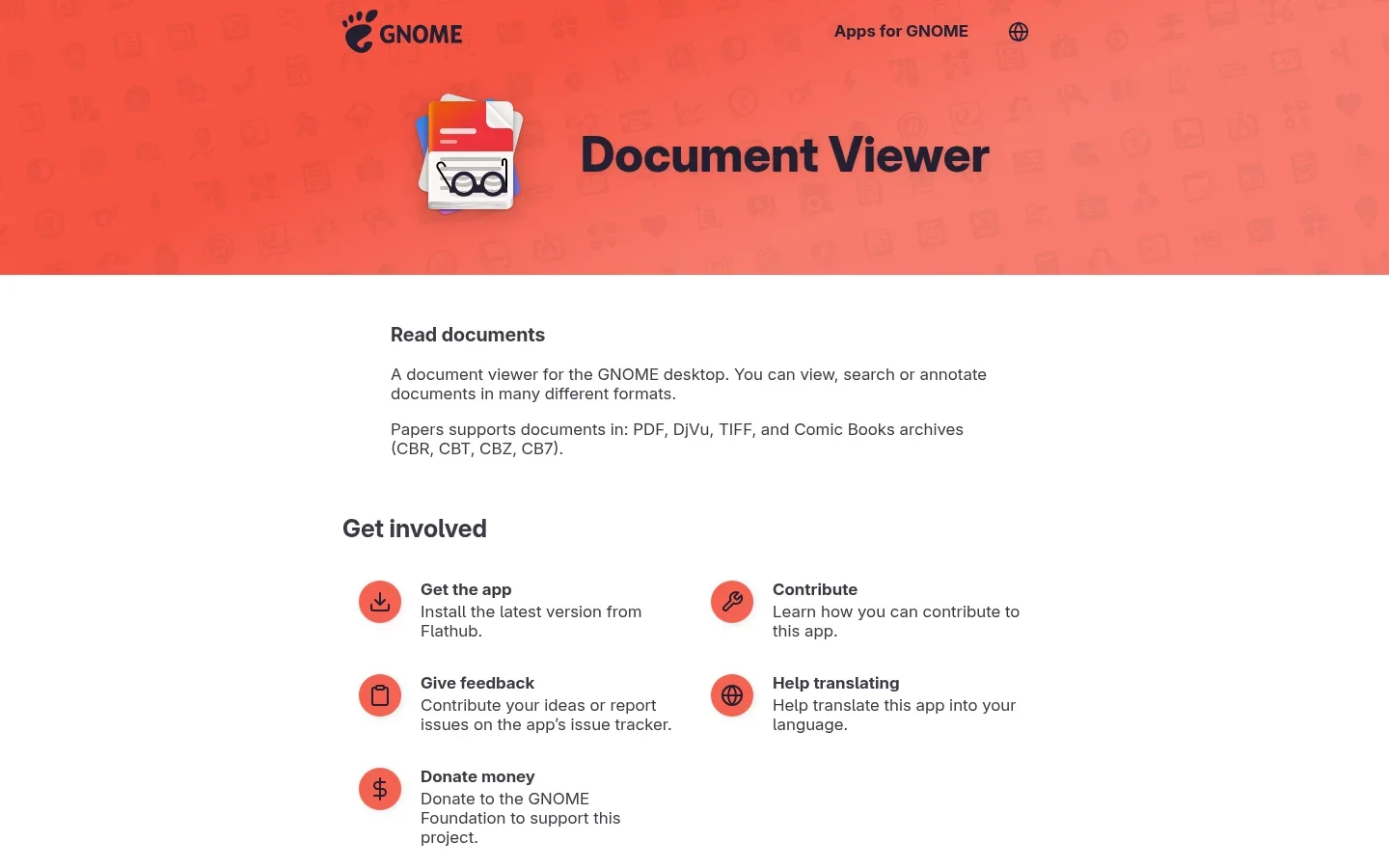
Papers is a document viewer for GNOME. It can view, search, and annotate PDFs and other supported formats. It is a good fit for reading a brief or checking a document without opening a larger workspace.
Already have a viewer that does this well? Skip the extra install. The point is to make reading easier, not collect PDF apps.
- Useful strengths: a focused reading interface, document search, and annotations.
- Best for: research papers, meeting attachments, and reading with a few notes.
- Limitation: annotation is not the same as rewriting a PDF's text or replacing a full PDF editing suite.
- Price: free and open source.
- Install: follow the Papers Flathub listing. Check whether your Fedora install already includes it before installing another copy.
Pick it if: most of your PDF work is reading, finding a phrase, and leaving a note.
6. Xournal++: useful when typing is the wrong tool
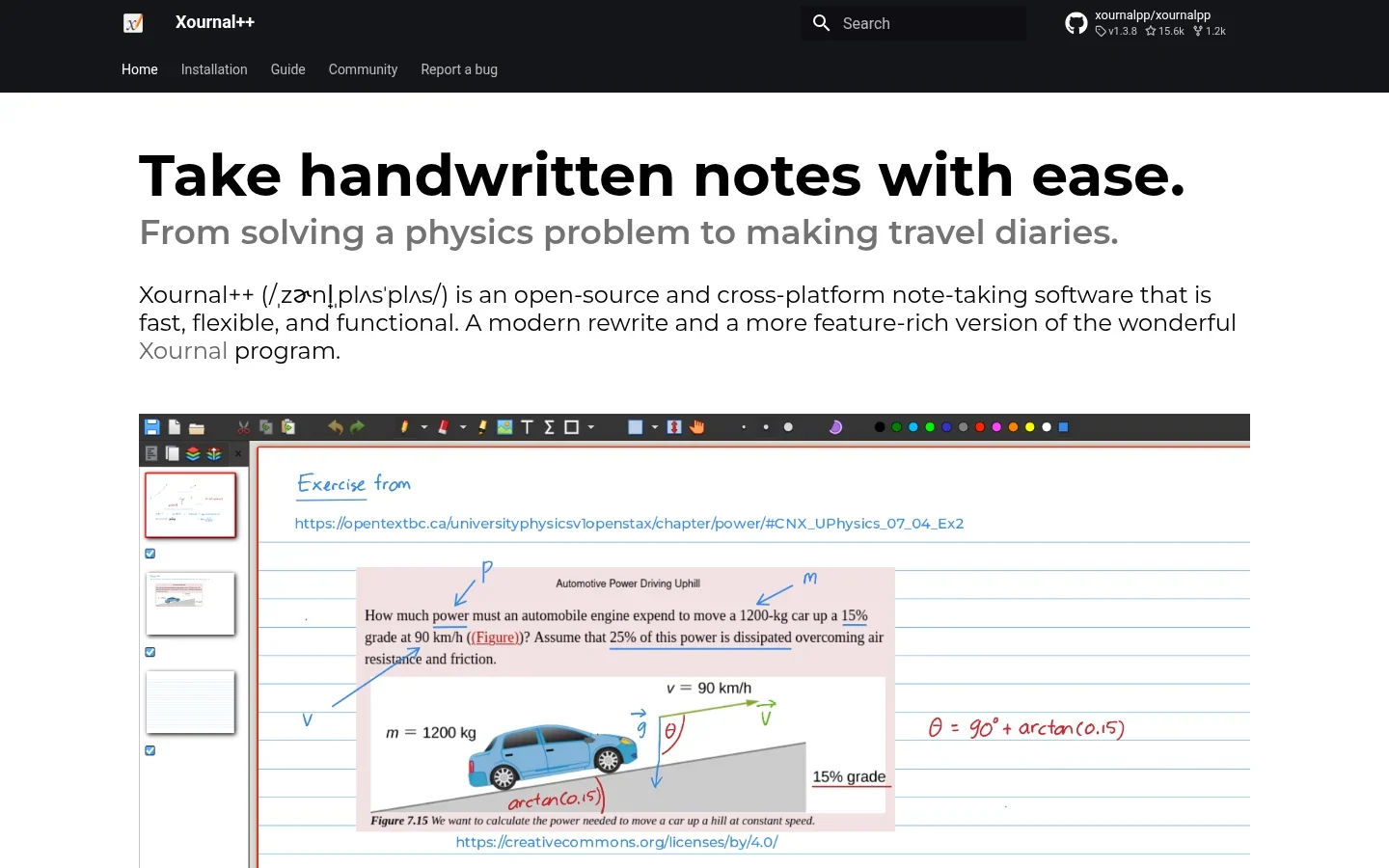
Xournal++ lets you write by hand, draw diagrams, and annotate PDF backgrounds. It earns its place when a quick sketch explains an idea better than a paragraph.
For example, import a worksheet, draw the missing steps, and export the finished page. Keep the editable notebook too, so you can change your notes later.
- Useful strengths: pen input, layers, shapes, and PDF annotation.
- Best for: lessons, equations, design notes, and handwritten review.
- Limitation: it is not a live team notebook. Pen feel also depends on your tablet and input setup; test those before a long class.
- Price: free and open source.
- Install: Fedora offers xournalpp. Use
sudo dnf install xournalpp, or consult the upstream Linux guide for other routes.
Pick it if: you own a pen tablet or often mark up documents by hand. For plain reading, Papers is the simpler choice.
7. KeePassXC: stop resetting the same accounts
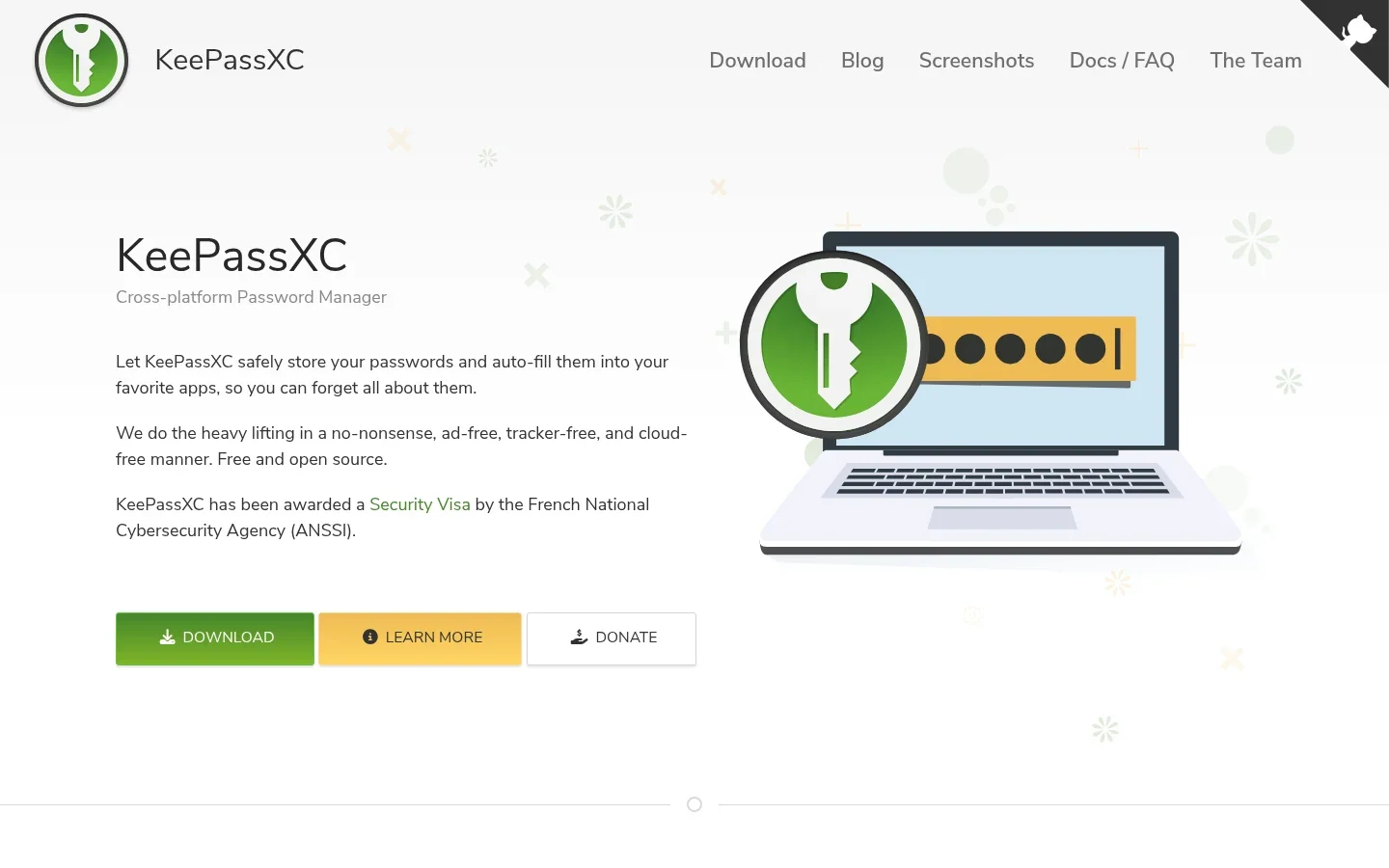
KeePassXC stores passwords in an encrypted database file under your control. You can generate unique passwords and find them again without relying on a hosted vault subscription.
That control comes with a job: back up the vault. Keep a separate safe copy and make sure you can open it. A strong password cannot rescue a deleted file.
- Useful strengths: password generation, local encrypted storage, and browser integration.
- Best for: people who want a local-first password manager.
- Limitation: you arrange sync and recovery yourself. Global Auto-Type is also not something to assume works in every Wayland setup; check the current KeePassXC docs.
- Price: free and open source.
- Install: use Fedora's keepassxc package with
sudo dnf install keepassxc.
Pick it if: local storage matters more to you than having a service handle every device.
8. Pika Backup: protect the work you just finished
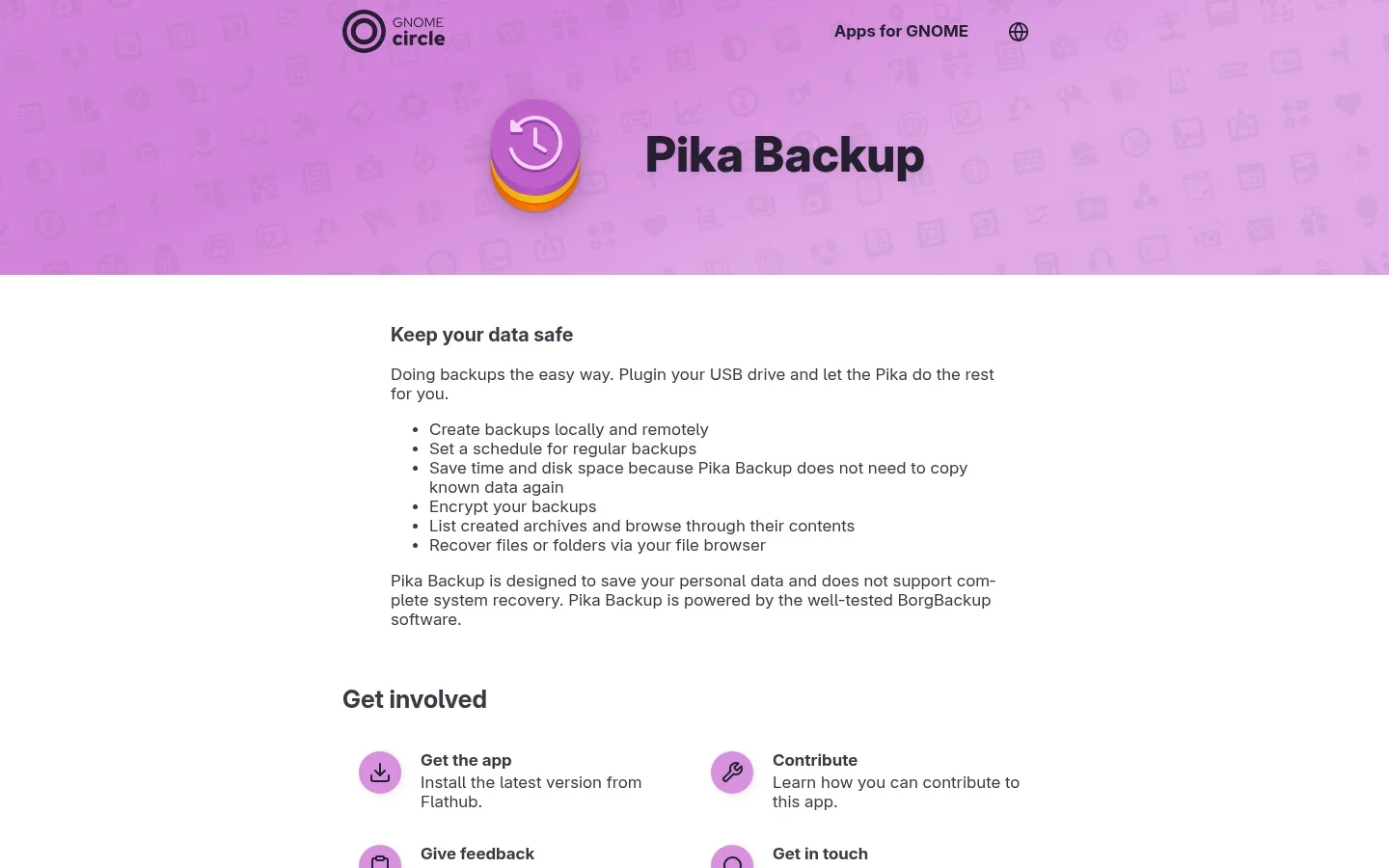
Pika Backup backs up personal files to local or remote storage. Its GNOME-style interface keeps the task focused: choose what to save, set a schedule, and check that you can recover a file.
Start with your documents and project folders. Then restore a harmless test file. A backup job that completes is useful; a restore you understand is better.
- Useful strengths: scheduled backups, encryption, and browsing saved archives.
- Best for: protecting drafts, photos, and personal work files.
- Limitation: the official page explicitly says it does not support complete system recovery. Keep a separate recovery plan for a broken OS.
- Price: free and open source; storage hardware or a remote host can cost extra.
- Install: use the Pika Backup Flathub listing, linked from its official GNOME page.
Pick it if: losing last week's work would hurt more than spending a few minutes setting up a backup.
How should you install productivity apps on Fedora?
Use Fedora packages for the common desktop tools above, and Flathub when that is the project's recommended route. In the software app, check the source before clicking Install. Two entries with the same name can come from different sources.
Fedora's software guidance explains the distinction. A Flatpak can have different file access and integration settings from an RPM. Give an app the access it needs, not blanket access just to make a warning disappear.
On Wayland, test global shortcuts, screenshot capture, and cross-app text entry separately from the basic app window. An app opening successfully does not prove every desktop integration works. For an Atomic Fedora desktop, use that edition's steps rather than copying the DNF examples here.
FAQ
What should I install first on Fedora for office work?
Start with LibreOffice for documents, Thunderbird if you want a desktop inbox, and Pika Backup for personal files. Add a task app only if your current planning system is not working.
Are these Fedora productivity apps free?
Seven of the eight apps are free to use. Voicy offers a free trial, followed by paid plans. Optional sync services, email hosting, and backup storage can cost extra.
Do these apps work on Fedora KDE as well?
Many do, but this guide is aimed at Fedora Workstation with GNOME. Check the package and integration details for your edition. A GNOME-style interface is a design choice, not proof that an app needs GNOME.
Should I use RPM or Flatpak on Fedora?
Use a trusted Fedora package when it meets your needs. Use the project's recommended Flatpak when you want that route, and review its permissions. Avoid installing both copies unless you have a clear reason.
Can Voicy work offline on Fedora?
Yes. Voicy's current Linux page documents desktop offline dictation in 25 languages after downloading a model. Cloud transcription is also offered. Test your microphone, shortcut, and target app during the free trial.
Build a smaller, better workday
Pick the gap that costs you the most time. If your files are scattered, start with one office app and a backup. If tasks slip through, start with Planify. A shorter app list is easier to keep useful.
For writing-heavy days, try Voicy on Linux with one real email or document. Keep it only if speaking and editing feels better than typing the whole thing.
 Download for Ubuntu/Debian
 Download for free
 Download for free