

TL;DR
The best Linux Debian productivity apps help you work without turning your stable desktop into an experiment. These eight cover office work, research, planning, and writing:
- LibreOffice: documents and spreadsheets without a subscription.
- Voicy: voice dictation for emails and first drafts.
- Thunderbird: a single home for mail and calendars.
- Okular: read, highlight, and review PDFs.
- Xournal++: handwritten notes on lessons and documents.
- KeePassXC: a local encrypted password vault.
- Syncthing: keep work folders in sync between your computers.
- Taskwarrior: a small task list you can use from the terminal.
Our verdict: Start with LibreOffice, Thunderbird, and KeePassXC. Use Debian's own packages when they do the job. Add Syncthing if you work on two computers, or Voicy if writing is the part that slows you down. You do not need to switch your whole system to a newer branch for one app.
A work laptop should be boring in a good way. You open yesterday's file, answer a message, and get on with the task. That is the approach behind this list.
Debian stable is a release track, not a promise that every app is the newest upstream version. This guide uses Debian 13 “trixie” as its package baseline and separates distribution packages from vendor downloads.
How we chose these Debian productivity apps
We checked official project docs and Debian's trixie package index on October 24, 2026. Seven picks are in Debian's main package archive; Voicy has a distinct vendor download. These are researched recommendations, not claims from a hands-on Debian test.
The goal is a useful, low-maintenance work setup. Okular and Xournal++ both handle PDFs, but only install both if you need reading tools and a pen notebook. Website screenshots below identify the products; they are not screenshots of a claimed local install.
Quick comparison
| App | Main job | Price | Debian route | What to check |
|---|---|---|---|---|
| LibreOffice | Documents and spreadsheets | Free | APT: libreoffice | Shared file formatting |
| Voicy | Dictation | Free trial; paid plans | Official amd64 DEB | CPU, microphone, and desktop integration |
| Thunderbird | Mail and appointments | Free app | APT: thunderbird | Work account login policy |
| Okular | PDF reading and review | Free | APT: okular | Extra desktop libraries |
| Xournal++ | Handwritten notes | Free | APT: xournalpp | Tablet and pen behavior |
| KeePassXC | Local passwords | Free | APT: keepassxc-full | Vault backup and integration |
| Syncthing | File sync | Free | APT: syncthing | Sync is not backup |
| Taskwarrior | Terminal tasks | Free | APT: taskwarrior | Version-specific sync instructions |
1. LibreOffice: get the document done
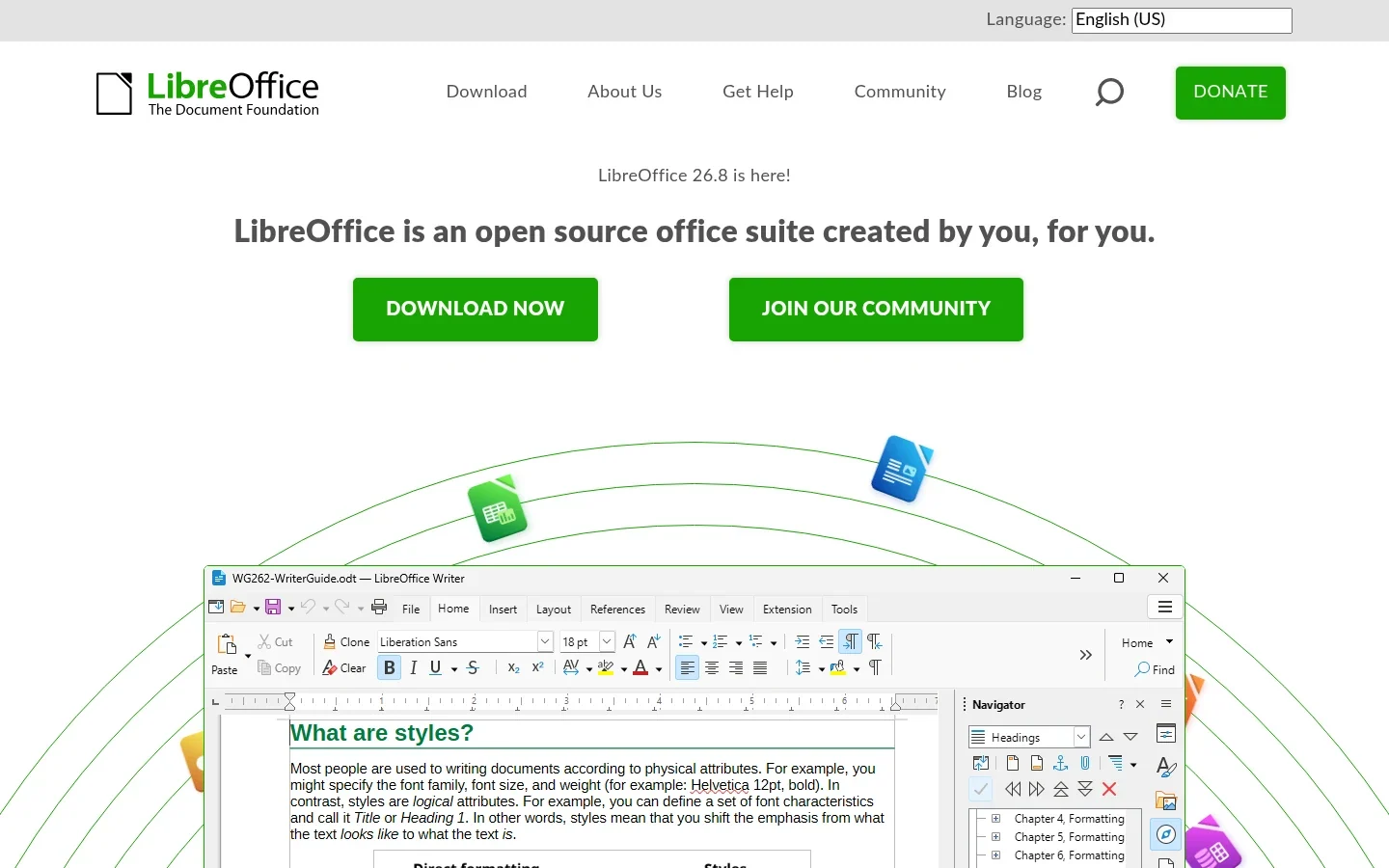
LibreOffice handles reports, invoices, spreadsheets, and presentations on a local desktop. It is a good first choice for Debian users who want to finish office work without adding a paid account.
Use the stable package first. If a specific document fails because it needs a newer feature, check that feature rather than replacing half your software sources on a hunch.
What helps: Writer supports structured documents and styles. Calc handles spreadsheets, and Impress covers slide decks. You can export a finished document to PDF when the reader does not need to edit it.
Best use: everyday office files, school assignments, and offline writing. Tradeoff: complex imported layouts and macros need checking. A file opening is not proof that every page looks right.
Price and install: free and open source. Install the libreoffice package through your Debian software tool or APT. The official Linux install guidance also explains upstream options, but a distinct install adds another update path.
Verdict: start here for office work. Keep a sample file from your actual workflow as your file check.
2. Voicy: get a rough draft onto the page
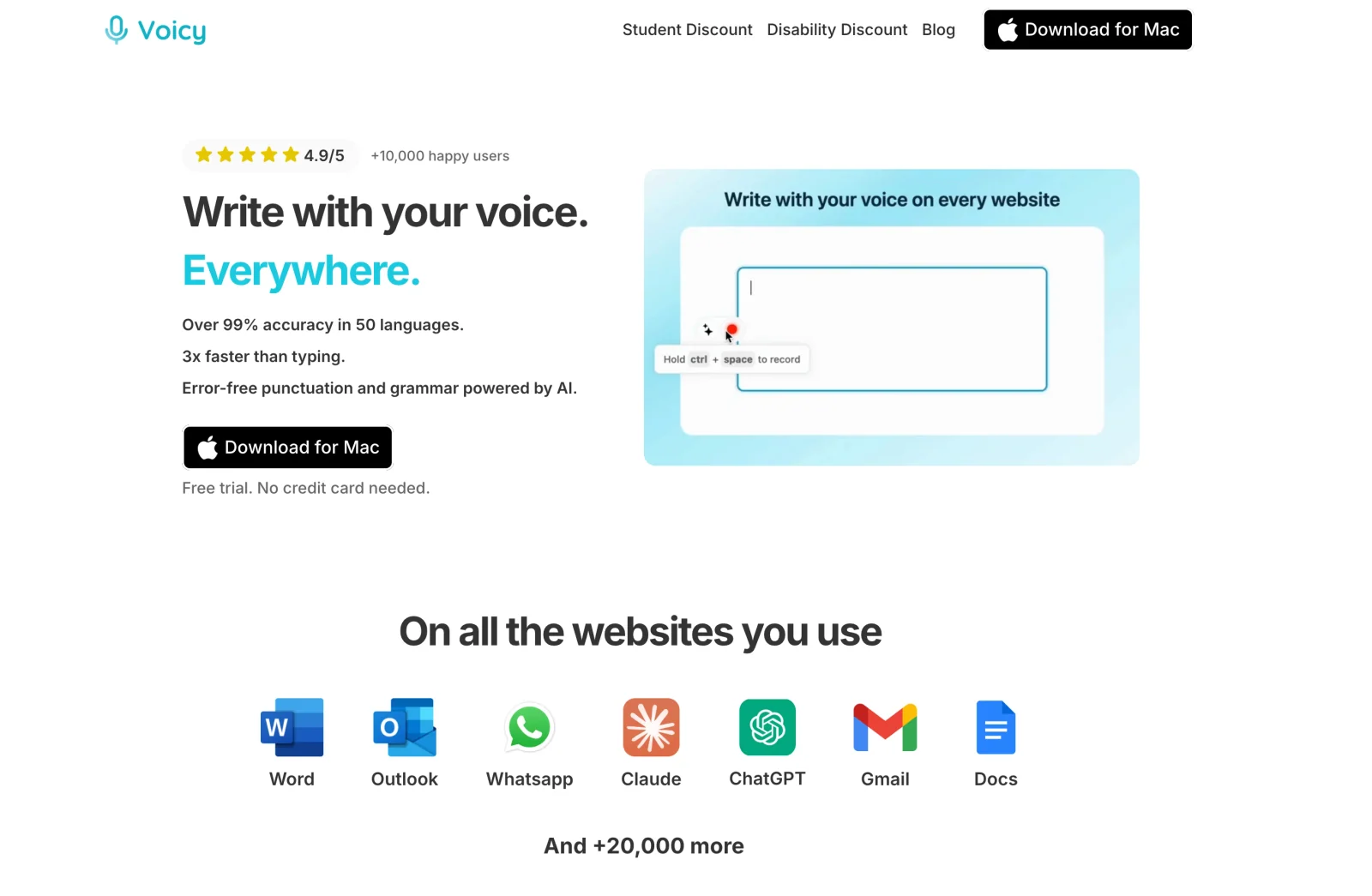
Voicy adds voice dictation to a Linux writing workflow. It is worth considering when you know what you want to say but typing a long reply or report feels slow. Dictate the rough version, then review names, numbers, and wording.
There is now a Linux desktop app, not just a browser option. The current product also offers file upload transcription. Cloud processing and desktop offline dictation are distinct modes; offline mode supports 25 languages after a model download.
What helps: speaking into text fields, automatic punctuation, and a local transcription option when you enable offline mode. Cloud mode sends audio for processing, so choose the mode deliberately for sensitive work.
Best use: first drafts, email, and notes. Tradeoff: Voicy advertises both Wayland and X11 support, but this article does not claim to have tested every Debian desktop or target app. Check the shortcut, microphone, and text insertion during the trial. Offline language coverage is narrower than the advertised cloud coverage.
Price and install: free trial, then $8.49/month, $82/year, or $260 lifetime. Use the official amd64 DEB and the Ubuntu/Debian install steps. This is a vendor package, not a claim that Voicy is in Debian's archive or that the same download works on ARM.
Verdict: add it when writing is the real bottleneck. See Voicy for Linux and the Google Docs dictation guide for relevant workflows.
The current offline guide draws a useful line: basic dictation can run locally, but AI rewriting needs internet. File transcription is an online feature that needs a paid plan and accepts recordings up to 60 minutes long.
3. Thunderbird: keep work mail out of your research tabs
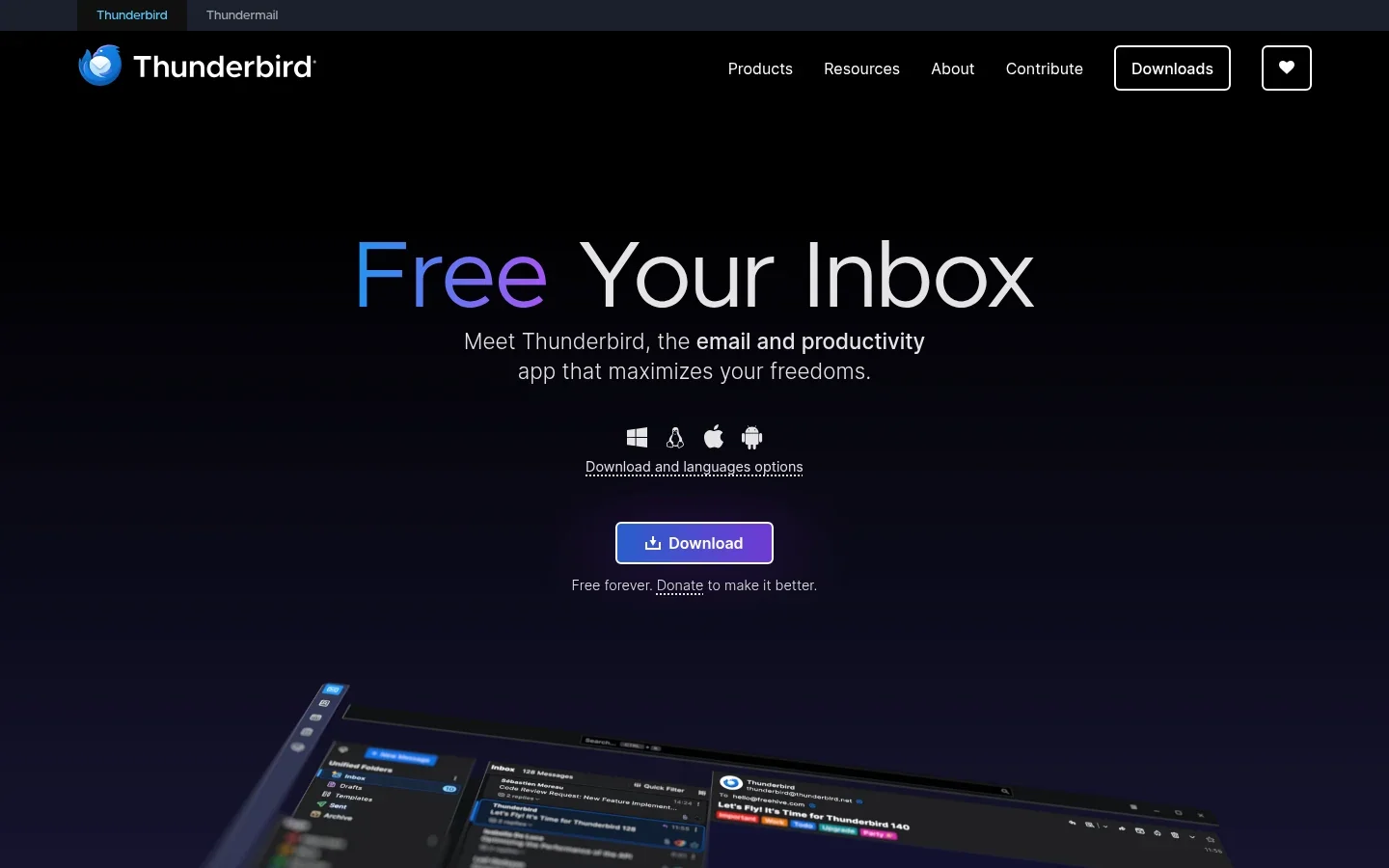
Thunderbird combines email, calendars, and contacts. It is useful on a Debian work machine when you want a desktop inbox that does not vanish among browser tabs.
Set up one account and test sending, receiving, and a calendar reminder before importing years of mail. That catches account-policy problems early.
What helps: search, filters, multiple accounts, and calendar views. It is a practical hub for someone who checks several inboxes but does not want several web apps open all day.
Best use: mail-heavy work with supported accounts. Tradeoff: an employer can require a login method or policy that changes what works. Do not assume every business account is supported just because it uses email.
Price and install: the desktop app is free; your mail provider can charge separately. Debian includes thunderbird in its archive. Let the package manager handle updates rather than mixing a manual copy with the packaged one.
Verdict: choose it to simplify email, not to add more notifications. If your day stays in webmail, our Gmail voice typing guide is another way to shorten reply drafting.
4. Okular: a serious reader for long PDFs
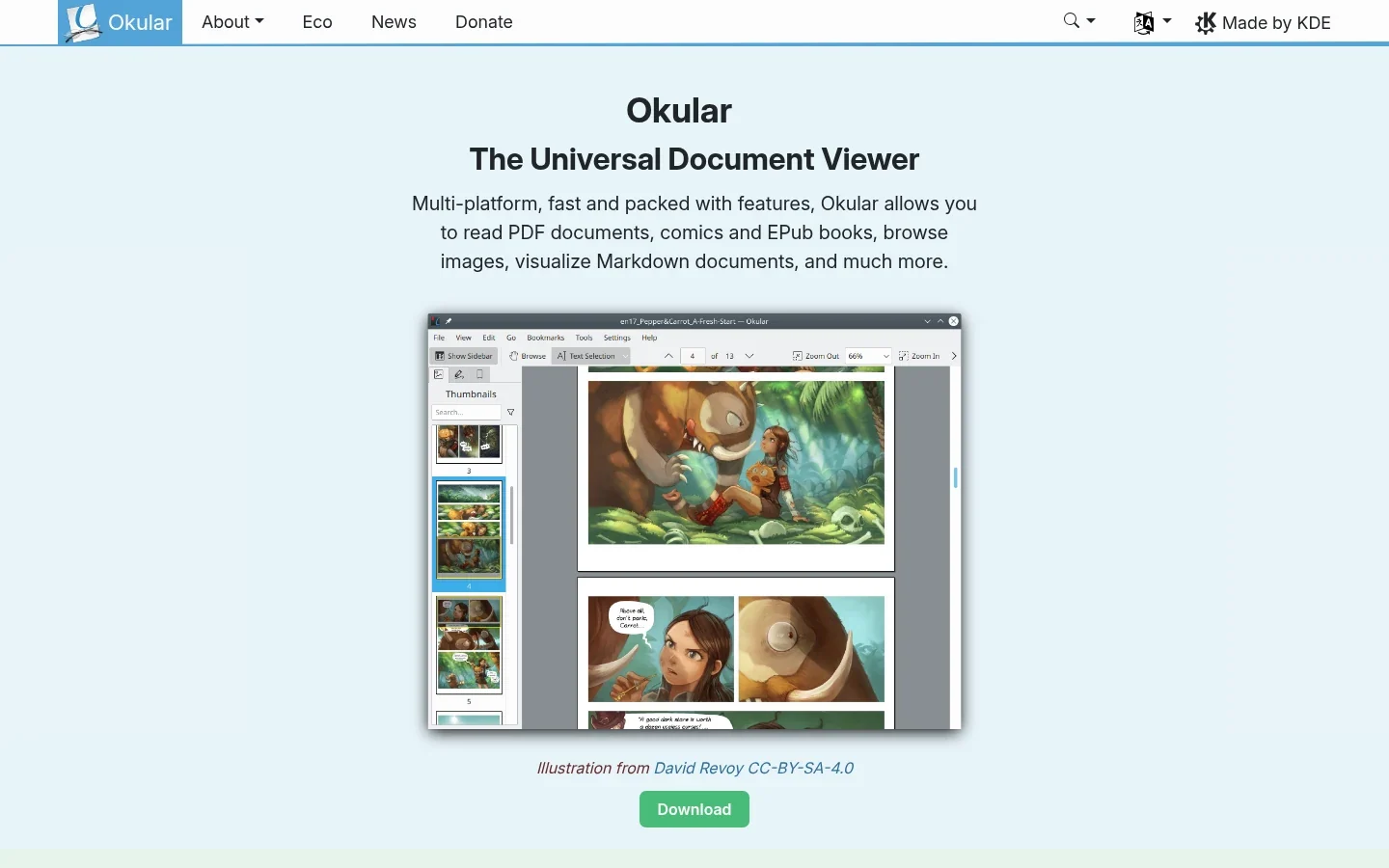
Okular is a document viewer with useful PDF annotation tools. Highlights, notes, and a contents panel make it a good choice for reviewing a long report instead of printing it.
Its KDE roots do not mean you need to replace your desktop. You can use it on another Debian desktop, though the install can bring extra libraries with it.
What helps: annotations, text selection, navigation, and support for several document formats. Check the format support page if you need a specific feature for a file type.
Best use: reviewing research, manuals, and work PDFs. Tradeoff: a viewer with annotations is not a full page-layout editor. Keep the source document when you need to rewrite the underlying content.
Price and install: free and open source. Debian packages it as okular. Read the package manager's proposed changes before accepting, especially on a lean desktop.
Verdict: install it when your current viewer makes reviewing long files harder than it should be. Otherwise, one viewer is enough.
5. Xournal++: write the explanation by hand
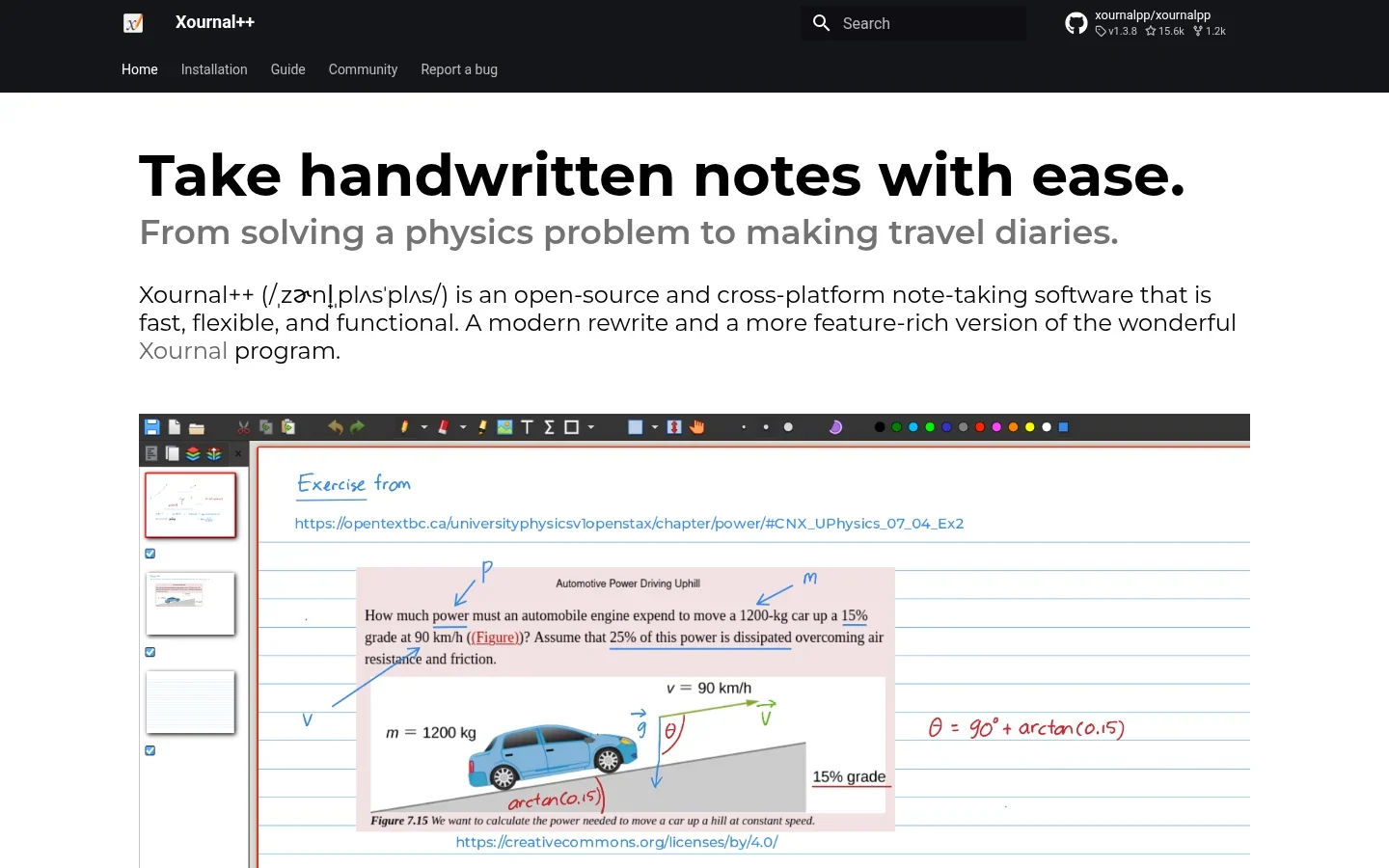
Xournal++ is a notebook for handwriting, diagrams, and notes over PDF pages. It is the better pick than a standard PDF viewer when you need to show how an answer works, not just highlight the answer.
A useful workflow is to import a lesson sheet, work through it with a pen, and export a PDF for sharing. Save the original notebook as well so you keep the editable version.
What helps: pen input, layers, shapes, and PDF backgrounds. These suit equations, feedback, and quick diagrams that are awkward to type.
Best use: students, teachers, and anyone with a drawing tablet. Tradeoff: it is not a live shared whiteboard, and your hardware determines the feel of pen input. Check it before relying on it during a meeting.
Price and install: free and open source. Debian's package is xournalpp. The upstream Linux download page distinguishes stable builds from development builds; choose stable for a work machine.
Verdict: a strong extra for pen-based work, not a needed install for every Debian user.
6. KeePassXC: local passwords, clear responsibility
KeePassXC puts your passwords in a local encrypted database. That suits a Debian setup where you want to choose where key files live instead of handing every job to a hosted service.
The useful habit is simple: generate a unique password, save it, and back up the database. Do not make the only copy live on the laptop you carry everywhere.
What helps: password generation, searchable entries, and browser integration. The official guide explains how the database and integration work.
Best use: a personal vault under your control. Tradeoff: you own the sync and recovery plan. Also check which integration features your installed build offers; do not assume every package matches upstream's newest feature list. Auto-Type has desktop-session limits, especially on Wayland.
Price and install: free and open source. Debian 13 splits this into keepassxc-full and keepassxc-minimal; keepassxc is a transitional package. Choose keepassxc-full for the full feature set, and review the proposed changes if the minimal build is already installed.
Verdict: a good fit for local-first habits, provided those habits include a safe backup.
7. Syncthing: move the project, not another attachment
Syncthing keeps selected folders in sync between computers. It is useful if you draft on a Debian laptop and finish on a desktop without wanting to email files to yourself.
Choose one small project folder first. Pair the devices, let them finish syncing, then check the result before adding your whole home directory.
What helps: direct device-to-device file sync and control over the folders you share. It does not need you to buy storage from a central provider.
Best use: keeping working files on two or more trusted computers. Tradeoff: changes and deletions can spread. Sync is not an independent backup, and conflicts can happen if two devices edit the same file. Read the versioning docs before treating old versions as protection.
Price and install: free and open source. Debian includes syncthing. Follow the official getting-started guide for pairing and folder setup; installing the package alone does not configure your devices.
Verdict: excellent for moving work between machines. Keep a separate backup that does not simply mirror every deletion.
8. Taskwarrior: a list without another desktop window
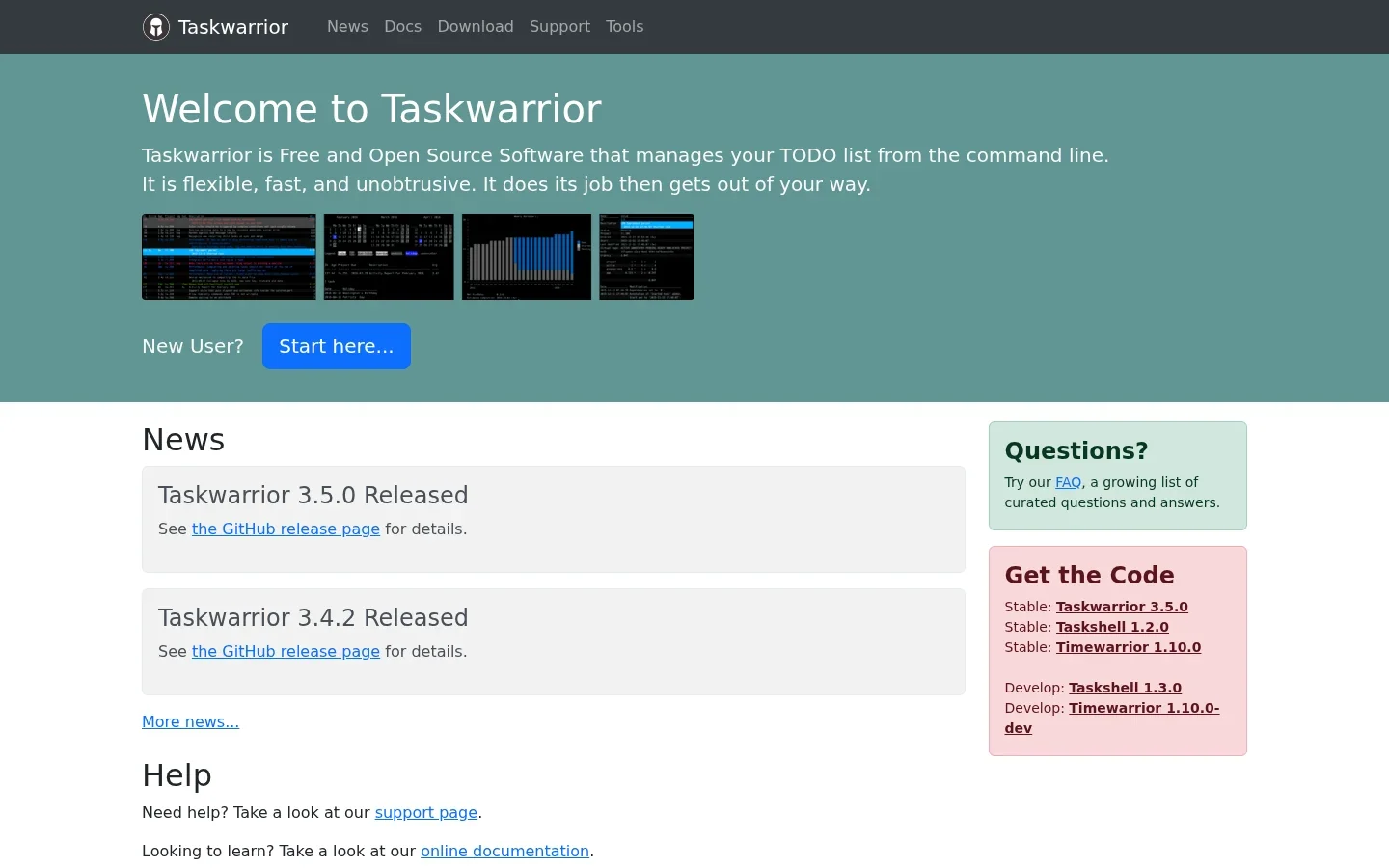
Taskwarrior manages tasks from the command line. It fits a Debian workflow if you already spend time in a terminal and want to capture the next job without opening a project dashboard.
You can start with three commands: task add Write report, task list, and task 1 done. Check the task number shown by your own list before marking anything complete.
What helps: tasks, projects, tags, and due dates in a small text-based workflow. You can begin with a plain list instead of learning every feature at once.
Best use: people comfortable with terminal commands. Tradeoff: it is not a visual calendar. Sync steps are version-sensitive, so compare task --version with the docs you are reading. A stable distro package need not match the newest upstream release.
Price and install: free and open source. Debian calls the package taskwarrior, while the command is task. The official download page lists distribution routes.
Verdict: choose it if the terminal is already part of your day. Learning the terminal solely to manage five chores is probably not your best use of time.
How do you keep a Debian work setup stable?
Start with the packages in your configured Debian release. Review the proposed changes before installing. For example, on a normal Debian 13 system, the following asks APT for the seven archive apps above:
sudo apt update
sudo apt install libreoffice thunderbird okular xournalpp keepassxc-full syncthing taskwarrior
You do not need to install all seven. Remove the names you do not want. These commands are guidance, not a claim that we ran an install on your machine.
If one app needs a newer feature, first check Debian Backports. Backports are not tested as extensively as stable, and not every app or version is offered. Install a specific backport for a clear need rather than mixing stable, testing, and unstable sources casually.
A vendor package or Flatpak can be a distinct option. Neither turns into a Debian-maintained package simply because it runs on Debian. Keep track of who offers updates and what permissions the app needs.
FAQ
What are the best Debian apps for everyday office work?
LibreOffice, Thunderbird, and a PDF reader such as Okular cover most basic office tasks. KeePassXC adds password management. Choose extra apps based on a specific gap rather than installing the whole list.
Do I need Debian testing for newer productivity apps?
Not necessarily. Check whether stable already has the feature you need. For a specific gap, check a suitable backport or an upstream-supported package without mixing release branches casually.
Is Syncthing a backup app?
No. Syncthing syncs folders, so edits and deletions can reach another device. Versioning can help in some cases, but it does not replace a separate, tested backup.
Does Debian's desktop choice matter?
Yes, mainly for integration and needed libraries. A graphical app can run outside the desktop it was designed for, but extra libraries, shortcuts, and Wayland behavior need checking. Debian does not mean one fixed desktop setup.
Is Voicy free on Debian?
Voicy has a free trial, not a permanent free tier. Paid plans are $8.49/month, $82/year, or $260 lifetime. The official Linux download page includes an amd64 DEB and Debian steps.
Keep the system boring and the work moving
A stable setup is not a contest to have the oldest or newest apps. It is a set of tools that do your work and receive updates through routes you understand.
Start with the Debian packages you need. Add Voicy's Linux trial only if voice input solves a real writing problem, and check it with the same document or email you would otherwise type.
 Download for Ubuntu/Debian
 Download for free
 Download for free