

TL;DR
The best Arch Linux productivity apps help you finish work without spending the whole day tuning the system. These eight make a useful shortlist:
- Obsidian: build a searchable set of linked Markdown notes.
- Voicy: dictate prose when typing breaks your flow.
- Taskwarrior: capture and sort tasks from the terminal.
- tmux: keep terminal sessions running when you detach.
- LibreOffice: handle the document or spreadsheet someone sends you.
- Syncthing: sync selected folders between computers.
- KeePassXC: manage passwords in a local vault.
- Flameshot: annotate screenshots for clear bug reports and feedback.
Our verdict: Choose Obsidian for notes, Taskwarrior for next actions, and tmux for long-running terminal work. All three have official Arch repository packages. Add the other tools for a job you actually do. Voicy is a distinct upstream AppImage option, not an assumed official Arch package.
An Arch setup can become a project that never ends. A better test for a productivity app is simple: does it help you finish a real task today?
This list does not assume you use a tiling window manager, or that every Arch user writes code. Arch Linux leaves desktop choices to you. That makes package sources and session-specific behavior more useful than a blanket “works on Linux” label.
How we chose these Arch Linux productivity apps
We checked official app pages, the Arch package database, and ArchWiki guidance on October 24, 2026. Seven of these apps have packages in the official Extra repository. Voicy's Linux download page supplies an AppImage. We did not run a hands-on performance test or install these apps on your computer.
Screenshots below show official websites or upstream pages. They identify the product without pretending to show one given Arch desktop. The order groups useful work habits; it is not a benchmark ranking.
Quick comparison
| App | Best use | Price | Install source | Main limit |
|---|---|---|---|---|
| Obsidian | Linked local notes | Free core app | Extra: obsidian | Sync and Publish are paid extras |
| Voicy | Dictation and drafts | Free trial; paid plans | Upstream AppImage | Check runtime and desktop integration |
| Taskwarrior | Terminal tasks | Free | Extra: task | Learn the commands and version-specific sync |
| tmux | Persistent terminal sessions | Free | Extra: tmux | Does not keep jobs alive through a reboot |
| LibreOffice | Office documents | Free | Extra: libreoffice-fresh | Complex file compatibility needs checking |
| Syncthing | Folder sync | Free | Extra: syncthing | Deletions can sync too |
| KeePassXC | Local passwords | Free | Extra: keepassxc | Backup and integration need attention |
| Flameshot | Annotated screenshots | Free | Extra: flameshot | Wayland behavior varies by desktop |
1. Obsidian: notes that stay useful after the tab closes

Obsidian stores notes as local Markdown files and lets you link them together. It is a good fit for an Arch user who wants project notes that remain readable outside one app.
Try three notes: the project goal, your current plan, and decisions you have already made. Link those before you install a pile of plugins. A small set of notes you revisit beats a graph you never use.
- Strengths: local Markdown files, links between notes, search, and optional extensions.
- Best for: research, project logs, and keeping track of why you made a decision.
- Limitation: plugins add extra work and deserve a trust check. Built-in paid services are optional; the free app does not include every hosted feature.
- Pricing: the core app is free for personal and commercial use. Sync and Publish are distinct paid services; see current pricing.
- Install route: Arch's official obsidian package is in Extra. You do not need an AUR helper just to install it.
Verdict: a strong choice for notes, as long as you spend more time writing than adjusting the theme. For speaking a rough note, see the Obsidian voice-to-text guide.
2. Voicy: write the explanation without typing every word
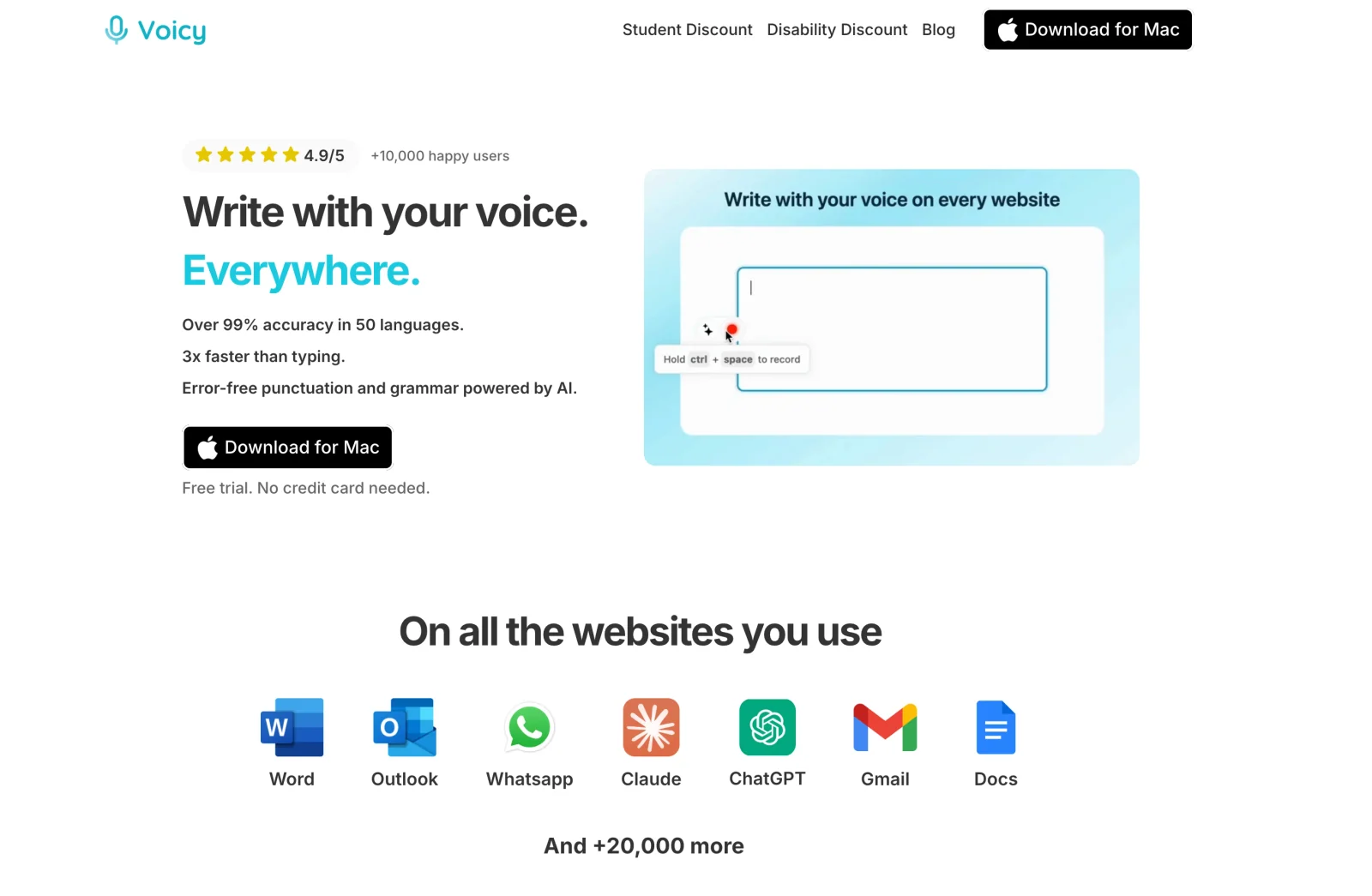
Voicy offers Linux voice dictation for text-heavy work. On an Arch system, the sensible use is prose: project updates, notes, emails, and a first pass at docs. Review dictated text before sending it, and never run a dictated shell command without checking it.
The current Linux product supports cloud transcription and a distinct offline desktop mode. Offline dictation needs a model download and supports 25 languages. Voicy also offers file upload transcription; do not assume every feature uses the same processing path.
- Strengths: live dictation, punctuation, and the option to transcribe locally in offline mode.
- Best for: long explanations that are easier to say than type.
- Limitation: the vendor advertises Wayland and X11 support, but that does not replace a test of your compositor, shortcut, microphone, and target app. Cloud mode processes audio remotely. The AppImage is an upstream download, not evidence of official Arch repository support.
- Pricing: free trial, then $8.49/month, $82/year, or $260 lifetime. There is no permanent free tier.
- Install route: use the AppImage linked on Voicy's Linux download page. Check architecture and runtime requirements rather than assuming every AppImage runs on every Linux system. This guide does not recommend an unverified AUR package.
Verdict: try it if prose is interrupting an otherwise quick workflow. The Linux dictation page and voice typing for developers guide show where it fits.
The current offline guide draws a useful line: basic dictation can run locally, but AI rewriting needs internet. File transcription is an online feature that needs a paid plan and accepts recordings up to 60 minutes long.
3. Taskwarrior: capture the next action and keep moving
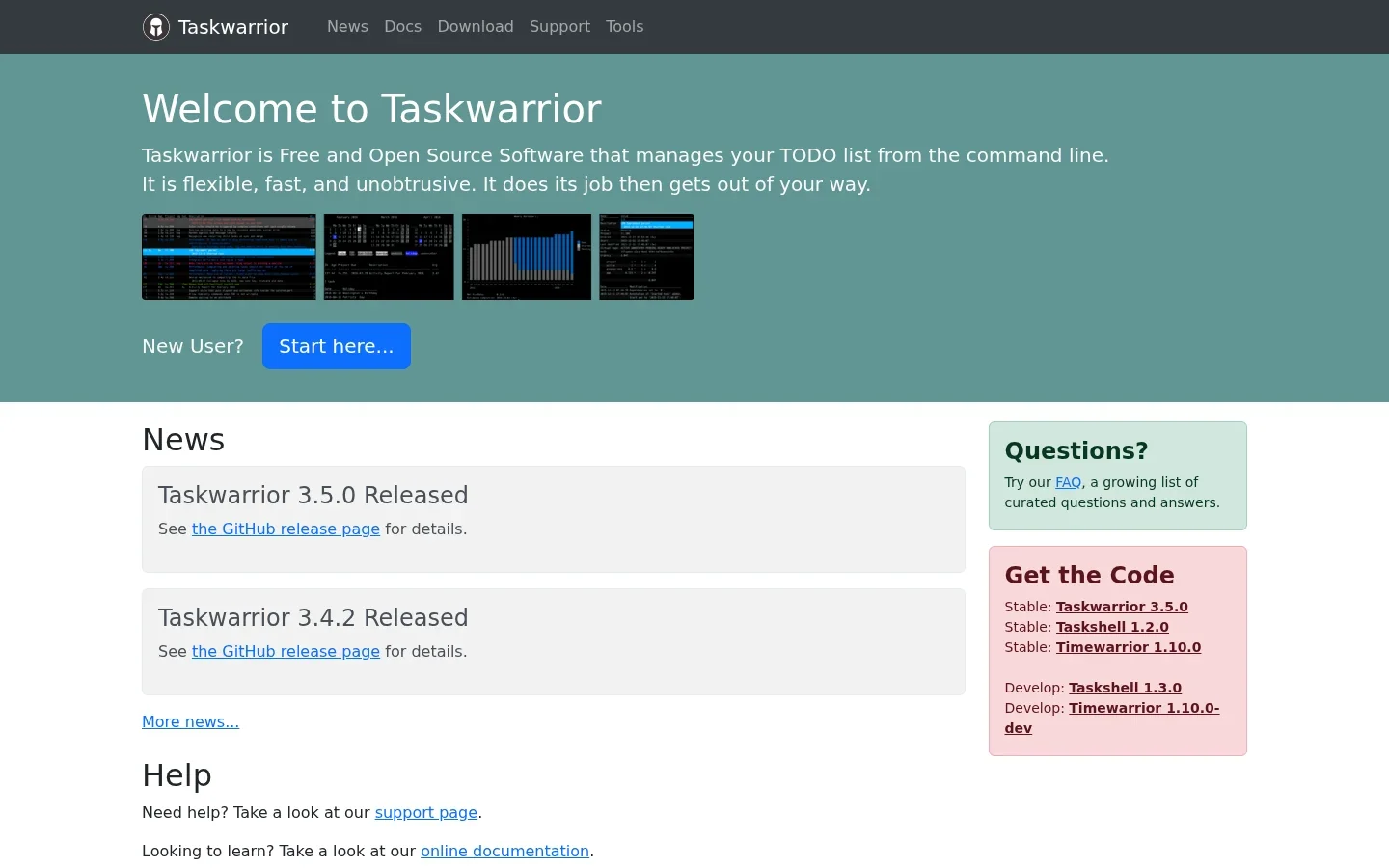
Taskwarrior manages a task list through short terminal commands. It works well beside the command prompt you already use, with no dashboard to keep open.
Start with a plain task: task add Send project update. Use task list to see it. Projects, tags, and due dates can wait until you know which ones you need.
- Strengths: fast task entry, filtering, projects, and due dates.
- Best for: people who already work in the terminal and prefer text over a visual board.
- Limitation: it is not a calendar-first planner. Check the installed major version before following a sync tutorial, especially one written for an older release.
- Pricing: free and open source.
- Install route: the official Arch package is named task, not taskwarrior. The app's download guide lists distribution-specific names.
Verdict: use it if adding a task at the prompt feels natural. A tool is not more productive just because it runs in a terminal.
4. tmux: stop losing the terminal you were using
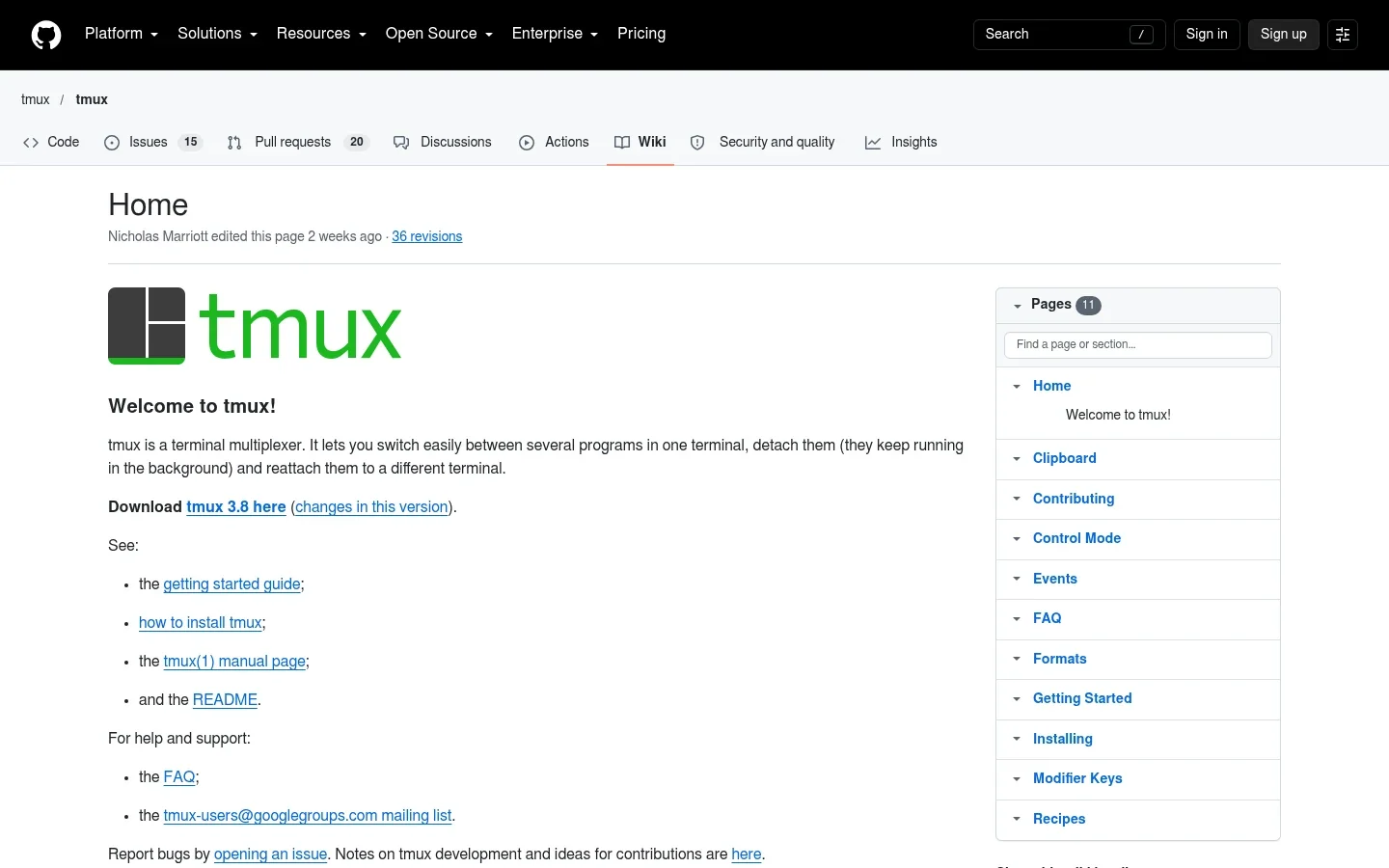
tmux lets you keep several terminal programs inside a session, detach from it, and return later. It is useful for remote work, long commands, and switching between tasks without rebuilding your terminal layout each time.
A small first step is tmux new -s work. Detach with the default prefix Ctrl+B, then D. Later, use tmux attach -t work to return. The getting-started guide explains the controls.
- Strengths: named sessions, windows, panes, and detach/reattach behavior.
- Best for: remote shell sessions and several related terminal jobs.
- Limitation: tmux is not a backup or a promise that a process survives a reboot. The host and tmux server still need to keep running.
- Pricing: free and open source.
- Install route: use the official tmux package.
Verdict: one of the most useful additions for terminal-heavy work. Learn detach and attach before spending time on a custom status bar.
5. LibreOffice: because other people still send spreadsheets
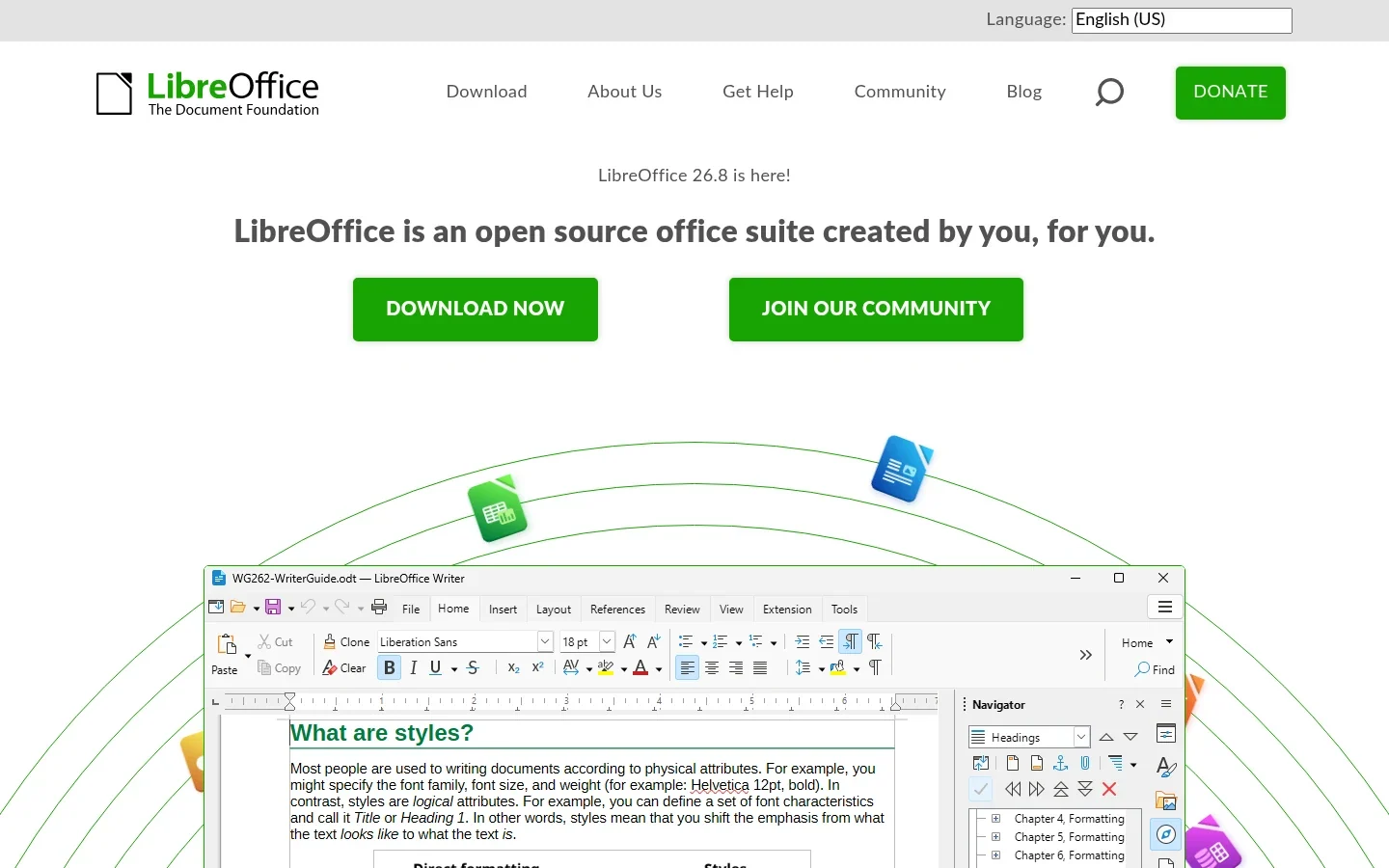
LibreOffice gives an Arch desktop a full office suite for documents, spreadsheets, and slides. Even a terminal-first workflow needs a practical answer when a colleague sends an invoice or a formatted report.
Keep it for those jobs rather than forcing everything through plain text. Use PDF export for finished work that people only need to read.
- Strengths: word processing, spreadsheets, presentations, styles, and export options.
- Best for: normal office tasks and exchanging editable files.
- Limitation: intricate layouts and macros can differ between office suites. Test an important file before you send it back.
- Pricing: free and open source.
- Install route: libreoffice-fresh is an official Extra package. Review the package's language packs and optional dependencies for your needs.
Verdict: install it because it solves a real file-format problem, not because every productivity list must include an office suite.
6. Syncthing: take your current work to the other machine
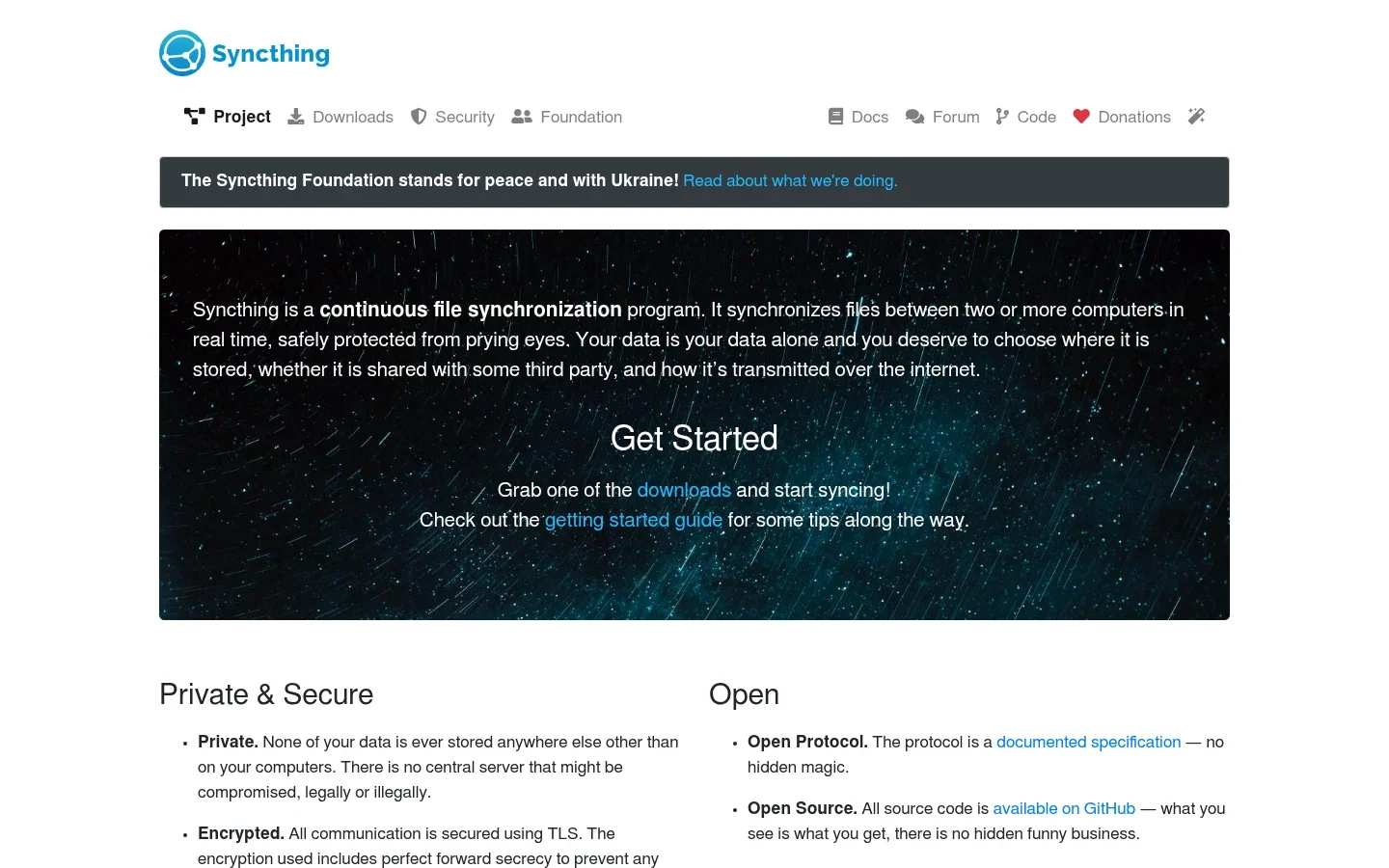
Syncthing syncs chosen folders between devices. It makes sense if your Arch desktop and laptop both need the same drafts, notes, or project reference files.
Begin with a dedicated folder. Pair the computers, check that the files arrive, and learn how conflicts appear before syncing anything you cannot easily replace.
- Strengths: device-to-device sync and control over shared folders.
- Best for: moving active work between trusted computers without a central storage subscription.
- Limitation: sync spreads changes, including deletions. Simultaneous edits can cause conflicts. Keep a separate backup, and read the versioning guide.
- Pricing: free and open source.
- Install route: use the official syncthing package, then follow the setup guide. Package install and device pairing are different steps.
Verdict: useful for files, but not a shortcut around learning what a backup protects.
7. KeePassXC: a password vault you control
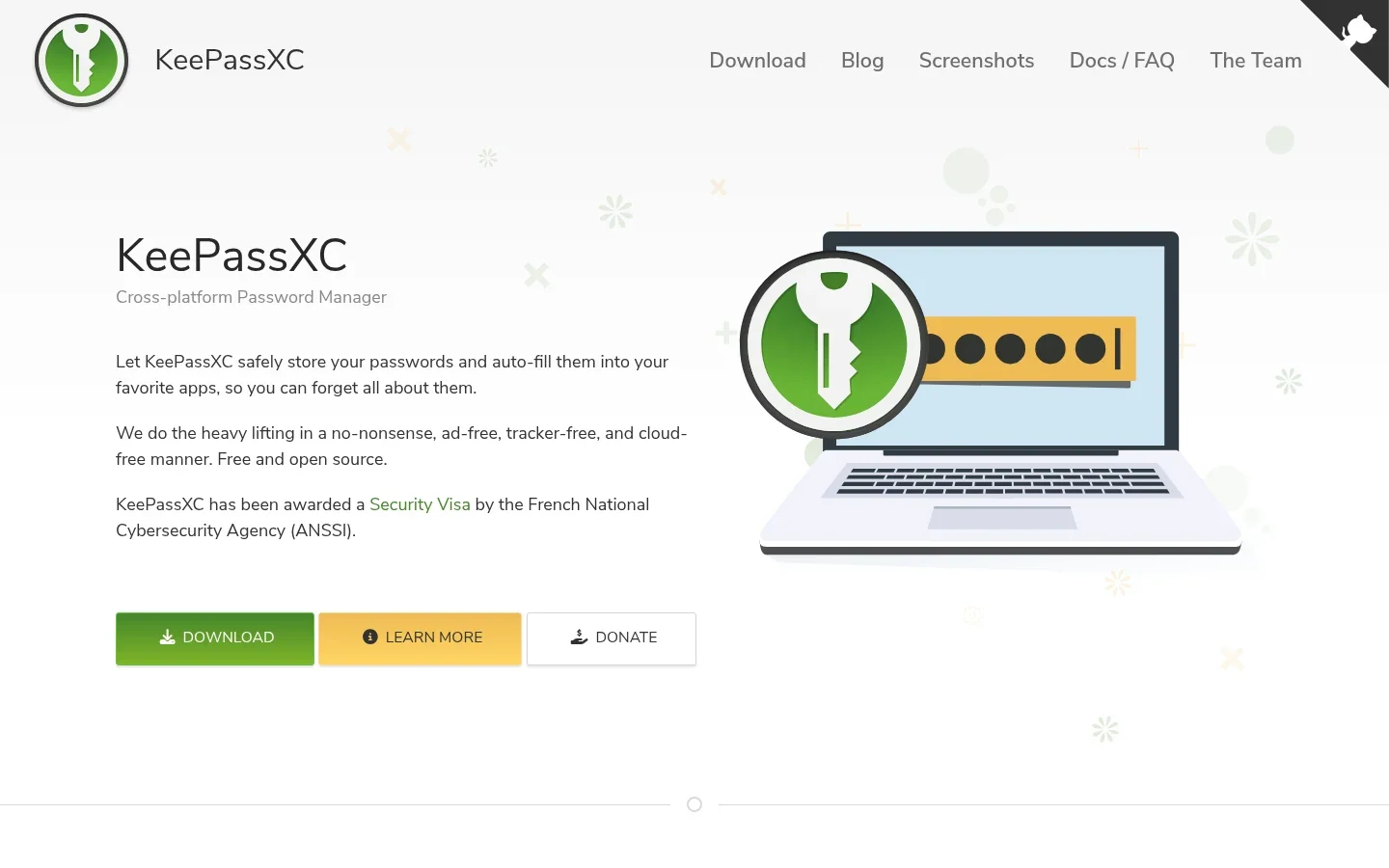
KeePassXC stores credentials in a local encrypted database. It is a good choice if you want a password manager without committing your vault to a given hosted service.
It also makes moving between workspaces less painful: find the account once instead of searching old emails or resetting the password again. Keep a safe copy of the vault and a recovery plan.
- Strengths: password generation, searchable entries, and browser integration.
- Best for: local-first password storage with control over where the database lives.
- Limitation: you manage sync and backup. Global Auto-Type is not universally offered on Wayland, so check the current docs for your session and use supported integration methods.
- Pricing: free and open source.
- Install route: use Arch's official keepassxc package.
Verdict: a solid foundation for work, provided you treat the vault as a file that needs protection too.
8. Flameshot: explain the problem with one picture
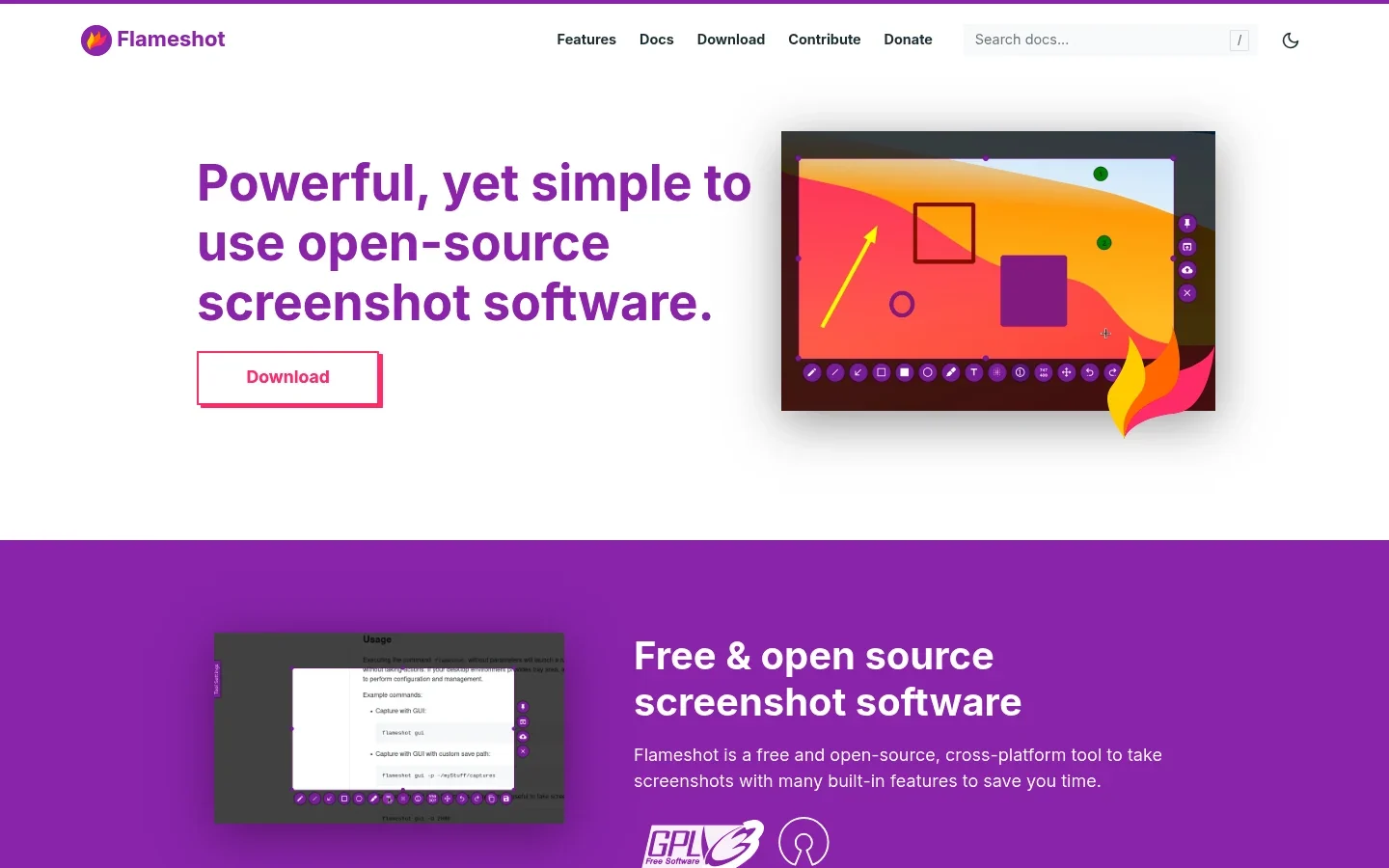
Flameshot combines screenshot capture with annotation tools. It is useful when a marked-up image explains a bug, a layout problem, or a question faster than several paragraphs.
Keep annotations plain: one crop, one arrow, one short label. Remove private information before you share the image.
- Strengths: region capture, arrows, text, and other on-image annotations.
- Best for: bug reports, design feedback, and showing someone exactly where to click.
- Limitation: Wayland support is not one universal behavior. The official Wayland troubleshooting page documents desktop-specific capture and shortcut issues. X11 steps do not automatically apply to GNOME, KDE, or a custom Wayland compositor.
- Pricing: free and open source.
- Install route: use the official flameshot package. Check capture and the shortcut in your actual session before you rely on it for work.
Verdict: worth adding if you share screenshots often. If your desktop's built-in capture tool already handles the job, keep the simpler setup.
Official repositories or AUR: which should you use?
Prefer an official repository package when it meets your needs. The Arch User Repository contains user-maintained build steps. It is not the same thing as an official repository, and an AUR helper does not remove the need to review what will run.
For the seven repository apps in this list, a normal full-upgrade install looks like this:
sudo pacman -Syu obsidian task tmux libreoffice-fresh syncthing keepassxc flameshot
Read the proposed changes and remove app names you do not want. Do not use a partial-upgrade shortcut just to fetch one package. Arch's maintenance guidance explains why partial upgrades are unsupported and why news matters before an update.
For an AUR package you choose independently, inspect the PKGBUILD, sources, and install scripts. Do not build as root. Rolling updates can need user-built packages to be rebuilt; that maintenance time is part of the choice.
Which desktop details should you check first?
Check whether your session is Wayland or X11 before copying a global shortcut recipe. On Wayland, capture tools and cross-app input depend on the compositor and related desktop services. Installing a package successfully is only the first check.
Then test one real action: take a screenshot, fill a login with a supported integration method, or dictate a sentence into your editor. If that action fails, fix the specific integration. Do not weaken broad security settings just to make an old tutorial appear to work.
FAQ
Do I need the AUR for these Arch productivity apps?
No for the first seven apps: each has an official Extra repository package at the time of review. Voicy is listed through its upstream AppImage download. This guide does not claim that it is in the official repositories.
What is the package name for Taskwarrior on Arch?
The official Arch package is named task, and the command is also task. This differs from distributions that name the package taskwarrior. Check the installed version before following a sync guide.
Does tmux keep programs running after a reboot?
No. It lets you detach and return while the session and host are still running. It does not keep a process alive through a reboot or replace saving your work.
Will Flameshot work on every Wayland desktop?
Do not assume so. Its official guide documents desktop-specific issues and setup steps. Test both capture and shortcuts in your own session; package availability alone does not prove that integration works.
Is Obsidian free for commercial use?
Yes. The current pricing page says a commercial license is not needed. The core app is free; optional Sync and Publish services are paid extras.
Can I use Voicy offline on Arch?
Voicy's Linux product page documents offline desktop dictation in 25 languages after a model download. Use the upstream Linux download and check it in your own Arch setup during the trial; this article is not a hardware or compositor compatibility test.
Finish the setup, then use it
Choose one notes app, one task system, and the tools needed for the files you handle. Record where each app came from. That is more useful than collecting packages you forget to update.
If typing long updates is the remaining pain point, test Voicy for Linux on one real draft. If it does not help your workflow, leave it out. The best Arch setup is the one that lets you stop setting it up.
 Download for Ubuntu/Debian
 Download for free
 Download for free