

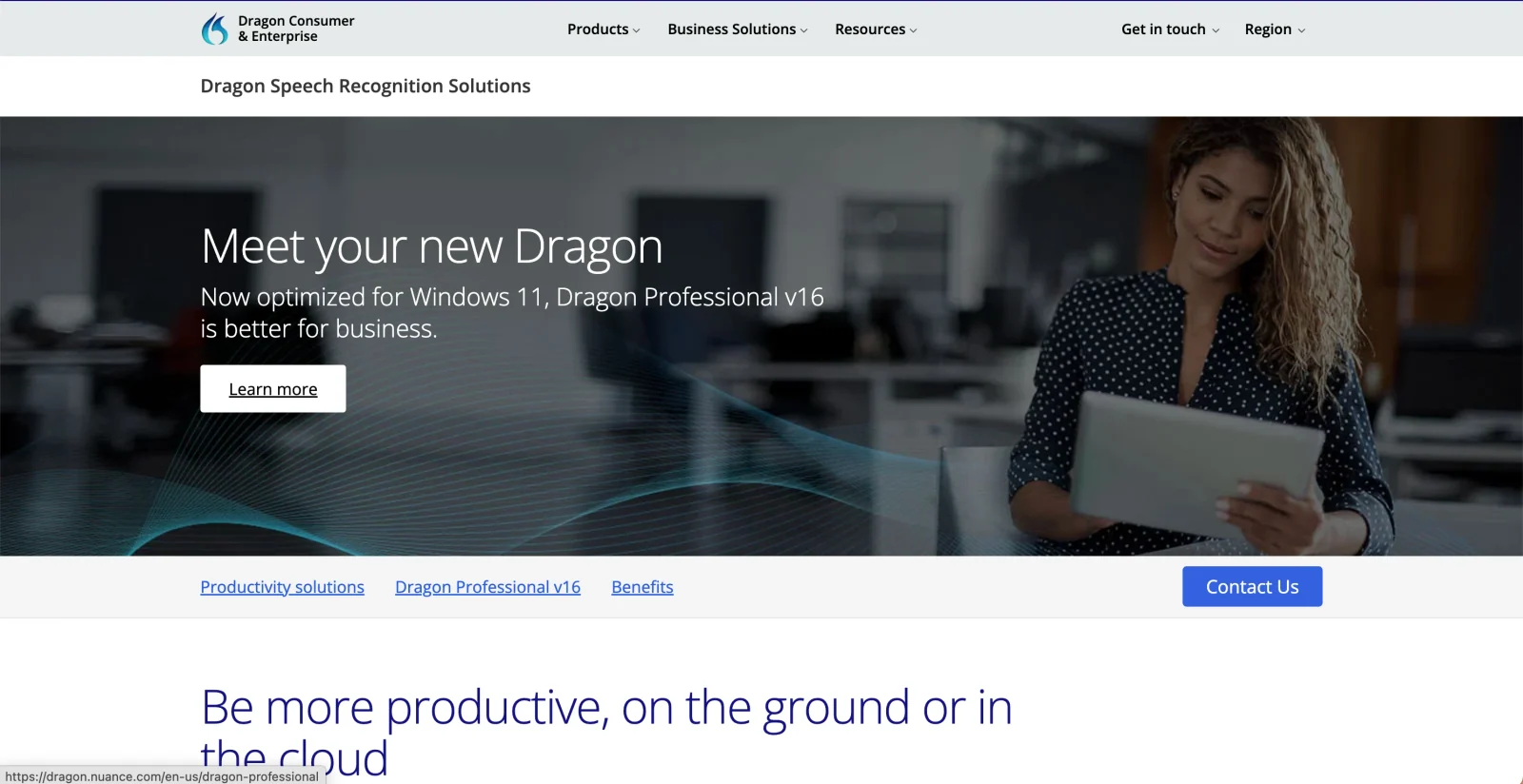
Verdict: who should choose Dragon Professional 16?
Our Dragon Professional 16 review has a clear recommendation: choose Voicy for everyday emails, notes and drafts across devices; choose Dragon Professional 16 for command-heavy Windows work. Voicy offers local desktop dictation, online writing tools and a much lower entry price. Dragon earns its place when editing by voice, custom macros and hands-free PC control are essential.
For a writer moving between a laptop and phone, Voicy is the more practical starting point. For someone who needs to navigate Windows and finish documents without a keyboard or mouse, Dragon offers controls that ordinary dictation does not replace.
Dragon Professional 16 at a glance
| Buying question | What to know |
|---|---|
| Main use | Windows dictation, voice editing and PC control. |
| Offline use | Local speech recognition after installation and activation. |
| Standout tools | Custom words, saved text commands and multi-step macros. |
| Recorded files | Single-speaker transcription, including batches. |
| Price checked | US retailer Dictationstore lists $699.99. License and regional terms vary. |
What is Dragon useful for during a normal workday?
Draft and edit a report by voice
Getting words onto the page is only half the job. Once a paragraph exists, you still need to fix a name, change a phrase or move a sentence. Dragon lets you do much of that work without switching back to the keyboard.
Its official command sheet includes “Select” followed by the text, “Correct that,” “Insert before” followed by a word, and “Undo that.” You can also move the cursor and apply formatting by voice.
For a report, that means you can dictate a section, select a phrase that needs work, then replace it. You stay with the document rather than reaching for the mouse after each change. This is where Dragon earns more attention than a tool that only pastes new text.
There is a learning curve. You need to learn the commands you use most, and pause before and after them. Start with selection, correction and undo. A small set you remember is more useful than a long list you never use.
Insert the paragraphs you write again and again
Think of a standard closing, a booking policy or the opening of a case note. With an auto-text command, you give that block a spoken name. Say the name and Dragon inserts the saved content.
That is handy when a document has a fixed frame but different details each time. You can insert the common text, then fill in the name, date and next step. It also helps teams use the same wording for routine messages.
A macro goes further: it can run a series of actions with one command. Dragon supports custom commands for repeated tasks, not just repeated words. The setup pays off when you perform the same steps often.
Saved text and AI rewriting are different tools. Auto-text inserts what you prepared. It does not decide how to rewrite that policy for each customer. That predictable behavior can be a strength when the wording needs to stay fixed.
Add names and terms you use often
Dragon's custom vocabulary lets you add names, acronyms and terms from your work. A client's surname or an internal project name is a good place to start.
The benefit is less time fixing the same word across dozens of notes. Custom word lists can also be shared, so a team does not have to build the same list from scratch.
Adding your own words does not turn Professional into Dragon Legal 16. The legal edition is a separate product. Choose based on the vocabulary and tasks you need, not just the word “professional” on the box.
Control Windows with less keyboard and mouse use
Dragon also has commands to switch windows, open apps and click. “MouseGrid” divides the screen into smaller areas so you can place the pointer by voice. The v16 documentation includes support for using that grid across multiple monitors.
For someone who finds typing or mouse use difficult, this can be the main reason to choose Dragon. A cheaper dictation app is not better value if it removes the controls you rely on.
The best starting point is one complete task: open a document, write a paragraph, make an edit and save it. Check the whole path in your own apps. Being able to enter text is not the same as being able to finish the task hands-free.
Turn recorded notes into text
Dragon can transcribe a recording of one person, including someone other than the main user. That suits a spoken field note, a draft recorded away from your desk or a batch of dictated reports.
Its Auto Transcribe Folder Agent can handle batches of recordings. If recorded notes arrive throughout the day, that is more useful than opening each file by hand.
It is not a meeting service built around several speakers. For interviews with back-and-forth speech or group calls, choose a tool designed for that job. Dragon's strength here is recorded dictation, not deciding who said what in a busy meeting.
Will it work in the apps you use?
Dragon is strongest when it can work with the text already in your document. Its help calls this “Full Text Control”: you can select, correct and edit words by voice, rather than only insert new ones.
Support differs across apps and text fields. For an unsupported field, the Dictation Box gives you a place to compose and edit, then transfer the result. That extra step matters if most of your work happens in a browser form.
The command sheet says Dragon Web Extensions must be enabled in Edge or Chrome for its web controls. Do not assume a browser being able to open Dragon's help means it supports all the same editing commands.
Make a short list before buying: your document app, email app and the website where you enter notes. Ask the seller to confirm support for those exact versions. For a workplace using Citrix or remote desktops, involve IT; those setups need the right deployment and license.
Setup and accuracy: what should you expect?
Dragon is a Windows desktop product. The official installation guide lists Windows 10 in 32-bit and 64-bit versions, and Windows 11 in 64-bit form.
The same guide sets these minimums:
- A 2.2 GHz Intel dual-core processor or equivalent AMD processor.
- 4 GB of memory.
- 12 GB of disk space, including downloaded installation files.
- An audio input device that supports 16-bit recording.
A dedicated Dragon microphone is not required. Pick a suitable mic or headset, but note that the guide specifically excludes Apple AirPods for dictation. Clear, steady audio is a better starting point than hoping software will fix a poor signal.
Nuance advertises “up to 99%” recognition accuracy. That is a vendor claim, not a guarantee for your voice or your documents. The useful question is how much correction your normal work needs.
Try a paragraph with a client name, a date and a term you use often. Then edit it by voice. A clean first draft helps, but the time you spend fixing it is part of the result too.
For new buyers, a seller-led trial or demo is worth asking about. Trial terms vary by reseller. Use your usual microphone and apps, rather than judging the product from a polished demo alone.
Does Dragon Professional 16 work offline?
Yes. The locally installed desktop product can handle normal dictation without an internet connection after setup and activation. That is useful when you work away from Wi-Fi or need local speech processing.
Activation is a separate step. Nuance's guide describes activating over the internet; offline dictation is not a promise that you can activate without a connection. Managed company setups can also need network access for sign-in and license management.
Local recognition does not control where your finished documents go. A shared drive or cloud backup can still upload them. Keep that distinction in mind when choosing where to save sensitive work.
Dragon Professional 16 pricing and license options
Dictationstore's US listing showed $699.99 for Dragon Professional v16 on October 22, 2026. Treat that as a dated retailer price, not a universal Nuance price or a final tax-inclusive quote.
Perpetual licenses are available. You pay once for the licensed version rather than renewing it each year. That does not automatically include every future major upgrade or lifetime support.
There are also annual desktop licenses in some markets. For example, the Australian reseller offer includes annual options that stop working if not renewed. “Desktop” and “one-time purchase” are not interchangeable.
Before paying, ask what the offer covers: how many PCs you can use, whether it renews, which support is included and what happens when you change computers. Those details matter more than a price copied from an old review. Our Dragon pricing guide covers the wider product range.
Is upgrading from Dragon 15 worth it?
If you depend on Dragon and are moving to Windows 11, v16 is the version to consider. Keep the buying question focused on support for your current PC and apps, rather than expecting a whole new way to dictate.
Nuance documents moving supported profiles, custom words and commands from older versions. Back them up before upgrading. A supported migration path does not mean every old edition qualifies for a discounted upgrade; check your current license with the seller.
Dragon Professional 16 vs Voicy: which is better value?
We recommend Voicy for daily writing across devices, especially when your goal is to draft emails, capture notes and revise paragraphs rather than control Windows. Choose Dragon when its voice editing, mouse control and custom macros are part of how you finish the work.
| Buying question | Dragon Professional 16 | Voicy |
|---|---|---|
| Best reason to buy | Windows voice editing, PC control and custom macros. | Everyday writing across devices, with online rewriting tools. |
| Price and license | Dictationstore: $699.99 on October 22. Perpetual and regional annual offers differ. | $8.49 monthly, $82 yearly or $260 lifetime; free trial. |
| Desktop platforms | Windows. | Mac, Windows and Linux, plus mobile and browser options. |
| Offline dictation | Local recognition after installation and activation. | Local desktop recognition after model download. |
| Command replacement | Custom commands and hands-free controls are a core strength. | Not equivalent to Dragon macros or full PC control. |
Why try Voicy for everyday writing?
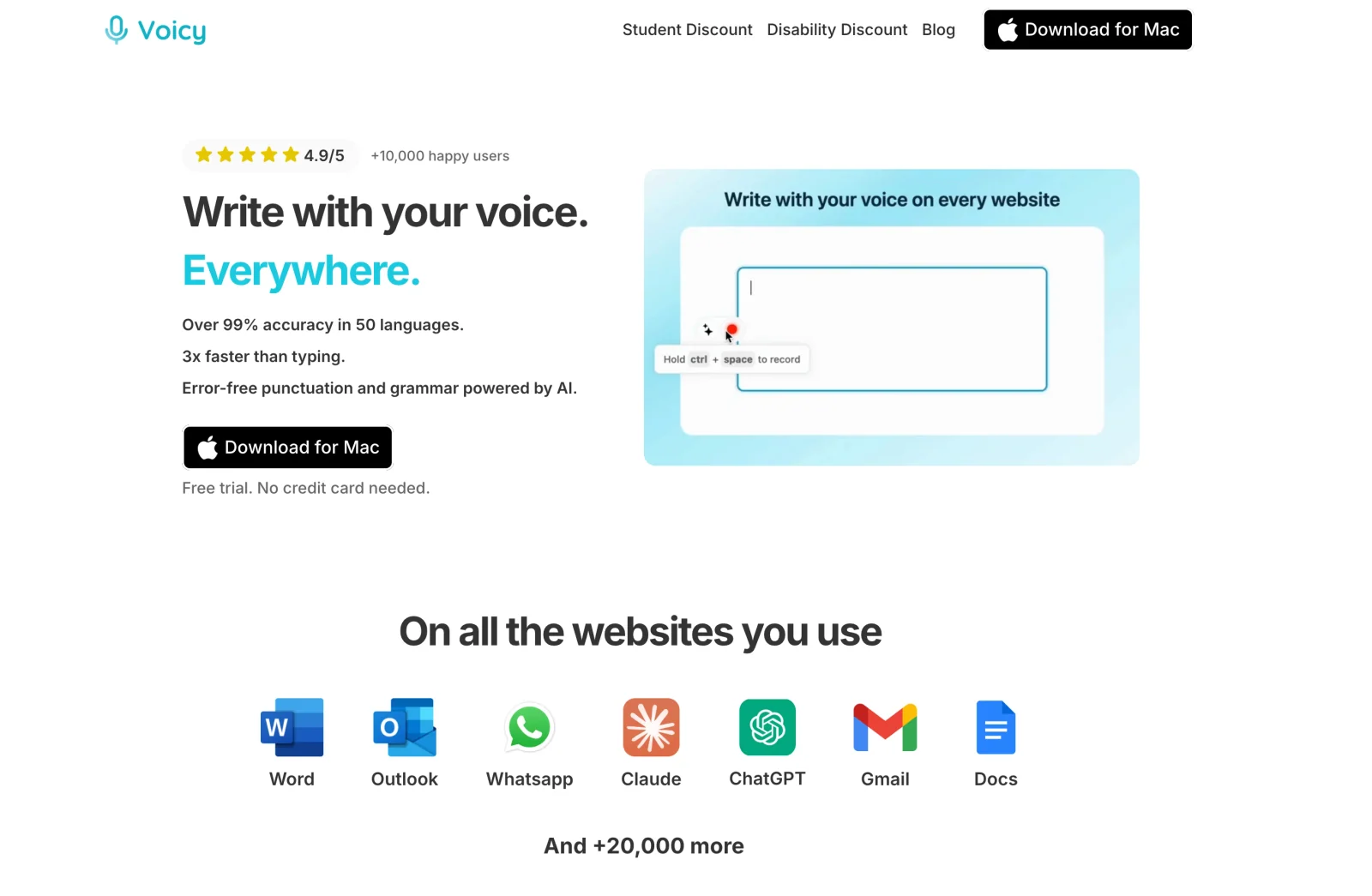
For everyday emails, notes and drafts, we recommend trying Voicy first. Its personal plans cost $8.49 per month, $82 per year or $260 lifetime. That is a much lower entry cost than the checked Dragon retail purchase, especially if you do not need its PC-control tools.
Voicy covers Mac, Windows, Linux, iPhone, Android and a browser extension. You can write across devices without choosing a Windows-only desktop tool. The input method and available features depend on the platform.
Both products offer local desktop speech processing. Voicy's offline dictation works on Mac, Windows and Linux after a model download; Mac offline mode requires macOS 15 or later. It is not an offline feature for every mobile app or browser extension.
Voicy also helps with the next step after dictation. Select a long email and use Rewrite Mode to make it shorter, or save Custom Modes instructions for turning spoken points into a work update. Upload a recorded note when you want a transcript rather than live typing. These tools need internet; you can dictate a draft offline and apply the writing tools when you reconnect.
That makes Voicy our recommended Dragon alternative for daily writing: dictation where you write, a choice of local or online speech processing, and tools to turn drafts into usable messages. Keep Dragon if its custom macros or hands-free controls are essential to your work.
Our recommendation
Buy Dragon for the commands you will use, not just the promise of accurate speech-to-text. For someone who edits long Windows documents or needs hands-free control, those tools can justify the cost.
If you mainly want to stop typing every email and note, start with Voicy's free trial. Compare a real day's writing before committing. You do not need to buy a full PC-control system to get your words onto the page.
Already happy with Dragon 16? Reports about Dragon Professional Anywhere ending concern a different product. They are not, by themselves, a reason to replace your desktop setup.
FAQs
How much does Dragon Professional 16 cost?
US retailer Dictationstore listed it at $699.99 on October 22, 2026. Prices, taxes, upgrades and support terms vary by seller and region.
Is Dragon Professional 16 a one-time purchase?
Perpetual licenses are available, but some sellers also offer annual desktop licenses. An annual license expires if not renewed; it is not a lifetime purchase.
Does Dragon Professional 16 work offline?
Yes. Normal desktop dictation works locally after installation and activation. Download, automatic activation and some managed company setups need internet access.
Does Dragon Professional 16 work on Windows 11 or Mac?
Nuance lists Windows 11 64-bit and Windows 10 32-bit and 64-bit. Professional 16 is a Windows product, not a native Mac app.
Can I keep my vocabulary when upgrading from Dragon 15?
Nuance documents moving supported profiles, custom words and commands. Back them up first, and check separately whether your existing edition qualifies for an upgrade discount.
Can Dragon Professional 16 transcribe meetings?
It is designed for single-speaker recordings and offers batch transcription. It is not a multi-speaker meeting service with reliable speaker labels.
Is Dragon Professional 16 ending with Dragon Anywhere?
The partner retirement report checked excludes Professional 16 and Legal 16. Professional Anywhere and Anywhere Mobile are different products. This does not promise indefinite desktop support.
Should I choose Dragon or Voicy?
We recommend Dragon for Windows voice control, editing and macros. Try Voicy for everyday writing across devices at a lower entry cost. It is not a replacement for every Dragon command.
 Download for free
 Download for free
 Download for Ubuntu/Debian
 Add to Chrome for free
 Download for free