

TL;DR
The best Linux Mint productivity apps build on Mint's desktop tools instead of turning it into a different operating system.
- LibreOffice: handle documents, spreadsheets, and PDFs without a subscription.
- Voicy: speak drafts and replies into Linux apps.
- Thunderbird: keep your email and calendar in a desktop workspace.
- Joplin: collect notes, checklists, and reference material in notebooks.
- Warpinator: move files between computers on a local network.
- KeePassXC: manage passwords in a local encrypted vault.
- Flameshot: add arrows and notes to screenshots before sharing them.
- Timeshift: keep system snapshots for recovery after a bad change.
Our verdict: For a typical Mint desk, start with LibreOffice, Thunderbird, and Joplin. Warpinator is the useful extra if you work across two computers. Set up Timeshift for system recovery, but do not mistake it for a backup of your documents.
Linux Mint already aims to make ordinary desktop work feel straightforward. A useful app list should respect that. You should not have to enable a different package store just to write a report or send a file across the room.
This selection focuses on office work, local files, and Mint's own strengths. It is based on official product and distribution documentation, not invented hands-on benchmarks. The package advice mainly covers the Ubuntu-based Mint edition; LMDE uses a different Debian base, so check its available packages separately.
What is different about installing apps on Linux Mint?
Start in Mint's Software Manager and check the source of the app you choose. Mint's official release notes document its Software Manager, Flatpak handling, and the native Thunderbird package. These details make more useful buying advice than a generic “Linux supported” badge.
Snap is disabled by default in Mint's documented policy. You can choose to enable it, but none of the picks here requires doing that. An Ubuntu tutorial built around Snap is not automatically the right Mint tutorial.
Mint also distinguishes verified and unverified Flatpaks. In the documented Mint 22 Software Manager behavior, unverified Flatpaks are hidden by default. If an app is missing from search, check its official download route and publisher before changing that setting. A missing listing is not a good reason to install from a random mirror.
Finally, check your actual desktop session. Cinnamon and Mint's other desktop choices are not identical to Ubuntu's GNOME setup. Wayland support and defaults also change by release. Do not assume that every Mint computer uses X11, or that a shortcut copied from an Ubuntu guide will work unchanged.
Linux Mint productivity apps compared
| App | Best use | Price | Mint-friendly install route | Main limit |
|---|---|---|---|---|
| LibreOffice | Office documents | Free | Software Manager/native package | Imported formatting can shift |
| Voicy | Dictating drafts | Trial; $8.49/month, $82/year, $260 lifetime | Official Linux download flow | Some features remain online |
| Thunderbird | Mail and calendars | Free app | Mint's native package | Account-provider rules still apply |
| Joplin | Notebooks and checklists | Free app; optional paid cloud | Official Linux AppImage/install guide | Sync needs its own setup |
| Warpinator | Local file transfer | Free | Mint package | Not a remote sync or backup service |
| KeePassXC | Password management | Free | Official Linux route or linked Flatpak | You manage vault recovery |
| Flameshot | Screenshot annotation | Free | Documented DEB-family package | Session-specific capture limits |
| Timeshift | System recovery | Free | Mint package or existing install | Personal files excluded by default |
Documentation and prices checked October 24, 2026. The free apps do not include the cost of optional cloud services, storage, or hardware.
1. LibreOffice: get the document finished
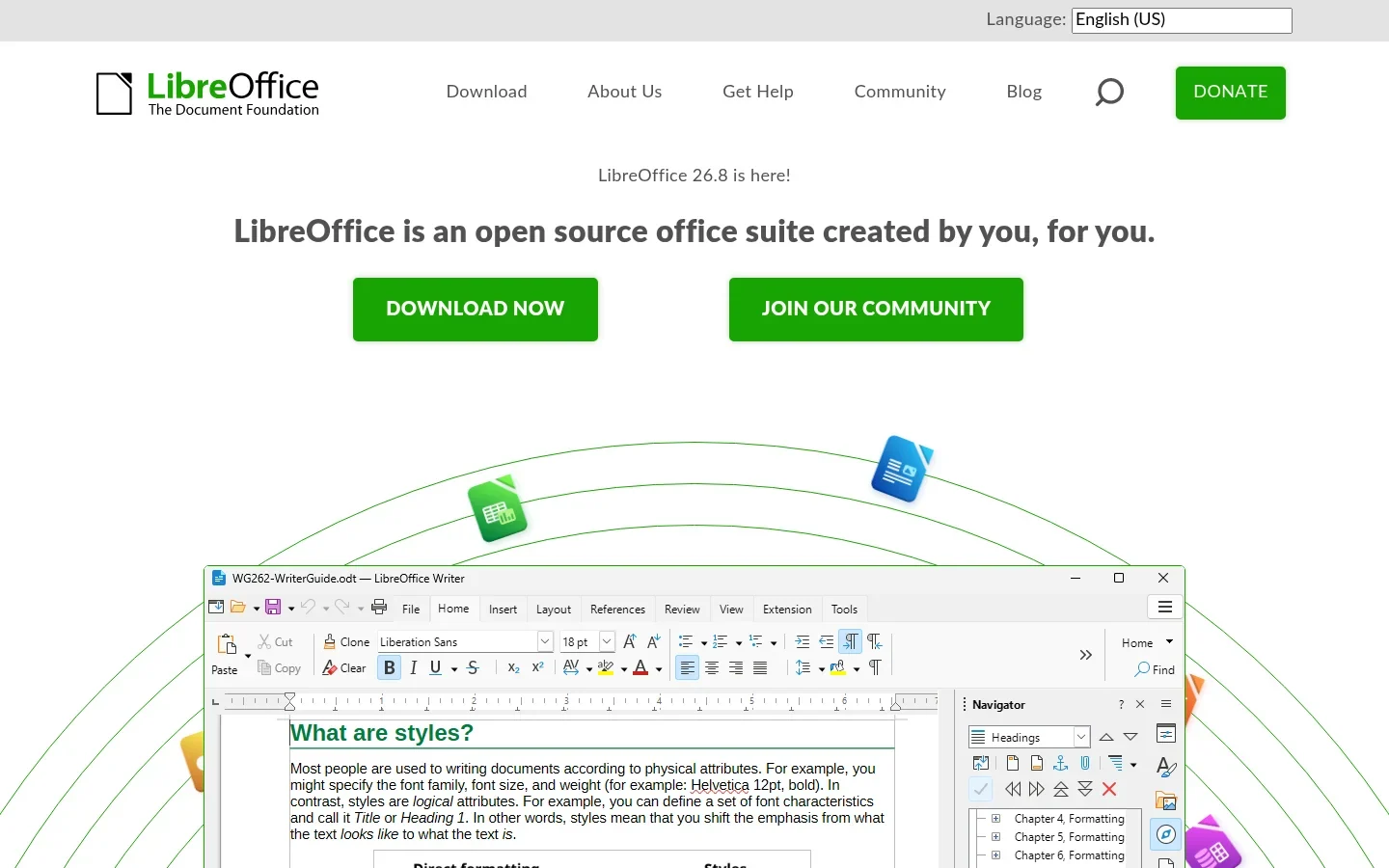
LibreOffice is the first app to check before installing another office suite on Mint. It covers writing, spreadsheets, slides, and PDF export, so much of a normal workday can stay on the desktop.
Look in your menu first; it may already be installed. There is little value in adding a second copy simply because a website offers a newer download button.
For a useful first test, open a document you actually share with someone. Check the headings, tables, and fonts, then export a PDF. Local editing is easy to recommend; perfect fidelity for every imported document is not.
Pros: no subscription, offline editing, and a familiar office layout. It is a sensible home for invoices, reports, budgets, and letters.
Limitation: complex macros and layouts can need changes when files move between office suites. Keep the original file and check the output before sending it.
Price and installation: free and open source. Check Mint's Software Manager for the native package first. If you need an upstream build, follow the official Linux guide rather than mixing unrelated package sources.
Best fit: anyone who wants an office suite to get out of the way and let them work.
2. Voicy: give your keyboard a break while drafting

Voicy lets you dictate text into Linux desktop apps. On Mint, a useful starting point is a rough email reply or a paragraph of a report: say the thought, check the text, then send or polish it.
This is a complement to an office suite or notebook, not a replacement for either. It also is not the same as controlling the entire computer by voice.
The current Voicy Linux page explicitly lists Linux Mint, Wayland, and X11. Treat that as documented support rather than evidence of our own testing. Use the trial to check the shortcut, microphone, and insertion in your actual Mint session.
Pros: desktop dictation, automatic punctuation, and file upload transcription. Cloud processing is the default, with an optional downloaded model for basic offline dictation.
Limitation: not every feature becomes offline when you enable that mode. The current help guide says AI rewriting, file transcription, and retrying old recordings need internet. It also explains the confirmation before sending audio for those online actions while offline mode is on.
Price and installation: a free trial, then $8.49/month, $82/year, or $260 lifetime. Use the Linux download flow and choose the package offered for your setup. We have not verified a Mint Software Manager listing, so do not search there expecting one.
Best fit: people whose day involves a lot of written replies or first drafts. If you want to compare local and other dictation approaches, start with the Linux speech-to-text guide.
3. Thunderbird: a real reason to keep Mint's package route

Thunderbird is a strong choice for managing email and appointments without keeping several webmail tabs open. On Mint, it also shows why distro-specific advice matters.
The Mint team states that Thunderbird remains a native DEB package in Mint 22 after Ubuntu moved to Snap. That does not mean every future release will be identical, but it does mean you should not blindly follow an Ubuntu Snap install guide on Mint.
Useful features: multiple inboxes, message filters, calendar support, and desktop search. Put mail into folders that match your work, then close the app when you need a quiet hour.
Limitation: calendar and login support depend on the account provider and your organization's rules. Test a work account's send, receive, and invitation flow before relying on it.
Price and installation: Thunderbird Desktop is free. Prefer the Mint-maintained package through Software Manager for a conventional Mint setup. The official download page lists upstream alternatives if you need a different release channel.
Best fit: people who want one place for personal and work mail, with fewer tabs fighting for attention.
4. Joplin: a notebook for the work around your work
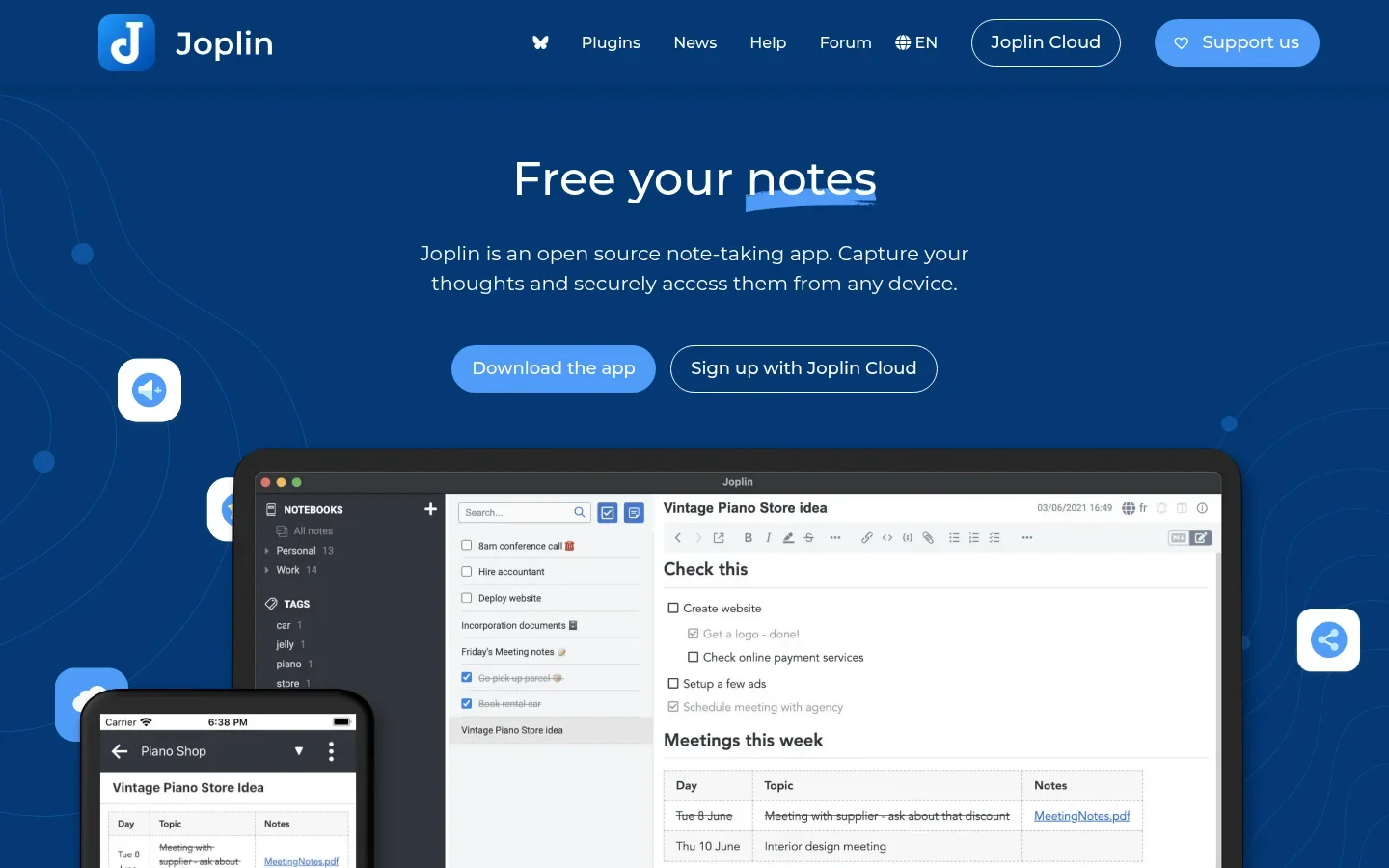
Joplin is useful for meeting notes, research, checklists, and all the small bits of context that do not belong in a finished document. Its notebook structure is easy to understand without building a web of linked pages first.
Make one notebook for each active area of work. Save the decision, the source, and the next step in the same note. That is more useful than a pile of copied links with no explanation.
Pros: notes and to-dos, Markdown support, attachments, and offline access to local notes. You can start on one computer without choosing a paid sync plan.
Limitation: the app and the sync service are separate decisions. Set up your chosen sync target carefully, and keep a backup before changing it. Syncing a deletion everywhere does not make it a backup.
Price and installation: the app is free and open source; Joplin Cloud is an optional paid service. Use the official Linux installation guide, which provides an AppImage and a recommended installer script. Read a script before running it; do not confuse a community package with the upstream install route.
Best fit: a Mint user who wants ordinary notebooks and checklists rather than another project-management service.
5. Warpinator: stop emailing files to yourself
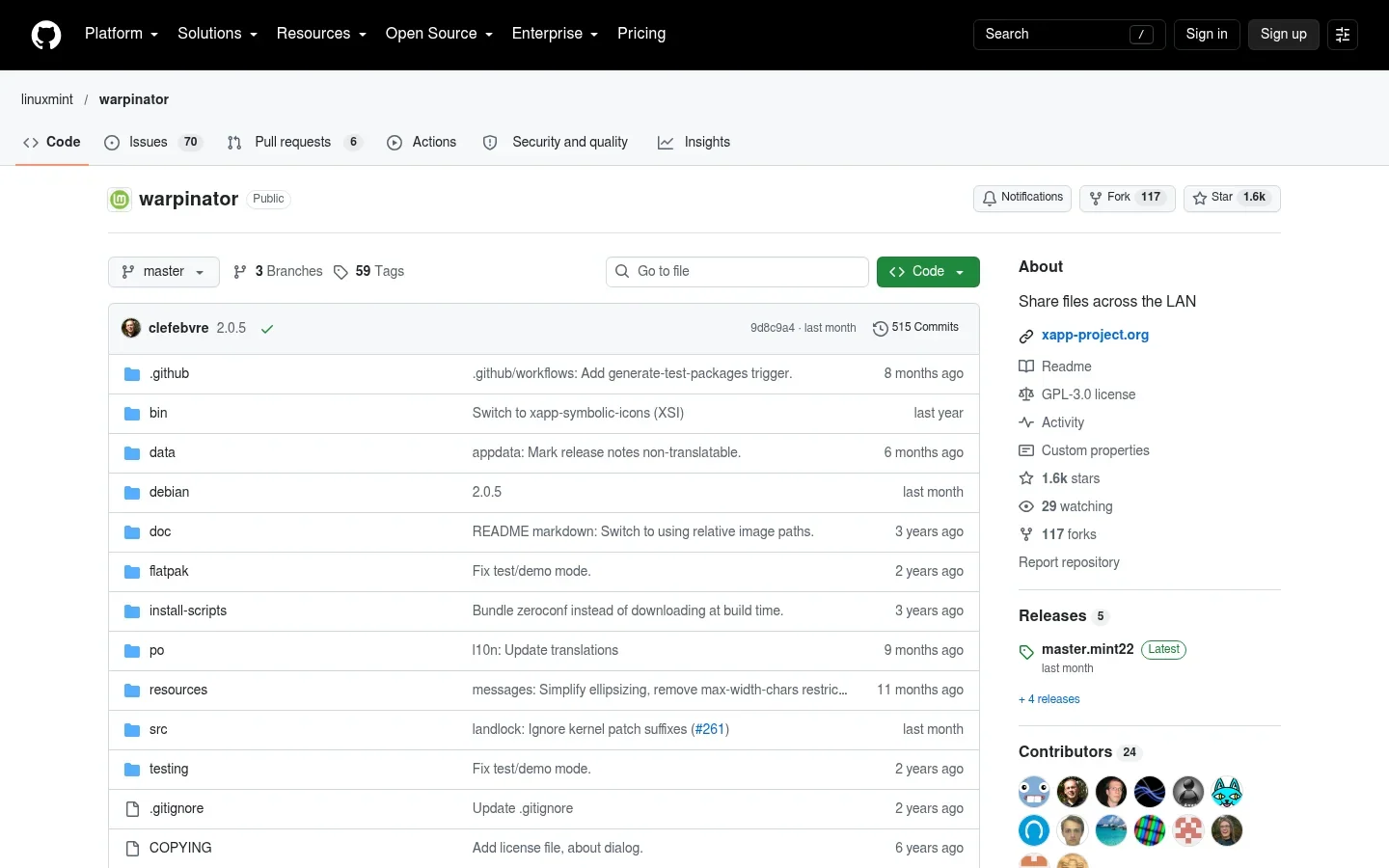
Warpinator moves files between computers on the same local network. It is one of the most useful Mint-oriented picks if your work is split between a laptop and a desktop.
Send a draft PDF to the other computer, move a folder of screenshots, or transfer files without borrowing a USB drive. Both ends need a compatible app and working network discovery.
Pros: a focused local-transfer workflow and a Mint-maintained Linux project. You do not need to turn a one-time handoff into a cloud storage setup.
Limitation: it is not continuous synchronization, off-site backup, or a guarantee that devices on a guest network can see each other. Firewall rules and network isolation can block discovery. Approve transfers only from devices you recognize.
Price and installation: free and open source. Check your menu first, then use Mint's package route if it is absent. The official project repository documents the Mint install and warns about fake download sites using the Warpinator name. Use that repository or your distro's package, not a lookalike download page.
Best fit: moving a file across the room. Choose a different workflow if you need access while away from home.
6. KeePassXC: fewer password resets, more control
KeePassXC stores credentials in an encrypted database on your computer. It is a good fit for Mint users who prefer a local file they can manage instead of a required hosted account.
The practical win is simple: generate a unique password, save it with the right entry, and stop guessing which variation you used. Add clear entry names so you can find the correct login later.
Pros: password generation, organized entries, and browser integration. The core app does not require a subscription.
Limitation: local control comes with responsibility. Back up the vault securely and plan how to recover access. Auto-Type, browser integration, and clipboard use are different workflows; their behavior can depend on the browser package and whether your session is X11 or Wayland.
Price and installation: free and open source. Consult the official downloads for supported Linux routes, including AppImage and Flatpak. If you use Software Manager, check the source and version rather than assuming all listings are maintained by the same party.
Best fit: a person who will look after the vault file. If you will never make a backup, solve that habit first.
7. Flameshot: make your screenshots useful
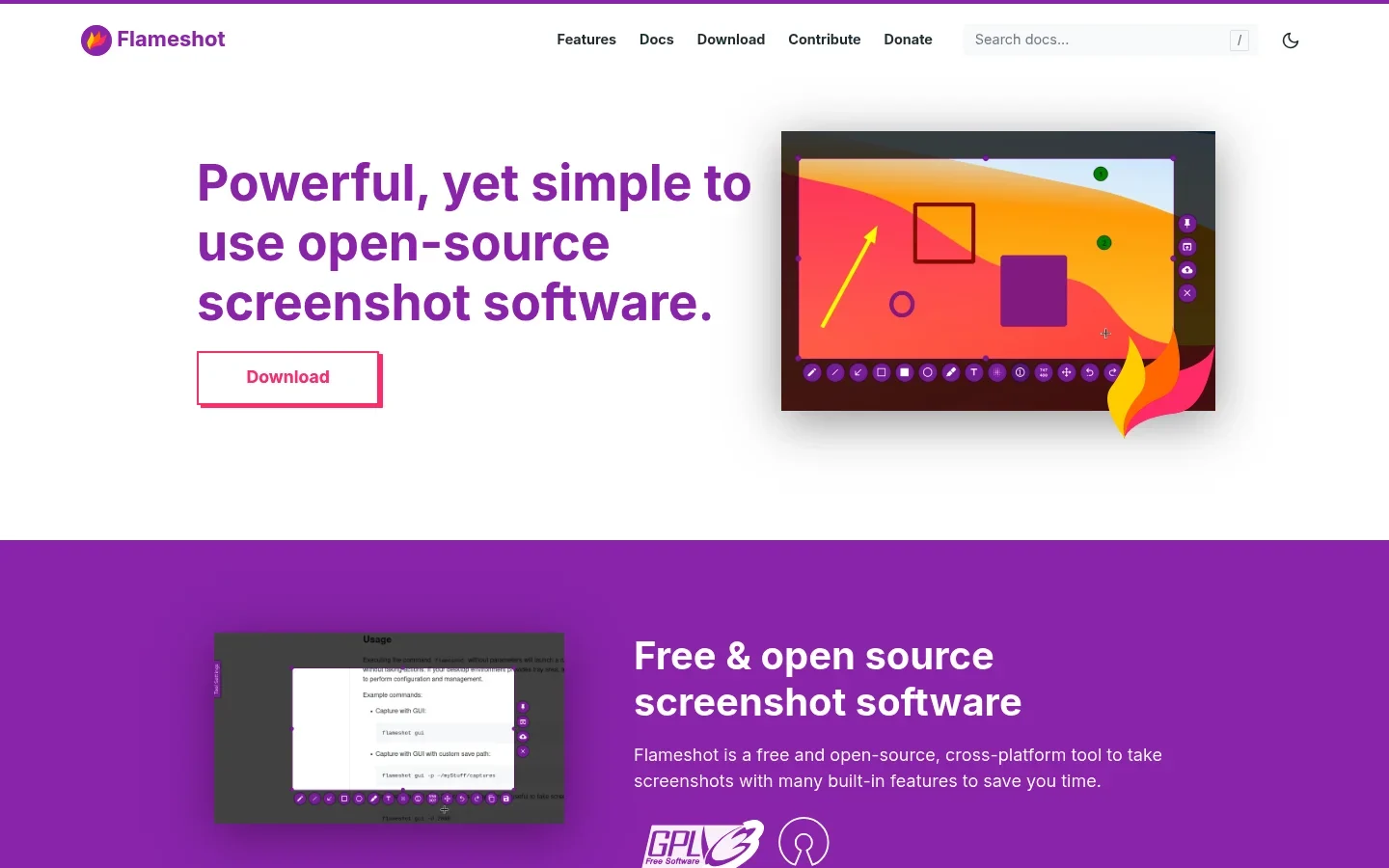
Flameshot combines screen capture with quick annotation. It helps when a colleague needs to see exactly which field, menu, or error you mean.
Add a box or arrow and a short note. Keep the image focused, and remove private information before sharing. A screenshot of your whole desktop often creates more confusion than it fixes.
Pros: fast markup without a full image-editing session. This is handy for instructions, support requests, and visual feedback.
Limitation: do not borrow a shortcut command from a GNOME tutorial and assume it belongs in Cinnamon unchanged. Set the shortcut through your own desktop settings and check capture manually first. If you use a Wayland session, read the project's Wayland notes.
Price and installation: free and open source. The Linux install guide documents DEB-family package routes. Check availability for your Mint release instead of adding a new repository just to obtain a marginally newer build.
Best fit: anyone who often writes “the button on the left” in support messages.
8. Timeshift: an undo plan for system changes
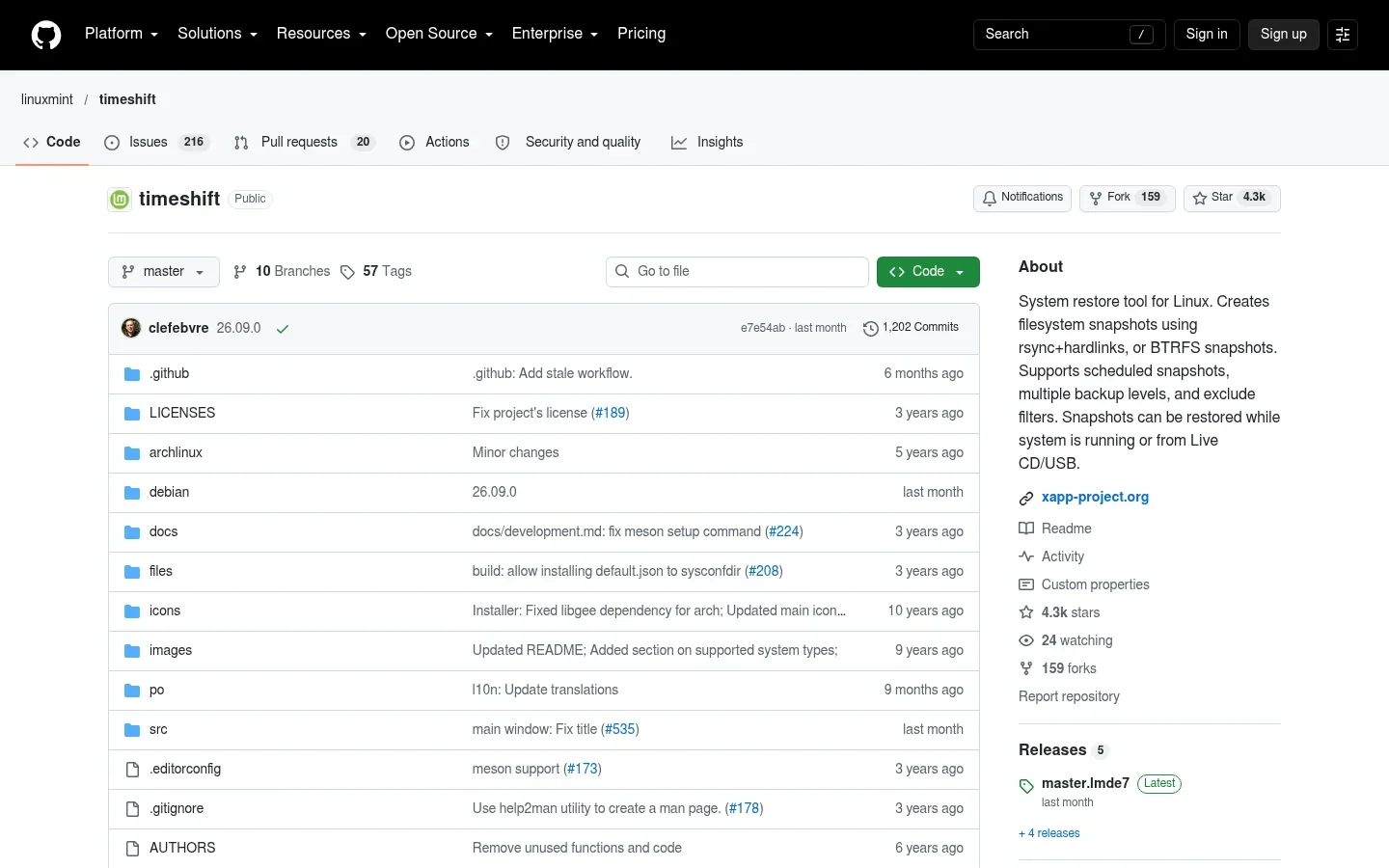
Timeshift takes system snapshots that can help you recover after a bad system change. It is not an app for producing work, but it can keep a broken setup from consuming your next workday.
Open it before a major change, choose a suitable destination, and understand the restore process. Check the snapshot schedule and storage use rather than assuming the defaults match your disk space.
Pros: scheduled or on-demand snapshots and a recovery workflow maintained within the Mint/XApp ecosystem. It gives cautious users a reason to maintain their systems instead of avoiding every update.
Limitation: personal files are excluded by default. The project documentation explicitly says it is designed for system files and settings, not as your personal-data backup. It also describes filesystem and layout requirements for snapshot modes.
Price and installation: free and open source. Check the existing Mint installation first, then use the distro package if needed. Read the official instructions before choosing snapshot mode or restoring a system.
Best fit: reducing the risk of system maintenance. Keep a separate backup of your documents on another device or suitable remote storage; snapshots on a failed drive cannot rescue that drive.
A simple Mint workday with fewer moving parts
Use Joplin to gather the notes, LibreOffice to make the finished document, and Thunderbird to send it. If the other computer needs the file, use Warpinator rather than emailing yourself another copy.
Voicy is optional. Add it if speaking helps you get a draft started, not because every productivity setup needs AI. Our voice-typing overview explains where dictation fits into a writing workflow.
Keep these two safety jobs separate: Timeshift protects the system setup; a personal-file backup protects the work. Doing both is more useful than installing another dashboard to track how productive you feel.
FAQ
What are the best free productivity apps for Linux Mint?
LibreOffice, Thunderbird, Joplin, Warpinator, KeePassXC, Flameshot, and Timeshift are free apps. Joplin's optional cloud service can cost extra. Voicy offers a free trial, followed by a paid plan.
Do I need Snap to install productivity apps on Mint?
No. These recommendations have Mint-friendly routes that do not require enabling Snap. Mint disables Snap by default under its documented policy. Use Software Manager, a suitable distro package, or a trusted official download instead of following Ubuntu commands blindly.
Why is an app missing from Mint Software Manager?
Check your release, package sources, and Flatpak settings. Mint's documented Software Manager behavior hides unverified Flatpaks by default. Use the project's official installation instructions and check the publisher before changing that setting or choosing another source.
Does Timeshift back up my documents?
Not by default. Timeshift is designed to protect system files and settings, while personal files are excluded. Keep a separate backup for your documents, photos, and other work files.
Does Voicy work on Linux Mint and offline?
Voicy's current Linux documentation lists Mint support. Basic offline dictation is available after downloading and enabling a model. Cloud transcription is the default, and AI rewriting, file transcription, and retrying old recordings remain online actions.
Can I use Ubuntu installation instructions on Mint?
Sometimes, but check the package source and release first. Ubuntu-based Mint shares much of its package base with Ubuntu, yet its Snap policy, Software Manager, desktop settings, and some packages differ. LMDE uses Debian rather than Ubuntu as its base.
Choose the tool for the job you actually have
Start with the apps already in your menu, then fill a real gap. A well-organized notebook and one working file-transfer tool are worth more than a dozen overlapping apps.
For most readers, the office-and-notes trio is enough to begin. If typing holds you back, try Voicy on Mint in the apps you use each day. Check the result, keep what helps, and leave the rest out.
 Download for Ubuntu/Debian
 Download for free
 Download for free