
Typing cannot keep up with how fast you think. A good voice typing app lets you speak naturally and turn those words into emails, notes, documents, prompts, and transcripts.
This guide compares the 10 best voice typing apps for 2026, including free built-in tools, paid AI dictation apps, mobile keyboards, browser tools, and meeting transcription apps.
The best voice typing apps at a glance
Quick answer: The best voice typing app for most work writing is Voicy, because it works across Mac, Windows, Linux, browser workflows, iOS, Android, and uploaded audio files. If you only need basic free dictation, start with Google Docs Voice Typing, Gboard, Apple Dictation, or Windows Voice Typing.
Voicy: Best overall voice typing app for everyday work.
Google Docs Voice Typing: Best free browser option for Google Docs users.
Gboard: Best free mobile keyboard for voice typing.
Microsoft SwiftKey: Best mobile keyboard for prediction and translation.
Microsoft Word Dictate: Best for Microsoft 365 users.
Dragon Anywhere: Best mobile dictation app for professional vocabulary.
Otter.ai: Best for meeting notes and interview transcripts.
Wispr Flow: Good premium voice typing app for Mac-first users.
Voice In: Best browser extension for voice typing on websites.
Notta: Best for multilingual transcription and uploaded files.
Best next step: if you want one voice typing tool for daily writing, compare Voicy's dictation app first. If you only dictate a sentence here and there, try the free tool that is already built into your device.
Top picks by use case
Use case | Best pick | Why |
|---|---|---|
Best overall voice typing app | Works across desktop, browser, mobile, and uploaded audio files. | |
Best free document dictation | Free, easy, and built into Google Docs. | |
Best mobile voice typing | Fast keyboard dictation on Android and iPhone. | |
Best Office option | Included with Microsoft 365 and good inside Word. | |
Best meeting transcription | Speaker labels, summaries, and meeting integrations. | |
Best multilingual transcripts | Strong language coverage and uploaded-file workflows. |
Key takeaways
Free voice typing apps are good enough for short notes, messages, and casual document dictation.
Paid voice typing apps are worth it when dictation becomes part of your daily writing workflow.
The biggest difference is coverage: some tools work in one app, while others work across your whole day.
Meeting transcription apps are not always good writing apps. Otter and Notta are great for calls, but less natural for writing in Gmail, Slack, Notion, or Word.
If you care about privacy, check whether audio is processed on device or in the cloud before dictating sensitive material.
Watch: Voicy dictation app demo
What is a voice typing app?
A voice typing app turns spoken words into editable text. You speak into a microphone, and the app types what you say into a document, message, note, browser field, or transcript.
You may also see the same category called dictation software, speech-to-text software, voice-to-text software, or talk-to-text software. The labels overlap. What matters more is where the app works and how much cleanup it saves.
For everyday writing, the best voice typing app should handle three jobs well: accurate transcription, automatic punctuation, and easy use across the apps where you already write.
Free vs paid voice typing apps
Free voice typing apps are the right first step if you dictate casually. Google Docs Voice Typing, Apple Dictation, Windows Voice Typing, Gboard, and SwiftKey can handle quick notes and short messages without a subscription.
Paid voice typing apps make more sense when you dictate every day. You are paying for cleaner output, fewer edits, cross-app writing, custom vocabulary, better formatting, uploaded file transcription, or professional workflows.
Use this simple rule: if voice typing saves you a few minutes per week, use a free tool. If it saves you time every day, test a paid app.
How we picked these voice typing apps
We judged each app by the things that matter after the novelty wears off:
Accuracy: Does it understand natural speech, names, and common work terms?
Where it works: Does it work in one app, across the browser, across the desktop, or on mobile?
Cleanup time: Does it add punctuation and format text well enough to reduce editing?
Free vs paid value: Is the paid plan meaningfully better than the free alternatives?
Use-case fit: Is it made for writing, mobile messages, Office documents, or meeting transcripts?
Reviews: Do users consistently praise the same strengths and complain about the same limits?
1. Voicy: best overall voice typing app
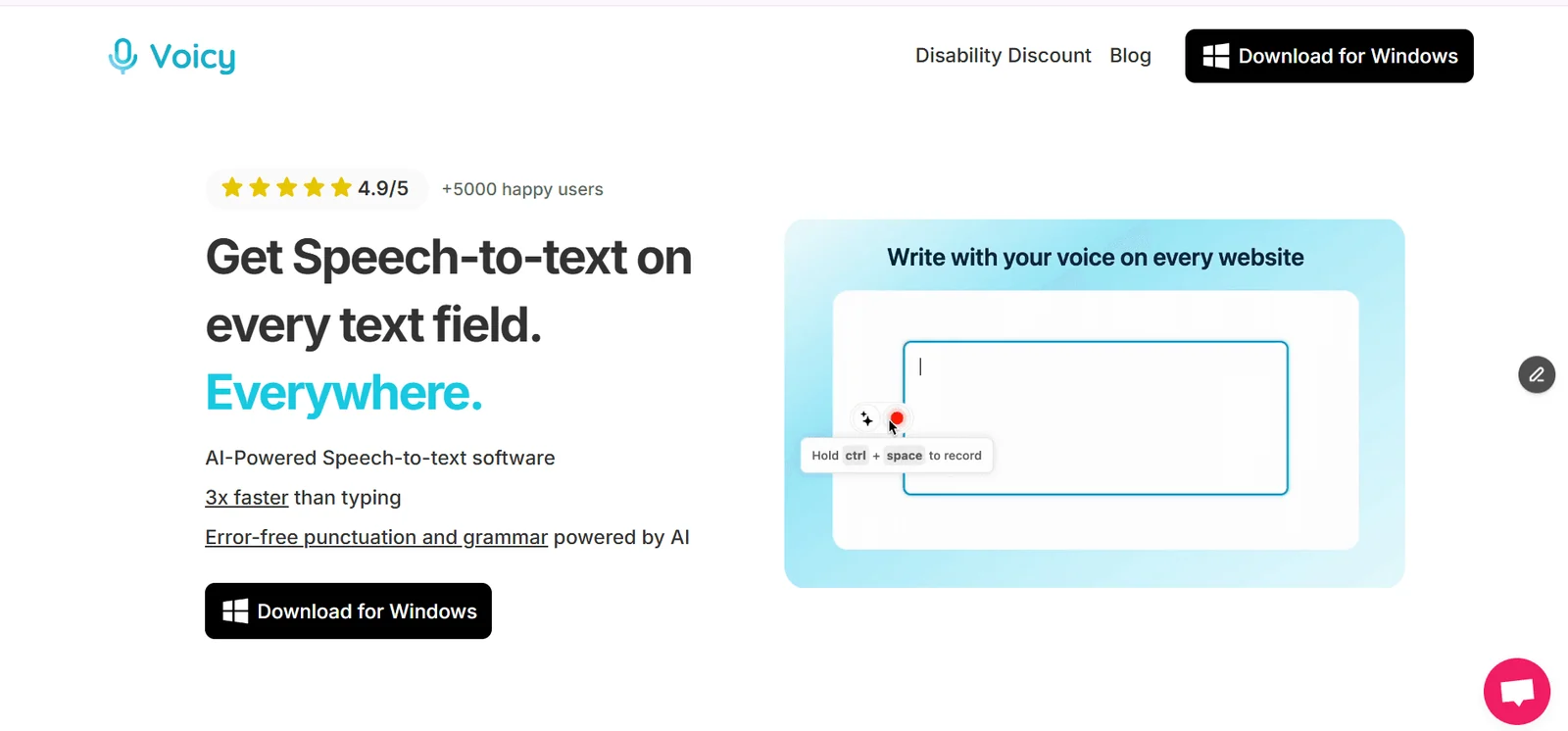
Voicy is the best voice typing app for people who want one tool for real work, not just a microphone inside one document. It works across Mac, Windows, Linux, browser extension workflows, iOS, Android, and uploaded audio files.
The best part is the workflow. You can dictate into Gmail, Slack, Google Docs, Notion, Word, ChatGPT, CRM fields, and browser text boxes without copying text between apps. Voicy also supports AI editing commands, so you can clean up, shorten, or rephrase text after dictating.
Best for
professionals, founders, students, writers, support teams, and anyone who wants voice typing across more than one app.
Pricing: free trial available. Paid plans are $8.49/month, $82/year, or $260 lifetime.
User reviews: Voicy users tend to praise the speed, clean output, and how natural it feels to dictate across daily apps. Voicy uses cloud transcription by default, with an optional offline dictation mode in its Mac, Windows, and Linux apps.
Pros
Works across Mac, Windows, browser extension workflows, iOS, and Android.
Supports live dictation and uploaded audio file transcription.
AI commands help clean up rough speech after dictation.
Good fit for daily writing, not just occasional notes.
Cons
Not fully free, although there is a free trial.
Cloud-based processing means it is not an offline-only tool.
2. Google Docs Voice Typing: best free browser option
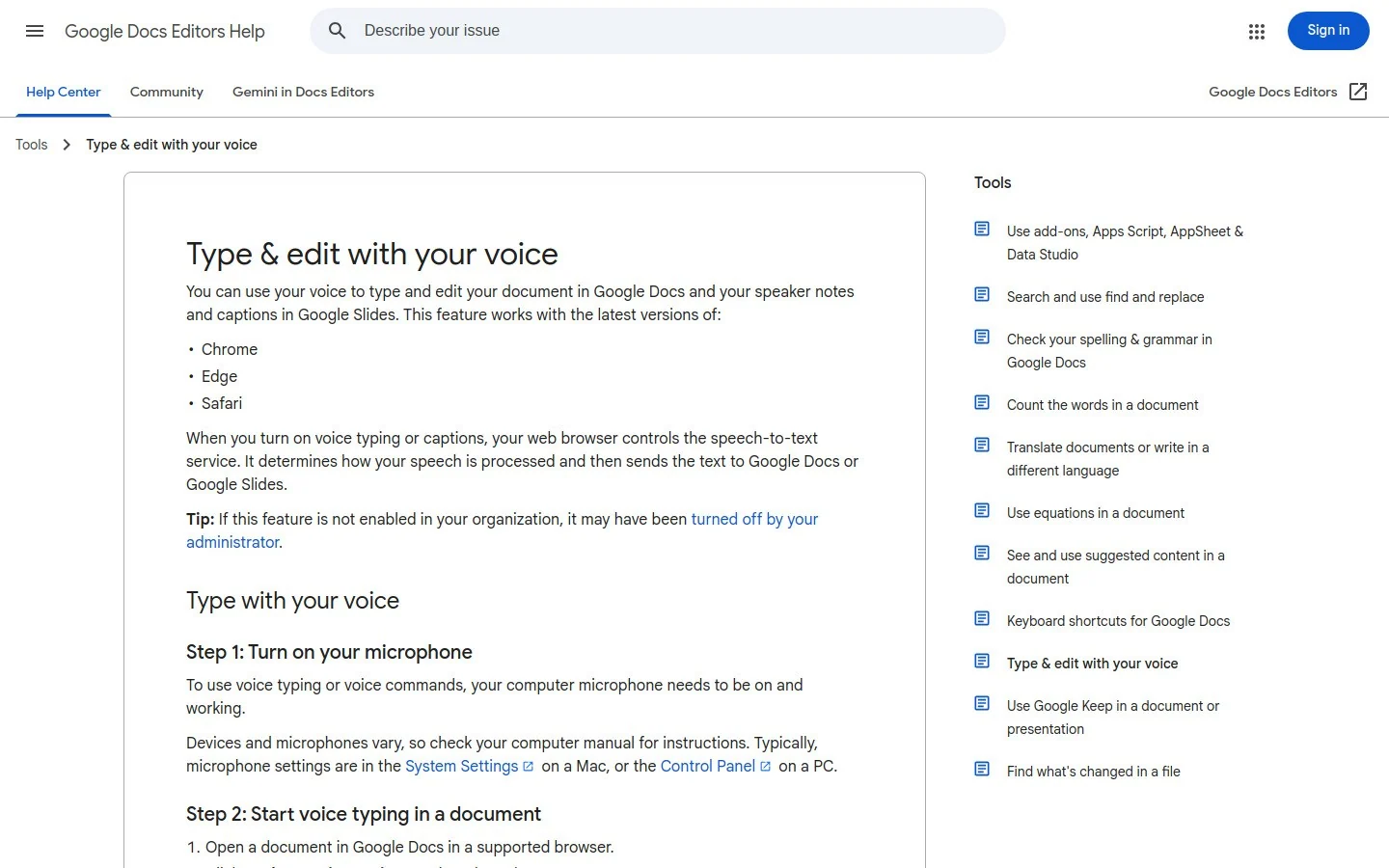
Google Docs Voice Typing is the easiest free option if your writing already happens in Google Docs. Open a Doc, choose Tools, click Voice typing, and start speaking.
It is simple, free, and surprisingly useful for first drafts. The catch is obvious: it mostly belongs inside Google Docs. If you want voice typing in Gmail, Slack, Notion, forms, or desktop apps, you will need a broader tool.
Best for
students, casual writers, and Google Workspace users who only dictate inside Docs.
Pricing: free with a Google account.
User reviews: Google Workspace users often like that it is free and built in. Complaints usually focus on browser limits, uneven command support, and extra cleanup for longer writing.
Pros
Free and easy to start.
No separate app required.
Good for quick drafts inside Google Docs.
Cons
Not a system-wide voice typing app.
Voice commands are stronger in English than in many other languages.
Longer drafts often need cleanup.
3. Gboard: best free mobile voice typing keyboard
Gboard is the most practical free voice typing app for phones. It is a keyboard, so it works in messaging apps, email, notes, search boxes, and most places where you type on mobile.
Gboard is especially strong on Android, where Google's speech recognition is deeply integrated. It is also available on iPhone, though the experience is more limited than on Android.
Best for
mobile messages, quick notes, search, and casual dictation on Android or iPhone.
Pricing: free.
User reviews: Google Play reviewers praise speed, language coverage, and convenience. Negative reviews tend to mention occasional keyboard bugs, prediction mistakes, or changes after updates.
Pros
Free and already familiar for many Android users.
Works in many mobile apps because it is a keyboard.
Strong language support.
Cons
Not built for long professional documents.
Desktop users need a separate voice typing app.
iPhone support is more restricted than Android support.
4. Microsoft SwiftKey: best mobile keyboard for prediction and translation
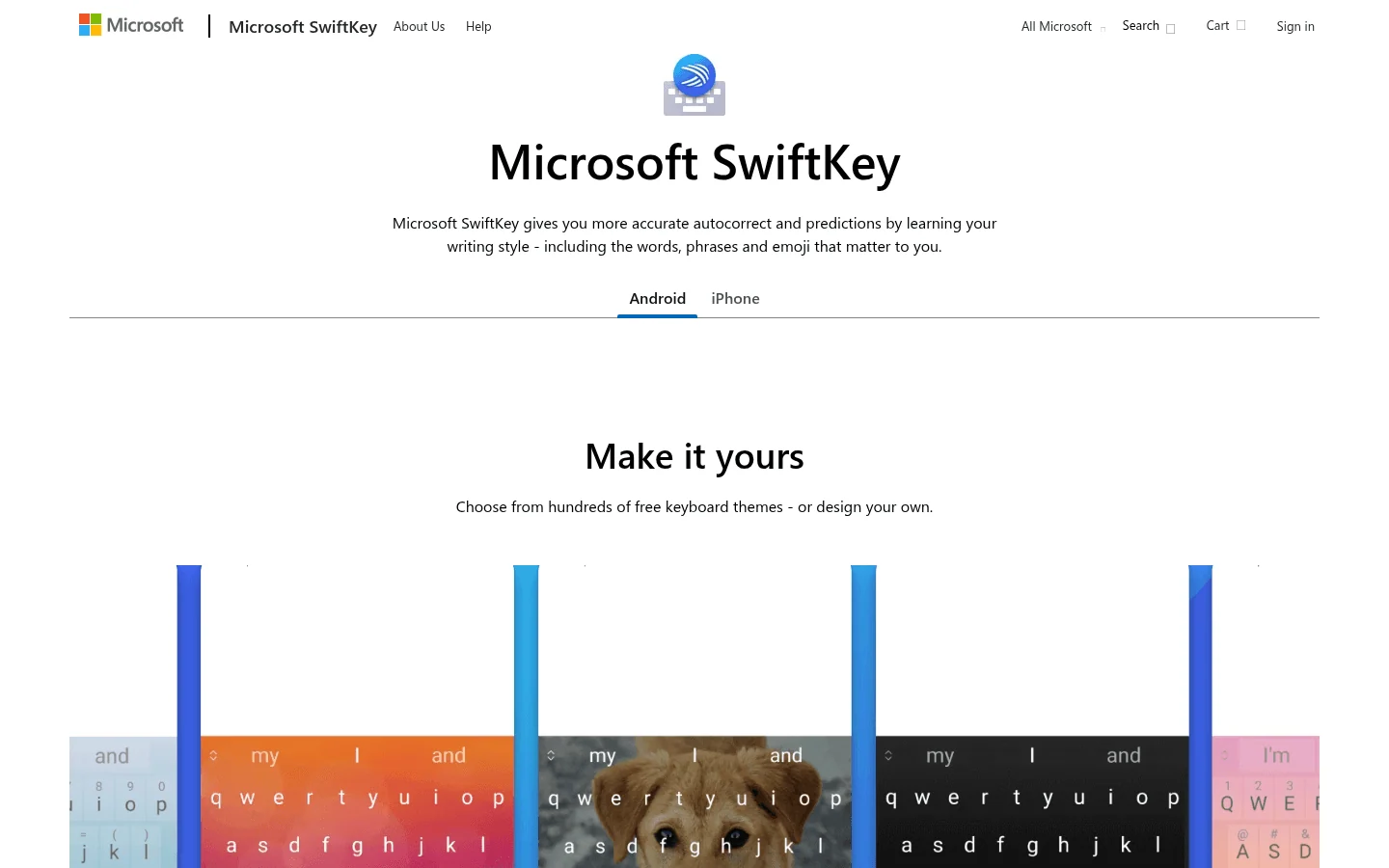
Microsoft SwiftKey is a smart keyboard for Android and iPhone. Voice typing is only one part of the package. You also get strong text prediction, swipe typing, themes, clipboard features, and translation.
SwiftKey is a good pick if you want a better mobile keyboard overall, not just a microphone button. It is less compelling if your main need is long-form voice typing.
Best for
mobile users who want prediction, translation, and voice input in one keyboard.
Pricing: free.
User reviews: Google Play reviewers usually praise the predictions and personalization. Critical reviews often mention sync issues, keyboard layout changes, or voice input being less central than typing features.
Pros
Free mobile keyboard with useful prediction.
Built-in translation can help bilingual workflows.
Good fit for quick replies and mobile writing.
Cons
Voice typing is not the main product focus.
Not useful for desktop writing.
Professional dictation features are limited.
5. Microsoft Word Dictate: best for Microsoft 365 users
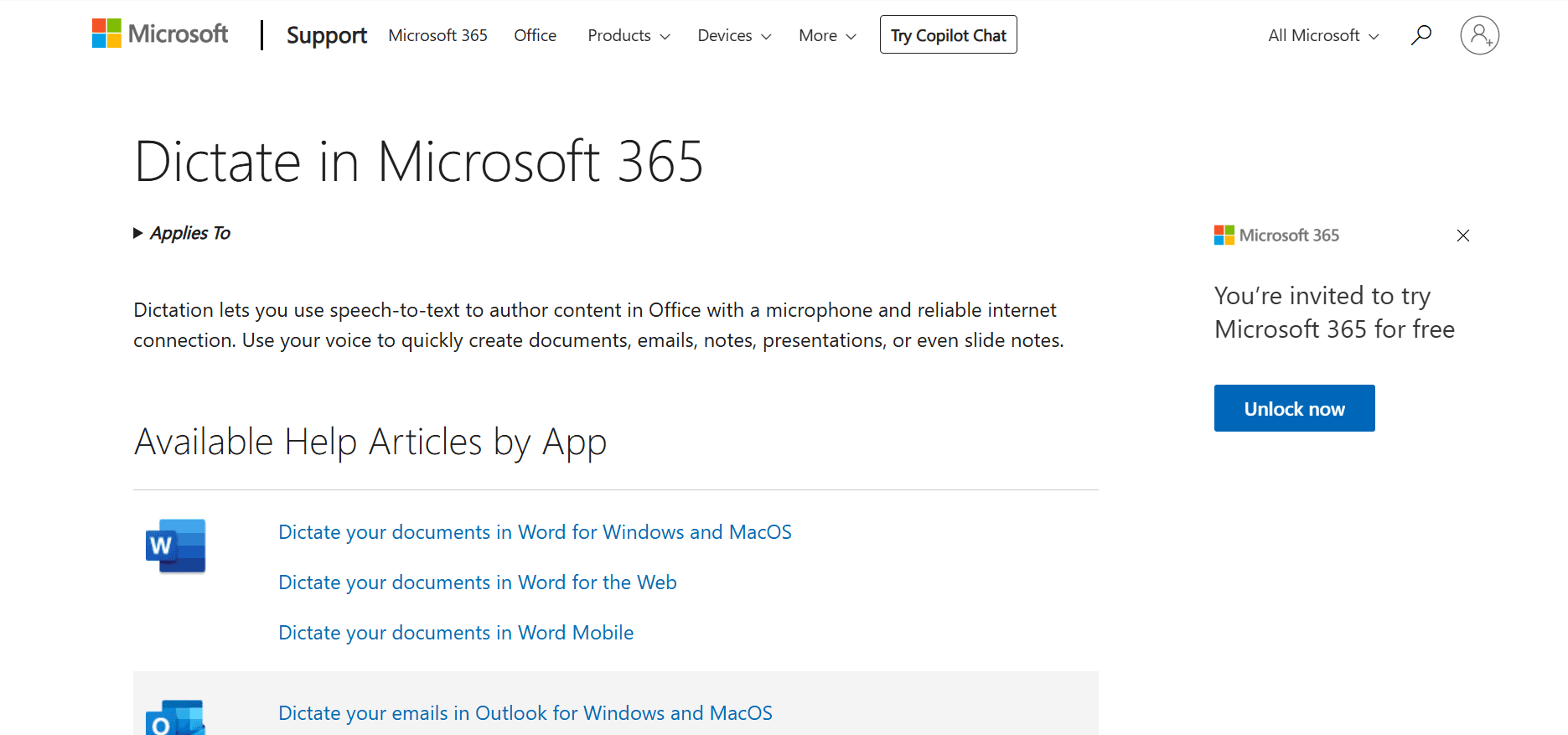
Microsoft Word Dictate is the easiest option if you already write in Word. It is included in Microsoft 365 and gives you basic dictation, punctuation, and formatting commands inside Office.
It is not the best app if your writing happens everywhere. But for people who live in Word and Outlook, it is a sensible place to start.
Best for
Microsoft 365 users, Word documents, Outlook drafts, and Office-heavy teams.
Pricing: included with eligible Microsoft 365 plans.
User reviews: Microsoft 365 users often like that Dictate is already built into Word. The usual complaints are that it is tied to the Microsoft ecosystem and does not feel as flexible as a dedicated cross-app dictation tool.
Pros
Included for many Microsoft 365 users.
Good fit for Word documents and Office workflows.
No separate app setup if your account supports it.
Cons
Best inside Microsoft apps, not everywhere you write.
Not ideal for browser fields, Notion, Slack, or mixed workflows.
Availability depends on your Microsoft 365 plan and setup.
6. Dragon Anywhere: best professional mobile dictation app
Dragon Anywhere is the mobile version of Dragon's professional dictation system. It is made for people who dictate long notes, reports, case summaries, or documents from a phone or tablet.
The big advantage is vocabulary control. You can add names, acronyms, medical terms, legal terms, and industry phrases. That matters for people who dictate specialized language all day.
Best for
lawyers, clinicians, consultants, and professionals who need custom vocabulary on mobile.
Pricing: $14.99/month or $149.99/year in the US.
User reviews: App Store reviewers praise the professional dictation concept and custom words, but complaints often mention subscription cost, login friction, and app reliability.
Pros
Strong custom vocabulary features.
Good fit for long professional dictation on mobile.
Useful for specialized terms.
Cons
More expensive than most mobile options.
Mobile-first, so it is not the easiest desktop writing setup.
Can feel heavy for casual users.
7. Otter.ai: best voice typing app for meetings
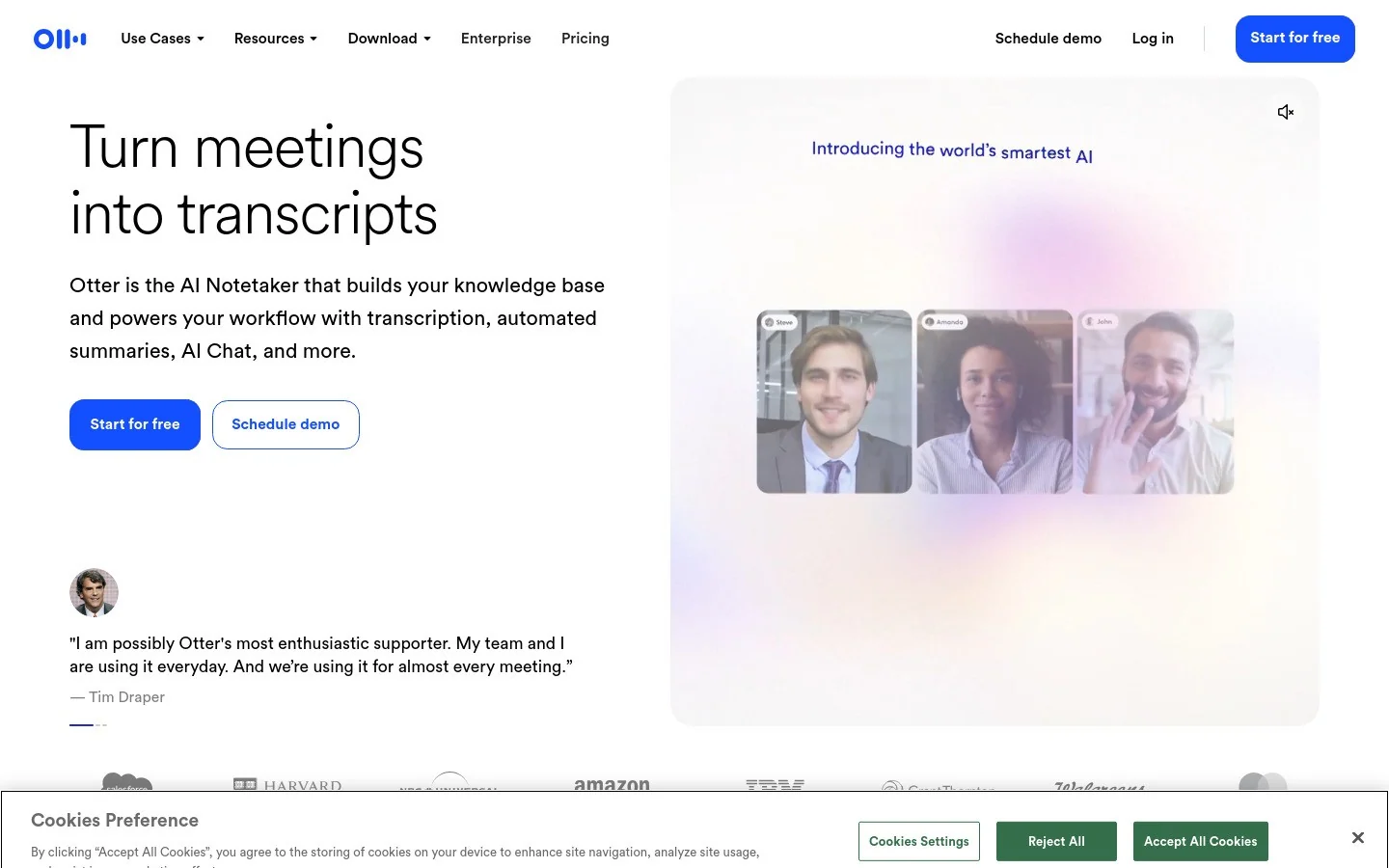
Otter.ai is not really a writing app. It is a meeting transcription tool. That is exactly why it belongs on this list: many people searching for voice typing actually need meeting notes, interview transcripts, or lecture summaries.
Otter can join meetings, label speakers, create transcripts, and summarize key points. It is much weaker if you want to dictate a polished email or write inside any app.
Best for
meetings, interviews, lectures, sales calls, and team notes.
Pricing: free plan available. Paid plans start at $16.99/month when billed monthly.
User reviews: G2 reviewers often praise meeting summaries, searchable transcripts, and integrations. Common complaints mention transcript accuracy in noisy calls, pricing limits, and privacy concerns for sensitive meetings.
Pros
Strong meeting transcription workflow.
Speaker labels and summaries are useful.
Good for teams that need searchable call notes.
Cons
Not designed for everyday document writing.
Accuracy can drop with background noise and overlapping speakers.
Meeting privacy policies need careful review.
8. Wispr Flow: good premium voice typing app for Mac-first users
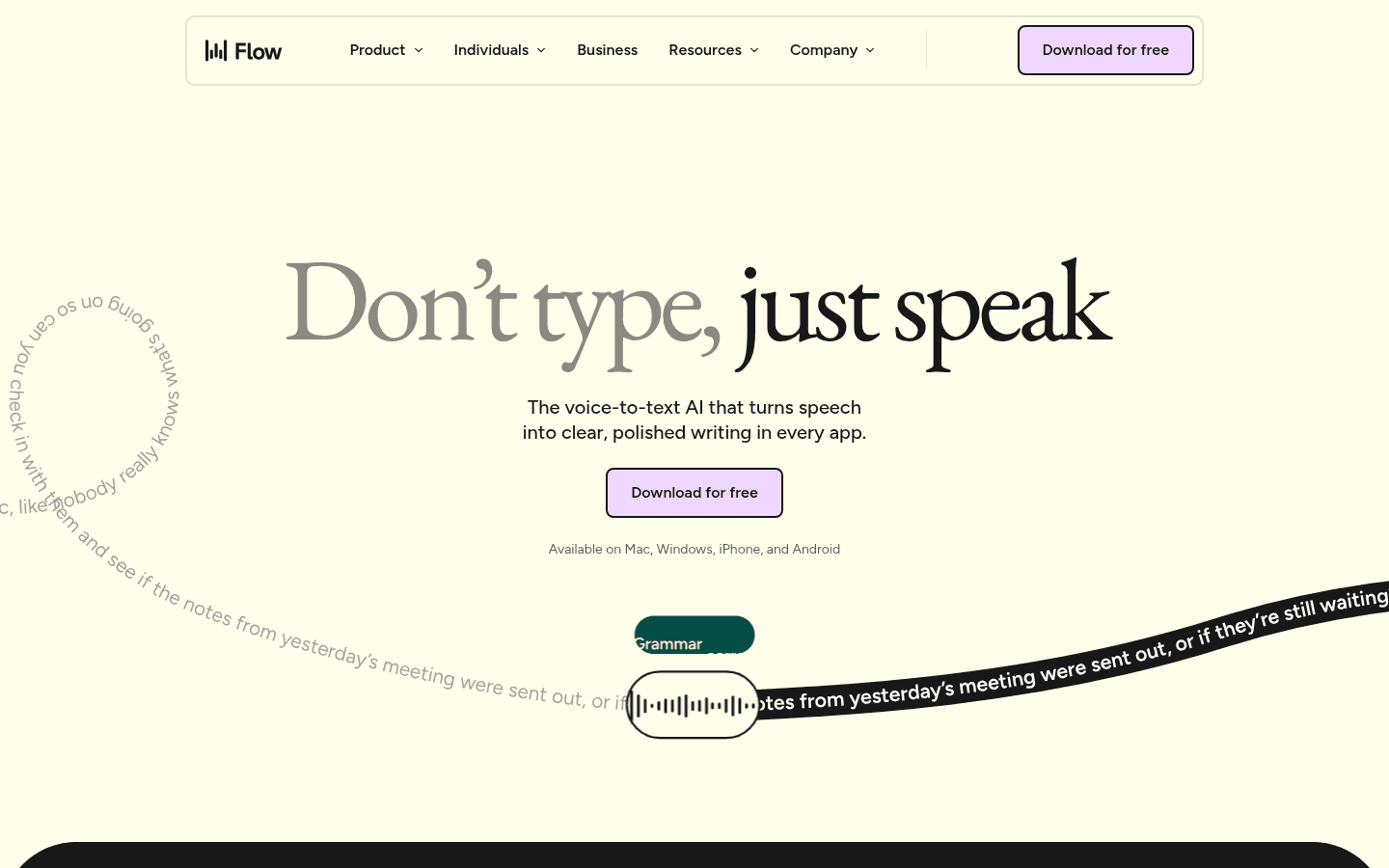
Wispr Flow is a polished voice typing app for people who want fast capture and AI cleanup. It is popular with Mac-first professionals who like a lightweight shortcut-based workflow.
Wispr Flow is a credible option, but it is not the broadest pick for this article. Voicy covers Mac, Windows, Linux, browser extension workflows, iOS, Android, live dictation, and uploaded file transcription. That matters if you want one tool for more of your day.
Best for
Mac-first users who want premium dictation and AI cleanup.
Pricing: free tier available, with paid plans commonly positioned around $15/month depending on plan and billing.
User reviews: Product Hunt users praise the polished dictation experience and speed. The main concerns are pricing, platform fit, and whether it replaces enough of a broader writing workflow.
Pros
Clean premium dictation experience.
Good AI cleanup for rough speech.
Fast shortcut-driven workflow.
Cons
Not the cheapest option.
Mac-first positioning may not fit every team.
Less complete than Voicy if you also need mobile plus uploaded file transcription.
9. Voice In: best browser extension for website voice typing
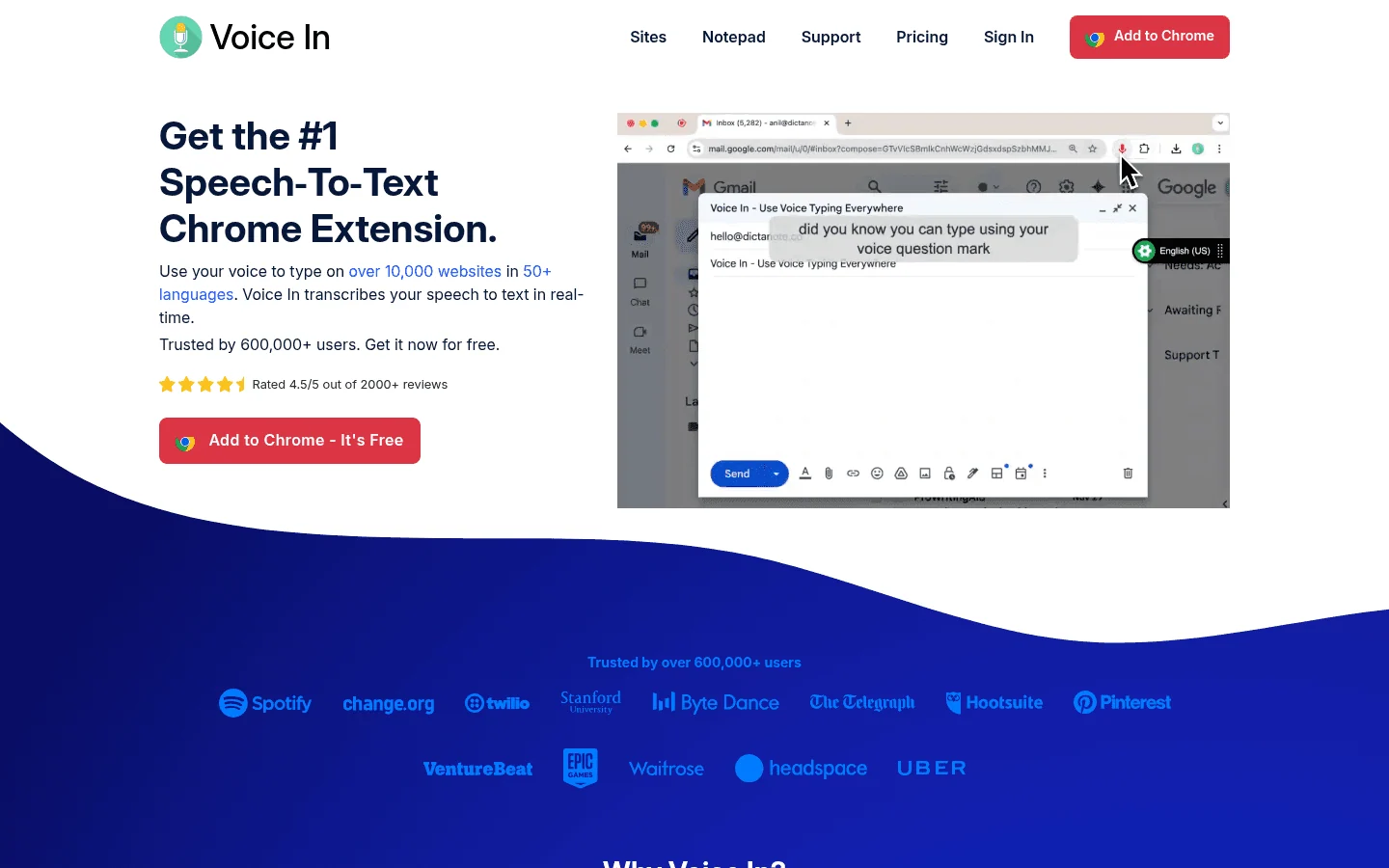
Voice In is a Chrome and Edge extension that adds voice typing to many websites. It is useful if most of your writing happens in browser fields and you do not want a full desktop dictation app.
The tradeoff is that browser extensions live inside the browser. If you write in native desktop apps, mobile apps, or uploaded audio workflows, Voice In will not cover everything.
Best for
browser-first users, web forms, webmail, and online tools.
Pricing: free version available. Premium is commonly listed at $48/year.
User reviews: Chrome Web Store reviewers praise the convenience across websites. Negative reviews usually mention browser permissions, occasional site compatibility issues, and limits in the free version.
Pros
Works across many websites.
Good option if you live in Chrome or Edge.
Lower cost than many full dictation apps.
Cons
Browser-only workflow.
Less useful for desktop apps and mobile apps.
Site compatibility can vary.
10. Notta: best for multilingual transcription
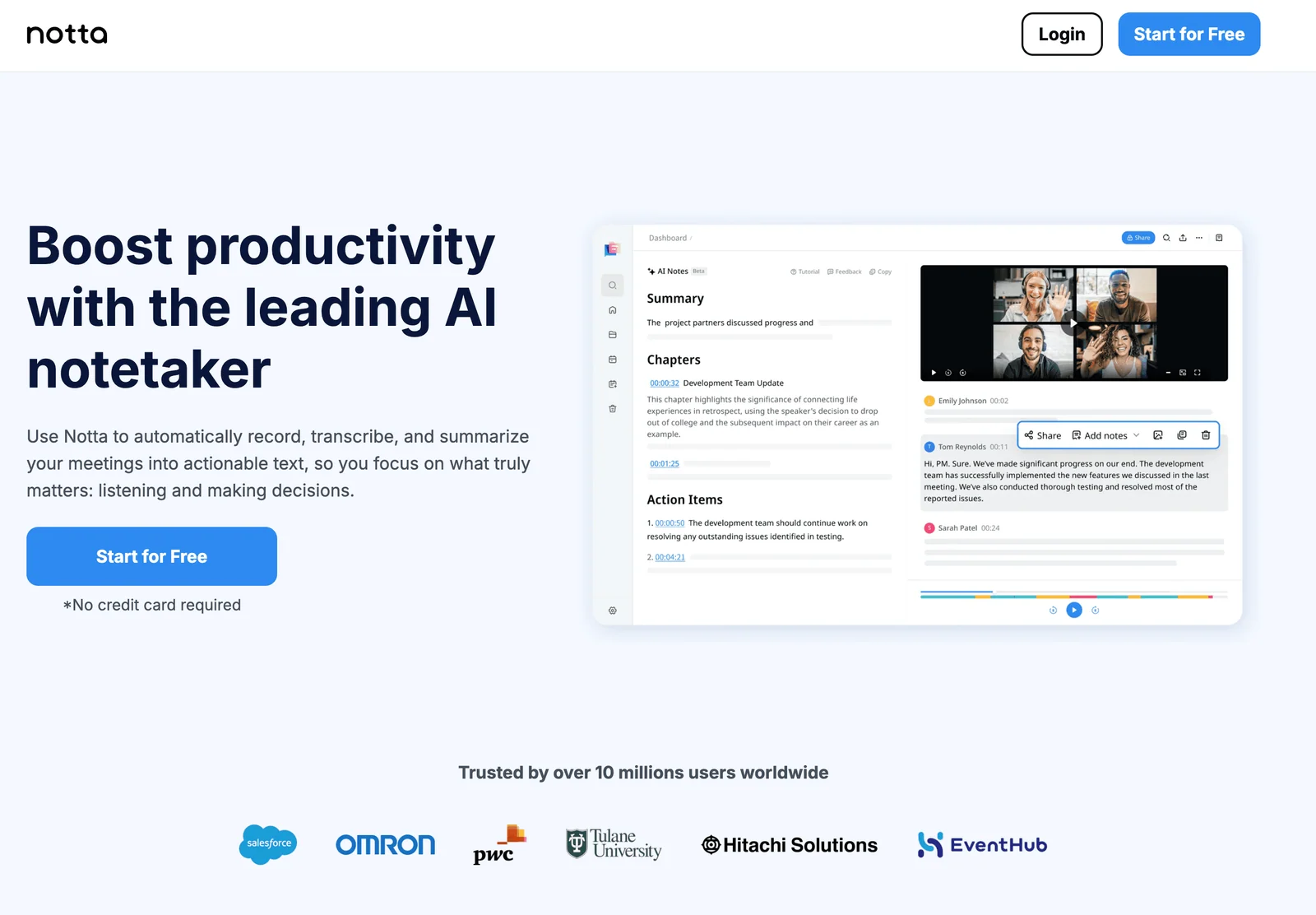
Notta is a transcription app for meetings, interviews, lectures, and uploaded audio or video files. It is especially useful if you work across multiple languages.
Like Otter, Notta is more of a transcript tool than a writing layer. It is great when you need to capture spoken content, less ideal when you want to dictate a polished paragraph into whatever app is open.
Best for
multilingual meetings, interviews, lectures, and uploaded audio files.
Pricing: free plan available. Pro starts at $13.99/month when billed monthly.
User reviews: G2 reviewers often like the language support, file uploads, and summaries. Complaints usually mention free-plan limits, occasional accuracy problems, and transcript cleanup.
Pros
Strong language coverage.
Supports uploaded audio and video files.
Useful for interviews and research.
Cons
More transcription-focused than writing-focused.
Free plan limits can feel tight.
Outputs still need review for important work.
Voice typing app comparison table
App | Best for | Platforms | Free option | Paid price |
|---|---|---|---|---|
Daily cross-app writing | Mac, Windows, Linux, browser extension, iOS, Android | Free trial | $8.49/mo, $82/year, $260 lifetime | |
Free dictation in Docs | Browser, inside Google Docs | Yes | Free | |
Mobile voice typing | Android, iOS | Yes | Free | |
Mobile prediction and translation | Android, iOS | Yes | Free | |
Microsoft 365 documents | Word, Office apps | Included with eligible plans | Microsoft 365 plan | |
Professional mobile dictation | iOS, Android | Trial may vary | $14.99/mo | |
Meetings and interviews | Web, iOS, Android | Yes | From $16.99/mo | |
Premium AI dictation | Mac, Windows, iOS | Yes | Around $15/mo | |
Browser voice typing | Chrome, Edge | Yes | $48/year | |
Multilingual transcription | Web, iOS, Android | Yes | From $13.99/mo |
How to choose the right voice typing app
Choose based on free vs paid
Pick a free voice typing app if your needs are light: messages, quick notes, short documents, or occasional brainstorming. Gboard, SwiftKey, Apple Dictation, Windows Voice Typing, and Google Docs Voice Typing are good enough for that.
Pick a paid app if dictation has become a serious part of your work. Paid tools are better when you need cross-app writing, cleaner punctuation, custom vocabulary, AI cleanup, team workflows, or file transcription.
Choose based on platform
If you write across Mac, Windows, browser fields, iOS, Android, and uploaded audio, start with Voicy. If you only write in Google Docs, start with Google Docs Voice Typing. If you only dictate on a phone, start with Gboard or SwiftKey.
For platform-specific setup, see Voicy's guides to speech to text in Google Docs, voice typing in Microsoft Word, Windows speech to text, and Mac speech to text apps.
Choose based on privacy
Privacy depends on processing. Some built-in tools can handle parts of voice typing on device. Many AI tools use cloud transcription because it improves accuracy and formatting.
For sensitive work, check the privacy policy before you dictate. Also think about what you are dictating: casual notes, customer data, medical details, legal information, or company strategy do not carry the same risk.
Choose based on use case
For daily writing, choose Voicy. For meetings, choose Otter or Notta. For Microsoft Word, try Word Dictate first. For free browser dictation, use Google Docs Voice Typing. For mobile replies, use Gboard or SwiftKey. For professional mobile vocabulary, use Dragon Anywhere.
Tips for better voice typing results
Use a decent microphone. Your laptop mic can work, but a headset or external mic improves accuracy. See our guide to the best microphones for dictation.
Speak naturally. Modern speech recognition handles normal speech better than stiff, over-enunciated dictation.
Start with short workflows. Try emails, notes, and summaries before dictating long documents.
Learn a few commands. New paragraph, comma, period, delete that, and bold that can save real editing time.
Review before sending. No voice typing app is perfect, especially with names, numbers, and technical terms.
Fix the setup if accuracy drops. If voice typing stops working well, use our voice typing troubleshooting guide.
FAQ
What is the best voice typing app in 2026?
Voicy is the best voice typing app for most work writing because it works across Mac, Windows, Linux, browser workflows, iOS, Android, and uploaded audio files. Free built-in tools are better if you only need short dictation in one app.
Is there a free voice typing app?
Yes. Google Docs Voice Typing, Gboard, Apple Dictation, Windows Voice Typing, and Microsoft SwiftKey are good free options. They are best for casual use, while paid apps usually give cleaner formatting, broader app coverage, and more workflow features.
What is the difference between voice typing and dictation?
Voice typing and dictation usually mean the same thing: speaking into a device so your words become text. Dictation is the older term, while voice typing is more common for modern apps, keyboards, and browser tools.
Which voice typing app works on Mac and Windows?
Voicy works on Mac, Windows, Linux, browser extension workflows, iOS, and Android. Wispr Flow also supports Mac and Windows, while Apple Dictation and Windows Voice Typing are limited to their own platforms.
Can voice typing apps transcribe uploaded audio files?
Some can. Voicy supports uploaded audio file transcription as well as live dictation. Otter.ai and Notta also handle uploaded recordings, but they are more meeting-focused than writing-focused.
Are voice typing apps private?
It depends on the app. Apple Dictation can process some dictation on device. Cloud tools like Voicy, Google Docs Voice Typing, Wispr Flow, Otter.ai, and Notta send audio to servers for transcription, so check each app's privacy policy before using sensitive audio.
What is the best voice typing app for mobile?
Gboard is the easiest free mobile voice typing app for Android and iPhone. SwiftKey is also strong if you want prediction and translation features. Dragon Anywhere is better for professionals who need custom vocabulary on mobile.
What is the best voice typing app for meetings?
Otter.ai is the best voice typing app for meetings because it focuses on live transcripts, speaker labels, summaries, and calendar integrations. Notta is a strong option for multilingual meetings and uploaded files.
Is voice typing faster than typing?
Yes. Most people type around 40 words per minute and speak around 125 to 150 words per minute. Even after cleanup, voice typing is often two to three times faster for emails, notes, drafts, and long-form writing.
Should I use a free or paid voice typing app?
Use a free voice typing app if you dictate short notes or occasional documents. Upgrade to a paid app if you write every day, need cross-app dictation, want better punctuation, use custom vocabulary, or also need uploaded file transcription.
Bottom line
The best voice typing app is the one that fits where you already write.
If you want the strongest all-around choice for daily work, start with Voicy. It covers live dictation, AI cleanup, desktop workflows, browser writing, mobile use, and uploaded audio file transcription.
If you want something free, start with the tool already closest to your workflow: Google Docs Voice Typing for documents, Gboard or SwiftKey for mobile, Apple Dictation for Mac and iPhone, or Windows Voice Typing for Windows.
For broader comparisons, read our guides to the best talk to text apps, the best dictation software, and dictation software for serious writing workflows.
 Download for free
 Download for free
 Download for Ubuntu/Debian
 Add to Chrome for free