Summary
Best overall: Voicy - AI dictation for everyday writing across desktop, browser, mobile, and uploaded audio files.
Best free Mac option: Apple Dictation - built into macOS and iOS, good for short notes and basic voice typing.
Best free Windows option: Windows Voice Access - free system voice typing and computer control in Windows 11.
Best free browser option: Google Docs Voice Typing - simple, free dictation inside Google Docs.
Best specialist Windows tool: Dragon Professional - expensive, powerful, and still useful for legal, medical, and high-volume dictation.
Best cross-platform alternative: Wispr Flow - polished AI dictation for people who want a voice keyboard across devices.
Best local Mac option: Superwhisper - strong for privacy-first Mac users who want local Whisper-based dictation.
Best Mac transcription companion: MacWhisper - simple local audio transcription on Mac, with dictation-adjacent workflows.
Best for meetings: Otter.ai - useful for calls, interviews, and meeting notes, not the best daily writing tool.
Best generous free tier to test: Typeless - worth comparing if you want a modern AI dictation app with a broad free allowance.
Free mobile option: Gboard — tap the keyboard microphone to dictate into phone apps on Android or iPhone; features vary by language and device.
The best dictation software in 2026 should do more than dump a raw transcript into a box. It should help you write emails, documents, notes, prompts, reports, and comments with less cleanup than typing by hand.
For most people, Voicy is the best overall pick because it works across Mac, Windows, Linux, browser fields, iOS, Android, and uploaded audio files. If you only need a free tool, start with Apple Dictation, Windows Voice Access, or Google Docs Voice Typing. If you need specialized Windows dictation with heavy command support, Dragon is still the old heavyweight.
Top Picks At A Glance
| Tool | Best for | Free or paid | Platforms | Privacy / offline | Key strength |
|---|---|---|---|---|---|
| Voicy | Best overall AI dictation | Free trial, then $8.49/month | Mac, Windows, Linux, browser extension, iOS, Android | Offline mode on Mac, Windows & Linux | Works across writing surfaces plus uploaded audio files |
| Wispr Flow | Cross-device AI dictation | Free tier, then $15/month | Mac, Windows, iOS, Android | Cloud-based | Polished voice keyboard experience |
| Apple Dictation | Free Mac and iPhone dictation | Free | Mac, iPhone, iPad | Device/settings dependent | Built in and easy to try |
| Windows Voice Access | Free Windows dictation | Free | Windows 11 | Offline after model download | System-wide voice typing and PC control |
| Google Docs Voice Typing | Free Google Docs writing | Free | Browser | Browser-managed recognition | Fast setup inside Google Docs |
| Dragon Professional | Specialist Windows dictation | Paid | Windows | Local/offline desktop software | Deep vocabulary and command workflows |
| Superwhisper | Local Mac dictation | Pro $8.49/month; yearly/lifetime options | Mac, Windows, iOS, Android | Local options | Privacy-first power user controls |
| MacWhisper | Mac audio transcription | Free/paid options vary | Mac | Local options | Clean Whisper transcription for files |
| Otter.ai | Meetings and interviews | Free tier, then paid | Web, iOS, Android | Cloud-based | Speaker labels and meeting notes |
| Typeless | Trying a modern AI dictation app | Free tier, then paid | Mac, Windows, mobile, web | Cloud-based | Generous free allowance |
| Gboard | Free phone dictation | Free | Android, iPhone, iPad | Device/language dependent | Voice input from the phone keyboard |
Key Takeaways
Paid is worth it if you dictate every day, need cleaner output, or want dictation in more than one app.
Free tools are enough for short notes, light Google Docs writing, quick phone messages, and occasional accessibility support.
Privacy is not one thing. Some tools run locally, some process in the cloud, and some offer different modes. Check before dictating sensitive material.
System-wide support matters. The best dictation app works in the places where you already write, not only in its own blank editor.
Custom vocabulary matters more than people think. Names, client terms, acronyms, medication names, product names, and code terms are where generic voice typing breaks down.
Review summaries are useful, but current pricing changes fast. Verify every plan before buying.
Watch: Best Dictation Apps In Action
This quick video shows how voice-first writing feels when the dictation app works across normal writing tasks instead of living in a separate recorder.
The 10 Best Dictation Software Tools In 2026
1. Voicy: Best Overall Dictation App For Everyday Writing
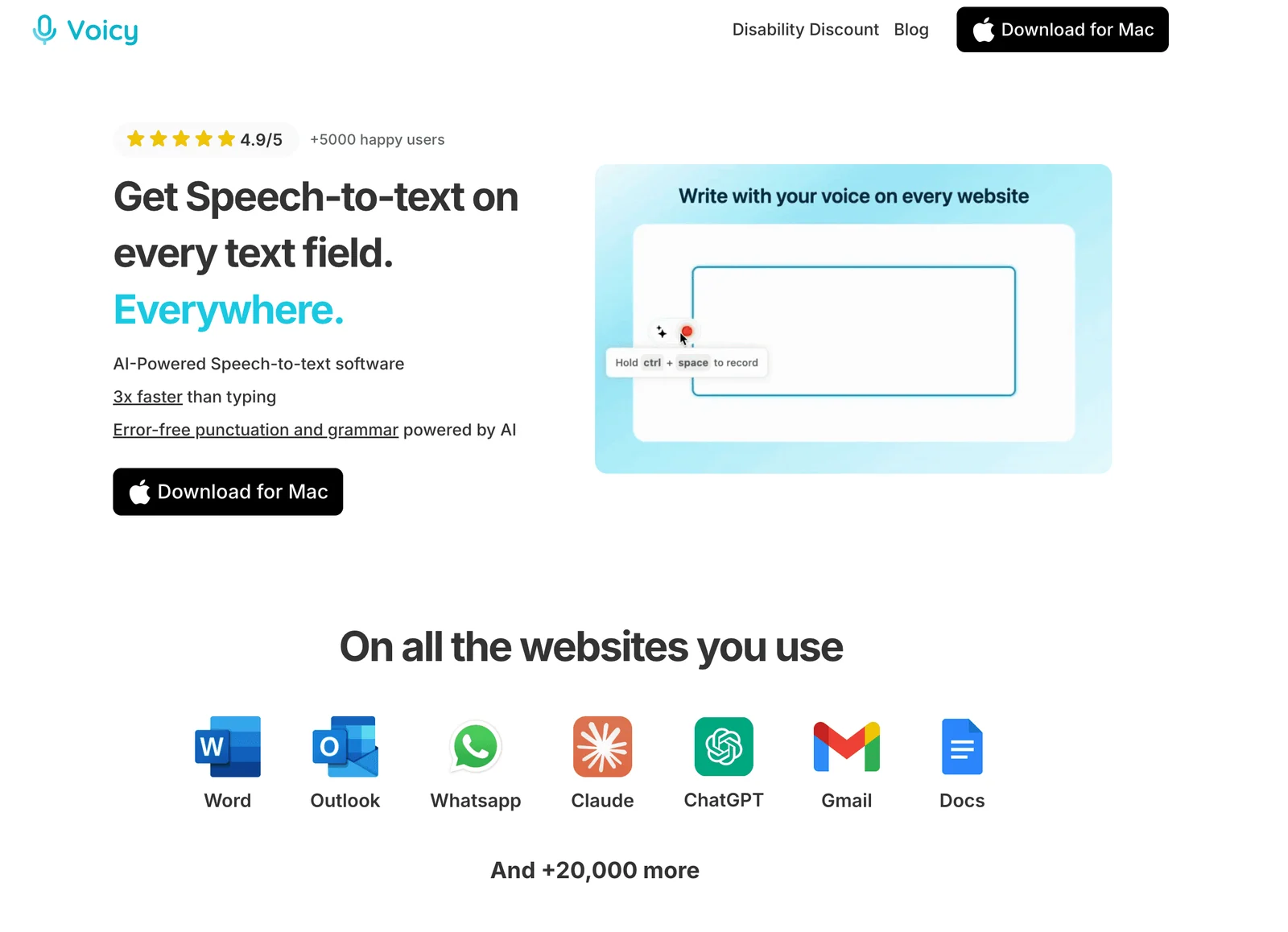
Voicy is the best dictation software for people who want voice writing across normal work: email, documents, browser fields, notes, AI prompts, and uploaded audio files. It is built for people who want to write faster without learning a complicated voice-command system.
Key Features
AI dictation for Mac, Windows, Linux, browser extension, iOS, and Android.
Live dictation for everyday writing surfaces.
Uploaded audio file transcription.
Automatic punctuation and cleaner formatting.
Custom vocabulary for names, jargon, and repeated terms.
Free trial before paid plans.
Pros
Works across all apps and websites
Fast & accurate in 50 languages
Desktop & Mobile support
Universal support on Mac, Windows, Linux, iOS, Android
Easy setup
Cons
Cloud mode needs internet. Offline dictation requires the desktop app and the offline mode; do not assume the same capability on mobile or in the extension.
It is not fully free after the trial.
Pricing
Voicy has a free trial, then paid plans at $8.49/month, $82/year, or $260 lifetime.
User Reviews
Reviews: Voicy reviews on the Chrome Web Store.
Users tend to praise Voicy for speed, ease of use, and clean output that needs less editing than basic voice typing. The main thing to be clear about is processing: Voicy is cloud by default, with an optional offline dictation mode in its desktop apps.
Best For
Accuracy and speed are a high priority.
Works across all apps on desktop and in the browser.
One dictation app for daily work across desktop, browser, and mobile.
Live dictation and uploaded audio file transcription in one workflow.
Practical writing speed without complicated voice-command setup.
2. Apple Dictation: Best Free Dictation App For Mac And iPhone
Apple Dictation is the easiest free option for Apple users. It is already on your Mac, iPhone, and iPad, so you can test voice typing without signing up for anything.
Quick Setup
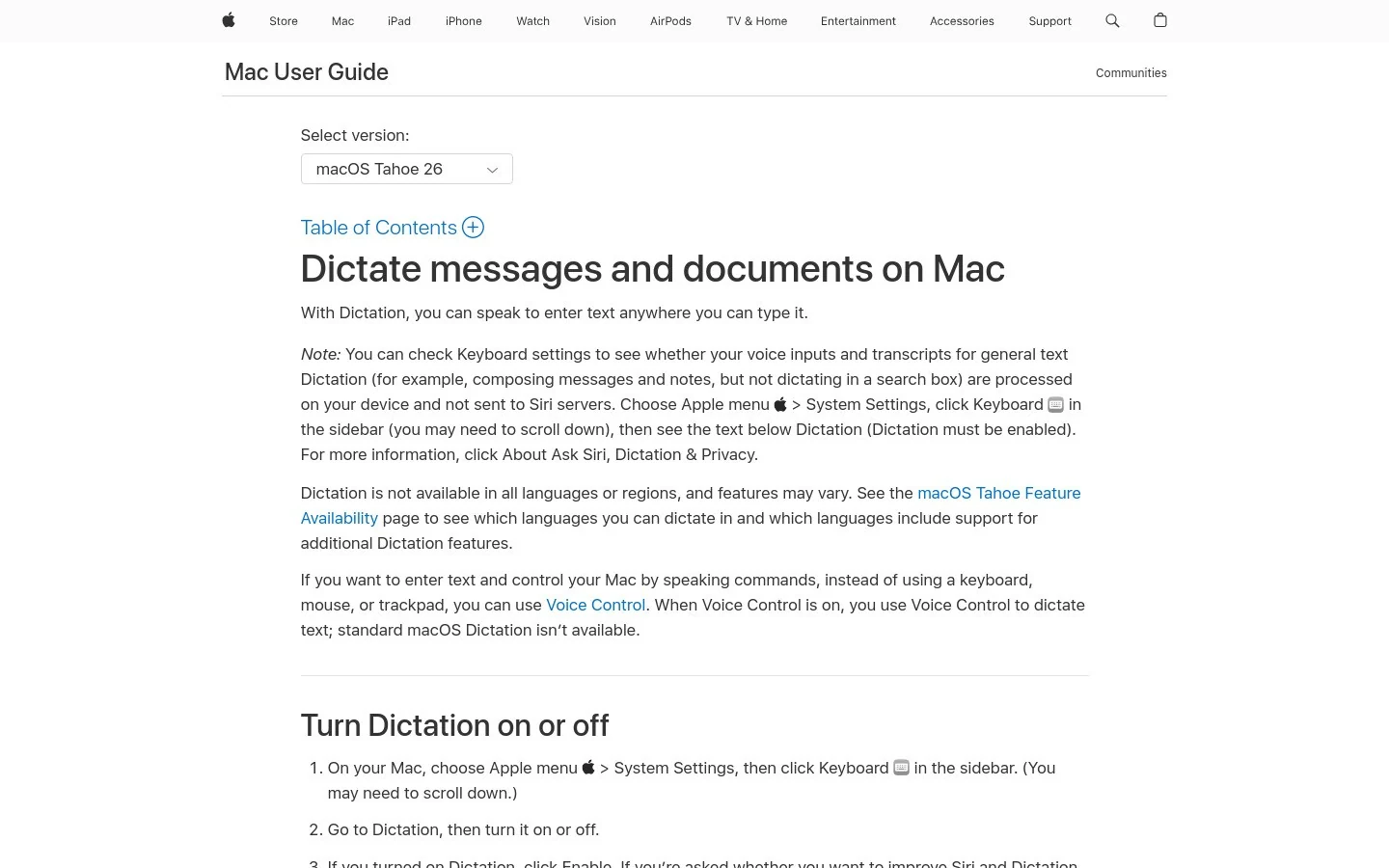
On Mac, open System Settings → Keyboard → Dictation and turn it on. Choose the microphone and shortcut, click a text field, then use that shortcut or Edit → Start Dictation. Apple’s setup guide.
Key Features
Built into macOS, iOS, and iPadOS.
Works from the system keyboard or Dictation settings.
Good for short notes, messages, and simple document drafts.
Voice Control offers deeper accessibility features.
No separate subscription for basic use.
Pros
Free and already installed.
Very fast to try.
Good enough for short everyday dictation.
Useful for people who do not want another app.
Cons
Less polished for long-form professional writing.
Custom vocabulary and workflow control are limited compared with paid tools.
Works best inside the Apple ecosystem.
Pricing
Free with Apple devices.
User Reviews
Review link: Apple Dictation support page.
Because Apple Dictation is built into the operating system, reviews are scattered across Apple support discussions and accessibility communities. Users like that it is free and convenient. Complaints usually focus on inconsistent formatting, limited control, and weaker performance for long or specialist writing.
Best For
Mac or iPhone users who want a free way to try dictation.
Basic voice typing before upgrading for cleaner output, custom vocabulary, or support across more apps.
3. Windows Voice Access: Best Free Dictation Software For Windows
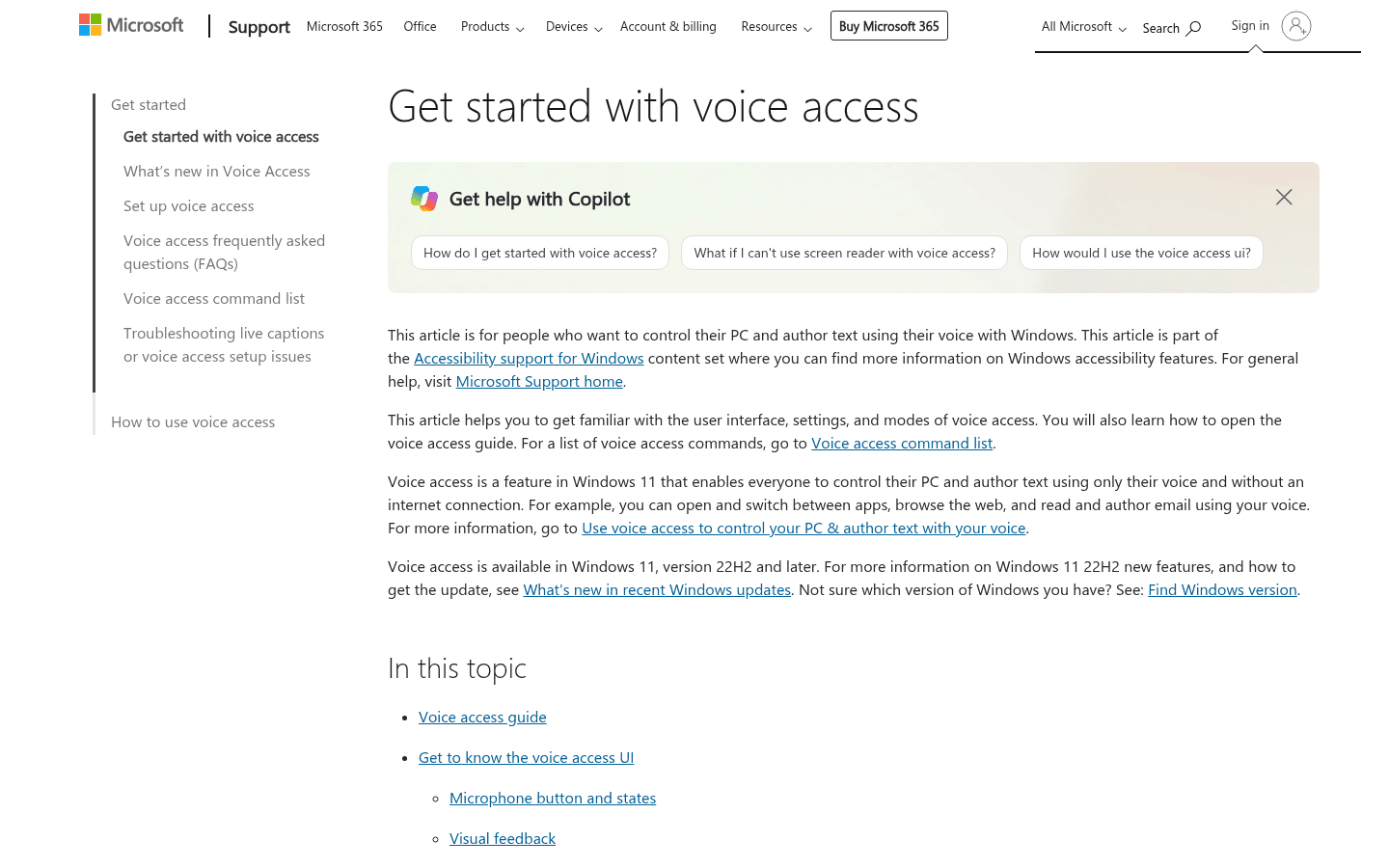
Windows Voice Access is the free starting point for Windows users. It handles both dictation and voice control, which makes it useful for accessibility as well as basic writing.
Quick Setup
On Windows 11, open Settings → Accessibility → Speech → Voice access, turn it on, and download the speech model during first setup. Then follow the microphone setup. Voice access can recognize speech offline afterward. Windows + H opens the separate Voice typing feature, which needs internet; it is not the Voice access shortcut. Voice access setup · Windows Voice typing.
Key Features
Built into Windows 11.
Voice typing and computer control.
Works across Windows apps.
Useful for accessibility workflows.
No extra purchase needed.
Pros
Free for Windows users.
Works beyond one document editor.
Can help people who need hands-free computer control.
Good first step before paying for Dragon or Voicy.
Cons
Output can be rough compared with newer AI dictation apps.
Microphone quality and background noise matter a lot.
Less useful if your workflow moves across Mac, browser, and mobile.
Pricing
Free with Windows 11.
User Reviews
Review link: Microsoft Voice Access support page.
Windows users like that Voice Access is built in and improving. The common complaint is that it still feels more like a system accessibility feature than a polished writing app.
Best For
Free dictation on Windows.
Basic hands-free computer control.
For long daily emails, reports, or client notes, compare Voicy for Windows speech to text.
4. Google Docs Voice Typing: Best Free Browser Option
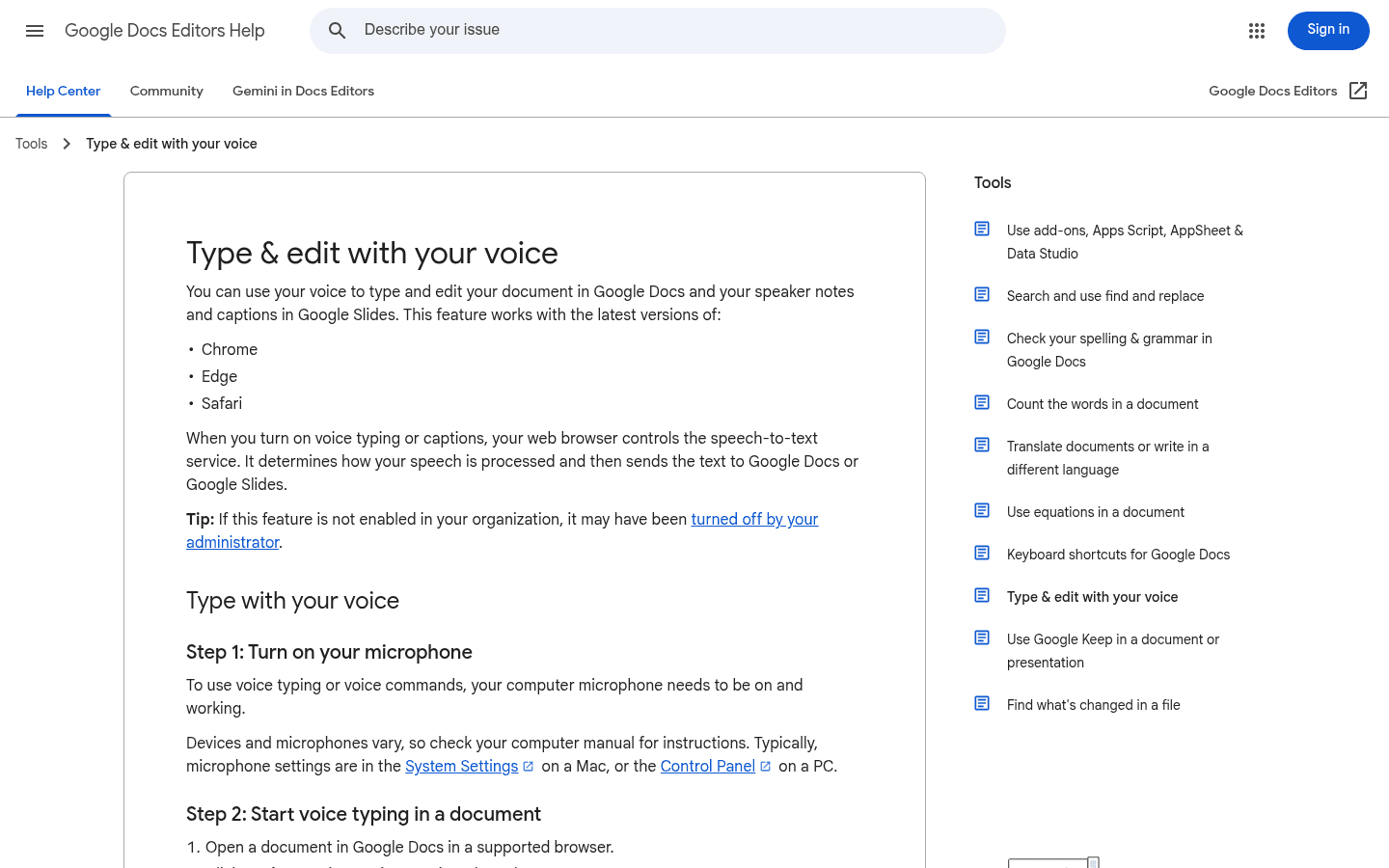
Google Docs Voice Typing is the best free option if your writing already happens inside Google Docs. Open a doc, turn on voice typing, and start speaking.
Quick Setup
Open a Google Doc in a recent Chrome, Edge, or Safari browser. Choose Tools → Voice typing, select the language, click the microphone, and allow microphone access. Click it again to stop. Your browser controls speech processing and sends text to Docs. Google’s instructions.
Key Features
Free inside Google Docs.
Works in the browser.
Supports many languages.
Simple voice commands for punctuation and formatting.
No separate desktop install.
Pros
Free and easy to access.
Good enough for basic drafts.
Useful for students and Google Workspace users.
Great way to test whether dictation fits your workflow.
Cons
Mostly limited to Google Docs.
Not ideal for Gmail, Slack, Notion, Word, forms, or app-wide writing.
Speech processing is controlled by your browser; check its settings and policy.
Cleanup can take time on longer drafts.
Pricing
Free with Google Docs.
User Reviews
Review link: Google Docs Voice Typing help page.
Users like that it is free, quick, and built into a tool they already use. The usual complaints are that it only solves one slice of the writing workflow and that formatting still needs manual cleanup.
Best For
Writing mainly in Google Docs.
A free speech-to-text tool inside your documents.
For dictation outside Docs, explore our Google Docs speech-to-text guide and compare dedicated tools.
5. Dragon Professional: Best For Specialist Windows Dictation
Dragon Professional has been around for a long time because it solves a real problem: heavy professional dictation on Windows with custom vocabulary and voice commands.
Key Features
Professional Windows dictation.
Custom words and specialist vocabulary.
Advanced voice commands.
Offline desktop workflows.
Industry editions for some legal and medical needs.
Pros
Still strong for high-volume Windows dictation.
Good for specialist words after setup.
More mature command workflows than most newer tools.
Useful in environments where offline desktop software matters.
Cons
Expensive compared with modern AI dictation apps.
More setup and learning curve.
Not the cleanest fit for Mac, browser, mobile, or quick AI writing workflows.
Pricing
Dragon pricing varies by edition and region. Professional desktop versions are usually much more expensive than subscription dictation apps, so verify current pricing before buying.
User Reviews
Review links: Dragon Professional on Capterra and Dragon on G2.
Users praise Dragon for accuracy, vocabulary training, and long professional use. Complaints tend to mention cost, setup time, older-feeling UX, and the fact that it can be more tool than many people need.
Best For
High-volume dictation on Windows in a specialist field.
Deep command and vocabulary support, with a budget for professional software.
For everyday writing, consider Voicy, Windows Voice Access, or a lighter AI dictation app first.
6. Wispr Flow: Best Cross-Platform AI Dictation Alternative
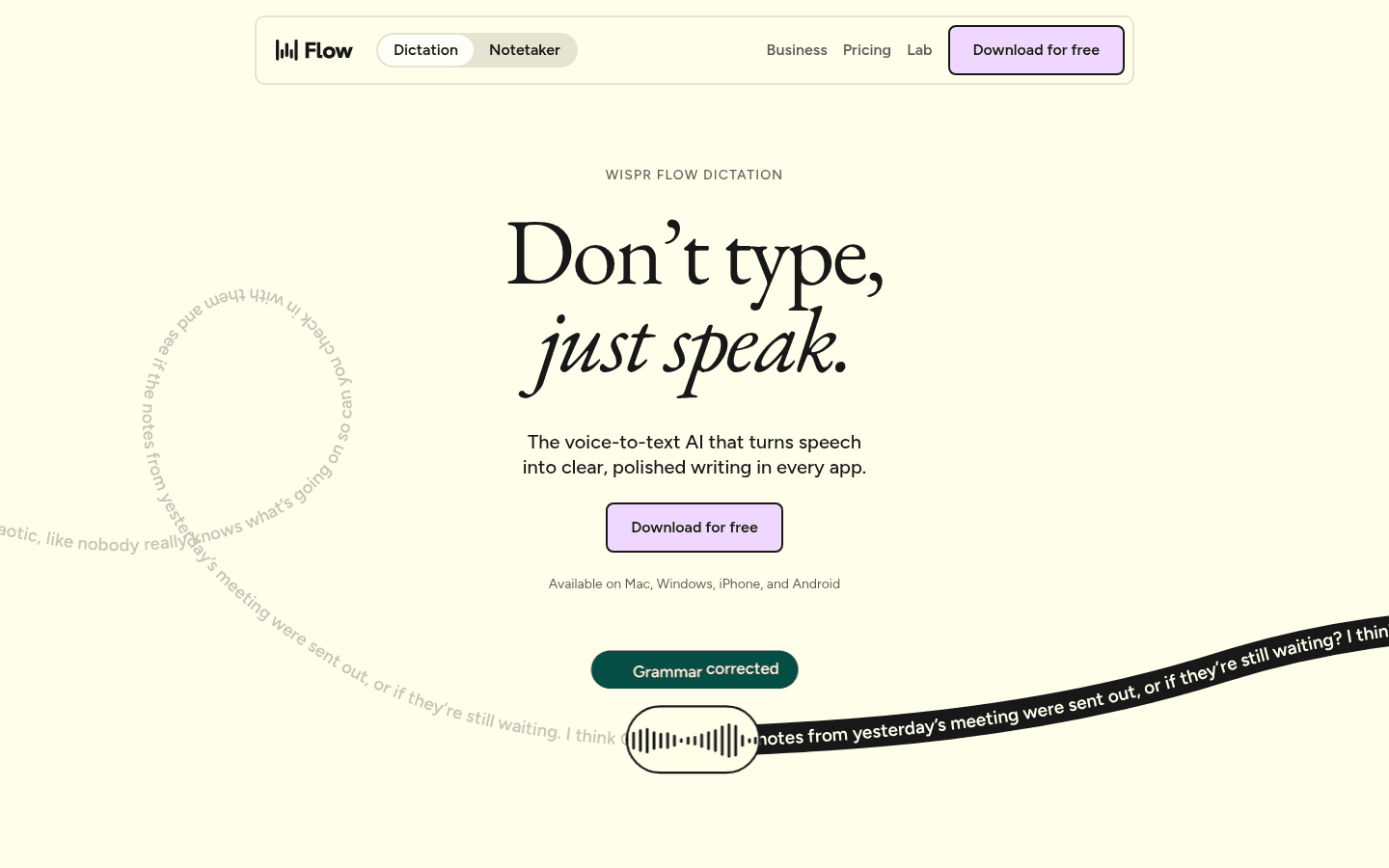
Wispr Flow is one of the best-known newer AI dictation apps. It is built around speaking naturally and getting polished text back across devices.
Key Features
AI dictation for desktop and mobile workflows.
Cleaned-up text rather than raw transcript output.
Cross-device workflow for people who write in many places.
Free tier plus paid plan.
Useful for teams that want a shared dictation habit.
Pros
Polished user experience.
Strong brand recognition in AI dictation.
Good for people who want dictation on mobile and desktop.
Easy to compare against Voicy if you want a premium AI dictation app.
Cons
Cloud-based, so privacy-sensitive users should check policies first.
Paid plans add up if you only dictate occasionally.
May be more app-centric than people who mainly want browser or document workflows.
Pricing
Wispr Flow offers a free tier, with paid plans at $15/month.
User Reviews
Review link: Wispr Flow on Product Hunt.
Users praise Wispr Flow for feeling fast and modern. Common concerns are pricing, privacy tradeoffs, and whether the product is worth it if you only need occasional voice typing.
Best For
A polished AI dictation experience.
Voice writing across multiple devices.
Compare Wispr Flow alternatives when pricing, privacy, or platform fit matters most.
7. Superwhisper: Best Local Mac Dictation For Power Users
Superwhisper is a strong choice for Mac users who care about local processing, customization, and control. It is less plug-and-play than simple free voice typing, but it gives power users more room to tune the workflow.
Key Features
Whisper-based dictation workflows.
Local processing options on supported devices.
Custom modes and prompt-style controls.
Useful for Mac-heavy writing and coding workflows.
Paid plan and lifetime options may be available.
Pros
Good fit for privacy-first Mac users.
More customizable than built-in dictation.
Useful for technical users who like tuning their tools.
Strong alternative to cloud-first AI dictation apps.
Cons
Feature availability and local-model support differ by platform; check your device before buying.
More setup and fiddling than Voicy or Apple Dictation.
Local models can trade speed for accuracy depending on settings.
Pricing
Superwhisper offers a free tier and Pro at $8.49/month, with yearly and lifetime options. See the sourced head-to-head comparison below for billing details.
User Reviews
Review link: Superwhisper on Product Hunt.
Users tend to praise Superwhisper for privacy, customization, and high-quality Mac dictation. Complaints usually focus on setup complexity, performance tradeoffs, and platform limitations.
Best For
Mac power users who want local speech processing.
More control over the dictation setup.
For simpler everyday writing across platforms, consider Voicy.
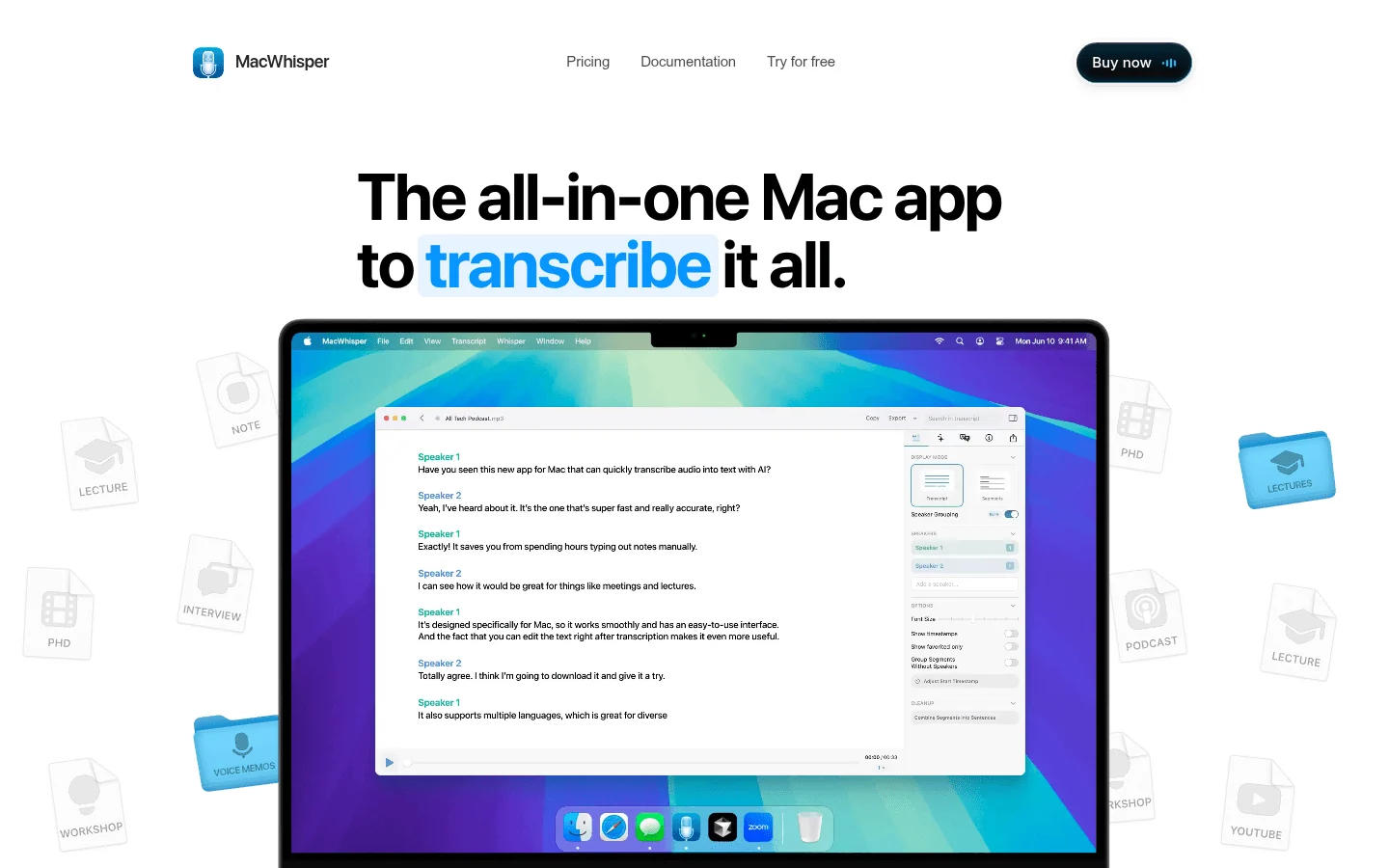
8. MacWhisper: Best Mac Transcription Companion
MacWhisper is best known for local audio transcription on Mac. It is not the same kind of daily voice keyboard as Voicy or Wispr Flow, but it belongs in the conversation if you have audio files to turn into text.
Key Features
Whisper-based transcription on Mac.
Good for recorded audio and video files.
Local processing options depending on setup.
Simple interface for Mac users.
Useful export formats for transcripts.
Pros
Great for turning recordings into text.
Mac-friendly and simple.
Good privacy fit for local audio processing workflows.
Useful beside a daily dictation app.
Cons
More transcription-first than live writing-first.
Mac-only.
Not ideal if you want one app for browser fields, emails, and mobile typing.
Pricing
MacWhisper has free and paid options. Verify the current price before publishing.
User Reviews
Review link: MacWhisper on Product Hunt.
Users praise MacWhisper for simple local transcription and clean Mac design. Complaints usually come from people who expected a full live dictation workflow rather than a transcription-focused tool.
Best For
Transcribing recorded audio files on a Mac.
For live writing in emails, documents, browser fields, and prompts, choose a daily dictation app.
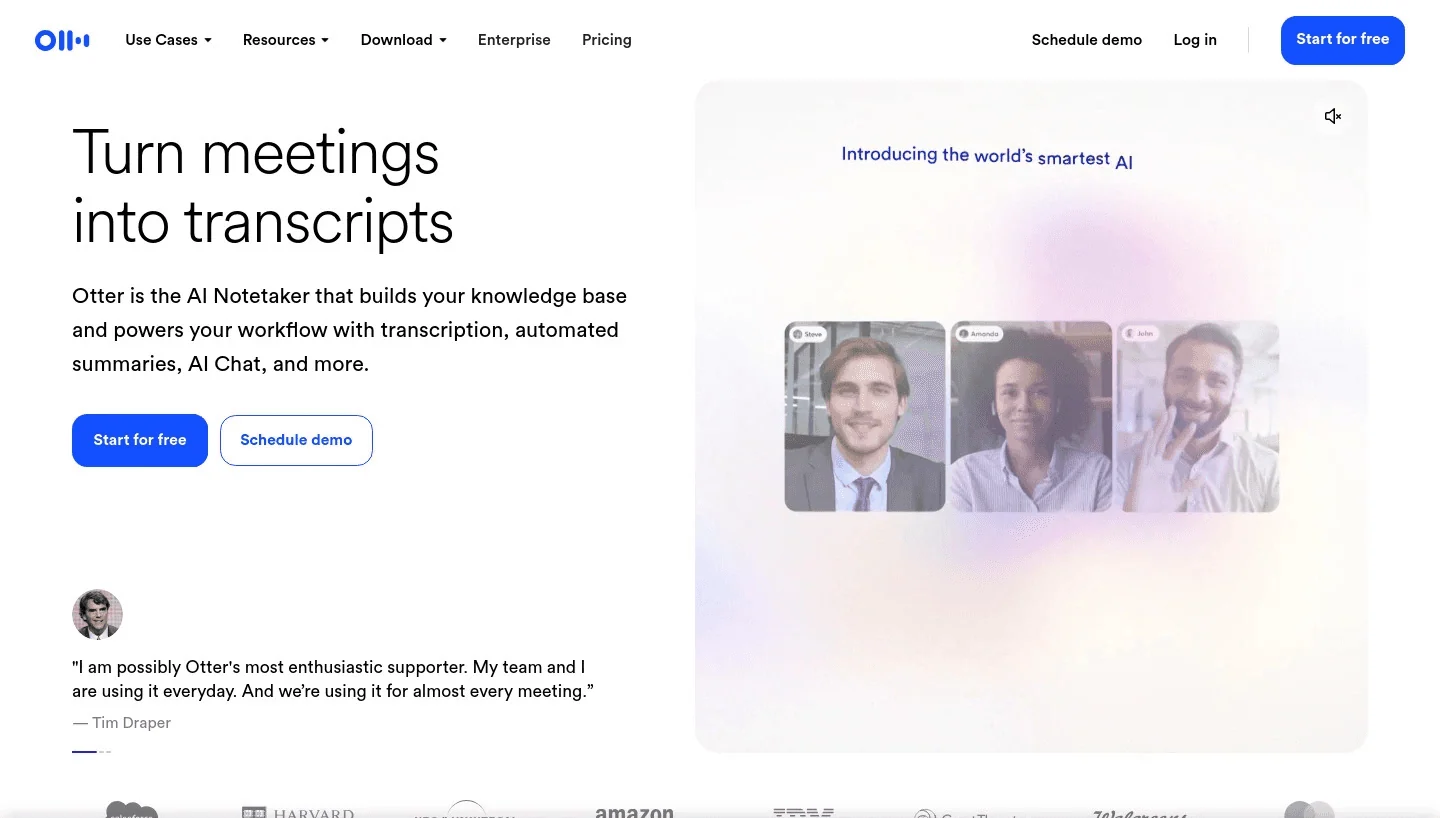
9. Otter.ai: Best For Meetings And Interviews
Otter.ai is not the best tool for writing an email with your voice. It is here because meeting transcription is a common cousin of dictation, and many buyers compare both.
Key Features
Meeting transcription.
Speaker labels.
AI summaries and action items.
Web and mobile apps.
Collaboration and sharing features.
Pros
Good for calls, interviews, lectures, and team meetings.
Speaker labels are useful when multiple people talk.
Summaries save time after meetings.
Works well beside a dedicated dictation app.
Cons
Not built for system-wide writing.
Cloud-based.
Less useful if your main need is composing text in apps.
Pricing
Otter Basic is free with 300 monthly minutes, a 30-minute conversation limit, and three lifetime file imports. Pro costs $16.99/user/month or $8.49/user/month billed annually. File and meeting limits are detailed in the transcription table below.
User Reviews
Review links: Otter.ai on G2 and Otter.ai on Capterra.
Users like Otter for meeting notes, summaries, and searchable transcripts. Complaints often mention transcription errors in noisy calls, pricing limits, and privacy questions around meetings.
Best For
Meetings, interviews, lectures, and team calls.
For writing emails, documents, forms, prompts, and notes with your voice, consider Voicy.
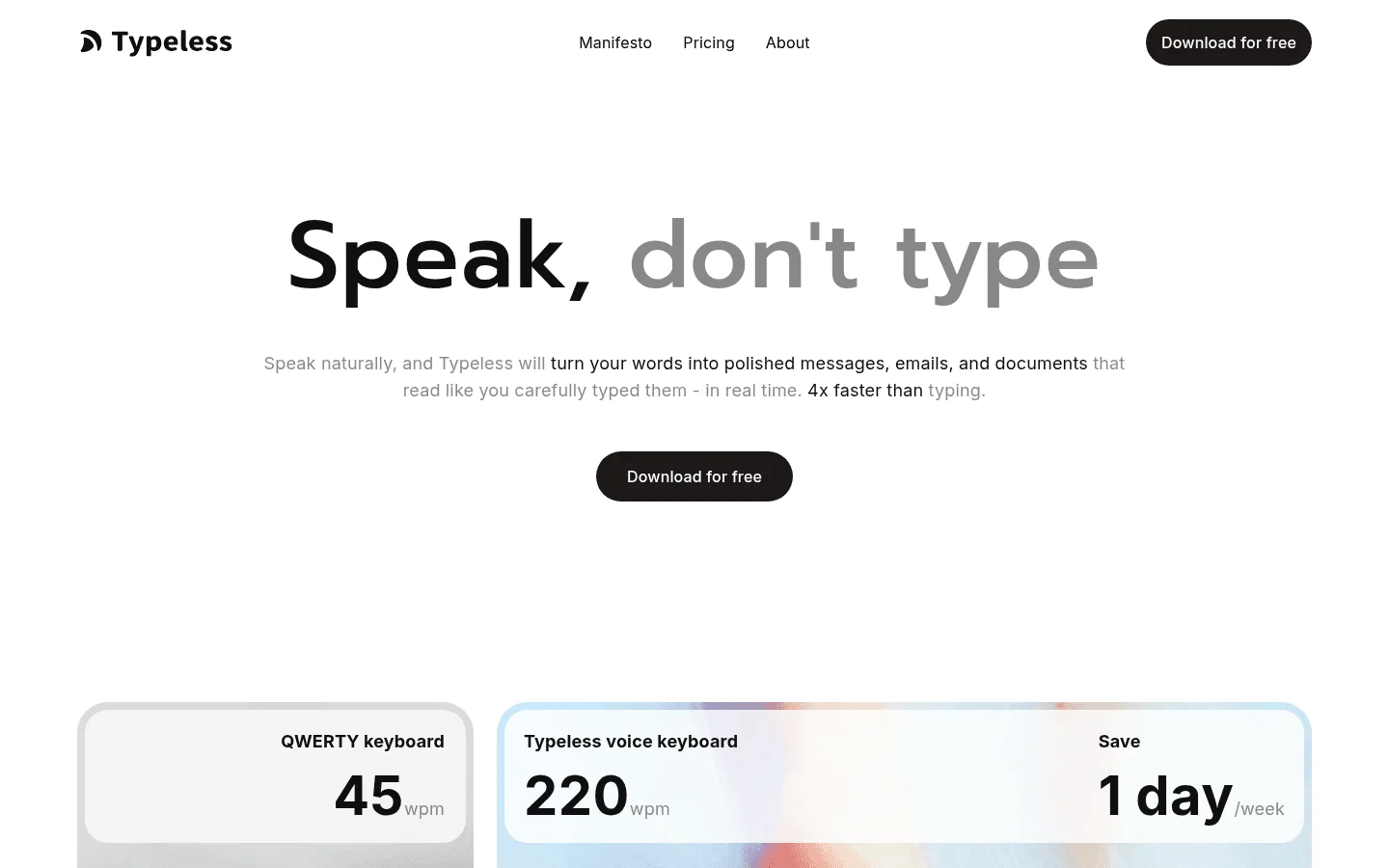
10. Typeless: Best Generous Free Tier To Test AI Dictation
Typeless is worth comparing if you want a modern AI dictation app and a free tier to test before paying. It sits closer to Voicy and Wispr Flow than to old-school built-in dictation.
Key Features
AI dictation and cleanup.
Free tier for testing.
Desktop and mobile workflow depending on current platform support.
Designed for natural speech rather than strict command dictation.
Paid plans for heavier use.
Pros
Good option to test modern AI dictation without paying on day one.
Cleaner output than basic voice typing in many workflows.
Easy to compare against Voicy and Wispr Flow.
Cons
Cloud-based workflow may not suit sensitive dictation.
Pricing and free limits can change.
Less proven than older tools like Dragon or built-in Apple and Windows options.
Pricing
Typeless offers a free tier and paid plans. Verify current plan limits and pricing before publishing.
User Reviews
Review link: Typeless on Product Hunt.
Users tend to praise Typeless for a modern feel and generous trial/free usage. Concerns usually center on cloud processing, plan limits, and whether it is mature enough for daily professional work.
Best For
Trying another modern AI dictation app before committing.
For live dictation and uploaded file transcription in one broader workflow, consider Voicy.
Free Mobile Dictation: Gboard And The iPhone Keyboard
With Gboard, open an app such as Gmail or Keep, tap a text field, then tap the keyboard microphone and speak. Allow microphone access when prompted. The keyboard’s voice interface puts text into the selected field; availability and punctuation commands depend on language. Google documents steps for both Android and iPhone/iPad. On iPhone, Apple’s keyboard is another free option: Settings → General → Keyboard → Enable Dictation, then tap its microphone. You do not need a separate writing app.
Full Comparison Table
| Tool | Best for | Free plan | Paid price | Platforms | Offline/private mode | Custom vocabulary | Works system-wide? | Main drawback |
|---|---|---|---|---|---|---|---|---|
| Voicy | Everyday AI dictation | Free trial | $8.49/mo, $82/yr, $260 lifetime | Mac, Windows, Linux, browser extension, iOS, Android | Offline mode on Mac, Windows & Linux | Yes | Yes | Paid after trial |
| Apple Dictation | Free Apple voice typing | Yes | Free | Mac, iPhone, iPad | Device/settings dependent | Limited | Mostly yes in Apple apps | Basic for pro writing |
| Windows Voice Access | Free Windows dictation | Yes | Free | Windows 11 | Offline after model download | Limited | Yes | Rougher output |
| Google Docs Voice Typing | Free Docs dictation | Yes | Free | Browser | Browser-managed recognition | No | No, Docs only | Limited to Docs |
| Dragon Professional | Specialist Windows dictation | No | Usually high one-time cost | Windows | Local/offline desktop software | Yes | Yes | Expensive and complex |
| Wispr Flow | Cross-device AI dictation | Yes | $15/month | Mac, Windows, iOS, Android | Cloud-based | Varies | Yes | Paid plan can add up |
| Superwhisper | Local Mac power users | Yes | Pro $8.49/month; yearly/lifetime options | Mac, Windows, iOS, Android | Local options | Yes | Yes | More setup |
| MacWhisper | Mac audio transcription | Yes | Verify current pricing | Mac | Local options | Limited | No, transcription-first | Not a daily voice keyboard |
| Otter.ai | Meetings and interviews | Yes | Pro $16.99/month; $8.49/month billed annually | Web, iOS, Android | Cloud-based | No | No | Meeting-first, not writing-first |
| Typeless | Testing modern AI dictation | Yes | Verify current pricing | Desktop/mobile/web varies | Cloud-based | Varies | Yes | Newer, cloud-based |
| Gboard | Free phone dictation | Yes | Free | Android, iPhone, iPad | Device/language dependent | Varies | In supported text fields | Features vary by phone and language |
What Is Dictation Software?
Dictation software turns spoken words into written text. You talk, and the app writes for you. People also search for this as a dictation app, speech to text software, voice to text app, voice typing app, or talk to text app.
Older voice typing tools were literal. You had to say punctuation, pause carefully, and fix a lot of rough text afterward. Modern AI dictation is different. It can add punctuation, clean up false starts, format sentences, and turn messy spoken thoughts into text that is much closer to something you would actually send.
There is also a difference between dictation and transcription. Dictation is live writing with your voice. Transcription usually means turning a recorded audio or video file into text later. Some tools, including Voicy, handle both.
Dictation Vs Transcription: What If You Already Have A Recording?
Dictation captures a draft as you speak. File transcription starts with an audio or video recording, such as an interview or a dictated chapter, and produces text afterward. Choose speaker labels for interviews, and check export formats and upload allowances for long recordings. Prices below are USD, checked October 29, 2026; tax, add-ons, and billing terms can change.
| Service | Price | Limits / workflow |
|---|---|---|
| Rev AI | $0.25 per audio minute | Pay per minute for recorded audio/video; a 60-minute file costs $15 before tax |
| Rev human transcription | From $1.99 per audio minute | Human service; a 60-minute file starts at $119.40 before tax or add-ons |
| Otter Basic / Pro | Basic free; Pro $16.99/user/month or $8.49/user/month billed annually | Basic: 300 minutes/month, 30 minutes/conversation, 3 lifetime file imports. Pro: 1,200 in-app recording minutes, 90 minutes/meeting, 10 file imports/month |
For local file transcription, MacWhisper offers local models; selecting a cloud model changes where audio is processed. Keep your original recording and check names, numbers, and quoted passages against it.
Why Use Dictation Software In 2026?
Typing is slow for many people. The average person types around 40 words per minute, while normal speech is much faster. Dictation will not magically turn every spoken sentence into perfect writing, but it can cut the first-draft friction.
It also helps when typing hurts. If you deal with wrist pain, RSI, arthritis, carpal tunnel, dyslexia, ADHD, or plain keyboard fatigue, voice writing can make work less draining. That is why dictation shows up in so many different workflows: writers, students, lawyers, doctors, therapists, engineers, founders, support teams, and anyone buried in email.
Free tools are fine for light use. Paid dictation software starts to make sense when you dictate every day, use custom words, need cleaner output, or want the app to work across your whole computer.
How To Choose The Right Dictation App
Choose Based On Privacy Requirements
If you need local or offline processing, start with Apple Dictation, Windows Voice Access, Dragon Professional, Superwhisper, or MacWhisper. These are better fits for highly sensitive drafts, private notes, or situations where internet access is unreliable.
If you want cleaner AI output and cross-device convenience, cloud-based tools like Wispr Flow, Otter.ai, and Typeless, and cloud-by-default apps like Voicy, are often easier to use. Just be honest about what you are dictating. Do not dictate client, patient, legal, or confidential business data into any cloud service until you have checked its policy and your own compliance rules.
For accessibility and typing pain, also read our guides to voice typing for arthritis, dictation software for hand pain and RSI, and dictation software for hand arthritis.
For setup requirements and what works without a connection, see our offline dictation comparison. For cloud processing, saved history, and deletion controls, read the dictation privacy comparison.
Where Audio Is Processed, App By App
Offline recognition and cloud storage are separate questions: a local transcript can still sync through your writing app. Download local models before disconnecting, and check the actual mode selected.
Voicy: cloud transcription by default; optional offline dictation in the Mac, Windows, and Linux apps. Select offline mode for local recognition; do not assume that desktop option applies to the extension, mobile apps, or uploaded files.
Apple Dictation: on-device recognition depends on hardware and language; check Mac settings. iPhone supports offline dictation in many languages, while dictated searches can still send text to a search engine.
Windows Voice Access: on-device recognition after the initial model download. Windows + H Voice typing is a separate online service.
Google Docs Voice Typing: the browser controls speech processing and sends text to Docs. Do not treat it as a guaranteed local-only/offline workflow.
Gboard: device and language matter. Advanced voice typing on supported Pixel phones uses on-device processing; do not assume every Gboard voice mode works offline.
Dragon Professional v16: desktop speech recognition runs locally; installation, activation, or updates may need internet. This does not describe Dragon’s separate cloud products.
Wispr Flow: voice transcription needs internet; speech is processed remotely. Retention controls do not turn it into offline recognition.
Superwhisper: local models support offline recognition after download. Choosing cloud speech or cloud AI processing sends the relevant audio or text to a service; select local models for both stages.
MacWhisper: local and cloud models are separate choices. Local transcription can stay on your Mac; cloud transcription and cloud AI features send data off-device.
Otter.ai: cloud transcription for meetings and imported files; it is not an offline speech-recognition option.
Typeless: cloud processing sends audio and limited context to servers. Zero retention describes storage after processing, not local recognition.
Choose Based On Platform
Mac users should compare Voicy, Apple Dictation, Superwhisper, and MacWhisper. If you want system-wide AI dictation across apps, start with Voicy for Mac speech to text. If you want a free built-in option, try Apple Dictation first.
Windows users should compare Voicy, Windows Voice Access, and Dragon. Start with Voicy for Windows speech to text if you want AI dictation across daily writing. Use Windows Voice Access if free is the priority. Use Dragon if you need specialist Windows command workflows.
Linux users can use Voicy for AI dictation across desktop apps and browser fields.
Browser users should compare Voicy, Google Docs Voice Typing, and any Chrome-friendly dictation tools. If you write in Gmail, Docs, Notion, forms, and AI tools, see Voicy's speech-to-text Chrome extension.
Word and Google Docs users have extra choices. Read how to dictate in Microsoft Word and speech to text for Google Docs if those are your main writing surfaces.
Choose Based On Use Case
Writers and authors: choose a tool that handles long-form drafts, names, chapter notes, and messy first thoughts. Start with dictation software for writers.
Developers and AI users: choose a tool that works in prompts, code comments, issue trackers, and browser fields. Voicy, Superwhisper, and Wispr Flow are better fits than document-only voice typing.
Students: start free with Google Docs Voice Typing, Apple Dictation, or Windows Voice Access. Upgrade when notes, essays, and study docs become daily work.
Legal users: compare Dragon and Voicy, but check privacy, retention, and compliance before dictating sensitive case material. See legal dictation software.
Medical and healthcare users: do not choose based on accuracy alone. Check compliance, privacy, and workflow fit. Start with medical dictation software and specialist guides for your field.
Social workers and therapists: look for speed, confidentiality, and note consistency. See dictation software for social workers and dictation software for therapists.
People with ADHD, dyslexia, or typing pain: pick the tool that lowers friction the most. The best app is the one you will actually use when your hands or focus are tired. See our guides to speech-to-text software for dyslexia and dictation software for people who hate typing.
For PRDs, product specs, and ticket drafts, compare voice-to-text apps for product managers. If accent recognition is your main concern, use our accented-English dictation guide to plan a useful trial.
If your main job is replying to customers, compare dictation tools for customer support teams. For investor updates, customer follow-ups, and business planning, see voice-to-text apps for founders and entrepreneurs.
For Authors: From Spoken Chapter To Manuscript
Start each session with a chapter number and a short scene outline. Dictate one scene at a time into a plain document; keep research notes and editorial instructions in a separate notes file so they do not become part of the manuscript.
Add character names, invented places, and recurring terms to a custom dictionary when available. Test them before a long session. Use a distinctive placeholder for a difficult name, then find and replace it consistently during editing.
Save each scene before moving on. Review dialogue, paragraph breaks, names, and numbers, then paste into your manuscript app or import a supported text/document format. Check formatting in the destination and keep a backup. On a phone, dictate short scenes or record a chapter for later transcription.
Dragon Professional v16 also supports recorded-audio transcription, so Windows authors can record a single-speaker draft and transcribe it later. Check supported recording formats and your edition before planning that workflow.
Choose Free Vs Paid
Use free dictation software if you dictate short notes, write in one app, or just want to test the habit. Apple Dictation, Windows Voice Access, Google Docs Voice Typing, and Gboard are useful free starting points across desktop, browser, and phone.
Pay for dictation software if you write every day, need cleaner text, use custom words, switch between apps, or lose time fixing free-tool mistakes. If dictation saves even 15 minutes a day, a paid tool can pay for itself quickly.
If punctuation and paragraph cleanup are what you spend most time fixing, compare dictation apps with automatic punctuation and formatting before paying for a plan.
Choose Subscription Vs Lifetime
Subscriptions are easier if you are testing a tool or expect rapid product updates. Lifetime plans make sense when you know you will use the app for years and the product has already earned your trust.
Voicy offers monthly, annual, and lifetime pricing. That gives you a clean ladder: test it first, pay annually if it becomes a habit, or choose lifetime if voice writing becomes part of your workday.
Wispr Flow Vs Superwhisper: Price, Platforms And Offline Use
Checked October 29, 2026. Prices are USD before tax; monthly and annual billing differ. Check the linked plan selector for current annual and lifetime totals.
| Tool | Price model | Platforms / processing |
|---|---|---|
| Wispr Flow | Free tier; Pro $15/user/month or $12/user/month billed annually | Mac, Windows, iOS, Android. Dictation needs internet. |
| Superwhisper | Free tier; Pro $8.49/month; yearly and lifetime options also listed | Mac, Windows, iOS, Android advertised. Offline depends on a supported local model on your device; cloud modes need internet. |
Choose Flow if its cross-device workflow suits you and online transcription is acceptable. Compare Superwhisper’s local modes if offline use matters, checking feature parity on your own device. A lifetime license is an upfront cost, not a guarantee that every cloud service or future feature is included forever.
Six Tips For Better Accuracy And Punctuation
Speak naturally in complete phrases. Avoid exaggerated pauses between every word, and stop recording when you are thinking silently.
Keep the microphone at a consistent distance and reduce fan, music, and room noise. Try your headset and built-in microphone with the same passage.
Set the right language and add recurring names or specialist terms to the dictionary. Check numbers and proper nouns even when a sentence looks fluent.
Learn the commands your tool supports: for English, try “comma,” “period,” “new line,” and “new paragraph.” Test automatic punctuation separately; command support varies by language.
Work in short, saved chunks on mobile. iPhone Dictation stops after 30 seconds of silence; that is an inactivity timeout, not a 30-second speaking limit. Other phones and keyboards vary by device, language, and mode, so test before dictating a chapter.
Practise with a fixed passage, save the raw output, and measure correction time. Proofread before sending; fluent AI cleanup can change a name, number, or meaning.
How We Chose The Best Dictation Apps
We compare tools for everyday emails, notes, documents, and browser typing using the criteria below and linked product documentation. This is an editorial comparison, not a controlled hands-on accuracy ranking of the ten apps.
The criteria:
Accuracy: Does it handle normal speech, names, punctuation, and fast thoughts?
Speed: Does text appear quickly enough to stay in flow?
Where it works: Does it type into any app, or only one document editor?
Privacy: Is it cloud-based, local, offline, or a mix?
Platforms: Does it support Mac, Windows, Linux, browser, iOS, Android, or only one device?
Custom vocabulary: Can it learn names, jargon, product terms, and specialist words?
Free vs paid value: Is the free tier useful, and is the paid plan worth it?
User reviews: What do real users praise or complain about?
Published Accuracy Evidence: Whisper Large-v3
OpenAI’s Whisper large-v3 model card reports a 10–20% relative reduction in errors compared with large-v2 across a wide variety of languages. OpenAI’s evaluation chart breaks out Common Voice 15 and FLEURS results by language, using word error rate (WER), or character error rate (CER) for languages marked in italics. These are recorded-dataset evaluations, with varied source recordings rather than one shared test microphone.
| Language / metric | Common Voice 15 | FLEURS |
|---|---|---|
| English — WER | 9.3% | 4.1% |
| German — WER | 5.7% | 4.9% |
| French — WER | 10.8% | 5.3% |
| Japanese — CER | 10.3% | 4.9% |
These values are transcribed from OpenAI’s published large-v3 chart, not rerun by us. Lower is better. WER measures word errors; CER measures character errors and is not directly comparable with WER. We have no comparable app-level error counts for this article: these scores do not establish the accuracy of Voicy, Superwhisper, MacWhisper, or any other app. App models, decoding, microphones, and text cleanup can differ.
A Repeatable Test Before You Pay
For your own comparison, read the sample below three times per app. Use the same speaker, language, microphone model, distance, quiet room, and target text field. Record the app version, model/mode, device, connection, automatic punctuation, and cleanup settings. Test a noisy room separately. For file-transcription tools, use the same saved recording; label that test separately from live dictation.
English sample script (use a fixed passage in your own language for a separate test):
On Thursday, Maya Chen will send 24 draft chapters to Dr. Patel. The budget is 1,250 dollars, and the deadline is November 6 at 9:30 a.m. Please check the names Zephyr and Qureshi, keep the API notes separate, and email the revised manuscript after lunch. Chapter three needs a new paragraph before the dialogue. Do not change the ending.
Keep the unedited transcripts. Count substitutions, deletions, and insertions against the reference: WER = (substitutions + deletions + insertions) ÷ reference words × 100. Agree how to normalize numbers and punctuation before scoring; log punctuation and meaning-changing mistakes separately. Average the three runs and time the editing afterward. We have not run this protocol for the apps in this article, so no test microphone or app scores are claimed.
Fast Answer: What Is The Best Dictation Software In 2026?
The best dictation software for most people is the tool that works where they already write. That means your email app, Google Docs, Microsoft Word, Slack, Notion, ChatGPT, browser fields, and quick notes. A dictation app that traps your words inside its own editor adds copy-paste friction, and friction is where habits go to die.
Voicy is the best overall choice if you want a paid AI dictation app for daily writing, file upload transcription, and cross-device work. Apple Dictation, Windows Voice Access, and Google Docs Voice Typing are the best free starting points. Dragon is still worth considering for serious Windows workflows where custom commands and specialist vocabulary matter more than price.
Frequently Asked Questions
What is the best dictation software in 2026?
Voicy is the best dictation software for most people who want fast AI dictation across Mac, Windows, Linux, browser fields, iOS, Android, and uploaded audio files. Dragon is still strong for specialized Windows users, and free tools like Apple Dictation, Windows Voice Access, and Google Docs Voice Typing are useful for lighter work.
What is the best free dictation software?
The best free starting points are Apple Dictation for Mac and iPhone, Windows Voice Access for Windows 11, Google Docs Voice Typing in the browser, and Gboard for Android or iPhone. Start with the tool that works on your device, then compare editing time, vocabulary, and privacy before paying.
What is the best dictation app for Mac?
Voicy is the best paid Mac dictation app for people who want AI dictation across everyday writing apps, browser fields, and uploaded audio files. Apple Dictation is the best free built-in option. Superwhisper and MacWhisper are good choices for Mac users who want local Whisper-based workflows.
What is the best dictation software for Windows?
Voicy is a strong Windows choice for everyday AI dictation and uploaded transcription. Windows Voice Access is the best free built-in option. Dragon Professional is best for high-volume Windows users in legal, medical, or specialist workflows who need deep command support.
Is Dragon still worth it?
Dragon is still worth it for some Windows-heavy professional workflows, especially legal, medical, and command-based dictation. It is expensive and more complex than newer AI dictation apps, so most everyday users should compare Voicy, Wispr Flow, Apple Dictation, and Windows Voice Access first.
Is dictation software private?
It depends on the product. Some dictation apps process speech in the cloud, while others can run locally or offline. Voicy uses cloud transcription by default and also offers an offline dictation mode in its Mac, Windows, and Linux apps. If you work with highly sensitive data, check each tool's privacy policy, retention settings, and compliance claims before dictating.
Does dictation software work offline?
Some dictation software works offline. Apple Dictation, Windows Voice Access, Dragon Professional, Superwhisper, and MacWhisper can support offline or local workflows depending on device and settings. Many AI dictation apps need an internet connection because they use cloud models.
What is the difference between dictation software and transcription software?
Dictation software turns your live speech into text while you write. Transcription software turns recorded audio or video files into text later. Some modern tools, including Voicy, support both live dictation and uploaded audio transcription.
What is the difference between voice typing and AI dictation?
Voice typing usually means basic speech-to-text inside one app, such as Google Docs or a phone keyboard. AI dictation apps go further by adding punctuation, cleaning up speech, handling custom words, and working across more writing surfaces.
Is paid dictation software worth it?
Paid dictation software is worth it if you dictate daily, write long documents, need system-wide support, use custom vocabulary, or want cleaner text with less editing. Free tools are enough for short notes, occasional Google Docs writing, and basic voice typing.
Related Dictation Guides
Final Verdict
If you are serious about writing faster, start with the tool that covers the most of your real writing day. For most people, that is Voicy: it handles live AI dictation across daily writing surfaces and also supports uploaded audio transcription.
Use free tools first if you are still testing the habit. Use Dragon if you need specialist Windows dictation. Use Superwhisper or MacWhisper if local Mac workflows matter most. But if your main goal is simple, fast, practical voice writing across work, Voicy is the strongest place to start.
Writing mainly in Spanish? Compare regional language settings, free options, and local models in our Spanish speech-to-text app guide.