

Key Takeaways
- Local dictation and local rewriting are different things. Check both before assuming your words stay on your computer.
- Voicy offers offline desktop dictation. Its online features process everyday audio and text without retaining them or using them for AI training, according to its privacy policy.
- Wispr Flow always transcribes in the cloud. Training, cloud storage, and local history have separate settings.
- Superwhisper, MacWhisper, and VoiceInk offer local speech models, but optional cloud transcription or AI editing can send content online.
- Windows Voice Access and Talon support local recognition. Any added online tools have their own privacy rules.
- Dragon Professional v16 is desktop software. Dragon Professional Anywhere and Dragon Anywhere Mobile use the cloud.
You dictate a private note, then click “rewrite.” The audio may have stayed on your laptop while the text went to an online AI service.
That’s the catch with dictation privacy: one app can handle your words in several ways. Here’s what to check, and how the main apps compare.
Where your audio and text go
Think of dictation as three steps:
- Turning speech into text. This can happen on your computer or on a server.
- Rewriting the text. An optional AI model may receive your transcript, instructions, and context.
- Saving a copy. History can live on your device, in a cloud account, or in the app you’re writing in.
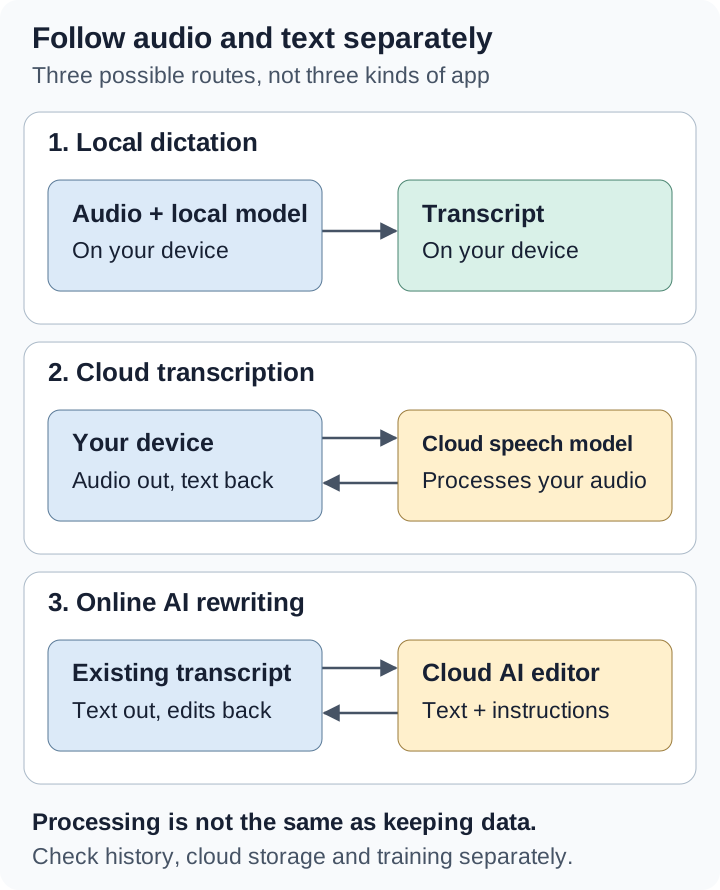
Two labels are easy to mix up. “Zero data retention” means content isn’t kept after processing, not that it never goes online. “No training” means content isn’t used to improve a model, not that it can’t be stored.
Dictation apps privacy compared
Where processing happens
Use the row for the mode you plan to use. Choosing a local speech model doesn’t automatically make AI editing local too.
| App and mode | Where audio goes | Online AI rewriting | Server storage |
|---|---|---|---|
| Voicy: offline dictation | On your Mac, Windows, or Linux computer. | Basic dictation stays local. Rewrite Mode and Custom Modes need internet. | No server copy from basic offline dictation. |
| Voicy: online dictation and files | Online, through Voicy and its processing provider, Groq. | Rewrite Mode and Custom Modes process text online. | Voicy says everyday audio and text are not kept after processing. |
| Superwhisper: local speech model | On your device. | Stays local only if rewriting is off or uses a local language model. | Neither step needs a server when both models are local. |
| Superwhisper: cloud models | Audio goes online when the speech model is cloud-based. | Text goes online when the language model is cloud-based. | Licensed cloud models use zero-retention agreements; your own API key follows your provider’s terms. |
| MacWhisper: local model | On your Mac, for dictation or file transcription. | Optional remote AI sends text online; local AI does not. | Local transcription does not send audio to a server. |
| MacWhisper: cloud transcription or AI | Audio goes to your chosen provider or Assistant servers. | Remote summaries and rewriting send text online. | Depends on the cloud service and account you use. |
| VoiceInk: local transcription | On your device. | Optional cloud enhancement sends text online. | VoiceInk says it does not keep audio or transcripts on its own servers. |
| VoiceInk: cloud transcription or enhancement | Cloud transcription sends audio to your chosen provider. | Enhancement sends text, not audio. Optional context can also be shared. | The selected provider’s storage rules apply. |
| Windows Voice Access | On your PC after the language download. | No built-in online AI rewriting step. | Speech recognition works without uploading audio for transcription. |
| Talon: local speech engine | On your device; added scripts can use online services. | Depends on any AI scripts you install. | Local recognition stays on-device. Crash reports and integrations are separate. |
| Wispr Flow | In the cloud, even with training turned off. | Formatting and AI commands run online. | Cloud storage keeps audio, transcripts, and history when enabled. |
| Dragon Professional v16 | On your Windows computer. | No separate cloud AI rewriting step described. | Optional data collection or profile syncing can send data online. |
| Dragon Professional Anywhere | In the cloud, with a cloud speech profile. | No separate general-purpose AI rewriting step described. | Server-side profile and service data; retention depends on your agreement. |
| Dragon Anywhere Mobile | In the cloud; requires a connection. | Voice editing is not the same as AI rewriting. | Its policy says audio, text, transcripts, and logs are stored and processed in the US. |
History, training, and deletion
| App | History on your device | AI training | Your controls |
|---|---|---|---|
| Voicy desktop | Local History; entries older than three days clear at startup. Audio is kept for up to ten newest audio entries. | Voicy says everyday recordings and transcripts are not used for training. | Turn History off, delete entries, or remove file results. Request account-data deletion separately. |
| Wispr Flow | Store locally, auto-delete after 24 hours, or never store. Mobile settings differ. | Controlled by Improve the model for everyone. Dictations shared as feedback can still be used. | Set training, cloud storage, and local history separately. Use cloud deletion for uploaded copies. |
| Superwhisper | Local audio, transcript, and AI result. Recording retention defaults to Forever. | Licensed models: no training. With your own API key, provider terms apply. | Choose local models, shorten recording retention, or delete History entries. |
| MacWhisper | Saved transcripts and files on your Mac. | Local processing does not need a training upload. Cloud terms depend on the service. | Use local speech and AI models; delete saved files and check synced exports. |
| VoiceInk | Local transcripts and optional audio. Both can remain indefinitely unless cleanup is set. | Local speech stays on-device. Cloud providers set their own training rules. | Delete transcripts, set automatic cleanup, or remove provider keys. Audio and text deletion are separate. |
| Windows Voice Access | Text stays in the app you dictate into; no history library is described. | Local recognition; separate feedback and diagnostics rules are not explained in the setup guide. | Manage microphone access and delete text in the destination app. |
| Talon | Optional recordings in the Talon home folder. | Usage metrics exclude speech and text. Added scripts have their own rules. | Disable recording saves, remove files, and check online integrations. |
| Dragon Professional v16 | Desktop profiles and saved dictation files; roaming can move profiles elsewhere. | Local profile learning is separate from optional data collection for Nuance. | Review Data Collection and profile-sync settings; managed accounts may need an administrator. |
| Dragon Professional Anywhere | A cloud speech profile, not a local-only history store. | Check your service agreement; the product page gives no blanket no-training promise. | Ask your administrator about retention and deletion. |
| Dragon Anywhere Mobile | Mobile documents; exports and sync can create extra copies. | Its product data policy gives no blanket no-training promise. | Delete documents, check sync/export settings, and request server-data deletion from Nuance. |
Remember the destination app too. Text dictated locally can still be saved in a synced notes app, email account, backup, or clipboard manager.
Voicy: local dictation or online processing
Offline dictation
Voicy’s offline mode works on Mac, Windows, and Linux after you download a speech model. Basic dictation then keeps audio on your computer. Mac offline mode requires macOS 15 or later.
Rewrite Mode, Custom Modes, file transcription, and retries of old recordings need internet. With offline mode on, Voicy asks before uploading a file or retrying an old recording. The offline dictation guide explains setup and alternatives.
Online features
Online dictation and file transcription send audio for processing. File transcription requires a paid plan and internet, with a 60-minute limit per file. Rewrite Mode and Custom Modes also process the text and instructions needed for the task.
Voicy’s privacy policy names Groq as its processing provider and says zero data retention is enabled. For everyday use, Voicy says it does not keep recordings or transcripts on its servers, read or listen to them, or use them to train AI. Its recording privacy help covers file transcription, rewriting, custom modes, and context-aware formatting too.
Voluntary problem reports are an exception: they send your description, diagnostics and selected transcript to support, plus audio if you leave the attachment option checked. Voicy says reports and attachments are retained for 30 days.
Account and subscription records are separate from dictated content. Voicy says its usage events do not include your audio or transcript words.
Local history
Desktop History stays on your computer. Entries older than three days are cleared when Voicy starts. Up to the ten newest entries with audio keep a recording; older entries may keep text without audio.
Turn History off on Home to stop saving new dictations. To erase existing content, use Delete on a History entry or Remove on a file-transcription result. Turning History off does not erase old entries.
Wispr Flow: three settings to check
Wispr Flow transcribes in the cloud. You can change how your data is used and saved, but turning training off doesn’t move transcription onto your device.
Under Settings → Data and Privacy, its settings guide lists three separate controls:
- Improve the model for everyone: whether normal dictations and edits can help improve Wispr’s models. Turning this off does not stop cloud transcription.
- Dictation cloud storage: whether audio, transcripts, and history are kept on Wispr’s servers for cross-device access. Turning it off does not delete copies already uploaded.
- Local data storage: whether desktop history is saved on your computer. You can store it, auto-delete it after 24 hours, or never store it. Choosing Never store also clears existing desktop history after confirmation. Mobile controls differ.
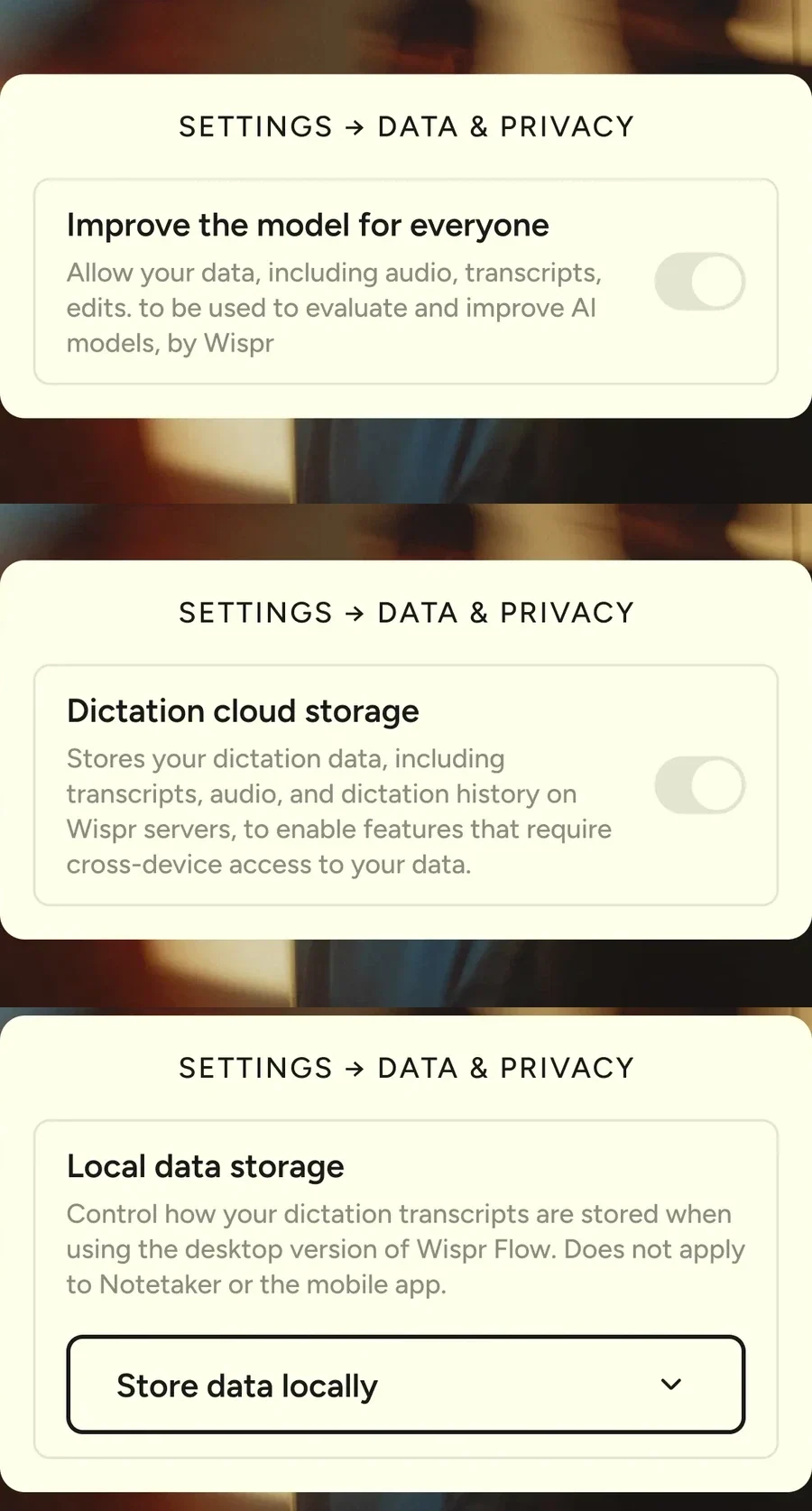
Check these switches in your own account. Wispr’s current guide says model improvement and dictation cloud storage default to on unless restricted; cloud storage appears when available for your account. An organization can enforce some settings; turning off training still does not make dictation local.
Context Awareness limits extra active-window text used for accuracy. Even with it off, app information and surrounding text can still help with formatting or commands. Wispr’s data controls also explain that dictations you rate or share as feedback can be used for training, even if normal model improvement is off.
Deleting local history doesn’t necessarily delete uploaded copies. Use Wispr’s cloud-data deletion process as well. Notetaker and Scratchpad have separate storage rules.
Superwhisper, MacWhisper, and VoiceInk: check both models
Superwhisper
Superwhisper lets you choose a voice model and an optional language model. For an entirely local workflow, use local speech recognition and either turn AI editing off or choose a local language model.
Its privacy guide says cloud models included with its license use no-training and zero-retention agreements. If you connect your own API key, your provider account’s terms apply instead.
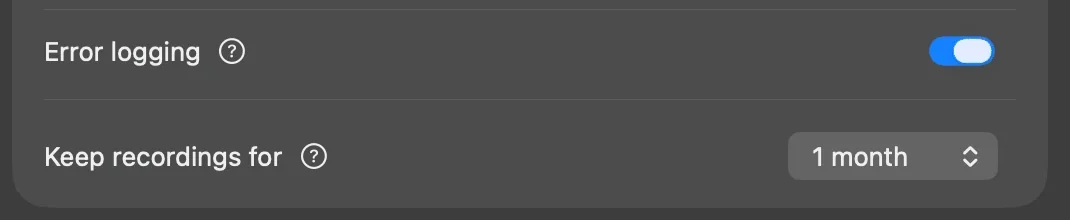
Local History saves audio, transcripts, and AI results. Keep recordings for defaults to Forever. Shorten it in Settings → Configuration, or delete entries yourself.
MacWhisper
MacWhisper can transcribe files or dictate locally on your Mac. But cloud transcription sends audio online, and a remote AI summary or rewrite sends transcript text online.
Its Assistant features and connections using your own provider key are different services. Storage and training rules depend on which you use. Choose local speech and local AI models if neither audio nor text should leave the Mac.
VoiceInk
VoiceInk’s privacy policy separates local speech recognition, cloud transcription, and AI enhancement. Cloud transcription sends audio; remote enhancement sends text, not audio. Clipboard or window context can also be shared if enabled.
VoiceInk says it doesn’t keep audio or transcripts on its own servers. Your selected cloud provider can have different rules. On your device, transcripts and optional audio can remain indefinitely unless you set automatic cleanup. Deleting audio does not delete its transcript.
For an entirely local workflow, check all three provider settings: speech recognition, Enhancement and Dictionary AutoLearn. Use local models or switch the latter two off. Refine can clean up text locally on supported Apple Silicon Macs; cloud AutoLearn can still send corrected text and context even when speech recognition is local.
Windows Voice Access and Talon
Windows Voice Access downloads speech files during setup, then recognizes speech on your PC without internet. It is different from ordinary Windows cloud voice typing. Delete dictated text in whichever app receives it, and manage microphone access in Windows settings.
Talon uses an installed speech engine and scripts. Optional recordings are saved in the Talon home folder, as explained in its setup guide. Its privacy terms say usage metrics exclude speech, text, and screen contents; crash reports are uploaded on restart.
If you add a Talon script that calls an online AI service, that service gets its own say in privacy. Local speech recognition does not make the integration local.
Dragon: desktop and cloud are different products
Dragon Professional v16 runs recognition on a Windows computer, for live dictation and saved audio files. Optional profile syncing or data collection can still send information online. The v16 guide describes a Data Collection setting in non-US English versions; managed installations may put it under an administrator’s control.
Dragon Professional Anywhere uses cloud recognition and a cloud speech profile. Your organization’s agreement determines storage, deletion, and data-use terms. Don’t assume the desktop product’s rules apply.
Dragon Anywhere Mobile also uses cloud recognition. Its product data policy says audio, associated text, transcripts, and logs are stored and processed in the United States. It doesn’t give a fixed retention period or a blanket no-training promise. Nuance’s privacy policy explains how to request deletion.
Choosing the right privacy settings
- Want audio to stay on your computer? Choose a local speech model. If text must stay local too, turn remote AI rewriting off or use a local AI model.
- Happy with online processing, but not storage? Look for zero-retention terms and turn cloud history off. Delete older cloud copies separately.
- Don’t want your words used for training? Check the app’s training setting and the provider’s terms. Training off is not the same as offline.
- Using a shared computer? Turn local history off or shorten its retention, then delete existing transcripts and recordings.
For local options, read the offline dictation guide. For Voicy’s details, see its privacy policy and recording privacy help.
FAQ
Does turning off AI training make dictation offline?
No. Turning training off changes how your content can be used, not where speech recognition runs. Wispr Flow still transcribes in the cloud. To keep audio on your computer, choose a local speech model.
Does Voicy store my recordings on its servers?
For everyday dictation and online features, Voicy says it processes recordings and transcripts without retaining them on its servers or using them to train AI. This includes file transcription, Rewrite Mode, and Custom Modes. Voluntary problem reports are different: submitted text and optional audio can be reviewed by support and retained for 30 days. Desktop History is stored separately on your computer.
Is Voicy history saved locally?
Yes. Desktop History is saved on your computer. Entries older than three days are cleared when the app starts, and up to the ten newest entries with audio keep a recording. Turning History off stops new entries but does not delete existing ones.
Does local dictation mean AI rewriting is local too?
Not always. An app can turn speech into text locally, then send that text to an online AI service for rewriting. Check both model choices, or turn rewriting off.
Is Dragon Professional v16 the same as Dragon Anywhere?
No. Dragon Professional v16 runs speech recognition on a Windows computer. Dragon Professional Anywhere and Dragon Anywhere Mobile use cloud recognition, with different storage and privacy terms.
Does deleting local history delete cloud copies?
Not necessarily. History on your computer and history saved online are separate copies. Wispr says deleting local history does not necessarily remove uploaded data. Use the app’s cloud-deletion controls too.
Final take
Choose settings based on what you want to keep private: your audio, your text, or both. Then check what gets saved and whether it can be used for training. An app’s “private” label isn’t enough to answer all four questions.