

Top Picks At A Glance
Best easy Linux speech-to-text app: Voicy for Linux, because it is built for everyday dictation and file upload transcription on Linux.
Best local processing Linux option: Vocalinux or Handy, if you want offline desktop dictation and do not mind testing fit on your setup.
Best open-source tools: Nerd Dictation, Speech Note, whisper.cpp, and Talon Voice.
Ubuntu is easiest: most tools have better docs for Ubuntu, Debian, or Flatpak than for smaller distros.
Wayland needs care: some tools work best on X11, while others depend on portals, input methods, or app-specific paste behavior.
Best speech-to-text option for Linux in 2026
For most Linux users, the best speech-to-text setup is Voicy for Linux. It is the simplest choice when you want to dictate emails, docs, browser text fields, notes, and AI prompts without building your own speech stack.
Voicy for Linux is a dedicated desktop app, not a browser workaround. It works everywhere you type: desktop apps, websites, and your terminal. It supports Ubuntu, Debian, Fedora, Arch Linux, Linux Mint, and other popular distributions, with GNOME, KDE Plasma, Wayland, and X11 support.
Voicy has a free trial, then costs $8.49/month, $82/year, or $260 lifetime. Cloud transcription is the default. For basic offline dictation, download a model in Settings first. AI rewriting and file upload transcription still need an internet connection.
If you want local control, start with Vocalinux, Handy, Nerd Dictation, Speech Note, or whisper.cpp. These tools can be powerful, but they usually ask more from you: model downloads, audio setup, keyboard shortcuts, display-server quirks, and manual testing.
Why Linux dictation is still harder than Mac or Windows
Linux does not have one built-in speech-to-text system that works everywhere. Your experience can change based on the distro, desktop, display server, input method, microphone stack, and app toolkit.
That is why Linux speech-to-text advice often feels messy. One person may have a great setup on Ubuntu GNOME with X11. Another person may hit paste or shortcut issues on Fedora KDE with Wayland.
The good news is that Linux dictation is better than it used to be. Cloud tools are easier to start. Open-source speech models are much stronger. Flatpak also makes apps like Speech Note easier to install across distros.
Best Linux speech-to-text tools at a glance
Tool | Best for | Offline? | Setup |
|---|---|---|---|
Everyday dictation and file upload transcription | Yes, offline mode available on Mac, Windows & Linux | Easy | |
Linux-native offline dictation | Yes | Medium | |
Open-source local desktop dictation | Yes by default | Easy to medium | |
Whisper-style transcription in a friendlier app | Depends on setup | Medium | |
Offline notes, speech-to-text, TTS, and translation | Yes | Easy with Flatpak | |
Terminal users who want a hackable setup | Yes | Hard | |
Developers building local transcription workflows | Yes | Hard | |
Hands-free control, coding, and accessibility | Mostly local workflow | Very hard |
1. Voicy for Linux
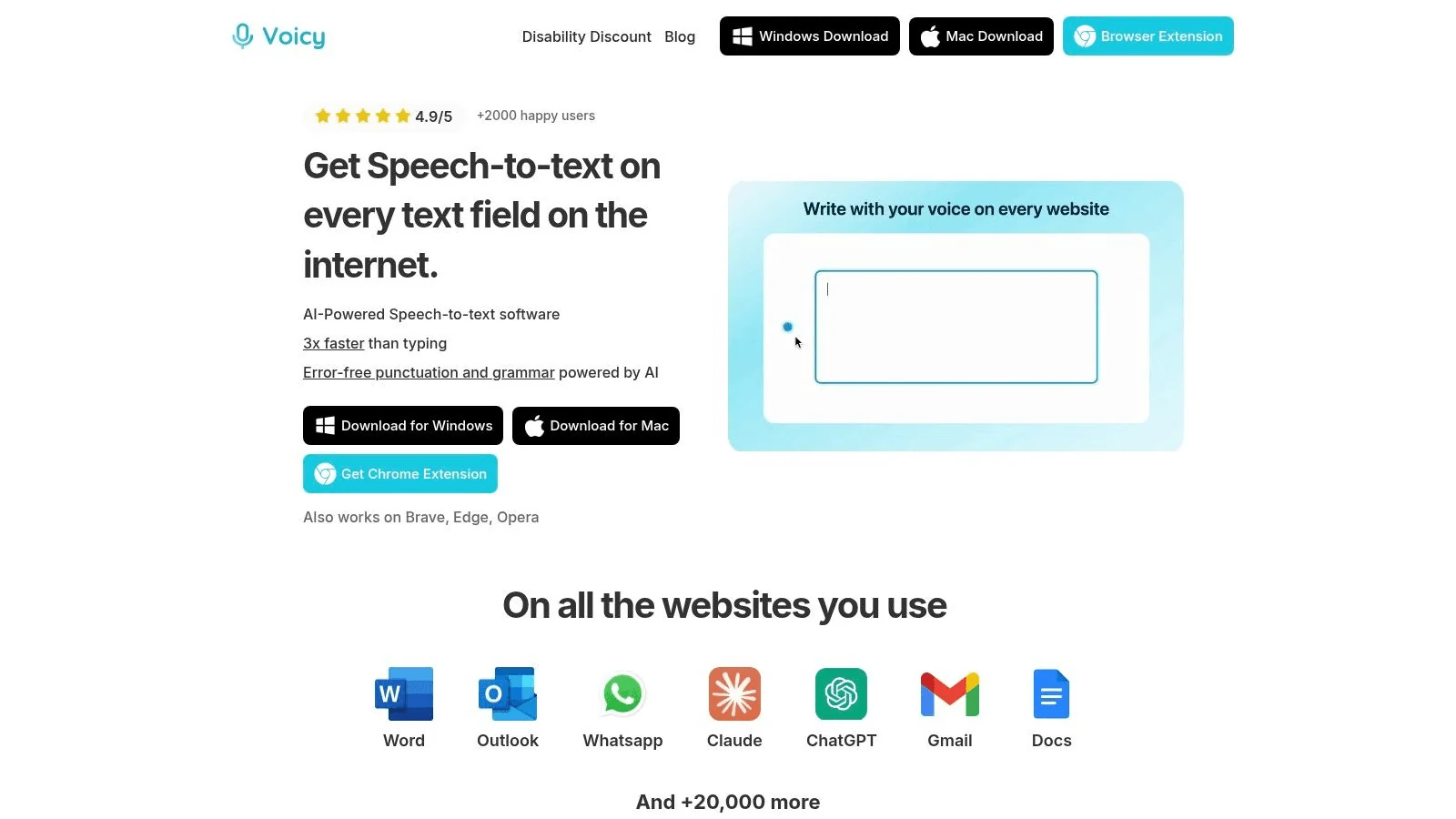
Voicy for Linux is the best fit if you want speech-to-text to help with real work, not just a demo in one text editor. You can use it for live dictation and file upload transcription, which matters if your day includes both writing and saved recordings.
Use it in Gmail, Google Docs, Slack, Discord, Notion, ChatGPT, Claude, LibreOffice, Thunderbird, VS Code, browser forms, and your terminal. Press your shortcut, speak, and the text appears where your cursor is. You do not need a separate extension for each browser or a plugin for each app.
The Linux app works across popular distros, including Ubuntu, Debian, Fedora, Arch Linux, and Linux Mint. Choose the package for your distro from the Linux download page. Voicy supports GNOME and KDE Plasma, with both Wayland and X11.
Voicy is strongest when you value speed, low setup work, and a polished app. It uses cloud transcription by default, and its desktop apps also include an optional offline dictation mode.
Best for: everyday Linux users who want easy dictation across work apps.
Pricing: free trial, then $8.49/month, $82/year, or $260 lifetime.
Main limit: offline mode covers basic dictation after a model download. AI rewriting and file transcription still need internet.
To start the Linux install flow, use the Voicy Linux download page.
2. Vocalinux
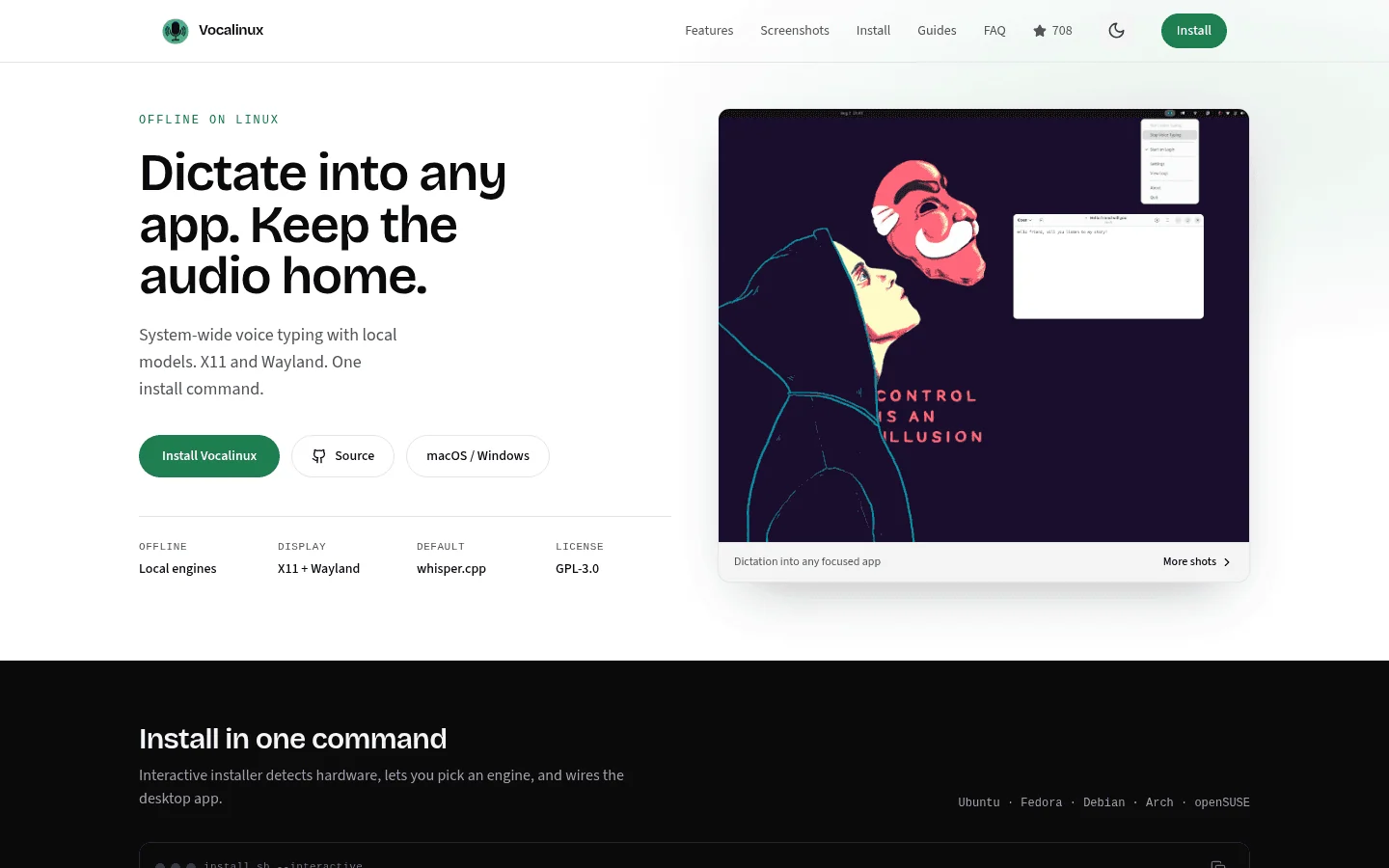
Vocalinux is one of the clearest Linux-native dictation tools to test in 2026. It is aimed at local, offline speech-to-text on Linux, with support notes around X11 and Wayland.
That makes it a strong choice if you want your speech recognition setup to live on your Linux machine. It is also a good option if you enjoy testing open-source tools and tuning your own workflow.
The tradeoff is that Vocalinux is narrower than a commercial dictation product. If you also need mobile, browser extension use, or uploaded file transcription, compare it with Voicy for Linux.
3. Handy
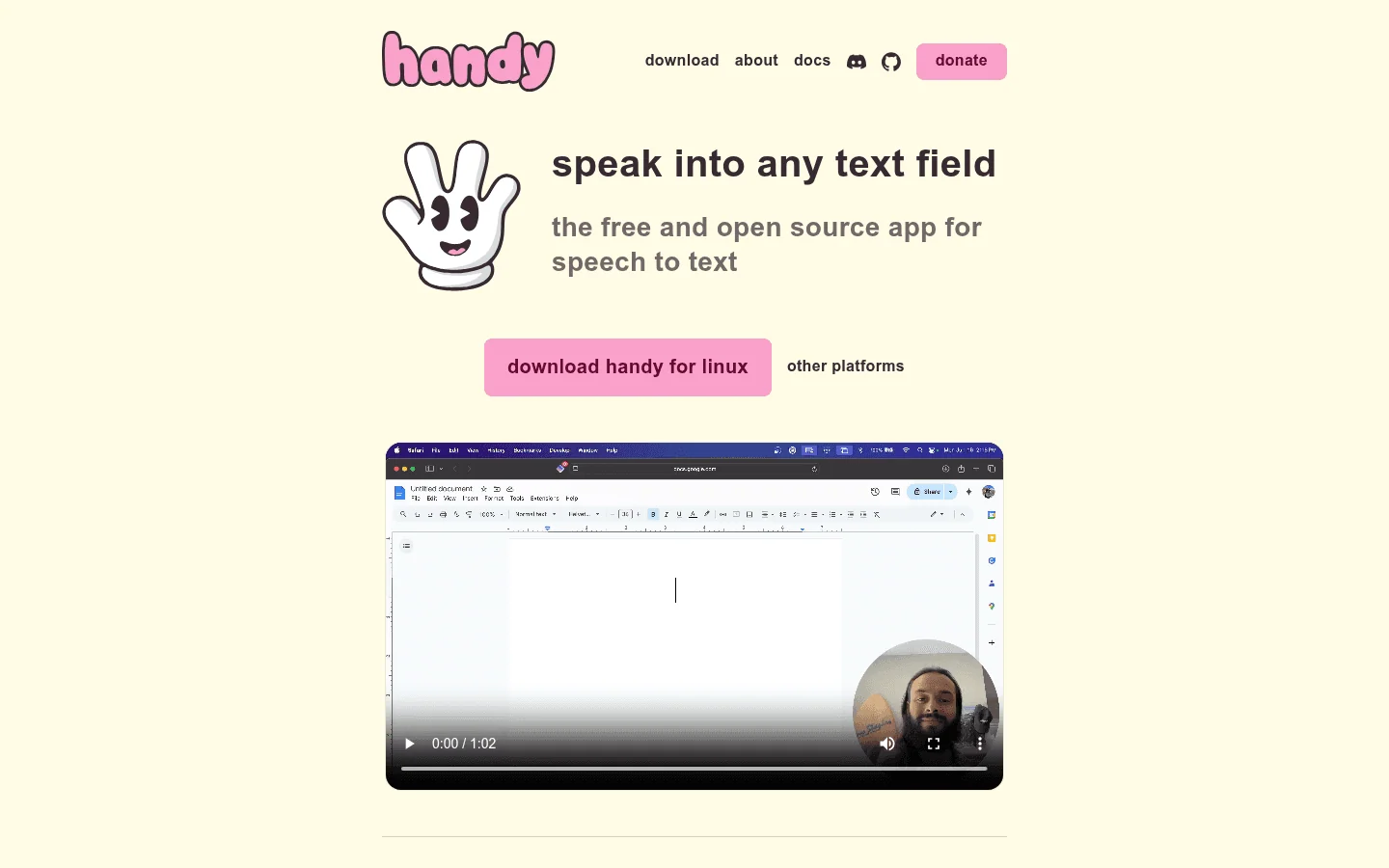
Handy is a free, open-source desktop dictation app. Its main appeal is local processing. For privacy-focused users, that is a big deal.
Handy is not only a Linux project, but Linux users will see it in speech-to-text search results because it has a clear open-source story and local model workflow. It is worth testing if you want simple push-to-talk dictation without sending voice data to a cloud service.
Check your exact workflow before relying on it. Handy is strongest for microphone dictation. It is not the same thing as a full file transcription product, and it may not cover every app or display-server setup equally well.
4. Speech Note
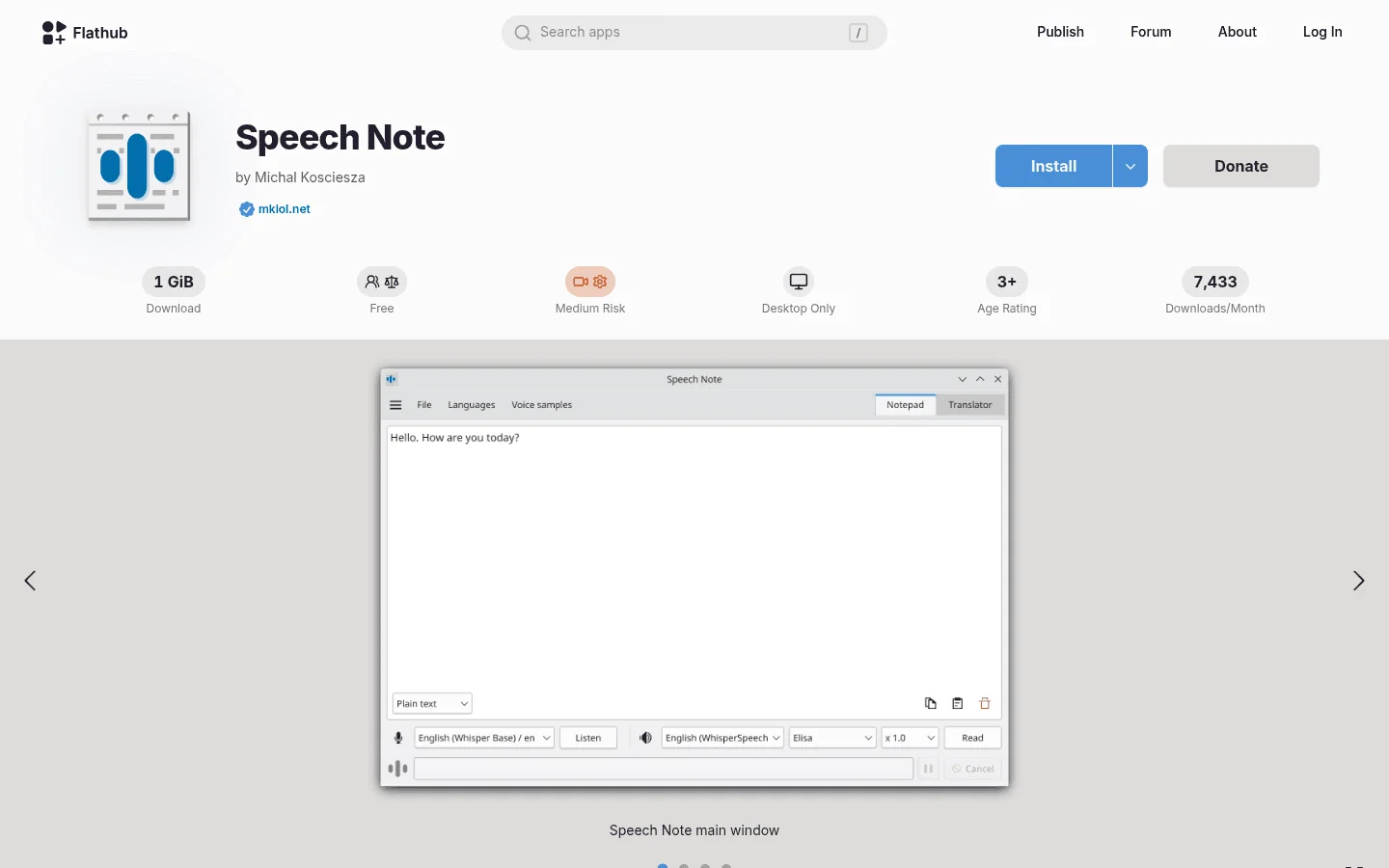
Speech Note is a Linux-friendly app for notes, speech-to-text, text-to-speech, and translation. It is easy to install from Flathub on many distros.
Speech Note is a good fit if you want a local note-taking and transcription workspace. It supports multiple speech engines, including Whisper-style workflows through supported models.
Its limit is scope. Speech Note is more of a speech notebook than a system-wide dictation layer. If you need to speak into many work apps, you may prefer Voicy for Linux or a tool that pastes into the active field.
5. Nerd Dictation
Nerd Dictation is a lightweight command-line dictation tool. It uses VOSK models and can type into the focused window on Linux.
This is the open-source pick for people who like scripts, shortcuts, and config files. It can be fast and private once set up. It also has fewer polished features than a paid app.
Expect to handle your own packages, model paths, hotkeys, and input behavior. On Wayland, test before you commit, because some automation tools do not behave the same way they do on X11.
6. whisper.cpp
whisper.cpp is not a normal dictation app. It is a fast local speech recognition engine that developers use to transcribe files or build custom workflows.
Use it if you want offline transcription, batch processing, or your own Linux scripts. It is very useful for developers, researchers, and privacy-focused users who are comfortable with the terminal.
Do not choose whisper.cpp if you want a polished push-to-talk writing app out of the box. You will need to build or connect the pieces yourself.
7. OpenWhispr
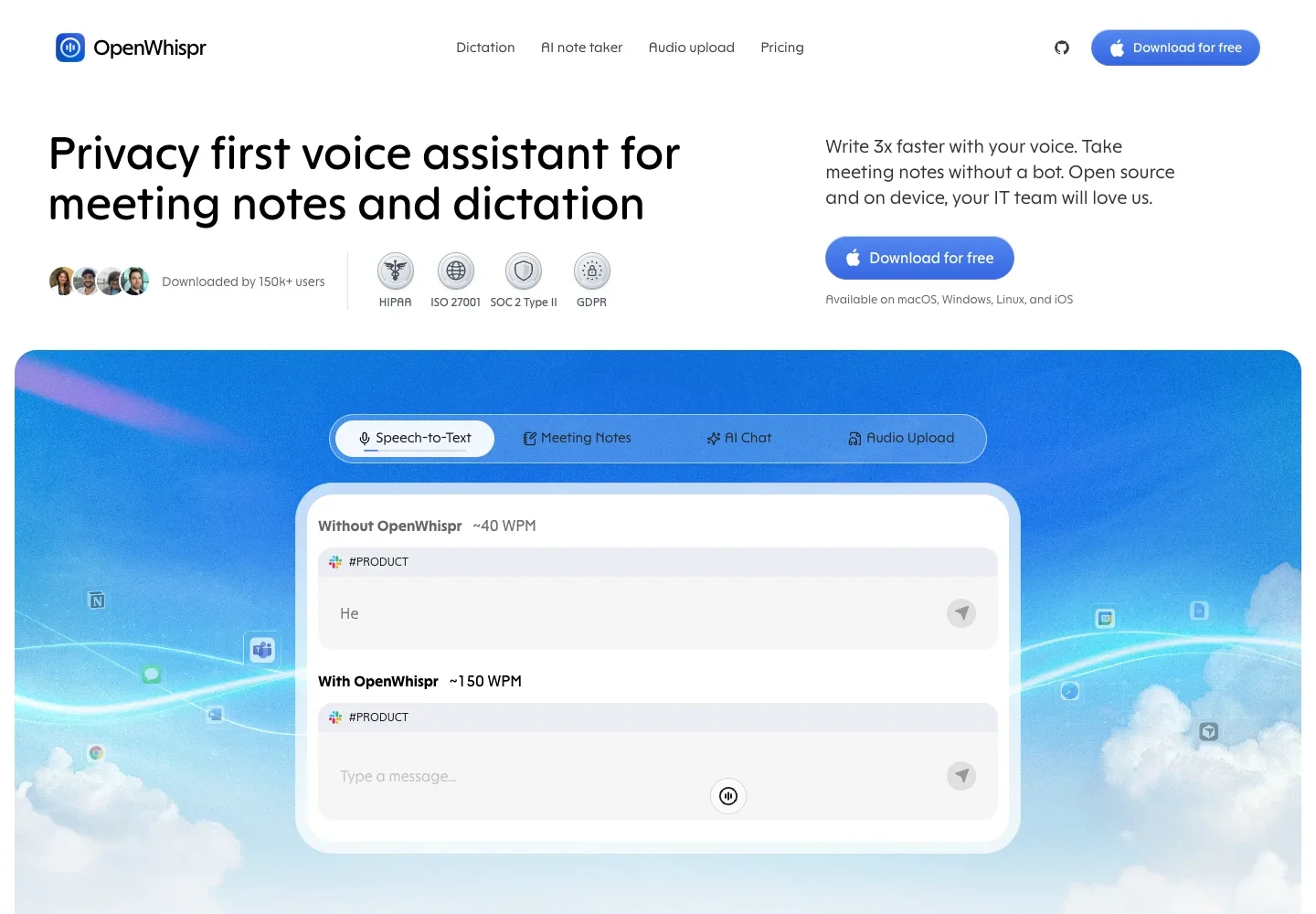
OpenWhispr appears in newer speech-to-text research because many users want a friendlier path around Whisper-style transcription. Treat it as a tool to test if you like the Whisper ecosystem but want more product around it.
Before choosing OpenWhispr on Linux, check the current install path, whether it supports your distro, and whether it handles live dictation, file transcription, or both. This category changes fast.
If you do not want to research setup details, Voicy for Linux is the simpler path for everyday dictation.
8. Talon Voice
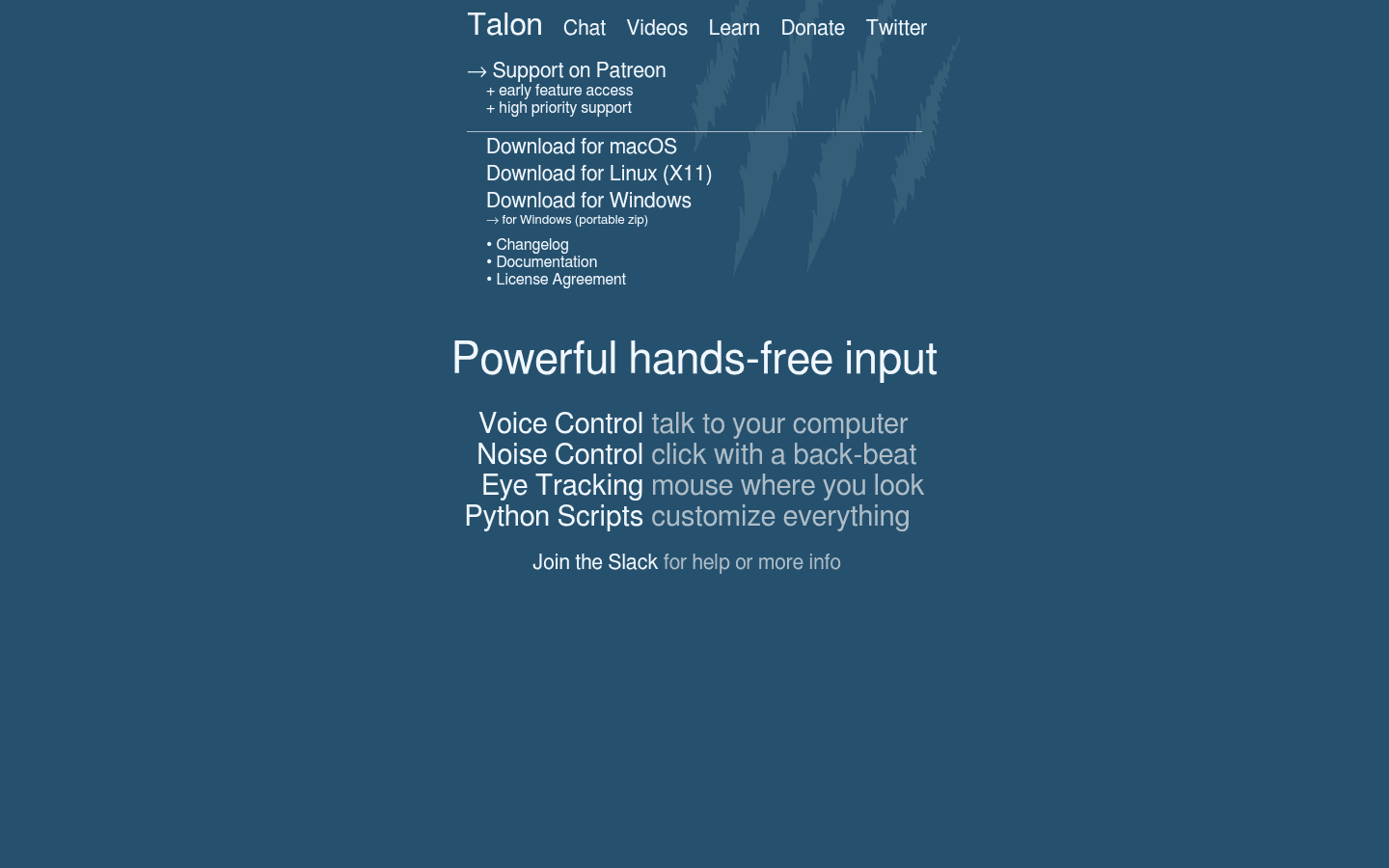
Talon Voice is not just dictation. It is a deep voice-control system for hands-free computing, coding, app commands, and accessibility workflows.
Talon is powerful, but it has a steep learning curve. It is the wrong pick if you only want to dictate a few emails. It is the right pick if you want to control your computer by voice and are willing to learn a full command system.
Linux users should check display-server support carefully. Talon has historically been strongest on X11, while Wayland support can be more limited.
9. Google Docs Voice Typing on Linux
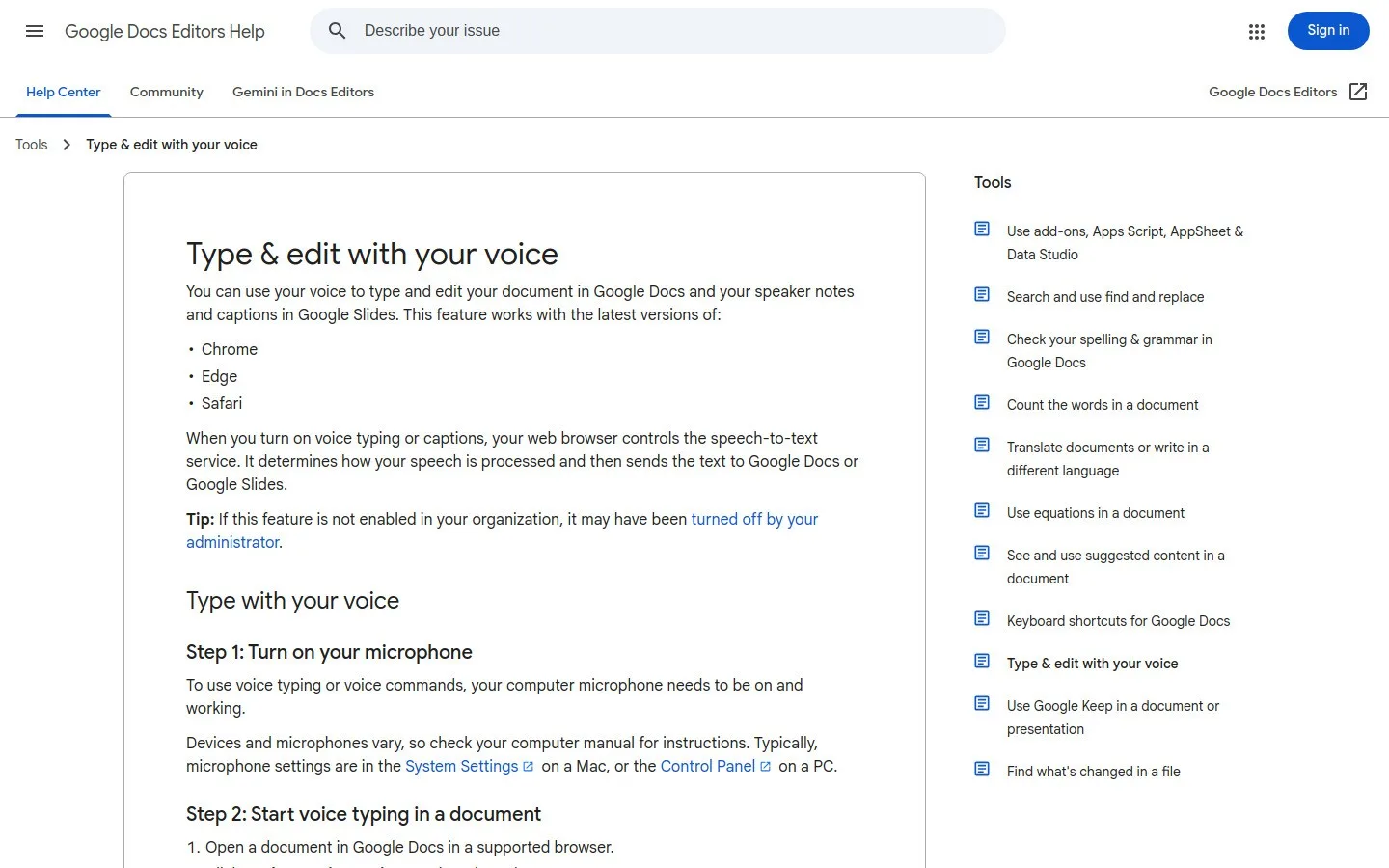
Google Docs Voice Typing works on Linux through Chrome or Chromium-based browsers. It is easy, accurate enough for many people, and free inside Google Docs.
The limit is obvious: it mostly lives inside Google Docs. It is not system-wide Linux dictation, and it will not help much in Thunderbird, VS Code, Slack, browser forms, or your terminal.
Use it for quick drafting in Docs. Use Voicy for Linux if you want a broader writing workflow.
Ubuntu speech to text: what to expect
Ubuntu is usually the easiest Linux distro for speech-to-text setup. Most Linux dictation projects test or document Ubuntu first because it has a large user base and common package names.
For simple setup, use Voicy for Linux or install a Flatpak app like Speech Note. For offline command-line dictation, try Nerd Dictation or whisper.cpp.
On Ubuntu GNOME, also check whether you are running Wayland or X11. Some input and automation tools behave better on X11. If a dictation tool can hear your mic but cannot paste text into your app, the display server may be the reason.
Fedora speech to text: what to expect
Fedora is a strong Linux desktop, but it often uses newer GNOME and Wayland defaults. That is good for security and modern desktop behavior, but it can make old dictation automation less predictable.
For Fedora, start with tools that have clear Flatpak or distro-neutral install paths. Speech Note is worth trying through Flathub. Voicy for Linux is the better fit if you want less setup work.
If you want open-source offline dictation on Fedora, expect to test microphone permissions, model downloads, shortcut handling, and Wayland behavior. That is normal. It does not mean the tool is broken.
Wayland vs X11 for Linux voice typing
Wayland and X11 matter because dictation tools need more than microphone access. They often need to paste text, simulate keystrokes, read the active window, or use global shortcuts.
X11 is older and often easier for automation. That is why tools like Talon Voice and some script-based workflows are easier to use there.
Wayland is newer and stricter. That can improve security, but it can block old input tricks. Some apps solve this with portals, clipboard paste, desktop extensions, or app-specific support. If a Linux dictation tool works in one app but not another, Wayland may be part of the reason.
Offline vs cloud speech-to-text on Linux
Offline speech-to-text keeps audio on your machine. It is best for privacy, experiments, and users who do not want a cloud service. Good offline picks include Vocalinux, Handy, Nerd Dictation, Speech Note, and whisper.cpp.
Cloud speech-to-text is usually easier to start and can feel smoother for everyday work. Voicy for Linux offers cloud transcription by default and optional offline dictation. You can choose local processing for basic dictation without switching apps.
The honest choice is simple. Choose offline if local processing matters most. Choose cloud if a polished workflow matters more than running speech recognition on your own machine.
Distro-specific setup expectations
Do not expect every Linux dictation tool to work the same on every distro. Before you choose, check five things:
Package format: Does the tool offer Deb, RPM, AppImage, Flatpak, or source install?
Desktop: Does it mention GNOME, KDE Plasma, or another desktop?
Display server: Does it support Wayland, X11, or both?
Audio stack: Does it work with PipeWire, PulseAudio, or ALSA on your system?
Input method: Does it paste text, type keystrokes, or use an input method like IBus?
If you want fewer questions, use a managed app. If you want more control, use open-source tools and budget time for setup.
A faster Linux dictation workflow with Voicy
If your goal is to write faster on Linux, start with the workflow. Try Voicy for Linux in the places where you already type: Gmail, Slack, Google Docs, ChatGPT, Claude, LibreOffice, Thunderbird, notes, and browser forms.
Then test file upload transcription with a real recording. Many Linux speech-to-text tools handle live dictation or files, but not both in one simple flow. Voicy is useful when you need both.
If you are ready to install, go to the Voicy Linux download page.
Frequently asked questions
Does Voicy have a dedicated native Linux desktop app?
Yes. Voicy for Linux is a dedicated desktop app. It lets you dictate across desktop apps, browsers, and terminals, not just inside a browser extension. It supports Ubuntu, Debian, Fedora, Arch Linux, Linux Mint, and other popular distros, with GNOME, KDE Plasma, Wayland, and X11 support.
Does Linux have built-in speech recognition like macOS?
No. Most Linux distros do not include polished system-wide speech-to-text by default. You usually need a third-party app, a browser tool, or an open-source setup.
What is the best speech-to-text app for Linux?
Voicy for Linux is the best easy option for most people because it supports everyday dictation and file upload transcription. If you need offline local processing, test Vocalinux, Handy, or Speech Note.
What is the best Ubuntu speech-to-text setup?
For Ubuntu, start with Voicy for Linux if you want quick setup. Use Speech Note for a Flatpak-friendly offline app, or Nerd Dictation if you like terminal setup.
What is the best Fedora speech-to-text setup?
For Fedora, choose tools with clear Wayland and Flatpak support first. Voicy for Linux is best for simple dictation, with cloud transcription by default and an optional offline mode. Speech Note is a good local app to test through Flathub.
Can I use speech-to-text on Wayland?
Yes, but support varies. Wayland is stricter about global shortcuts, simulated typing, and active-window access. Some tools work well, some need clipboard paste, and some work better on X11.
Is X11 better than Wayland for dictation?
X11 is often easier for older automation-based dictation tools. Wayland is more secure, but it can block old input methods. If a tool fails to type into apps on Wayland, test X11 before giving up.
Can Linux speech-to-text work offline?
Yes. Voicy for Linux supports basic offline dictation after you download a model in Settings. AI rewriting and file transcription remain online. Open-source offline options include Vocalinux, Handy, Nerd Dictation, Speech Note, and whisper.cpp.
Is cloud dictation private enough?
It depends on your needs. Cloud tools send audio for processing, so they do not run speech recognition only on your own machine. They can still be a good fit for normal work if you accept that tradeoff and read the privacy policy.
Can I transcribe audio files on Linux?
Yes. Voicy for Linux supports file upload transcription. Developers can also use whisper.cpp for local file transcription workflows.
Can I use Dragon NaturallySpeaking on Linux?
Dragon NaturallySpeaking does not run natively on Linux. Some people try Wine or virtual machines, but that is not the cleanest daily setup.
Which Linux distro is best for speech recognition?
Ubuntu is usually easiest because more projects document it. Fedora is also good, but Wayland defaults can require more testing. The best distro is the one your chosen tool clearly supports.
Final take
Linux speech-to-text is no longer a dead end. You can choose a polished cloud app, a local open-source app, a terminal workflow, or a full voice-control system.
Choose Voicy for Linux if you want the simplest daily dictation and file transcription workflow. Choose Vocalinux, Handy, Nerd Dictation, or whisper.cpp if local control matters more.
The right answer depends less on Linux as a whole and more on your distro, desktop, display server, privacy needs, and writing workflow.
 Download for Ubuntu/Debian