
Safari does not have a separate voice typing button for every website.
You can still dictate in Safari with Mac Dictation, Voicy, or your iPhone keyboard microphone. Use the built-in option for quick text, and use Voicy when you want cleaner writing across Safari and other apps.
Ways to use voice typing in Safari
Mac Dictation
✅ Free and built into macOS
✅ Works in Safari text fields
✅ Good for short notes, searches, and quick replies
❌ You may need to say punctuation out loud
❌ Longer writing usually needs review
Voicy
✅ Dictate directly into Safari text fields
✅ Automatic punctuation and accurate words, no cleanup needed
✅ Works beyond Safari: Gmail, Google Docs, Outlook, Slack, Notion, ChatGPT, Claude, and more
❌ Needs a quick install
❌ Paid after the free trial
iPhone or iPad keyboard dictation
✅ Free on iPhone and iPad
✅ Good for quick Safari replies or searches
❌ The microphone is on your keyboard, not Safari itself
❌ Not comfortable for long writing
Method 1: Use Mac Dictation in Safari
Use this when you want the free built-in Mac option.
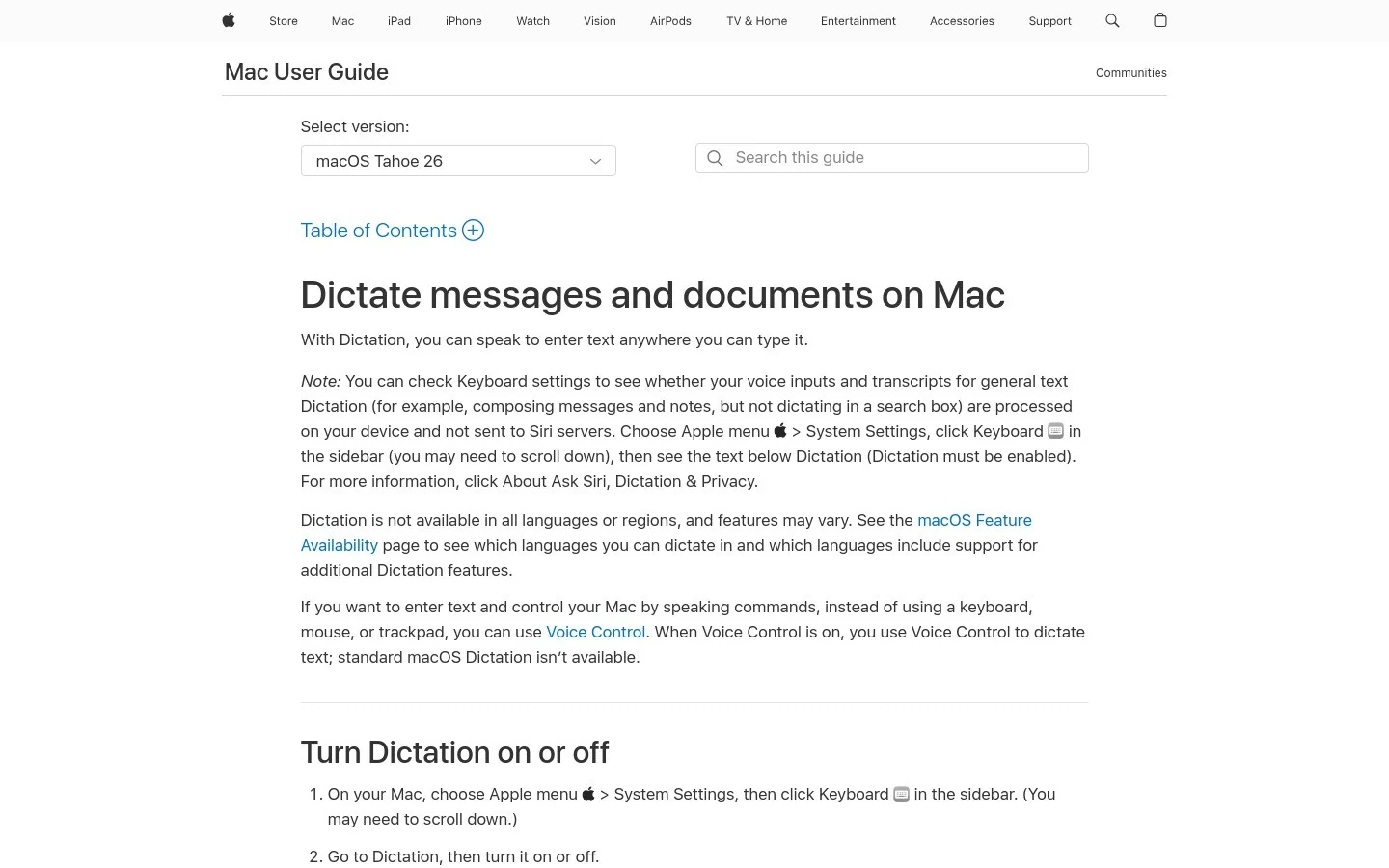
Step 1: Turn on Dictation
Open System Settings.
Then go to:
Keyboard
Dictation
Turn Dictation on
Choose your language, microphone, and shortcut.
Step 2: Open Safari
Open Safari and go to the page where you want to write.
For example:
Gmail or Outlook on the web
Google Docs
Notion
forms and support tools
ChatGPT or Claude
Step 3: Click where the text should appear
Click inside the text field.
Dictation inserts text where your cursor is.
Step 4: Start dictating
Use your Mac dictation shortcut.
Speak naturally, then stop dictation when you are done.
Step 5: Review the text
Check punctuation, names, numbers, and spacing before sending or saving.
Method 2: Use Voicy in Safari
Use this when you write in Safari often and want cleaner text with automatic punctuation.
Step 1: Download Voicy
Download Voicy and choose the Mac app for this Safari desktop workflow. Complete the app setup before returning to Safari.
Voicy is available for Mac, Windows, Chrome extension, Linux, iOS, and Android.
Step 2: Open Safari
Open the Safari page where you want to write.
Click inside the text field.
Step 3: Start dictating with Voicy
Use the Voicy mic button or your Voicy keyboard shortcut.
Speak naturally. Voicy adds punctuation automatically, so you do not need to say "comma" or "period."
Step 4: Keep writing across your Mac
Use the same workflow in Safari, Word, Gmail, Google Docs, Slack, Notion, Outlook, and other writing fields.
You do not need a Safari extension.
Method 3: Use iPhone or iPad dictation in Safari
Use this for quick mobile text.
Step 1: Open Safari
Open Safari on your iPhone or iPad.
Go to the page where you want to type.
Step 2: Tap the text field
Tap inside the field.
Your keyboard should appear.
Step 3: Tap the keyboard microphone
Tap the microphone on your keyboard.
This microphone belongs to your keyboard, not Safari.
Step 4: Speak your text
Speak the sentence or short paragraph you want to add.
Tap the microphone again when you are done.
Step 5: Review before sending
Mobile dictation is useful for quick replies, but names, numbers, and punctuation can still need cleanup.
Which Safari dictation method should you use?
Method | Use it when | Main tradeoff |
|---|---|---|
Mac Dictation | You want a free built-in option for short Safari text fields. | Longer writing usually needs cleanup. |
Voicy | You write often in Safari and want automatic punctuation. | Needs setup and a paid plan after trial. |
iPhone/iPad dictation | You only need quick mobile replies or searches. | Not ideal for long writing. |
If you only need a quick search or reply, Mac Dictation is enough.
If Safari is where you write emails, notes, forms, or prompts every day, Voicy is the smoother workflow.
Everyday writing workflows in Safari
Write an email in Gmail or Outlook
Open a new message or reply, then click the message body. Dictate the main point first and add any detail in a second passage. For example: “I've reviewed the draft and added comments. Please update the opening section and send it back by Thursday.” Stop recording before checking the recipient, deadline and attachments. For more detail, use the guides for Gmail or Outlook.
Draft in Google Docs or Notion
Create the outline first, click below the relevant heading, and dictate one paragraph. Then review the text before moving to the next section. Mac Dictation and the Voicy Mac app use your computer's dictation controls; you do not need a Chrome extension to use those methods in Safari. If you prefer the microphone tool inside Google Docs, follow the separate Google Docs Voice Typing instructions.
Complete forms and support requests
Use dictation for the explanation: what happened, what you expected and what you have already tried. Stop before moving between form fields, and check any character limit. Enter exact identifiers, URLs and contact details with the keyboard when that is more precise. Review the finished form before submitting it.
Speak a longer AI prompt
Click into the prompt field and state your goal, background and desired output. A useful request is: “Help me turn these notes into an agenda with three discussion points and a decision at the end.” Check the prompt before sending it. See dictation in ChatGPT for a focused walkthrough.
Check whether the problem is Safari or the dictation setup
Try the same short sentence in Notes and in the Safari field. If neither works, check the Mac microphone and Dictation settings. If Notes works, confirm that the Safari page is editable, click inside the writing area, and try again. A website's microphone feature can also have its own permission requirements, separate from a desktop dictation app.
For more setup help, see the Mac speech-to-text guide. For the desktop app route, use Voicy for Safari; the relevant download is the Mac app.
Common Safari voice typing issues
Issue | What to check | Fix |
|---|---|---|
No microphone icon in Safari | Whether you expected a Safari-specific button | Safari does not have a universal voice typing button. Use Mac Dictation, Voicy, or your mobile keyboard microphone. |
Mac Dictation does not start | Dictation settings, shortcut, and microphone permission | Open System Settings > Keyboard and confirm Dictation is on. Then test your microphone. |
Text appears in the wrong field | Cursor location | Click inside the exact Safari field before starting dictation. |
Punctuation is missing | Which tool you are using | Check automatic punctuation in your dictation settings where supported; otherwise speak punctuation commands. Review the result. |
Google Docs Voice Typing is missing | Browser support and Google Docs menu options | Try the latest Safari, or switch to Chrome for Google's built-in tool. Voicy can still dictate into Docs in Safari. |
FAQ
Does Safari have built-in voice typing?
Safari itself does not have a separate voice typing button, but Mac Dictation works inside Safari text fields.
How do I dictate in Safari on Mac?
Turn on Dictation in System Settings > Keyboard, open Safari, click into a text field, then use your dictation shortcut.
Can I use Google Docs Voice Typing in Safari?
Google says Voice Typing works in recent Safari versions, but if it is missing or unreliable, Chrome is usually the safest fallback for Google's built-in tool. Voicy can also dictate into Google Docs in Safari.
Does Voicy work in Safari?
Yes. Voicy works as a desktop dictation app, so it can type into Safari text fields without a Safari extension.
Is there a Safari voice typing extension?
You do not need an extension for the methods in this guide. For daily dictation, Mac Dictation or a desktop app like Voicy is usually more reliable.
Can I dictate in Safari on iPhone or iPad?
Yes. Tap a Safari text field, then tap the microphone on your iPhone or iPad keyboard.
 Download for free