
Firefox does not have one built-in voice typing button that works everywhere.
You can still dictate in Firefox with Voicy, your computer's native dictation, or a Firefox add-on. The best choice depends on whether you need quick free dictation or cleaner daily writing.
Ways to use voice typing in Firefox
Voicy
✅ Dictate directly into Firefox text fields
✅ Automatic punctuation and accurate words, no cleanup needed
✅ Works beyond Firefox: Gmail, Google Docs, Outlook, Slack, Notion, ChatGPT, Claude, and more
❌ Needs a quick install
❌ Paid after the free trial
Native desktop dictation
✅ Free on Mac and Windows
✅ Works in many Firefox text fields
❌ You may need to say punctuation out loud
❌ Longer text usually needs review
Firefox add-ons or web tools
✅ Can work for simple browser-only dictation
✅ Useful if you only need a quick field or form
❌ Add-ons can be limited, outdated, or inconsistent
❌ They usually do not follow you outside Firefox
Method 1: Use Voicy in Firefox
Use this when you write in Firefox often and want cleaner text without saying every punctuation mark out loud.
Step 1: Download Voicy
Download Voicy and choose the version for your device.
Voicy is available for Mac, Windows, Chrome extension, Linux, iOS, and Android.
Step 2: Open Firefox
Open Firefox and go to the page where you want to write.
For example:
Gmail or Outlook on the web
Google Docs
Notion
Reddit or forums
Contact forms
ChatGPT, Claude, or other AI tools
Step 3: Click where the text should appear
Click inside the exact text field before you start.
Voicy types where your cursor is.
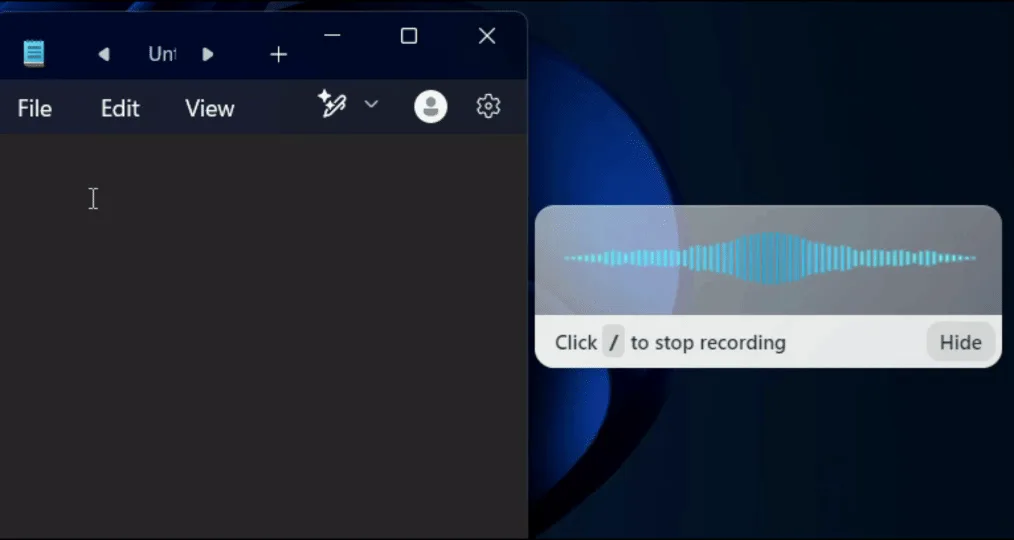
Step 4: Start dictating
Use the Voicy mic button or your Voicy keyboard shortcut.
Speak naturally. Voicy adds punctuation automatically, so you do not need to say "comma" or "period."
Step 5: Keep writing across apps
Use the same workflow in Firefox and in the other apps where you write.
You do not need a Firefox-specific extension or a separate tool for every website.
Method 2: Use native desktop dictation in Firefox
Use this when you want a free option and only need short text.
On Windows
Open Firefox.
Click inside the text field.
Press Windows + H.
Click the microphone if dictation does not start automatically.
Speak your text.
Review punctuation, names, and numbers before sending.
On Mac
Open System Settings.
Go to Keyboard.
Turn on Dictation.
Open Firefox and click inside a text field.
Start Dictation with your Mac shortcut.
Speak your text.
Review the result before sending.
Method 3: Firefox Speech-to-Text Extensions
For a browser add-on, these two options are worth checking:
Speechfire: offline dictation into Firefox text fields on Windows and Linux. Requires a separate local Python server.
Voice-to-Text Assistant: its listing describes a dictation popup with editable text. Users report compatibility issues, so test it before relying on it.
Check permissions and setup requirements before installing. For writing across apps, use Voicy or your computer’s native dictation.
Which Firefox dictation method should you use?
Method | Use it when | Main tradeoff |
|---|---|---|
Voicy | You write often in Firefox and want cleaner text with automatic punctuation. | Needs setup and a paid plan after trial. |
Native desktop dictation | You want a free built-in option for short Firefox text fields. | Longer writing usually needs cleanup. |
Firefox add-ons | You only want a browser add-on and are comfortable testing permissions. | Quality and maintenance vary a lot. |
If you only need a quick sentence, native dictation is fine.
If Firefox is where you write emails, notes, forms, or AI prompts every day, Voicy is the smoother workflow.
Practical ways to use voice typing in Firefox
Reply to email without leaving your inbox
Open the message, choose Reply, and click inside the message body before starting dictation. Say the main response and next action in one short passage. For example: “Thanks for the update. I can review the proposal on Thursday. Please send the latest version before noon.” Stop recording, check the date and recipient, and then send it yourself. See the Gmail voice typing guide for a full email workflow.
Draft documents and notes
In Google Docs or another browser editor, click where the paragraph belongs and dictate one idea at a time. A desktop dictation tool uses a separate workflow from the website's own microphone button; it does not require Google's Voice Typing menu to be present. If you want that built-in menu instead, check the supported browsers in our Google Docs guide.
Fill forms and write forum replies
Dictate longer explanations into comment boxes, application answers or forum replies, then stop before moving to the next field. Type email addresses, account identifiers and exact reference numbers when that is easier to verify. If the site has a character limit, edit the answer before submitting; dictation does not remove the limit.
Give an AI tool a complete prompt
Click the prompt field in ChatGPT or another AI tool and explain the task, context and desired result. For example: “Help me outline a customer interview summary. I need sections for recurring problems, supporting examples and next steps.” Review the prompt before sending it. The ChatGPT dictation page covers that workflow.
Test a Firefox field before a long recording
Start with one sentence in a simple text box. If that succeeds but a particular editor does not, check that the document is editable and that the cursor is inside its writing area. Try the editor's plain-text mode if it offers one. Keep the dictated passage short until you know it appears in the right place.
For computer-level setup, use the Windows or Mac guide. For the Voicy desktop route specifically, see Voicy for Firefox.
Common Firefox voice typing issues
Issue | What to check | Fix |
|---|---|---|
No voice typing button in Firefox | Whether you expected a built-in Firefox feature | Firefox does not provide a universal voice typing button. Use Voicy, native dictation, or an add-on. |
Google Docs voice typing is missing | Browser support and Google Docs menu options | Try Chrome for the native Google Docs tool, or use Voicy/native dictation inside Firefox. |
Text appears in the wrong field | Cursor location | Click inside the exact Firefox field before starting dictation. |
Punctuation is missing | Which dictation method you are using | Check automatic punctuation in your dictation settings where supported; otherwise speak punctuation commands. Review the result. |
A Firefox add-on does not work | Permissions, update history, and website compatibility | Remove unreliable add-ons and use a system-wide dictation tool instead. |
FAQ
Does Firefox have built-in voice typing?
No. Firefox does not have a universal built-in voice typing feature for every text field.
Can I use Google Docs Voice Typing in Firefox?
Not reliably. If the Google Docs voice typing option is missing, use Chrome for the built-in tool or use Voicy/native dictation in Firefox.
How do I dictate in Firefox on Windows?
Click inside a Firefox text field and press Windows + H. Then speak and review the text before sending.
How do I dictate in Firefox on Mac?
Turn on Dictation in System Settings > Keyboard, then use your Mac dictation shortcut inside a Firefox text field.
Does Voicy work with Firefox?
Yes. Voicy works as a desktop dictation app, so it can type into Firefox text fields without a Firefox extension.
What is the best voice typing extension for Firefox?
Firefox add-ons vary a lot. For daily writing, a system-wide dictation app like Voicy is usually more reliable than a browser-only add-on.
 Download for free
 Download for free