




Speech to Text for Chrome: Quick Dictation and Voice Commands
Tired of switching between windows just to type a quick note or email? With speech-to-text for Chrome, you can dictate directly into any text box on any website and turn your voice into polished text instantly.
Best fit for Chrome speech to text
If you mainly dictate in Chrome, route setup through Voicy's speech-to-text Chrome extension. It supports live dictation in browser fields plus file upload transcription when you already have audio or video to turn into text.
Voicy works across Mac, Windows, browser extension, iOS, and Android. It is cloud-based, starts with a free trial, and paid plans are $8.49/month, $82/year, or $260 lifetime.
Best fit for Chrome speech to text
If you mainly dictate in Chrome, route setup through Voicy's speech-to-text Chrome extension. It supports live dictation in browser fields plus file upload transcription when you already have audio or video to turn into text.
Voicy works across Mac, Windows, browser extension, iOS, and Android. It is cloud-based, starts with a free trial, and paid plans are $8.49/month, $82/year, or $260 lifetime.
Summary of the article
The most important points summarised.
Speech-to-text for Chrome lets you dictate directly into any text box on any website, Gmail, Google Docs, Slack, social media, turning your voice into polished text instantly.
Why it matters: Typing is slow and hard on your wrists. Speaking is 3-4 times faster and lets you capture ideas before they disappear.
How Voicy works:
99% accuracy in 50+ languages with automatic punctuation
AI commands - Say "make this more professional" or "turn this into bullet points" to edit on the fly
Universal compatibility - Works in any text field across all websites
Privacy-first - Your data is processed securely and never stored long-term
Installation is simple:
Add Voicy from Chrome Web Store
Grant microphone permissions
Select your language and dialect
Hit your activation shortcut and start speaking
Real-world uses:
Sales reps - Dictate follow-up emails after calls, then polish with AI commands
Content creators - Brainstorm ideas out loud, organize into structured outlines
Students - Capture lecture notes in real-time, summarize into study guides
Pro tip: If you want a dedicated page comparing the best workflow-focused option for Gmail, Docs, Slack, Notion, and AI writing tools, see our guide to the best speech-to-text Chrome extension.
Siri for Chrome: What Actually Works?
If you search for siri for chrome, you are probably looking for a fast way to talk to your browser, search by voice, or dictate into websites. Apple Siri is not built into Chrome as a full browser assistant, so it cannot handle every Chrome text field the way a dedicated dictation extension can.
The practical setup is a speech-to-text Chrome extension. With Voicy, you can dictate into Gmail, Google Docs, Notion, Slack, ChatGPT, forms, comments, and most browser text boxes. You also get AI commands, so you can say things like "make this more professional" or "turn this into bullet points" after you speak a rough draft.
Siri vs Chrome voice search vs a speech-to-text extension
Option | Best for | Limit |
|---|---|---|
Siri | Device actions, quick questions, reminders, and iPhone or Mac shortcuts. | Not a full Chrome writing tool inside every website. |
Chrome voice search | Searching Google with your voice. | Mostly search-focused, not built for writing emails or long text. |
Voicy Chrome extension | Dictating, editing, and formatting text across browser apps. | Needs microphone permission and a quiet enough setup for best accuracy. |
So the short answer is: Siri is not the best way to write inside Chrome. For browser writing, use a Chrome speech-to-text tool that is designed for dictation, AI editing, and text fields.
Why Your Browser Needs an AI Upgrade
Let's be real, typing, editing, and formatting take forever. You get a great idea for an email, but by the time you've opened your inbox and found the right thread, that spark is gone. This constant friction kills your workflow.
Manually typing every word is slow and hard on your wrists. There's a smarter way, and it's right inside your browser.
The Shift to Browser-Based Productivity
Modern tools are changing the game by adding AI directly to your browser. This isn't just basic dictation. Advanced speech-to-text for Chrome extensions work like an intelligent assistant, they understand context, fix grammar, and format text based on voice commands.
Save Time: Stop wasting minutes on typing and formatting. Just speak and let AI do the work.
Work Seamlessly: Dictate into Gmail, Google Docs, social media, or any text field without leaving your tab.
Boost Output: Create drafts and messages way faster than typing, freeing your mind for what matters.
This shift changes how we work online. The speech recognition market is expected to hit USD 19.1 billion by 2025. People want smarter voice tools in their browsers, whether using Chrome, Safari, or Firefox.
How Voicy AI Supercharges Your Browser
Here's how Voicy goes beyond basic dictation.
Feature | What It Does for You |
|---|---|
High-Accuracy Dictation | Converts speech to text with over 99% accuracy in 50+ languages. |
AI Writing Commands | Edit, format, and rewrite text with voice commands like "make this more professional." |
Automatic Punctuation | No need to say "period" or "comma." AI adds punctuation automatically. |
Universal Compatibility | Works in any text box on any website, Gmail, Notion, Slack, social media. |
Privacy-First Design | Your voice data is processed securely and never stored on external servers. |
Voicy turns your browser into an active assistant that helps you create better content faster.
Beyond Simple Dictation
The real magic is in the intelligence behind the transcription. Natural Language Processing (NLP) is what lets Voicy do more than just type what you say.
Forget clunky software and endless typing. The future of productivity is speaking your thoughts and watching them appear as perfectly formatted text, right where you need them.
You can give commands like "summarize this into three bullet points" or "make this sound more professional." It turns your raw speech into a finished product with almost no effort.
Getting Voicy Installed and Ready to Go
Adding voice control to your browser is simple. You can install a speech-to-text for Chrome tool like Voicy in just a couple of clicks.
Start on the Chrome Web Store. Search for Voicy and click "Add to Chrome." Or go straight to the Voicy download page.
Chrome will ask for permissions. Let's break down what's happening.
Understanding Microphone Permissions
For Voicy to hear you, it needs access to your microphone. Simple. This is a security check built into Chrome to protect your privacy.
When you approve this, you're allowing the tool to turn on the mic when you tell it to. It's not always listening. You control when dictation starts and stops.
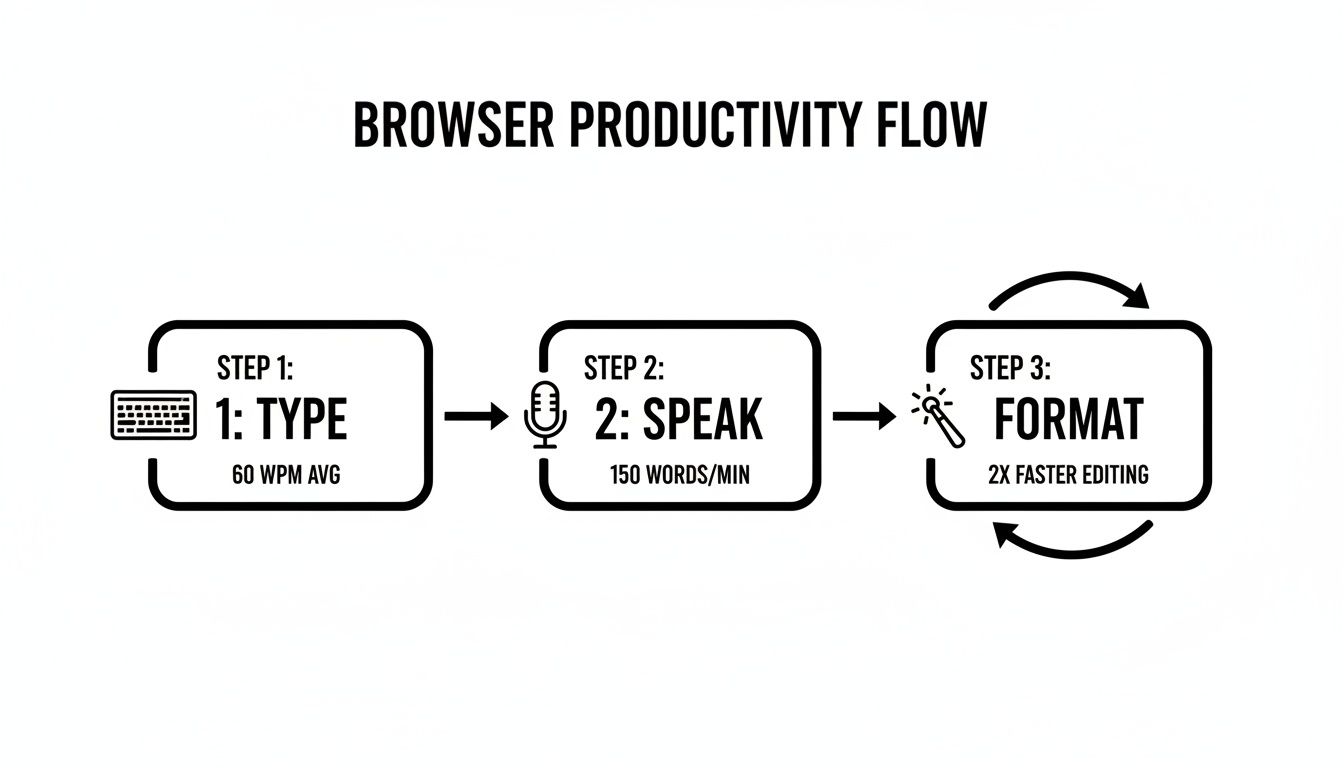
This shows how speaking your thoughts streamlines getting ideas out and ready to go.
After installing, Voicy's icon appears in your toolbar. Pin the extension to keep it visible. Click the icon to open settings and make a few quick tweaks.
Your First Configuration Steps
The most important thing is selecting your language. Voicy supports over 50 languages and dialects. Choosing the right one gives you high accuracy from the start.
Your first transcription is your baseline. Select your specific language and dialect (like UK vs. US English) to help the AI interpret your speech and reduce errors.
Check these settings first:
Primary Language: Select the language you'll speak most often.
Activation Shortcut: Change the default keyboard shortcut to whatever works for you.
AI Commands: Look over available commands so you know what's possible, fix grammar, summarize text, or rewrite in a professional tone.
That's it. You're ready. Go to any website with a text box, Gmail, Google Docs, social media, and hit your activation shortcut. A microphone icon appears. Start talking and watch your words show up.
From Spoken Words to Polished Text
With Voicy set up, here's where AI-driven speech-to-text for Chrome changes how you work. You can now transcribe on any website, going way beyond note-taking.
Staring at a blank email in Gmail? Hit the Voicy shortcut and start talking. Your words appear on screen as fast as you think of them. Same for social media comments or brainstorming in Google Docs. Every text box is fair game.
Using AI Commands to Edit on the Fly
Basic transcription is just the start. Voicy's AI commands let you polish text without touching the keyboard.
After dictating a rough draft, highlight the text and give a command:
"Make this more professional."
"Summarize this in three sentences."
"Fix the grammar."
"Turn this into bullet points."
The AI rewrites your text on the spot. This is huge for anyone who thinks faster than they type. You capture raw ideas first, then refine them with quick voice commands.
Making It Work Across Different Platforms
Speech-to-text for Chrome extensions like Voicy works everywhere. Not just Google products.
Here's where it shines:
Gmail: Dictate emails, then use commands to make them sound more formal or casual.
Slack: Type messages hands-free while multitasking or when your wrists need a break.
WordPress: Draft blog posts by speaking your thoughts, then organize them with voice commands.
Social Media: Quickly comment on LinkedIn, Twitter, or Facebook without typing.
Google Docs: Perfect for long-form writing, reports, or collaborative projects. See our full guide on how to voice type on Google Docs for detailed setup steps.
This universal compatibility means you learn one tool and use it everywhere.
Avoiding Common Mistakes for Perfect Transcriptions
Even the best speech-to-text for Chrome tool needs the right setup. Small mistakes can mess with accuracy. Let's fix the common ones.
Your Audio Setup Matters
Your microphone is everything. Using your laptop's built-in mic in a noisy room? You'll get errors.
Try this instead:
Get a Better Mic: A cheap USB microphone or headset mic beats laptop mics every time. Clearer audio means fewer mistakes.
Find a Quiet Spot: Background noise confuses the AI. Close the door, turn off fans, or move to a quieter room.
Position Matters: Keep the mic 6-8 inches from your mouth. Too close creates popping sounds. Too far makes you sound muffled.
Speaking Clearly Is Half the Battle
AI is smart, but it's not a mind reader. How you speak affects the results.
Pace Yourself: Don't rush. Speak at a normal conversational speed. Rushing words together creates errors.
Enunciate: You don't need to sound like a robot, but clear pronunciation helps. Mumbling = mistakes.
Use Natural Pauses: Pause between thoughts. This helps the AI understand sentence breaks and add punctuation correctly.
Think of it like talking to a coworker. Clear, natural, but not overly slow.
Quick Troubleshooting Guide
Something not working? Here are the most common problems and fast fixes.
Problem | Likely Cause | Quick Fix |
|---|---|---|
Transcription doesn't start | Microphone permissions denied | Go to Chrome settings, find Voicy, and turn on microphone access. |
Text is full of errors | Background noise or poor mic | Move to a quieter room or use an external microphone. |
Specific words are wrong | Mumbling or unclear speech | Speak more clearly and add the word to your custom dictionary if possible. |
The mic icon is missing | Page hasn't loaded | Refresh the page. If that fails, disable and re-enable the extension. |
Still stuck? Check our guide on how to fix common voice typing issues. It covers browser cache problems and conflicting extensions.
Getting flawless transcription is about giving AI the best input. Clean audio and clear speech set you up for high-quality, accurate text.
Chrome is also the simplest bridge for many Linux users. If you need more than browser-only dictation, compare the options in our speech to text on Linux.
Real-World Scenarios Where Voicy Shines

Let's see how speech-to-text for Chrome actually fits into your workday. Voicy's real value shows up when you use AI commands to tackle specific tasks.
Different jobs have different communication challenges. Voice commands solve many of them instantly.
For the Sales Pro Crafting Follow-Ups
You just finished a great client call. The energy is high. Instead of breaking that flow to type, capture your thoughts while they're fresh.
Open Gmail, fire up Voicy, and talk naturally:
"Hey John, comma just wanted to recap our call period. We discussed the new project timeline and the Q4 budget period. I'll send over the proposal by the end of the day tomorrow. Thanks again for your time."
Then give the AI a command: "Make this a professional email."
Voicy instantly reframes your raw notes into a polished message with a proper greeting, structured body, and professional sign-off. It's a game-changer for client communication.
This saves time and ensures your follow-up is sharp while the conversation is fresh. Check out our guide on dictation for Gmail for more email tips.
For the Content Creator Brainstorming Ideas
Staring at a blank page? Writer's block is often just friction between your brain and the keyboard. Voice dictation removes that barrier.
Open a WordPress post or Google Doc and let ideas flow out loud:
"Okay, blog post ideas for next month, maybe something about productivity hacks for remote teams, another idea is a deep dive into new marketing trends, and a third could be a case study on our last big project."
Then tell Voicy: "Organize this into a numbered list with headings for each idea."
Boom. Your messy thoughts are now a structured, clean outline ready to develop.
For the Student Capturing Lecture Notes
Typing every word during an online lecture is impossible. Students can use Voicy to grab important points in real-time without falling behind.
Just focus on capturing core concepts as the professor explains them.
After the lecture, highlight the transcript and give one command: "summarize this into key bullet points for a study guide."
The AI takes pages of notes and turns them into a concise, scannable summary. This transforms passive listening into active learning and makes exam prep way more efficient.
In each case, Voicy handles the grunt work so you can focus on ideas.
Your Top Questions About Voicy, Answered
Can I use Siri in Chrome?
You can use Siri for device-level tasks on Apple devices, but Siri is not a full Chrome dictation tool inside every website. For writing in Chrome text fields, a speech-to-text Chrome extension is usually the better option.
What is the best Siri for Chrome alternative?
The best Siri for Chrome alternative depends on what you want to do. For voice search, Chrome's built-in voice search can help. For writing emails, notes, prompts, and forms in Chrome, Voicy is a stronger fit because it adds dictation and AI editing to browser text fields.
Does Chrome have built-in voice typing?
Chrome supports voice search and some websites have their own voice typing tools, but Chrome does not give every text box a polished built-in dictation workflow. A Chrome speech-to-text extension fills that gap.
Using any new tool that listens to your voice brings up questions. Let's get into the most common ones about making speech-to-text for Chrome part of your workflow.
Is My Data Kept Private When I Use This?
Privacy is a must. When you use Voicy, your voice is processed to turn speech into text or follow AI commands. This involves sending data securely to cloud-based AI models for accurate results.
Good extensions are upfront about this. Always scan the privacy policy before installing. Voicy was built with security as a priority, your data is handled responsibly and never stored long-term. Getting it from the official Chrome Web Store adds confidence since Google vets everything.
Will Voicy Understand My Accent or Language?
Absolutely. Modern AI is trained on massive datasets from around the world. Voicy handles over 50 languages and a huge range of regional accents easily.
For the best experience, go into settings and pick your primary language and dialect, like US English vs. UK English.
Pro Tip: Specifying your exact dialect is one of the quickest ways to boost accuracy. It gives the AI crucial context and makes a huge difference for non-native speakers or anyone with a strong regional accent.
What if the Transcription Gets a Word Wrong?
No speech-to-text tool is 100% perfect. You'll see a mistake here and there. The trick is to build a hybrid workflow.
Dictate your main ideas to get them down fast, then grab the keyboard for quick edits.
This mix of voice and keyboard is almost always faster than typing everything from scratch. If the AI trips over specific names or jargon, say those words more clearly. You'll find a rhythm the AI picks up on, and errors will become rare.
Ready to get back more of your day and completely change how you work in Chrome? Voicy has the accuracy, AI smarts, and security you're looking for.
Start using Voicy with a free trial today!
Opera and Edge users can usually use the same Chromium extension base. For browser-specific picks, see Opera browser extensions and Edge browser extensions.
If you want a broader comparison beyond Chrome, see our guide to the best talk-to-text apps and text speaking software.


