




Mac Dictation Not Working? Complete Fix + Setup Guide (2026)
TL;DR
If dictation is not working on Mac, start with the simple fixes: turn Dictation off and on, check microphone access, pick the right mic, confirm the shortcut, and make sure the language matches how you speak. If Apple Dictation still fails in long emails, files, browser apps, or daily work, use Voicy for Mac dictation as a more reliable cross-app workflow.
Answer first: why Mac Dictation stops working
Mac Dictation usually stops working because one setting is off: Dictation is disabled, the shortcut changed, the wrong microphone is selected, the app does not have microphone permission, or the selected language does not match your speech. Apple also notes that some Dictation modes may need an internet connection, and standard Dictation is not available while Voice Control is on.
Use the checklist below in order. It starts with the fastest fixes, then moves to app-specific problems and macOS checks. It follows Apple's own Dictation troubleshooting guidance, then adds practical app and workflow checks.
Quick checklist for Mac Dictation not working
Problem | Try this first |
|---|---|
Nothing happens when you press the shortcut | Check System Settings > Keyboard > Dictation and confirm the shortcut. |
The mic opens, but no text appears | Check microphone permission, microphone source, and input volume. |
Wrong words or bad punctuation | Check Dictation language, reduce noise, and test with a headset mic. |
Dictation works in one app, not another | Click into an editable text field, restart that app, and check app mic access. |
Dictation disappears after a pause | Apple Dictation can stop after no speech is detected for about 30 seconds. |
1. Turn Apple Dictation off and on again
Start here because it clears the most common stuck state.
Open Apple menu > System Settings.
Click Keyboard.
Scroll to Dictation.
Turn Dictation off, wait 10 seconds, then turn it on again.
Open Notes or TextEdit and test a short sentence.
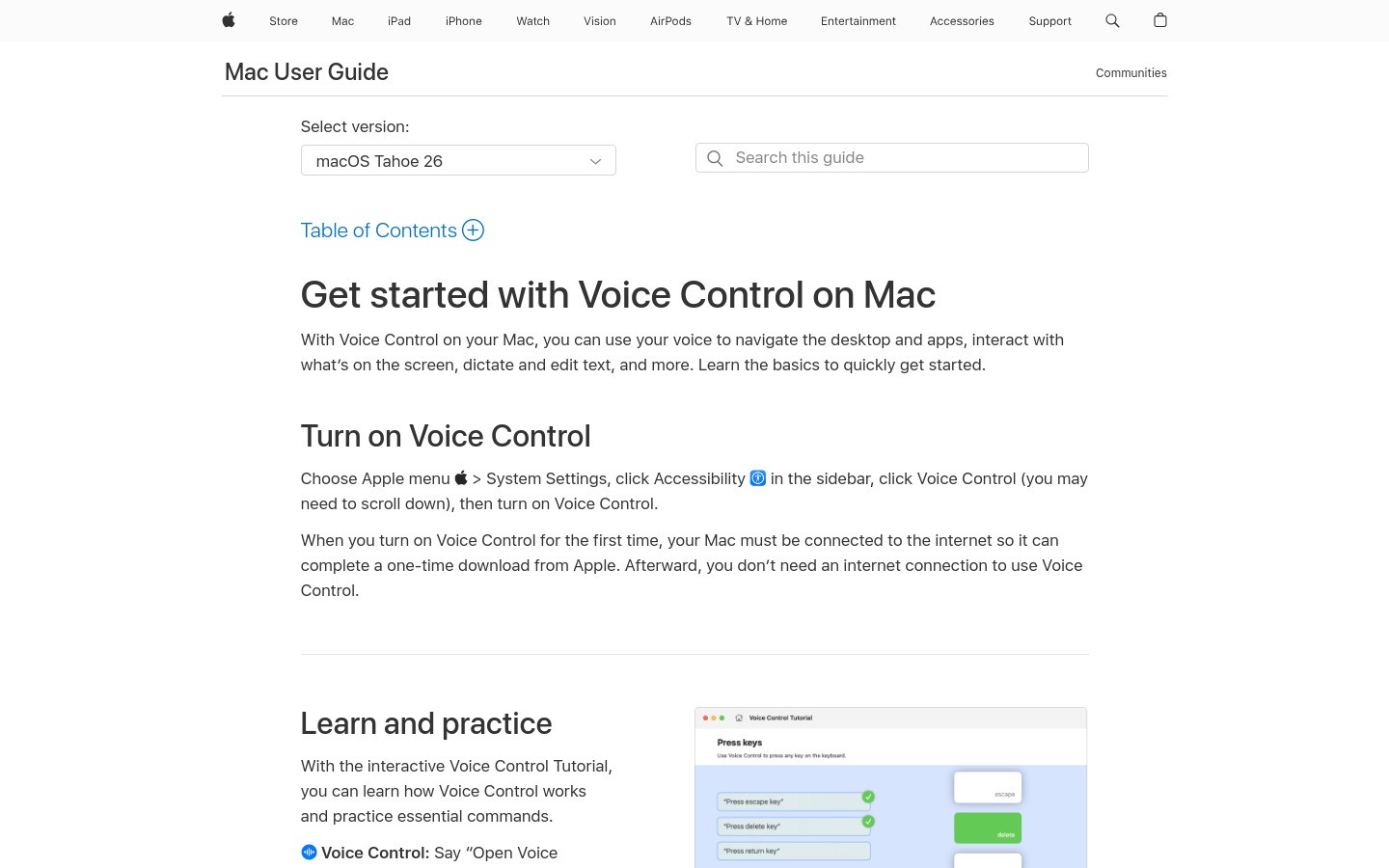
Apple's Dictate messages and documents on Mac guide says Dictation is controlled from Keyboard settings. It is also where you can check privacy text about how your voice input is processed for your Mac and selected language.
2. Check microphone permission on your Mac
If your Mac cannot hear you, Dictation cannot write. Check both macOS permission and the app where you are trying to dictate.
Open Apple menu > System Settings.
Click Privacy & Security.
Click Microphone.
Turn microphone access on for the app you are using, such as Chrome, Safari, Slack, Word, or Zoom.
Quit and reopen the app after changing permission.
Apple's microphone privacy guide says you can choose which apps and websites are allowed to use the microphone. If Dictation fails only in one app, this is often the reason.
3. Pick the right microphone source
Mac Dictation may be listening to the wrong input. This happens a lot with AirPods, monitors, webcams, USB mics, and docking stations.
Open System Settings > Keyboard.
Go to Dictation.
Find Microphone source.
Choose your built-in mic, headset mic, or USB mic.
If Automatic keeps choosing the wrong device, pick the microphone manually.
Then check System Settings > Sound > Input. Speak normally and watch the input level move. If it barely moves, raise the input volume or switch microphones.
4. Check the Dictation keyboard shortcut
If the shortcut changed, it can look like Mac Dictation stopped working. Apple lets you customize the key combo from Keyboard settings.
Open System Settings > Keyboard.
Go to Dictation.
Open the Shortcut menu.
Choose a shortcut you will remember, such as pressing the microphone key or pressing Fn twice if your Mac offers it.
Apple notes that pressing and releasing the microphone key starts Dictation, while pressing and holding it can activate Siri if Siri is enabled. That small difference is easy to miss.
5. Match Dictation language and input settings
If Mac Dictation hears you but writes nonsense, language settings are the next place to look. A US English speaker using a UK, Australian, or different language setting can get strange results.
Open System Settings > Keyboard.
Go to Dictation.
Click Edit next to Languages.
Select the language and region you actually speak.
If you use more than one language, switch languages near the cursor or with the Globe key when available.
Apple says Dictation is not available in every language or region, and features vary by language. Check Apple's macOS Dictation feature availability page if a language option is missing.
6. Make sure you are dictating into the right place
Dictation needs an active text field. If your cursor is not inside a note, email, document, search box, or message field, your Mac may listen but have nowhere to put the words.
Click once inside the field where you want text. Type one letter to confirm it accepts text, delete that letter, then start Dictation again.
If it works in Notes but not in another app, restart that app. Browser apps can also need a reload after microphone permission changes.
7. Turn off Voice Control if you want standard Dictation
Apple separates Dictation from Voice Control. Dictation writes text. Voice Control lets you control the Mac with spoken commands.
Apple says standard macOS Dictation is not available when Voice Control is on. If you turned on Voice Control for accessibility testing, turn it off before testing standard Dictation again.
Open System Settings.
Click Accessibility.
Click Voice Control.
Turn Voice Control off, then test Dictation in Notes.
8. Check Wi-Fi, restart, and update macOS
Some Dictation setups need an internet connection. If Dictation opens but hangs, test your connection and try again on a stable network.
Then restart your Mac. It sounds boring, but it clears stuck audio devices, Bluetooth mic handoffs, and app permission states.
Finally, check for a macOS update:
Open System Settings.
Click General.
Click Software Update.
Install available updates when you can restart safely.
If Dictation broke right after a macOS update, still run Software Update once more. Small follow-up updates often fix speech, Bluetooth, or microphone bugs.
9. Reduce noise and test a headset mic
Bad audio makes Dictation look broken. Apple recommends speaking clearly, avoiding background noise, and using a headset mic in noisy or echo-heavy rooms.
Try this quick test:
Open Voice Memos.
Record 10 seconds of speech.
Play it back.
If your voice sounds muffled, distant, clipped, or full of room noise, switch microphones.
Also check that your MacBook mic is not blocked by a case, sleeve, clothes, or your hand.
10. Use Voicy when Apple Dictation is the wrong tool
Fix Apple Dictation first. It is built into macOS and is good for short notes, messages, and quick text.
But if you dictate every day, the bigger problem may be workflow, not a broken setting. Apple Dictation is basic. It can be awkward for long emails, cross-app writing, uploaded audio files, and cleanup-heavy drafts.
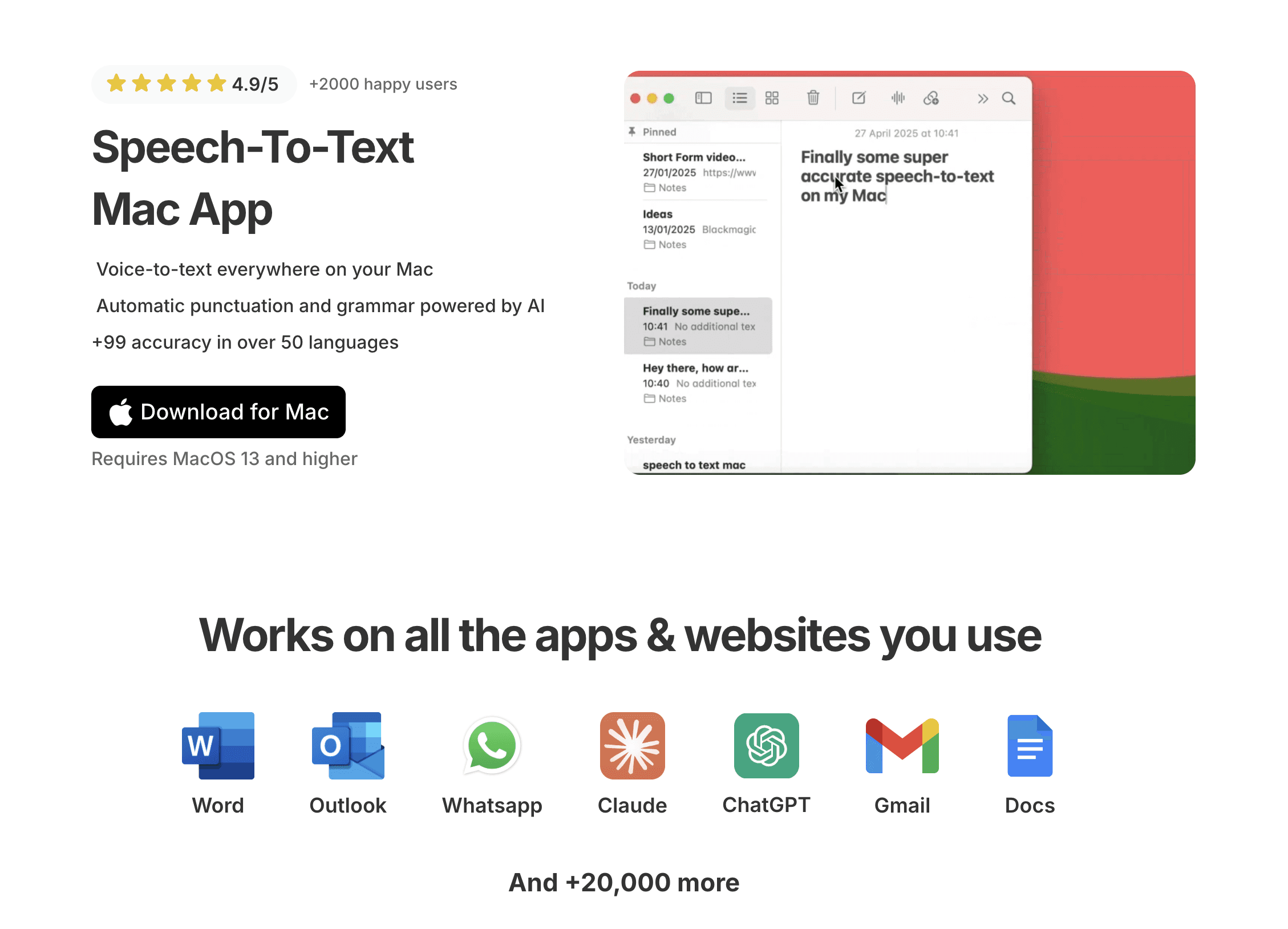
Voicy for Mac is better when you want to dictate inside the apps where you already work, then turn speech into cleaner text. It supports Mac, Windows, Chrome extension, iOS, and Android, plus file upload transcription. Voicy has a free trial, then paid plans for unlimited use. Transcription is cloud-based, so it is not the right fit if you need local-only processing.
Need | Best next step |
|---|---|
Short built-in notes | Use Apple Dictation. |
Better daily Mac dictation | |
Mac speech-to-text setup options | Compare the speech-to-text Mac app workflow. |
Dictating in Google Docs | |
Dictating into AI chat |
Frequently asked questions
Why is dictation not working on my Mac?
The most common reasons are Dictation being turned off, a changed keyboard shortcut, blocked microphone access, the wrong microphone source, or a language mismatch. Start in System Settings > Keyboard > Dictation, then check Privacy & Security > Microphone.
Why does Apple Dictation hear me but not type?
Make sure your cursor is inside an editable text field. If the microphone opens but no words appear, test in Notes or TextEdit, then restart the app where it failed.
Why is Dictation greyed out on Mac?
Check Screen Time, device management, work or school profiles, and accessibility settings. If your Mac is managed by an employer or school, an admin policy may block Dictation or microphone access.
Does Mac Dictation need internet?
It depends on your Mac, macOS version, language, and Dictation mode. Apple says you can check the text below Dictation in Keyboard settings to see whether your voice input is processed on device or whether an internet connection is needed.
Why does Mac Dictation stop after I pause?
Apple says Dictation can stop automatically when no speech is detected for about 30 seconds. If you pause often while thinking, a dedicated dictation workflow may feel better.
Can I use Apple Dictation in every Mac app?
Apple Dictation works anywhere you can type in many Mac apps, but app focus and permissions still matter. If it fails in one app, test in Notes, then restart the app and check microphone access.
What is the best alternative if Apple Dictation keeps failing?
For Mac users who want everyday cross-app writing and file transcription, Voicy for Mac dictation is a practical next step. Use Apple Dictation for quick built-in text, and use Voicy when you need a stronger workflow across apps and devices.
Is Voicy free?
Voicy has a free trial, but it is not a fully free app. Unlimited use is on paid plans. Current pricing is $8.49/month, $82/year, or $260 lifetime.
Bottom line
If dictation on Mac is not working, do not switch tools before you check the basics. Turn Dictation on, fix microphone access, confirm the shortcut, match the language, test app focus, and restart after permission changes.
If those fixes only help for a day, your setup may need more than Apple's built-in Dictation. Start with Voicy for Mac dictation when you want a smoother way to write in email, docs, browser apps, and uploaded audio files.


