




Summary of the article
Google Docs has built-in voice typing under Tools → Voice typing (shortcut: Ctrl+Shift+S on Windows, Cmd+Shift+S on Mac)
It works for basic dictation but struggles with accuracy, punctuation, and accents
AI-powered tools like Voicy for Google Docs use newer speech models that are faster, more accurate, and add punctuation automatically
You can install Voicy as a Chrome extension and it works directly inside Google Docs, no extra setup needed
If you want to voice type on Google Docs without saying every comma out loud, Voicy is the faster option
Best next step: if you already know Google Docs voice typing feels too limited, go straight to the Voicy for Google Docs page for the fastest setup, screenshots, pricing, and free trial details.
Should you use this guide or the Voicy Google Docs page?
Use this guide when you want the built-in Google Docs voice typing steps, shortcuts, and fixes. Use Voicy for Google Docs when you are comparing a faster paid workflow with a free trial, automatic punctuation, setup screenshots, and pricing in one place.
Intent | Best page |
|---|---|
How do I turn on voice typing in Google Docs? | This blog guide |
I want better speech-to-text inside Google Docs | |
I need pricing, screenshots, and setup steps for Voicy |
Can Google Docs do speech to text?
Yes. You can use speech to text in Google Docs by opening a Doc in Chrome and choosing Tools → Voice typing. This is the same feature people mean when they search for Google Docs voice typing, voice type Google Docs, or voice to text in Google Docs.
The built-in tool is fine for quick notes. For longer work, Voicy for Google Docs is faster because it adds punctuation automatically and uses AI to clean up your words as you speak.
How to Voice Type on Google Docs (Quick Start)
Open Google Docs in Chrome. Voice typing only works in Chrome, not Firefox or Safari
Click Tools → Voice typing or press Ctrl+Shift+S (Windows) / Cmd+Shift+S (Mac)
Click the microphone icon. It turns red when it's listening
Speak clearly and say punctuation out loud: "period," "comma," "new paragraph"
Click the microphone again to stop, then review and fix any errors
That covers the basics of how to do speech-to-text on Google Docs. If you searched for how to voice type on Google Docs, Google Docs speech recognition, or voice to text in Google Docs, these are the exact built-in steps. For automatic punctuation (no need to say "period"), try Voicy for Google Docs, AI-powered and live in about 10 seconds.
👉 Want the fastest setup? Get speech-to-text for Google Docs. Install Voicy and start dictating in 10 seconds.
Voice Type Google Docs vs Speech to Text in Google Docs
People use a few names for the same basic task: voice type Google Docs, speech to text in Google Docs, Google Docs voice typing, and voice to text in Google Docs. In Google Docs, they all point to the built-in Tools → Voice typing feature.
The built-in tool is useful for quick drafts. If you want cleaner long-form writing, automatic punctuation, and fewer fixes after dictation, Voicy for Google Docs is the better workflow because it works directly in the document and cleans up your words as you speak.
Voice typing in Google Docs: short answer
Voice typing in Google Docs means using Tools → Voice typing in Chrome to turn speech into text inside a document. It is the same workflow people mean by Google Docs speech recognition, voice to text in Google Docs, and Google Docs dictation.
Use Google's built-in option when you need a quick note and do not mind saying punctuation out loud. Use Voicy for Google Docs when you want a cleaner document draft with automatic punctuation, better context handling, and less editing after you speak.
How to Use Voicy for Speech-to-Text in Google Docs
Voicy for Google Docs is the commercial option for people who want a smoother dictation workflow inside Docs. It adds AI-powered dictation to Google Docs with better punctuation, higher accuracy, and less cleanup than the built-in tool. Here's how to set it up:
Step 1: Install the Voicy Chrome Extension
Start on the Voicy for Google Docs page. It has the setup steps, screenshots, pricing, and free trial details in one place. If you prefer a native setup, Voicy also has Mac and Windows desktop apps.
Step 2: Open Google Docs
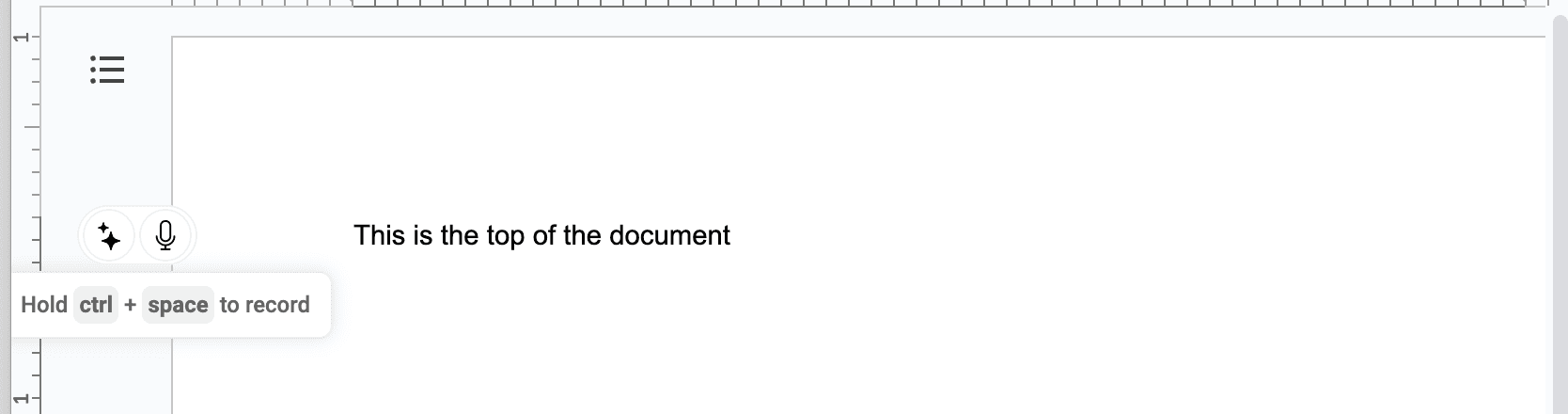
Go to Google Docs and open any document. You'll see a small Voicy microphone icon appear on the left side of your document. Hover over it to expand the Voicy widget.
Step 3: Click the Microphone and Start Talking
Click the microphone to start recording. Talk naturally. You do not need to say "period" or "comma." Voicy handles punctuation automatically. Click the microphone again when you're done.
Step 4: Use AI Commands (Bonus)
Voicy also includes a built-in AI assistant. Click the AI button on the Voicy widget and speak a command like: "Write an introduction paragraph for a document about our Q1 marketing strategy."
Voicy will transcribe your request, send it to AI, and paste the result directly into your document. It's perfect for getting past writer's block.
If that is what you want, skip the rest and set up Voicy for Google Docs here to compare it against built-in voice typing, see screenshots, and start the free trial.
How to Use Speech to Text in Google Docs With Google's Built-In Voice Typing
Google Docs also comes with a free voice typing feature. It's more basic, but here's how to use it:
Step 1: Open Google Docs in Chrome
Voice typing only works in the Chrome browser. It won't work in Firefox, Safari, or Edge. Open docs.google.com and create a new document or open an existing one.
Step 2: Go to Tools → Voice Typing
Click Tools in the menu bar, then select Voice typing. You can also use the keyboard shortcut:
Windows/Chromebook: Ctrl + Shift + S
Mac: Cmd + Shift + S
A small microphone icon will appear on the left side of your document.
Step 3: Click the Microphone and Start Talking
Click the microphone icon. It turns red when it's listening. Speak clearly and at a normal pace. When you're done, click the microphone again to stop.
Step 4: Add Punctuation Manually
With Google's voice typing, you need to say your punctuation out loud. For example:
Say "period" to add a period
Say "comma" to add a comma
Say "question mark" to add a question mark
Say "new paragraph" to start a new paragraph
Say "new line" to go to the next line
This works, but it breaks your flow. You have to think about punctuation while you're talking, which makes dictation feel unnatural.
Step 5: Select a Language (Optional)
Click the dropdown above the microphone to choose a different language. Google supports dozens of languages for voice typing, though accuracy varies.
Common Problems With Google's Voice Typing
Google's built-in tool works for basic dictation, but users run into issues regularly. Here are the most common complaints:
No permission to enable voice typing
If Google Docs says there is no permission to enable voice typing, check Chrome's microphone access first. Click the lock icon next to the address bar, set Microphone to Allow, refresh the Doc, then open Tools → Voice typing again.
If the microphone option is still blocked, open Chrome Settings → Privacy and security → Site settings → Microphone, make sure Google Docs is allowed, and confirm your computer has given Chrome microphone permission. On work or school accounts, an admin policy can also disable microphone access.
Words get merged together
This is the #1 complaint. Google's voice typing sometimes smashes words together or adds random double spaces. From a Reddit user:
"Why does the Docs 'voice typing' suck so bad? It will merge words together or double space with no consistent logic to it, and the recognition is the worst part."
No automatic punctuation
Having to say "period" and "comma" out loud is tedious. It interrupts your train of thought and makes the dictation process slower than it should be.
Poor accuracy with accents
If English isn't your first language, or even if you have a regional accent, Google's voice typing often misinterprets words. The technology behind it hasn't been updated to match newer AI models. For detailed accuracy comparisons between different systems, check our voice recognition accuracy guide.
Only works in Chrome
Google's voice typing is locked to the Chrome browser. If you use Firefox, Edge, Brave, or any other browser, you're out of luck. For alternative browser options, check out our guides on Brave extensions and Edge extensions.
No offline support
Voice typing requires an active internet connection. No Wi-Fi, no dictation.
It stops listening randomly
Many users report that Google's microphone turns off after a few minutes of silence or even mid-sentence. You have to click it again to restart. For more troubleshooting tips, see our guide to fixing voice typing issues.
If those limits are already slowing you down, switch to Voicy for Google Docs and dictate with automatic punctuation instead.
Why AI-Powered Speech-to-Text Is Better
When Google first added voice typing to Docs, it was cutting-edge. But speech recognition technology has improved dramatically since then, mostly thanks to AI.
Here's what's changed:
AI understands context
Modern AI models don't just hear individual words, they understand the sentence you're building. That's how they know the difference between "there," "their," and "they're" without you having to spell it out. Google's older technology often gets these wrong.
Automatic punctuation and grammar
AI-powered tools add commas, periods, and question marks automatically based on your natural speech patterns. No more saying "period" out loud. The text comes out ready to use.
Better accent recognition
AI models like OpenAI's Whisper are trained on thousands of hours of speech from people all over the world. They handle accents, dialects, and different speaking speeds much better than Google's built-in tool.
Higher accuracy overall
The best AI speech-to-text tools now achieve over 99% accuracy. Google's native voice typing typically sits around 90-95%, which means more corrections and more time editing. For a comprehensive comparison of modern dictation software options, see our guide to the best dictation software in 2026.
👉 Try Voicy for Google Docs with a free trial. It is AI-powered dictation that works directly in your document.
Speech to Text in Google Docs: Google Voice Typing vs. Voicy
Here's how the two options compare:
Feature | Google Voice Typing | Voicy |
|---|---|---|
Accuracy | ~90-95% | 99%+ |
Automatic punctuation | No (say it out loud) | Yes |
Works in other browsers | Chrome only | Chrome, Edge, Brave, Opera, Vivaldi |
Works outside Google Docs | No | Yes, every text field on the web |
AI writing assistant | No | Yes (built-in) |
Languages | 100+ | 50+ |
Desktop app | No | Yes (Mac + Windows) |
Accent handling | Basic | Advanced (AI-powered) |
Price | Free | Free trial, then paid plans |
Google Docs vs Voicy: the workflow difference
Google Docs voice typing is a built-in dictation tool. Voicy is a paid AI dictation workflow with a free trial. Use Google Docs voice typing when you only need basic speech-to-text in Chrome. Use Voicy when Google Docs is where you write every day and you want automatic punctuation, cleaner first drafts, and the same voice-to-text workflow in other browser text fields too.
Ready to switch? Install Voicy for Google Docs. It takes 10 seconds and works immediately in any document.
If Google Docs is where you write every day, the clearest next step is the Voicy for Google Docs page. It pulls the product details, screenshots, pricing, and setup into one place instead of making you piece them together across support docs.
Voice Typing Tips for Google Docs
Whether you use Google's built-in tool or Voicy, these tips will help you get better results:
Use a decent microphone
Your laptop's built-in mic works, but a USB microphone or even basic earbuds with a mic will dramatically improve accuracy. Less background noise means fewer misheard words.
Speak at a natural pace
Don't talk too fast or too slow. Speak like you're having a conversation. Most people type about 40 words per minute but speak about 150 words per minute, so even at a relaxed pace, dictation is 3-4x faster than typing.
Dictate first, edit later
Don't try to get everything perfect on the first pass. Get your thoughts out, then go back and clean up. This is especially helpful for longer documents, essays, and writing faster in general.
Find a quiet space
Background noise, coffee shops, open offices, TV, confuses speech recognition. If you can't find a quiet room, noise-cancelling headphones with a mic help a lot.
Use Voice Typing Beyond Google Docs
If you find voice typing useful in Google Docs, you'll probably want it everywhere. With Voicy, you can dictate in:
Gmail, dictate emails 3x faster
Microsoft Word, write documents hands-free
Outlook, AI-powered email dictation
HubSpot, perfect for sales teams
Any website, Voicy works in every text field on the web
If Google Docs is still your main writing workflow, start with Voicy for Google Docs. Then branch out into other apps once you know the core dictation setup works for you.
For Chrome users, explore more voice-to-text Chrome extensions or learn about speech-to-text for Chrome in general. If you're interested in exploring other speech recognition tools, our comprehensive speech-to-text guide covers the latest options and technologies available in 2026.
If you're dealing with wrist pain from typing, voice typing can be a game-changer. Check out our speech-to-text for carpal tunnel guide or our tips on relieving wrist pain from typing.
Looking for other productivity tools? Explore our recommendations for the best talk-to-text apps across different platforms and use cases.
Want the product page instead of the explainer? Go to Voicy for Google Docs speech to text for setup, screenshots, pricing, and a free trial.
Google Docs Voice Recognition: What You Need to Know
Google Docs uses Google's own voice recognition engine, not the latest AI models. It listens to what you say and tries to match it to words, but it doesn't understand the full sentence before it types. That's why words sometimes get merged, punctuation goes missing, and accents cause errors.
Newer AI-based tools like Voicy for Google Docs use models like OpenAI's Whisper, which process the whole phrase before transcribing. This context-aware approach means it catches the difference between "their" and "there," handles run-on sentences, and adds punctuation automatically, without you saying a word.
For most people doing casual drafting, Google Docs speech recognition works fine. But if you dictate for more than a few minutes a day, or your accent is anything other than standard American English, you'll notice the gap quickly. AI-based tools close that gap and make voice recognition in Google Docs feel fast instead of frustrating.
Frequently Asked Questions (FAQ)
How do I turn on voice typing in Google Docs?
Go to Tools → Voice typing in the menu bar, or press Ctrl+Shift+S (Windows) or Cmd+Shift+S (Mac). A microphone icon appears. Click it to start dictating. For better accuracy and automatic punctuation, try Voicy for Google Docs instead.
What's the keyboard shortcut for voice typing in Google Docs?
Ctrl+Shift+S on Windows/Chromebook, or Cmd+Shift+S on Mac. With Voicy, you can set custom keyboard shortcuts or just click the microphone button.
Why is Google Docs voice typing not working?
The most common fixes: check microphone permissions in Chrome (Settings → Privacy and Security → Site Settings → Microphone), make sure you're using Chrome (not another browser), refresh the page, and test your mic in another app. For detailed help, see our guide to fixing voice typing issues.
Does voice typing work in Google Docs on mobile?
Yes. On Android and iOS, tap the microphone icon on your phone's keyboard when typing in the Google Docs app. Your phone's built-in speech recognition handles the transcription.
How accurate is voice typing in Google Docs?
Google's built-in tool has moderate accuracy, roughly 90-95%. It often merges words or adds random spacing. AI-powered tools like Voicy achieve over 99% accuracy and add punctuation automatically.
Can I use voice typing in Google Docs offline?
No. Google's voice typing requires an internet connection. Most AI-powered speech-to-text tools also need internet for best accuracy, though some offer limited offline modes.
How do I add punctuation when using voice typing in Google Docs?
With Google's tool, say "period," "comma," "question mark," or "new paragraph" while dictating. AI-powered extensions like Voicy add punctuation automatically, no voice commands needed.
What's better than Google Docs voice typing?
AI-powered speech-to-text tools like Voicy offer higher accuracy, automatic punctuation, and work across all websites, not just Google Docs. See our comparison of the best dictation software for more options.
Can voice typing understand my accent in Google Docs?
Google's tool handles common accents decently but struggles with stronger regional accents. AI-powered tools like Voicy are trained on diverse speech data and handle accents much better.
Is voice typing in Google Docs free?
Google's built-in voice typing is completely free but limited in features and accuracy. Voicy offers a free trial with full features, automatic punctuation, AI commands, and 99%+ accuracy. Paid plans start after the trial.
How do I use voice typing for multiple languages in Google Docs?
With Google's tool, click the language dropdown above the microphone and select your language. Voicy supports 50+ languages and can auto-detect which language you're speaking.
Why does Google Docs voice typing merge words together?
Google's voice typing uses older speech recognition technology that doesn't understand context well. This causes spacing errors and merged words. AI-powered tools like Voicy use context-aware transcription that eliminates this problem.
Can I use voice typing in Google Docs with Firefox or Safari?
No, Google's built-in voice typing only works in Chrome. However, extensions like Voicy work across multiple browsers including Chrome, Edge, Brave, Opera, and Vivaldi. Check our set up Voicy for Google Docs for setup instructions.
How do I voice type on Google Docs?
To voice type on Google Docs, open a Google Doc in Chrome, then go to Tools → Voice typing (shortcut: Ctrl+Shift+S on Windows, Cmd+Shift+S on Mac). Click the microphone icon to start talking. Say "period" or "comma" to add punctuation. For automatic punctuation and AI-powered accuracy, try Voicy for Google Docs as a Chrome extension.
Can I voice type on Google Docs without saying punctuation out loud?
Not with Google's built-in tool. If you want to voice type on Google Docs and have commas, periods, and question marks added automatically, you need an AI-powered option like Voicy for Google Docs.
Is there speech recognition in Google Docs?
Yes. Google Docs has a built-in speech recognition feature called Voice Typing. Find it under Tools → Voice typing in any Google Doc. It's free and works in Chrome with 90-95% accuracy. For higher accuracy Google Docs speech recognition, AI-powered tools like Voicy achieve 99%+.
How do I convert voice to text in Google Docs?
Use the built-in Voice Typing tool: open a Google Doc in Chrome, click Tools → Voice typing, and click the microphone to start. Speak naturally and your words appear in the document. You can also use a Chrome extension like Voicy for AI-powered Google Docs voice to text with automatic punctuation.
Can Google Docs do speech-to-text?
Yes, Google Docs has free speech-to-text built in. It's called Voice Typing and you access it from the Tools menu. It works in Chrome and supports dozens of languages. For better results, try an AI-powered extension like Voicy, which works directly inside Google Docs with automatic punctuation and 99%+ accuracy.


