




How to Use Voice Typing in Gmail: Dictate Emails 3x Faster (2026)
Summary of the article:
Gmail does not have built-in dictation.
Luckily you can use some fantastic external apps.
Learn how to dictate emails in Gmail with perfect formatting and punctuation. Increase productivity, speed, and reduce strain on your fingers and wrists.
👉 Want the fastest setup? Get dictation for Gmail - install Voicy and start dictating emails in seconds.
Step by Step: Voice Typing on Google Mail (Quick Setup)
For this article, we'll use a free Chrome Extension called Voicy.
Voicy uses the latest AI-powered speech-to-text technology, while still remaining privacy friendly.
Watch this video if you prefer visuals for the steps.
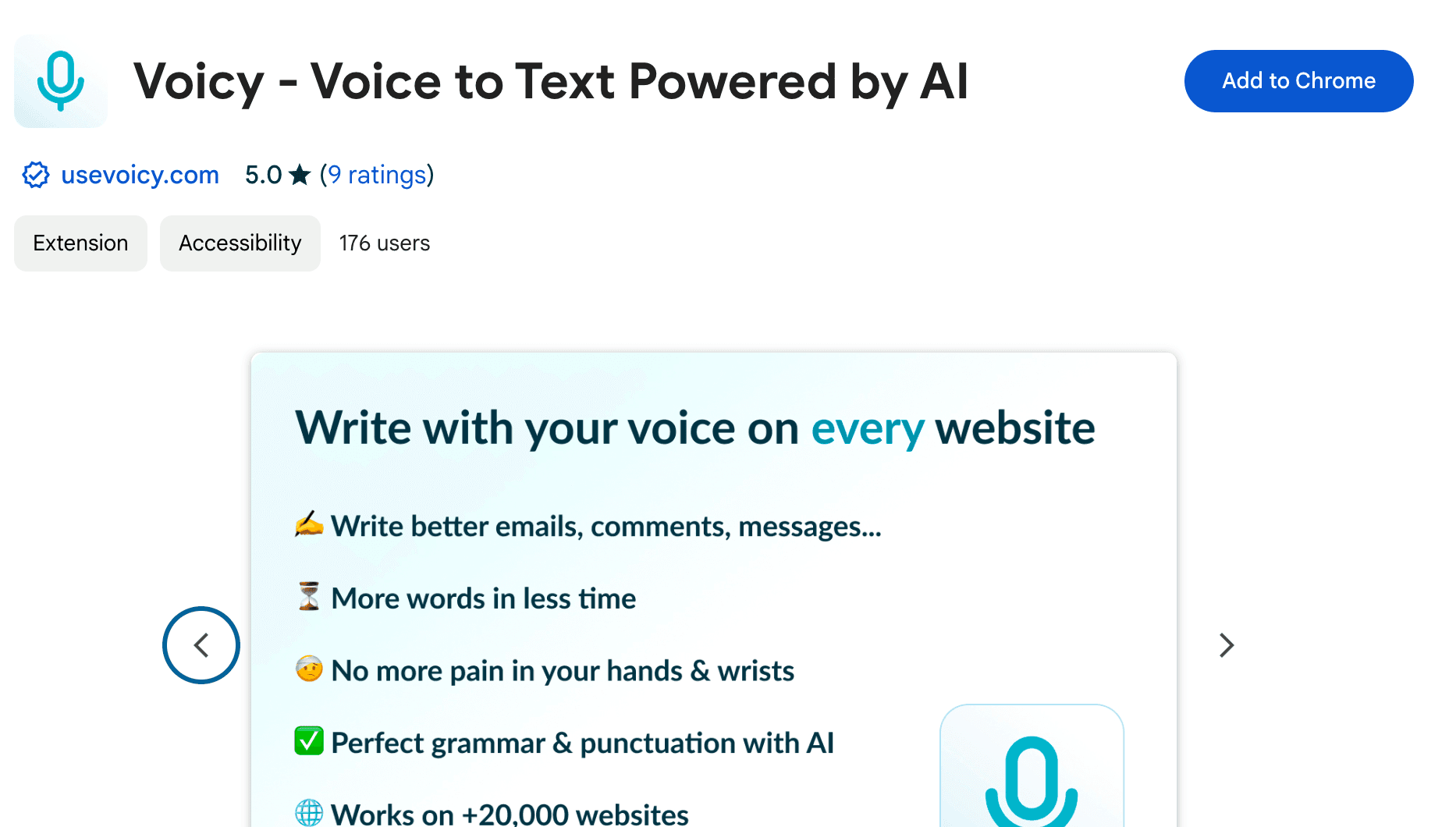
Step 1: Add the Voicy extension through the Chrome webstore
Simply visit this link and click on download. For more options, see our guide on voice-to-text Chrome extensions.
Step 2: Write a new email on Gmail
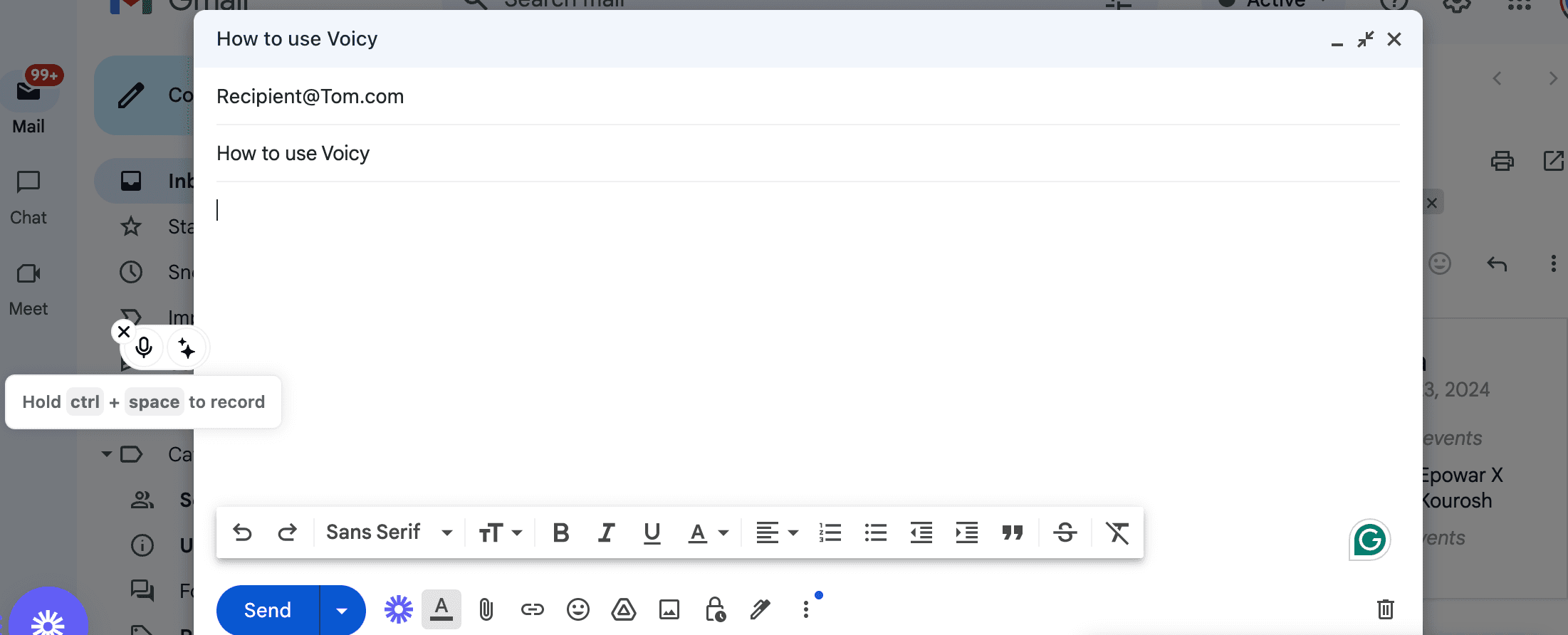
Click on the email's body to see the Voicy element.

A screenshot of an email on Google Mail that displays the Speech To Text extension Voicy next to the body of the email
Step 3: Click on the mic to start recording
Hover over the element to reveal the two buttons.
Hovering over Voicy to display the microphone that users click on to start voice typing
Click on the microphone to start recording. The icon will turn into a red dot which means you should speak!
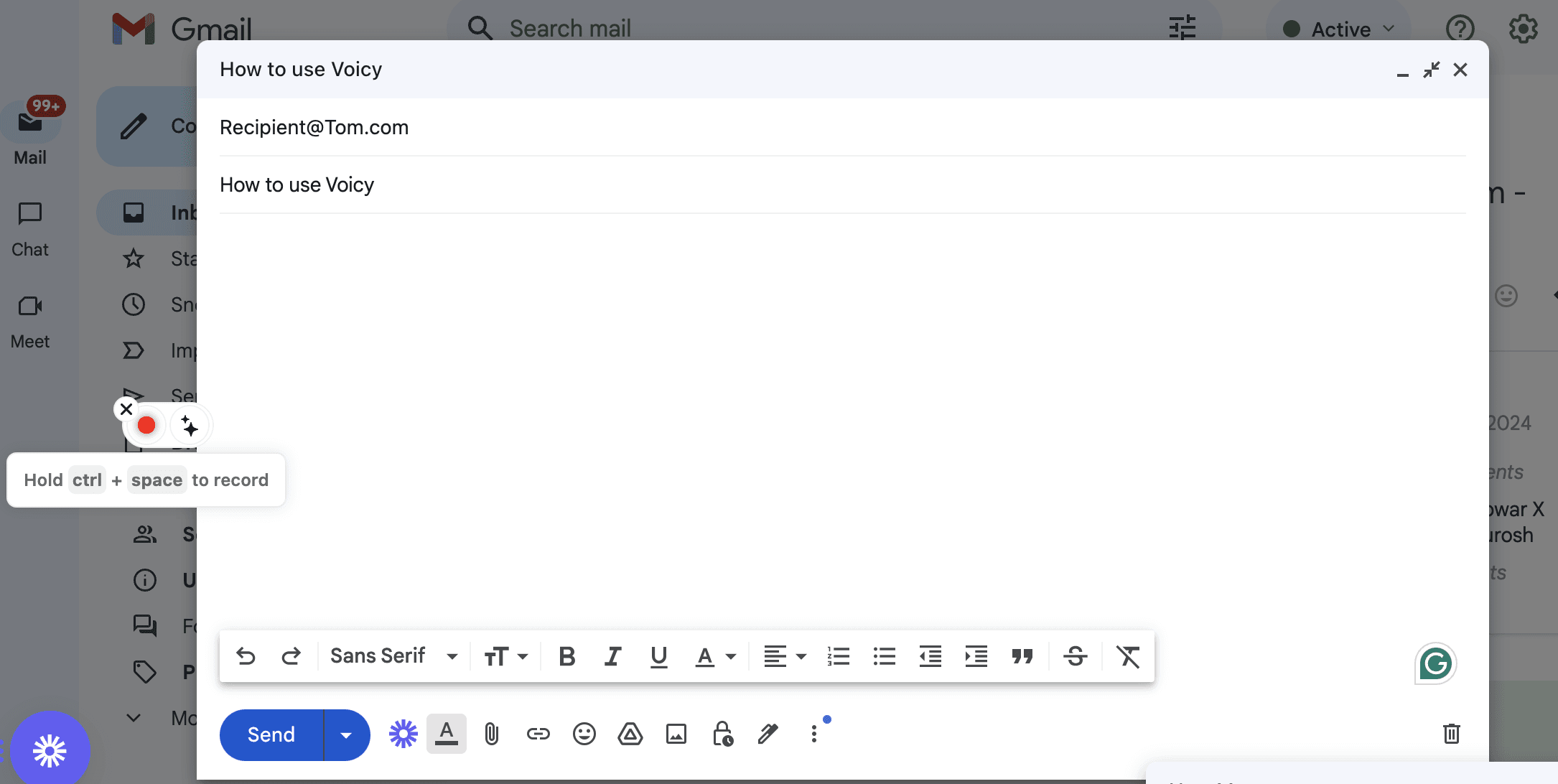
An image of the Voicy element that shows the user is currently dictating
Step 4: Click again to stop recording
Voicy will then return your email within 1-2 seconds. Congrats, you just wrote your first email with your voice!
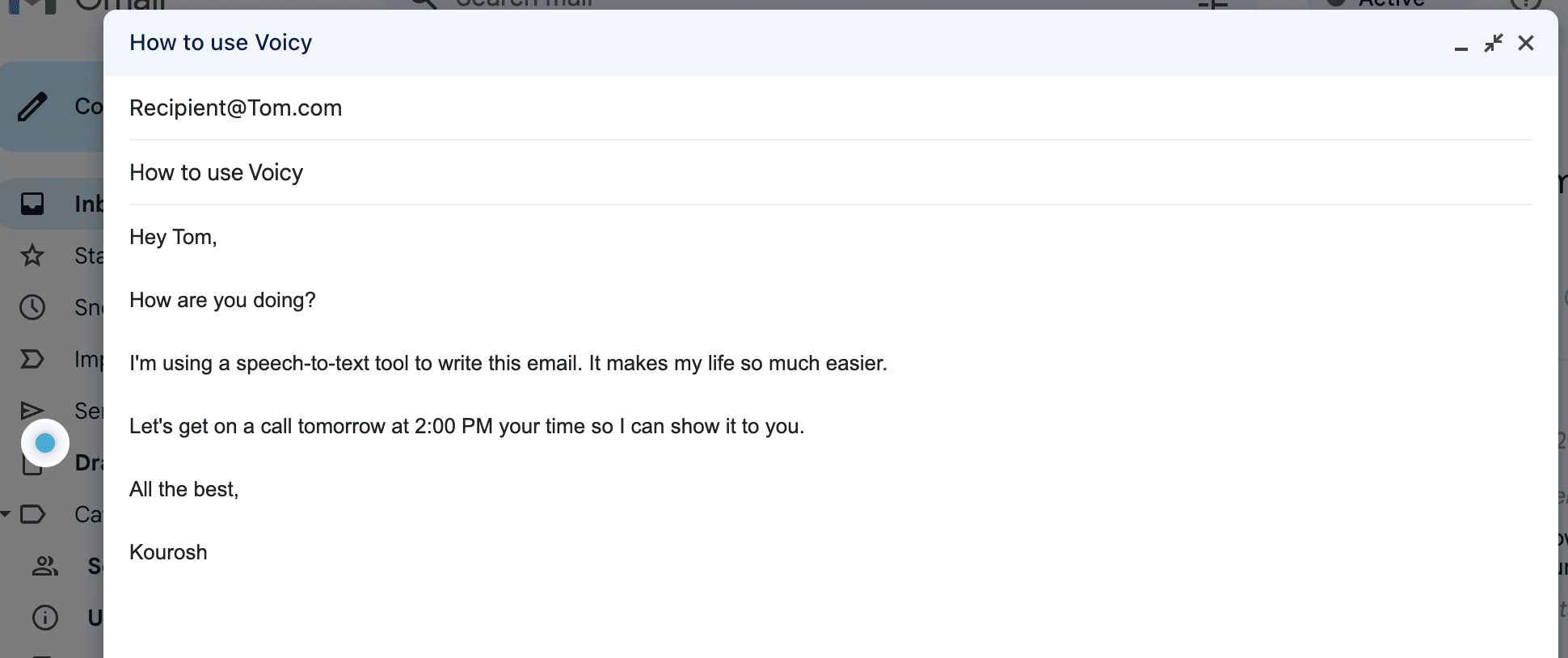
A finished email produced by the voice typing tool. Fully formatted email with 5 lines and paragraphs.
Want the cleaner, more complete version? Visit our dictation for Gmail page for the product walkthrough, feature breakdown, and answers to the most common Gmail dictation questions.
Use Voicy Across All Your Apps
Voicy isn't just for Gmail. Use voice typing across all your favorite productivity apps:
Voice typing in Outlook - Dictate emails in Microsoft Outlook
Speech-to-text in Google Docs - Create documents hands-free
Dictation in Microsoft Word - Write reports and documents faster
HubSpot notes with voice - Perfect for sales professionals
Want to write faster in general? Check out our guide on how to write faster and how to increase your WPM.
How speech-to-text tools can change your everyday tasks
We are all drowning in emails, myself included. And when I get time to finally respond, it feels like I get 2 more in my inbox in the process.
Writing emails is a crucial and time-consuming part of our jobs and personal lives, especially if you're constantly typing long messages.
Luckily, there are technologies out there that can make this much easier. Check out our guide on the best dictation software for a full comparison.
Today we'll talk about speech-to-text tools, specifically for writing emails on Google Mail. The same technology that makes voice typing in Google Docs so effective can transform your email workflow too.
If Gmail is where you spend most of your day, Voicy for Gmail is the most direct way to add accurate dictation, automatic punctuation, and AI cleanup without leaving your inbox.
Using talk-to-text technology doesn't just save you a bit of time. Voice dictation brings far greater benefits, including:
Save your wrist and fingers: Overusing your computer can lead to multiple injuries including carpal tunnel and RSI. Learn more about speech-to-text for carpal tunnel.
Perfect formatting, grammar, and punctuation: Many tools automatically fix your dictated text and provide you with a perfect email.
Natural-sounding emails: We overcomplicate things, especially when we're writing emails. Mark Twain even used some very early recording technology to write his work.
Want to improve your email writing in general? Check out our guides on how to write professional emails and how to write good emails.
Frequently Asked Questions (FAQ)
How do I turn on voice typing in Gmail?
Gmail doesn't have built-in voice typing, but you can use Chrome extensions like Voicy. Install the extension from the Chrome Web Store, open Gmail, click on an email body, and click the microphone icon to start dictating. For the full setup and feature breakdown, see our Gmail dictation guide.
What's the shortcut for voice typing in Gmail?
Google's built-in voice typing uses Ctrl + Shift + S (Windows) or Cmd + Shift + S (Mac). For extensions like Voicy, you can set your own keyboard shortcut or simply click the microphone button.
Does voice typing work in Gmail on mobile?
Yes! On Android and iPhone, tap the microphone icon on your keyboard when composing an email. Gmail mobile apps support voice typing through your phone's built-in speech recognition.
How accurate is voice typing in Gmail?
Modern AI-powered tools like Voicy achieve over 99% accuracy. Accuracy depends on speaking clearly, using a good microphone, and having a quiet environment. Most tools now handle punctuation automatically.
Can I use voice typing in Gmail offline?
Most voice typing tools require an internet connection because they use cloud-based AI. Some tools offer offline modes with slightly lower accuracy. Check your specific tool's requirements.
Why is my voice typing not working in Gmail?
Common fixes include checking microphone permissions in Chrome, ensuring stable internet, refreshing your browser, and testing your microphone in other apps. Make sure your browser is up to date. See our guide to fixing voice typing issues for more help.
How do I add punctuation when dictating emails in Gmail?
Tools like Voicy add punctuation automatically. For Google's built-in voice typing, say "period," "comma," "question mark," or "exclamation point" while speaking.
What's the best voice typing tool for Gmail?
Popular options include Voicy (Chrome extension with automatic punctuation), Google Voice Typing (built into Chrome), and Dragon (premium software). Choose based on your accuracy needs and budget. If you want the Gmail-specific setup, screenshots, and feature walkthrough, start with dictation for Gmail.
Can voice typing understand different accents in Gmail?
Yes, modern AI tools support multiple accents and over 50 languages. The more you use voice typing, the better it adapts to your specific voice patterns and accent.
Is voice typing in Gmail secure and private?
Privacy depends on the tool you use. Voicy processes data securely and doesn't store your emails. Always check a tool's privacy policy before using it for sensitive communications.
Conclusion and next steps
By incorporating voice typing into your email routine, you're adopting a more efficient way to manage communication. Writing with your voice allows for faster, more convenient emailing, all while reducing the stress of constant typing.
Ready to boost your productivity? Try Voicy for Gmail and start dictating emails today.


