




How to Use Voice Typing in Microsoft Outlook: AI Dictation Guide (2026)
Learn how to dictate emails in Outlook with perfect formatting and punctuation. Increase productivity, speed, and reduce strain on your fingers and wrists.
👉 Want the fastest setup? Get speech-to-text for Outlook — install Voicy and start dictating emails in seconds.
Step by Step: Voice Typing on Outlook
For this article, we'll use a free Chrome Extension called Voicy.
Voicy uses the latest AI-powered speech-to-text technology, while still remaining privacy friendly. For more options, see our guide on the best dictation software.
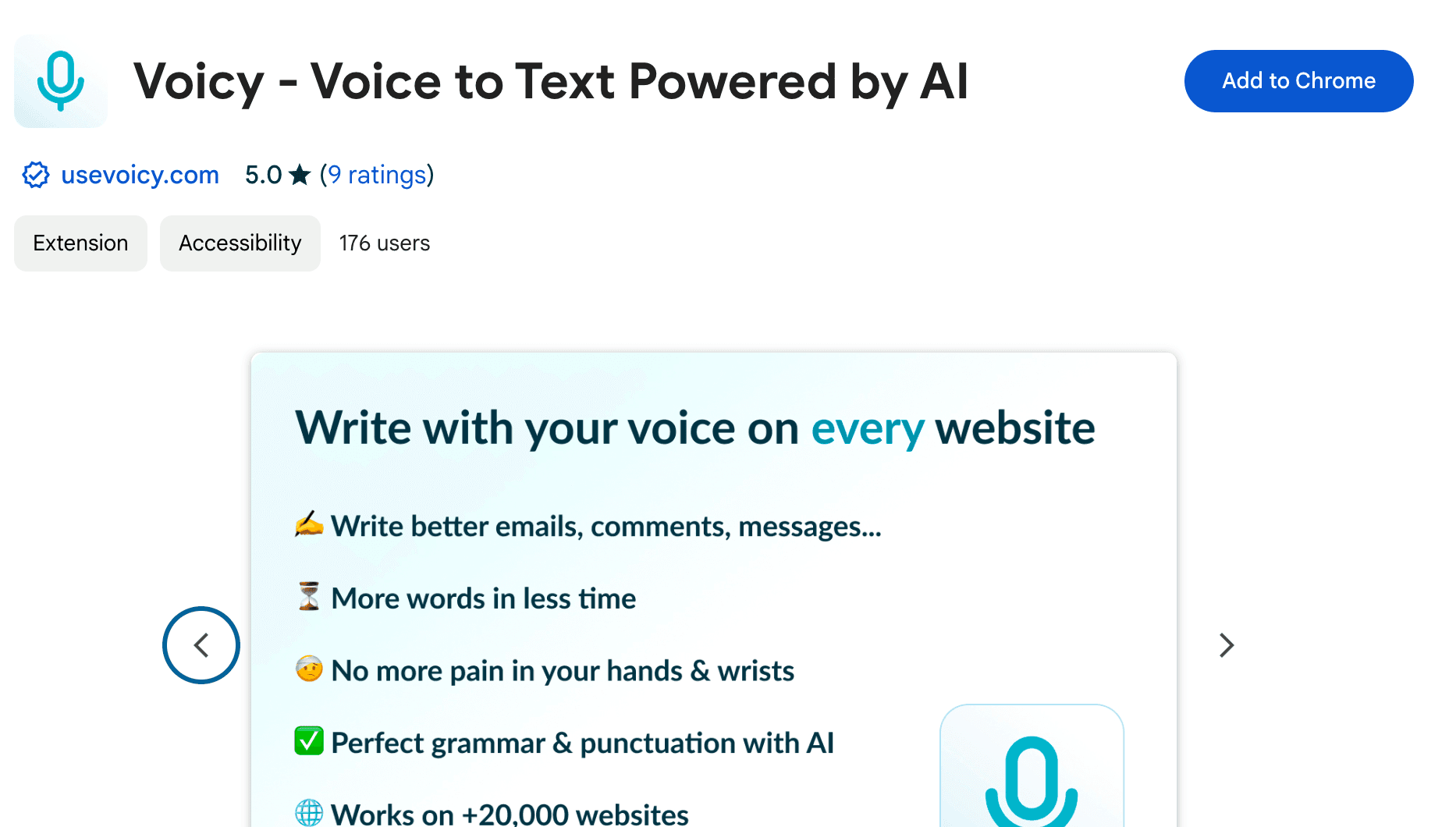
Step 1: Add the Voicy extension through the Chrome web store
Simply visit this link and click on download. Check out more voice-to-text Chrome extensions for alternatives.
Step 2: Write a new email on Outlook
Click on the email's body to see the Voicy element.
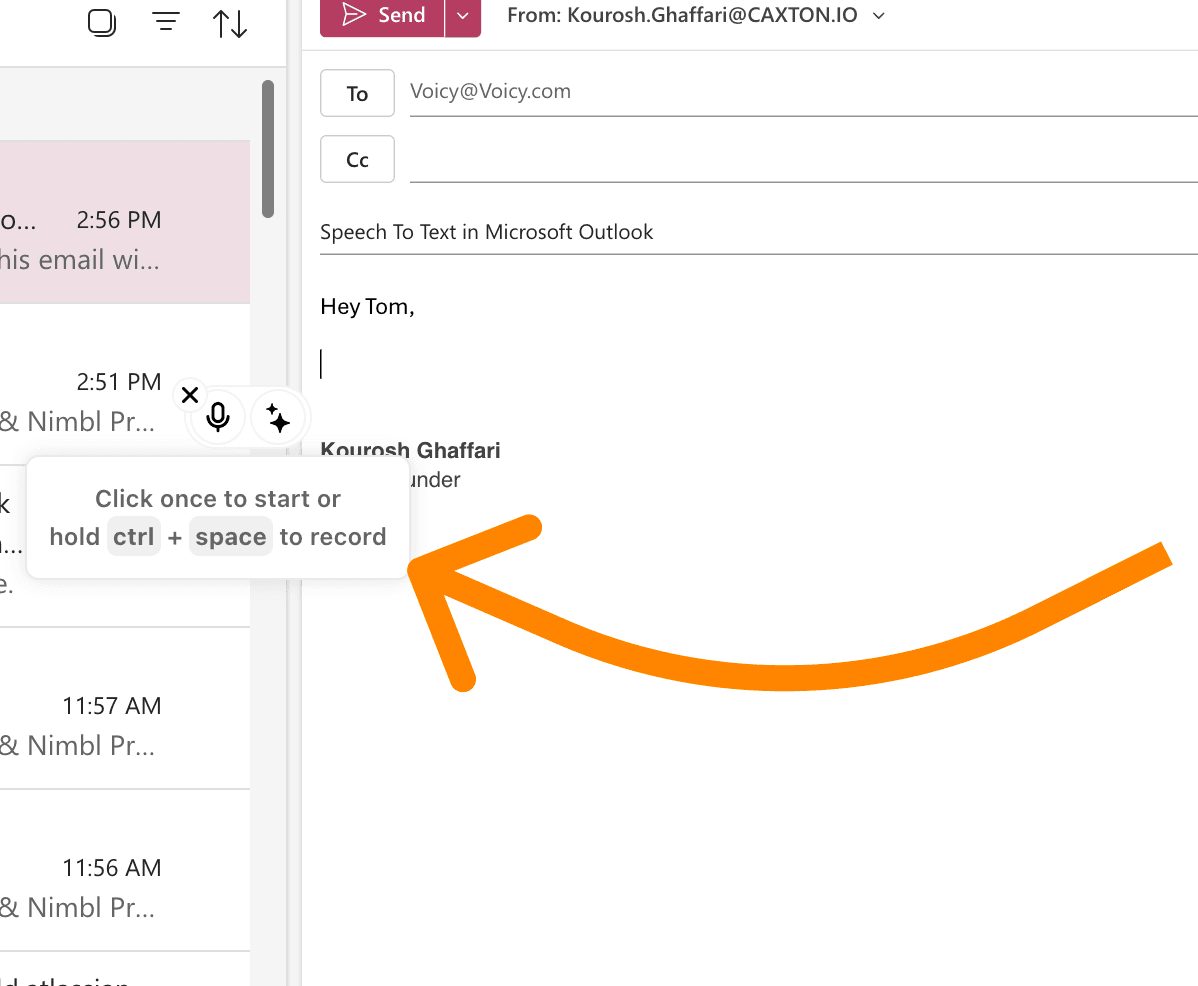
A screenshot of an email on Outlook that displays the Speech To Text extension Voicy next to the body of the email
Step 3: Click on the mic to start recording
Hover over the element to reveal the two buttons.
Click on the microphone to start recording. The icon will turn into a red dot which means you should speak!
Click again to stop recording.
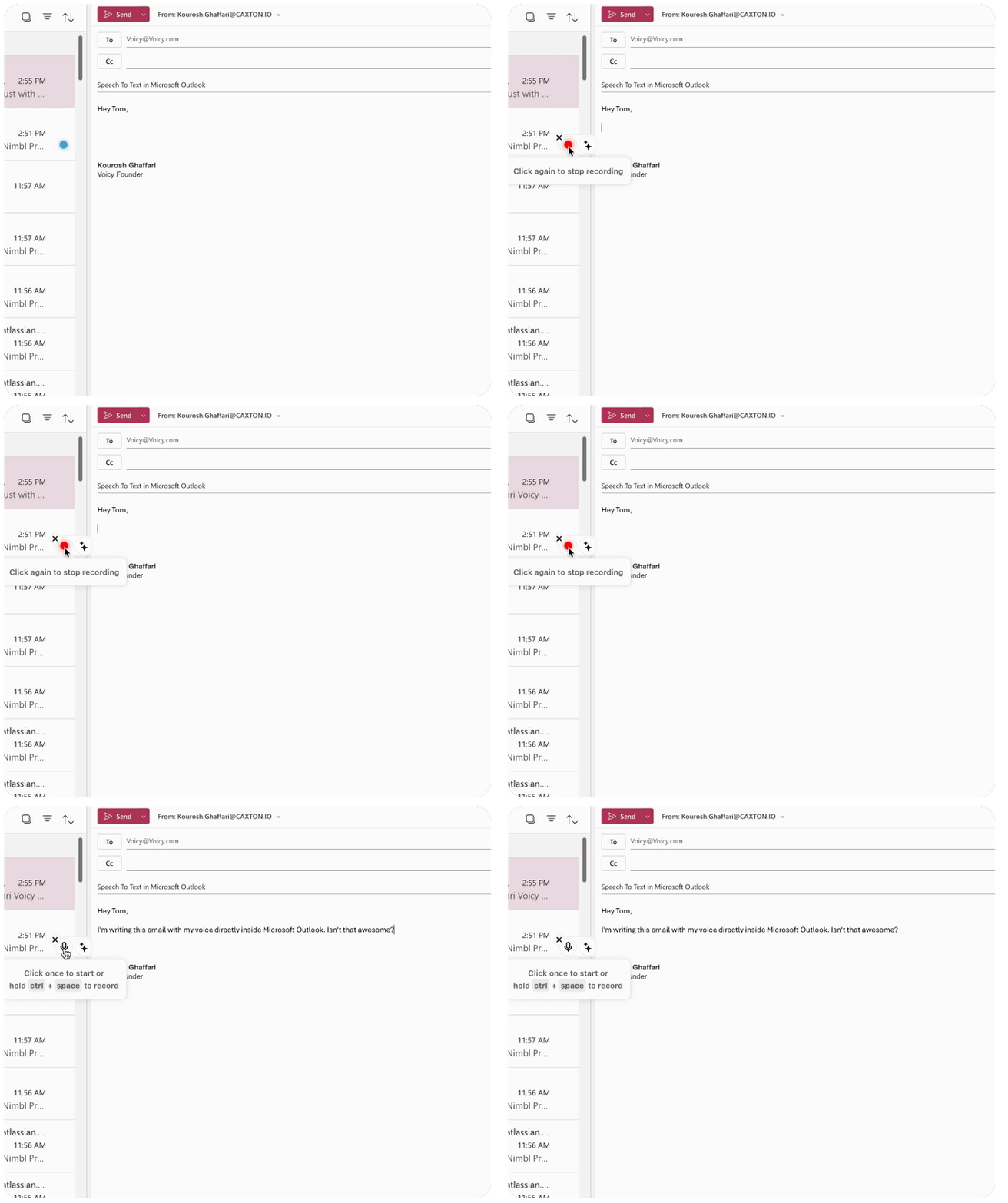
A gif showing how to use speech recognition to dictate emails on Microsoft Outlook using Voicy, the speech to text chrome extension
Bonus: Use AI directly within Outlook to help you generate emails
If you check the images above, the Voicy element has another button.
That button allows you to speak directly to ChatGPT.
If you're like me and you struggle with starting emails, then this is perfect for you.
Simply click on the AI element and say something like: "Write an email to my boss to let them know I'm resigning."
Voicy will transcribe your audio, send it to ChatGPT, and return a block of text for you.
Give it a try! For more tips, see our guide on how to use ChatGPT to write emails.
How speech-to-text tools can change your everyday tasks
We are all drowning in emails, myself included. And when I get time to finally respond, it feels like I get 2 more in my inbox in the process.
Writing emails is a crucial and time-consuming part of our jobs and personal lives, especially if you're constantly typing long messages.
Luckily, there are technologies out there that can make this much easier. Learn how to write faster with our productivity tips.
Today we'll talk about speech-to-text tools, specifically for writing emails on Microsoft Outlook, the Office365's emailing service.
Typing with your voice doesn't just save you a bit of time. Voice dictation brings far greater benefits, including:
Save your wrist and fingers: Overusing your computer can lead to multiple injuries including carpal tunnel and RSI. See our speech-to-text for carpal tunnel guide.
Perfect formatting, grammar, and punctuation: Many tools automatically fix your dictated text and provide you with a perfect email.
Natural-sounding emails: We overcomplicate things, especially when we're writing emails. Mark Twain even used some very early recording technology to write his work.
Want to improve your email skills? Check out our guides on how to write professional emails and how to write good emails.
Use Voicy Across All Your Apps
Voicy isn't just for Outlook. Use voice typing across all your favorite productivity apps:
Voice typing in Gmail - Dictate emails in Google Mail
Speech-to-text in Google Docs - Create documents hands-free
Dictation in Microsoft Word - Write reports and documents faster
HubSpot notes with voice - Perfect for sales professionals
For Windows users, also check out our guides on speech-to-text for Windows and how to use speech-to-text on Windows 10/11. For comprehensive Windows voice typing options, see our Windows speech to text guide.
Frequently Asked Questions (FAQ)
How do I enable dictation in Outlook?
Outlook doesn't have built-in dictation on the free version. Use a Chrome extension like Voicy instead. It works with all Outlook versions, including older ones.
What's the shortcut key for dictation in Outlook?
There is no shortcut key for using dictation in Microsoft Outlook. With extensions like Voicy, you simply click the microphone button or set your own custom shortcut.
How do you use dictation in Outlook?
First, turn on dictation in Outlook by finding the microphone icon or using an extension. Then click to start recording, speak clearly, and click again to stop. Your speech becomes text automatically.
Where is dictation in Outlook?
In newer Outlook versions, find dictation in the Home tab on the paid version. Look for a microphone icon. If you don't see it, your Outlook version might not support it. Try a dictation add-in for Outlook instead.
Does dictation work in Outlook on Mac?
Yes! You can use dictation in Outlook Mac. You must be on the paid version of Outlook. See our guide on how to do dictation on Mac for more details.
Why is my dictation not working in Outlook?
Common fixes include checking microphone permissions, testing your internet connection, and restarting Outlook. Make sure your microphone works in other apps first. See our guide to fixing voice typing issues.
How do I turn on dictation in Microsoft Outlook?
Go to File > Options > Ease of Access. Check "Use dictation" if available. For older versions, use browser extensions or dictation add-ins for Outlook.
What's the best dictation feature in Outlook?
Microsoft's built-in tool works well for basic needs. Browser extensions like Voicy offer better accuracy and work with all Outlook versions. Choose based on your needs. See our best dictation software comparison.
Can I use voice dictation in Outlook offline?
Microsoft's built-in dictation needs internet. Some dictation add-ins for Outlook work offline. Check the specific tool's requirements before using.
How accurate is dictation in Microsoft Outlook?
Accuracy depends on your speech clarity and the tool you use. Modern dictation features in Outlook are quite accurate. Speaking clearly in a quiet room gives the best results.
Conclusion and next steps
By incorporating voice typing into your email routine, you're adopting a more efficient way to manage communication. Writing with your voice allows for faster, more convenient emailing, all while reducing the stress of constant typing.
Ready to boost your productivity? Try Voicy free and start dictating emails today!


