





Speech to Text for Carpal Tunnel A Practical Guide
Short version of the article
For those who don't have time to read it all. Read the full article for more guidance.
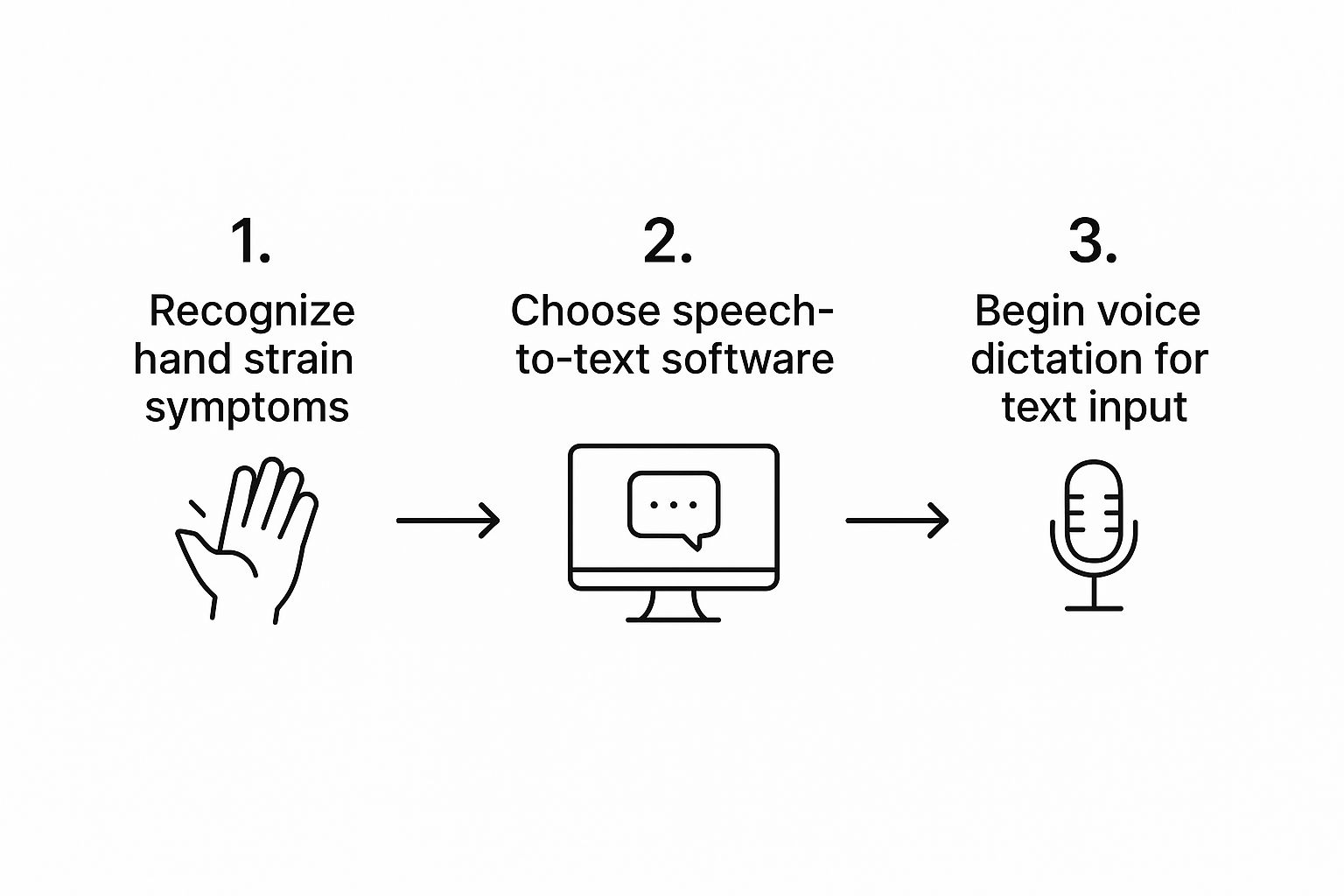
Voice typing reduces the repetitive motions that cause carpal tunnel pain. Instead of typing, you speak naturally and your words appear on screen with automatic punctuation.
How voice typing helps:
Cuts hand and wrist activity by up to 80%
Gives your median nerve time to heal
Works in every app and website
Over 99% accuracy right out of the box
Getting started is simple. Install voice typing software like Voicy, set a keyboard shortcut, and start speaking. Say your punctuation out loud ("period," "comma") and use commands like "new paragraph" or "bold that" for formatting. If you work mostly on Windows or Mac, the setup is even easier when you start from a dedicated speech-to-text app instead of forcing yourself back to the keyboard.
Advanced features make it even better. Create custom voice shortcuts for phrases you type repeatedly, like email signatures or common responses. This removes even more strain from your daily workflow.
Tools like Voicy offer a 20% discount for people with carpal tunnel syndrome.
Main article: Speech to Text for Carpal Tunnel A Practical Guide
Preventing or recovering from carpal tunnel syndrome?
Either way, using your fingers less, is crucial to reduce the strain on your wrist.
Sure, you can get an ergonomic mouse or keyboard, but typing less is much more effective.
In this article we will talk about using speech to text for carpal tunnel.
We'll talk about:
The benefits of using Speech-to-Text
The right tech to use for your work
The goal of this article is to cut out repetitive typing that flare up your condition.
Why Voice Dictation Is a Game Changer for Your Wrists
Every single keystroke can feel like a battle. The tingling, numbness, and pain of carpal tunnel can turn every task into a nightmare.
The non-stop, repetitive motions of typing put pressure on the median nerve of your wrist. That's the source of your discomfort that tanks your productivity.
Obviously, using speech-to-text offers immediate physical relief by tackling the problem at its source.
Instead of locking your hands into awkward positions for hours, you can lean back, speak naturally, and watch your words pop up on the screen.
The Ergonomic Advantage of Going Hands-Free
The benefits go way beyond just reducing pain. Using your voice in your daily workflow creates a healthier, sustainable work setup.
You feel less pain and you get more done.
This is widely studied and proven, especially because studies show that 3 to 6% of the adult population suffer from Carpal Tunnel Syndrome (CTS).
The core idea is simple: by cutting down on manual typing, you give your wrists the break they desperately need to heal, all while keeping your workflow intact. It's not just about managing symptoms; it's about creating a better way to interact with your computer.
Our recommended solution: Voicy Speech-to-Text
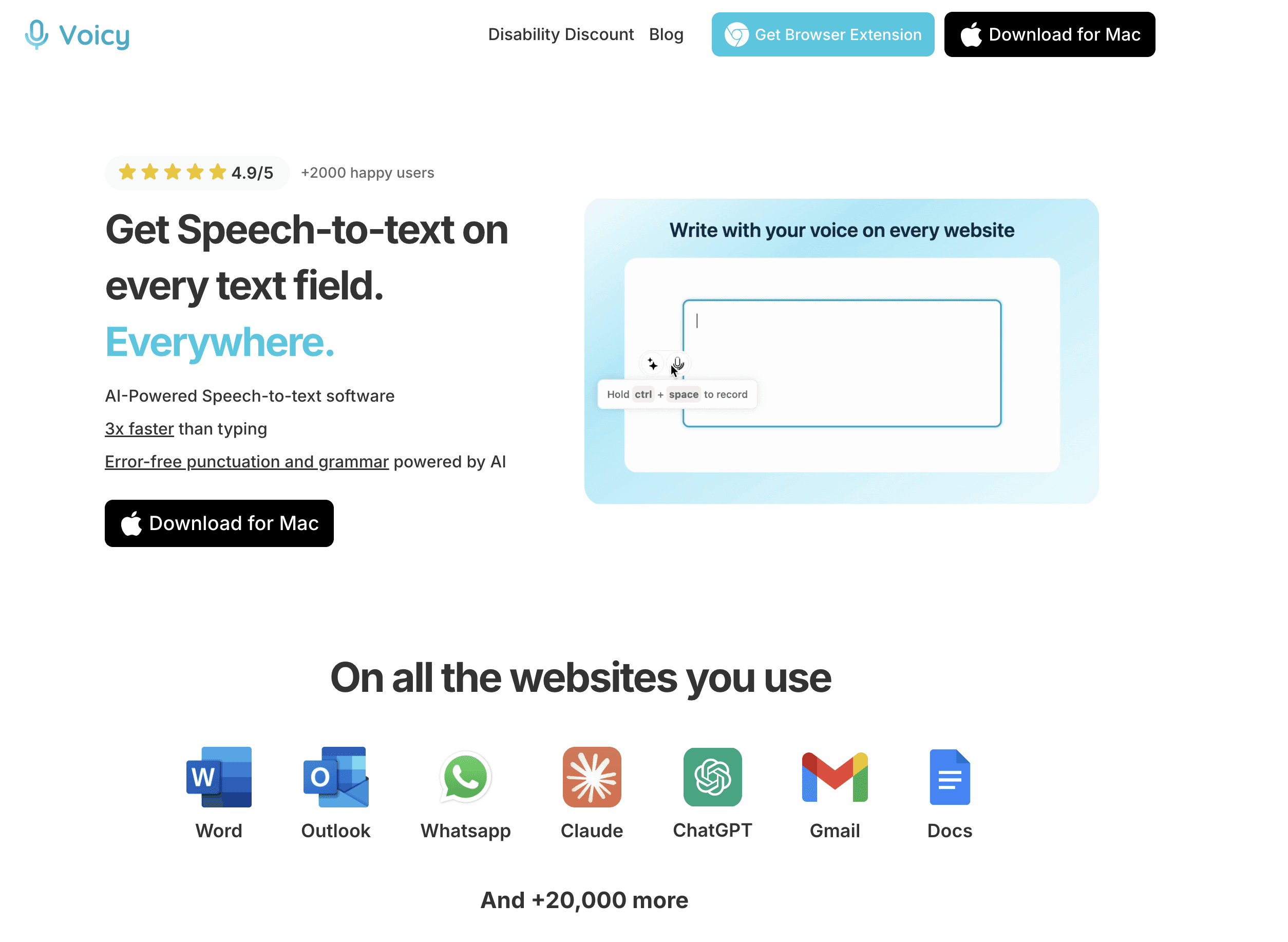
Voicy is a Windows and Mac app that lets you write with your voice everywhere. For Mac users, our speech to text Mac app keeps dictation simple across desktop apps. For Windows users, our speech to text on Windows guide shows how Voicy compares with Win+H and other built-in options.
Here's how it works:
Click a keyboard shortcut to record
Voicy automatically pastes your text into every app or website that you're on
Voicy at a glance:
✅ Over 99% accuracy in 50 languages
✅ Automatic punctuation and grammar correction
✅ Works in every app and website
✅ 20% discount for anyone suffering from Carpal Tunnel Syndrome
Fine-Tuning Your Voice Profile
Unlike traditional voice typing solutions, Voicy does not require any training from you. The AI is perfectly able to pick up your voice and accent and transcribe your words perfectly.
Additionally, Voicy comes with a set of features that allow you to personalize your experience. You can have a custom dictionary inserting uncommon words and names that Voicy will recognize.
If you ever want to edit the output of Voicy, you can use its AI editing feature that allows you to select any text anywhere and just tell the AI to make it more formal or shorten.
This level of personalization is a huge win for your wrists. Studies have shown that people using voice recognition can cut down their hand and wrist activity by as much as 80%, which directly eases carpal tunnel symptoms.
If you're just getting started with dictation in general, you might want to check out our guide on how to use speech to text on Windows 10 and 11 for some foundational tips. Taking a moment to configure these settings ensures Voicy works for you, not against you.
And while you're focused on wrist health, we've got a whole guide with other great tips on how to relieve wrist pain from typing.
Typing vs. Dictation Impact on Carpal Tunnel Symptoms
To see the difference clearly, let's break down how switching from manual typing to dictation can directly address common CTS symptoms.
Activity | Impact on Wrist/Hand Strain | Potential Long-Term Effect |
|---|---|---|
Manual Typing | High and repetitive; constant finger and wrist movement | Worsens inflammation; increases pressure on the median nerve |
Voice Dictation | Minimal to none; hands and wrists remain in a neutral, relaxed position | Reduces strain; allows for healing and symptom relief |
This table highlights the direct ergonomic benefit: dictation removes the primary physical stressor, giving your body a chance to recover without sacrificing productivity.
More Than Just Pain Relief
While physical comfort is the main reason people make the switch, the perks don't stop there. Many users find that dictating their thoughts helps them smash through writer's block and get their ideas out more naturally. It shifts the writing process from a physical chore to a more conversational, free-flowing activity.
Of course, this approach works best when you pair it with other proactive care habits. For more ways to support your wrist health, check out our guide on exercises to prevent carpal tunnel.
Getting the Hang of Your New Hands-Free Workflow
Switching to a voice-first workflow is less about the tech and more about building new muscle memory. The real goal is to make dictation feel just as automatic as typing, turning Voicy into a natural extension of your brain.
Start by speaking at a clear, even pace. You don't have to talk like a robot, but try to avoid rushing your words or taking long, awkward pauses mid-sentence. This consistency is what helps the AI catch everything you're saying with pinpoint accuracy.
From now on, you're the one in charge of punctuation and formatting—all with your voice.
Building a Seamless Workflow
An effective hands-free workflow should blend right into your daily routine. Here are a few practical pointers I've picked up to help you make it happen:
Speak in Full Sentences: The AI tends to be more accurate when you dictate in complete thoughts instead of short, choppy fragments.
Say Your Punctuation: Don't forget to clearly say things like "period," "question mark," and "exclamation point" to end your sentences.
Use Formatting Commands: Get comfortable with handy commands like "start bulleted list" for meeting notes or "bold that" to make a point stand out.
This isn't just about replacing typing. It's about seeing AI as a powerful workflow collaborator. When you treat Voicy as more than just a transcription tool, you unlock a much smarter and more comfortable way to work.
Advanced Tips and Voice Commands
Once you're comfortable with basic dictation, it's time to unlock the real power of using speech to text for carpal tunnel relief. This is where you graduate from just transcribing your thoughts to truly automating the repetitive clicks and keystrokes that still cause strain.
A huge leap forward is creating custom voice shortcuts, often called macros. Think about all the phrases you type over and over again every single day. It could be your email sign-off, a common project update, or boilerplate responses to customer questions.
With Voicy, you can tie those chunks of text to a simple voice command. For instance, instead of pecking out your full signature, just say "insert signature" and watch it appear instantly. That one command can save you hundreds of keystrokes over a single week.
Supercharge Your Workflow with Custom Commands
The real magic kicks in when you start using commands to control your applications. You can build shortcuts that perform multi-step actions with just a single phrase. Imagine saying "draft client follow-up" and having Voicy open your email client, create a new message, and paste in your standard follow-up template.
Here are a few ideas to get you started:
"Format report": A command that applies specific heading styles, fonts, and spacing in your word processor.
"Open project board": A shortcut that launches your project management tool (like Asana or Trello) and navigates straight to a specific page.
"Reply with thanks": An action that generates a polite, generic "thank you" email, ready for you to personalize and send.
These custom commands are more than just a convenience—they're a powerful ergonomic tool. Each automated task directly reduces the physical strain on your wrists, helping you work longer and far more comfortably.
Finally, don't underestimate how much a good microphone matters, especially if you're in a noisy office or working from a busy café. A quality headset with noise-cancellation can dramatically improve accuracy, making sure Voicy understands your commands and not the conversation happening next to you. If that is your next bottleneck, use our guide to the best microphones for dictation to choose the right setup.
Still Have a Few Questions?
It's completely normal to have some questions floating around, even after getting everything set up. Let's tackle some of the common ones I hear. Getting these cleared up can be the final push you need to fully embrace a hands-free workflow and really start feeling the benefits of speech to text for carpal tunnel.
How Accurate Is This Technology, Really?
I get it—if it's not accurate, it's not helpful. The good news is that modern speech-to-text tools like Voicy hit accuracy rates well over 90% right out of the box.
But the real magic happens over time. The AI gets smarter with every use, learning the unique quirks of your voice, your accent, and the specific words you use. For anyone dealing with carpal tunnel, this is more than enough to handle daily writing tasks without reaching for the keyboard.
A pro tip: take a few minutes to add custom words to the dictionary—like industry jargon or specific names—and you'll see that accuracy climb even higher.
Can I Actually Format Documents with Just My Voice?
Absolutely. In fact, this is one of the most important parts of reducing wrist strain. Being able to format without touching the keyboard or mouse is a game-changer.
You can say simple, intuitive things like:
"New paragraph"
"Bold the last sentence"
"Start a bulleted list"
Learning these commands is key to creating a truly ergonomic setup that gives your wrists the break they need.
I often hear people worry that dictation will be slower than typing. There's a small learning curve, for sure. But once you get the hang of it, you'll likely find you can dictate much faster than you ever typed. That initial time investment pays off big time in speed and, more importantly, in your ability to work for longer without pain.
Ready to give your wrists the break they deserve without sacrificing productivity? Voicy offers over 99% accuracy, automatic punctuation, and powerful AI commands to create a truly hands-free workflow. Try Voicy for free today and experience the difference.


