




Voice Typing Arthritis: Ease Joint Pain with Hands-Free Tech
Short version of the article
For those who don't have time to read it all. Read the full article for more guidance.
Voicy typing can help reduce the pain of using your keyboard. It's the simplest way to reduce strain on your fingers and wrists while using your computer.
How it works: Click a text field, press a keyboard shortcut, speak what you want to say, and get your text back with automatic punctuation and grammar.
Why voice typing helps with arthritis:
Removes physical strain from typing
Works in any app or browser
Lets you draft emails, reports, and messages without pain
Increases productivity while protecting your joints
Getting started is easy. Try built-in tools on Windows or Mac first. For higher accuracy and advanced features, tools like Voicy offer over 99% accuracy in 50 languages and work anywhere on your computer.
Most people get comfortable with basic voice typing in just a couple hours. The long-term relief is worth the learning curve.
Main article: Voice Typing Arthritis: Ease Joint Pain with Hands-Free Tech
This guide is for you if you:
Have arthritis
Spend a large amount of the day typing on the keyboard
If writing a simple email brings you pain, then read on.
In this article we show you how voice typing can help you drastically reduce the pain you feel when using your computer.
We'll also mention a set of recommended tools to use.
How Voice Typing Can Alleviate Your Arthritis Pain

It's very simple.
If the pain in your fingers and wrists flares up when you start typing, then the best way to get rid of that pain is to reduce the amount you type.
While using an ergonomic keyboard or an ergonomic mouse can definitely help you, the best thing to do is to reduce typing.
How speech-to-text tools work
Most speech-to-text tools are incredibly simple to use. The one that we're going to mention later in the article works like this.
- You click on a text field,
- You click on a keyboard shortcut,
- You start dictating whatever it is you want to say,
- You click on the shortcut again,
- And you receive your text back.
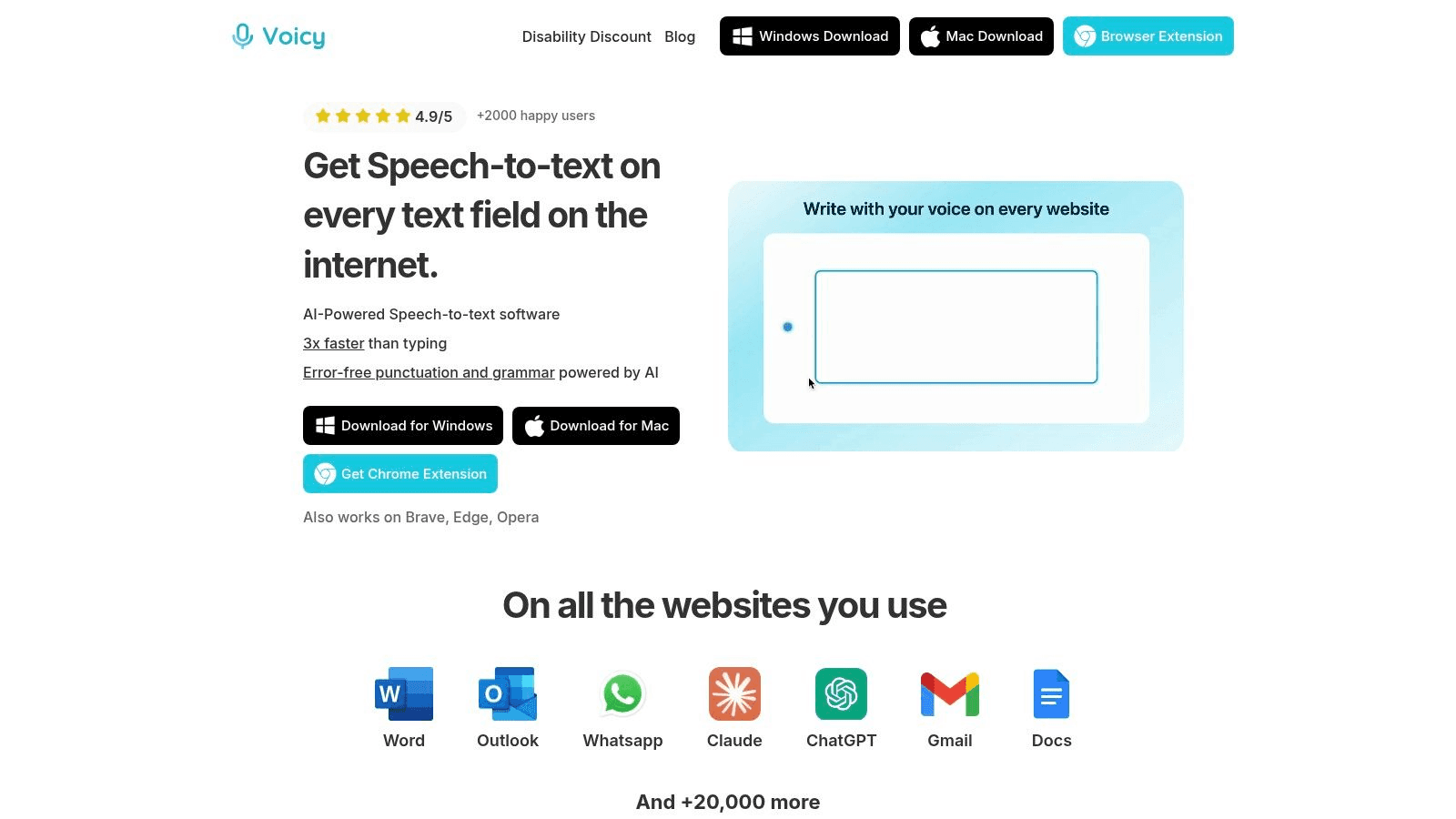
Our recommended solution: Voicy
We recommend Voicy for multiple reasons.
It's very simple to use.
It's extremely accurate with over 99% accuracy in 50 languages.
It works in every app and browser.
It comes with a 20% discount for anyone who struggles with typing.
It automatically adds punctuation and corrects grammar.
The Growing Need for Ergonomic Alternatives
Arthritis is one of the top causes of disability worldwide. It hits hand and wrist mobility especially hard. This isn't a small problem.
Our population is aging. By 2050, degenerative joint diseases will affect over 130 million people.
This makes ergonomic tools like voice typing critical for anyone with joint pain.
The main benefit is simple: Voice typing removes the physical barrier between your ideas and your computer. You save energy and reduce joint strain all day long.
A Holistic Approach to Pain Management
When you reduce physical demands on your body, managing symptoms becomes easier. This tech solution works great with other wellness strategies.
Voice typing directly tackles typing pain. It works even better when combined with methods for natural chronic pain relief. Going hands-free can really improve your daily life.
Reduced Daily Discomfort: Less strain on your fingers, wrists, and hands means less pain.
Increased Productivity: You write emails, reports, and messages faster without fighting your own body.
Improved Digital Well-being: You get a comfortable way to use technology long-term.
Finding the Right Voice Typing Tool for You
Picking the right software is your first step toward making voice typing arthritis part of your routine. Good news? You don't need to be tech-savvy to start.
Many powerful tools are already on your devices. Others offer special features if you need them.
The best choice depends on your budget, how you'll use it, and your comfort with new software. Let's look at the most popular options.
Free and Built-In Options
Start with free tools already on your computer. Both Windows and macOS have good dictation features built in. Windows Voice Recognition works across most programs on your PC.
Apple's Dictation on Macs, iPhones, and iPads is known for being accurate right away. These tools work great for everyday tasks. You can draft emails, search the web, or write short notes.
Key Takeaway: Try the built-in dictation on your computer first. You might find it's enough for your needs. This saves you time and money.
Web-Based and Advanced Tools
If you work mostly in a web browser, try Google Docs Voice Typing. It's free and simple to use. The accuracy is impressive for a browser tool.
This makes these tools really easy to use. Even if you're not super tech-savvy.
Need more power? Try specialized software like Dragon NaturallySpeaking. It offers custom vocabularies and full computer control with your voice. But it costs more.
A Quick Look at Popular Voice Typing Options
Here's a simple breakdown to help you decide. This table shows the pros and cons of top options.
Tool | Best For | Setup Difficulty | Cost |
|---|---|---|---|
Windows/Mac Built-in | Quick tasks like emails and web searches. | Easy | Free |
Google Docs Voice Typing | Users who write mostly in Google Docs. | Easy | Free |
Dragon NaturallySpeaking | Professionals who need advanced features and full PC control. | Moderate | Premium (One-time purchase) |
Voicy | High-accuracy dictation in any web browser. | Easy | Free trial, affordable subscription |
Your choice comes down to cost, ease of use, and features you need for your arthritis symptoms. Try the free options first. They've improved a lot and often work great for daily use.
Going Hands-Free with Essential Voice Commands
Once you learn basic dictation, the real game-changer is going completely hands-free. You move beyond just speaking words. You start controlling everything with your voice.
You handle punctuation, formatting, and edits all by speaking.
For anyone with arthritis, this gives the most relief. These commands turn voice typing from a simple tool into a true keyboard replacement.
Speaking Punctuation and Formatting
Start with punctuation commands. Instead of reaching for the keyboard to add a period or new paragraph, just say it. It feels weird at first. But it quickly becomes natural.
For example, say: "Using my voice to type is a huge relief for my hands period I can work longer without pain new paragraph"
Voicy understands and applies these commands as you speak.
The same works for formatting. Say "bold that" or "underline the last sentence" to add emphasis without clicking. This control lets you create a finished document, not just a rough draft.
Key Commands to Practice:
"Comma," "Period," "Question Mark"
"New Line," "New Paragraph"
"Select [word]," "Delete That"
"Bold Last Word," "Italicize That"
Navigating and Editing Your Text
Editing is often the hardest part when it comes to mouse and keyboard use. That's why voice commands for editing are so powerful for arthritis.
You're dictating and notice a typo. Instead of grabbing the mouse, just say "select previous word." Then speak the correct word to replace it.
Here's how to write a quick email entirely by voice:
Start your draft: "Hi Sarah comma new paragraph"
Write the body: "Just wanted to follow up on our conversation from yesterday period I've attached the report you requested period"
Make a quick fix: You said "yesterday" but meant "Tuesday." Say "select yesterday," then "Tuesday."
Finish it off: "New paragraph Let me know if you have any questions period new paragraph Best comma new paragraph John"
This smooth process lets you draft, correct, and finish your text in one motion. Your hands stay comfortable.
If you use certain apps a lot, learn platform-specific commands. Find useful commands by learning about speech-to-text in Google Docs. These tools make your workflow smoother and pain-free.
Getting Your Voice Typing Software to Actually Understand You
Even great software struggles if it can't hear you clearly. When using voice typing for arthritis, getting it right the first time matters. A smooth experience starts with your hardware and habits.
Your microphone is the most important piece. The one in your laptop works okay. But a dedicated external microphone is much better.
A noise-canceling headset makes a huge difference in accuracy. It isolates your voice and blocks background noise like fans or people talking.
Positioning matters too. Don't put the mic right against your mouth. That causes distorted popping sounds on letters like 'P' and 'B'.
Keep it about two or three inches from the corner of your mouth. That's the sweet spot.
Speak Naturally, Not Like a Robot
Once your mic is set, think about how you speak. The software learns your unique voice patterns. Speaking at a steady, natural pace works better than speaking slowly.
Just talk like you're having a normal conversation.
Say your words clearly. But don't overdo it. Trying too hard to be perfectly clear sounds unnatural. The program gets confused.
Be consistent. If the software makes a mistake, correct it manually. This helps the program learn how you say certain words. Accuracy improves over time.
Arthritis can add another challenge. Rheumatoid arthritis sometimes affects the larynx. This leads to vocal roughness or speech changes.
Studies show around 70% of RA patients report some laryngeal complaint. You can read the full research about these voice changes to learn more.
If your voice is affected, focus on clear speaking and proper microphone placement. Train the software by reading its provided passages. This teaches the program your unique voice characteristics.
Designing a Pain-Free Voice Typing Workspace
Great voice typing isn't just about software. It's about creating a space where you can speak clearly and comfortably. This matters especially when dealing with arthritis pain.
Your physical setup is the foundation for a strain-free experience.
Start with your posture. A good, supportive chair keeps you sitting upright. This helps your back. It also opens up your diaphragm for clearer, stronger speech.
Set your monitor at eye level. This prevents neck strain that can tighten your vocal cords. Speaking becomes easier.
Getting this right creates a setup that supports your body and voice long-term.
Your Microphone and Audio Setup
A quality microphone matters if you're serious about using voice typing for arthritis. It makes sure the software hears you correctly the first time. You don't have to lean in or raise your voice.
Your goal is a completely hands-off setup. The microphone should pick up your voice easily. You shouldn't have to work at it. This small investment pays off in accuracy and comfort.
This is especially important because arthritis sometimes comes with other challenges. Some research shows a link between rheumatoid arthritis and hearing problems. This makes communication even harder.
Using a good microphone and headphones ensures you speak and hear with total clarity. This cuts down on stress.
Want to create an ergonomic workspace? Check out this guide on how to set up a home office for peak productivity.
Looking for ways to manage discomfort while working? Our guide on how to relieve wrist pain from typing has great tips.
Troubleshooting Common Voice Typing Challenges
Hitting a few bumps when starting with voice typing is normal. It's frustrating when the software mishears a word or ignores a command. But these are fixable problems, not dead ends.
Getting confident is about smoothing out these issues.
One common problem is accuracy with specialized words. If you're a doctor using medical terms or a writer using unique names, the software might stumble.
The best fix? Add these terms to a custom dictionary if your program has one. If not, just correct the word manually the first few times. Most tools learn from your changes quickly.
Another classic problem is background noise. That TV in the other room, a fan, or a nearby conversation confuses the microphone. This leads to mistakes.
Pro Tip: Get a decent noise-canceling headset. It's probably the single best thing you can do to boost accuracy. It focuses on your voice and filters out background sound. The software gets a much cleaner signal.
How Long Does It Take to Get Good?
You'll probably be surprised how quickly you learn. Most people get comfortable with basic dictation in just a couple hours.
Mastering advanced editing and navigation commands might take a few days of practice. That's about it.
Start with simple tasks. Try drafting a basic email or personal note. Be patient with yourself.
The long-term relief from a hands-free workflow is worth the initial effort. If you run into specific problems, our guide on how to fix voice typing issues offers detailed solutions.


