




Your Guide to an RSI Voice Typing Solutions
Short version of the article
For those who don't have time to read it all. Read the full article for more guidance.
Voice typing lets you work without using your keyboard. This gives your fingers, wrists, and forearms a break from repetitive movements.
How it works: Install voice typing software, press a keyboard shortcut, and start speaking. Your words appear as text with automatic punctuation and grammar correction.
Key benefits:
Works in every app and website
Reduces strain while maintaining productivity
Most people get comfortable in a couple days
Over 99% accuracy in multiple languages
Best approach: Use voice for heavy typing like emails and long documents. Keep your keyboard for quick edits and precision tasks. This hybrid method gives your hands the rest they need without slowing you down.
Tools like Voicy offer a 20% discount for people dealing with RSI.
Main article: Your Guide to an RSI Voice Typing Solutions
Preventing or recovering from a repetitive strain injury (RSI)?
Either way, using your fingers less on your keyboard, is crucial to reduce the strain on your wrist and fingers.
Getting rid of thousands of daily finger movements can give your overworked muscles and tendos the break they desperately need.
What if, instead of using your fingers, you just used your voice?
In this article we will talk about using speech to text for repetitive strain injury.
We'll talk about:
The benefits of using Speech-to-Text
The right tech to use for your work
The goal of this article is to cut out repetitive typing that flare up your condition.
How a Voice Solution Can Alleviate RSI
How does a repetitive strain injury occur?
It's in the name. An injury from overuse.
Think about the thousands of keystrokes and mouse clicks you make every single day.
With speech-to-text, you can stop relying on your fingers, while boosting your productivity at the same time.
This simple shift gets right to the root cause of the injury.
Imagine a writer drafting a long report.
A 5,000-word document translates to over 25,000 individual keystrokes.
With a tool like Voicy, that same document can be written just by talking, completely sidestepping the strain on your fingers, wrists, and forearms.
This is more than just pain avoidance; it’s about building a healthier, more sustainable way to work.
Our recommended solution: Voicy Speech-to-Text
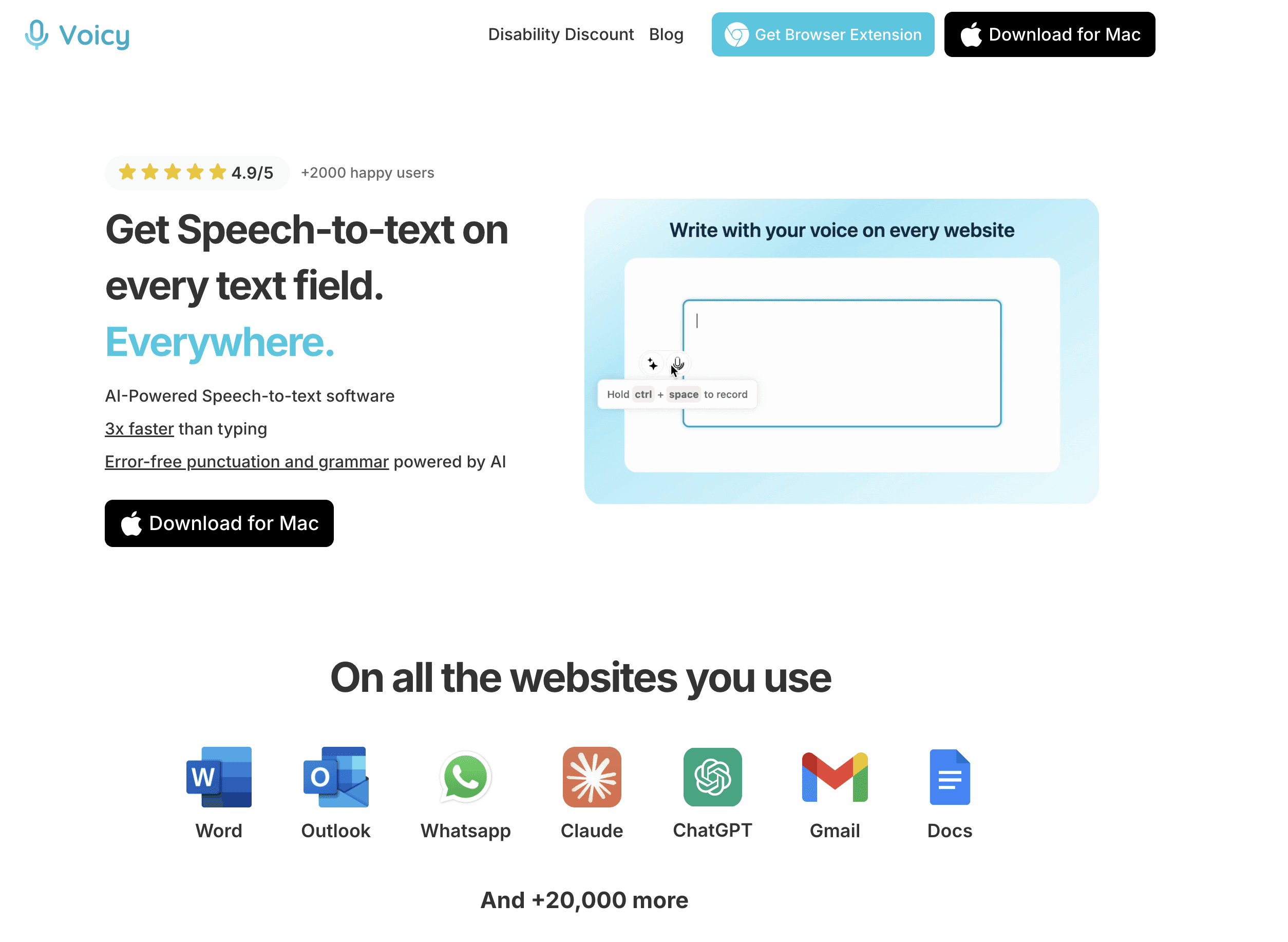
Voicy is a Windows and Mac app that lets you write with your voice everywhere.
Here's how it works:
Click a keyboard shortcut to record
Voicy automatically pastes your text into every app or website that you're on
Voicy at a glance:
✅ Over 99% accuracy in 50 languages
✅ Automatic punctuation and grammar correction
✅ Works in every app and website
✅ 20% discount for anyone suffering from RSI
Breaking the Cycle of Repetitive Motion
The real win here is breaking the vicious cycle of repetitive motion that defines so much of our work.
Every email, every line of code, and every document chips away at our physical well-being.
Voice typing makes you get rid of the most strenuous part of all this.
By minimizing the primary source of strain, you give your body a chance to heal while maintaining your productivity. It's a proactive approach to managing a condition that, if ignored, can become debilitating.
To better understand the difference, let's compare the physical demands of manual typing versus voice typing.
Comparing Manual Typing vs Voice Typing for RSI
This table breaks down the key differences in physical impact between sticking with a traditional keyboard and embracing a voice-first workflow. It clearly shows how one method contributes to strain while the other actively reduces it.
Factor | Manual Typing | Voice Typing |
|---|---|---|
Primary Physical Action | Constant, rapid finger and wrist movements. | Natural speaking with minimal physical effort. |
Muscle Engagement | Sustained tension in fingers, hands, wrists, and forearms. | Light engagement of facial and vocal muscles. |
Joint Stress | High impact on small joints in the fingers and wrists. | Virtually no impact on hand or wrist joints. |
Postural Impact | Often encourages hunching over the keyboard, leading to neck and shoulder pain. | Allows for a more relaxed, upright posture. |
Risk of Overuse | Extremely high; directly linked to RSI, carpal tunnel, and tendonitis. | Minimal; primary strain is vocal, which is easily managed with breaks. |
As you can see, the shift to voice typing dramatically reduces the physical toll on the areas most vulnerable to RSI, offering a clear path to relief.
A Growing Market for Pain-Free Productivity
This isn't a niche problem. The need for healthier work habits is fueling massive technological growth. The global voice recognition market—the engine behind these tools—was valued at USD 18.41 billion in 2025 and is on track to hit an incredible USD 77.97 billion by 2032.
This explosion is driven by people demanding smarter, contactless ways to get things done without the physical wear and tear. You can dive deeper into the growth of voice recognition technology on GlobeNewswire.
Ultimately, adopting an RSI voice typing solution means you can keep working effectively without making your condition worse. For anyone whose career relies on a computer, this technology is a lifeline—a way to find relief without sacrificing productivity.
Creating Your Ideal Voice Typing Setup
Switching over to an RSI voice typing solution can feel like a huge leap, but pulling together an effective setup is actually pretty straightforward. It all starts with your environment.
Believe it or not, the single biggest factor for getting accurate dictation isn't fancy software. It's clean audio input.
That just means finding a quiet spot and getting a decent microphone.
You don't need to splurge on a studio-grade boom mic, either. A quality noise-canceling headset, which you can often find for under $50, works wonders. It'll easily filter out background noise like your computer fan or distant chatter. That small investment pays for itself almost immediately in saved editing time and less frustration. A clear signal is everything.
This image really captures how a simple, ergonomic setup built around voice tech can make your workspace comfortable and productive again.
Configuring Your Software
Once your hardware is sorted, it's time to install a tool like Voicy. The installation itself is a breeze, but a couple of quick configuration tweaks are crucial for a smooth workflow.
Here’s what you need to do:
Grant Microphone Access: Your computer will ask for permission to use the mic. You have to say yes to this—it's how the app hears you.
Run an Audio Check: Most good tools have a quick setup wizard to test your mic levels. Just speak in your normal voice and make sure the software is picking you up clearly without any distortion.
Set Your Keyboard Shortcut: Voicy uses a keyboard shortcut to start and stop dictation. Pick a key combo that feels natural to you and doesn't clash with other programs you use all the time.
After that quick setup, you're ready to go. For writers making this change, it's worth digging into the specific features of different tools. We've put together a detailed guide on choosing the best dictation software for writers that can help you lock in the perfect choice.
The whole point is to make voice typing feel as natural as talking. Spending ten minutes getting your hardware and software configured properly will save you hours of headaches and corrections down the line.
As you build out your setup, checking out the 12 Best AI Transcription Software Options can give you a broader perspective. It helps you compare tools and pick a solution that truly nails your specific needs for accuracy and features.
Mastering Voice Commands for Real Productivity
The real power of an RSI voice typing solution kicks in when you stop just dictating words. True efficiency comes from learning the commands that let you navigate, edit, and format your documents entirely hands-free. This is the moment a tool goes from a simple text entry gimmick to a genuine keyboard replacement.
Instead of grabbing your mouse to highlight a sentence, you can just say, "select this sentence." Made a typo in the last word? A simple "correct that" followed by the right word fixes it instantly. These small, intuitive commands stack up, saving you a massive amount of time and taking the physical load off your hands and wrists.
Everyday Commands You Will Actually Use
Don't worry about memorizing a massive, complicated list of functions. The trick is to start with a small set of high-impact commands you'll find yourself using all the time.
Here are a few essentials to weave into your workflow from day one:
Navigation: "Go to end of paragraph," or "move up two lines."
Selection: "Select previous word," or "highlight from here to end of document."
Formatting: "Bold that," "make that italics," and "capitalize this sentence."
Editing: "Delete previous paragraph," "undo that," or "backspace five times."
Think of these commands as your new shortcuts. Just like you learned Ctrl+C for copy, you'll find that saying "copy that" becomes second nature, letting your hands stay relaxed and away from the keyboard.
Building Your Custom Vocabulary for Accuracy
One of the best features of modern voice typing software is its ability to learn your specific language.
This is a game-changer for professionals who rely on specific jargon, acronyms, or client names that a standard dictionary just won't get right.
For instance, a medical professional can teach the software terms like "systolic blood pressure" or complex drug names.
A developer could add programming functions or internal project codenames. Personalizing the dictionary like this massively boosts accuracy and saves you from the frustration of manually correcting the same words again and again.
This kind of personalization is at the heart of how today's voice AI works. The whole market is seeing explosive growth, expected to jump from USD 3.14 billion in 2024 to an incredible USD 47.5 billion by 2034, largely thanks to these accuracy improvements. If you're curious about how spoken language gets processed by tech, you might find some useful parallels in articles about optimizing for voice search.
Weaving Voice Typing Into Your Workflow
Making the leap to a RSI voice typing solution isn't about ditching your keyboard overnight. Honestly, trying to go all-in from day one is a recipe for frustration.
A much smarter—and smoother—way to get started is with a hybrid approach. Think of it as strategically blending your voice with your trusty mouse and keyboard.
Your voice becomes your new go-to for the heavy lifting. Use it to bang out the first draft of a long email, outline a new document, or just get your thoughts down on the page. Then, grab your mouse and keyboard for what they do best: the quick, precise stuff like clicking a link or fixing a single typo.
How a Hybrid Approach Looks in the Real World
This method isn't just theory; it works for pretty much any job where you spend a lot of time typing. It’s all about cutting down on strain without slowing yourself down.
For Writers: Dictate that entire first draft of an article. Just get all your ideas out. Then, switch back to the keyboard and mouse for the detailed editing and formatting work.
For Programmers: Use your voice to write out longer comments or documentation. It's surprisingly fast. Save the keyboard for the intricate, symbol-heavy lines of code that need absolute precision.
For Managers: Fly through a backlog of messages by dictating your replies one after another. Your mouse is still perfect for quickly navigating between different chat windows.
The point isn't to eliminate your keyboard entirely. It's about consciously offloading the most repetitive, high-volume typing to your voice. That’s what directly tackles the root cause of RSI.
This gradual integration makes the change feel natural instead of disruptive. Before you know it, you'll find yourself relying on your voice more and more as the commands become second nature.
If you want to dive deeper into this, we've got a great resource on how to use speech-to-text in your daily workflow that's packed with tips for being more efficient.
Troubleshooting Common Voice Typing Glitches
Even a solid RSI voice typing solution will hiccup now and then. One minute you're in the flow, the next it's mishearing every other word or just lagging behind.
The most common complaint I hear is poor word recognition.
Before you dive into complex settings, just check your microphone. Is it a consistent distance from your mouth? Try speaking a little slower and more deliberately.
Honestly, just giving the software a cleaner audio signal can solve 90% of accuracy issues right there.
What to Do When the Software Freezes Up
If your dictation tool completely freezes or starts fighting with other applications, it's almost always a resource hogging issue. Voice processing takes a surprising amount of computer power, so freeing up some memory can make all the difference.
Kill your extra browser tabs: Every one of those open tabs is eating up a little slice of memory.
Give it a fresh start: The classic "turn it off and on again" works wonders. A simple restart can clear out temporary glitches.
Check for updates: Make sure both your voice typing software and your operating system are current. This prevents a lot of weird compatibility headaches.
Still stuck? Sometimes the problem runs a bit deeper. For a more detailed breakdown, head over to our complete guide on how to fix voice typing issues.
It's worth remembering that this technology is getting better every single day. The speech-to-text API market is on track to hit over USD 8.57 billion by 2030, thanks to huge investments in making these tools more accurate and reliable. You can read more about the growth of this technology from Consegic Business Intelligence.
Common Questions About Voice Typing for RSI
Switching to voice typing is a big change in how you work, so it's natural to have a few questions. Let's tackle some of the most common concerns people have before they make the jump.
How Long Does It Take to Get Used to It?
This is probably the number one question I hear. The good news is, the adjustment period is shorter than you think. Most people get the hang of basic dictation within a couple of days.
To really hit your stride and master the more advanced commands for a seamless workflow, give yourself one to two weeks of daily use. The key is to be patient with yourself. Start small—use it for short emails or messages—then work your way up to longer reports.
Can Voice Typing Completely Replace My Keyboard?
For a lot of your day-to-day work, yes! You can absolutely draft entire documents, manage your email, and browse the web using just your voice.
However, most of us find a hybrid approach works best. Voice is a lifesaver for long-form writing, which is exactly the kind of repetitive work that causes strain. But for things like precision graphic design or navigating complex software, a mouse or trackpad is still quicker. The main goal here is to dramatically reduce keyboard use, not eliminate it entirely.
The point isn't to throw your keyboard in the trash. It's to offload the high-volume, repetitive typing to your voice, which is what actually addresses the root cause of RSI.
Will My Accent Be a Problem?
Modern voice AI has come a long way. It's now incredibly good at understanding a huge variety of accents and dialects. Most quality tools, like Voicy, have a quick training process where the software learns the unique patterns of your voice.
While a heavy accent might have been a hurdle in the past, today’s tech adapts fast. Honestly, having a quality microphone and speaking clearly makes a much bigger difference than having a "standard" accent. We're even seeing this tech get adopted in highly specialized fields. For instance, many professionals ask, Can AI be used for medical transcription?, which shows just how capable and reliable these systems have become.
Ready to give your hands a rest and get your productivity back? Try Voicy today and see how our AI-powered voice typing can transform your workflow. Get started with Voicy for free.


