




Speech to Text: The Complete Guide for 2026
Summary of the article
Speech to text converts your voice into written words (not the other way around). Here are the best options for 2026:
Google Voice Typing - Free, works in Google Docs
Apple Dictation - Built into Mac, iPhone, iPad
Windows Speech Recognition - Free on Windows 11
Dragon NaturallySpeaking - Premium accuracy, $300+
Voicy - +99% accuracy. Works across Mac, Windows, and Browser Extension
Otter.ai - Meeting transcription specialist
Rev.com - Professional human + AI transcription
Speechnotes - Simple online tool, no download needed
Most people can start with their device's built-in option (Google, Apple, or Windows) before upgrading to specialized tools.
The Great Speech to Text vs Text to Speech Mix-Up
Let's clear this up right away. You've probably noticed search results showing both directions when you look up "speech to text."
Speech to Text (STT) = Your voice becomes written words. You speak, the computer types.
Text to Speech (TTS) = Written words become spoken audio. The computer reads text aloud to you.
This guide focuses entirely on the first one - converting your speech into text you can edit, save, and share.
If you've ever used voice typing on your phone, dictated a text message, or asked Siri to take a note, you've used speech to text technology. The goal is simple: talk naturally and watch your words appear on screen.
What is Speech to Text Technology?
Speech to text software listens to your voice through a microphone and converts spoken words into written text in real-time. Modern systems use artificial intelligence to understand context, handle different accents, and even add punctuation automatically.
How It Actually Works
Behind the scenes, speech recognition breaks down into several steps:
Audio capture - Your microphone picks up sound waves
Signal processing - Software filters out background noise
Pattern recognition - AI models match sound patterns to words
Language processing - The system adds context and grammar
Text output - Final text appears on your screen
The best speech to text tools complete this process in milliseconds, so you see words appearing almost as fast as you speak them.
Common Use Cases
People use speech to text for dozens of different tasks:
Writing and editing - Compose emails, documents, and social media posts
Note-taking - Capture meeting notes, lecture content, and quick thoughts
Accessibility - Alternative input method for people with mobility challenges
Hands-free work - Type while cooking, driving, or multitasking
Content creation - Draft blog posts, scripts, and articles faster
Language learning - Practice pronunciation and conversation
What Affects Speech Recognition Accuracy?
Not all speech to text experiences are created equal. Several factors determine how well the software understands you.
Microphone Quality Makes a Huge Difference
Your built-in laptop mic might work for basic dictation, but you'll get noticeably better results with a decent external microphone. Even a $30 USB headset typically outperforms laptop speakers.
For serious dictation work, consider investing in a quality microphone like the Blue Yeti or Audio-Technica ATR2100x. The improvement in accuracy often pays for itself in reduced editing time.
Environment and Background Noise
Speech recognition struggles in noisy environments. Coffee shops, busy offices, and rooms with air conditioning can all hurt accuracy. The software sometimes picks up these sounds as speech, leading to random words in your text.
For best results:
Find a quiet room when possible
Close doors and windows to reduce outside noise
Turn off fans, TVs, and other audio sources nearby
Use noise-canceling headphones if available
Speaking Style and Training
Most people need to adjust their natural speaking pattern slightly for better recognition:
Speak clearly - Enunciate without overdoing it
Maintain steady pace - Not too fast, not too slow
Use natural pauses - This helps with punctuation
Practice with your chosen software - Most systems improve as they learn your voice
Dragon NaturallySpeaking and some other premium tools offer voice training exercises. These short drills can significantly improve accuracy within a few sessions.
Language and Accent Considerations
English speakers with American, British, or Australian accents typically get the best results from most systems. However, modern AI has dramatically improved support for:
Non-native English speakers
Regional dialects and accents
Multiple languages (many systems support 50+ languages)
Code-switching between languages mid-sentence
If you have a strong accent or speak English as a second language, try several different tools to see which works best for your voice.
Linux needs its own decision path because built-in voice typing is still weaker than macOS or Windows. For distro-specific options, read our dictation for Linux guide.
Best Speech to Text Tools for 2026
After testing dozens of options, here are the most reliable speech recognition tools available today. Each has distinct strengths depending on your needs and budget.
Google Voice Typing - Best Free Option
Best for: Casual users, Google Docs writers, budget-conscious students
Google Voice Typing works directly in Google Docs and offers impressive accuracy for a free tool. You'll need Chrome browser and a Google account to access it.
Pros:
Completely free to use
Good accuracy for most speakers
Supports 125+ languages
Automatic punctuation and formatting
Voice commands for navigation ("select all", "bold")
Cons:
Only works in Google Docs and Slides
Requires internet connection
No offline mode available
Limited customization options
Accuracy: 90-95% in quiet environments
Price: Free
Apple Dictation - Best for Mac and iOS Users
Best for: Mac owners, iPhone/iPad users, Apple ecosystem enthusiasts
Apple Dictation comes built into every Mac, iPhone, and iPad. It's powered by Siri's speech recognition and works across most apps.
Pros:
Already installed on your Apple devices
Works in almost any app
Enhanced Dictation runs offline
Good integration with Apple ecosystem
Voice commands for text editing
Cons:
Only available on Apple devices
30-second limit in basic mode
Less accurate than premium options
Limited customization for technical terms
Accuracy: 85-92% depending on device and settings
Price: Free with Apple devices
Windows Speech Recognition - Best for PC Users
Best for: Windows users, budget-conscious professionals, accessibility needs
Windows Speech Recognition (now called Voice Access in Windows 11) provides system-wide voice control and dictation.
Pros:
Free with Windows
Works in any Windows application
Full computer control via voice commands
Custom vocabulary support
Offline capability
Cons:
Steep learning curve for advanced features
Requires training for best results
Lower accuracy than premium competitors
Can be resource-intensive
Accuracy: 85-90% after training
Price: Free with Windows
Dragon NaturallySpeaking - Most Accurate Premium Option
Best for: Professional writers, heavy dictation users, medical/legal professionals
Dragon NaturallySpeaking remains the accuracy champion after 30+ years of development. It offers specialized versions for different industries.
Pros:
Industry-leading accuracy (95-99%)
Extensive customization options
Professional versions for specific fields
Advanced voice commands and macros
Works offline once trained
Cons:
Expensive ($300+ for desktop versions)
Significant learning curve
Resource-intensive on older computers
Mobile version lacks some features
Accuracy: 95-99% after proper training
Price: $150-$500 depending on version
Voicy - Best Cross-App Solution Across Platforms
Best for: Mac and Windows users who work across multiple applications, productivity enthusiasts
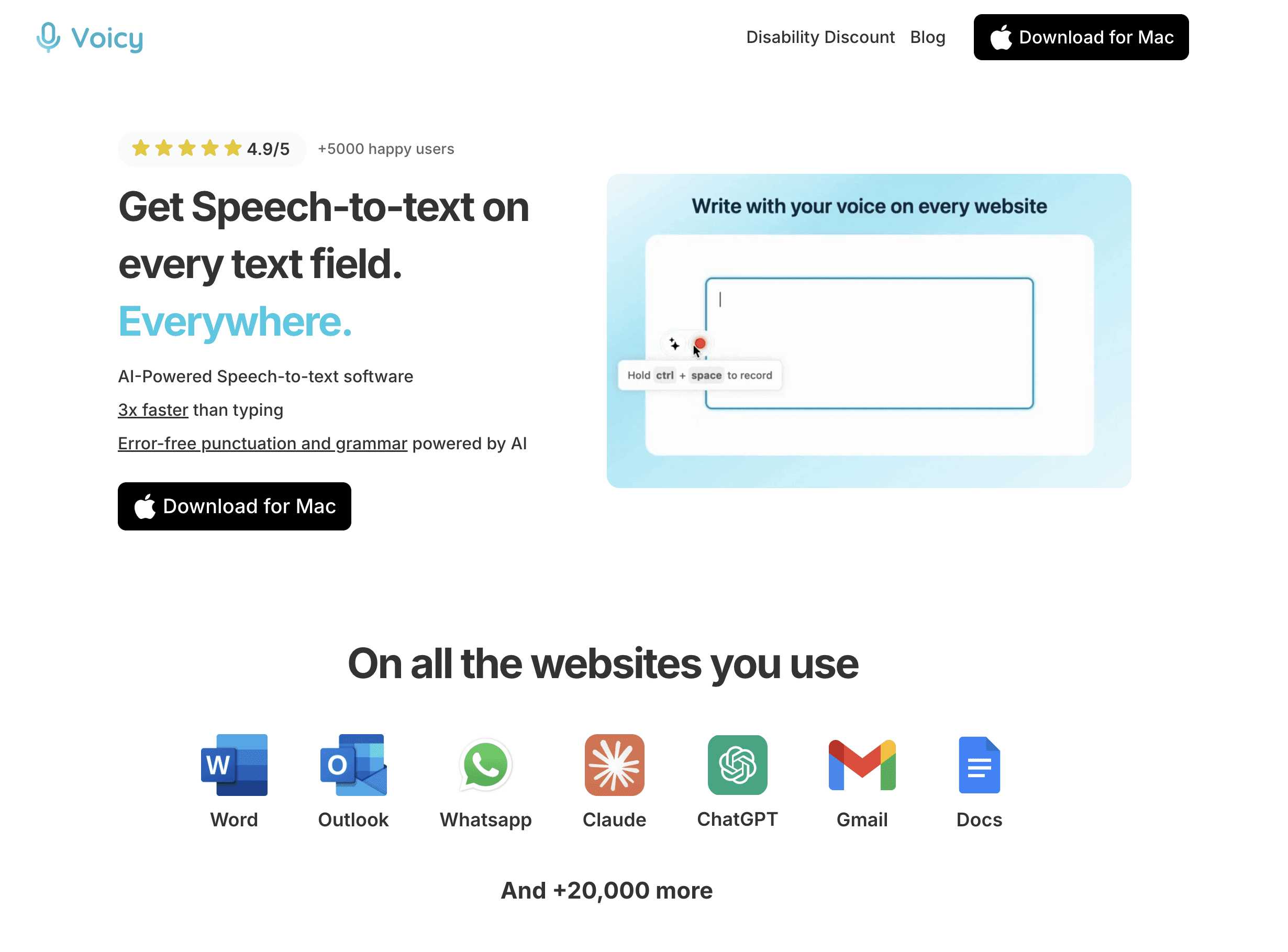
Voicy solves a common problem - most speech to text tools only work in specific apps. Voicy works across Mac, Windows, and a browser extension with a simple keyboard shortcut. It works in every browser including Chrome, Safari, and Firefox.
Pros:
Universal compatibility across all Mac apps
Simple keyboard shortcut activation
Good accuracy using advanced AI models
No app-switching required
Lightweight and fast
Cons:
Limited voice command options
Subscription or one-time purchase required
Accuracy: 95-99% in typical use
Price: $8.49/month, $82/year, or $260 lifetime (includes free trial)
Processing: Voicy uses cloud-based transcription for accuracy and speed.
Otter.ai - Best for Meetings and Collaboration
Best for: Business teams, remote workers, meeting transcription
Otter.ai specializes in meeting transcription and collaborative note-taking. It can distinguish between different speakers and integrates with popular meeting platforms.
Pros:
Excellent for meeting transcription
Speaker identification
Real-time collaboration features
Integration with Zoom, Teams, etc.
Searchable transcription archives
Cons:
Focused on meetings, not general dictation
Monthly transcription limits on free plan
Requires internet connection
Can struggle with heavy accents
Accuracy: 85-92% for meeting scenarios
Price: Free tier available, paid plans from $8.33/month
Rev.com - Most Accurate for Important Content
Best for: Professional transcription, legal documents, important recordings
Rev.com combines AI transcription with human proofreading for maximum accuracy. Perfect when you can't afford any mistakes.
Pros:
99%+ accuracy with human review
Professional transcription service
Handles multiple speakers well
Fast turnaround times
Supports many audio/video formats
Cons:
More expensive per minute
Not real-time (processing delay)
Upload required, no live dictation
Less control over the process
Accuracy: 99%+ with human review
Price: $1.25 per audio minute
Speechnotes - Simple Online Tool
Best for: Occasional users, students, quick note-taking
Speechnotes runs entirely in your web browser - no download or installation required. It's built on Google's speech recognition technology.
Pros:
No software installation needed
Works on any device with a browser
Simple, distraction-free interface
Automatic saving and backup
Voice commands for punctuation
Cons:
Requires internet connection
Limited formatting options
No advanced features or customization
Ads on free version
Accuracy: 85-90% (varies by browser and connection)
Price: Free with ads, $9.99 premium
Platform Setup Guides
Getting speech to text working on your device is usually straightforward, but the steps vary by operating system. Here's how to set up the most popular options.
Mac Setup: Enable Apple Dictation
Apple Dictation comes pre-installed but isn't always enabled by default:
Open System Settings (or System Preferences on older macOS)
Click Keyboard
Select Dictation from the sidebar
Turn on Dictation using the toggle
Choose your preferred language and shortcut key
For offline use, select Enhanced Dictation (downloads additional files)
Once enabled, press your chosen shortcut key (usually Fn+Fn) in any text field and start speaking. Say "done" when finished.
For apps that need more flexibility across different applications, Voicy provides a universal solution that works across Mac, Windows, and browser-based workflows with a simple keyboard shortcut.
Windows Setup: Voice Typing
Windows 11 includes Voice Access (formerly Windows Speech Recognition):
Open Settings (Windows key + I)
Go to Time & Language > Speech
Turn on Online speech recognition
Return to Settings and go to Accessibility > Speech
Turn on Voice access
Complete the brief voice training if prompted
To start dictating, press Windows key + H in any text field. The microphone icon appears when ready to listen.
Chrome Setup: Google Voice Typing
Google Voice Typing only works in Google Docs, but setup is simple (see our complete guide to speech-to-text in Google Docs for troubleshooting):
Open Google Docs in Chrome browser
Create a new document or open an existing one
Go to Tools > Voice typing
Click the microphone icon when it appears
Allow microphone access if prompted
Select your language from the dropdown
Click the microphone again to start dictating. The icon turns red while listening and automatically stops after a few seconds of silence.
Mobile Setup: iOS and Android
iPhone/iPad:
Go to Settings > General > Keyboard
Turn on Enable Dictation
In any app with a keyboard, tap the microphone icon
Speak your text and tap Done
Android:
Download Gboard if not already installed
Set Gboard as your default keyboard in Settings
Open any app with text input
Tap the microphone icon on the keyboard
Speak and tap the microphone again to stop
Privacy and Security Considerations
Speech to text software processes your voice, which often contains sensitive information. Understanding how different tools handle your data helps you make informed decisions.
Cloud vs Local Processing
Most modern speech recognition happens in the cloud for better accuracy, but this means your audio gets sent to company servers:
Cloud-based tools:
Google Voice Typing - Audio sent to Google servers
Otter.ai - Processed on Otter's servers
Rev.com - Audio uploaded for human transcription
Local/offline options:
Apple Enhanced Dictation - Can run entirely on your device
Windows Speech Recognition - Local processing available
Dragon NaturallySpeaking - Processes speech locally
Data Storage and Retention
Companies handle voice data differently:
Google: May store voice recordings to improve services unless you disable this in privacy settings
Apple: Claims not to store dictation audio when using Enhanced Dictation
Microsoft: Stores some voice data but allows deletion through privacy dashboard
Dragon: Processes locally, no cloud storage by default
Business and Healthcare Considerations
Organizations handling sensitive data should consider:
HIPAA compliance: Only certain tools meet healthcare requirements
Business Associate Agreements: Available from some enterprise speech recognition providers
Data residency: Where your voice data gets processed and stored
Encryption: Both in-transit and at-rest data protection
For maximum privacy in professional settings, consider local-only solutions like Dragon Professional or Apple's Enhanced Dictation mode.
Speech to Text by Profession
Different jobs have unique speech recognition needs. Here's how to choose the right tool for your profession.
Writers and Content Creators
Best choices: Dragon NaturallySpeaking, Voicy, Google Voice Typing
Writers benefit most from high accuracy and the ability to work in their preferred writing applications. Dragon offers the best accuracy for long-form content, while Voicy provides universal compatibility across writing tools like Notion, Scrivener, and Ulysses.
Key features to look for:
High accuracy for extended dictation sessions
Custom vocabulary for industry terms
Voice commands for editing and navigation
Integration with popular writing apps
Students and Researchers
Best choices: Google Voice Typing, Apple Dictation, Otter.ai
Students often need budget-friendly options that work well for note-taking and research. Google Voice Typing excels for Google Docs assignments, while Otter.ai helps transcribe lectures and study sessions.
Key features to look for:
Free or low-cost options
Good performance in noisy environments (lecture halls)
Easy sharing and collaboration features
Support for academic writing styles
Business Professionals
Best choices: Otter.ai, Dragon Professional, Microsoft 365 dictation
Business users need reliable transcription for meetings, emails, and reports. Otter.ai specializes in meeting transcription with speaker identification, while Dragon Professional offers the accuracy needed for important business documents.
Key features to look for:
Meeting transcription and speaker separation
Integration with business software (Office, Slack, etc.)
Privacy and security compliance
Team collaboration features
Accessibility Users
Best choices: Dragon NaturallySpeaking, Windows Speech Recognition, Apple Voice Control
People with mobility challenges or repetitive strain injuries need comprehensive voice control beyond just dictation. Dragon and Windows Speech Recognition offer full computer control via voice commands.
Key features to look for:
Full system control (not just text input)
Extensive voice command vocabulary
High accuracy to reduce frustration
Customizable commands for specific needs
Developers and Programmers
Best choices: Dragon Professional, custom solutions with voice coding extensions
Programming by voice requires specialized vocabulary for coding terms and syntax. Dragon Professional can be trained on programming languages, and some developers use custom solutions like Talon Voice.
Key features to look for:
Support for programming syntax and terminology
Custom commands for common coding patterns
Integration with code editors and IDEs
Ability to handle mixed natural language and code
Troubleshooting Common Issues
Even the best speech to text software occasionally struggles. Here's how to solve the most common problems.
Low Accuracy Problems
Symptoms: Software consistently misunderstands words or produces garbled text
Solutions:
Check your microphone: Test with a different mic or headset
Reduce background noise: Close windows, turn off fans, find a quieter space
Speak more clearly: Enunciate without over-pronouncing
Adjust speaking speed: Many systems work better with moderate pace
Train the software: Use voice training features if available
Update language settings: Make sure you've selected the right accent/dialect
Software Doesn't Respond
Symptoms: Microphone icon appears but no text is generated
Solutions:
Check microphone permissions: Ensure the app has access to your mic
Test microphone elsewhere: Verify it works in other applications
Restart the application: Close and reopen the speech to text software
Check internet connection: Cloud-based tools need stable connectivity
Update software: Make sure you're running the latest version
Punctuation and Formatting Issues
Symptoms: Text appears without periods, commas, or proper capitalization
Solutions:
Use voice commands: Say "period," "comma," "new paragraph" explicitly
Enable automatic punctuation: Check settings for auto-formatting options
Pause naturally: Brief pauses often trigger automatic punctuation
Learn command syntax: Each tool has specific voice commands for formatting
Slow Performance
Symptoms: Long delays between speaking and text appearing
Solutions:
Check internet speed: Cloud services need adequate bandwidth
Close other applications: Free up system resources
Switch to offline mode: Use local processing when available
Upgrade hardware: Older computers may struggle with real-time processing
Frequently Asked Questions
Is speech to text accurate enough for professional use?
Modern speech recognition achieves 90-95% accuracy for most users, and premium tools like Dragon can reach 99% with proper training. This accuracy level works well for first drafts and casual writing, but important documents typically need proofreading.
Professional accuracy depends on:
Your speaking clarity and consistency
Microphone quality and environment
The specific software and training
Type of content (conversational vs technical)
Can speech to text handle multiple languages?
Yes, most modern tools support dozens of languages. Google Voice Typing supports 125+ languages, while Apple Dictation covers 60+ languages and dialects. Some advanced systems can even handle code-switching - mixing languages within the same sentence.
However, accuracy varies significantly by language. English, Spanish, French, and German typically get the best results, while less common languages may have lower accuracy rates.
Do I need special hardware for speech recognition?
Basic speech to text works with any microphone, including built-in laptop mics and phone microphones. However, better hardware improves accuracy:
USB headsets: Reduce background noise and provide consistent positioning
Desktop microphones: Offer superior audio quality for office use
Noise-canceling headphones: Help in noisy environments
You don't need expensive equipment to get started, but a $20-30 headset often pays for itself in improved accuracy.
Is my voice data private and secure?
Privacy varies significantly by provider:
Cloud services (Google, Microsoft) typically store voice data to improve their systems
Local processing (Dragon, Enhanced Apple Dictation) keeps data on your device
Privacy controls let you delete stored recordings in most cloud services
For sensitive content, choose tools that process speech locally or offer business-grade privacy protections.
Can speech recognition replace typing entirely?
For many people, speech to text can handle 70-80% of their writing tasks effectively. It excels at:
First drafts and content creation
Email and messaging
Note-taking and documentation
Long-form writing like articles and reports
However, you'll likely still need a keyboard for:
Precise editing and formatting
Code and technical writing
Complex document layouts
Silent environments where speaking isn't appropriate
How do I train speech recognition software?
Training methods vary by software:
Dragon NaturallySpeaking: Includes guided training exercises where you read provided text aloud
Windows Speech Recognition: Offers speech training in Settings > Time & Language > Speech
Cloud services: Automatically improve over time but don't usually offer explicit training
Most systems also learn passively as you use them, gradually improving accuracy for your specific voice and vocabulary.
What's the difference between dictation and transcription?
These terms are often used interchangeably, but technically:
Dictation: Speaking directly into software for real-time text conversion
Transcription: Converting pre-recorded audio into text
Most tools can handle both, but some specialize in one approach. Otter.ai focuses on transcription of meetings and recordings, while Apple Dictation is designed for real-time dictation.
Can speech to text work offline?
Some options work without internet connectivity:
Apple Enhanced Dictation: Downloads language models to your device
Windows Speech Recognition: Can run locally after initial setup
Dragon NaturallySpeaking: Processes everything locally
Cloud-based tools (Google Voice Typing, Otter.ai) require internet connections for processing.
How much does professional speech recognition software cost?
Pricing varies widely based on features and target users:
Free options: Built-in tools (Apple, Google, Microsoft)
Consumer tools: $10-50/year for basic features
Professional software: $150-500 for Dragon Professional editions
Business services: $8-20/user/month for team collaboration features
Enterprise solutions: Custom pricing for large organizations
Most people can start with free built-in options and upgrade only if they need higher accuracy or specialized features.
The Future of Speech Recognition
Speech to text technology continues evolving rapidly. AI improvements make recognition more accurate while expanding to new use cases and languages.
Current trends shaping the field include:
Multimodal AI: Systems that understand context from both speech and surrounding text
Edge processing: More powerful local models that don't need cloud connectivity
Specialized vocabularies: Better support for technical, medical, and legal terminology
Emotional understanding: Recognition of tone, emphasis, and speaking intent
Real-time translation: Instant translation between languages during speech
Whether you're looking to speed up your writing, improve accessibility, or simply try something new, 2026 offers excellent speech to text options for every need and budget. Start with your device's built-in features, then explore specialized tools as your needs grow.
For people who want universal speech recognition across Mac, Windows, and browser workflows, try Voicy for a seamless voice typing experience with a free trial.
If you are comparing everyday writing tools, our guide to talk-to-text apps breaks down the strongest paid and built-in options.


