





Best Voice-to-Text Software for Carpal Tunnel (2026)
Summary of the article
If typing hurts your wrist, switch to a voice-first workflow.
Best options right now:
Voicy — best for fast daily writing across apps (Mac, Windows, extension)
Dragon Professional — best for heavy desktop dictation on Windows
Windows Voice Access — best free built-in option on Windows
Apple Dictation — best built-in option for Mac/iPhone users
Google Docs Voice Typing — best for browser-based writing
Otter — best for meeting notes and transcripts
If your goal is less pain and more output, start with one tool for first drafts, then use keyboard only for quick edits.
Typing with carpal tunnel can make normal work feel slow and exhausting. Emails take longer. Notes hurt. Even short edits can flare pain.
The good news: voice-to-text software is much better in 2026 than it was a few years ago. You can now dictate clean text in most apps, then do short edits without long typing sessions.
This guide compares the best voice-to-text software for carpal tunnel and shows how to set up a practical low-strain workflow.
Quick note: this is not medical advice. It's a software and workflow guide for reducing typing load.
How we chose these tools
We scored tools based on:
Dictation accuracy in real writing
Speed for everyday tasks (email, docs, chat)
Works across apps, not just one editor
Setup friction
Price and long-term value
1) Voicy - best for daily cross-app writing
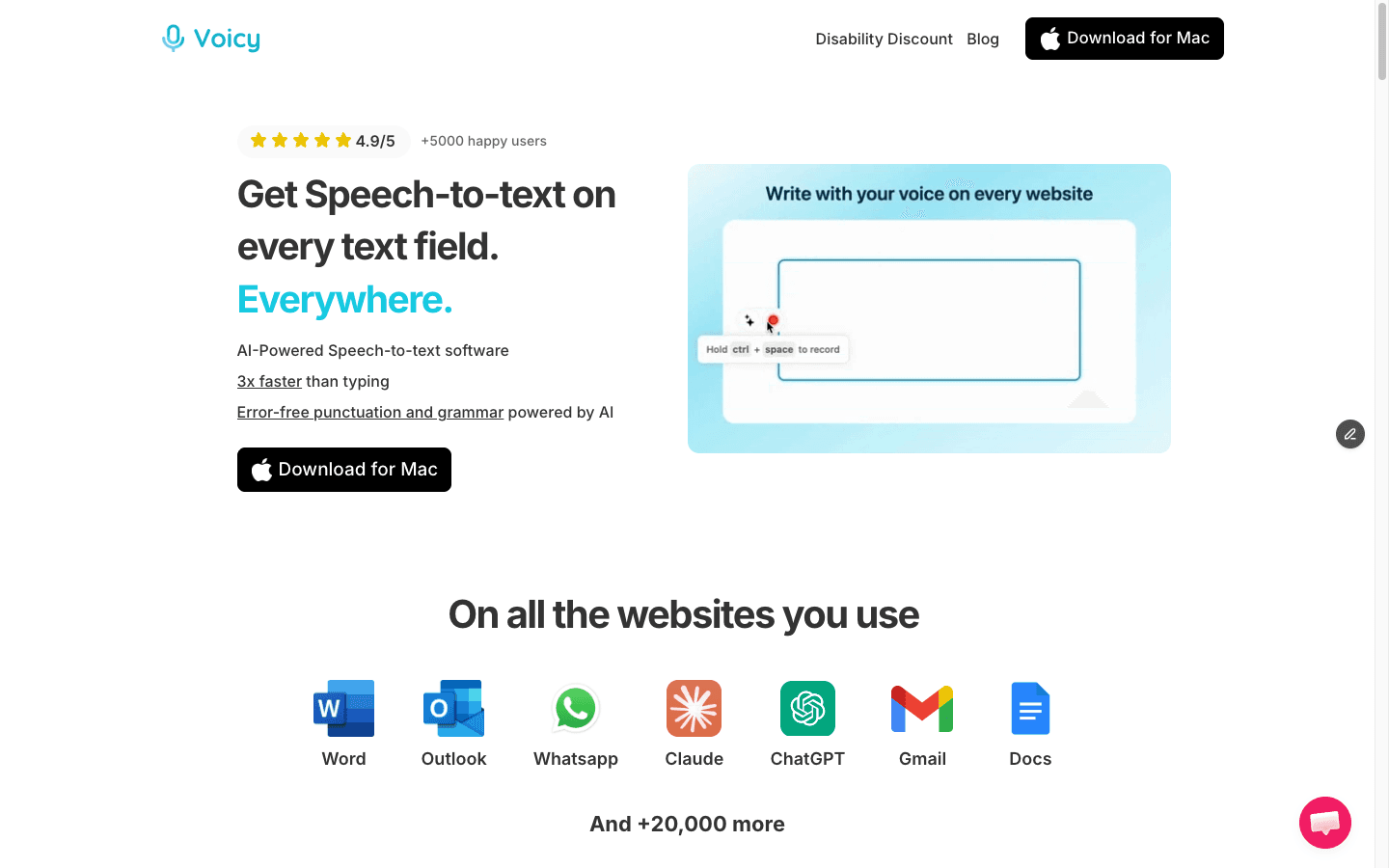
Voicy is strong if your biggest issue is constant typing across many apps. You can dictate emails, docs, prompts, and messages without switching tools.
Why it helps with carpal tunnel
Works across Mac, Windows, and browser extension
Good for short-to-medium writing bursts all day
Cloud transcription gives consistent quality
Useful when pain spikes and keyboard time needs to drop fast
Tradeoffs
Needs internet for full cloud transcription workflow
Best results still depend on clear audio
Pricing: free trial available, then $8.49/month, $82/year, or $260 lifetime.
2) Dragon Professional — best for heavy Windows dictation
Dragon Professional is still the classic option for people who do long-form dictation on Windows.
Why it helps
Mature dictation workflow
Good customization for power users
Works well for repetitive professional writing
Tradeoffs
Windows-focused
Higher cost than most modern tools
Setup and learning curve are bigger
3) Windows Voice Access — best free built-in Windows option
Windows Voice Access can reduce keyboard usage without extra software cost.
Why it helps
Built into Windows 11
No extra subscription
Good for basic dictation and voice control
Tradeoffs
Less polished than paid options for long writing sessions
More errors in noisy environments
4) Apple Dictation — best built-in for Apple users
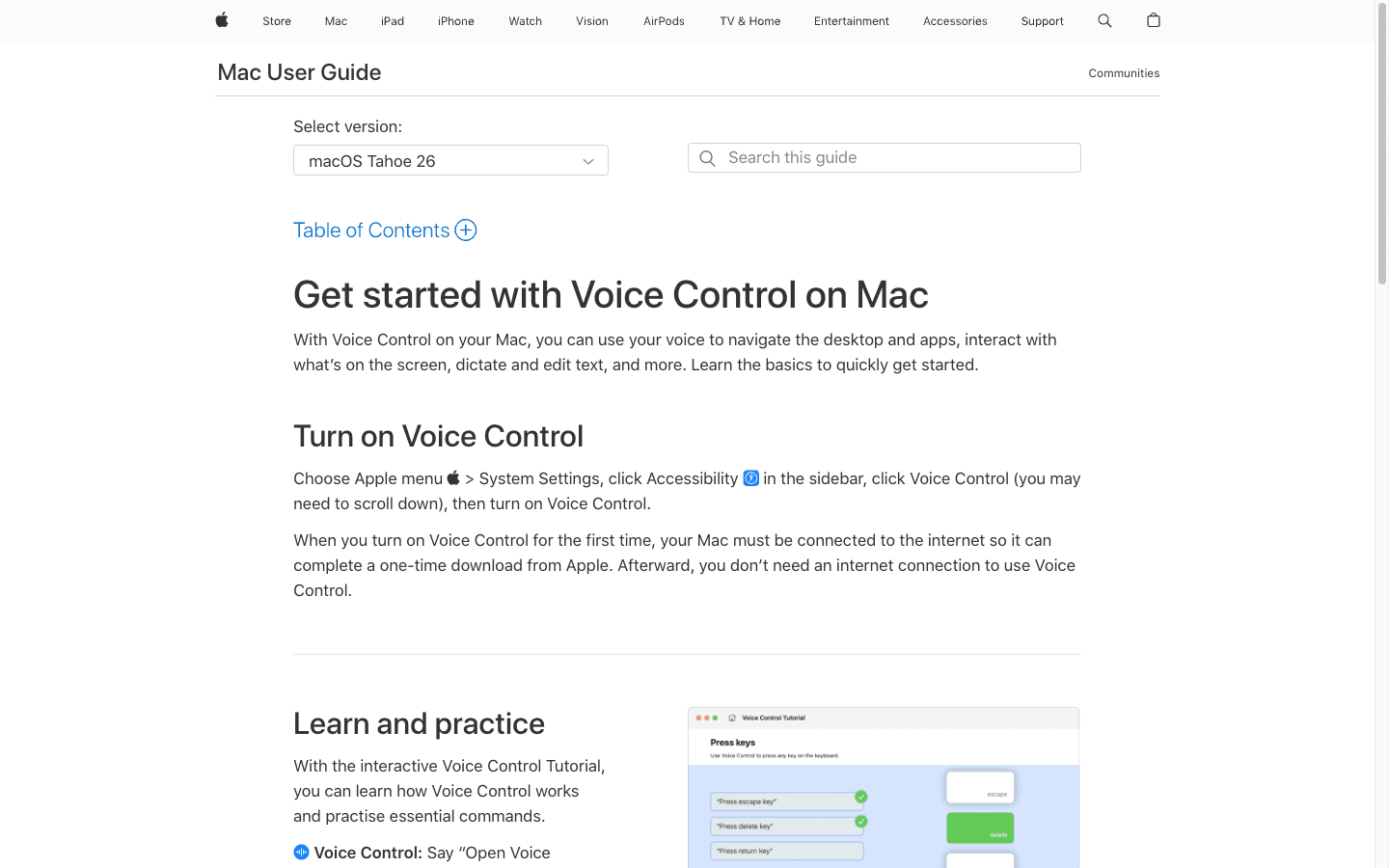
Apple Dictation is the fastest way to try voice typing on Mac. For Mac users looking for more advanced features, dedicated speech to text Mac apps like Voicy offer enhanced accuracy and cross-app functionality.
Why it helps
Built in
Easy to start
Works in many common text fields
Tradeoffs
Fewer advanced controls than dedicated dictation tools
Long-form output may need more cleanup
5) Google Docs Voice Typing — best browser workflow
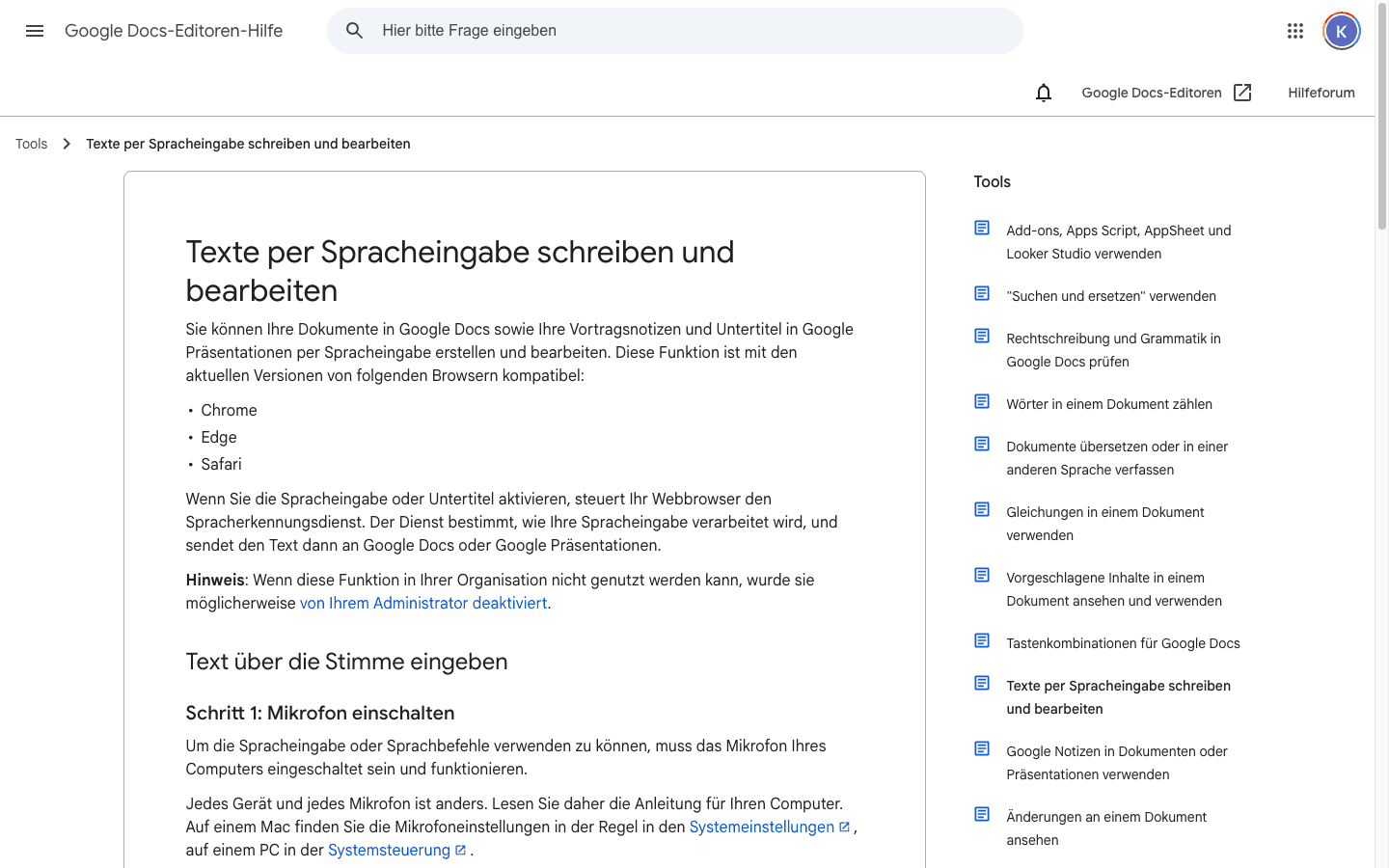
Google Docs Voice Typing is a solid zero-cost option if you already write in Docs.
Why it helps
Easy to test right now
Good for drafts and notes
Lives where many teams already collaborate
Tradeoffs
Mostly useful inside Docs workflow
Can struggle with punctuation consistency in longer sessions
6) Otter — best for meetings and transcript-first writing
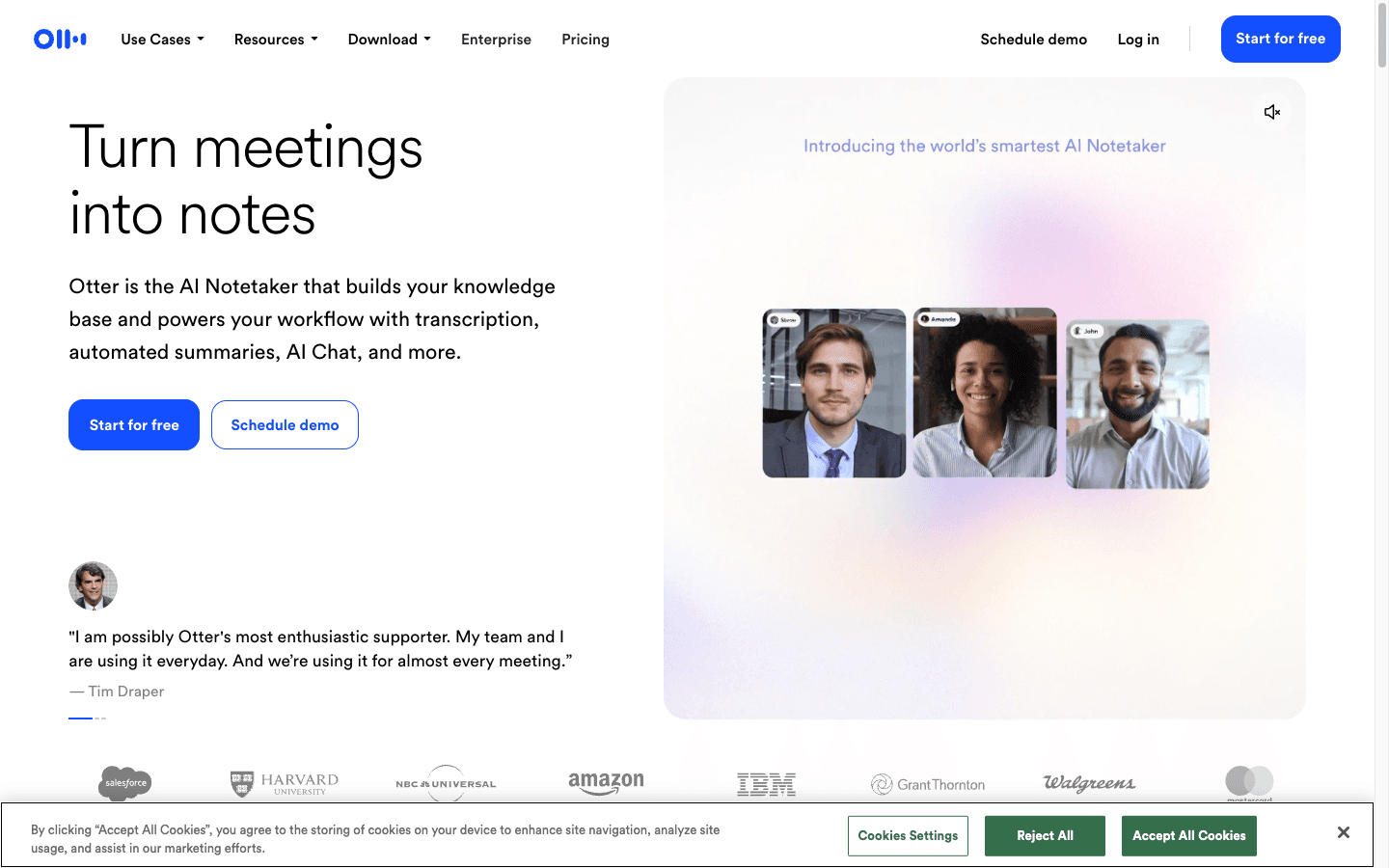
Otter is useful when your writing starts as conversations, calls, or interviews.
Why it helps
Captures spoken content quickly
Good for summaries and note extraction
Tradeoffs
Not ideal as your only day-to-day writing tool
Better as a capture tool than a full writing environment
Best setup for carpal tunnel: a 3-step workflow
Step 1: Voice first draft
Use dictation for the first 70–90% of text.
Step 2: Short edit pass
Edit in short keyboard windows (2–5 minutes), not long sessions.
Step 3: Reuse templates
Use email/snippet templates so each task needs less typing.
This mix is usually better than trying to be "100% voice-only" from day one.
Common mistakes to avoid
Using low-quality microphones in noisy spaces
Dictating and editing at the same time (too slow)
Testing five tools at once instead of one for a full week
Ignoring app compatibility with your real workflow
Practical checklist for this week
Pick one primary dictation tool
Use it for all emails and docs for 5 workdays
Track typing minutes before/after
Keep one fallback built-in option (Windows Voice Access or Apple Dictation)
Add one internal guide for your own workflow
If you need setup help, see:
FAQ
Can typing cause carpal tunnel?
Repetitive typing and wrist posture can aggravate symptoms for many people. Software won't treat the condition, but it can reduce typing load.
What is the best voice-to-text software for carpal tunnel?
It depends on your stack. For cross-app daily writing, Voicy is a practical starting point. For Windows-heavy enterprise dictation, Dragon is still strong.
Is free dictation software enough?
Sometimes, yes. Built-in tools are fine for light use. If you write for hours per day, paid tools usually save more time and strain.
Can I use voice typing in Gmail and docs?
Yes. Browser and desktop dictation options can both work, depending on your setup. For Gmail specifically, see our Gmail dictation guide.
Do I need a special microphone?
Not always, but better audio improves accuracy. Even a decent headset mic can make a big difference.
Final takeaway
The best voice-to-text software for carpal tunnel is the one you can actually use every day with minimal friction.
Start simple. Pick one tool. Move first drafts to voice this week. Then keep keyboard use for short edits only.
If you want a direct, cross-platform option, try Voicy and test a full week of voice-first writing.


