



Best Talk to Text Apps on Windows in 2026: 6 Picks That Actually Work
Summary of the article
Voicy: Best for most Windows users who want fast dictation in any app.
Windows Voice Typing: Best free built-in option.
Dragon Professional: Best for heavy voice-command workflows.
Wispr Flow: Best polished premium alternative.
Google Docs Voice Typing: Best if you only work in Google Docs.
Otter: Best for meetings and recorded audio, not everyday typing.
If you want the short answer, the best talk to text app on Windows is Voicy for most people and Windows Voice Typing if you want a free place to start. The real question is simple: do you need basic dictation, or do you need something you can trust across Word, Outlook, Gmail, Slack, ChatGPT, and everything else you touch all day?
That is the line that separates the built-in tools from the good paid ones.

Best Talk to Text Apps on Windows in 2026
The best talk to text apps on Windows save time because they work where you already work. They do not force you into one editor. They do not make you clean up every sentence. They let you press a shortcut, speak naturally, and keep moving.
This guide focuses on live dictation, not generic transcription software. If you mostly need file uploads too, Voicy has that covered as well. If you only need meeting notes, a meeting tool may be enough.
How I picked these Windows talk to text apps
Works in real Windows apps: Word, Outlook, Gmail, browsers, chat apps, and forms.
Cleanup burden: less manual fixing is the whole point.
Setup friction: fast start beats a complicated voice-training ritual.
Value: price has to make sense for normal daily work.
Use case fit: live dictation, not just meeting transcripts.
Quick comparison table
Tool | Best for | Works across Windows apps? | Main tradeoff |
|---|---|---|---|
Daily writing in any app | Yes | Cloud-based transcription | |
Free built-in dictation | Yes | Less reliable for heavy use | |
Advanced commands | Yes | Very expensive | |
Polished premium experience | Yes | Higher monthly cost | |
Google Docs users | No | Browser and Docs only | |
Meetings and recordings | No | Not built for typing anywhere |
1. Voicy, best overall for Windows
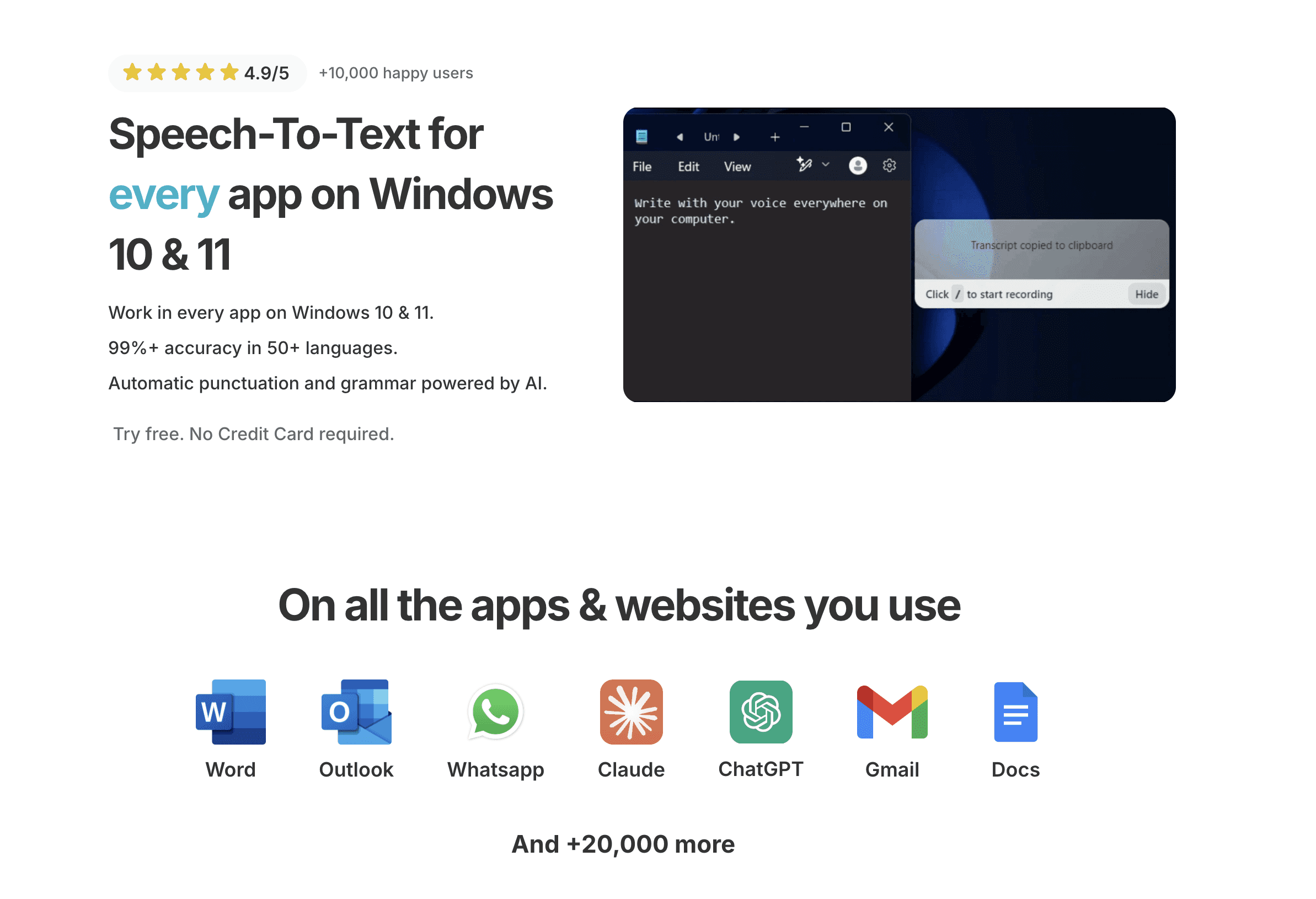
Voicy is the best talk to text app on Windows for most people because it works in the apps you already use, adds punctuation cleanly, and keeps the workflow simple. Press the shortcut, talk, and the text lands in the active field.
That sounds basic, but it is the difference between a tool you test once and a tool you actually build your day around. It works well for Word, Outlook, Gmail, Slack, Notion, ChatGPT, and browser forms. It also supports file upload transcription, which a lot of pure dictation tools still treat as a separate product.
Best for: people who write across multiple Windows apps
Pricing: free trial, then $8.49/month, $82/year, or $260 lifetime
Platforms: Mac, Windows, Browser Extension, iOS, Android
Downside: Voicy uses cloud-based transcription, so it is not the right fit if you need a fully offline workflow.
Useful next steps: Windows speech-to-text, voice typing app guide, and speech-to-text for Google Docs.
2. Windows Voice Typing, best free built-in option
Windows Voice Typing is the best free talk to text app on Windows if you want something quick and built in. Press Win + H and start speaking. For short notes and light email work, that is enough.
It falls behind once voice typing becomes part of real daily work. Accuracy is decent, but not steady enough for heavier writing. You also get fewer quality-of-life features than you do with a dedicated paid app.
Best for: free casual dictation
Pricing: included with Windows
Why pick it: no install, no subscription, instant access
Downside: good starter tool, not the best long-term tool.
3. Dragon Professional, best for command-heavy workflows
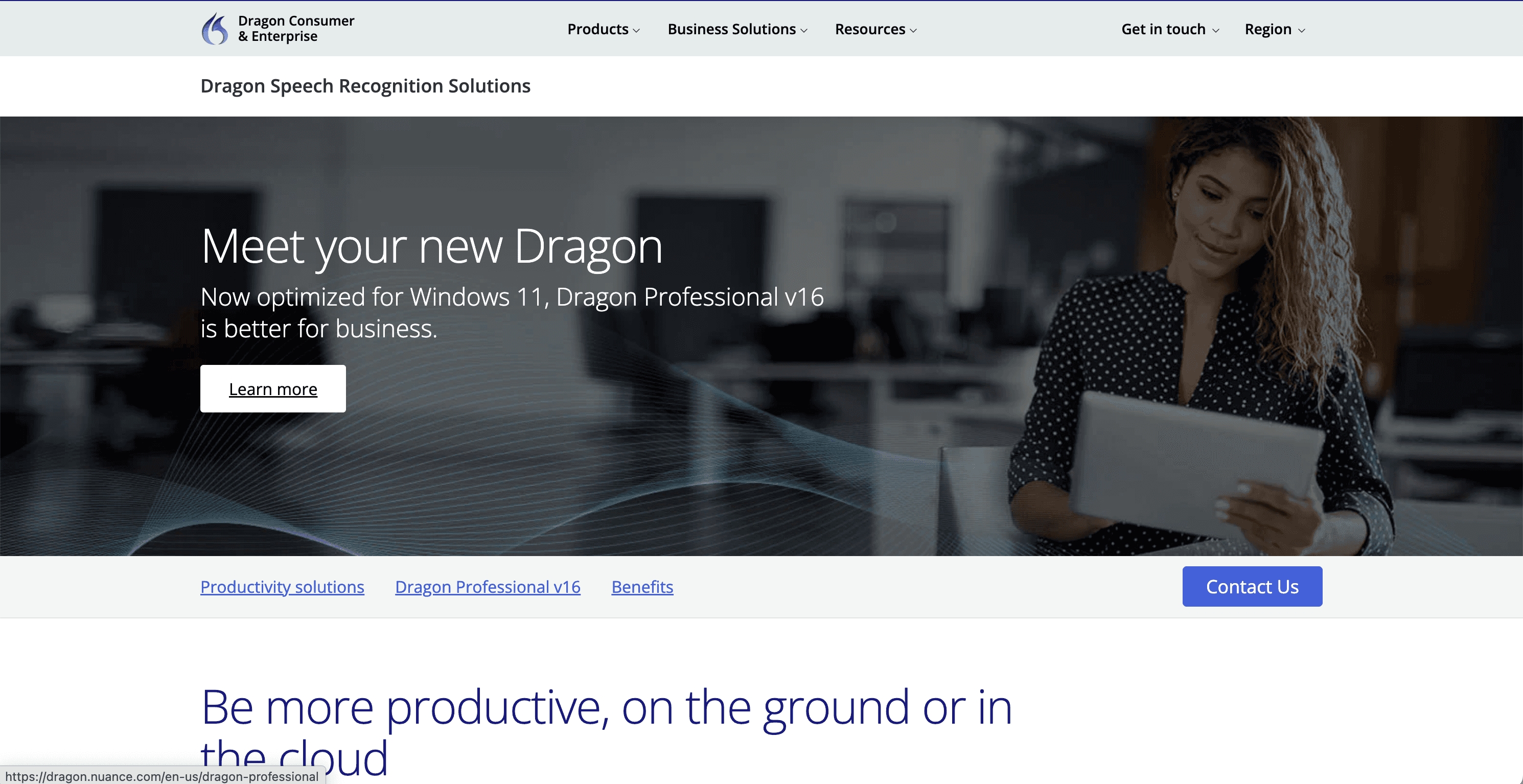
Dragon Professional is still the best talk to text app on Windows for specialists who need deep custom commands and industry vocabulary. If you dictate all day in legal, medical, or documentation-heavy roles, Dragon still makes sense.
For normal users, though, the price hurts. So does the setup overhead. Dragon is the power-user choice, not the obvious choice.
Best for: legal, medical, and command-heavy use
Pricing: premium pricing, often far above mainstream consumer tools
Why pick it: command depth and vocabulary control
Downside: too expensive and too heavy for most buyers.
4. Wispr Flow, best polished premium alternative
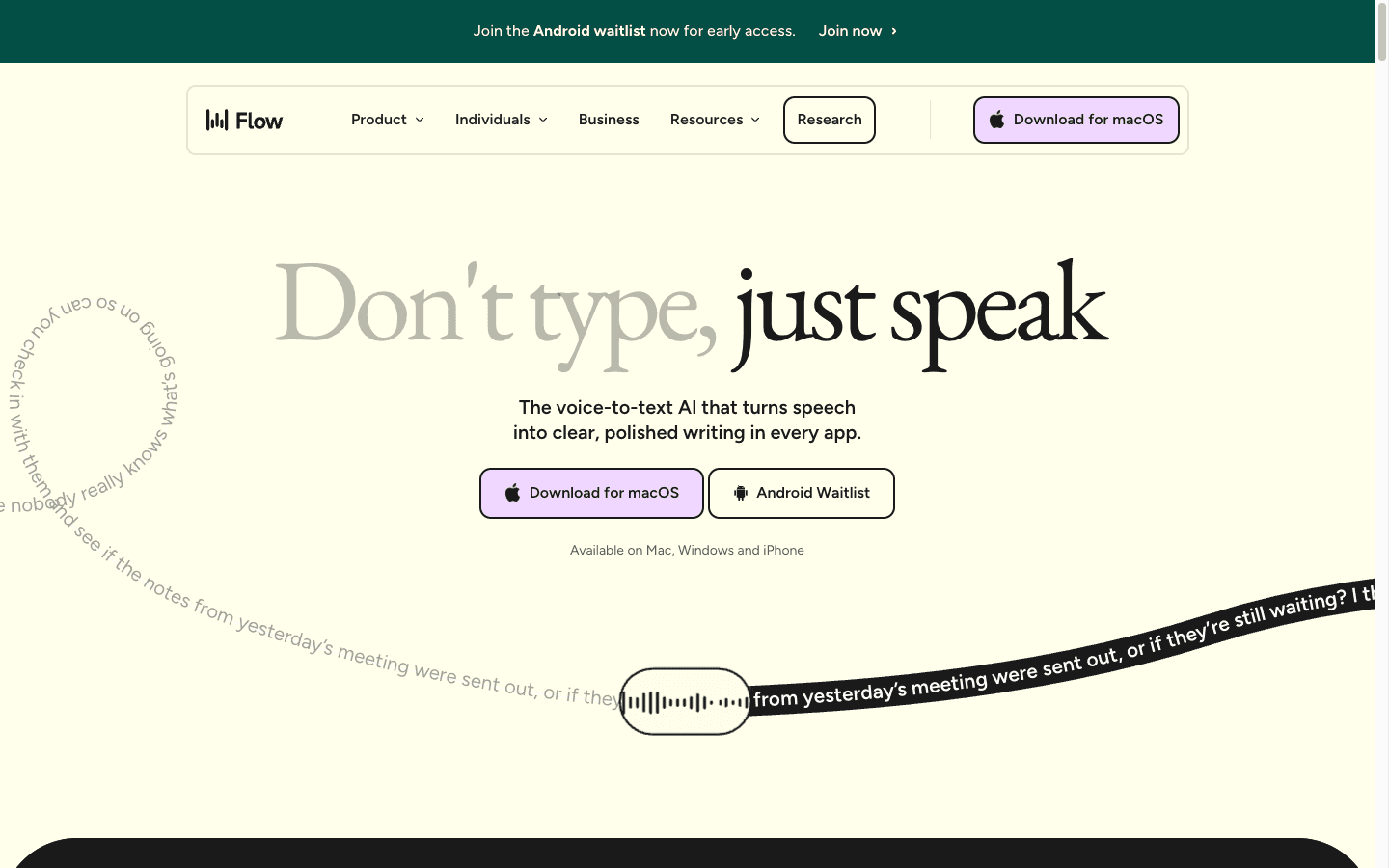
Wispr Flow is a strong pick if you want a more polished premium product with AI cleanup features and a broader device story. It feels modern, and it is easy to see why people like it.
I still think Voicy is the cleaner Windows-first buy for most readers. Wispr Flow is good, but it costs more and does not feel as directly optimized for simple shortcut-based Windows dictation.
Best for: people who want polish and premium UX
Pricing: paid plans vary, usually above Voicy
Why pick it: polished experience and AI cleanup
Downside: higher price, slightly less straightforward value on Windows.
5. Google Docs Voice Typing, best if you only live in Google Docs
Google Docs Voice Typing is still one of the best free talk to text tools if your whole writing life happens inside Google Docs. It is simple, accurate enough, and costs nothing.
But it is not a Windows-wide tool. It does not solve the problem of jumping between docs, chat apps, emails, forms, and prompts. If that is your daily reality, this is too narrow.
Best for: students and Google Docs users
Pricing: free
Why pick it: fast, easy, no install
Downside: great in Docs, not useful enough outside it.
6. Otter, best for meetings, not for typing everywhere
Otter is worth mentioning because many people search for talk to text when what they really need is meeting transcription. Otter is very good at that job.
It is not the best talk to text app on Windows for live writing inside apps. It is better for calls, recordings, summaries, and transcript search.
Best for: meetings, interviews, and recorded audio
Pricing: free tier plus paid plans
Why pick it: strong transcript workflow
Downside: wrong tool if your main goal is typing by voice inside everyday Windows apps.
How to choose the right Windows talk to text app
Want the best all-around app? Pick Voicy.
Want the best free starting point? Use Windows Voice Typing.
Need custom commands and specialist vocabulary? Pick Dragon.
Only write in Google Docs? Use Google Docs Voice Typing.
Mostly record meetings? Use Otter.
Frequently asked questions
What is the best talk to text app on Windows?
The best talk to text app on Windows is Voicy for most people because it works across apps and keeps cleanup low. Windows Voice Typing is the best free built-in option.
Does Windows have a built-in talk to text app?
Yes. Windows includes Voice Typing, and you can usually open it with Win + H in supported text fields.
Is Dragon still worth it on Windows?
Yes, but mainly for specialists who need deep command control and custom vocabulary. For most people, it costs too much.
What is better than Windows Voice Typing?
If you need stronger daily accuracy, broader app support, and cleaner punctuation, a dedicated tool like Voicy is better.
Final verdict
If you want the best talk to text app on Windows, start with Voicy. It is the best fit for real work across real apps. If you want free and built in, start with Windows Voice Typing and see whether it is enough for your workload.
That is the honest split. One is a serious daily tool. The other is a useful free fallback.


