




記事の概要
総合ベスト: Voicy。Googleドキュメント、デスクトップアプリ、ブラウザアプリ、モバイルで動作し、ファイルの文字起こしにも対応しているためです。
最高の無料オプション: Google ドキュメント音声入力。ドキュメントやスライド内での音声入力のみが必要な場合に最適です。
洗練された最高のAI代替プラン: Wispr Flow。強力なAIによる文章整形を求め、高めのサブスクリプション料金を気にしない場合に最適です。
書き方にこだわる方向けの最高の代替プラン: Willow Voice。ユーザーの執筆スタイルを学習する音声入力を求める場合に最適です。
技術的な音声入力に最高の代替プラン: Aqua Voice。コード用語、製品名、技術的なメモを音声入力する場合に最適です。
プライバシー重視の最高のMac用代替プラン: Voibe。Apple Silicon搭載Macでオフラインかつデバイス上での音声入力を求める場合に最適です。
結論から言うと: Google ドキュメント音声入力で十分な場合は、そのまま使い続けましょう。無料で、簡単で、Googleドキュメントに組み込まれています。しかし、Gmail、Slack、Notion、Microsoft Word、ChatGPT、ブラウザのフォームに入力したり、ファイルを音声文字変換ソフトでテキスト化したりしたい場合は、専用の音声入力アプリを代わりに使用してください。多くの人にとって、Google ドキュメント音声入力のVoicyへのアップグレードが最適です。Googleドキュメントのワークフローを維持しながら、ドキュメント内だけという制限を取り除くことができるからです。
Google ドキュメント音声入力は便利です。しかし、用途が限定されています。
それが、人々が代替の音声認識ソフトを探す主な理由です。タイピングの代わりに話すことは好みますが、執筆活動のすべてを1つのGoogleドキュメント内に閉じ込めたくはないのです。
このガイドでは、Google ドキュメント音声入力と、日常的な音声入力、文書作成、プライバシー、価格、プラットフォーム対応、設定時間などの観点から優れた代替アプリを比較します。
Google ドキュメント音声入力と主要代替ツールの比較
ツール | 最適な用途 | Googleドキュメント外でも動作するか? | 対応プラットフォーム | 料金 | プライバシーと処理方法 | 主なトレードオフ |
|---|---|---|---|---|---|---|
日常の音声入力とファイルの文字起こし | はい | Mac、Windows、ブラウザ拡張機能、iOS、Android | 月額8.49ドル、年額82ドル、永久ライセンス260ドル、無料トライアルあり | クラウドベースの音声テキスト化 | 完全なローカル処理のみを求めるユーザーには不向き | |
ドキュメントやスライド内での無料の音声入力 | いいえ | 対応ブラウザ上のGoogleドキュメントおよびスライド | Googleドキュメントに付属 | ブラウザが音声認識処理を制御 | Googleドキュメントのエディタ内に限定される | |
洗練されたAI音声入力 | はい | Mac、Windows、iPhone、Android | 無料プラン、Proプランは月額15ドル/ユーザー(年講読割引あり) | プライバシーモードオプション付きのクラウドAI音声入力 | 基本的なツールよりもコストがかかる | |
個人の執筆スタイルへの最適化 | はい | Mac、Windows、iPhone | 無料プラン、個人プランは年一括払いで月額12ドル | クラウドAI音声入力、エンタープライズ向けプライバシーオプションあり | 頻繁に使用するには有料プランが必要 | |
専門用語や迅速な音声入力 | はい | デスクトップアプリ、iOS | 1,000語の無料トライアル、有料プラン | クラウドベースのAI音声入力 | 購入前に最新の料金詳細の確認が必要 | |
オフラインでのMac音声入力 | はい(Mac上) | Apple Silicon搭載Mac | 無料プラン、月額、年額、永久プランあり | Mac上でのデバイス内処理 | Mac専用(WindowsやAndroidユーザーは利用不可) | |
無料のWindows音声入力 | はい(Windowsのテキストフィールド内) | Windows 10およびWindows 11 | Windowsに付属 | オンライン音声認識を使用(Copilot+ PCでは新しいデバイス上機能に対応) | 有料のAI音声入力ツールに比べてアプリの洗練度が低い | |
無料のMac音声入力 | はい(Macのテキストフィールド内) | macOS、iOS、iPadOS | Appleデバイスに付属 | 設定や言語により、デバイス上またはAppleサーバーで処理 | AIによる整形やワークフロー機能が少なめ | |
高度なWindows音声認識 | はい(主にWindows上) | Windows 11およびWindows 10 | プレミアムライセンス | プロフェッショナル向け音声認識ソフト | 導入のハードルが高く、コストも高額 |
1. Voicy:総合的に最も優れたGoogleドキュメント音声入力の代替ソフト
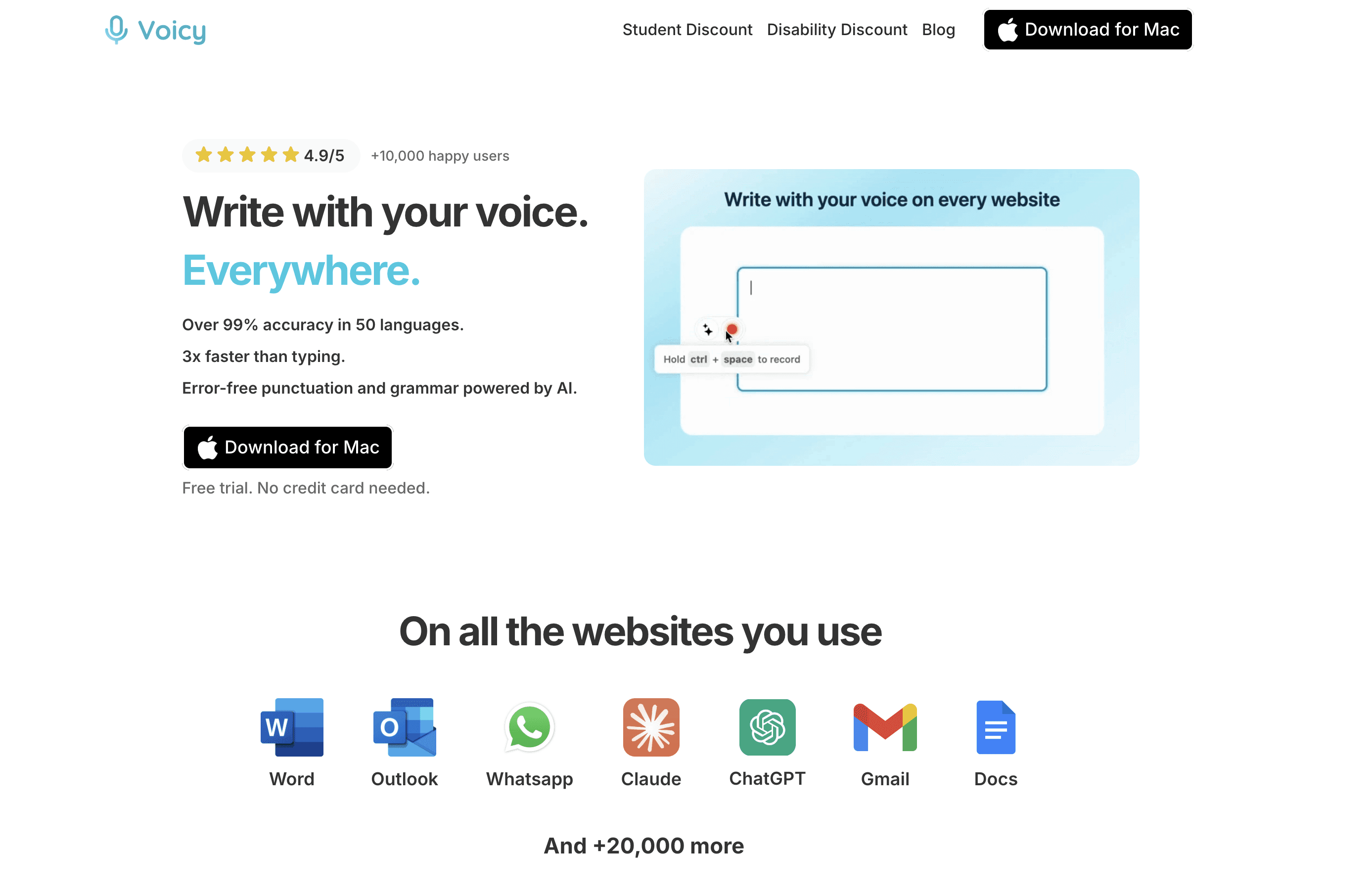
Voicyは、Googleドキュメントだけでなく、文章を書くあらゆる場所で動作するため、ほとんどの人にとって最適なGoogleドキュメント音声入力の代替プランです。
Googleドキュメント、Gmail、Slack、Microsoft Word、Notion、ChatGPT、ブラウザのフォーム、デスクトップアプリに音声入力できます。また、Google ドキュメント音声入力では対応していない、ファイルをアップロードしてテキスト化する機能も備えています。
セットアップは簡単です。Voicyをインストールし、ショートカットを選択し、テキストを表示したい場所をクリックして話すだけです。音声入力を毎日の習慣にしたい方に最適です。
最適な用途: 多くのアプリで文章を書き、音声入力とファイル文字起こしの両方を1つのツールで行いたい方。
料金: 月額8.49ドル、年額82ドル、または永久ライセンス260ドル。Voicyには無料トライアルがありますが、完全に無料のアプリではありません。
対応プラットフォーム: Mac、Windows、ブラウザ拡張機能、iOS、Android。
プライバシーと処理方法: Voicyはクラウドベースの音声入力を使用します。完全にローカルのみでの処理を求める場合は適していません。
セットアップの手間: 非常に少ない。アプリをインストールしてショートカットを覚えるだけです。
メリット
Googleドキュメントをはじめ、多くのアプリで動作します。
リアルタイムの音声入力とファイル音声文字変換ソフトの両方に対応しています。
分かりやすいGoogleドキュメント用のワークフローがあります。詳細については、Googleドキュメントの音声入力をご覧ください。
デスクトップ、ブラウザ、モバイルなど、さまざまな環境で執筆する方に最適です。
デメリット
トライアル期間終了後は有料になります。
クラウド処理のため、ローカル限定のプライバシー要件には適していません。
週に一度、短いGoogleドキュメントを1つ書くだけであれば、オーバースペックかもしれません。
複数の場所で文章を書く必要がある場合、VoicyはGoogle ドキュメント音声入力よりも優れています。ただし、1つのGoogleドキュメント内だけで無料の音声入力をしたいという場合は、その限りではありません。
2. Google ドキュメント音声入力:組み込みの無料オプションとして最適
Google ドキュメント音声入力は、依然として最も手軽に始められるツールです。ドキュメントを開き、「ツール」から「音声入力」を選択し、マイクをクリックして話すだけです。
Googleによると、この機能はGoogleドキュメントのほか、Googleスライドのスピーカーノートやキャプションでも動作します。また、Chrome、Edge、Safariの最新バージョンに対応しており、ブラウザ側が音声認識サービスを制御します。
最適な用途: 学生、教員、および主にGoogleドキュメントで文章を作成する方。
料金: Googleドキュメントに標準付属(無料)。
対応プラットフォーム: 対応ブラウザ上のGoogleドキュメントおよびスライド。
プライバシーと処理方法: ブラウザが音声認識を制御し、テキストをドキュメントやスライドに送信します。
セットアップの手間: ほぼゼロ。追加のアプリのインストールは不要です。
メリット
Googleアカウントがあれば無料で利用可能。
すぐに試すことができます。
基本的な下書き作成には十分な性能。
ドキュメント内で編集するための便利な音声コマンドに対応。
デメリット
システム全体で使える音声入力アプリとしては機能しません。
Gmail、Slack、Notion、Word、ChatGPT向けに設計されていません。
ファイルをアップロードしてテキスト化するワークフローはありません。
現代の専用音声入力ツールに比べ、AIによる文章整形の精度が低めです。
「無料」であることを重視する場合は、Google ドキュメント音声入力を使用しましょう。コピー&ペーストの手間に不満を感じ始めたら、アップグレードを検討するタイミングです。
3. Wispr Flow:洗練された最高のAI音声入力代替ツール
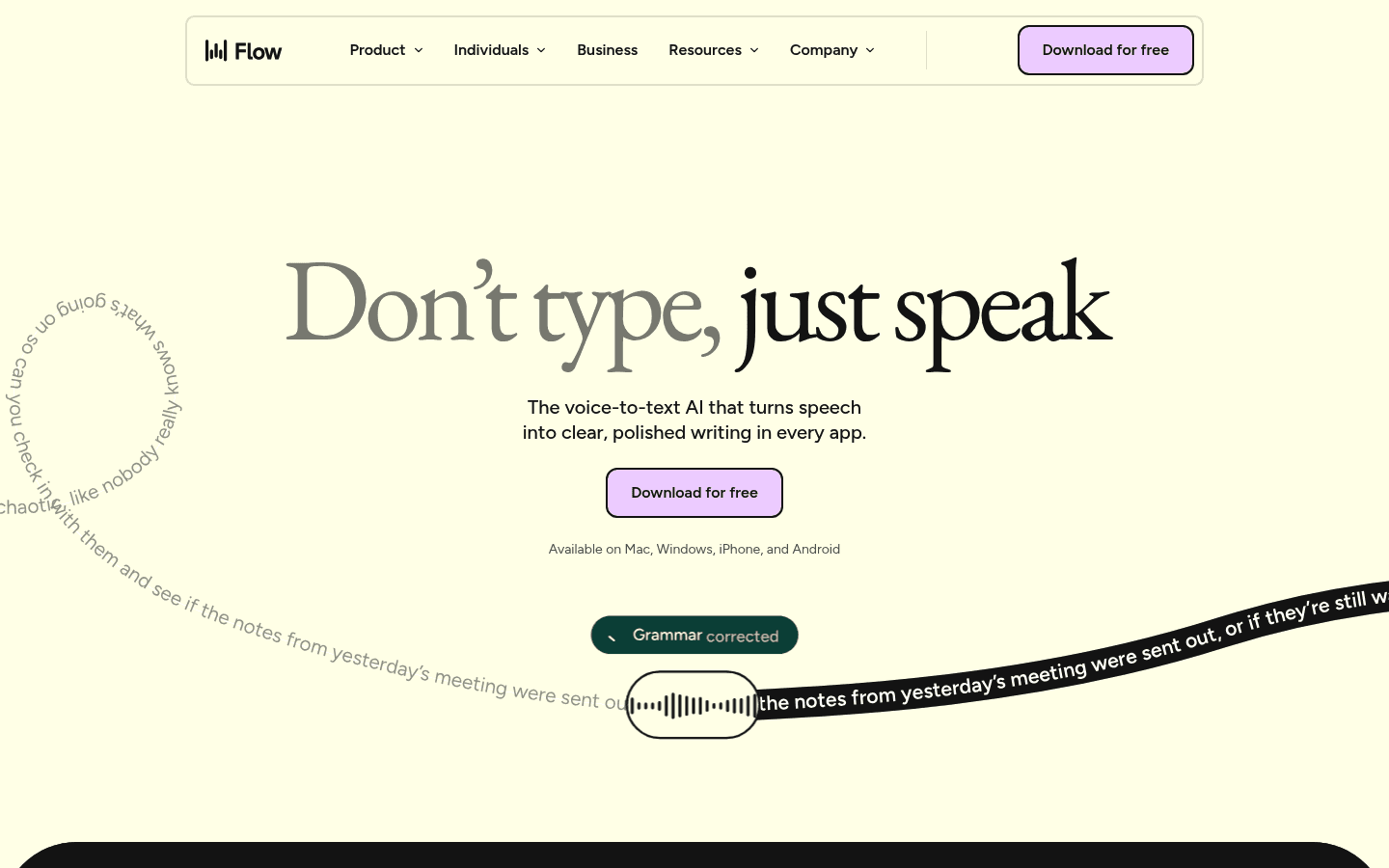
Wispr Flowは、話し言葉をより整った文章に変換したい場合に、Google ドキュメント音声入力の非常に強力な代替案となります。
価格ページによると、Mac、Windows、iPhone、Androidに対応しています。無料のBasicプランには週ごとの文字数制限がありますが、Proプランでは制限が解除されます。新規ユーザー向けにProプランの無料トライアルが用意されています。
最適な用途: 自然な語り口から、洗練されたAI文書を作成したい方。
料金: 無料のBasicプラン、Proプランは月額15ドル/ユーザー(価格ページに記載されている年間割引あり)。
対応プラットフォーム: Mac、Windows、iPhone、Android。
プライバシーと処理方法: クラウドAI音声入力。プライバシーモードやエンタープライズ向け管理機能に対応していると記載されています。
セットアップの手間: 低〜中程度。インストール後に、その補正スタイルに慣れる必要があります。
メリット
Googleドキュメント外でも動作します。
メッセージや文書に対する強力なAI文章整形機能。
幅広いマルチプラットフォーム対応。
生の発言内容の正確な記録よりも、整えられた成果物を好む方に適しています。
デメリット
競合ツールと比較してProプランの料金が高め。
日常的に使うユーザーにとって、無料プランの文字数制限はすぐに達してしまう可能性があります。
話した言葉をそのまま正確に残したい場合、AIによる書き換えが過剰に感じられることがあります。
プレミアムなAI音声入力ツールの比較については、Wispr Flow代替案のガイドもご覧ください。
4. Willow Voice:個人の執筆スタイルに最適なツール
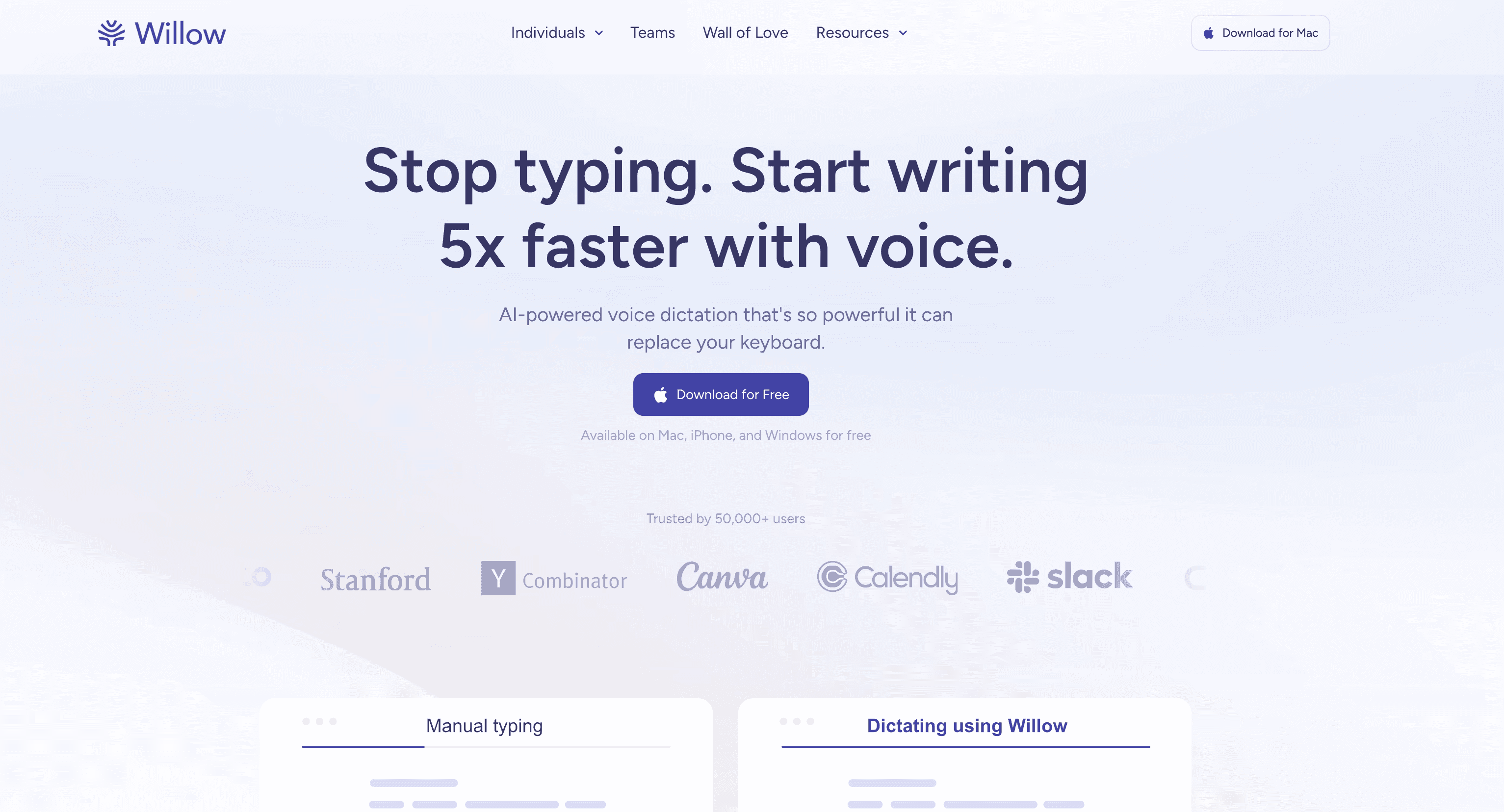
Willow Voiceもまた、Google ドキュメント音声入力の文章補正能力に不満がある場合に適した強力な選択肢です。あなたの発言を、よりあなたらしい自然な文章に変換するように設計されています。
Willowの価格ページによると、週2,000語までの無料プラン、年一括払いで月額12ドルのIndividualプラン、そしてチーム向けやエンタープライズ向けのオプションが用意されています。また、Mac、Windows、iPhone用のアプリがダウンロード可能です。
最適な用途: メール、Slackのメッセージ、AIプロンプト、短いビジネス文書の作成。
料金: 無料プラン、年一括払いで月額12ドルのIndividualプラン。
対応プラットフォーム: Mac、Windows、iPhone。
プライバシーと処理方法: クラウドAI音声入力(エンタープライズ向けのSOC 2、HIPAA、データ保持ゼロのオプションが価格ページに記載されています)。
セットアップの手間: 低〜中程度。あなたの執筆スタイルを学習するにつれて精度が向上します。
メリット
自然で型に沿った文章作成に適しています。
Googleドキュメントの枠を超えて動作します。
評価用の無料プランが用意されています。
カスタム用語集やコンテキストに応じた提案機能が価格ページに記載されています。
デメリット
本格的に使用するには有料プランへの加入が必要になります。
単純に話した内容をそのまま書き起こしたいだけの場合、スタイル学習機能が過剰に感じられることがあります。
現時点でAndroidへの対応が必須な場合には最適な選択肢ではありません。
Willowは文章のトーンを重視する方にとってテストする価値があります。より詳細な比較は、Willow Voice代替ツールをご覧ください。
5. Aqua Voice:技術的な音声入力に最適
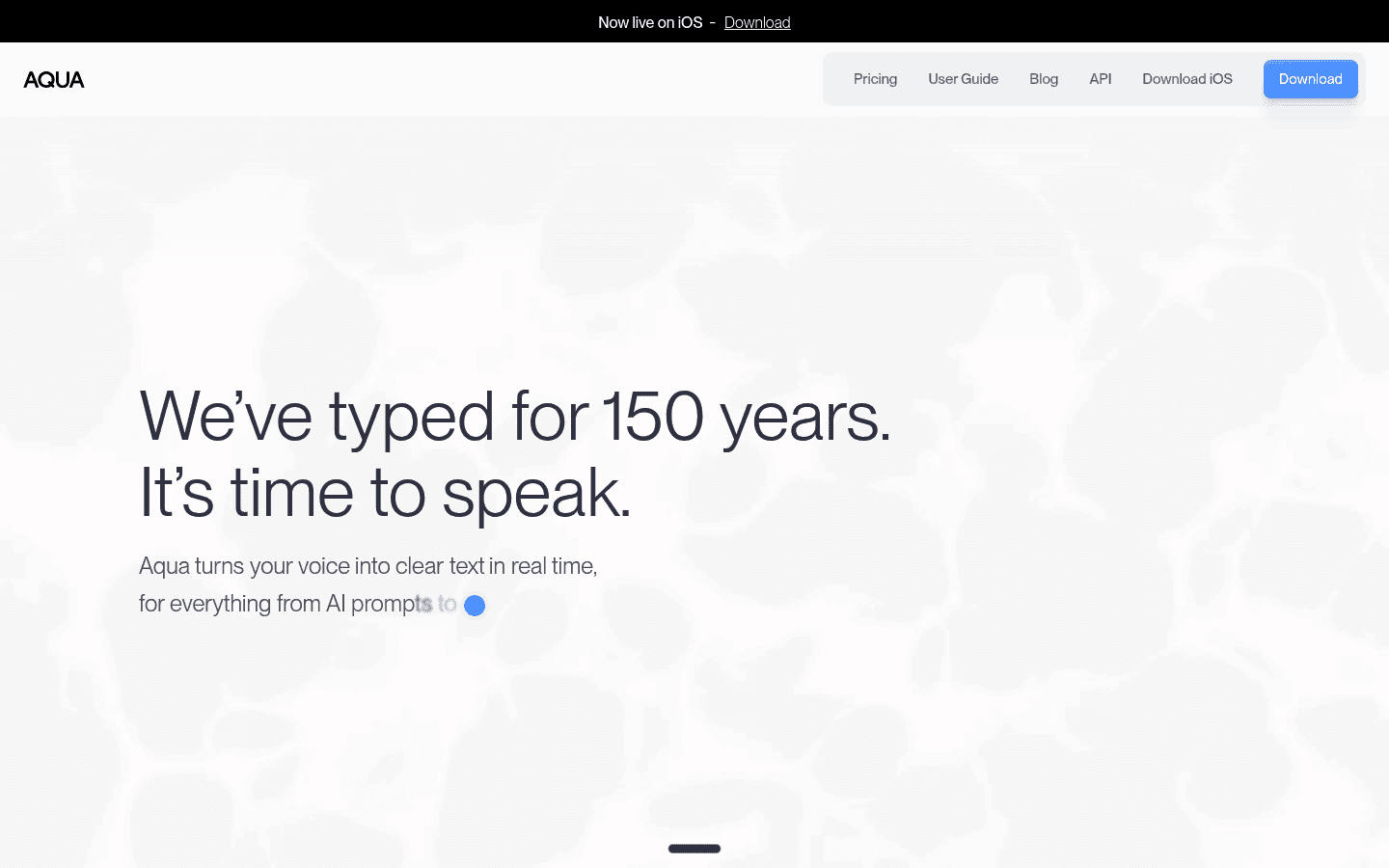
Aqua Voiceは、複雑な専門用語の音声認識精度に不満がある場合の、優れたGoogle ドキュメント音声入力代替ツールです。
AquaのFAQによると、コンテキストを考慮した認識が可能で、メール、技術報告書、書籍の口述筆記において高い精度を誇るとされています。また、全アカウントに試用向けの1,000語枠が提供され、デスクトップおよびiOSアプリが用意されています。
最適な用途: 開発者、テクニカルライター、固有名詞を多く使用する方。
料金: 1,000語の試用枠、その後は有料プラン。購入前にAquaの最新価格をご確認ください。
対応プラットフォーム: デスクトップアプリ、iOS。
プライバシーと処理方法: クラウドベースのAI音声入力。
セットアップの手間: 中程度。技術用語を頻繁に使用する場合は、チューニングを行う価値があります。
メリット
技術的な音声入力に非常に強みを持っています。
Googleドキュメント以外でも幅広く動作します。
学割制度がFAQに記載されています。
人名、コード用語、専門用語を頻繁に発声する人に適したツールです。
デメリット
試用枠が文字数で制限されていること。
FAQからだけでは料金体系の比較がやや難しいこと。
機密性の高いワークフローにおいて、クラウド処理が適合しない可能性があります。
さらに詳細な分析については、Aqua Voice代替案をご覧ください。
6. Voibe:オフラインで使える最高のMac用代替ツール
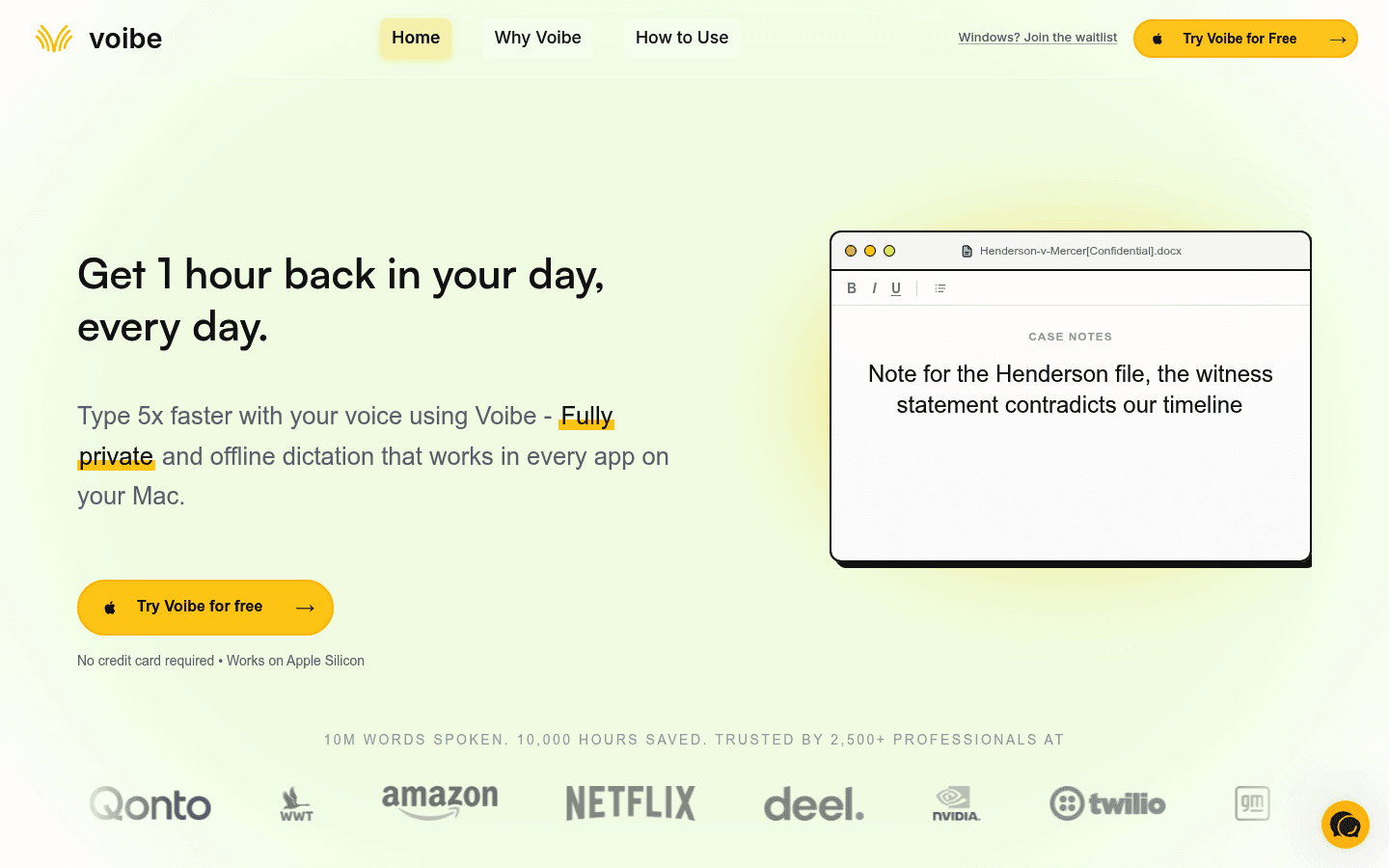
Voibeは、クラウド型の音声入力とは対極の選択肢を求めている方に最適です。公式サイトによると、Apple Silicon搭載Mac上のあらゆるアプリで動作する、プライバシーに配慮したオフライン音声認識ソフトです。
Google ドキュメント音声入力の使い勝手は気に入りつつも、ブラウザに管理される音声認識や、クラウドAIによる処理を避けたいと考えているユーザーにとって魅力的な製品です。
最適な用途: ローカル処理によるプライバシーを最も重視するMacユーザー。
料金: 無料プランに加え、月額、年額、永久ライセンスプランを用意。アカウントとライセンスプランは、Macアプリおよび価格ページから管理可能となっています。
対応プラットフォーム: Apple Silicon搭載Mac。
プライバシーと処理方法: Macのデバイス上でのオフライン音声入力。
セットアップの手間: 中程度。インストールすればシンプルに使えますが、Mac環境限定となります。
メリット
オフラインかつオンデバイスでのローカル処理。
Macのあらゆるアプリでシームレスに動作。
プライバシーを最優先するユーザーに最適。
ライトユーザー向けの無料プランあり。
デメリット
Mac専用であること。
Windows、Android、または複数のOSが混在するチームでは使用不可。
マルチプラットフォーム環境でファイルの音声文字変換ソフトとしても活用したい場合には不向き。
Macのローカル環境での音声入力を重視する場合はVoibeを選択してください。Mac、Windows、ブラウザ、iOS、Androidにまたがり、アップロードしたファイルの音声テキスト化まで行いたいワークフローの場合はVoicyが適しています。
7. Windows音声入力:最高の無料Windows用代替ツール
Windows音声入力は、Windows PCを使用しており、Googleドキュメント以外の場所でも無料の音声入力を行いたい場合、最も有力な代替ツールになります。
Microsoftによると、Windowsキー + Hキーで起動でき、Azure Speech servicesを利用したオンライン音声認識で動作します。また、Copilot+ PC上では、デバイス上の軽量言語モデルを使用して、文法、句読点、フィラーワード(「ええと」など)を自動修正できる、より洗練された音声入力機能が提供されています。
最適な用途: システム標準の無料の音声入力を利用したいWindowsユーザー。
料金: Windowsに標準搭載(無料)。
対応プラットフォーム: Windows 10およびWindows 11。
プライバシーと処理方法: 通常の音声入力はオンライン音声認識で処理。Copilot+ PCでは一部の高度な機能がデバイス上でローカル処理されます。
セットアップの手間: ほぼ不要。Windowsキー + Hキーを押すだけです。
メリット
Windowsに内蔵されており無料。
Google ドキュメント音声入力よりも多くの場所で機能します。
即座に試用可能。
簡単なメモやメッセージ作成には十分な実用性。
デメリット
有料のAI音声入力アプリほど洗練された仕上がりにはなりません。
通常モードではインターネット接続が必須です。
高度な自動修正機能はCopilot+ PCかつ英語環境などに限定されています。
Windowsに特化した有料ツールを検討したい場合は、Windows用Voicy音声入力と比較してみてください。
8. Apple音声入力:最高の無料Mac用代替ツール
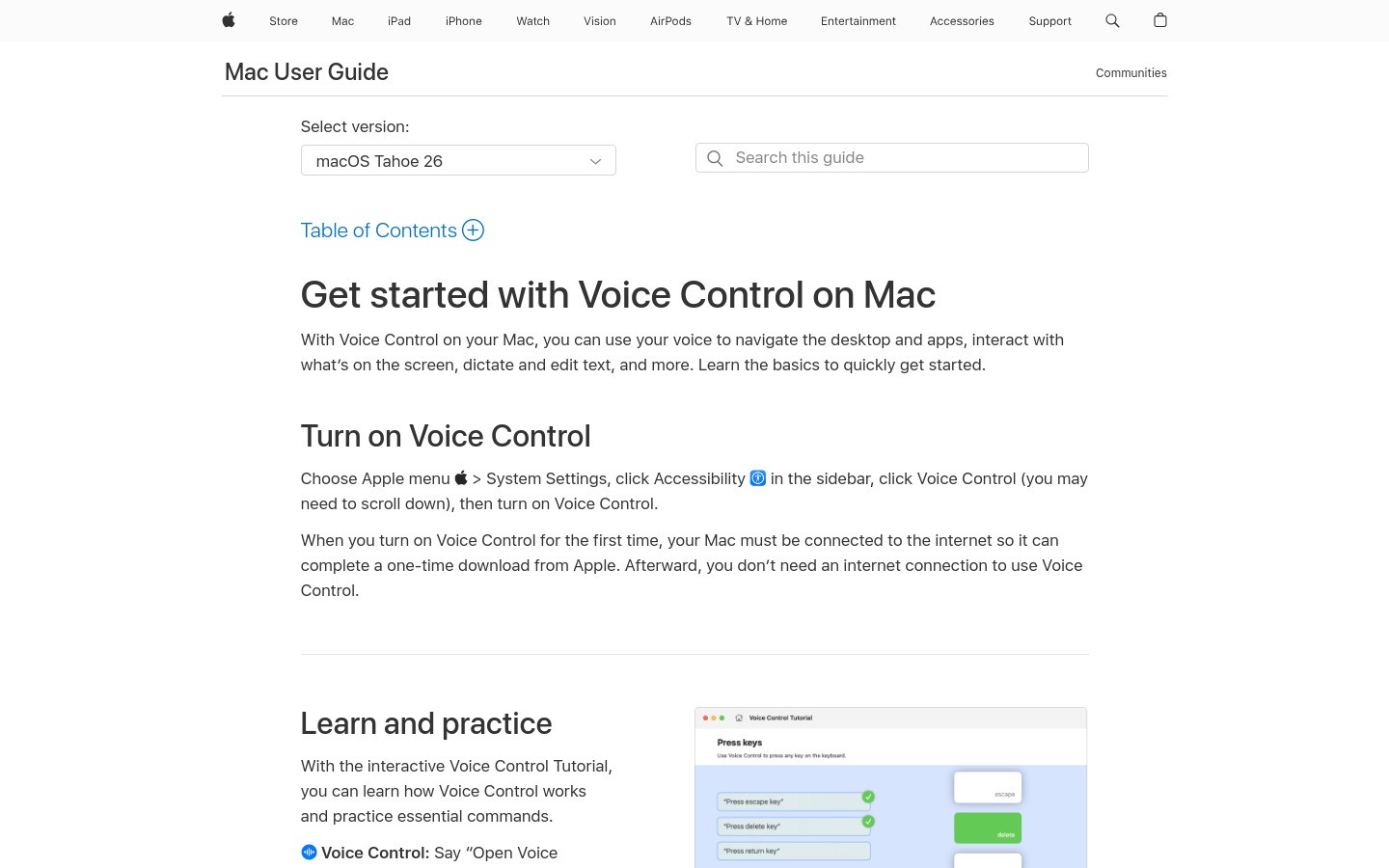
Apple音声入力は、Macユーザーにとって最も簡単な、無料のGoogle ドキュメント音声入力の代替手段です。
Appleによると、音声入力機能を使用すると、キーボードで入力できる場所ならどこでも声でテキスト入力が可能です。また、キーボード設定から、音声入力にインターネット接続が必要か、または使用している言語とシステム構成に基づいてデバイス上でオフライン処理されているかを確認できます。
最適な用途: 新しいアプリを追加せずに、無料の音声入力を利用したいMacユーザー。
料金: Appleデバイスに標準搭載(無料)。
対応プラットフォーム: Mac、iPhone、iPad。
プライバシーと処理方法: デバイス、言語、設定に応じて、オンデバイス(ローカル)またはサーバー経由で処理されます。
セットアップの手間: 極めて少ない。キーボード設定で有効にするだけです。
メリット
無料でOSに組み込まれています。
Mac上のあらゆるテキストフィールドで動作します。
句読点や改行を挿入するためのシンプルな音声コマンド。
サードパーティ製の音声入力アプリを導入する前のお試しとして最適です。
デメリット
専用の音声入力ツールほどワークフローに最適化されていません。
口語表現や雑な話し方に対するAI文章整形機能が劣ります。
プライバシー設定やインターネット通信の有無は、使用環境や言語に左右されます。
より幅広いアプリ連携が可能なMac専用ワークフローを構築したい場合は、Apple音声入力とMac用Voicy音声入力を比較検討してみてください。
9. Dragon Professional:高度なWindows操作が必要なユーザーに最適
Dragon Professionalは、詳細な音声コマンド、カスタム用語集、およびプロフェッショナル仕様の音声認識を必要とするパワーユーザー向けの高機能なGoogle ドキュメント音声入力代替ソフトです。
Nuanceによると、Dragon Professional v16はWindows 11に最適化されており、Windows 10への後方互換性も備えています。リアルタイムの音声入力と、既存の音声ファイルからの文字起こしの両方をサポートしています。
最適な用途: Windowsのパワーユーザー、法律・医療関係の実務、業務文書作成、および独自の専門用語集が必要な現場。
料金: プレミアムライセンスが必要で、一般的な軽量アプリに比べてかなり高額です。
対応プラットフォーム: Windows 11およびWindows 10。
プライバシーと処理方法: プロ仕様の音声認識エンジン。規制対象の業務に導入する場合は、事前にNuanceの展開プランや最新のプライバシー規約をご確認ください。
セットアップの手間: GoogleドキュメントやVoicyと比較して、導入・構成へのハードルは高めです。
メリット
カスタム用語や独自の音声コマンド機能が極めて強力。
リアルタイム音声入力と、音声ファイルからのテキスト化に両対応。
Windowsでの本格的な業務用ワークフローを想定した設計。
音声認識技術における長年の実績と信頼性。
デメリット
個人のライトユーザーにとっては導入コストが非常に高額。
初期設定やトレーニングが必要で、導入プロセスが重く感じられます。
Macファースト、あるいはモバイル中心の環境にはあまり適合しません。
音声入力そのものと同等に、音声によるPC操作(コマンド)を重視する場合は、Dragonを検討する価値があります。より手軽なワークフローを求める場合は、Voicy、Wispr Flow、Willow、Aqua、または各OS標準の音声入力の方が容易にテストできるでしょう。
Google ドキュメント音声入力よりもVoicyを選ぶべきケース
日々のライティング作業がGoogleドキュメント以外の複数の場所に散らばっている場合は、Voicyが最適です。
Googleドキュメントに音声入力した直後に、Gmailに返信し、Slackでチャットし、ChatGPTでプロンプトを書き、さらに別の音声ファイルを音声テキスト化したいといった統合的なニーズがある場合、Voicyがこれら全てをカバーします。Google ドキュメント音声入力は、最初のステップしか解決できません。
また、Mac、Windows、ブラウザ拡張機能、iOS、Androidにまたがって、単一の音声入力用ツールで統一したい場合にもVoicyは最適です。一日のうちで異なるデバイスを頻繁に切り替える方に大きなメリットがあります。
まずは以下のワークフローからお試しください:
Voicyが最適とは言えないケース
特定のGoogleドキュメント内で、完全に無料での音声入力を求めているだけの場合、Voicyを選ぶ必要はありません。Google ドキュメント音声入力で十分対応できます。
また、所属する企業のポリシーとして、完全にローカル環境のみでの文字起こしを義務付けられている場合、Voicyは不向きです。Voicyはクラウドベースの音声認識エンジンを使用しているためです。この制限がある場合は、Voibe、Superwhisper、MacWhisper、またはApple音声入力(デバイス上処理設定)などのローカルMacツールをご検討ください。
Windows上で高度な音声コマンド操作を必要とする場合はDragon Professionalが適しています。また、会議のリアルタイム要約などを求める場合は、通常の音声入力アプリではなく、Otter.aiなどの会議特化型ツールの導入が適しています。
最適なGoogleドキュメント音声入力代替ツールの選び方
以下の基準を参考に選択してください:
Googleドキュメント内でのみ執筆する? Google ドキュメント音声入力を使用してください。
様々なアプリをまたいで執筆する? Voicyを使用してください。
AIによる洗練された文章整形が欲しい? Wispr FlowまたはWillowをお試しください。
複雑な専門用語を多く使用する? Aqua Voiceをお試しください。
Macでオフライン音声入力をしたい? Voibeをお試しください。
Windowsで無料のシステム音声入力を使いたい? Windows音声入力を使用してください。
Macで無料のシステム音声入力を使いたい? Apple音声入力を使用してください。
Windowsで高度な音声コマンド操作を求める? Dragon Professionalをご検討ください。
最終結論
Google ドキュメント音声入力は、今でも十分に優れた無料ツールです。唯一の弱点は、その適用範囲です。ドキュメントの内部では役立ちますが、それ以外の日常的な執筆作業(メールやチャットなど)をサポートすることはできません。
Googleドキュメント、メール、各種ブラウザアプリ、デスクトップアプリ、モバイル、さらにファイルからの文字起こしまで1つのツールでシームレスに行いたい場合は、Voicyをお試しください。1つの文書ファイル内での一時的な音声入力しか必要としないのであれば、操作上の制限に不満を感じるまではGoogle ドキュメント音声入力のままで問題ありません。
FAQ(よくある質問)
Google ドキュメント音声入力の代替案として最も優れているのはどれですか?
ほとんどの人にとって最適なGoogle ドキュメント音声入力の代替ツールはVoicyです。Googleドキュメントに限らず、他のブラウザアプリ、デスクトップアプリ、スマートフォン、音声ファイルからの文字起こしに対応しているためです。Googleドキュメント内で完結する無料の音声入力で事足りる場合は、Google ドキュメント音声入力をそのままお使いください。
Google ドキュメント音声入力は無料で使えますか?
はい。Google ドキュメント音声入力はGoogleドキュメントの基本機能に含まれています。Googleアカウント、対応マイク、および推奨ブラウザがあれば誰でも無料で使用できます。
Google ドキュメント音声入力はGoogleドキュメント以外でも動作しますか?
いいえ。Google ドキュメント音声入力は、Googleドキュメント、およびGoogleスライドのスピーカーノートやキャプションのみに対応しています。Gmail、Slack、Word、Notion、ChatGPTなどのシステム全体で使用できる音声入力アプリではありません。
Google ドキュメント音声入力はSafariで動作しますか?
Googleのヘルプページによると、音声入力はChrome、Edge、Safariの最新バージョンで機能するとされています。もし機能が表示されない場合は、ブラウザのバージョン、マイクのアクセス許可設定、アカウントの設定、または管理者によるアクセス制限などを確認してください。
Voicyは無料で利用できますか?
いいえ。Voicyには無料の試用期間がありますが、基本的には有料のアプリです。有料プランは月額8.49ドル、年額82ドル、または260ドルの永久プランから選択可能です。
Voicyはローカルで音声データを処理しますか?
いいえ。Voicyは安全なクラウドベースの音声入力を使用します。完全にローカル(オフライン)環境でのみの処理を希望される場合は、VoibeやMacWhisper、SuperwhisperといったMac用ローカルツール、またはオンデバイス入力に対応したApple音声入力の設定をご利用ください。
Google ドキュメント音声入力に代わる、最も優れた無料の代替手段は何ですか?
WindowsユーザーであればWindows音声入力を、MacユーザーであればApple音声入力をお勧めします。Googleドキュメントの内部だけで音声入力を完結させたい場合は、Google ドキュメント音声入力が依然として最高の無料オプションです。
Voicyを使ってGoogleドキュメントに音声入力することはできますか?
はい。VoicyはGoogleドキュメントをはじめ、あらゆるアプリ上での入力に対応しています。実際の動作方法については、VoicyによるGoogleドキュメント音声入力ガイドをご参照ください。
プライバシー保護の観点で最も安全な代替案はどれですか?
Macでのローカル(オンデバイス)動作に特化したVoibeが最も明快な選択肢となります。Apple音声入力も設定や言語仕様によりデバイス内処理が可能です。Voicy、Wispr Flow、Willow、Aquaなどは、クラウドサービスおよびクラウドAIを活用したワークフローを採用しています。
専門用語や技術用語の入力に最も適したツールはどれですか?
Aqua VoiceやDragon Professionalが、専門用語や固有のカスタム辞書が必要な場合に適しています。一方、様々なプラットフォームでの手軽なマルチアプリ連携や音声文字変換ソフトとしての実用性を重視する場合は、Voicyがより使い勝手に優れています。


