




コンテンツ:
要点 — 2026年版のおすすめ音声入力アプリをひと目でチェック
音声入力アプリの選び方
音声入力アプリを選ぶ前に確認したい3つのポイント
音声入力で失敗しやすいのは、精度だけでアプリを選んでしまうことです。実際には、どこで入力できるか、長い文章をどれだけ自然に整えられるか、無料でどこまで試せるかを先に見た方が、自分に合うツールを見つけやすくなります。
メール、ドキュメント、チャット、CRM、ブラウザの入力欄を行き来するなら、特定のアプリだけで動く音声入力より、作業場所をまたいで使えるツールが便利です。Voicyは日本語の音声入力、AI音声テキスト変換、Windowsの音声入力のような用途でも使えます。
音声入力アプリを探している場合: WordやGoogle Docsだけでなく、普段の入力欄で使えるかを確認しましょう。
音声入力 おすすめを比較する場合: 精度、対応プラットフォーム、句読点、AI編集、料金を同時に見ます。
無料で試したい場合: 完全無料か、無料トライアルか、時間制限があるかを分けて判断してください。Voicyは無料トライアルで実際の文章作成を試せます。
音声入力とは、話した言葉をそのまま文字に変える入力方法です。検索では「音声 入力」「音声入力アプリ」「音声認識ソフト」「トークトゥテキスト」など色々な言い方がありますが、探しているものはほとんど同じです。
選ぶときは名前よりも使う場所を見てください。メール、メモ、ブラウザ、Word、チャットなど毎日いろいろな場所で書くなら、1つのアプリだけでなく複数の作業場所に対応する音声入力アプリが便利です。
録音済みファイルを文字にしたい場合は、音声を文字に変換する方法も確認してください。Macで設定に困っている場合は、Macの音声入力ガイドから始めるのが近道です。Wordで使うなら、Wordで音声入力する方法を見てください。
最適な音声入力アプリをお探しですか? 2026年版のおすすめはこちらです:
Voicy – 総合ベスト(あらゆるアプリで使える、99%の精度、AI編集コマンド)
Wispr Flow – チーム向けに最適(チームプランあり)
Microsoft Word Dictate – Officeユーザー向けの最適な無料オプション
Dragon Professional – 医療・法律の専門家に最適
Otter.ai – 会議の文字起こしに最適
Google Docs Voice Typing – 無料のブラウザベースオプションとして最適
Apple Dictation – MacとiPhone向けの最適な無料オプション
Windows Voice Typing – Windows向けの最適な無料オプション
Speechnotes – シンプルなWebアプリとして最適(アカウント不要)
Notta – 多言語の文字起こしに最適
音声入力とは?
音声入力とは、話した言葉を文字に変換する技術です。マイクに向かって話すと、ソフトウェアがリアルタイムであなたの発言を入力してくれます。
「ボイスタイピング」「音声入力アプリ」「speech to text」、音声文字変換ソフト」と呼ばれることもあります。どれも同じものを指しており、あなたの声を文字に変えるアプリのことです。
なぜ使うのか? それは、話す方がタイピングより3〜4倍速いからです。多くの人は1分あたり約40語しか টাইピングできませんが、話す速度は125〜150語/分です。メール、文書、メモを一日中書くなら、この差はすぐに大きな時間の節約につながります。
最新の音声入力アプリはAIを使って文脈を理解し、自動で句読点を追加し、文法を修正し、さらにはあなたの言葉を言い換えることもできます。5年前のぎこちない音声認識ソフトとは比べものにならないほど高性能です。
これらの音声入力アプリをどうテストしたか
製品ページを読むだけではありませんでした。各ツールを徹底的に使い込みました。
テストしたポイントはこちらです:
精度 – 同じ200語の原稿を各アプリに読み上げました。アクセントや話すスピードも変えて検証しています。
速度 – テキストはどれくらい速く表示されるか? 目立つ遅延はあるか?
使いやすさ – すぐに話し始められるか、それとも初期設定が必要か?
句読点 – 指示しなくてもピリオドやカンマを正しく入れられるか?
対応プラットフォーム – どこで使えるか? システム全体、ブラウザのみ、特定アプリ限定か?
価格 – 有料版は無料の代替手段から乗り換える価値があるか?
静かな部屋でも、騒がしいカフェでもテストしました。内蔵ノートPCマイクも外付けヘッドセットも使いました。以下の結果は、実験室条件ではなく実際の利用環境を反映しています。
1. Voicy – 総合ベストの音声入力アプリ
価格: 月額$8.49、年額$82、買い切り$260
対応プラットフォーム: Mac、Windows、Chrome拡張機能
おすすめ対象: デスクトップ上のあらゆる場所で使える音声入力を求める人
Voicyが最有力なのは、あなたのパソコン上のあらゆるアプリで動作するからです。多くの音声入力アプリは特定のプログラムでしか使えませんが、VoicyはGmail、Slack、Notion、Google Docs、Word、コードエディタ、そして文字入力欄なら文字通りどこでも使えます。
どこでも使える
ホットキーを1回押して話し始めるだけ。Voicyは、フォーカスされているアプリにそのまま入力します。ウィンドウ切り替えも、コピペも不要です。ただ話すだけで、カーソルのある場所に言葉が表示されます。
99%以上の精度
最新のAIモデルを搭載したVoicyは、文脈を理解します。「their」と「there」と「they're」の違いも把握できます。専門用語、人名、アクセントにも強く、ミスは最小限。自動句読点と文法補正も標準搭載です。
AI音声コマンド
ここが、Voicyを基本的な音声入力ツールと分けるポイントです。任意のテキストを選択して、「もっとプロフェッショナルにして」や「この段落を短くして」「文法を直して」と話しかけるだけ。Voicyは単に文字起こしするだけではなく、より良い文章作成を手伝ってくれます。まるで声に組み込まれたAIエディターのようです。
50以上の言語
Voicyは50以上の言語で使え、言語の切り替えも自動で検出できます。英語と別の言語を行き来するときに、手動で設定を変える必要はありません。
長所: どのアプリでも使える、アクセントをまたいでも高精度、AI編集コマンドは本当に生産性を上げる、自動句読点、プライバシー重視(音声は保存されない)
短所: デスクトップ専用(モバイルアプリなし)、クラウド処理のためインターネット接続が必要
結論: デスクトップで何でもこなせる音声入力アプリを1つだけ選ぶなら、Voicyです。無料トライアルで40分間試せます。
2. Wispr Flow – チーム向けに最適な音声入力アプリ
価格: 無料プランあり(やや制限あり);Proは月額$15
対応プラットフォーム: Mac、Windows、iOS
おすすめ対象: Mac中心のプロフェッショナルとチーム
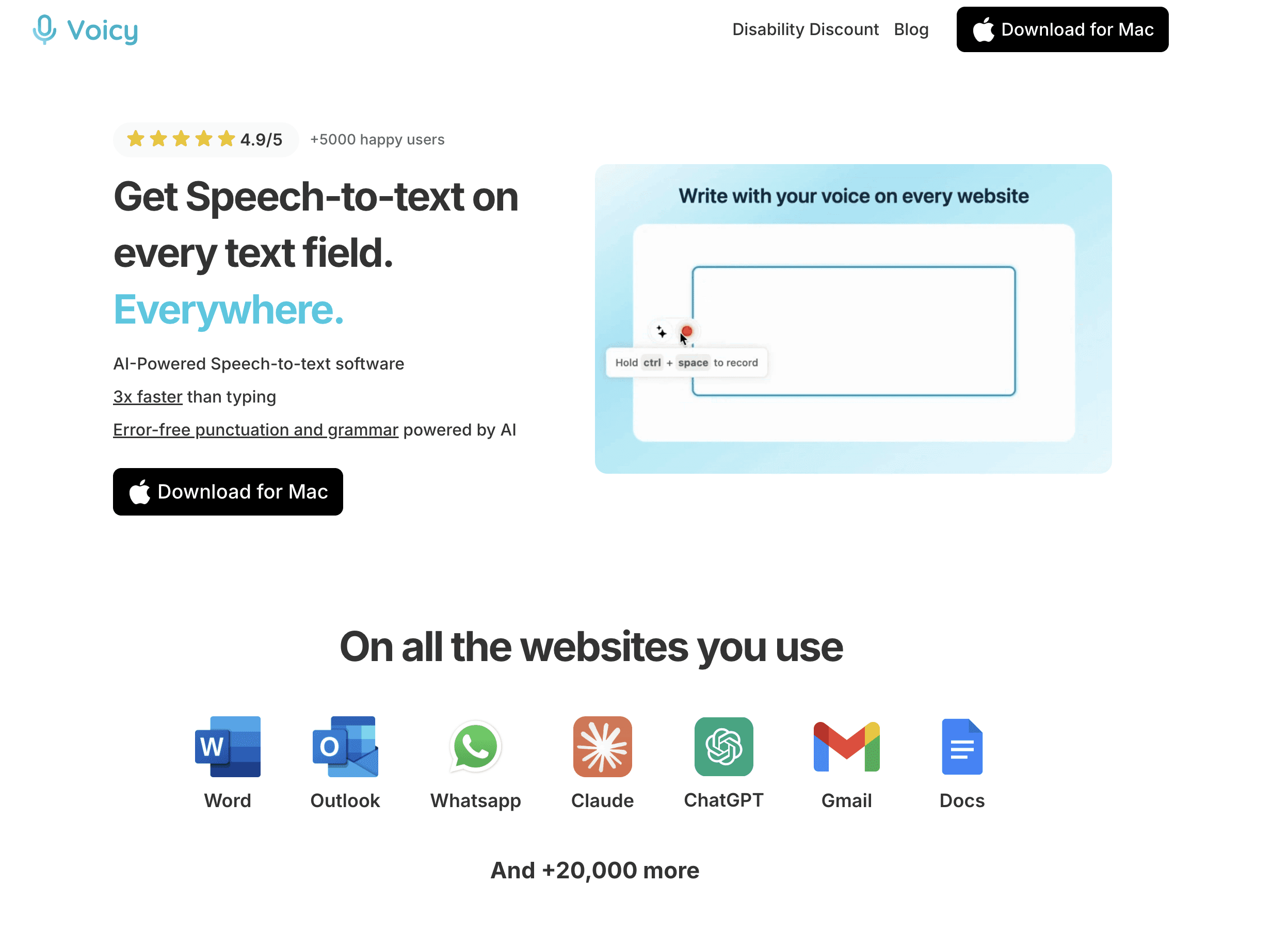
Wispr Flowは洗練されたAI音声入力アプリで、特にMacユーザーの間で支持を集めています。Voicyと同様に、AI搭載の書式設定を備えたシステム全体で使える音声入力を提供します。
文脈に応じた書式設定
Flowは入力先に応じて出力を調整します。メールを書くときは、よりフォーマルに整形。Slackでメッセージを送るときは、カジュアルさを保ちます。この文脈認識によって、手作業での編集量が減ります。
編集モード
VoicyのAIコマンドと同じように、Flowでも音声コマンドでテキストの修正や言い換えができます。テキストを選択して、何を変えるか伝えるだけです。
チーム向けプラン
Wisprはチーム向けの価格設定を用意しており、組織全体に音声入力を導入する企業にも向いています。個人ユーザーは無料プランから始められます。
長所: 文脈に応じた書式設定、充実したチームプラン、洗練されたインターフェース、iOSアプリあり
短所: 月額$15は、似た機能のVoicyと比べるとほぼ2倍、最初の単語が抜けるという報告が一部ユーザーからある、2キー起動はやや扱いにくい
結論: チーム機能が充実した、Voicyの有力な競合です。価格が高めで、時折信頼性の問題があるため、2位にとどまります。
3. Microsoft Word Dictate – 最適な無料音声入力
価格: 無料(Microsoft 365サブスクリプション付き)
対応プラットフォーム: Windows、Mac、Web、iOS、Android
おすすめ対象: すでにMicrosoft WordとOfficeを使っている人
Microsoftは2022年にNuance(Dragonの開発元)を買収しました。その技術が現在はWordの音声入力機能を支えており、驚くほど高性能です。
Wordのツールバーにあるマイクボタンをクリックするか、Alt+`を押してください。話し始めると、自動句読点付きで言葉が画面に表示されます。Outlook、PowerPoint、その他のOfficeアプリでも使えます。
精度はかなり優秀で、明瞭な発話ならテストでは約99%でした。音声コマンドを使えば、「bold that」や「start a list」のように話すだけで、キーボードに触れずに書式設定できます。
長所: Microsoft 365に含まれる、優れた精度、すべてのOfficeアプリで使える、音声コマンドが優秀、クロスプラットフォーム
短所: Microsoftアプリ内でしか使えない(システム全体ではない)、インターネット接続が必要、カスタム語彙なし
結論: Microsoftエコシステムで暮らしているなら、これが最良の音声入力の無料オプションです。詳しい手順は、Microsoft Wordでの音声入力ガイドをご覧ください。
Wordでの音声入力のセットアップのコツやショートカットを知りたいですか? Microsoft Wordで音声入力する方法の完全チュートリアルで、すぐ始めるために必要なことをすべて解説しています。
4. Dragon Professional – プロ向けに最適な音声入力アプリ

価格: 月額$15(モバイル)、月額$55または買い切り$700(Windowsデスクトップ)
対応プラットフォーム: Windows、iOS、Android
おすすめ対象: 医師、弁護士、専門用語を多用するプロフェッショナル
Dragonは何十年にもわたり、音声文字変換ソフトのゴールドスタンダードでした。高価ではありますが、医療、法律、法執行の現場にいる専門家から絶大な信頼を得ています。代替案を検討しているなら、2026年版 Dragon のおすすめ代替ツールをご覧ください。
Dragonには専門分野ごとのエディションがあります。Dragon Medicalは「Guillain-Barré syndrome」や「bronchoalveolar lavage」のような用語を理解します。Dragon Legalは判例引用や法律用語を把握します。こうした専門語彙こそが、プロが高い価格を払う理由です。
他のツールと違い、Dragonは使うほどあなた独自の話し方を学習します。アクセント、語彙、発音に適応し、使えば使うほど、あなた自身の言い方をより正確に理解するようになります。
長所: 専門語彙で最高レベルの精度、使うほど声に学習、Windowsのどのアプリでも使える、オフラインモード、長年の改良
短所: 高価、Macデスクトップには非対応、学習時間が必要、習得のハードルが高い、インターフェースが古い
結論: 専門用語の精度が価格より重要なとき、プロが選ぶのはこれです。臨床メモや法律文書を毎日音声入力するなら、Dragonは十分元が取れます。
5. Otter.ai – 会議の文字起こしに最適
価格: 無料枠(300分/月)、Proは月額$16.99
対応プラットフォーム: Web、iOS、Android
おすすめ対象: 会議やインタビューの録音・文字起こし
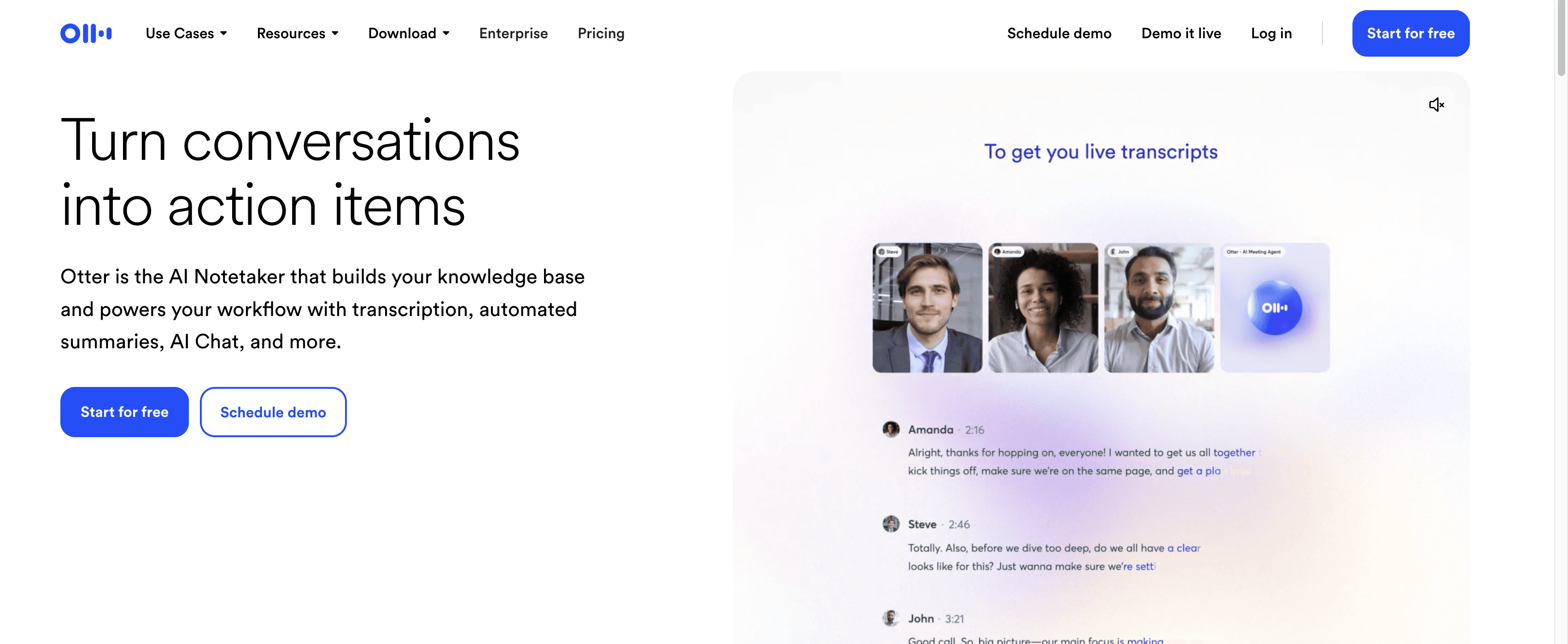
Otterは従来型の音声入力アプリではなく、会話の文字起こしのために作られています。会議、講義、インタビューで話された内容を記録するのが主な目的なら、Otterはそのために特化しています。
OtterはZoom、Google Meet、Teamsの通話に自動で参加します。会話をリアルタイムで文字起こしし、話者ごとに識別します。会議後には、AIが生成した要約やアクション項目付きの、検索可能な完全文字起こしが手に入ります。
長所: 会議の文字起こしが優秀、話者識別が自動、AI要約とアクション項目、Zoom/Meet/Teams/Slackと連携、無料枠が充実
短所: 文書作成やリアルタイムの音声入力向けではない、インターネット接続が必要、背景ノイズで精度が下がる
結論: 会議には最適ですが、汎用の音声入力ツールではありません。執筆作業にはVoicyなど別の入力アプリと併用しましょう。
6. Google Docs Voice Typing – 無料のブラウザベースオプションとして最適
価格: 無料
対応プラットフォーム: Web(Chrome、Edge、Safari)
おすすめ対象: Google Docsでさっと音声入力したい人
Googleの音声入力はシンプルで、完全無料です。Googleドキュメントを開き、ツール → 音声入力をクリックして、話し始めるだけ。Googleは数十億件の音声クエリで音声認識を学習しており、日常利用では十分な精度があります。
英語では音声コマンドが使えます。「period」「comma」「new paragraph」「select all」「bold」などと話してください。他の言語でも基本的な文字起こしはできますが、音声コマンドは限られます。
長所: 完全無料、高精度、インストール不要、Chrome/Edge/Safariで使える
短所: Google Docs内でしか使えない(Gmail、Slack、その他のアプリでは不可)、英語以外では音声コマンドが限定的、インターネット接続が必要
結論: Google Docsでたまに音声入力するなら最適です。詳しい手順は、Google Docsでの音声入力ステップガイドをご覧ください。
7. Apple Dictation – MacとiPhone向けの最適な無料音声入力
価格: 無料(macOSとiOSに標準搭載)
対応プラットフォーム: Mac、iPhone、iPad、Apple Watch
おすすめ対象: 便利で無料の音声入力を求めるAppleユーザー
Mac、iPhone、iPadには、使える音声入力機能が最初から入っています。Apple DictationはApple Intelligenceで大きく改善され、自動句読点と精度向上が加わりました。
Macでは、マイクキー(またはFnを2回)を押せば、どのアプリでも話し始められます。iPhoneでは、キーボードのマイクアイコンをタップします。音声はデバイス上で処理されるためプライバシーに優れ、Enhanced Dictationを使えばオフラインでも利用できます。
長所: 無料で標準搭載、すべてのアプリでシステム全体で使える、端末内処理(プライバシーが高い)、Enhanced Dictationでオフライン対応、30以上の言語
短所: Appleデバイス限定、カスタム語彙なし、長時間のセッションが苦手、AI編集コマンドなし
結論: Appleユーザーにとって最も簡単な出発点です。より高度な機能が必要なら、Voicyにアップグレードしましょう。これは、Mac向けの音声入力アプリとして高評価を得ています。さらに詳しい選択肢は、Mac向け音声入力比較をご覧ください。あるいは、Macでの音声入力を極める方法を学びましょう。
8. Windows Voice Typing – Windows向けの最適な無料音声入力
価格: 無料(Windows 11に標準搭載)
対応プラットフォーム: Windows 10、Windows 11
おすすめ対象: 無料でシステム全体で使える音声入力を求めるWindowsユーザー
Windows 11には、使える標準搭載の音声入力ツールがあります。どこでもWindows + Hを押して話し始めるだけ。OS全体のどの文字入力欄でも使えます。
MicrosoftはこれをAI搭載の自動句読点で大幅に強化しました。Windows 11では、完全ハンズフリーでパソコンを操作できるVoice Accessも導入され、メニューの移動、ボタンのクリック、ページのスクロールまで、すべて声でできます。
長所: 無料で標準搭載、すべてのWindowsアプリで使える、自動句読点、Voice Accessで完全ハンズフリー操作
短所: 精度はマイク品質に左右される、Windows限定、カスタム語彙なし、専用ツールより精度は低い
結論: Windowsユーザーにとって、まず試すべき堅実な無料スタート地点です。より高い精度やAI機能を求めるなら、Windows向け音声入力ガイドをご覧ください。
9. Speechnotes – シンプルなWebアプリとして最適
価格: 無料(広告あり)、プレミアムは年額$9.90
対応プラットフォーム: Web、Android
おすすめ対象: すぐに使える、登録不要の音声入力
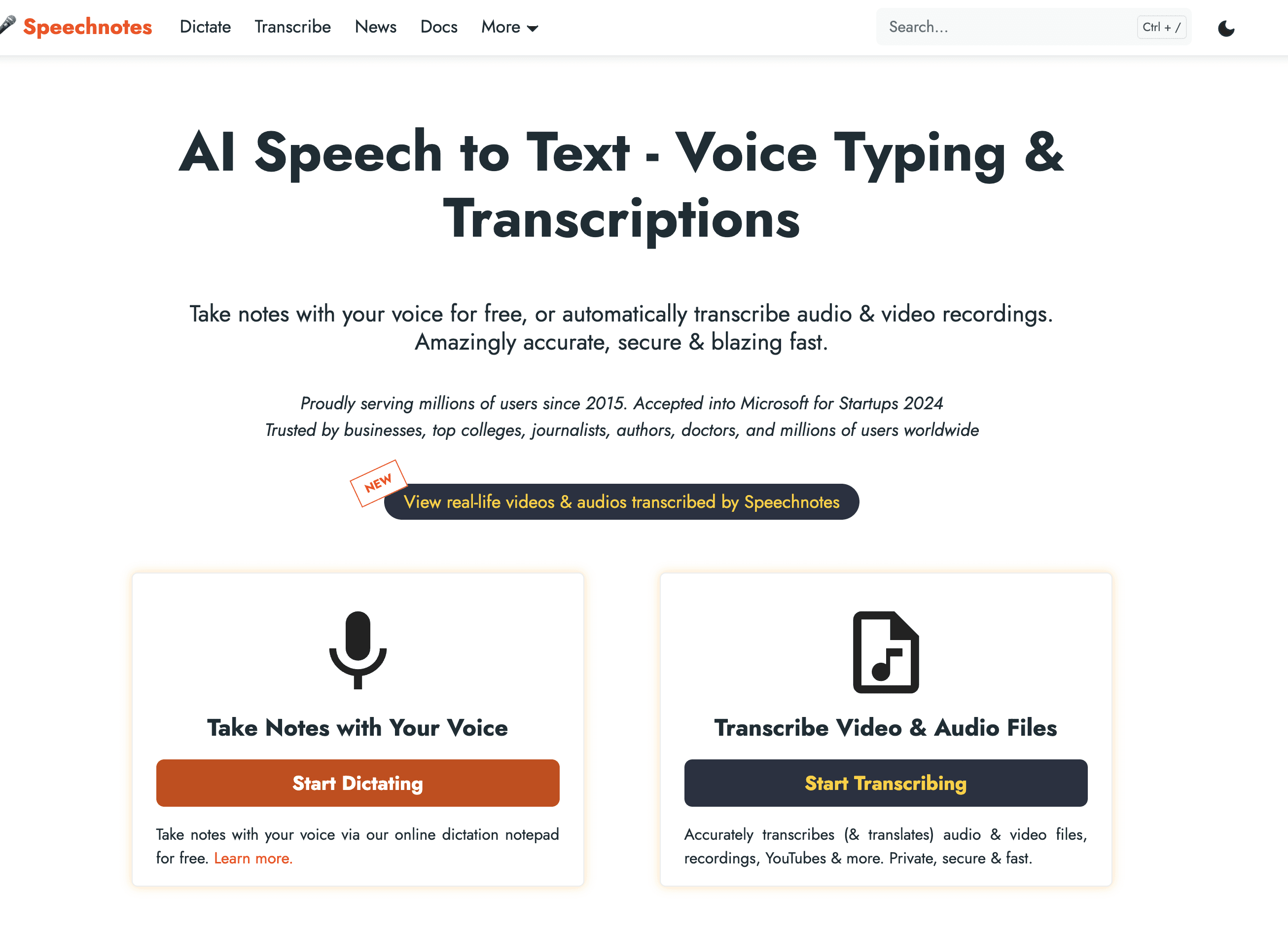
インストールもアカウント作成もせずに、ただ音声をテキスト化したいだけのこともあります。Speechnotesはまさにそれを実現します。
speechnotes.coにアクセスし、マイクをクリックして、話し始めるだけ。それだけです。メモはブラウザ内で自動保存され、テキストとして書き出したり、Google Driveに送ったりできます。
長所: 登録もインストールも不要、見やすいインターフェース、無料で使える、自動保存、Chromeで動作
短所: 無料版は広告あり、機能が少ない、ブラウザ限定、Chromeでの使用が最適
結論: 今すぐ音声入力を始める最速の方法です。とにかく手軽です。
10. Notta – 多言語の音声入力に最適
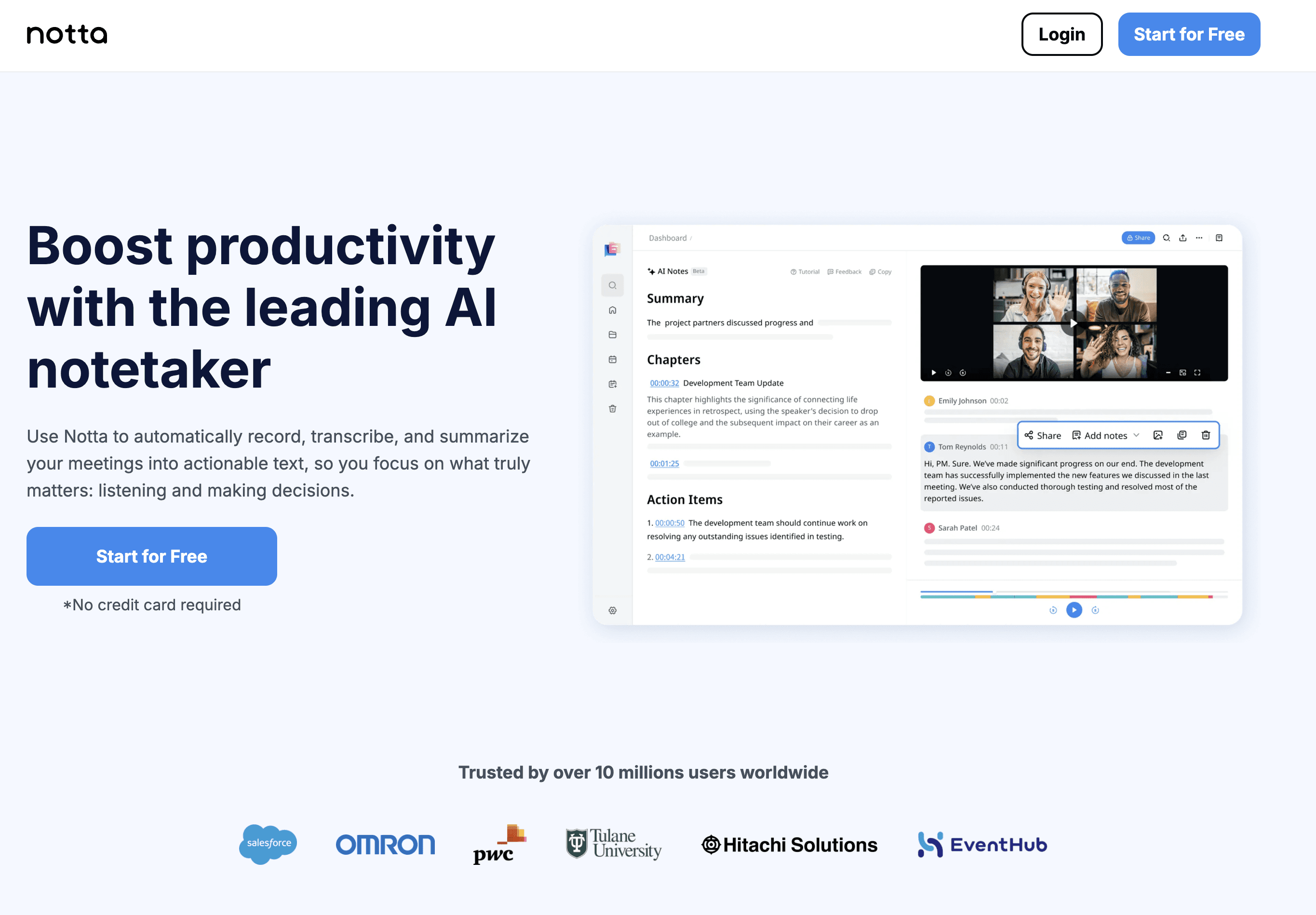
価格: 無料枠あり、Proは月額$13.99
対応プラットフォーム: Web、iOS、Android
おすすめ対象: 複数言語で仕事をする人
Nottaは100以上の言語に対応し、バイリンガルの会話も文字起こしできます。仕事で言語を頻繁に切り替えるなら、Nottaは多くのツールよりもその切り替えをうまく処理します。
Otterと同様に、Nottaは会議の文字起こしに重点を置き、自動の話者識別もあります。アップロードした音声・動画ファイルも文字起こしできるため、ジャーナリストや研究者にも便利です。
長所: 100以上の言語、バイリンガル文字起こし、話者識別、音声/動画ファイルのアップロード、翻訳機能
短所: 無料枠は制限がある、会議向けでリアルタイムの文書作成には不向き、英語中心ツールより英語以外の精度は低め
結論: 多言語の音声入力が必要なら、これが最良の選択です。文書作成にはVoicyのようなデスクトップツールと併用しましょう。
音声入力アプリ比較
アプリ | 精度 | 対応プラットフォーム | おすすめ用途 | 価格 |
|---|---|---|---|---|
99%+ | Mac、Windows、Chrome | デスクトップ作業全般 | $8.49/月 | |
Wispr Flow | 高い | Mac、Windows、iOS | Macユーザー、チーム | $15/月 |
Word Dictate | 約99% | すべてのプラットフォーム | Officeユーザー | 365に含まれる |
Dragon Pro | 99%+ | Windows、モバイル | 医療・法律のプロ | $15-55/月 |
Otter.ai | 高い | Web、iOS、Android | 会議 | 無料 + $16.99/月 |
Google Docs | 良い | ブラウザ | 文書作成 | 無料 |
Apple Dictation | 良い | Mac、iPhone、iPad | Appleユーザー | 無料 |
Windows音声入力 | 良い | Windows 11 | Windowsユーザー | 無料 |
Speechnotes | 良い | ブラウザ、Android | クイックメモ | 無料 |
Notta | 良い | Web、iOS、Android | 多言語 | 無料 + $13.99/月 |
最適な音声入力アプリの選び方
最適な音声入力アプリは、あなたの働き方によって変わります。簡単な判断ガイドはこちらです:
デスクトップのどこでも使いたい? → Voicy($8.49/月)かWispr Flow($15/月)
すでにMicrosoft 365を使っている? → まずWord Dictateを試してください(含まれています)
医療や法律の仕事をしている? → Dragon Professionalは投資する価値があります
会議の文字起こしが必要? → Otter.ai か Notta
Macで無料のものがほしい? → Apple Dictation(Fnを2回押す)
Windowsで無料のものがほしい? → Windows Voice Typing(Win+Hを押す)
ブラウザでさっと音声入力したい? → Google Docs Voice Typing か Speechnotes
複数言語で仕事をする? → Notta(100以上の言語)
音声入力の精度を上げるコツ
どの音声入力アプリを選んでも、次のコツで精度は上がります:
それなりのマイクを使う。 内蔵ノートPCマイクでも使えますが、ヘッドセットを使うと精度が大きく向上します。20ドルのヘッドセットでも、違いははっきり出ます。詳しくは、音声入力に最適なマイクのガイドをご覧ください。
自然に話す。 ロボットのように話す必要はありません。最新のAIは、不自然に区切った話し方より自然な会話をうまく処理します。
背景ノイズを減らす。 静かな場所を見つけるか、ノイズキャンセリングマイクを使いましょう。ノイズが少ないほど、ミスは減ります。
基本コマンドを覚える。 「period」「comma」「new paragraph」「delete that」を覚えるだけで、編集時間を大きく節約できます。
1週間は試す。 音声入力は最初は少し不思議に感じます。多くの人は、5〜7日継続すると生産性が大きく上がります。うまくいかないときは、音声入力トラブルシューティングガイドでよくある解決策を確認してください。
見直しの時間を確保する。 どんな音声入力アプリでも100%完璧ではありません。さっと校正すれば、たまに出るミスを見つけられます。
追加のよくある質問
音声入力アプリを選ぶときに一番大事なポイントは?
一番大事なのは、実際に文章を書く場所で使えるかどうかです。Wordだけ、ブラウザだけではなく、メール、チャット、メモ、仕事用アプリをまたいで使える音声入力アプリの方が日常的には続きやすくなります。
無料の音声入力アプリだけで十分ですか?
短い文章や試用なら、Apple Dictation、Windows Voice Typing、Google Docs Voice Typingのような無料ツールで十分な場合があります。毎日長い文章を書くなら、無料トライアルで有料ツールの精度、句読点、AI編集を試してから判断するのがおすすめです。
日本語の音声入力にVoicyは使えますか?
はい。Voicyは日本語を含む多言語の音声入力に対応しており、Mac、Windows、ブラウザ拡張機能、iOS、Androidで使えます。クラウド処理のためインターネット接続が必要です。
よくある質問
音声入力とは何ですか?
音声入力とは、マイクに向かって話した内容をテキストに変換する入力方法です。メール、文書、メモ、ブラウザの入力欄などで使えます。
音声入力アプリはどう選べばいいですか?
自分が実際に書く場所で選ぶのが一番です。Wordだけで使うなら標準機能でも足りますが、複数のアプリやブラウザで使うなら横断的に動く音声入力アプリが便利です。
音声入力と文字起こしは同じですか?
近いですが、使い方が違います。音声入力は話しながら文章を書く用途、文字起こしは録音済みの音声や会議をテキスト化する用途で使われることが多いです。
よくある質問
音声入力とは?
音声入力とは、話した言葉をリアルタイムで文字に変換する技術です。マイクに向かって話すと、ソフトウェアがあなたの発言を入力してくれます。ボイスタイピング、speech to text、音声認識とも呼ばれます。最新の音声入力アプリはAIを使って自動で句読点を追加し、文法を修正し、文脈を理解します。
音声入力と音声文字変換ソフトの違いは?
実は同じものです。呼び方が違うだけです。「音声入力」はよりカジュアルで日常的な表現。「音声文字変換ソフト」はよりプロっぽい響きがあります。どちらも、声を入力済みテキストに変えるアプリを指します。人によっては「ボイスタイピング」や「音声認識」と呼ぶこともあります。
最適な音声入力アプリは?
Voicyは、デスクトップユーザー向けの総合ベスト音声入力アプリです。MacとWindowsのあらゆるアプリで使え、99%以上の精度とAI編集コマンドを備えています。モバイルでは、Apple Dictation(iPhone)とGboard(Android)が最適な無料オプションです。
無料の音声入力アプリはありますか?
はい。Apple Dictation、Windows Voice Typing、Google Docs Voice Typing、Speechnotesはすべて完全無料です。Microsoft 365サブスクリプションがあれば、Microsoft Word Dictateも無料で使えます。それぞれ動作は異なり、AppleとWindowsのオプションはシステム全体、Google Docsはブラウザ限定です。
音声入力の精度は高いですか?
最新の音声入力アプリは、良好な条件で95〜99%の精度を実現します。VoicyやDragon Professionalのような有料ツールは、明瞭な発話と十分なマイクがあれば99%以上に達します。Apple DictationやGoogle Docs Voice Typingのような無料ツールは、通常93〜97%程度です。
音声入力アプリはオフラインで使えますか?
一部は使えます。Apple Dictation(Enhanced Dictation使用時)、Windows Voice Typing、Dragon Professionalはオフライン対応です。Voicy、Wispr Flow、Google Docs Voice Typingのようなクラウドベースのツールは、AI処理のためにインターネット接続が必要です。
話す方がタイピングより速いですか?
はい、かなり速いです。多くの人は1分あたり125〜150語話しますが、タイピングは40語/分程度です。修正時間を考慮しても、ほとんどの作業で音声入力はタイピングより通常2〜3倍速いです。
音声入力は訛りにも対応できますか?
最新のAI搭載ツールは、昔のソフトよりも訛りにずっと強くなっています。OpenAIのWhisperのようなモデルは、何十万時間もの多様な音声で学習されています。Voicy、Wispr Flow、Microsoft Word Dictateはいずれも、さまざまな英語の訛りや非ネイティブ話者に対して良好に動作します。
音声入力は医療用語に対応できますか?
Dragon Medicalは、医療文書作成向けに特化して設計されており、臨床用語を標準で処理できます。VoicyやMicrosoft Word Dictateのような一般向けツールも一般的な医療用語には強いですが、臨床音声入力ではDragon Medicalが依然としてゴールドスタンダードです。
音声入力時の音声データはプライバシーが守られますか?
アプリによります。Apple Dictationは端末内で処理されるため、プライバシーが最大化されます。Voicyはクラウドで処理しますが、音声は即座に破棄され、保存も学習利用もされません。Google Docs Voice Typingは音声をGoogleのサーバーに送信します。機密性の高い作業では、必ずプライバシーポリシーを確認してください。
プログラミングにも音声入力は使えますか?
可能ですが、難しさはあります。句読点や特殊記号を声で言うのは手間がかかります。Talonのような専用ツールは、音声でのコーディング向けに作られています。コーディング中の一般的な音声入力なら、VoicyはClaude Codeのようなコーディングツールとも相性が良く、コメント、ドキュメント、コミットメッセージの作成に役立ちます。
どのウェブサイトでも使える音声入力アプリは?
Voicyは、Webブラウザを含むあらゆるアプリで使えます。ブラウザ限定の解決策なら、Voice In Chrome拡張機能を使えば、どのウェブサイトにも音声入力を追加できます。Google Docs Voice TypingはGoogle Docs内でしか使えません。
結論
音声入力ソフトは大きく進化しました。AIのおかげで、訛りや背景ノイズ、専門用語があっても驚くほど高精度です。
多くの人にとって、Voicyが最良の選択です。デスクトップ上のどこでも使え、精度も優秀で、AI編集コマンドが本当に生産性を上げてくれます。しかも月額$8.49です。
Microsoftエコシステムを使っているなら、Word Dictateは堅実な無料オプションです。AppleとWindowsのユーザーは、まず標準搭載ツールを試してみましょう。医療や法律のプロなら、Dragonに投資する価値があります。
どれを選ぶにせよ、今日から音声入力を始めてみてください。3倍速で書ける体験をすると、もう全部 টাইピングに戻ろうとは思わなくなります。デスクトップ向けの選択肢をさらに詳しく知りたいなら、おすすめ音声文字変換ソフトガイドの完全版をご覧ください。
最適な音声入力アプリを試してみますか? Voicyの無料トライアルを始めると、その違いを実感できます。
特定のアプリでの音声入力を探しているなら、Google Docsでの音声入力、Microsoft Wordでの音声入力、Gmailでの音声入力のガイドもぜひご覧ください。


