
How to use speech-to-text in Outlook
Outlook can use speech-to-text in a few different ways. You can use Voicy, Outlook's built-in Dictate button if your version has it, or your computer's native dictation tool.
For daily email writing, Voicy is the cleaner option. You can dictate directly into Outlook, get automatic punctuation, and use the same workflow in Gmail, Word, Google Docs, Slack, and other writing fields.
Ways to dictate emails in Outlook
Voicy
✅ Dictate directly in the Outlook email body.
✅ Automatic punctuation and accurate words, no cleanup needed.
✅ Works across Outlook, Gmail, Word, Docs, Slack, and more.
❌ Needs a quick install.
❌ Paid after the free trial.
Outlook Dictate
✅ Built into some Microsoft 365 Outlook versions.
✅ Good for short email replies.
❌ Availability depends on your Outlook version and device.
❌ Longer emails often need punctuation and formatting cleanup.
Native desktop dictation
✅ Free on Mac and Windows.
✅ Works when Outlook Dictate is missing.
❌ You may need to say punctuation out loud.
❌ Names, numbers, and longer emails can need cleanup.
Method 1: Dictate in Outlook with Voicy
This is the fastest option if you write a lot of email. You speak, and the text appears directly in your Outlook message.
Step 1: Download Voicy
Voicy is available for Mac, Windows, Chrome extension, Linux, iOS, and Android.
Step 2: Open Outlook and start an email
Open Outlook.
Click New mail or open a reply.
Click inside the email body.
Step 3: Start dictating and speak your email
Use the Voicy mic button next to the Outlook message body, or use your Voicy keyboard shortcut.
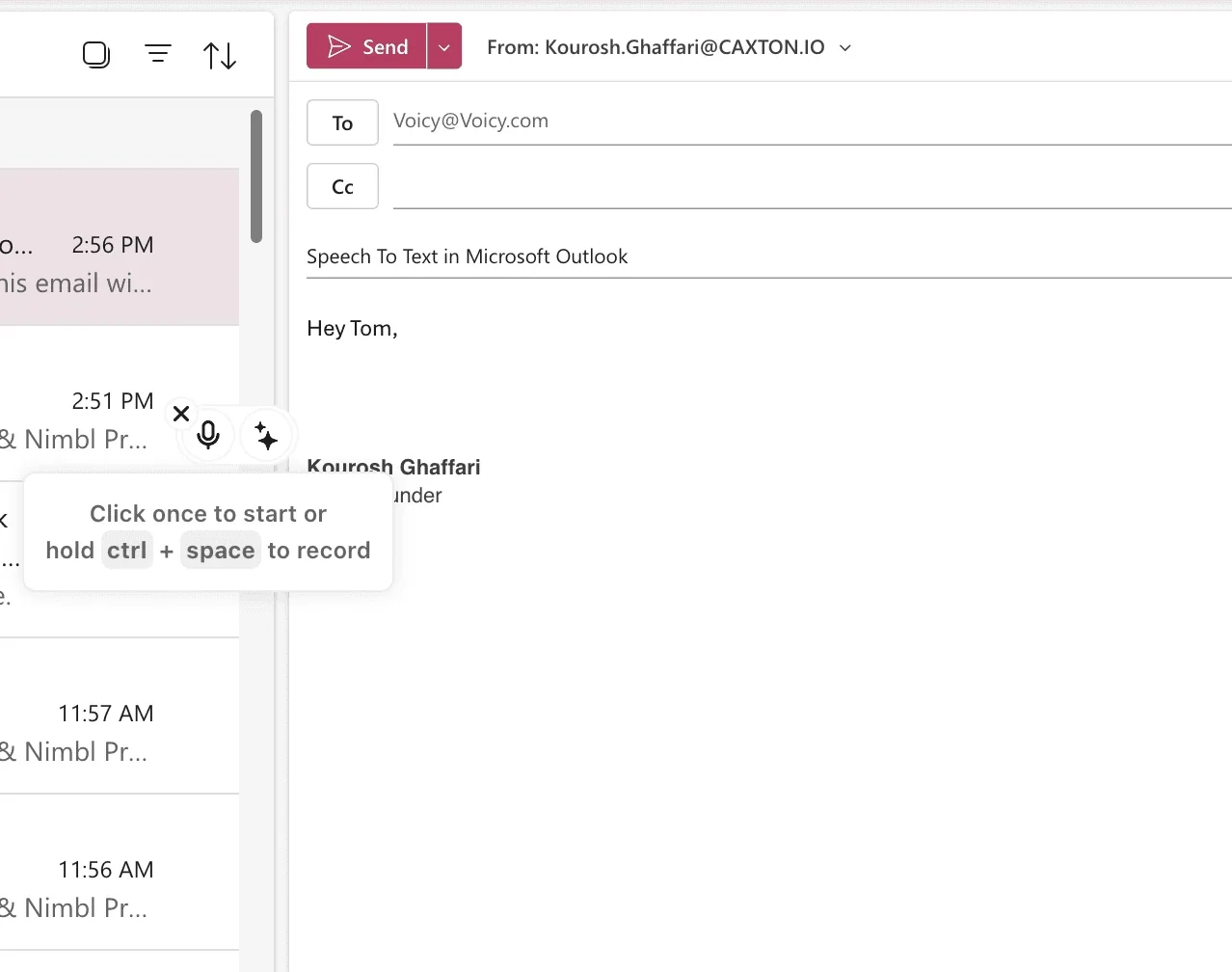
Then speak naturally. Voicy adds punctuation automatically, so you don't have to say every comma and period out loud.
Step 4: Send your email
When the email looks ready, add the recipient and subject line, then click Send.
Method 2: Use Outlook's built-in Dictate button
Some Microsoft 365 versions of Outlook include a built-in Dictate button. This is worth trying first if you only need quick, free dictation inside Outlook.
Check the Outlook version you are using before following the toolbar steps. Classic Outlook, new Outlook, and Outlook on the web can place controls differently, and account support can differ. If Dictate is missing, use the native Windows/Mac method below or Voicy; a missing button does not mean your microphone is broken.
Step 1: Open Outlook
Open Outlook on desktop or the web, then start a new email or open a reply.
Step 2: Click inside the message body
Dictation inserts text where your cursor is. If your cursor is in the subject line or another field, the words may appear in the wrong place.
Step 3: Click Dictate
Look for a Dictate or microphone button in the toolbar.
If you don't see it, your Outlook version may not support built-in dictation. Use Voicy or native desktop dictation instead.
Step 4: Speak your email
Speak clearly. For punctuation, you may need to say words like "period," "comma," or "new line," depending on your Outlook setup.
Step 5: Review and send
Read the email once before sending. Built-in dictation can miss names, numbers, punctuation, and paragraph breaks.
Method 3: Use native desktop dictation in Outlook
Use this if Outlook doesn't show a Dictate button, or if you prefer the dictation tool built into your computer.
On Windows
Open Outlook.
Start a new email or reply.
Click inside the email body.
Press Windows + H.
Click the microphone if voice typing doesn't start automatically.
Speak your email.
Review the text before sending.
On Mac
Open System Settings.
Go to Keyboard.
Turn on Dictation.
Open Outlook and click inside the email body.
Start Dictation with your Mac shortcut.
Speak your email.
Review the text before sending.
Which Outlook dictation method should you use?
| Method | Best for | Tradeoff |
|---|---|---|
| Voicy | Writing regular Outlook emails with cleaner punctuation | Needs a quick install |
| Outlook Dictate | Short replies if your Outlook version supports it | Availability varies by version |
| Windows Voice Typing | Free dictation on Windows when Outlook Dictate is missing | Long emails need cleanup |
| Mac Dictation | Free dictation on Mac | Names, punctuation, and long messages need review |
If Outlook is only one place where you write, use Voicy. If you dictate one short reply every now and then, Outlook Dictate or your computer's native dictation may be enough.
Common Outlook dictation issues
| Issue | What to check | Fix |
|---|---|---|
| Dictate button is missing | Your Outlook version, Microsoft 365 account, and toolbar | Use Voicy or native desktop dictation if your Outlook version doesn't include Dictate. |
| Microphone doesn't start | Browser, Windows, or macOS microphone permissions | Allow microphone access, then restart Outlook and try again. |
| Words appear in the wrong place | Cursor location | Click inside the email body before starting dictation. |
| Punctuation is missing | Which dictation method you're using | Use Voicy for automatic punctuation, or say punctuation out loud with native tools. |
| Names or numbers are wrong | Contact names, company names, dates, and amounts | Review native dictation output before sending. For repeated terms, speak slower and add context. |
| Outlook Dictate works in one app but not another | Desktop Outlook, new Outlook, Outlook web, and Microsoft 365 status | Try Outlook web, update Outlook, or use Voicy for a version-independent workflow. |
Frequently asked questions
How do I use speech-to-text in Outlook?
Open Outlook, start a new email, click inside the message body, and use Voicy, Outlook Dictate, Windows Voice Typing, or Mac Dictation. Voicy is best if you want cleaner punctuation and the same dictation workflow across more apps.
Does Outlook have built-in speech-to-text?
Some Microsoft 365 versions of Outlook have a built-in Dictate button. If you don't see Dictate in your toolbar, your Outlook version may not support it.
Where is Dictate in Outlook?
Look for a microphone or Dictate button in the Outlook toolbar while you're writing an email. If it isn't there, use Voicy, Windows Voice Typing, or Mac Dictation instead.
What's the shortcut for dictation in Outlook?
Outlook's own Dictate button doesn't have one universal shortcut. On Windows, you can click inside the Outlook email body and press Windows + H to use Windows Voice Typing.
Why is dictation not working in Outlook?
The usual causes are blocked microphone permissions, the wrong input device, an unsupported Outlook version, or the cursor being in the wrong field.
Can I use speech-to-text in Outlook on Mac?
Yes. You can use Outlook's built-in Dictate button if your version supports it, Mac Dictation, or Voicy.
Is Outlook dictation free?
Native Mac and Windows dictation are free. Outlook's built-in Dictate depends on your Microsoft 365 or Outlook version. Voicy has a free trial, then paid plans.
Is Voicy better than Outlook Dictate?
Voicy is better if you write a lot of emails or switch between Outlook, Word, Gmail, Google Docs, Slack, and other tools. Outlook Dictate is fine for short emails when your version supports it.
Can I use voice typing in Outlook web?
Yes. You can use Voicy or your computer's native dictation in Outlook web. Outlook's own Dictate button may also appear depending on your Microsoft 365 setup.
 Download for free
 Download for free
 Download for free