





Summary of the article
Here are the best Linux apps to install in 2026 if you want a practical desktop setup for work, writing, school, coding, and daily use:
Voicy: Best voice input layer for writing in Linux apps, browsers, docs, tickets, and emails.
LibreOffice: Best office suite for documents, spreadsheets, and presentations.
Joplin: Best open-source notes app for Markdown notes, research, and synced notebooks.
Thunderbird: Best Linux email app for people who want a real desktop inbox.
Firefox: Best browser for privacy, extensions, and a clean Linux desktop setup.
Visual Studio Code: Best code editor for developers who want strong extensions and Git support.
KDE Connect: Best phone-to-Linux bridge for messages, files, clipboard, and device control.
LocalSend: Best simple file-sharing app across Linux, Mac, Windows, Android, and iPhone.
GIMP: Best free image editor for screenshots, graphics, and quick edits.
VLC: Best media player for almost any video or audio file.
KeePassXC: Best local password manager for Linux users who want control over their vault.
Timeshift: Best backup safety net before updates, driver changes, or system experiments.
If you only install a few, start with LibreOffice, Firefox, Thunderbird, Joplin, KeePassXC, Timeshift, and Voicy. That gives you the basics: writing, browsing, email, notes, passwords, backups, and faster voice input.
What makes a good Linux app in 2026?
The best Linux apps are not just free alternatives to Windows or Mac software. They need to fit how Linux users actually work: lots of browser tabs, local files, keyboard shortcuts, package managers, privacy tools, and a few command-line habits.
This list focuses on apps that are useful on a real desktop, not just famous in open-source circles. I looked for apps that solve daily problems, work across common Linux distros, and pair well with modern workflows like AI tools, Markdown notes, browser-based docs, and voice typing.
For voice input specifically, Linux has always been weaker than Mac and Windows. That is why Voicy for Linux matters here. It gives Linux users a practical way to dictate into apps and websites without turning the whole setup into a technical project.
Quick comparison: the best Linux apps by use case
Use case | Best Linux app | Why it belongs here |
|---|---|---|
Voice input | Dictate in browsers, docs, email, notes, tickets, and AI tools. | |
Office work | Strong document, spreadsheet, and presentation tools without a subscription. | |
Notes | Markdown notes, notebooks, sync options, and open-source control. | |
A serious desktop email client that still feels at home on Linux. | ||
Browser | Fast, private, extension-friendly, and included by many distros. | |
Coding | Extensions, Git, remote workflows, terminals, and AI coding support. | |
Phone integration | Brings your phone, clipboard, files, and messages closer to your desktop. | |
File sharing | Simple local transfers without accounts, cables, or cloud storage. | |
Image editing | Free image editing for screenshots, graphics, and web assets. | |
Media | Plays almost anything without codec drama. | |
Passwords | Local password management with browser integration. | |
Backups | System snapshots before updates and experiments. |
1. Voicy, best Linux app for voice input
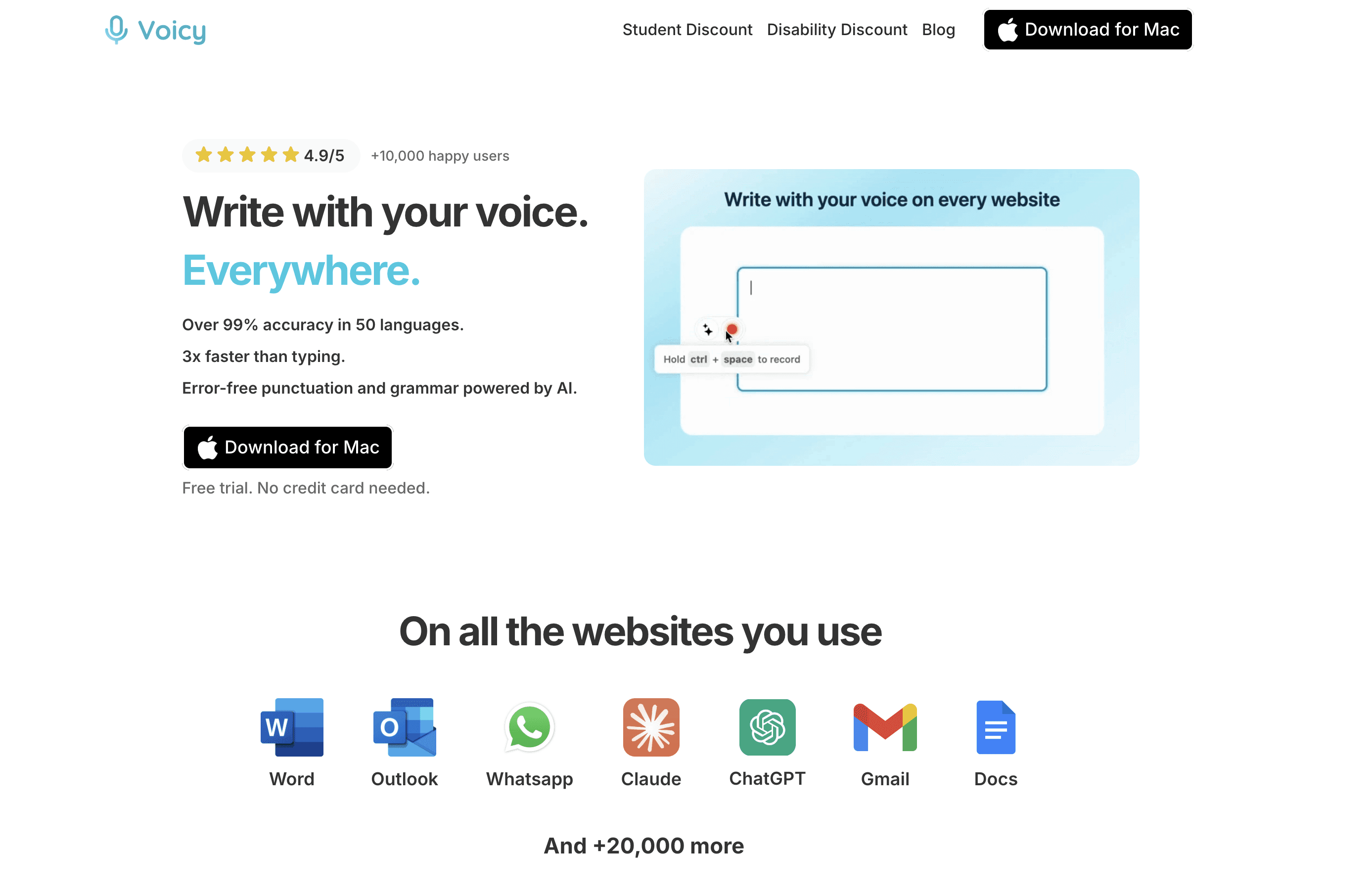
Voicy is the app I would add first if your Linux setup is already good, but typing is still the slow part. It lets you speak instead of type across the places where work actually happens: browser fields, docs, email, notes, AI tools, issue trackers, chat apps, and forms.
That matters on Linux because voice typing has always felt more fragmented here. You can piece together command-line tools, Whisper wrappers, or browser-only dictation, but most people do not want another weekend project. They want to press a shortcut, talk, and get clean text.
Best for: Linux users who write a lot: developers, students, founders, writers, support teams, and anyone with wrist pain or typing fatigue.
What stands out:
Works as a practical dictation layer for Linux writing workflows.
Useful in browsers, docs, AI tools, tickets, email, and notes.
Includes automatic punctuation, so you do not have to speak every comma.
Supports file upload transcription as well as live dictation.
Free trial available, then paid plans from $8.49/month, $82/year, or $260 lifetime.
Limit: Voicy is cloud-based. If you need fully offline transcription for sensitive work, look at local Whisper tools instead. For most everyday Linux writing, Voicy is much easier to live with.
Start here if your main Linux problem is not missing apps, but writing too slowly inside the apps you already use. For a deeper setup guide, read our speech-to-text on Linux guide.
2. LibreOffice, best Linux office suite
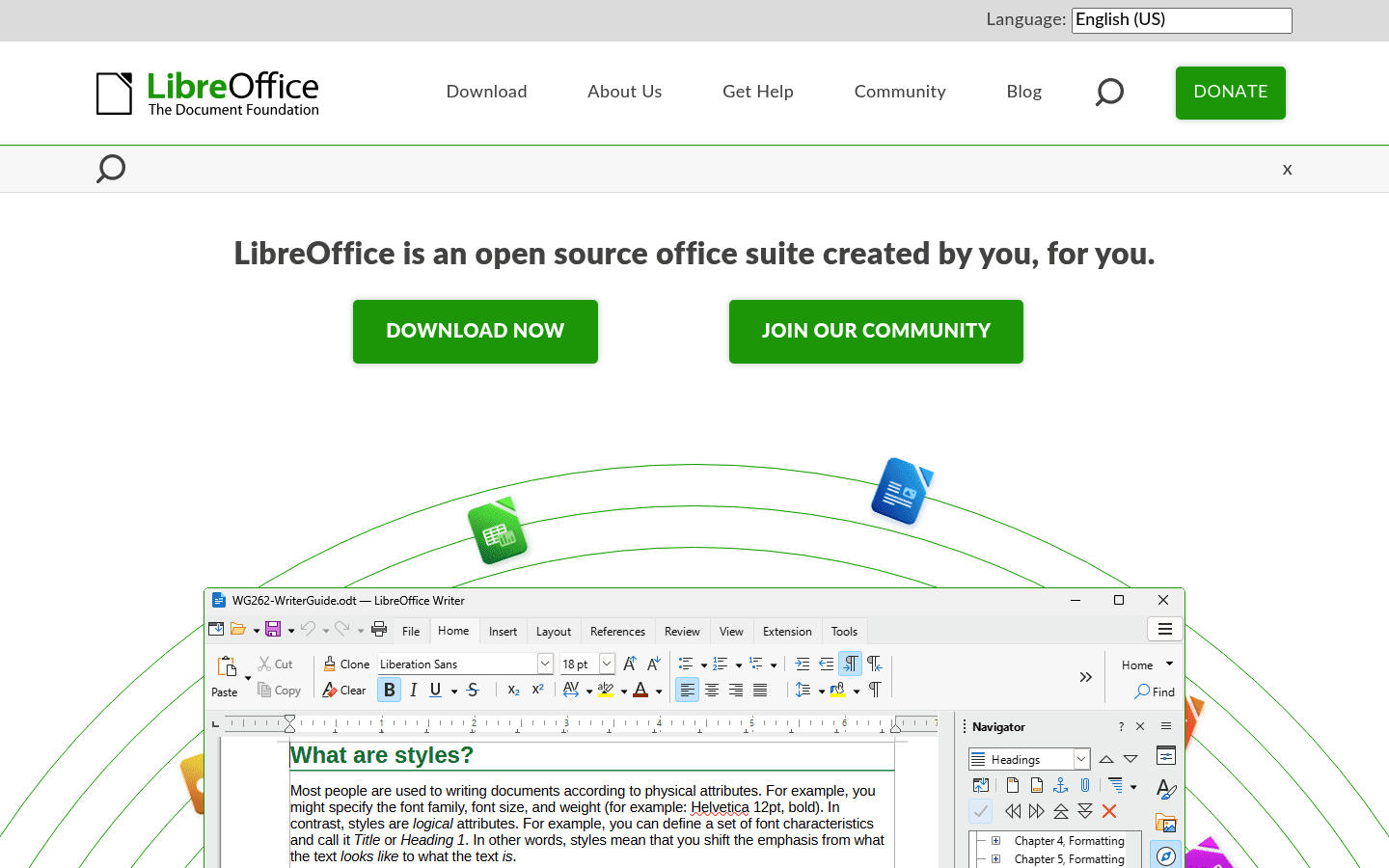
LibreOffice is still the default answer for office work on Linux, and for good reason. Writer, Calc, and Impress cover most document, spreadsheet, and presentation needs without forcing you into a web app.
It is not always as polished as Microsoft Office, especially when you open complex Word or Excel files from other people. But if you mostly create and edit your own documents, it is reliable, free, and mature.
Best for: Linux users who need local documents, spreadsheets, and presentations.
Where Voicy helps: Dictate rough drafts into Writer, then clean them up by hand. It is faster than staring at a blank page and trying to type the perfect first sentence.
3. Joplin, best Linux notes app
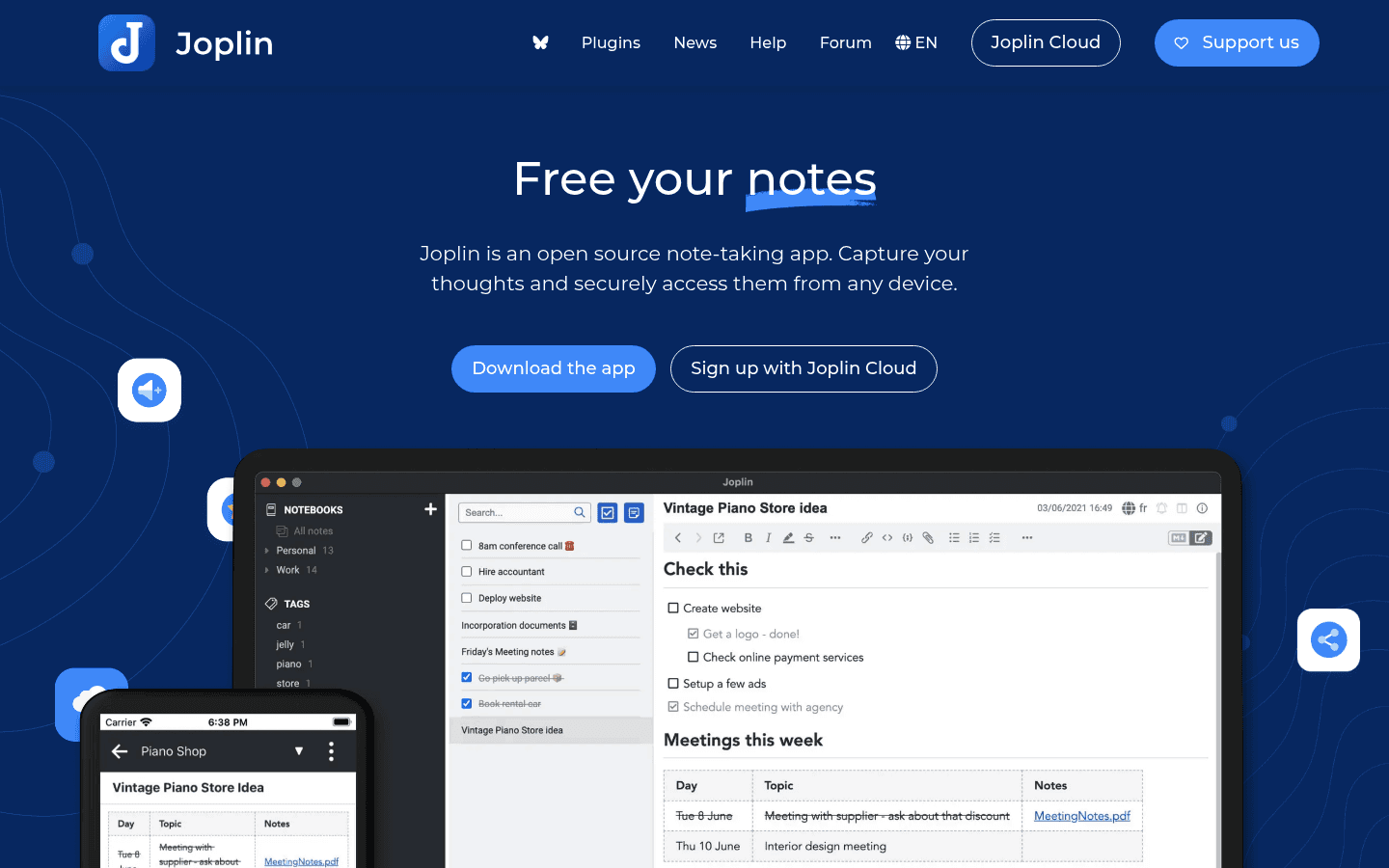
Joplin is one of the best Linux apps for people who like Markdown, notebooks, and owning their notes. It is open source, cross-platform, and flexible enough for personal notes, work notes, research, and small knowledge bases.
The main tradeoff is that Joplin feels more practical than trendy. If you want a glossy Notion-style workspace, it may feel plain. If you want a notes app that respects local-first habits, it is a strong pick.
Best for: Notes, research, project logs, reading notes, and Markdown-heavy workflows.
Where Voicy helps: Use voice to capture raw notes after a meeting, class, or coding session. Then turn them into cleaner Markdown later.
4. Thunderbird, best Linux email app
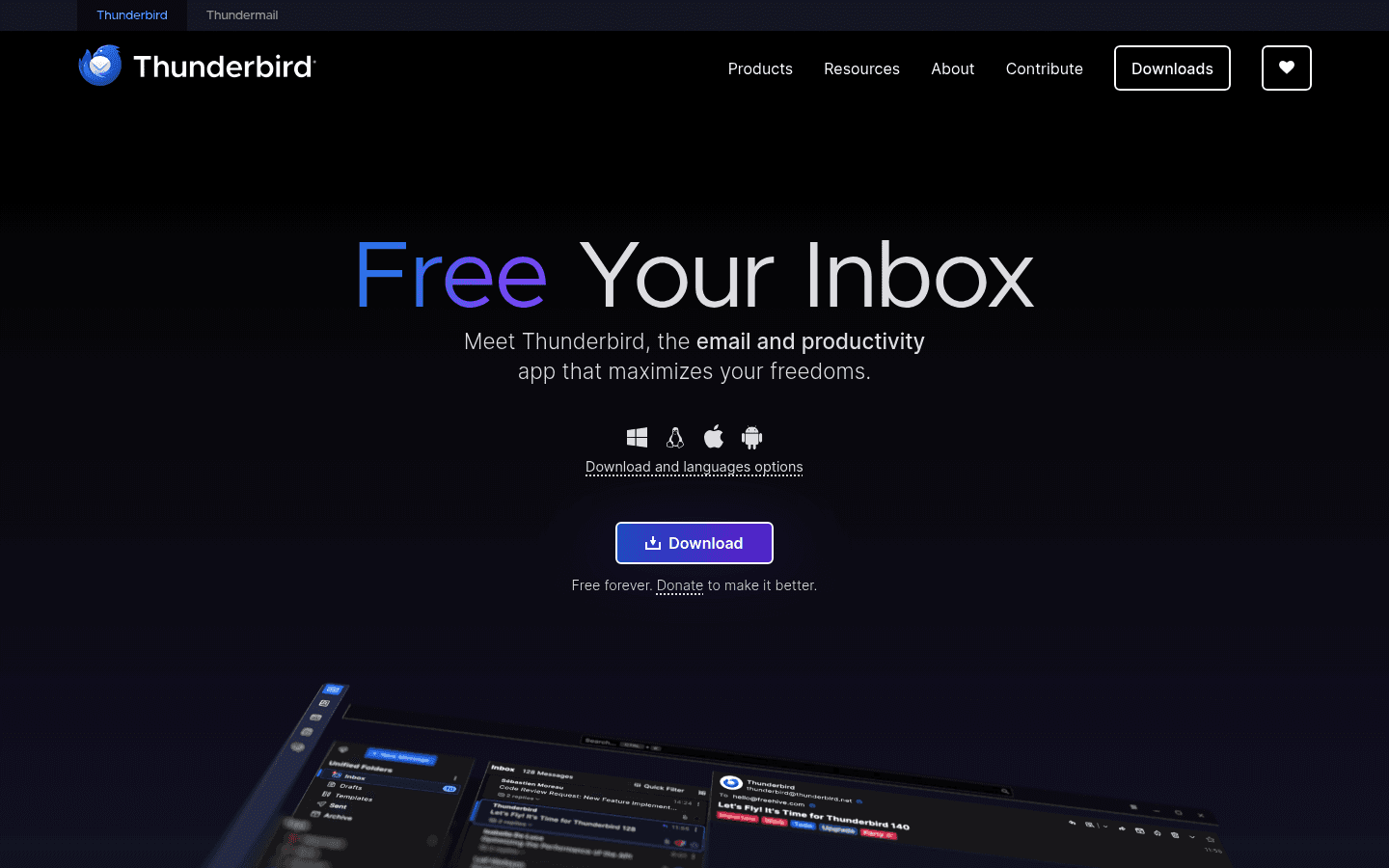
Thunderbird is the email app to try if you want a real desktop inbox on Linux. It handles multiple accounts, folders, search, calendars, contacts, and the kind of email setup that browser tabs can make messy.
It can feel heavy if you only check one Gmail account a few times a day. But for people who live in email, Thunderbird gives Linux a proper desktop client.
Best for: Multiple inboxes, work email, calendar-heavy users, and people who prefer desktop apps over webmail.
Where Voicy helps: Dictate replies, follow-ups, and longer updates. Email is one of the easiest places to win back time with voice input.
5. Firefox, best Linux browser
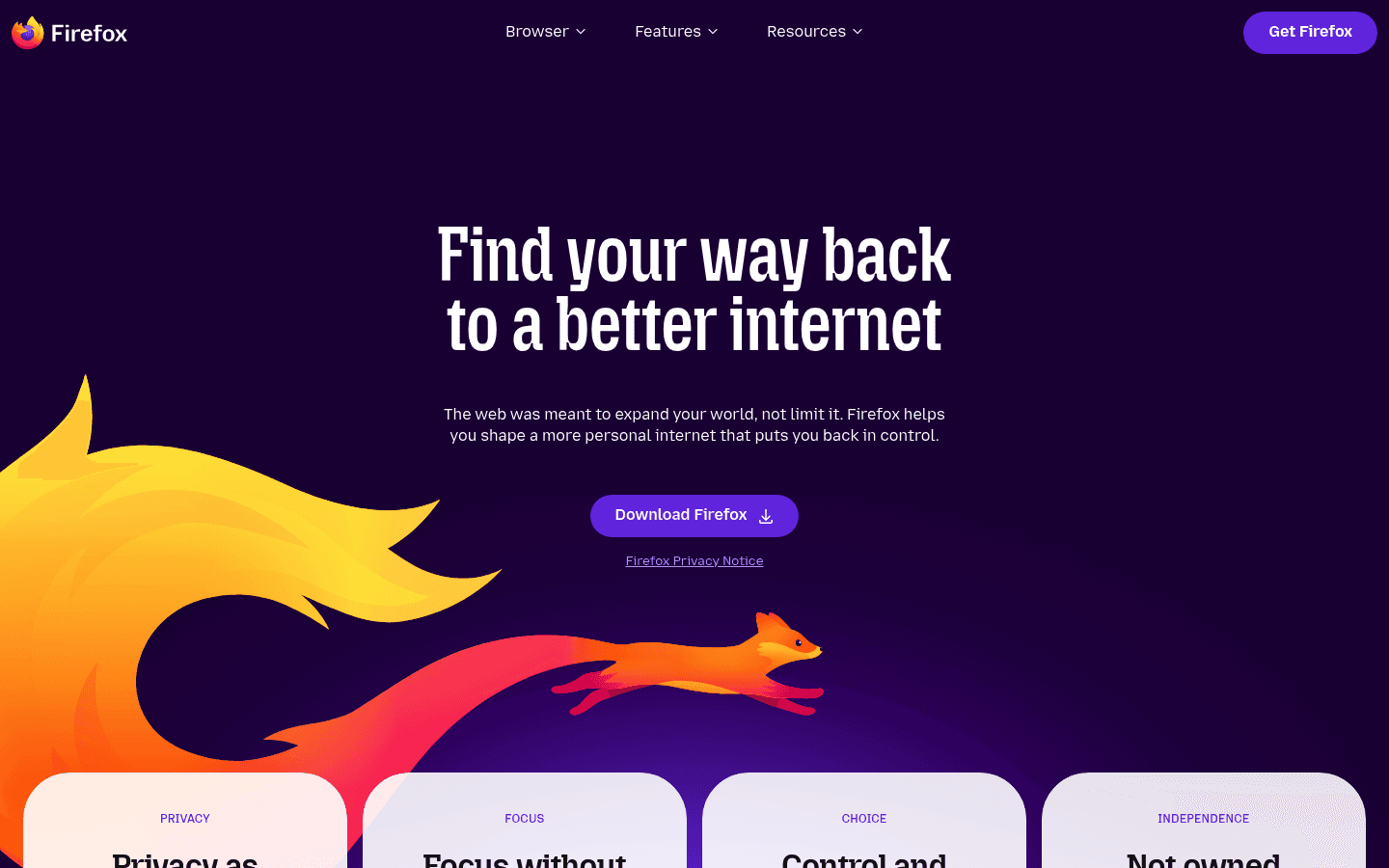
Firefox is a natural fit for Linux. Many distros ship it by default, it has strong extension support, and it gives you a browser that is not tied to the Chrome ecosystem.
It is also a good base for browser-first Linux work. Docs, email, dashboards, AI tools, project management apps, and learning platforms all live in the browser now.
Best for: Privacy-minded browsing, extensions, web apps, and Linux users who want a browser that feels native to the open web.
Where Voicy helps: Use Voicy in browser fields where Linux users spend half their day: AI prompts, Google Docs, Notion, Linear, GitHub, Gmail, forums, and support tools.
6. Visual Studio Code, best Linux app for developers
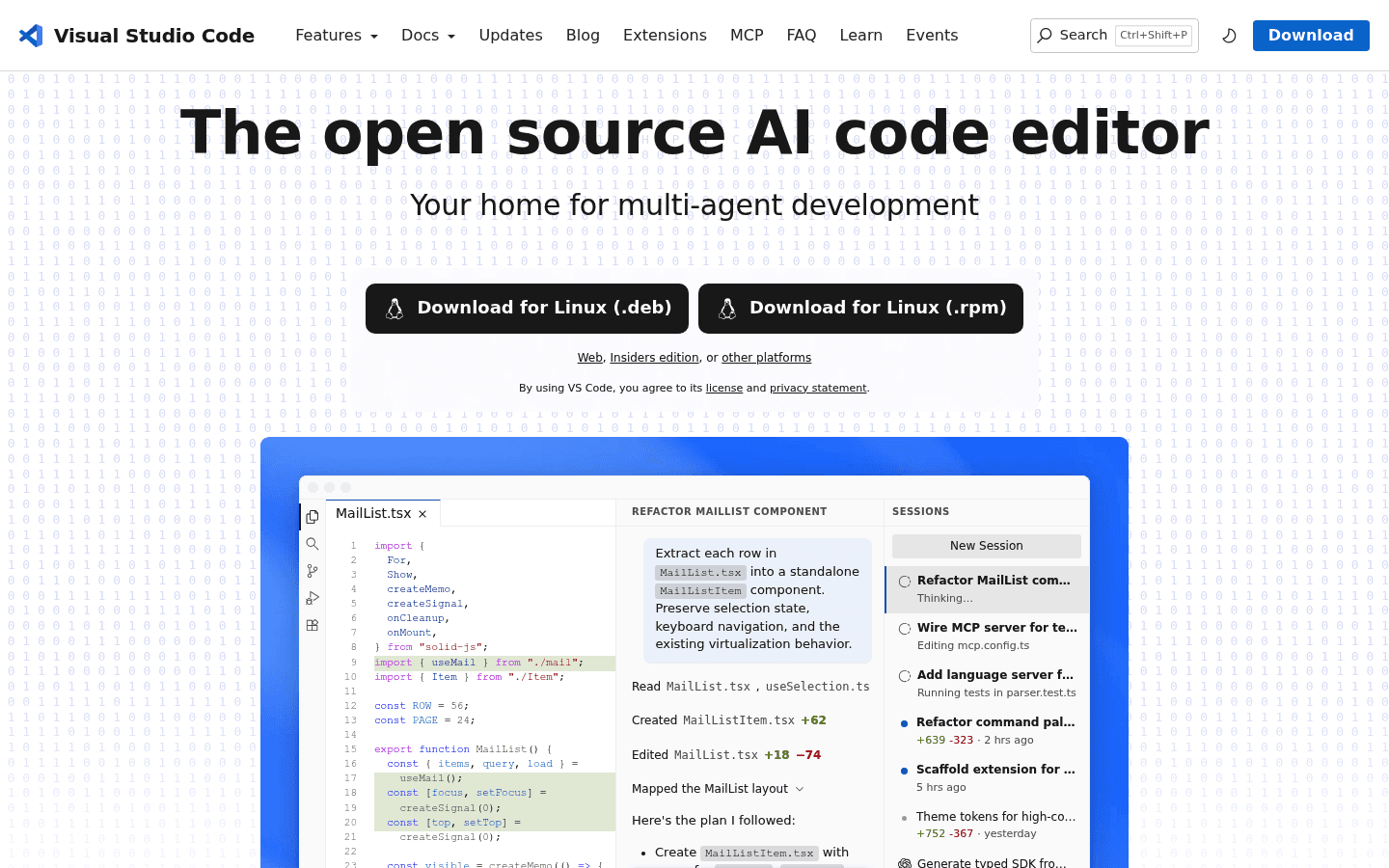
Visual Studio Code is the easiest developer pick on this list. It runs well on Linux, has a huge extension ecosystem, includes a built-in terminal, and handles Git, containers, remote work, and AI coding tools better than most editors.
Some Linux users prefer Neovim, Emacs, JetBrains IDEs, or VSCodium. Fair. But if you want one editor that works for many languages and teams, VS Code is the safest default.
Best for: Coding, markdown docs, GitHub workflows, terminal work, and multi-language projects.
Where Voicy helps: Dictate issue notes, commit explanations, PR descriptions, documentation drafts, and AI coding prompts. That is often faster than typing every thought by hand.
We are also building a standalone guide to the best Linux apps for developers, so this section will eventually point deeper into developer workflows.
7. KDE Connect, best Linux app for phone integration
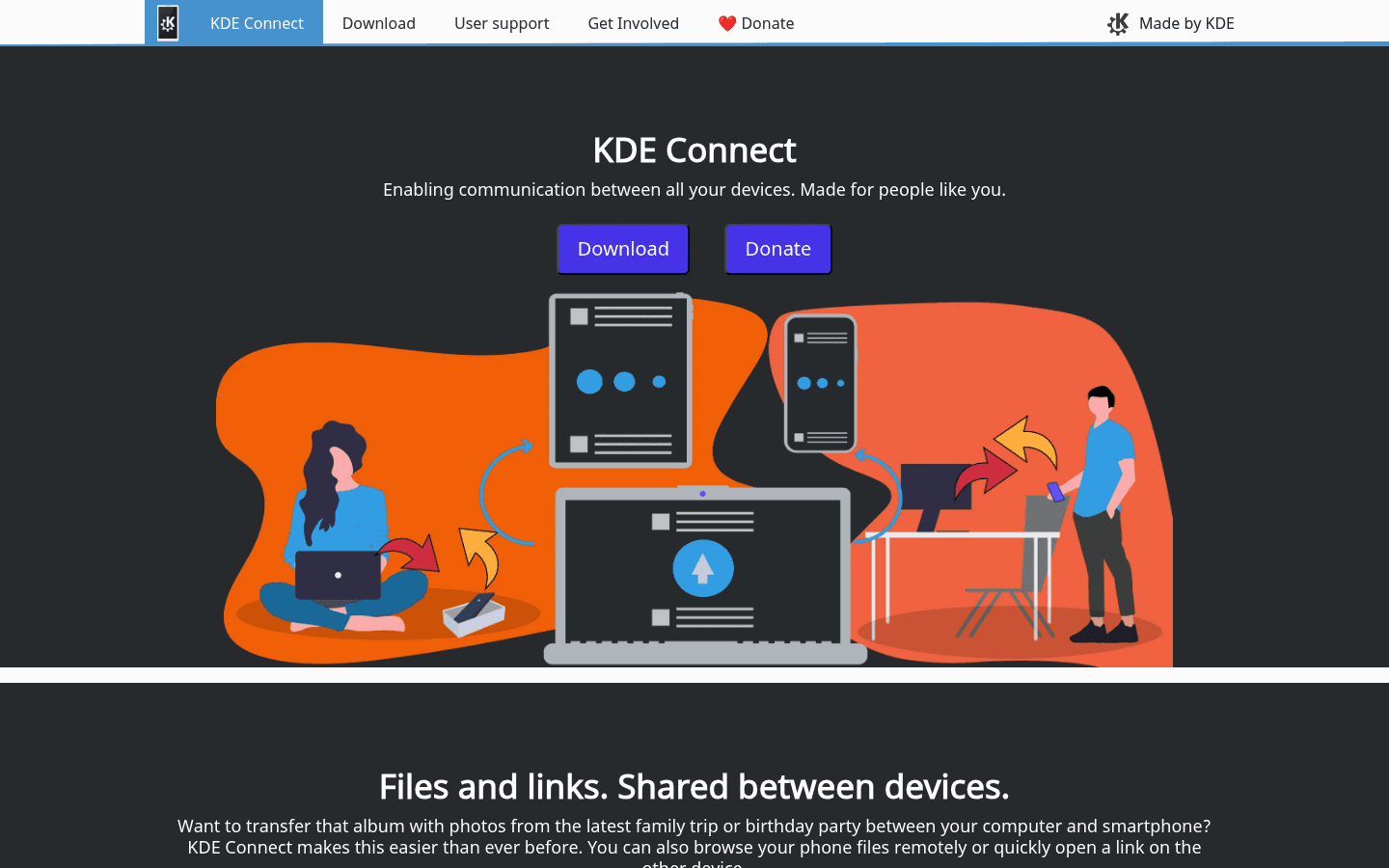
KDE Connect makes your phone and Linux desktop feel like they know each other. You can share files, sync clipboard text, get notifications, control media, and use your phone as a remote input device.
Despite the name, it is not only for KDE users. It can work on other desktop environments too, though setup may vary.
Best for: Android users, file sharing, clipboard sync, notifications, and small phone-to-desktop tasks.
Limit: iPhone support is more limited than Android support. If your phone is Android, KDE Connect is much more useful.
8. LocalSend, best Linux app for simple file sharing
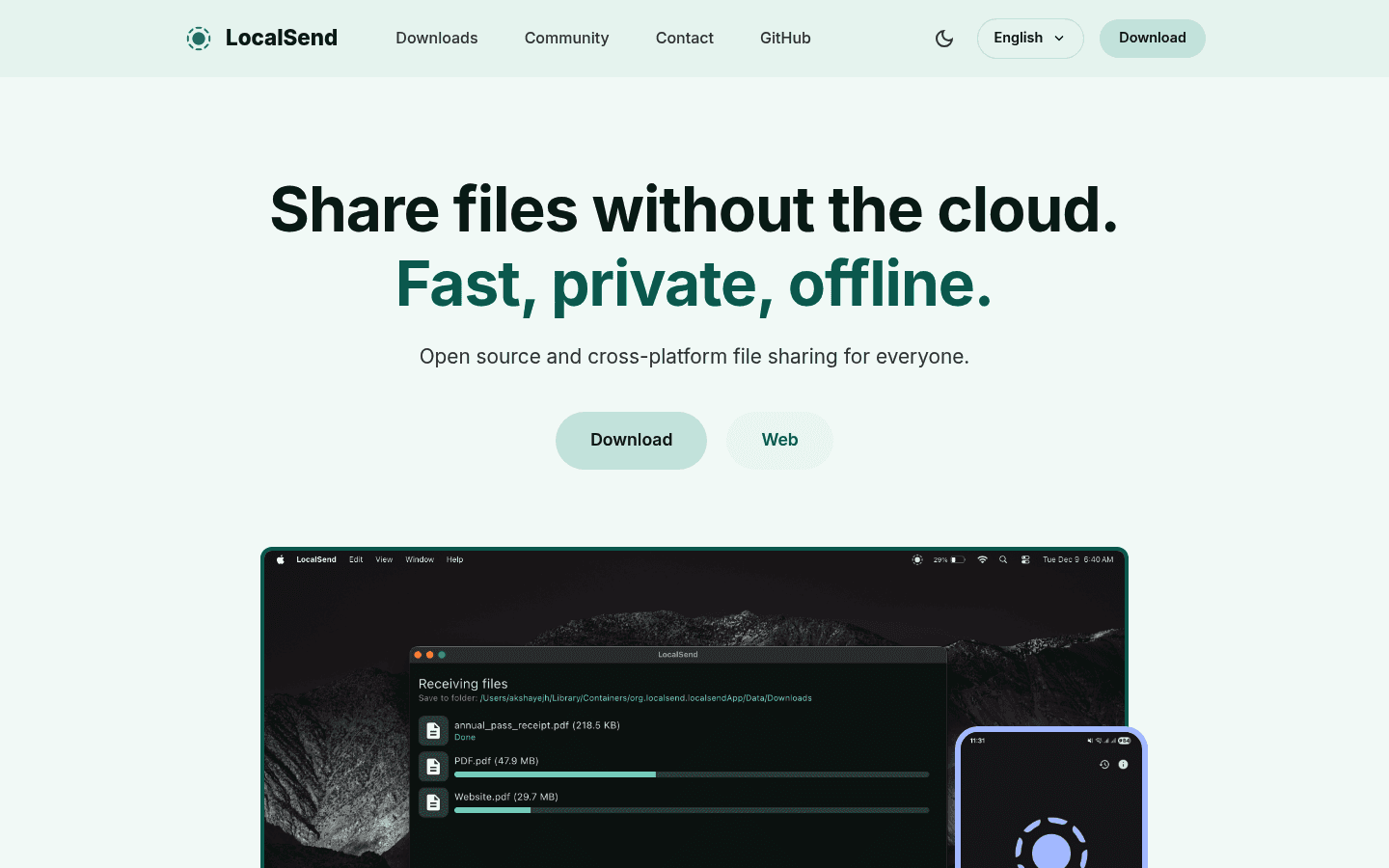
LocalSend solves a boring problem beautifully: moving files between devices on the same network. It works across Linux, Mac, Windows, Android, and iPhone, without accounts or cloud storage.
This is the kind of app you forget about until you need it. Then it becomes one of the first things you install on every machine.
Best for: Sending screenshots, PDFs, videos, notes, and project files between devices.
Limit: It is for local transfers. If you need cloud sync, use a proper sync tool or storage service.
9. GIMP, best Linux image editor
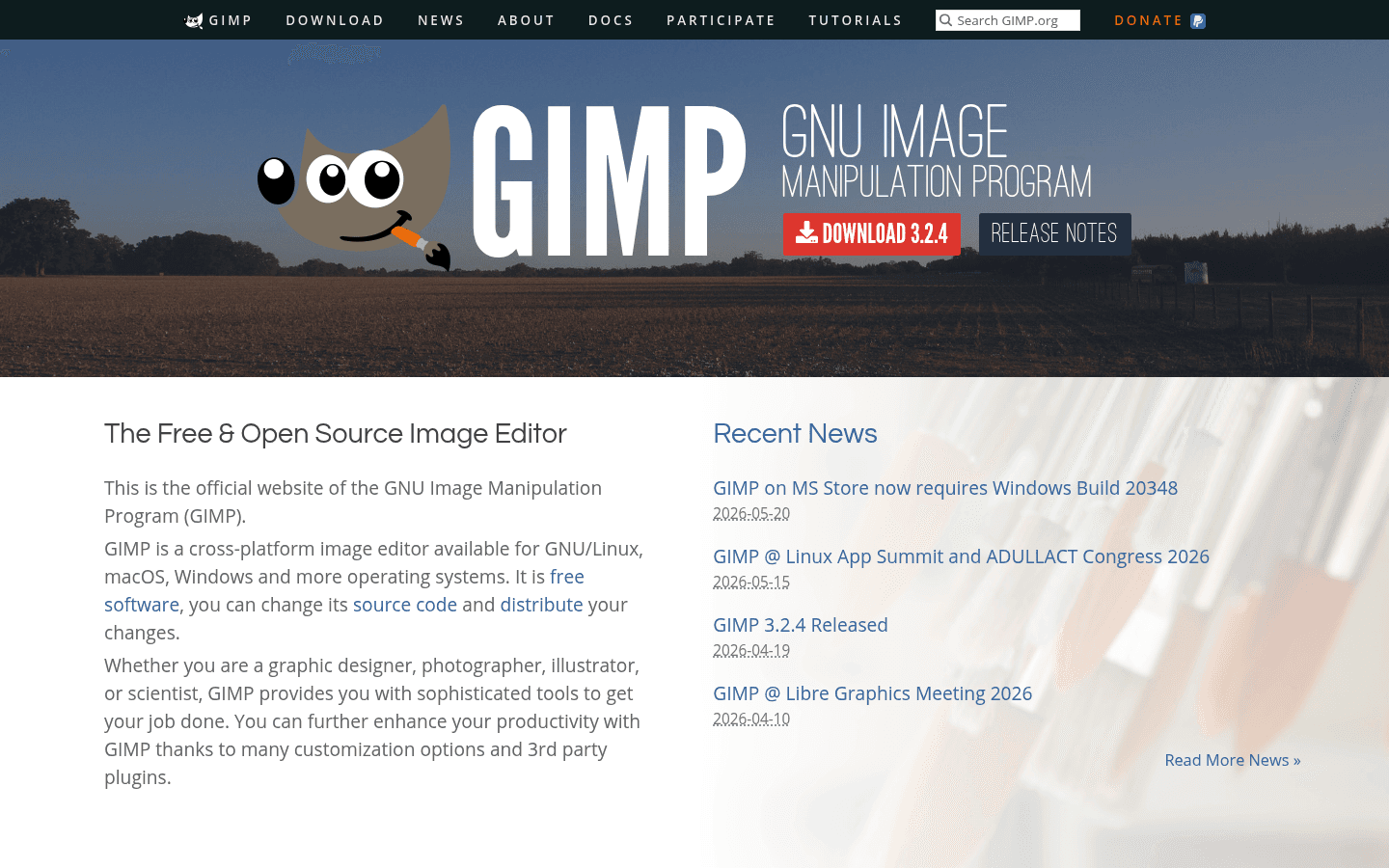
GIMP is the classic Linux image editor. It is useful for cropping screenshots, editing graphics, touching up blog images, making simple thumbnails, and handling image formats that basic viewers cannot.
It is not Photoshop, and it should not pretend to be. The interface can feel odd at first. But for a free Linux image editor, it is still one of the most capable options.
Best for: Image edits, screenshots, blog graphics, thumbnails, and light design work.
Limit: If you mainly annotate screenshots, a lighter screenshot tool may be faster.
10. VLC, best Linux media player
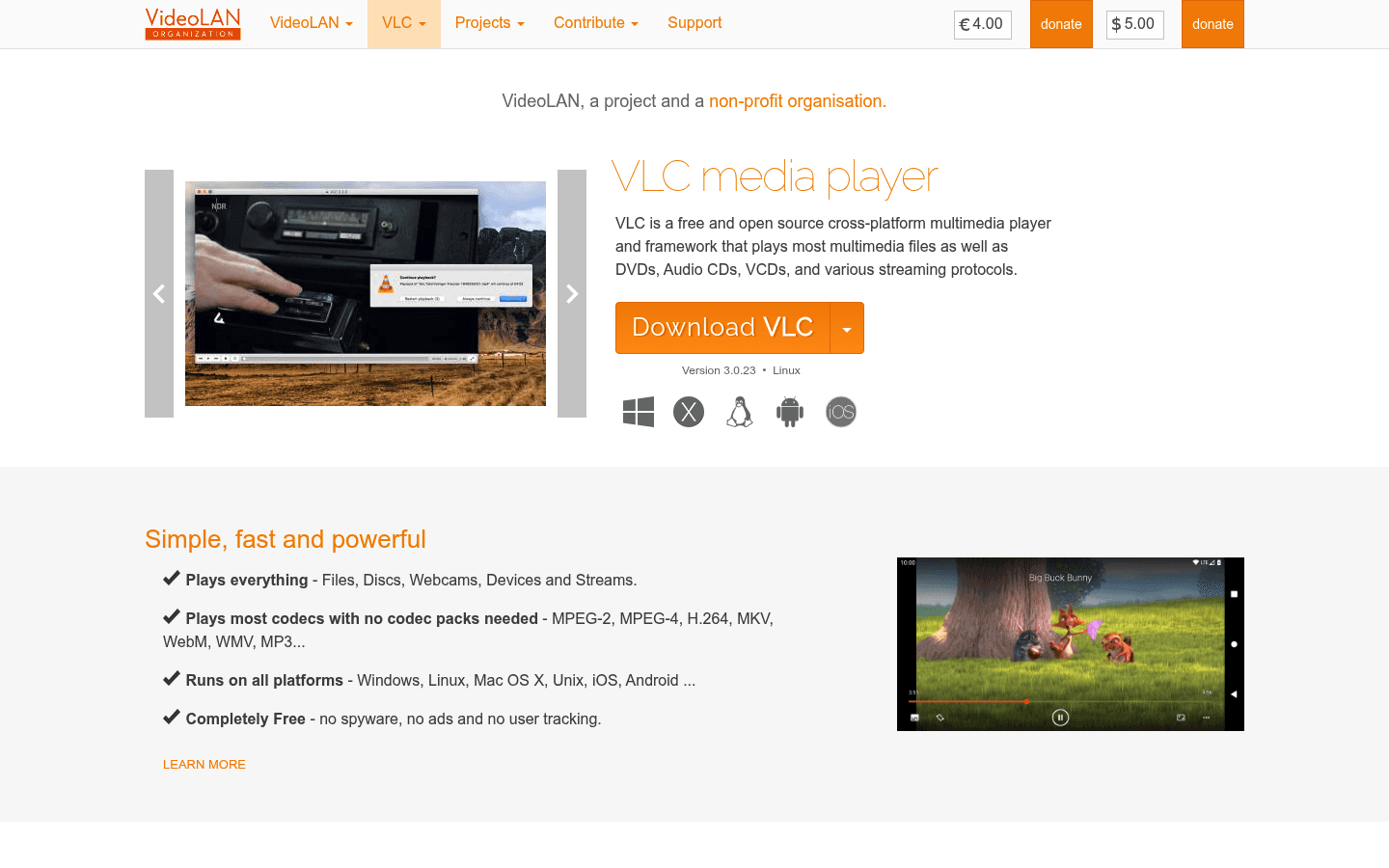
VLC is still the media player you install when you do not want to think about codecs. Videos, audio files, weird formats, old downloads, lecture recordings, screen captures, VLC usually just plays them.
It is not the prettiest app on Linux. It is also not trying to be. It is the reliable tool you keep around because it saves time.
Best for: Videos, audio, lectures, downloaded files, screen recordings, and odd media formats.
Where Voicy helps: If you record audio or video and need text afterward, pair VLC for playback with Voicy file upload transcription.
11. KeePassXC, best Linux password manager
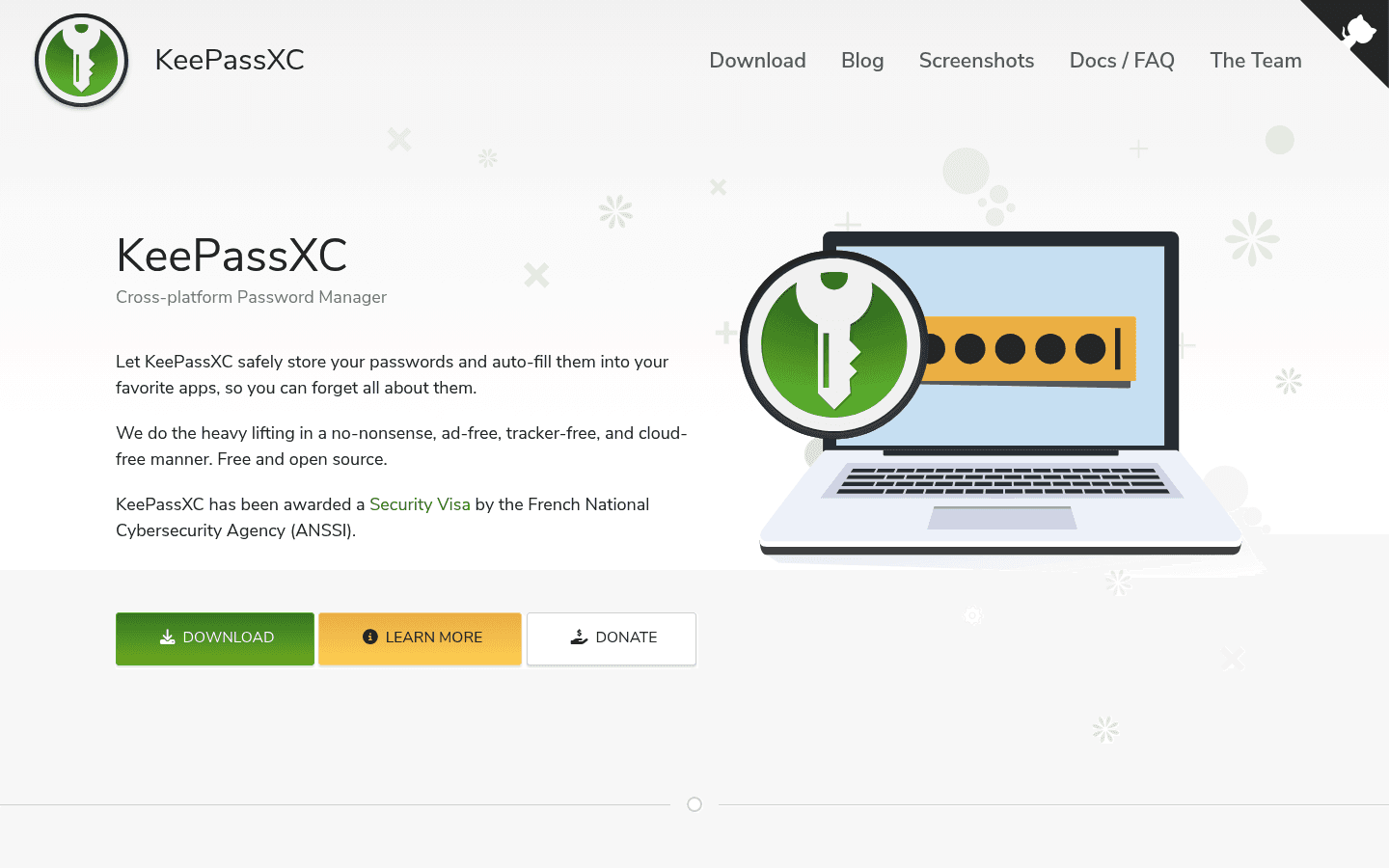
KeePassXC is a strong password manager for Linux users who want local control. Your database is yours, and you can decide how to back it up or sync it.
That control is the appeal, but it is also the responsibility. If you want a managed family plan with account recovery and simple sharing, a hosted password manager may be easier.
Best for: Local password storage, browser integration, security-minded users, and people who prefer open-source tools.
Limit: You need to manage your database and backups carefully. Do not treat that part casually.
12. Timeshift, best Linux backup app before updates
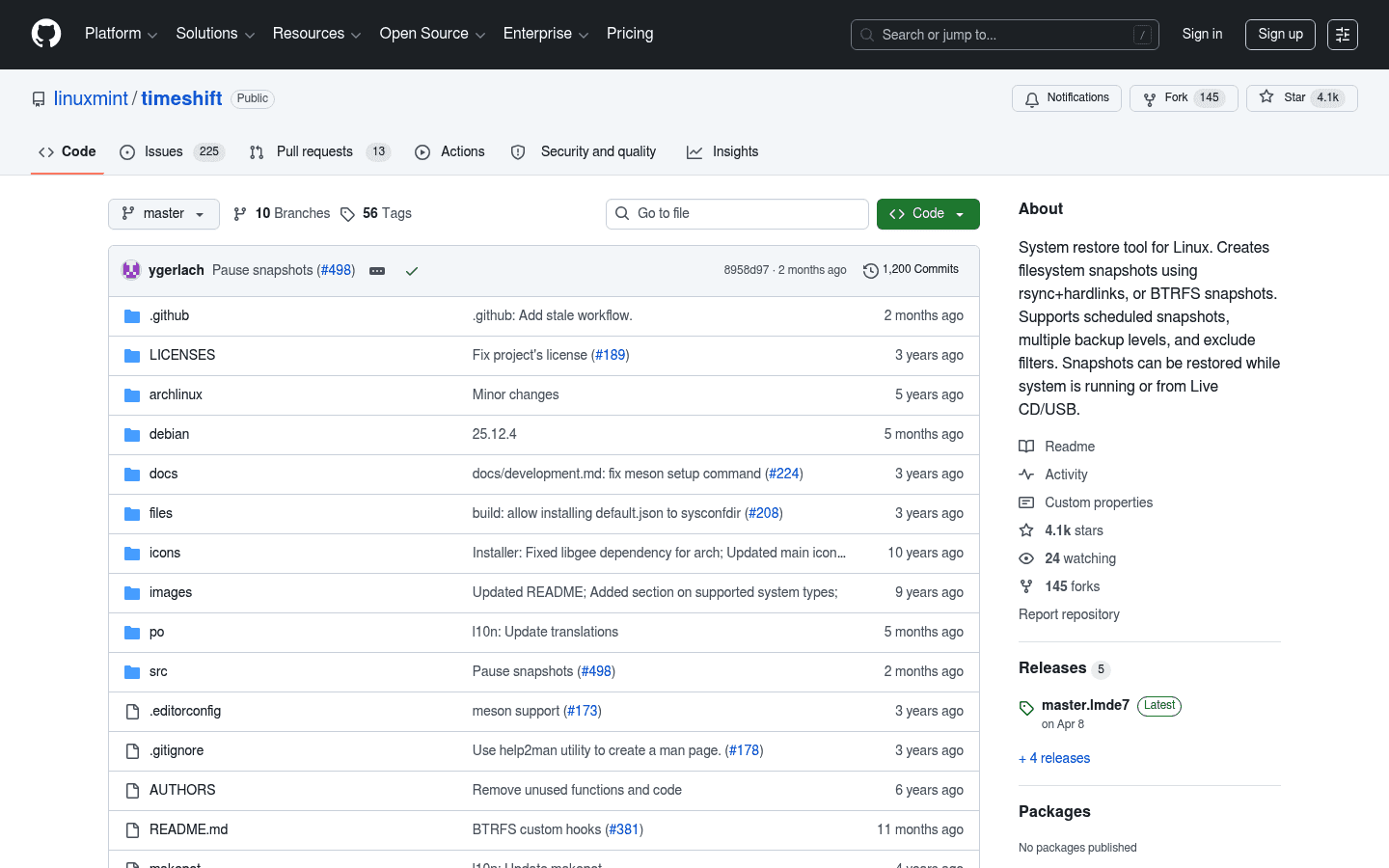
Timeshift is the app you want before something breaks. It creates system snapshots, so you can roll back after a bad update, driver issue, package experiment, or configuration mistake.
It is especially useful for newer Linux users who are still learning what is safe to change. A snapshot gives you more room to experiment without panic.
Best for: System snapshots, safer updates, distro tinkering, driver changes, and recovery planning.
Limit: Timeshift is not a full personal-file backup strategy by itself. You still need to back up important documents, photos, and work files.
Best Linux apps for developers
If you are a developer on Linux, start with VS Code, Firefox, KeePassXC, LocalSend, KDE Connect, and Voicy. That gives you coding, browsing, password management, file transfer, phone integration, and voice input for technical writing.
Developer work is not only code. You write GitHub issues, PR notes, docs, comments, specs, standup updates, Slack messages, and AI prompts. That is where a voice input tool can be surprisingly useful.
We are turning this into a full developer-focused Linux apps guide next, because the workflow deserves more detail than one section.
Best Linux apps for students
If you are a student using Linux, start with LibreOffice, Joplin, Firefox, VLC, LocalSend, and Voicy. That covers essays, notes, research, lectures, file sharing, and faster writing.
Voicy fits especially well if typing slows you down, your wrists hurt, or you think faster than you type. Dictating a rough essay outline, class note, or research summary can be much easier than starting from a blank page.
We are also building a dedicated best Linux apps for students guide, with more focus on notes, study tools, PDFs, research, and accessibility.
How to choose the right Linux apps
Do not install 40 apps just because a list says they are useful. That is how a clean Linux setup turns into clutter.
Start with the bottleneck in your day:
If writing is slow, start with Voicy, LibreOffice, and Joplin.
If email is the mess, start with Thunderbird and voice-composed replies.
If you code all day, start with VS Code, Firefox, KeePassXC, and a clean notes setup.
If you move files between devices, install KDE Connect and LocalSend.
If you like experimenting with your system, set up Timeshift before you break something.
A good Linux setup should feel boring in the best way. The apps should help you write, work, and recover quickly when something goes wrong.
FAQs
What are the best Linux apps to install first?
Start with Firefox, LibreOffice, Thunderbird, Joplin, KeePassXC, Timeshift, and Voicy. That gives you a browser, office suite, email client, notes app, password manager, backup tool, and voice input for writing faster across Linux.
What is the best Linux app for voice typing?
Voicy is the best choice if you want a practical voice input layer for Linux. It helps you dictate into browsers, docs, email, notes, AI tools, and other writing fields without building a custom speech-to-text setup yourself.
Are the best Linux apps free?
Many are free or open source, including LibreOffice, Joplin, Firefox, Thunderbird, KDE Connect, LocalSend, GIMP, VLC, KeePassXC, and Timeshift. Voicy is paid after a free trial because it provides a hosted AI dictation and transcription workflow.
What Linux apps are best for students?
For students, the best starting set is LibreOffice for essays, Joplin for notes, Firefox for research, VLC for lectures, LocalSend for file sharing, and Voicy for dictating notes, outlines, and drafts.
What Linux apps are best for developers?
For developers, start with Visual Studio Code, Firefox, KeePassXC, LocalSend, KDE Connect, Joplin, and Voicy. That covers coding, browsing, passwords, file transfer, device sync, notes, documentation, and voice-written technical updates.
Is LibreOffice good enough to replace Microsoft Office on Linux?
LibreOffice is good enough for most personal documents, school work, spreadsheets, and presentations. It can struggle with very complex Microsoft Office files, so test it with your real documents before relying on it for a shared work setup.
Is Linux good for productivity apps?
Yes. Linux has strong apps for writing, coding, browsing, notes, email, media, passwords, file transfer, and backups. The biggest gap has often been easy voice input, which is why Voicy is useful for Linux users who write a lot.
Should I use Flatpak, Snap, AppImage, or my distro package manager?
Use your distro package manager when the app is current enough. Use Flatpak when you want a newer desktop app across distros. Use AppImage for portable apps. Use Snap if your distro supports it well and the app works best there.
What is the best Linux notes app?
Joplin is a strong default for Linux notes because it supports Markdown, notebooks, sync options, and open-source workflows. If you prefer a more visual workspace, compare it with visual knowledge-base tools before choosing.
Do I need antivirus on Linux?
Most everyday Linux desktop users do not start with antivirus as their first app. You should focus first on updates, strong passwords, backups, browser security, and safe installs. For shared work environments, follow your organization's security rules.
Final take
The best Linux apps are the ones that remove friction from your daily setup. LibreOffice handles documents. Joplin handles notes. Thunderbird handles email. Firefox handles the web. VS Code handles code. KeePassXC and Timeshift keep the setup safer.
Voicy fills a different gap: getting words out faster. If you write emails, notes, docs, tickets, prompts, or study material on Linux, voice input can save real time.
Start with the basics, then add tools only when they solve a clear problem. That is how you build a Linux desktop that feels fast, useful, and calm.


