



Best Affordable Dictation Tools in 2026: 7 Budget-Friendly Options Compared
Best Affordable Dictation Tools in 2026: 7 Budget-Friendly Options Compared
TL;DR: Best affordable dictation tools
Voicy: best affordable paid option if you want live dictation and file upload transcription across Mac, Windows, browser extension, iOS, and Android.
Apple Dictation: best free choice for short notes on Mac, iPhone, and iPad.
Windows Voice Access: best free Windows option for dictation plus basic PC control.
Google Docs voice typing: best free browser tool if you write mainly in Google Docs.
Gboard voice typing: best free Android keyboard dictation option.
Speechnotes: best free online dictation notepad for simple browser-based notes.
Wispr Flow: best higher-budget option if you want a polished voice-first writing app with a free tier.
Answer-first verdict
The best affordable dictation tool is the one that matches where you write. Use Apple Dictation, Windows Voice Access, Google Docs voice typing, Gboard, or Speechnotes if you need a free tool for short notes. Choose Voicy if you want a paid but still affordable app that works across devices and supports both live dictation and uploaded-file transcription.
If budget is your only concern, start with the free built-in tool on your device. If time saved matters more than paying nothing, Voicy is the better value for daily writing because it costs $8.49/month after the free trial and works beyond one app or operating system.
Why affordable dictation tools are tricky to compare
Affordable does not always mean free. A free dictation tool can be perfect for a grocery list, a short email, or a quick note. It can also become expensive in a quiet way if you spend ten minutes cleaning up every paragraph.
Paid dictation tools make more sense when you dictate every day. The right app can save time on emails, notes, support replies, essays, blog drafts, and meeting follow-ups.
This guide compares the best affordable dictation tools by real use case, not just price. It includes free built-in options, browser tools, mobile keyboard dictation, and lower-cost paid speech-to-text apps.
How we chose these budget-friendly dictation tools
We looked for dictation tools that are easy to try, useful without a large enterprise contract, and practical for normal writing. That means tools for students, solo workers, founders, writers, and professionals who want speech-to-text without buying a heavy specialist setup.
We gave extra weight to tools that work where people already write. A cheap dictation app is less useful if it only works in one narrow editor.
Pricing and features can change. For paid tools, check the official pricing page before you buy.
Best affordable dictation tools compared
Tool | Best for | Starting price | Biggest limit |
|---|---|---|---|
Cross-platform live dictation plus file transcription | Free trial, then $8.49/month | Cloud-based and paid after the trial | |
Free dictation on Apple devices | Included with supported Apple devices | Basic workflow features | |
Free dictation and PC control on Windows 11 | Included with Windows 11 | Best on recent Windows versions | |
Free dictation inside Google Docs | Included with Google Docs | Lives mainly inside Docs and Slides | |
Free mobile dictation on Android | Free | Not a desktop writing workflow | |
Free online dictation notepad | Free dictation notepad | Less polished for cross-app work | |
Polished AI dictation across devices | Free tier, Pro from $12/user/month billed yearly | Costs more than Voicy for unlimited use |
1. Voicy: best affordable paid dictation tool for daily work
Voicy is the best affordable dictation tool if you want one speech-to-text app for daily writing across devices. It works on Mac, Windows, browser extension, iOS, and Android, and it supports both live dictation and uploaded-file transcription.
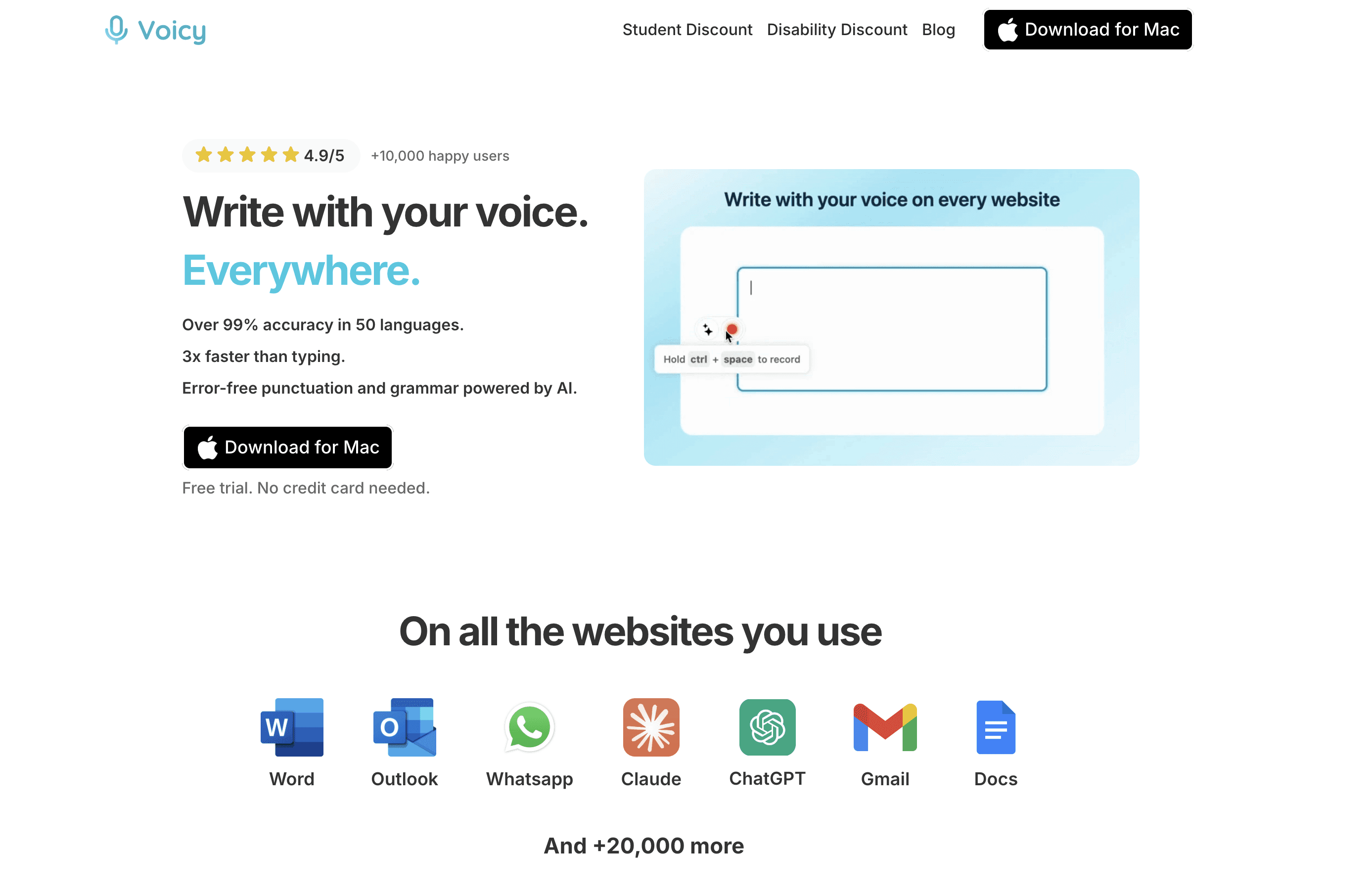
Voicy is a good affordable pick when you want dictation and file transcription in one app.
That mix matters. Free tools usually cover one place, such as your phone keyboard, Windows, Mac, or Google Docs. Voicy is better when your writing moves between email, documents, browser tools, notes, and uploaded recordings.
Best for: people who write every day and want a simple paid app that still costs less than many specialist dictation tools.
Key features:
Live dictation for everyday writing
Uploaded-file transcription
Mac, Windows, browser extension, iOS, and Android support
Free trial before you pay
Biggest downside: Voicy uses cloud-based transcription. It is not the right choice if you need fully offline speech recognition.
Pricing: Voicy costs $8.49/month, $82/year, or $260 lifetime after the free trial.
Short verdict: Choose Voicy if you want the best value paid tool for daily dictation across apps. Start with the free built-ins if you only dictate once in a while.
2. Apple Dictation: best free dictation tool for Mac and iPhone
Apple Dictation is the easiest affordable option if you already use a Mac, iPhone, or iPad. It is built into Apple devices, so there is nothing extra to buy.
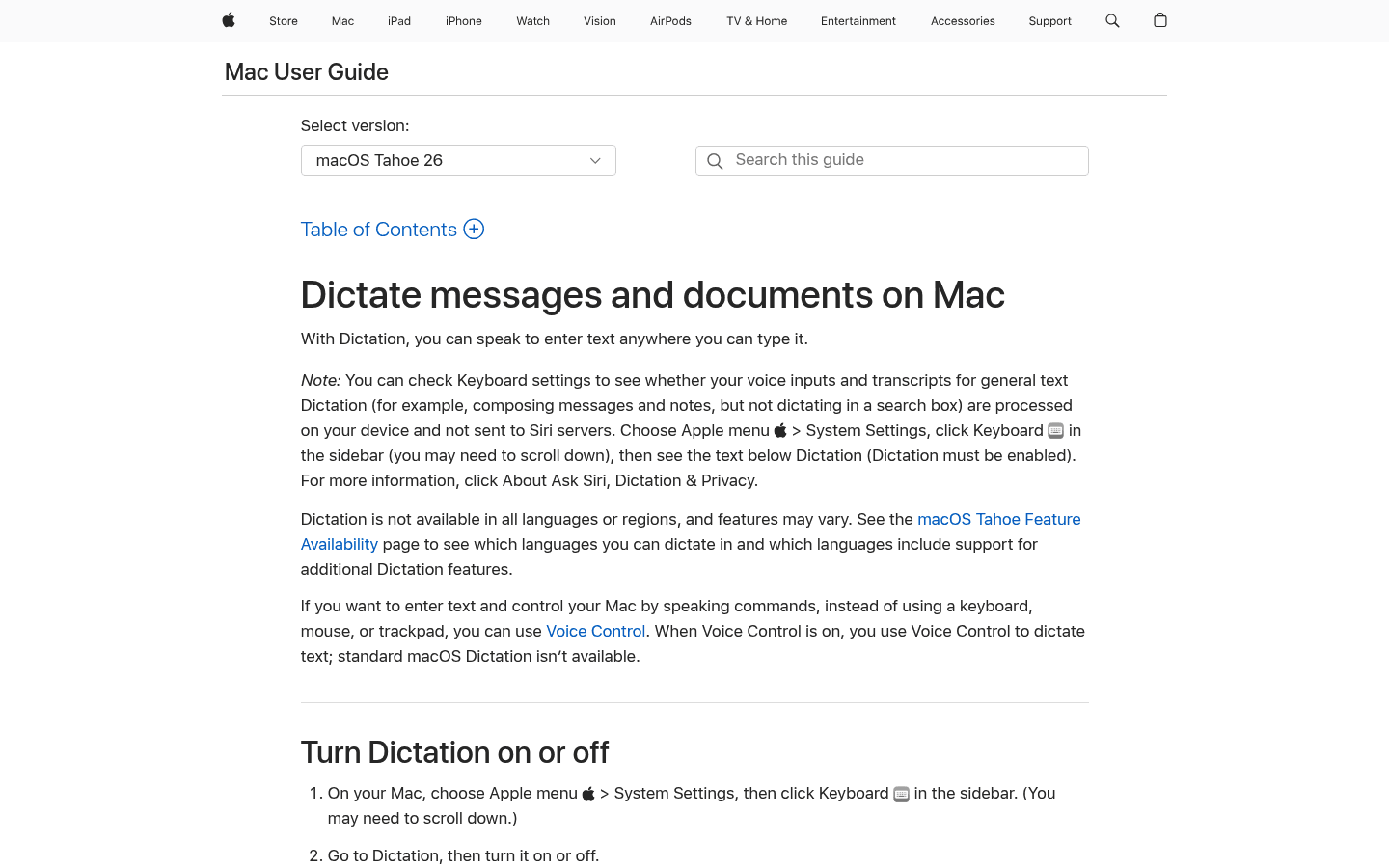
Apple Dictation is the easiest no-cost starting point for Mac and iPhone users.
On Mac, Apple says you can set a keyboard shortcut for Dictation in Keyboard settings. On iPhone and iPad, most people use the microphone button on the keyboard.
Best for: quick notes, short messages, casual email drafts, and people who mostly write on Apple devices.
Key features:
Included with supported Apple devices
Works in many text fields
Easy to start with a keyboard or microphone shortcut
No separate dictation subscription
Biggest downside: Apple Dictation is basic compared with paid AI dictation tools. It is fine for short text, but less useful when you need cleanup, file transcription, or a consistent workflow across non-Apple devices.
Pricing: Included with supported Apple devices.
Short verdict: Use Apple Dictation first if you are on a Mac or iPhone and want a free test. Move to a tool like Voicy for Mac dictation when you need more than simple voice typing.
3. Windows Voice Access: best free dictation tool for Windows
Windows Voice Access is the best affordable dictation choice for many Windows users because it is included with Windows 11. Microsoft describes it as a way to control your PC and author text using your voice.
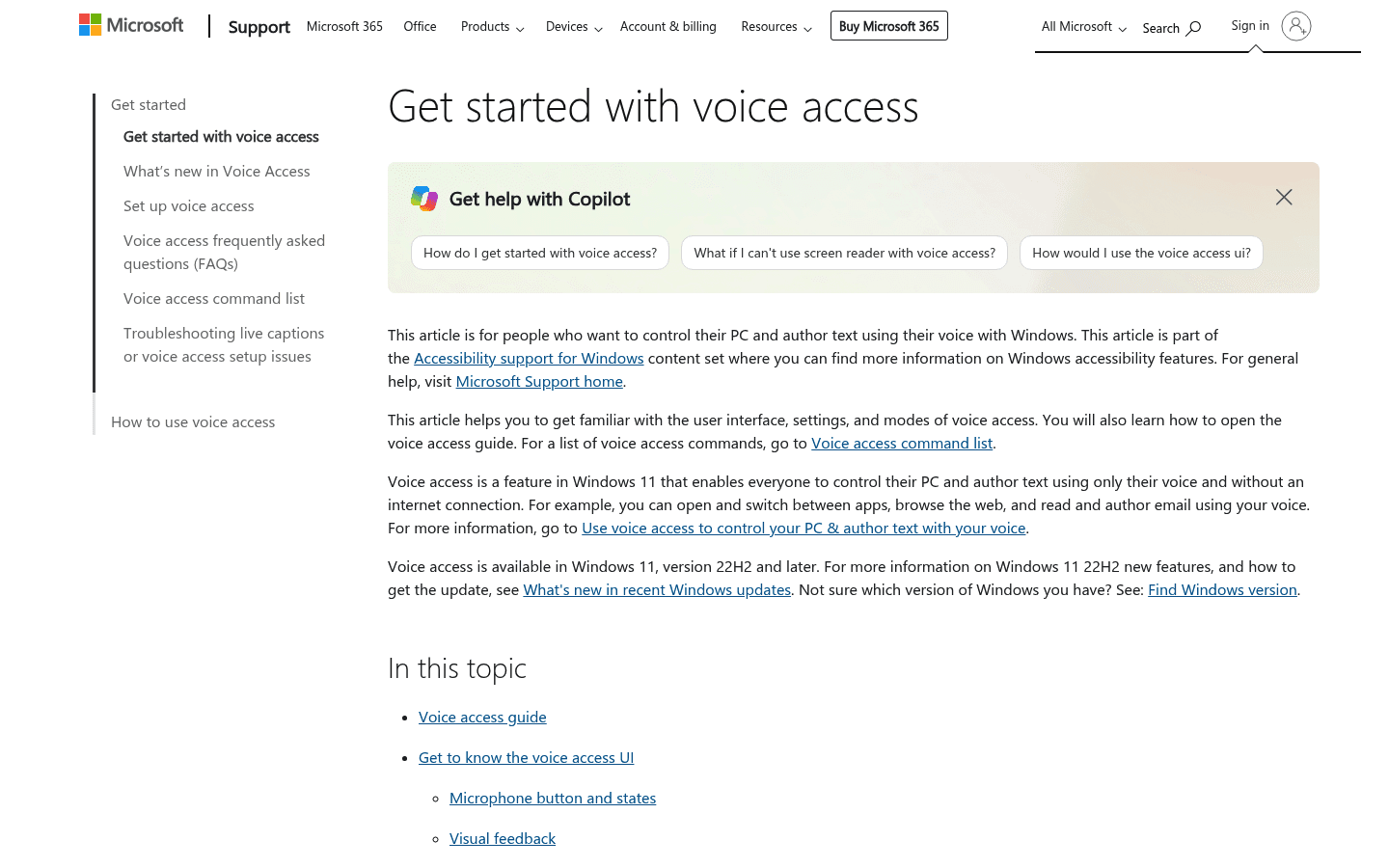
Windows Voice Access combines free dictation with basic PC control.
That makes it different from a simple microphone button. You can dictate text, use commands, and control parts of the computer by voice.
Best for: Windows users who want a free built-in dictation and accessibility tool.
Key features:
Included with Windows 11, version 22H2 and later
Can dictate text and control the PC
Supports voice commands
Works without buying another app
Biggest downside: It is strongest if you are already on a recent Windows 11 setup. It also will not give you the same AI cleanup, file upload transcription, or cross-device workflow as a paid app.
Pricing: Included with Windows 11.
Short verdict: Try Windows Voice Access first if you are price-sensitive. Use a dedicated Windows speech-to-text app if dictation becomes part of your daily workflow.
4. Google Docs voice typing: best free tool for writing in Google Docs
Google Docs voice typing is one of the best free dictation tools if most of your writing happens in Google Docs. Google says voice typing works in Docs and in speaker notes and captions in Slides.
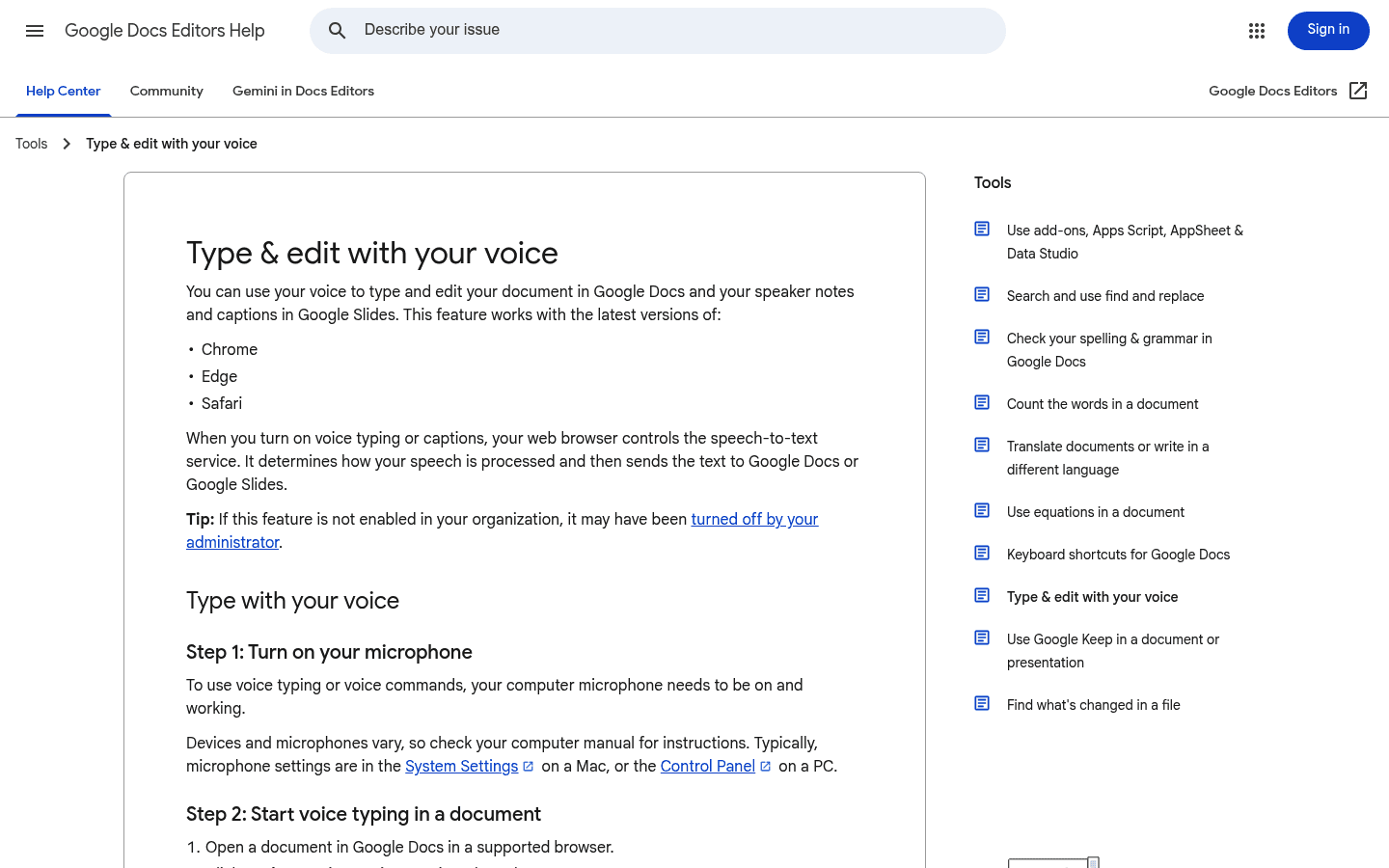
Google Docs voice typing is best when Docs is already your main writing app.
It is simple: open a document, choose Tools, then Voice typing. You speak, and your browser controls the speech-to-text service that sends text into the document.
Best for: students, teachers, writers, and teams who already draft in Google Docs.
Key features:
Free inside Google Docs
Works in supported browsers such as Chrome, Edge, and Safari
Supports punctuation commands in some languages
Useful for fast first drafts
Biggest downside: It is tied to Google Docs and Slides. If you want to dictate into email, notes, AI chat, forms, desktop apps, or file uploads, you will likely want a broader tool.
Pricing: Included with Google Docs.
Short verdict: Pick Google Docs voice typing if Docs is your main writing home. Read our speech-to-text for Google Docs guide if you want a broader setup.
5. Gboard voice typing: best free mobile dictation tool for Android
Gboard voice typing is the best affordable pick for Android users who want to talk instead of type on their phone. Google says you can use it in many places where you can type with a keyboard.
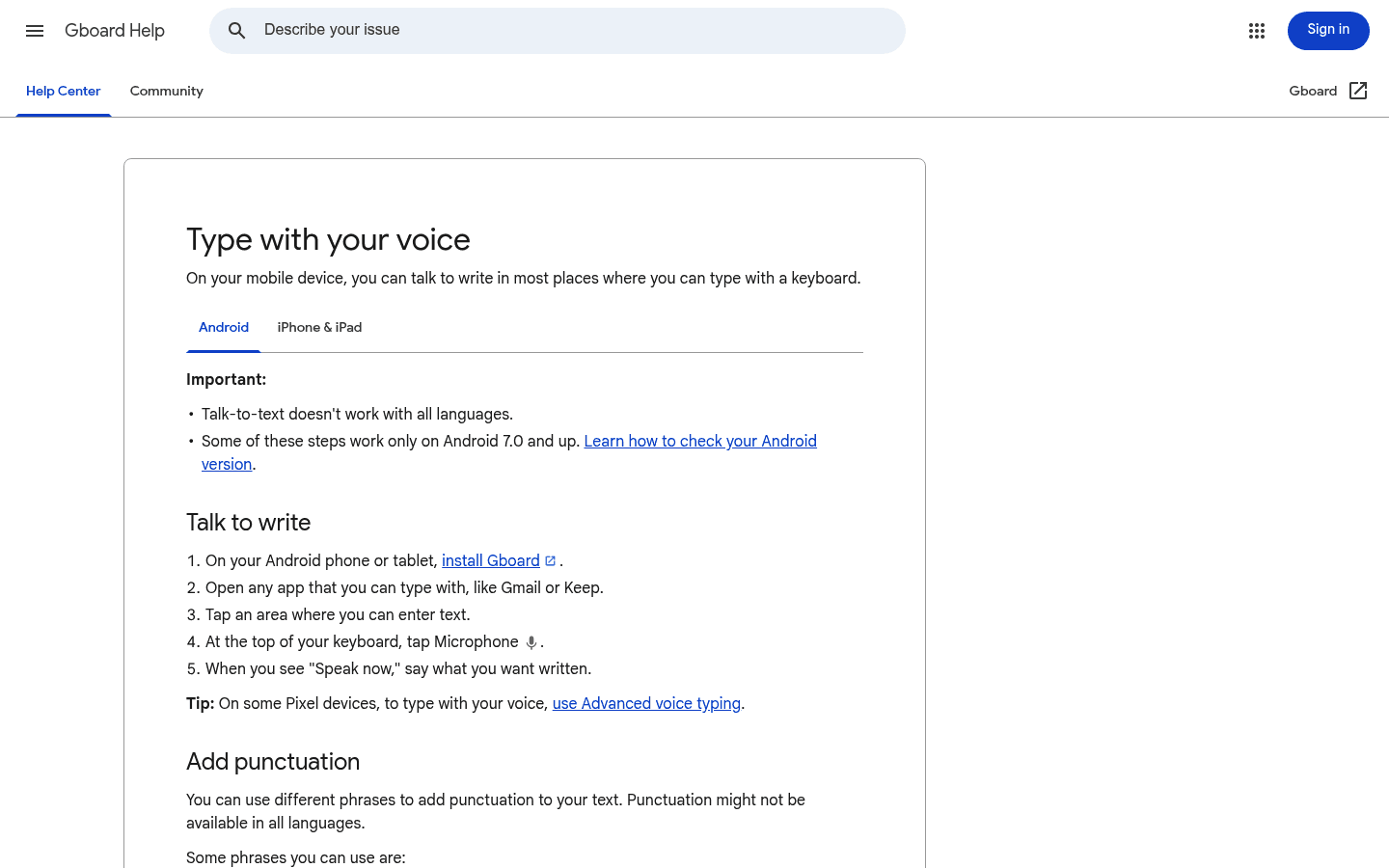
Gboard voice typing is the free mobile pick for Android writing.
It is good for text messages, notes, quick replies, and mobile drafts. Tap the microphone on Gboard, speak, and the words appear in the current app.
Best for: Android users who want free dictation inside mobile apps.
Key features:
Works in many Android text fields
Uses the keyboard microphone button
Supports punctuation phrases such as period, comma, and new paragraph
Costs nothing to try
Biggest downside: Gboard is a mobile keyboard feature, not a full dictation workspace. It is not ideal for long desktop writing, file transcription, or managing transcripts later.
Pricing: Free with Gboard.
Short verdict: Use Gboard for free Android voice typing. Use Voicy if you want the same voice workflow across phone, desktop, browser, and uploaded recordings.
6. Speechnotes: best free online dictation notepad
Speechnotes is a useful affordable dictation tool if you want a free online notepad for voice typing. Its site positions the product around free voice notes, online dictation, and automatic transcription for audio and video recordings.
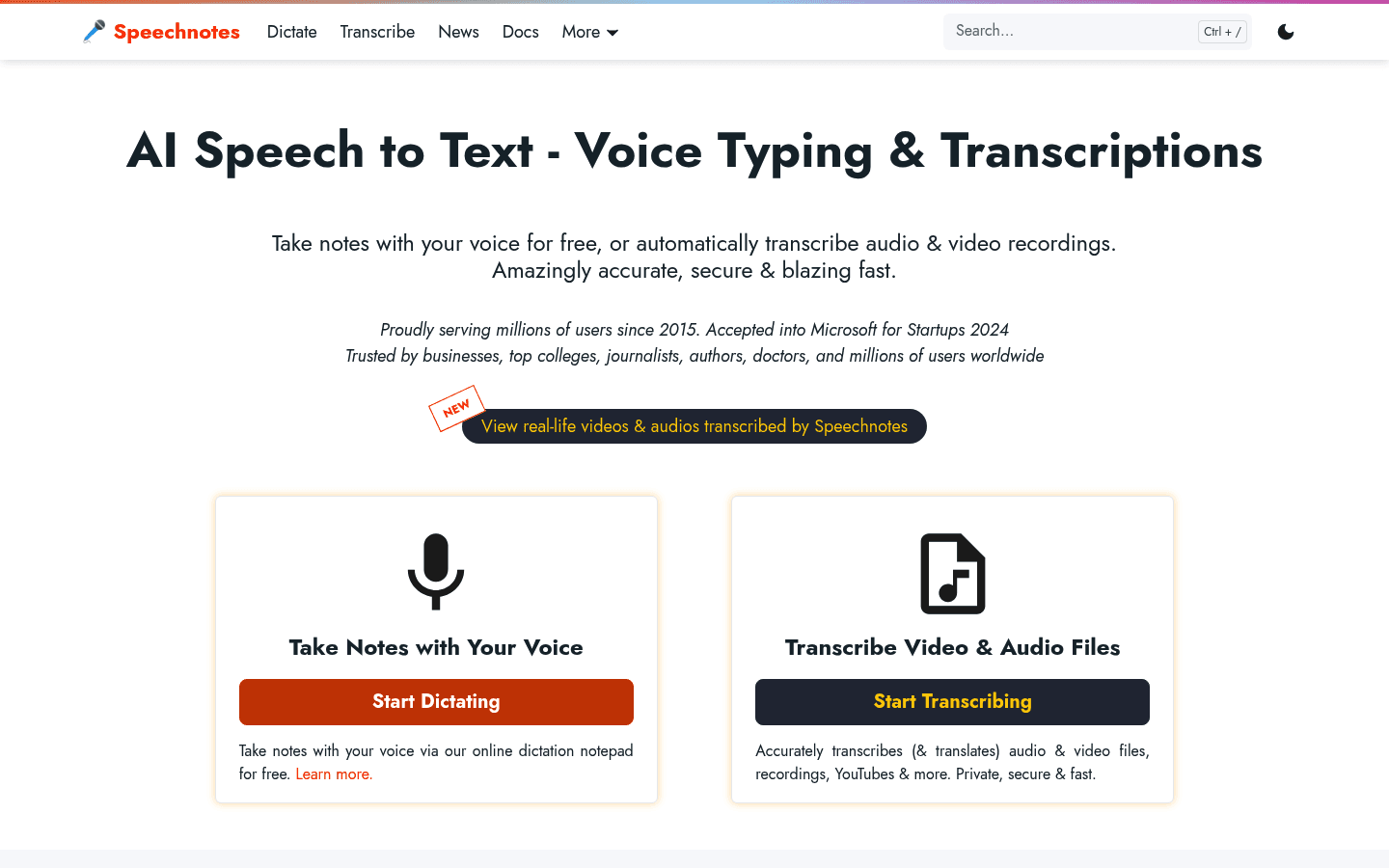
Speechnotes is useful when you want a free web notepad for dictation.
The main appeal is that it is easy to start. You open the notepad, speak, and edit the text in the browser.
Best for: people who want a quick, free browser notepad for voice notes.
Key features:
Free online dictation notepad
Browser-based voice typing
Voice commands for punctuation and formatting
Separate transcription tools for uploaded audio and video
Biggest downside: Speechnotes is less natural if you want dictation directly inside every app you use. It can feel more like a separate writing pad than a full daily speech-to-text layer.
Pricing: Free dictation notepad, with separate paid or premium options depending on product and usage.
Short verdict: Choose Speechnotes if you want a free web dictation pad. Choose Voicy or Wispr Flow if you want cross-app dictation.
7. Wispr Flow: best polished option if your budget can stretch
Wispr Flow is not the cheapest dictation tool on this list, but it is still worth comparing if you want a modern AI dictation app. Its pricing page lists a free tier and Pro pricing at $15/user/month or $12/user/month billed yearly.
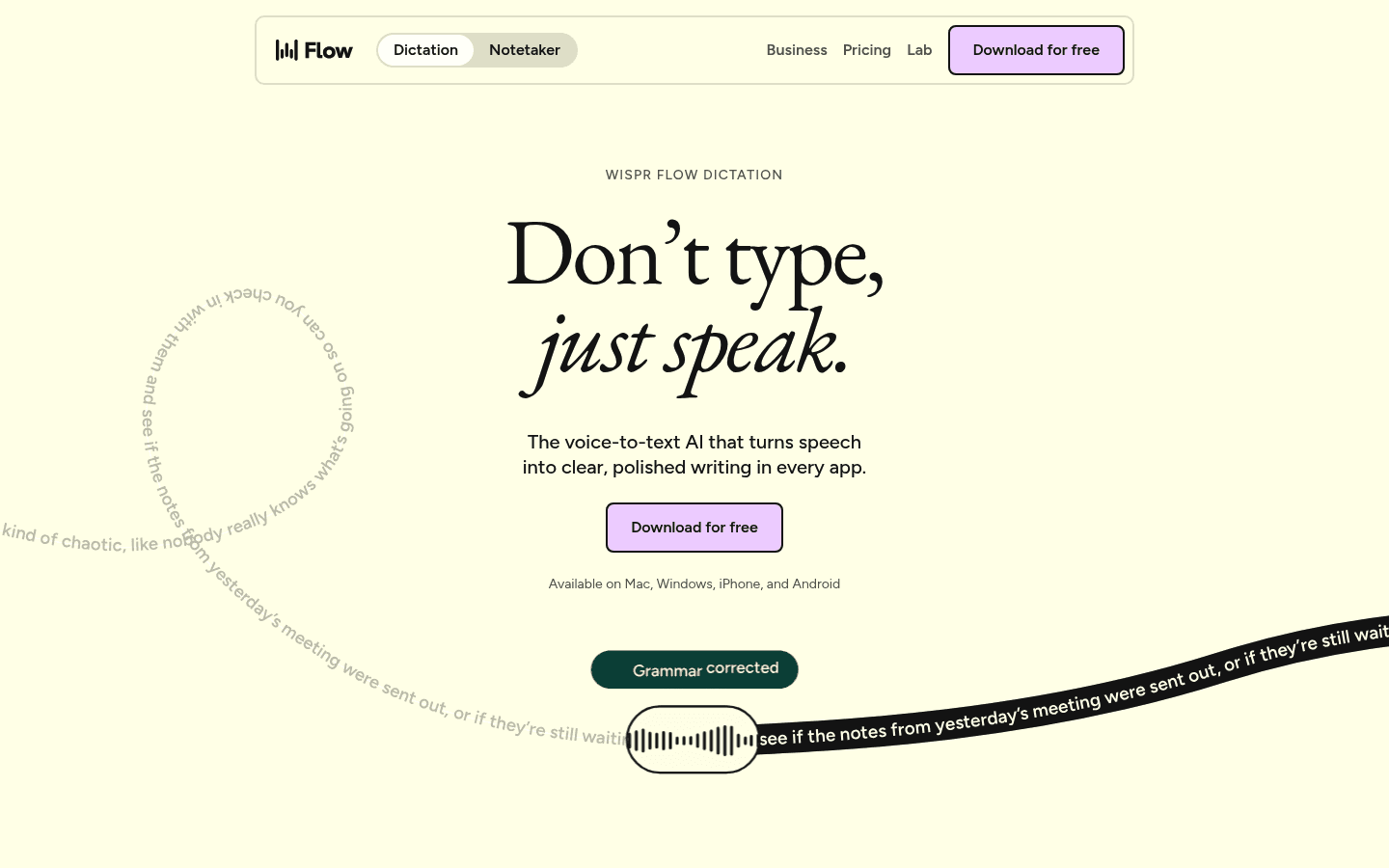
Wispr Flow is a polished option, but it costs more than the cheapest paid tools.
Wispr Flow makes sense if you like its writing experience and want native apps on Mac, Windows, iOS, and Android. It is less compelling if you are shopping mainly by lowest monthly price.
Best for: people who want polished AI dictation and are comfortable paying more for it.
Key features:
Mac, Windows, iOS, and Android support
Free tier with weekly word limits
Unlimited dictation on Pro
Team and enterprise options
Biggest downside: Pro costs more than Voicy's monthly plan, and not every buyer needs the extra team path.
Pricing: Free tier, Pro at $15/user/month or $12/user/month billed yearly, with higher team plans.
Short verdict: Try Wispr Flow if you want a polished AI dictation layer and budget is flexible. Choose Voicy if you want a lower monthly price plus live dictation and file upload transcription in one app.
What about Otter and Dragon?
Otter.ai and Dragon Professional are worth knowing, but they are not the cleanest fit for a list of affordable daily dictation tools.
Otter is mostly a meeting transcription and notes product. Its free plan can be useful if you want meeting notes, but it is not the same as a tool that types into every app as you speak.
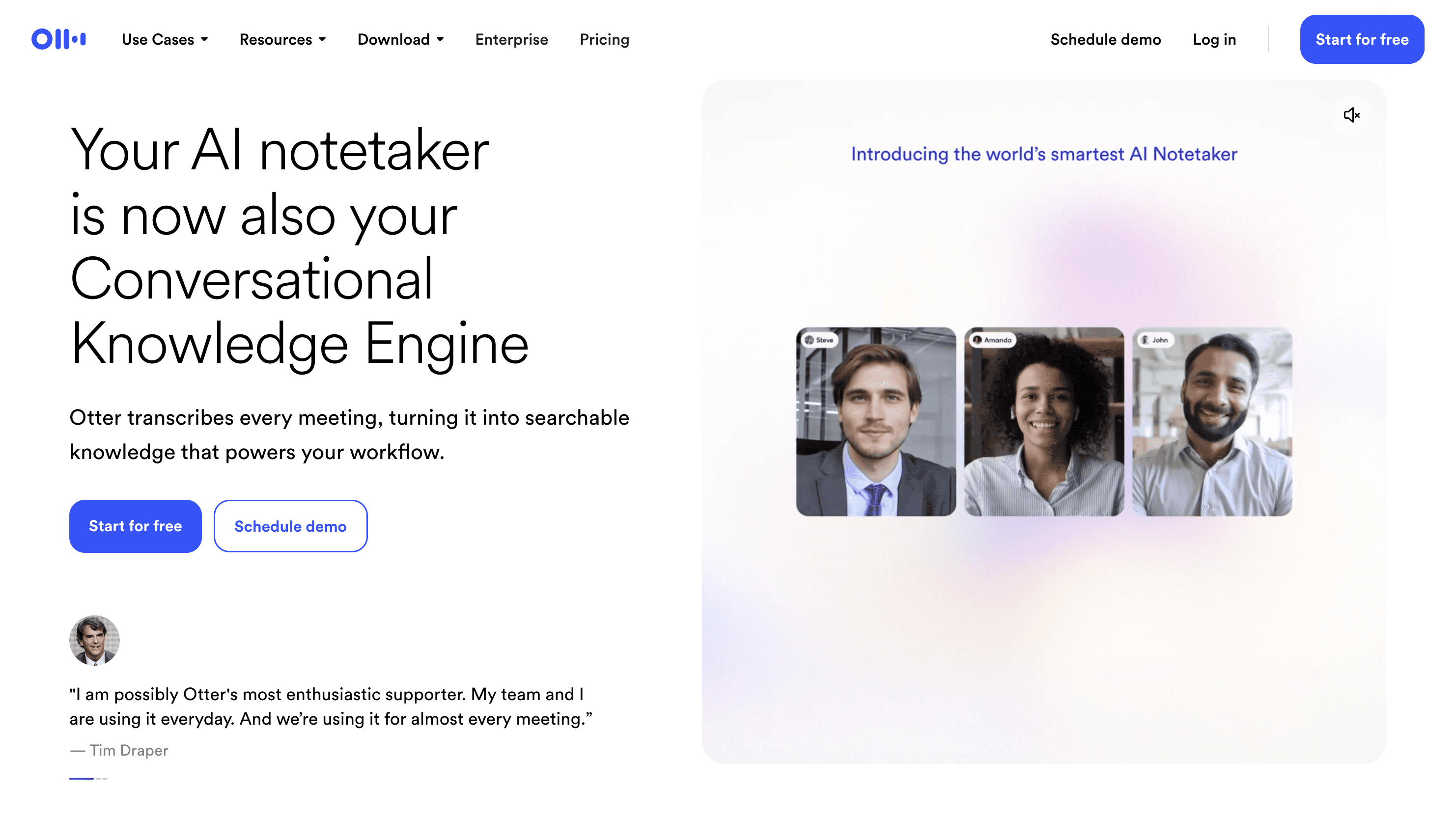
Otter is useful for meeting transcription, but it is not mainly a daily dictation app.
Dragon is a specialist speech recognition product. It can be the right tool for legal, medical, or command-heavy Windows workflows, but it is usually overkill if you just want affordable everyday voice typing.
How to choose the best affordable dictation tool
Start with where you write most. If you only need short notes on one device, use the built-in free option first.
If you write across many apps, compare tools by workflow instead of sticker price. Ask these questions:
Does it work in the apps where I actually write?
Does it support my devices?
Does it handle punctuation and formatting well enough?
Can it transcribe uploaded audio files if I need that?
Is cloud processing acceptable for my work?
Will it save enough time to justify the monthly cost?
For occasional use, free wins. For daily writing, a paid dictation software plan can be the more affordable choice because it saves time every day.
Affordable dictation tools FAQ
What is the best affordable dictation tool?
The best affordable dictation tool for most daily writers is Voicy because it combines live dictation, uploaded-file transcription, and cross-platform support at $8.49/month after the free trial. If you only need short notes, start with Apple Dictation, Windows Voice Access, Google Docs voice typing, or Gboard.
What is the best free dictation tool?
The best free dictation tool depends on your device. Use Apple Dictation on Mac and iPhone, Windows Voice Access on Windows 11, Google Docs voice typing inside Docs, and Gboard voice typing on Android.
Is Voicy free?
Voicy has a free trial, but it is not fully free. After the trial, Voicy costs $8.49/month, $82/year, or $260 lifetime.
Is paid dictation software worth it?
Paid dictation software is worth it if you write often and want fewer workarounds. A paid tool can be better value than a free tool if it saves time on emails, reports, documents, notes, and file transcription.
What is the cheapest dictation app?
The cheapest dictation tools are the free ones already built into your device or browser. Apple Dictation, Windows Voice Access, Google Docs voice typing, Gboard, and Speechnotes are all good places to start before paying for a dedicated app.
Which affordable dictation tool works across apps?
Voicy and Wispr Flow are better fits for cross-app dictation than Google Docs voice typing or Speechnotes. Voicy is the lower-cost paid option in this comparison, while Wispr Flow has a free tier and a higher Pro price.
Can affordable dictation tools transcribe audio files?
Some can, but not all. Voicy supports uploaded-file transcription as well as live dictation. Speechnotes also offers audio and video transcription tools. Apple Dictation, Windows Voice Access, Google Docs voice typing, and Gboard are mainly for live voice typing.
What is the best affordable dictation tool for students?
Students should start with Google Docs voice typing, Apple Dictation, Windows Voice Access, or Gboard because they are free. If students need one tool across laptop, browser, phone, and uploaded recordings, Voicy is a stronger paid option to test.
Final recommendation
If you are trying dictation for the first time, start free. Use the tool built into your device or the app where you already write.
If dictation becomes part of your daily work, choose a tool that saves more time than it costs. Voicy is the best affordable paid choice here because it works across common devices, supports live dictation and file transcription, and keeps pricing simple after the free trial.


