
Key Takeaways
Voice prompting means speaking your AI prompt instead of typing it. For most work, the best setup is not a full voice chat. It is voice-to-text in the prompt box, so you can review, edit, and reuse the prompt before you send it.
Best for ChatGPT: use built-in voice for back-and-forth conversations, or use dictation when you need a clean text prompt.
Best for Claude: use voice mode for spoken thinking, and dictation for long briefs, code reviews, docs, or prompts you want to refine.
Best for Gemini: use Gemini Live for natural conversation, and dictation when you want a prompt in Gemini, Gmail, Google Docs, or another text field.
Best cross-tool workflow: use Voicy when you want one voice input habit across ChatGPT, Claude, Gemini, email, docs, and browser apps.
Short answer
The simplest voice prompting workflow is: click into an AI prompt box, speak your prompt with a dictation tool, skim the text, then send it. Built-in voice modes are better for live conversation. Dictation is better when the prompt needs context, constraints, examples, or a format you want to edit before sending.
If you use more than one AI tool, a system-wide voice input tool like Voicy is usually easier than learning a different microphone button in every app.
What is voice prompting?
Voice prompting is using speech to create prompts for AI tools. Instead of typing "write a project update," you can say the full brief: who the update is for, what changed, what tone you want, and what the final answer should look like.
That extra context is the real win. Most weak AI answers come from thin prompts. Speaking makes it easier to give the model the detail you already have in your head.
There are two common ways to do it:
Voice mode: you speak and the AI speaks back. This is good for brainstorming, coaching, and hands-free questions.
Voice dictation: your speech becomes text in the prompt box. This is better for serious prompt work because you can edit before sending.
Voice prompting vs voice mode
Voice mode is a conversation. Voice prompting with dictation is an input method. The difference sounds small, but it changes the whole workflow.
Workflow | Best for | Main limit |
|---|---|---|
Built-in voice mode | Quick questions, brainstorming, spoken back-and-forth | Harder to edit a long prompt before the model answers |
Built-in dictation button | Speaking a text prompt inside one AI app | Usually works only inside that app |
System-wide dictation | Using one voice workflow across AI tools, docs, email, and forms | You still need to skim for names and technical terms |
The practical rule: use voice mode when you want to talk with the AI. Use dictation when you want to write a better prompt.
How to use voice prompting in ChatGPT
ChatGPT is the easiest place to start because it supports both voice conversation and text prompts. OpenAI's ChatGPT voice help page describes voice as a live conversation, while ChatGPT dictation is for recording a prompt, reviewing the transcription, and sending it as text.
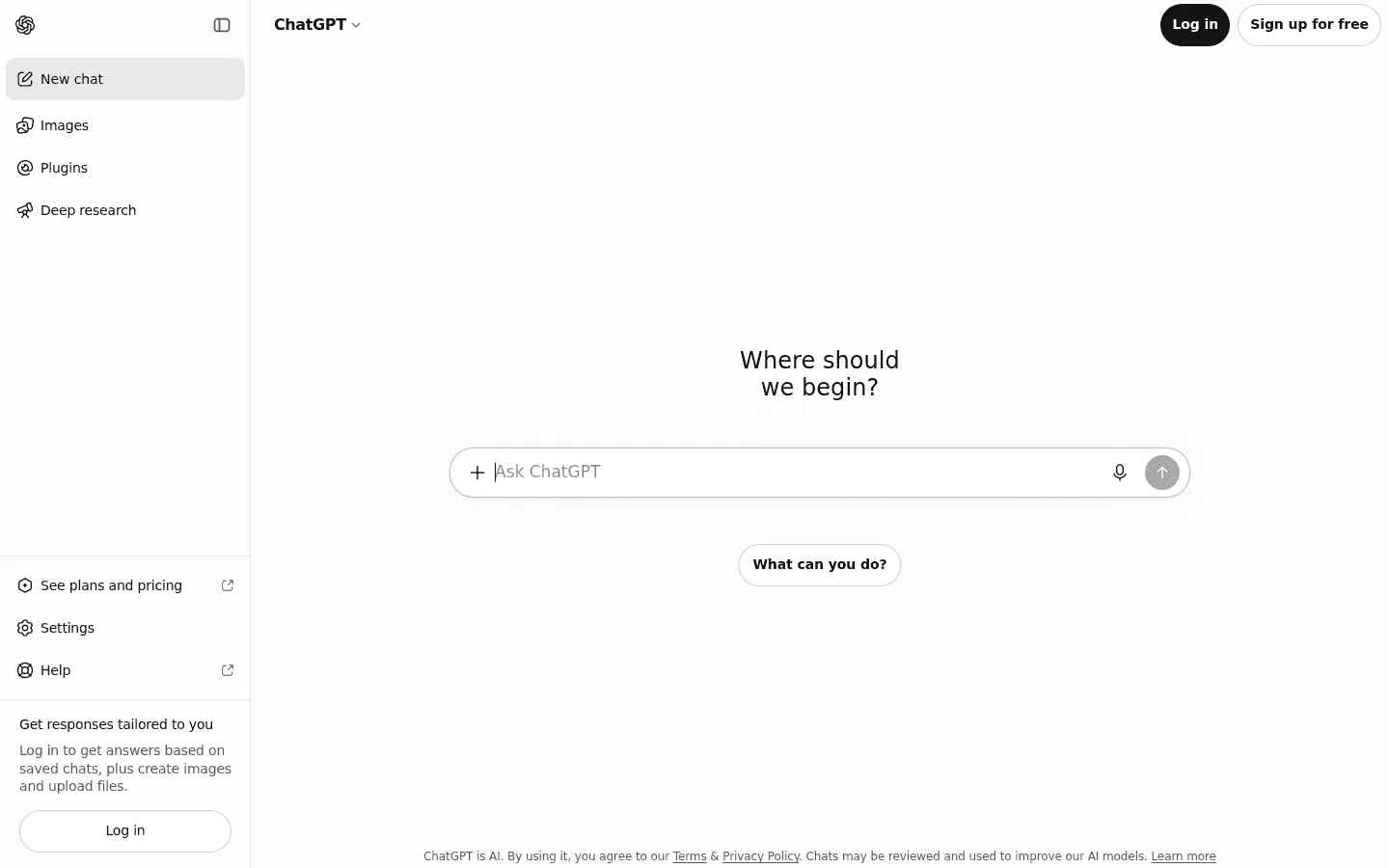
ChatGPT works well for both spoken conversation and dictated text prompts.
Use this workflow for better ChatGPT prompts:
Click into the ChatGPT message box.
Speak the full brief with your mic or a tool like Voicy.
Check the transcript for names, numbers, and app terms.
Add a final instruction such as "give me three options" or "return this as a table."
Send the prompt.
For a more focused walkthrough, read our guide to speech to text in ChatGPT.
How to use voice prompting in Claude
Claude is strong for long, careful prompts: writing briefs, product analysis, code review, research notes, and documents with a lot of context. Claude's voice mode help page also separates voice mode from dictation: dictation turns speech into text, while voice mode is a full two-way spoken conversation.
Claude is a good fit for long dictated briefs that need structure and nuance.
A good spoken Claude prompt often sounds like this:
I am writing a product update for a small SaaS team. The audience is the founder and two engineers. We shipped the browser extension, but onboarding still has two confusing steps. Keep the tone honest, not dramatic. Give me a 250-word update with three bullets for risks.
That prompt is a pain to type. It is easy to say. If Claude misunderstands one word, you can fix the text before sending it.
For Claude-specific setup ideas, see our page on speech to text in Claude.
How to use voice prompting in Gemini
Gemini is useful when your work already lives around Google Workspace. Gemini Live is good for voice conversation, and regular dictated prompts are better when you want the result in text, especially around drafts, notes, and Workspace work.
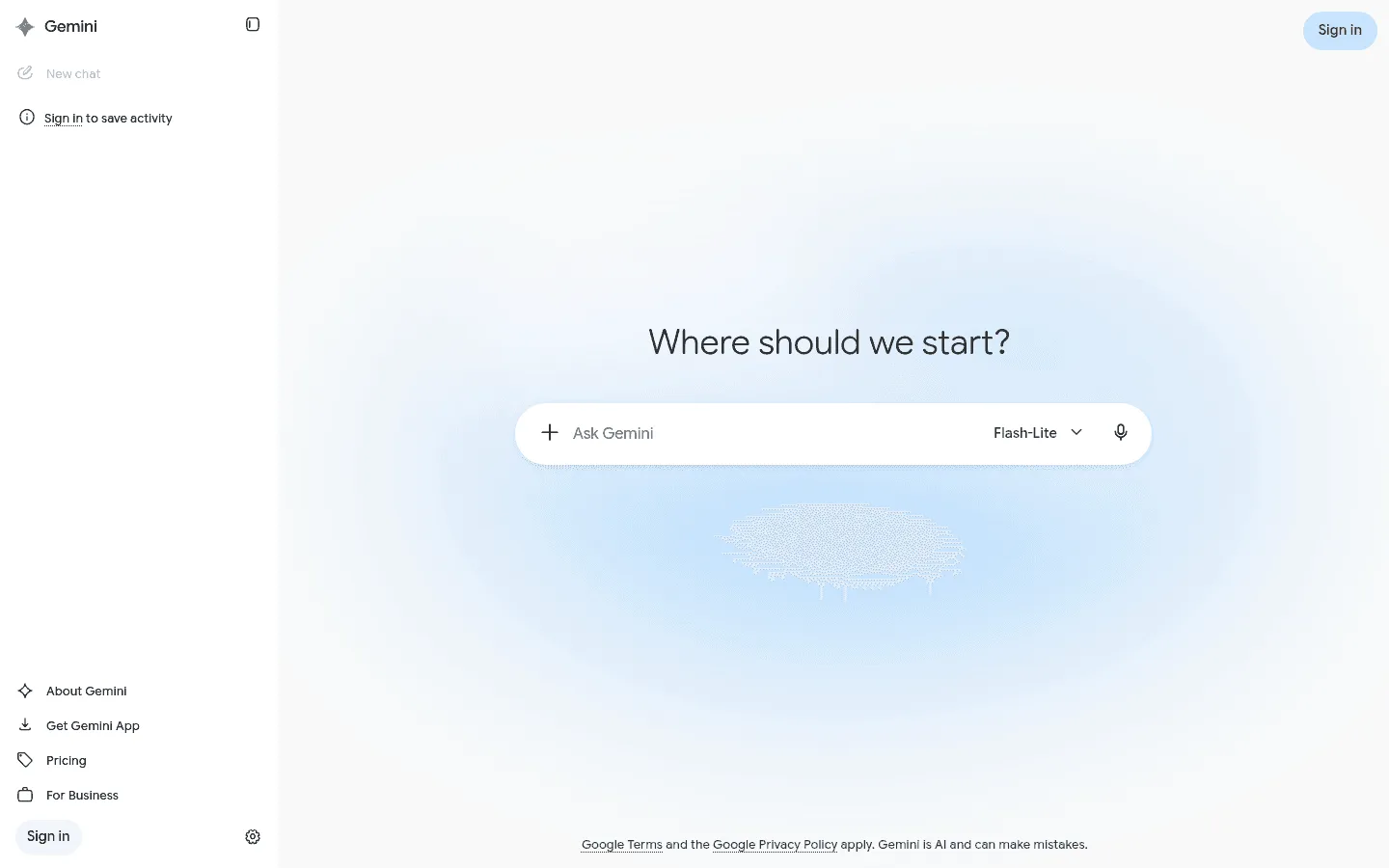
Gemini's prompt box makes voice input useful for quick spoken briefs.
Try this Gemini workflow:
Open Gemini or the app where you want to work.
Dictate the prompt instead of typing a short command.
Include the source, audience, and output format.
Use the same spoken brief again in Google Docs or Gmail if you need to turn the result into real work.
If you mainly write inside Google Docs, this guide to speech to text in Google Docs will be more useful than a pure AI chat workflow.
ChatGPT vs Claude vs Gemini for voice prompting
The best tool depends on what you want after you speak. The voice input step is only half of the job. The model still needs to match the task.
Tool | Best voice prompting use | Watch out for |
|---|---|---|
ChatGPT | Fast drafts, brainstorming, general answers, broad assistant work | Short spoken prompts can still produce generic answers |
Claude | Long briefs, careful writing, analysis, code review, dense context | Very long spoken prompts still need a quick skim before sending |
Gemini | Google-heavy workflows, quick research, Workspace-style drafting | Voice conversation is not the same as editable prompt drafting |
My take: the winning habit is not picking one AI app forever. It is building a voice prompting workflow that works wherever your cursor is.
Where Voicy fits
Voicy is useful when you want voice input across AI tools, not only inside one chat app. It works on Mac, Windows, Browser Extension, iOS, and Android, with live dictation and file upload transcription.
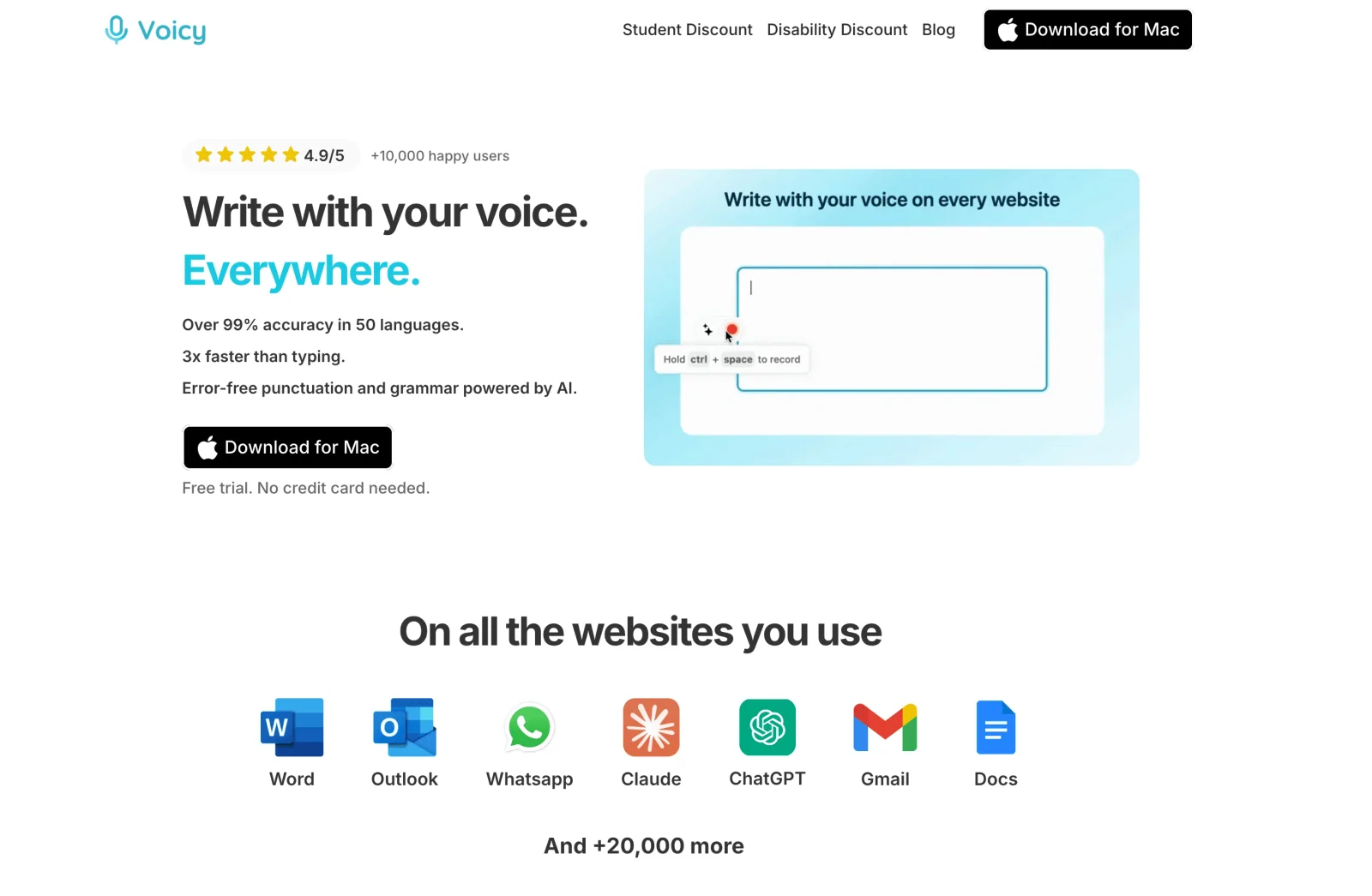
Voicy gives you one voice input workflow across AI tools and everyday writing apps.
That matters because AI prompting rarely stays inside one tab. You might dictate a prompt into ChatGPT, ask Claude to rewrite the result, paste the final answer into an email, then add a note in your CRM. A browser-only mic button does not cover that whole path.
Voicy uses cloud transcription by default and also offers an offline dictation mode in its Mac, Windows, and Linux apps. It has a free trial, but it is not fully free. Paid plans are $8.49/month, $82/year, or $260 lifetime.
For a broader overview, read our voice typing app guide or the Voicy browser extension page.
A simple prompt formula to speak out loud
Do not try to sound polished when you dictate a prompt. Speak like you are briefing a smart coworker.
Use this structure:
Task: what you want the AI to do.
Context: who this is for, what happened, and what matters.
Constraints: length, tone, format, sources, or things to avoid.
Output: the exact format you want back.
Summarize this customer call for our product team. The customer is a sales manager at a 40-person company. They like the product but hate the setup step. Keep it under 180 words. Include three bullets: pain, quote, next action.
That is a much better prompt than "summarize this call." It takes maybe 20 seconds to say.
For product briefs and requirements, compare voice-to-text apps for product managers. For coding prompts, bug reports, and technical docs, see our dictation software guide for developers.
Common voice prompting mistakes
Most mistakes are small, but they compound fast.
Sending too fast: skim the transcript before pressing Enter.
Skipping names: check company names, people, numbers, and product terms.
Using voice mode for everything: spoken chat is great, but long prompts usually need editable text.
Giving no output format: say whether you want bullets, a table, a draft, a checklist, or options.
Talking too quietly: a clear, close mic beats fancy prompt wording.
FAQ
What is the best voice prompting workflow?
For most people, the best workflow is dictation into the AI prompt box. Speak the full prompt, review the text, edit mistakes, then send it. Use live voice mode when you want a spoken conversation instead.
Is voice prompting the same as prompt engineering?
No. Prompt engineering is how you structure instructions for an AI model. Voice prompting is how you enter those instructions by speaking. They work well together because speaking makes it easier to include more context.
Can I use one voice tool for ChatGPT, Claude, and Gemini?
Yes. A system-wide dictation tool can type into any prompt box, so it works across ChatGPT, Claude, Gemini, email, docs, forms, and other apps with text fields.
Is built-in AI voice mode enough?
It depends. Built-in voice mode is enough for quick spoken chats. It is weaker for prompts you want to edit, reuse, paste elsewhere, or compare across several AI tools.
Does Voicy work for AI prompting?
Yes. Voicy works as voice input for AI prompt boxes and regular writing fields. It supports Mac, Windows, Browser Extension, iOS, Android, live dictation, and file upload transcription.
Final take
Voice prompting works because good prompts are usually closer to spoken briefs than typed commands. You already know how to explain the situation out loud. The trick is getting that explanation into the prompt box without turning it into a typing chore.
Start with one AI tool today. Dictate a full prompt into ChatGPT, Claude, or Gemini, then compare the answer to what you get from a short typed prompt. Once that clicks, use a cross-app tool like Voicy so the habit follows you into the rest of your work.