




🎤 Built-in dictation: Press Windows+H or use the mic button in PowerPoint 365
⚡ 3x faster: Speak at 150 words per minute vs typing at 40 words per minute
🔧 Requires internet: Microsoft's dictation needs a web connection to work
🎯 Best for slides: Great for titles, bullet points, and speaker notes
💡 Voicy advantage: Works offline, 50+ languages, AI-powered punctuation
🔗 Works everywhere: Chrome extension works in PowerPoint Online and Google Slides
🚀 Start free: Test Voicy with a free trial before committing
Creating PowerPoint presentations takes hours of typing. But what if you could dictate in PowerPoint instead? Voice typing lets you create slides 3 times faster than traditional typing.
This guide shows you exactly how to use speech to text PowerPoint features - both Microsoft's built-in tools and better alternatives like Voicy that work offline with superior accuracy.
What Is Voice Typing in PowerPoint?
Voice typing in PowerPoint converts your spoken words into text on your slides. Instead of typing bullet points, titles, and speaker notes, you simply talk and watch the words appear.
Here's why it matters:
Speed: People speak 150 words per minute but only type 40
Comfort: No more sore wrists from long typing sessions
Flow: Keep your thoughts flowing without stopping to type
Accessibility: Perfect for people with typing difficulties
PowerPoint offers built-in dictation, but tools like Voicy provide better accuracy, offline capability, and work across all presentation platforms.
Method 1: Using PowerPoint's Built-In Dictation (Office 365)
Microsoft PowerPoint 365 includes a basic dictation feature. Here's how to use it:
Step 1: Check Your Setup
Make sure you have PowerPoint 365 (not 2016 or 2019)
Connect to the internet (required for Microsoft's speech recognition)
Test your microphone
Sign into your Microsoft account
Step 2: Start Dictating
Open PowerPoint and create a new slide
Click in a text box where you want to add content
Go to the Home tab
Click the Dictate button (microphone icon) on the right side
Wait for the button to turn red - this means it's listening
Start speaking your content clearly
Step 3: Add Punctuation by Voice
Say these words to add punctuation:
"Period" for .
"Comma" for ,
"Question mark" for ?
"New line" to start a new line
"New paragraph" to start a new paragraph
Step 4: Stop and Edit
Click the microphone button again to stop dictating
Use your keyboard to fix any mistakes
Move to different text boxes and repeat
Method 2: Using Windows Speech Recognition (Older PowerPoint Versions)
If you have PowerPoint 2016 or 2019, use Windows Speech Recognition instead:
Step 1: Enable Windows Speech Recognition
Press Windows key + I to open Settings
Go to Privacy > Speech
Turn on "Online speech recognition"
Step 2: Start Dictating
Open PowerPoint and click in a text box
Press Windows key + H
A small dictation window appears at the top of your screen
Start speaking when you see the blue microphone
Click anywhere to stop dictating
Method 3: Using Voicy for Superior PowerPoint Dictation
While Microsoft's built-in dictation works, Voicy offers several key advantages:
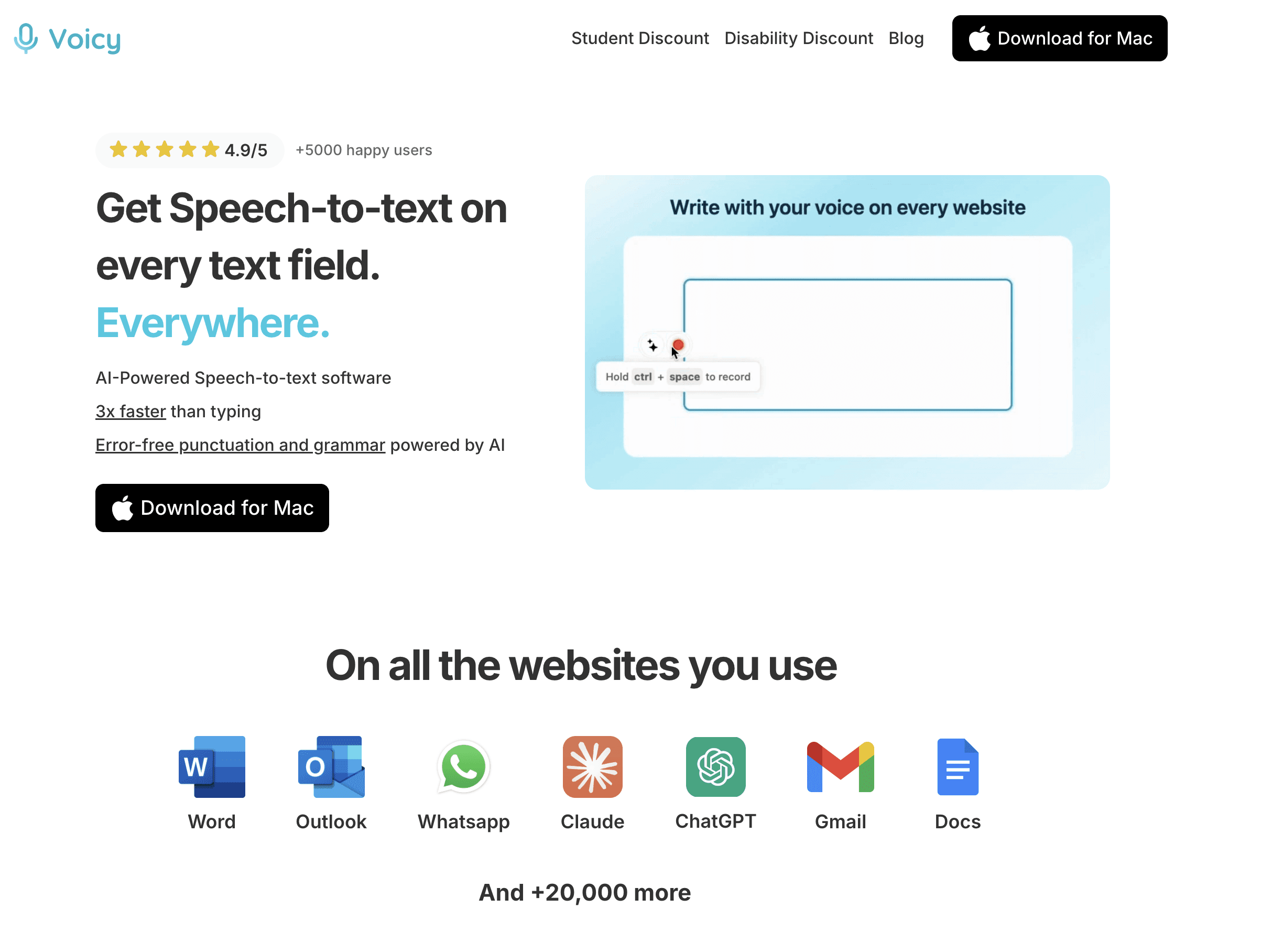
Why Choose Voicy Over Built-In Dictation?
Feature | Microsoft Dictation | Voicy |
|---|---|---|
Internet Required | Yes (always) | No (works offline) |
Languages | 15 main languages | 50+ languages |
Punctuation | Manual ("period", "comma") | Automatic AI punctuation |
Accuracy | Good (93%) | Excellent (99%+) |
Works in PowerPoint Online | Yes | Yes (via Chrome extension) |
Works in Google Slides | No | Yes |
Custom Commands | Limited | AI-powered shortcuts |
How to Use Voicy with PowerPoint
Voicy works with PowerPoint in two ways:
Option 1: Desktop App (Windows/Mac)
Download Voicy and start your free trial
Open PowerPoint and click in any text box
Press Voicy's hotkey (customizable)
Speak your content naturally - no need to say punctuation
Watch as text appears with perfect punctuation automatically
Option 2: Chrome Extension (PowerPoint Online)
Install the Voicy Chrome extension
Open PowerPoint Online or Google Slides
Click the Voicy icon in your browser
Start dictating - works in any text field
Best Practices for PowerPoint Voice Typing
Environment Setup
Quiet room: Background noise hurts accuracy
Good microphone: Built-in laptop mics work but headsets are better
Stable internet: For Microsoft's dictation (Voicy works offline)
Clear speech: Speak at normal pace, don't rush
Content Strategy
Outline first: Know what you want to say before dictating
One section at a time: Don't try to dictate an entire slide at once
Speaker notes: Dictate your full talking points in the notes section
Edit after: Fix any errors after you finish dictating
PowerPoint-Specific Tips
Slide titles: Keep them short and punchy
Bullet points: Dictate one point at a time
Speaker notes: Perfect for longer dictated content
Text boxes: Click in each box before starting dictation
PowerPoint Voice Typing for Different Use Cases
Business Presentations
Dictate quarterly reports quickly
Create client proposals in minutes
Build training materials efficiently
Draft board meeting presentations
Educational Content
Create lecture slides rapidly
Build student worksheets
Make training presentations
Develop course materials
Creative Projects
Storyboard presentations
Event planning slides
Marketing pitch decks
Project proposals
Voice Typing Beyond PowerPoint
Once you master PowerPoint dictation, expand to other Microsoft Office apps:
Voice typing in Microsoft Word: Write documents faster You can also use voice typing in Excel with the same techniques.
Dictating in Word: Complete guide for document creation
Voice typing in Excel: Fill spreadsheets and data by voice, hands-free
Outlook: Compose emails by voice
The Voicy Chrome extension also works in Google Workspace, Notion, and hundreds of other web apps.
Troubleshooting Common PowerPoint Dictation Issues
Dictate Button Missing or Grayed Out
Check your Office version: Only Office 365 has the built-in dictate button
Sign in: Make sure you're signed into your Microsoft account
Enable online services: Go to File > Options > General > Enable online services
Check document mode: Exit Read-Only mode if it's enabled
Poor Accuracy
Improve your microphone: Use a headset instead of built-in mic
Speak clearly: Enunciate words and speak at normal pace
Reduce background noise: Find a quieter location
Switch to Voicy: Get better accuracy with advanced AI
Internet Connection Issues
Check your connection: Microsoft dictation requires internet
Try Voicy offline: Works without internet connection
Use Windows Speech Recognition: Basic offline option for older Office versions
Frequently Asked Questions
Does PowerPoint dictation work on Mac?
Yes! PowerPoint 365 for Mac includes the same dictation feature. You can also use Voicy's Mac app for better accuracy and offline functionality.
Can I dictate in PowerPoint Online?
Absolutely. PowerPoint Online includes dictation if you have an Office 365 subscription. The Voicy Chrome extension also works perfectly in PowerPoint Online.
What languages support PowerPoint voice typing?
Microsoft's dictation supports 15 main languages plus 36 preview languages. Voicy supports 50+ languages with better accuracy.
Can I dictate formulas or special characters?
Yes, but you need to say them out loud ("equals sign", "dollar sign", etc.). Voicy's AI is smarter about context and adds punctuation automatically.
Does voice typing work for slide animations?
Voice typing only works for text content, not PowerPoint animations or slide transitions. You'll still need to set those up manually.
Can I use voice typing for speaker notes?
Yes! Click in the speaker notes section and start dictating. This is actually one of the best uses since speaker notes are usually longer text blocks.
How do I fix dictation mistakes quickly?
Use voice commands like "select that" and "delete selection", or simply use your keyboard to edit. Voicy also lets you say "undo that" to fix recent mistakes.
Can multiple people dictate on the same presentation?
Yes, but each person needs to set up dictation on their own device. PowerPoint's collaboration features work normally with dictated content.
Make PowerPoint Creation Effortless with Voice Typing
Dictating in PowerPoint transforms how you create presentations. Instead of hunting and pecking at keys, you speak naturally and watch your ideas flow onto slides.
Microsoft's built-in dictation works fine for basic needs, but Voicy takes it further with:
✅ Offline capability - work anywhere without internet
✅ Superior accuracy - 99%+ accuracy vs 93% for built-in tools
✅ Automatic punctuation - no more saying "comma" and "period"
✅ 50+ languages - including specialized dialects
✅ Works everywhere - PowerPoint, Google Slides, Word, and 100+ apps
✅ AI-powered commands - smart shortcuts for common tasks
Ready to create presentations 3x faster? Start your free Voicy trial today. No credit card required, cancel anytime. Available for $8.49/month, $82/year, or $260 lifetime.
Your future self will thank you for making the switch to voice-powered productivity.


