





Voice to Text Chrome Extension - Complete Setup Guide (2026)
Summary of the article
Voice to text Chrome extensions let you speak instead of type on any website. The best options are Voicy (99% accuracy, 50 languages) and Voice In (600K+ users). Install from Chrome Web Store, click extension icon, and start dictating emails in Gmail, documents in Google Docs, or messages in Slack. Most extensions work offline and respect your privacy by processing audio locally.
Tired of typing everything on your computer? Voice to text Chrome extensions are game-changers for anyone who wants to write faster, reduce typing strain, or simply work more efficiently.
Whether you're writing emails in Gmail, creating documents, or chatting on Slack, these speech to text Chrome extensions can triple your writing speed. Best part? They work right in your browser without any special software.
What is a Voice to Text Chrome Extension?
A chrome voice typing extension is a browser add-on that converts your spoken words into text. It uses your computer's microphone to listen to what you say and automatically types it out wherever your cursor is.
Think of it like having a personal assistant who types everything you dictate. Except it's free, works instantly, and doesn't judge your random 3 AM ideas.
Best Voice to Text Chrome Extensions (2026)
1. Voicy - AI-Powered Speech Recognition
Voicy's Chrome extension stands out with 99% accuracy across 50 languages. It uses advanced AI to understand context, add punctuation automatically, and even handle technical terms.
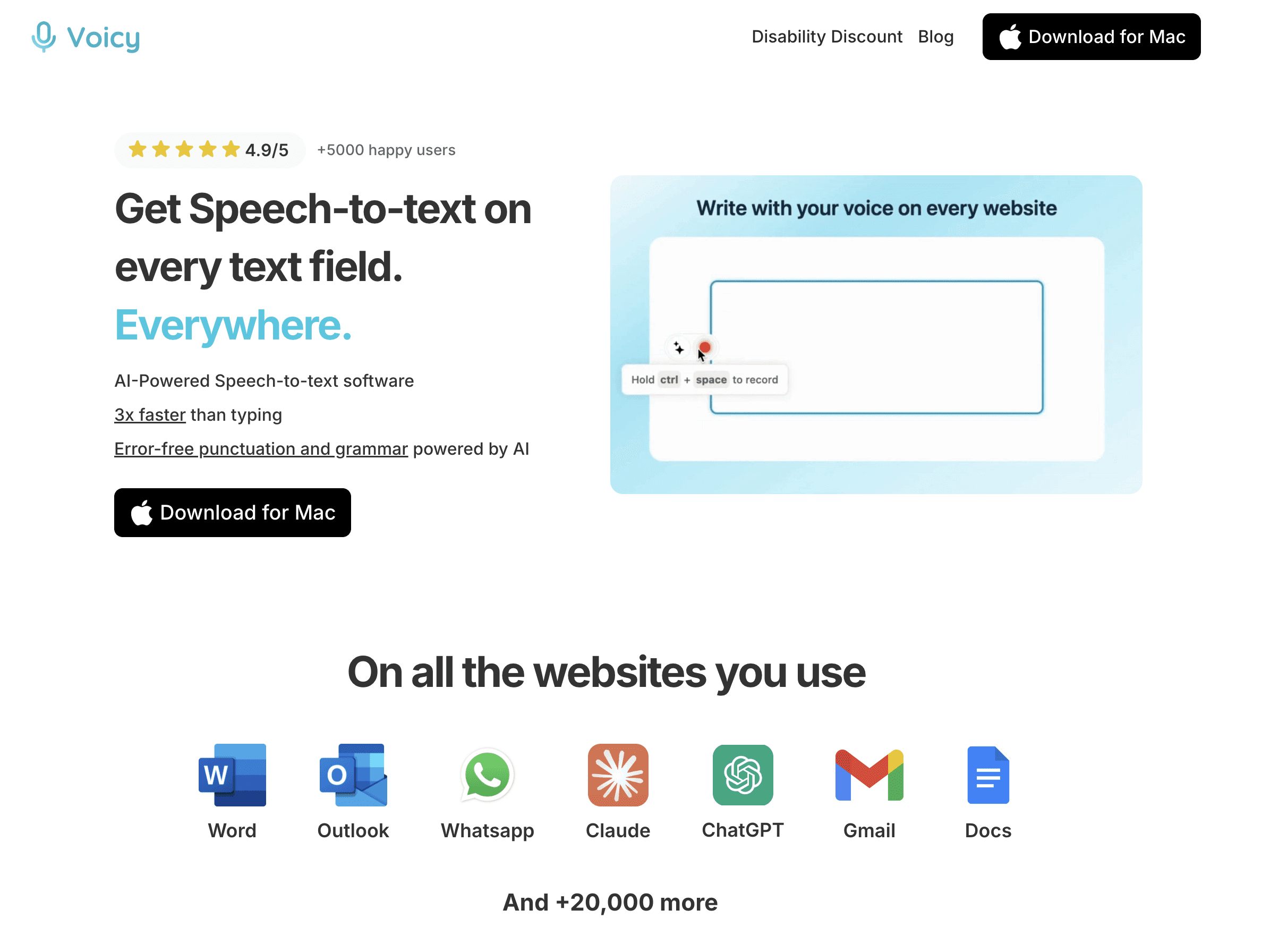
Why choose Voicy:
Works on every website with text fields
Supports 50+ languages including English, Spanish, French
Automatic punctuation and formatting
Privacy-focused (processes audio locally)
Free version available
2. Voice In - Most Popular Option
Voice In has over 600,000 users and works on 1000+ websites. It's reliable, well-supported, and offers both free and premium versions.
Voice In highlights:
Massive user base with great reviews
Custom voice commands (premium feature)
Works across multiple browser tabs
Multi-language support
Free trial available
3. Speech to Text (Voice Recognition)
This Chrome Web Store extension offers dual speech recognition engines for better accuracy. It's simpler than the others but gets the job done.
Key features:
HTML5 web speech API
Secondary recognition engine
Basic but functional interface
Free to use
How to Install Any Voice to Text Chrome Extension
The installation process is the same for all Chrome extensions. Here's the step-by-step guide:
Step 1: Open Chrome Web Store
Go to chrome.google.com/webstore in your browser. Make sure you're using Google Chrome, as these extensions don't work in other browsers.
Step 2: Search for Your Extension
Type "voice to text" or "speech to text" in the search bar. You'll see several options - pick the one you want to try.
Step 3: Add to Chrome
Click the "Add to Chrome" button next to your chosen extension. Chrome will ask for permission to access your microphone - click "Add Extension" to confirm.
Step 4: Find the Extension Icon
After installation, look for the new icon in your browser toolbar (usually at the top right). It might be hidden in the puzzle piece menu if you have many extensions.
Step 5: Pin for Easy Access
Right-click the extension icon and select "Pin" to keep it visible. This makes it easier to start dictating whenever you need it.
Setting Up Voicy Chrome Extension
Let me walk you through setting up Voicy specifically, since it's one of the most accurate options available.
Initial Setup
After installing Voicy, click the extension icon to open the setup screen. You'll need to:
Grant microphone access - Essential for voice recognition
Choose your language - Select from 50+ available options
Test your microphone - Speak a few words to ensure it's working
Adjust sensitivity - Fine-tune how the extension detects speech
Account Creation (Optional)
While Voicy works without an account, signing up gives you:
Sync settings across devices
Custom vocabulary for technical terms
Usage statistics and insights
Priority customer support
Using Voice to Text Chrome Extensions
Basic Voice Typing
Using any voice to text chrome extension follows the same pattern:
Click in a text field (email, document, search box, etc.)
Activate the extension (click icon or right-click menu)
Start speaking clearly into your microphone
Stop when finished (click stop or pause briefly)
The text appears instantly where your cursor was positioned. It's that simple!
Voice Commands and Punctuation
Modern extensions understand natural speech patterns. Try saying:
"period" or "full stop" for .
"comma" for ,
"question mark" for ?
"new line" for line breaks
"new paragraph" for paragraph breaks
Some extensions like Voice In Plus offer custom commands like "delete that" or "bold this text."
Platform-Specific Usage Guide
Gmail Voice Typing
Email is where voice typing shines. Here's how to use your speech to text Chrome extension in Gmail:
Open Gmail and click "Compose"
Click in the message body where you want to type
Start your extension and begin dictating
Speak naturally - "Hi Sarah, I hope you're doing well. I wanted to follow up on our meeting yesterday."
Add punctuation by saying it - "Best regards comma John"
Pro tip: Dictate your entire email, then go back and edit small details. It's much faster than typing everything from scratch.
Google Docs Voice Typing
Google Docs has built-in voice typing, but Chrome extensions often work better. Here's the comparison:
Using Chrome Extensions in Google Docs:
Often more accurate than Google's built-in feature
Works with other Google services simultaneously
Consistent experience across all websites
Custom voice commands (depending on extension)
Google's Built-in Voice Typing:
Only works in Google Docs
Requires Tools > Voice typing menu
Good for basic dictation
Free with Google account
For the best experience, try both and see which works better for your voice and accent.
Slack and Chat Applications
Voice typing works great for workplace chat apps like Slack, Discord, or Microsoft Teams:
Click in the message box
Activate your extension
Speak your message - "Hey team, the client meeting is moved to 3 PM today"
Review and send - Always double-check before hitting enter in group chats!
Quick messages become even quicker when you can just speak them instead of typing.
Advanced Tips and Tricks
Improve Accuracy
Your chrome voice typing extension gets more accurate with these tips:
Speak clearly - Don't rush or mumble. Pretend you're talking to someone slightly hard of hearing.
Use good hardware - A decent headset microphone beats your laptop's built-in mic every time.
Find quiet spaces - Background noise confuses speech recognition engines.
Learn the commands - Each extension has shortcuts for punctuation, formatting, and editing.
Train the system - Some extensions learn your voice patterns over time.
Keyboard Shortcuts
Most extensions offer keyboard shortcuts for quick access:
Ctrl+Shift+S - Common shortcut to start/stop dictation
Ctrl+Shift+P - Pause/resume in some extensions
Right-click menu - Context menu option in text fields
Check your extension's settings to customize these shortcuts.
Custom Vocabulary
If you frequently use technical terms, names, or industry jargon, add them to your extension's custom dictionary. This prevents the AI from trying to "correct" specialized language.
Examples:
Medical terms: "myocardial infarction"
Tech terms: "JavaScript" or "API endpoint"
Company names: "Salesforce" or "HubSpot"
Personal names: "Kourosh" or "LinkedIn"
Troubleshooting Common Issues
Microphone Not Working
Problem: Extension can't hear you or shows "microphone error"
Solutions:
Check Chrome's microphone permissions (Settings > Privacy > Site Settings > Microphone)
Ensure no other applications are using your microphone
Try a different microphone or headset
Restart Chrome completely
Check Windows/Mac microphone privacy settings
Poor Accuracy
Problem: Extension types wrong words frequently
Solutions:
Speak more slowly and clearly
Reduce background noise
Use a better microphone (headset vs built-in)
Try a different extension - accuracy varies by engine
Check if your accent/language is properly selected
Extension Not Responding
Problem: Extension icon is grayed out or doesn't activate
Solutions:
Refresh the webpage and try again
Disable and re-enable the extension
Clear browser cache and cookies
Update Chrome to the latest version
Reinstall the extension completely
Text Not Appearing
Problem: You can see the extension listening but no text appears
Solutions:
Make sure you clicked in a text field first
Try clicking in the text area again
Check if the website blocks extensions (some secure sites do)
Switch to a different text field to test
Try right-click > paste if text is in clipboard
Privacy and Security
Voice to text Chrome extensions handle your audio in different ways:
Local Processing vs Cloud Processing
Local Processing (Voicy, Voice In):
Audio stays on your computer
No data sent to external servers
Works offline (usually)
More private and secure
Cloud Processing (Some extensions):
Audio sent to remote servers for processing
Usually more accurate
Requires internet connection
Privacy depends on company policies
What Data Do Extensions Collect?
Most reputable extensions collect minimal data:
Your email (if you create an account)
Usage statistics (how often you dictate)
Voice commands you create
Error reports (to improve the service)
They typically DON'T collect:
Your actual audio recordings
The text you dictate
Personal information from websites
Always read the privacy policy before installing any extension.
Voicy vs Voice In: Detailed Comparison
Since these are the two most popular options, here's a detailed comparison:
Accuracy and Languages
Voicy:
99% accuracy claim
50+ languages supported
AI-powered with context understanding
Great with technical terms and names
Voice In:
High accuracy, exact percentage not specified
100+ languages supported
Works well for general dictation
Large user base provides reliability data
Features and Pricing
Voicy:
Free version available
Integrates with popular productivity apps
Clean, modern interface
Voice In:
Free version with basic features
Voice In Plus ($60/year) for advanced features
Custom voice commands and shortcuts
Multi-tab dictation support
Which Should You Choose?
Choose Voicy if you want:
Maximum accuracy for professional work
AI-powered features and understanding
Modern interface and user experience
Choose Voice In if you want:
Proven reliability with 600K+ users
Extensive customization options
Multi-language switching shortcuts
Strong community support and documentation
Alternative Solutions
Built-in Browser Features
Chrome has some built-in voice features:
Voice search in the address bar
Google Docs voice typing
Android keyboard voice input (on mobile)
These work well for basic needs but lack the advanced features of dedicated extensions.
Desktop Software
Traditional speech-to-text software like Dragon NaturallySpeaking offers:
System-wide dictation (not just browser)
Advanced voice commands
Better accuracy for trained voices
Higher price point ($200-500+)
Mobile Solutions
Your phone likely has excellent voice typing built-in:
iPhone: Siri dictation
Android: Google Voice Typing
Cross-platform: Microsoft SwiftKey
These work great for mobile but don't help with desktop productivity.
Getting Started: Your First Steps
Ready to start voice typing? Here's your action plan:
Week 1: Installation and Basic Setup
Install Voicy or Voice In Chrome extension
Test microphone and adjust settings
Practice basic dictation in Google Docs
Try sending a voice-typed email to yourself
Week 2: Daily Integration
Use voice typing for all emails longer than 2 sentences
Dictate meeting notes or daily journal entries
Practice punctuation and formatting commands
Experiment with different websites and text fields
Week 3: Advanced Features
Set up custom vocabulary for work terms
Learn keyboard shortcuts for quick access
Try voice typing in Slack or team chat apps
Optimize microphone setup for best accuracy
Beyond: Building the Habit
The key to success with voice to text Chrome extensions is consistent use. Start small and gradually increase usage as you get comfortable.
Many users report 2-3x faster writing speeds after just a few weeks of regular use. The time investment in learning pays off quickly.
Frequently Asked Questions
1. Do voice to text Chrome extensions work offline?
Most modern extensions like Voicy and Voice In work offline by using your browser's built-in speech recognition. However, some advanced features might require an internet connection.
2. Can I use voice typing on any website?
Yes, voice to text Chrome extensions work on almost any website with text input fields. This includes Gmail, Google Docs, Facebook, Twitter, Slack, and thousands of other sites.
3. How accurate are Chrome voice typing extensions?
Accuracy varies by extension and user. Voicy claims 99% accuracy, while Voice In and others typically achieve 95%+ accuracy for clear speech. Your accent, microphone quality, and speaking clarity all affect results.
4. Do I need special hardware for voice typing?
No special hardware required! Any computer with a working microphone can use voice typing. However, a good headset microphone will significantly improve accuracy compared to built-in laptop mics.
5. Are voice to text extensions safe and private?
Reputable extensions like Voicy and Voice In process your audio locally on your computer, so your spoken words never leave your device. Always check the privacy policy before installing any extension.
6. Can voice typing replace all my typing?
While extremely useful, voice typing works best for longer-form content like emails, documents, and messages. You'll still need to type for passwords, short searches, and precise editing tasks.
7. What languages do Chrome voice extensions support?
Most popular extensions support 50+ languages. Voicy supports 50 languages, Voice In supports 100+, including English, Spanish, French, German, Italian, Portuguese, Russian, Japanese, Chinese, and many more.
8. How much do voice to text Chrome extensions cost?
Many extensions offer free versions with basic features. Premium versions typically cost $40-80 per year. Voicy has a free trial, while Voice In Plus costs $60/year for advanced features.
9. Can I use voice commands to format text?
Yes! Most extensions understand commands like "bold this," "new paragraph," "delete that," and punctuation commands like "comma" or "question mark." Premium versions often offer more advanced formatting commands.
10. Why should I choose a Chrome extension over built-in voice typing?
Chrome extensions work consistently across all websites, offer more customization options, often have better accuracy, and provide features like custom commands and multi-language support that built-in solutions lack.
Conclusion
Voice to text Chrome extensions are powerful tools that can transform how you work online. Whether you choose Voicy for its AI-powered accuracy, Voice In for its proven reliability, or another option entirely, you'll likely find that voice typing becomes an essential part of your daily workflow.
The best extension is the one you'll actually use consistently. Start with a free version, experiment with different options, and find what works best for your voice, accent, and use cases.
Remember: the goal isn't to replace typing entirely, but to work smarter and faster. Voice typing excels at getting your thoughts down quickly, while traditional typing remains great for editing and fine-tuning.
Ready to 3x your writing speed? Install a speech to text Chrome extension today and start experiencing the future of digital communication.
Looking for more productivity tips? Check out our guides on voice typing apps for Mac and Windows, using speech-to-text in Notion, or explore all the ways Voicy can boost your productivity.


