




How to Dictate in Excel: Speech to Text Guide (2026)
🔥 TL;DR: How to Dictate in Excel
📝 Excel has NO built-in dictation - you need Windows speech recognition or third-party tools
⚡ Windows method: Press Win+H to use basic Windows dictation (limited accuracy)
🎯 Better option: Voicy offers 98%+ accuracy with AI-powered transcription
💪 Voicy works everywhere: Excel, Google Sheets, any app - not just Microsoft Office
🚀 Key benefit: Speak naturally instead of fighting with clunky built-in tools
💰 Free trial available - test accuracy before committing to any solution
🔧 Setup time: 2 minutes for Voicy vs 15+ minutes training Windows speech recognition
📊 Best for: Data entry, creating lists, filling spreadsheets hands-free
Why Dictate in Excel Instead of Typing?
Need to fill Excel spreadsheets but tired of endless typing? Speech to text in Excel can transform how you handle data entry. Instead of clicking and typing for hours, you can speak your data directly into cells.
Most people don't realize that Excel itself doesn't include dictation. The confusion happens because Windows 10 and 11 have speech recognition that works inside Excel. But there's a big difference between basic Windows dictation and professional tools built for accuracy.
We tested both approaches. Windows dictation works, but it's clunky and needs lots of training. Voicy delivers professional-grade accuracy right out of the box. Here's how both methods work.
Method 1: Built-in Windows Dictation for Excel
Windows includes free speech recognition that works in Excel. It's basic but gets the job done for simple tasks.
Step-by-Step: Windows Speech Recognition
1. Check Your Setup
You need Windows 10 or 11, a decent microphone, and any version of Excel. No special software required.
2. Enable Speech Recognition
Press Windows key + H. A small microphone bar appears at the top of your screen. This is Windows dictation, not Excel dictation.
3. Position Your Cursor
Click the Excel cell where you want text to appear. The selected cell gets a border around it.
4. Start Talking
Click the microphone icon and start speaking. Talk slowly and clearly. Say "period" for punctuation.
5. Move Between Cells
Press Enter to move to the next row. Press Tab for the next column. The microphone stops when you navigate - click it again to continue.
Windows Dictation Problems
Windows speech recognition has major limitations:
Low accuracy - especially with numbers and Excel terminology
Requires training - you must teach it your voice for 10-15 minutes
Stops frequently - pauses when you press Enter or click cells
No punctuation intelligence - you must say "comma" and "period" manually
Background noise issues - struggles in normal office environments
Method 2: Professional Dictation with Voicy Mac + Windows (Recommended)
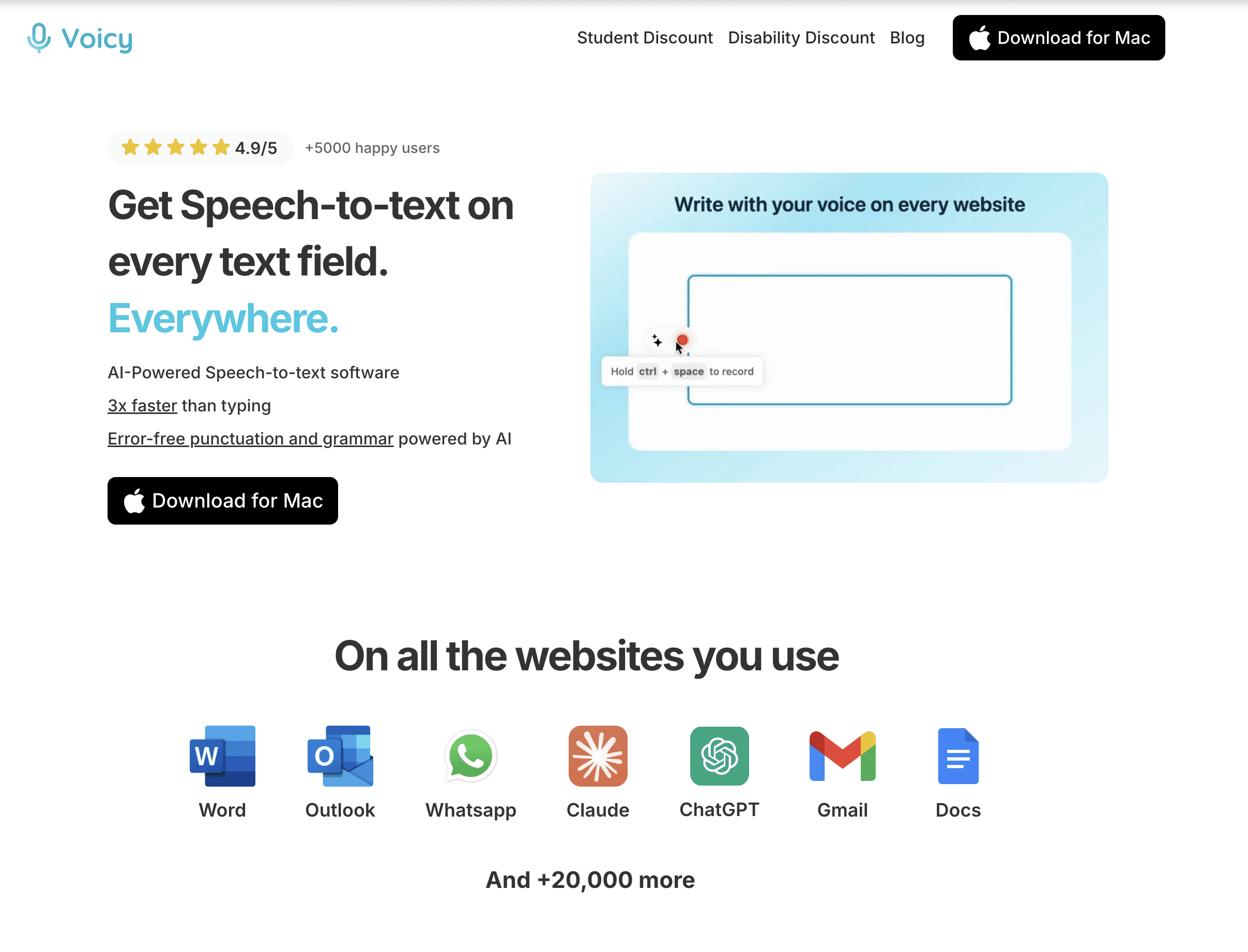
Voicy takes a different approach. Instead of fighting with built-in Windows tools, it provides professional speech recognition that works in Excel and 50+ other apps.
Why Voicy Beats Windows Dictation
Voicy uses cloud-based AI trained on millions of voice samples. This means better accuracy from day one, no training required.
Step-by-Step: Voicy in Excel
1. Install Voicy
Download Voicy for Mac, Windows, or use the browser extension. The free trial lets you test accuracy before paying.
2. Set Your Hotkey
Choose a keyboard shortcut to activate dictation. Most users pick Ctrl+Shift+Space or similar.
3. Click Any Excel Cell
Position your cursor where you want text. Works in any cell, formula bar, or text area.
4. Press Your Hotkey and Speak
Hit your chosen shortcut and talk normally. Voicy automatically adds punctuation and handles numbers intelligently.
5. Keep Working
Unlike Windows dictation, Voicy stays active as you navigate between cells. No constant reactivation needed.
Excel Dictation Comparison: Built-in vs Voicy
Feature | Windows Dictation | Voicy |
|---|---|---|
Accuracy | 70-80% (needs training) | 98%+ (no training needed) |
Setup Time | 15+ minutes of voice training | 2 minutes install |
Punctuation | Manual ("say comma") | Automatic AI punctuation |
Navigation | Stops when moving cells | Stays active across apps |
Background Noise | Struggles in noisy environments | Advanced noise filtering |
Languages | Limited language support | 50+ languages supported |
Cost | Free (with Windows) | $8.49/month, free trial |
Works In | Any Windows app | Excel, Google Sheets, everywhere |
Voice Typing Tips for Excel Success
Whether you choose Windows dictation or Voicy, these tips improve accuracy:
Speak Clearly and Naturally
Don't whisper or shout. Use your normal speaking voice. Professional tools like Voicy adapt to natural speech patterns.
Use a Good Microphone
Laptop mics work but aren't ideal. A USB headset or desktop microphone dramatically improves accuracy.
Minimize Background Noise
Close doors, turn off fans, and pick quiet times for dictation. Voicy handles some background noise, but clean audio works better.
Plan Your Data Structure
Think about how you'll organize information before starting. It's easier to dictate in logical chunks than random data.
Best Use Cases for Excel Voice Typing
Dictation works great for certain Excel tasks:
Customer lists - names, addresses, phone numbers
Inventory data - product descriptions, quantities
Survey responses - open-ended feedback and comments
Meeting notes - action items converted to task lists
Content planning - blog topics, marketing ideas
Voice typing struggles with complex formulas. You can dictate the values, then add formulas manually afterward.
Beyond Excel: Speech to Text for Office Suite
If you like dictation in Excel, consider expanding to other Microsoft Office apps. Voice typing in Microsoft Word streamlines document creation, and our PowerPoint dictation guide covers slide narration and speaker notes. For a full comparison of tools that work across all of Office, see our best dictation software 2026 roundup.
The Voicy Chrome extension brings professional dictation to Google Workspace, Notion, and any web app. It's the same accuracy you get in Excel, but everywhere you work online.
For Windows users, our Windows speech to text guide covers system-wide dictation across all applications.
Frequently Asked Questions
Does Excel have built-in speech to text?
No, Excel does not include built-in dictation. You can use Windows 10/11 speech recognition (Win+H) or third-party tools like Voicy for better accuracy.
How accurate is Windows dictation in Excel?
Windows speech recognition averages 70-80% accuracy and requires voice training. Professional tools like Voicy achieve 98%+ accuracy without training.
Can I dictate formulas in Excel?
Basic formulas work, but complex ones are challenging. It's easier to dictate data values first, then add formulas manually. Say "equals sum" for simple SUM functions.
What microphone works best for Excel dictation?
USB headsets or desktop microphones outperform laptop mics. The Blue Yeti and Audio-Technica ATR2100x-USB are popular choices.
Does voice typing work in Google Sheets too?
Yes! Voicy works in Google Sheets, Excel, and most spreadsheet applications. Google Docs also has built-in voice typing (Tools > Voice typing).
How much does professional Excel dictation cost?
Voicy costs $8.49/month, $82/year, or $260 lifetime. The free trial lets you test accuracy before purchasing. Windows dictation is free but less accurate.
Can I use voice typing on Mac Excel?
Mac has built-in dictation (press Fn twice), but it's basic. Voicy for Mac provides much better accuracy and works across all applications.
What languages support Excel dictation?
Windows dictation supports major languages like English, Spanish, French, and German. Voicy supports 50+ languages including regional dialects and accents.
Why does dictation stop when I press Enter in Excel?
Windows dictation pauses when you navigate between cells. You must reactivate the microphone manually. Professional tools like Voicy stay active across cell navigation.
Can voice typing replace Excel keyboard shortcuts?
Dictation works best for text and data entry. Navigation and formatting still require keyboard shortcuts or mouse clicks. It's a tool to speed up specific tasks, not replace all Excel interaction.
Start Dictating in Excel Today
Ready to speed up your Excel workflow? Try both methods and see which works better for your needs.
For basic tasks, Windows dictation (Win+H) gets you started immediately. It's free and works right now.
For professional accuracy, Voicy's free trial shows the difference professional speech recognition makes. Most users see immediate improvement in speed and accuracy.
The best dictation tool is the one you'll actually use. Start with what's available, then upgrade if you find voice typing valuable for your Excel workflow.


