




How to Use Speech to Text on Chromebook: Built-in vs Browser Extensions
Summary of the article
🎤 Built-in dictation: ChromeOS has free voice typing, but it's basic and limited to simple text
⚡ Better solution: Use Voicy's Chrome extension for advanced speech-to-text with 50+ languages
🌐 Chrome browser advantage: Since Chromebooks run Chrome, any browser extension works perfectly
📝 Setup: Enable built-in dictation via Settings > Accessibility > Keyboard > Dictation
🎯 Use cases: Perfect for writing emails, Google Docs, social media, and long-form content
⭐ Voice commands: Say "comma," "period," "new line" for punctuation and formatting
🔧 Pro tip: Voicy offers AI commands, auto-punctuation, and cloud transcription vs basic ChromeOS dictation
💡 Free trial available: Try Voicy risk-free to see the difference in accuracy and features
Want dictation that actually works well on your Chromebook? Your device has a built-in voice typing feature, but most users find it too basic for real work.
The good news? Since Chromebooks run the Chrome browser, you can use powerful speech-to-text Chrome extensions like Voicy for much better results.
Fast answer: Chromebook speech-to-text setup and shortcut
To turn on speech-to-text on a Chromebook, open Settings, go to Accessibility, choose Keyboard and text input, then enable Dictation. The shortcut is Search + D or Launcher + D. Use built-in ChromeOS dictation for quick notes, and use Voicy's Chrome speech-to-text extension when you want cleaner punctuation, longer drafts, and browser-wide voice typing.
Need | Best route |
|---|---|
Turn on Chromebook dictation | Settings > Accessibility > Keyboard and text input > Dictation |
Start voice typing fast | Press Search + D or Launcher + D |
Dictate in Chrome, Gmail, Docs, or web apps |
How to Use Built-in Chromebook Voice Typing
ChromeOS includes basic speech-to-text dictation. Here's how to set it up:
Enable Voice Typing on Chromebook
Press Alt + Shift + S or click the time in the bottom right
Click Settings
Select Accessibility from the left menu
Find Keyboard and text input section
Toggle on "Enable dictation (speak to type)"
Choose your language from the dropdown
How to Dictate on Chromebook
Click where you want to type text
Press Search + D or click the microphone icon in your shelf
Speak clearly and watch your words appear
Say "comma," "period," or "question mark" for punctuation
Voice Commands for Chromebook Dictation
You can control text editing with these voice commands:
"Select all" - Selects everything
"Copy" - Copies selected text
"Paste" - Pastes from clipboard
"New line" - Moves to next line
"Delete the previous word" - Removes last word
"Replace [word] with [word]" - Swaps words
Why Chromebook Users Need Better Speech-to-Text
The built-in dictation works for basic tasks. But if you're writing emails, blog posts, or working in Google Docs, you'll quickly hit its limits.
Common Problems with Built-in Chromebook Dictation:
Poor accuracy with accents or background noise
Limited language support
No auto-capitalization or smart punctuation
Can't handle technical terms or proper names
Doesn't work offline
This is where voice-to-text Chrome extensions shine. Since your Chromebook runs Chrome, any browser extension works perfectly.
Voicy Chrome Extension: The Better Way
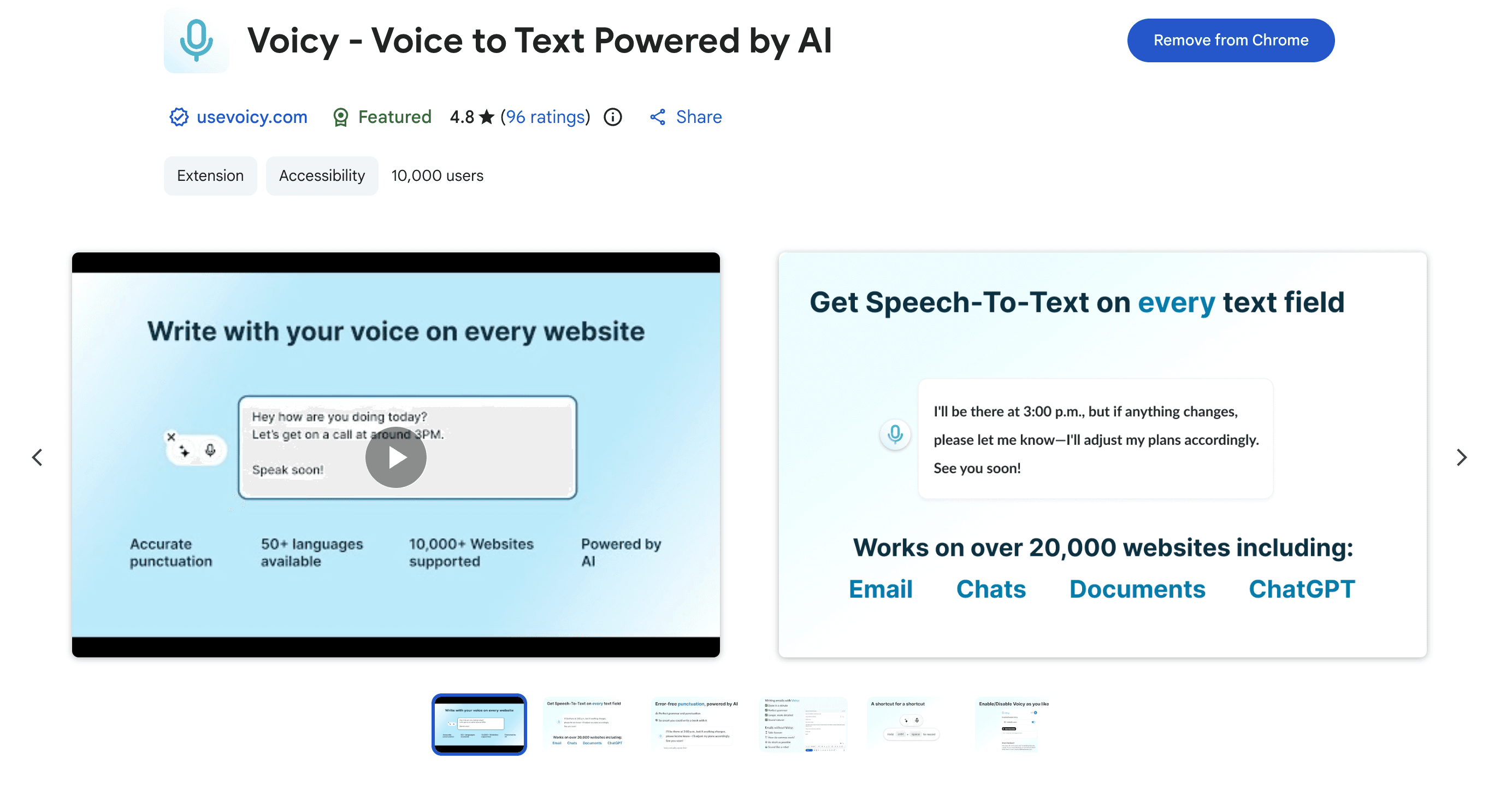
Voicy transforms how you use speech-to-text on Chromebook. Instead of basic dictation, you get professional-grade transcription.
Why Voicy Works Better on Chromebooks:
Cloud-based transcription: Uses powerful servers, not your device's limited processing
50+ languages: Way more than ChromeOS supports
AI commands: Say things like "make that a bulleted list" or "capitalize that"
Automatic punctuation: No need to say "comma" every time
Works everywhere: Gmail, Google Docs, social media, any web page
Voicy Pricing for Chromebook Users:
Free trial: Test all features risk-free
Monthly: $8.49/month
Yearly: $82/year (save 21%)
Lifetime: $260 (best value)
Chromebook Dictation vs Voicy: Side-by-Side
Feature | Built-in ChromeOS | Voicy Extension |
|---|---|---|
Cost | Free | Free trial, then $8.49/month |
Languages | Limited | 50+ languages |
Accuracy | Basic | Professional-grade |
Auto-punctuation | ❌ No | ✅ Yes |
AI commands | ❌ No | ✅ Yes |
Works offline | ❌ No | ❌ No (cloud-based) |
Custom vocabulary | ❌ No | ✅ Yes |
Technical terms | ❌ Poor | ✅ Excellent |
Best Use Cases for Speech-to-Text on Chromebook
1. Writing Emails
Compose emails faster in Gmail with voice typing. Especially useful for long messages or when typing is uncomfortable. For the full setup, see our Gmail dictation guide.
2. Google Docs and Sheets
Create documents, meeting notes, and reports. Speech-to-text in Google Docs becomes much more powerful with the right tool.
3. Social Media Posts
Write Facebook posts, Twitter threads, or LinkedIn updates using your voice instead of typing.
4. Online Learning
Take notes during online classes or training videos. Voice typing helps you keep up with fast-paced content.
5. Accessibility
Essential for users with mobility issues, carpal tunnel, or other conditions that make typing difficult.
Tips for Better Voice Typing on Chromebook
Environment Setup
Find a quiet space with minimal background noise
Use headphones with a built-in microphone for clearer audio
Sit 6-8 inches from your microphone
Speaking Technique
Speak at normal conversational pace
Enunciate clearly but don't over-pronounce
Pause briefly between sentences
Spell out unusual names or technical terms
Workflow Tips
Plan your content before you start speaking
Use the built-in dictation for simple notes
Switch to Voicy for important documents or emails
Always proofread and edit after dictation
Common Problems and Solutions
Voice Typing Not Working?
If Chromebook dictation isn't responding:
Check that dictation is enabled in Settings > Accessibility
Make sure your device language matches your spoken language
Update ChromeOS to the latest version
Try refreshing the web page or restarting Chrome
Poor Accuracy Issues
Reduce background noise
Check microphone permissions for the website
Consider switching to Voicy for better accuracy
Practice speaking more clearly
Frequently Asked Questions
How do I turn on voice typing on my Chromebook?
Press Alt + Shift + S, go to Settings > Accessibility, then toggle on "Enable dictation (speak to type)" under Keyboard and text input.
Does Chromebook have speech-to-text built-in?
Yes, ChromeOS includes basic voice typing. However, many users prefer browser extensions like Voicy for better accuracy and features.
Can I use voice typing in Google Docs on Chromebook?
Absolutely! Both the built-in dictation and Chrome extensions work in Google Docs. Extensions typically provide better accuracy for longer documents.
What's the keyboard shortcut for voice typing on Chromebook?
Press Search + D or Launcher + D to start dictation. You can also click the microphone icon in your shelf.
Why isn't voice typing working on my Chromebook?
Common causes include: dictation not enabled in settings, language mismatch, outdated ChromeOS, or microphone permission issues.
Can I use voice typing offline on Chromebook?
No, both the built-in ChromeOS dictation and browser-based solutions like Voicy require an internet connection for processing.
How accurate is Chromebook voice typing?
Built-in dictation provides basic accuracy. For professional use, consider Voicy's Chrome extension which offers much higher accuracy rates.
Does voice typing work in all apps on Chromebook?
Built-in dictation works in most text input areas. Browser extensions work on any website. Both are perfect for Gmail, Google Docs, and social media.
Can I add custom words to Chromebook speech recognition?
The built-in dictation has limited customization. For custom vocabulary and technical terms, use a professional tool like Voicy.
Is there a better alternative to built-in Chromebook dictation?
Yes, Voicy's Chrome extension offers superior accuracy, more languages, AI commands, and automatic punctuation. It's designed specifically for professional use.
The Bottom Line: Choose the Right Tool
Chromebook's built-in dictation works fine for quick notes or casual use. But if you're serious about productivity, consider upgrading to Voicy's Chrome extension.
Since Chromebooks run Chrome, browser extensions work perfectly. You get professional transcription quality, advanced features, and support for 50+ languages.
Try Voicy's free trial to see the difference. Your productivity will thank you.
Ready to upgrade your Chromebook speech-to-text experience? Start your free Voicy trial today and discover what professional dictation feels like.


