





Ubuntu Speech to Text: Best Dictation Options and Setup
TL;DR
Best easiest setup: Voicy for Linux dictation. It is cloud-based, has a free trial, supports live dictation and file upload, then costs $8.49/month, $82/year, or $260 lifetime.
Best free browser fallback: Google Docs Voice Typing in Chrome or Chromium. It is simple, but mostly limited to Google Docs.
Best offline desktop app: Speech Note. It can run locally, but model downloads and setup take patience.
Best terminal workflow: nerd-dictation. It is private and scriptable, but not friendly for beginners.
Best local file transcription base: whisper.cpp. Great for offline experiments, less convenient for everyday dictation.
Quick Answer: What Is the Best Ubuntu Speech to Text Setup?
The best Ubuntu speech to text setup depends on how much setup you want. If you want the fastest path, use Voicy for daily dictation across browser fields, docs, emails, chats, and file uploads. If you want free and simple, use Google Docs Voice Typing in Chrome or Chromium.
If privacy matters more than convenience, try Speech Note, nerd-dictation, or whisper.cpp. Offline tools keep more control on your machine, but they usually need model downloads, microphone setup, and more troubleshooting than a cloud app.
Ubuntu does not yet have the same polished built-in dictation experience you get on macOS, Windows, iPhone, or Android. That is why Ubuntu users usually end up choosing between browser dictation, a Linux app, or a local Whisper setup.
This guide keeps it practical. You will see the best Ubuntu dictation options, when each one makes sense, and the setup steps that save the most time on Ubuntu, Debian, Linux Mint, and nearby distros.
Ubuntu Speech to Text Options Compared
Option | Best For | Runs Offline? | Main Tradeoff |
|---|---|---|---|
Fast daily dictation and file upload | No, cloud-based | Paid after free trial | |
Free drafting in Google Docs | No | Mostly locked to Docs | |
Offline GUI dictation and transcription | Yes, with local models | Setup and model choice can be fiddly | |
Keyboard-driven Linux users | Yes | Terminal-first setup | |
Local file transcription and experiments | Yes | Not a complete dictation app by itself | |
Built-in Linux dictation | Future GNOME or Ubuntu desktop features | Depends on feature | Not a reliable daily option on most current installs |
1. Voicy: Easiest Ubuntu Dictation for Daily Writing
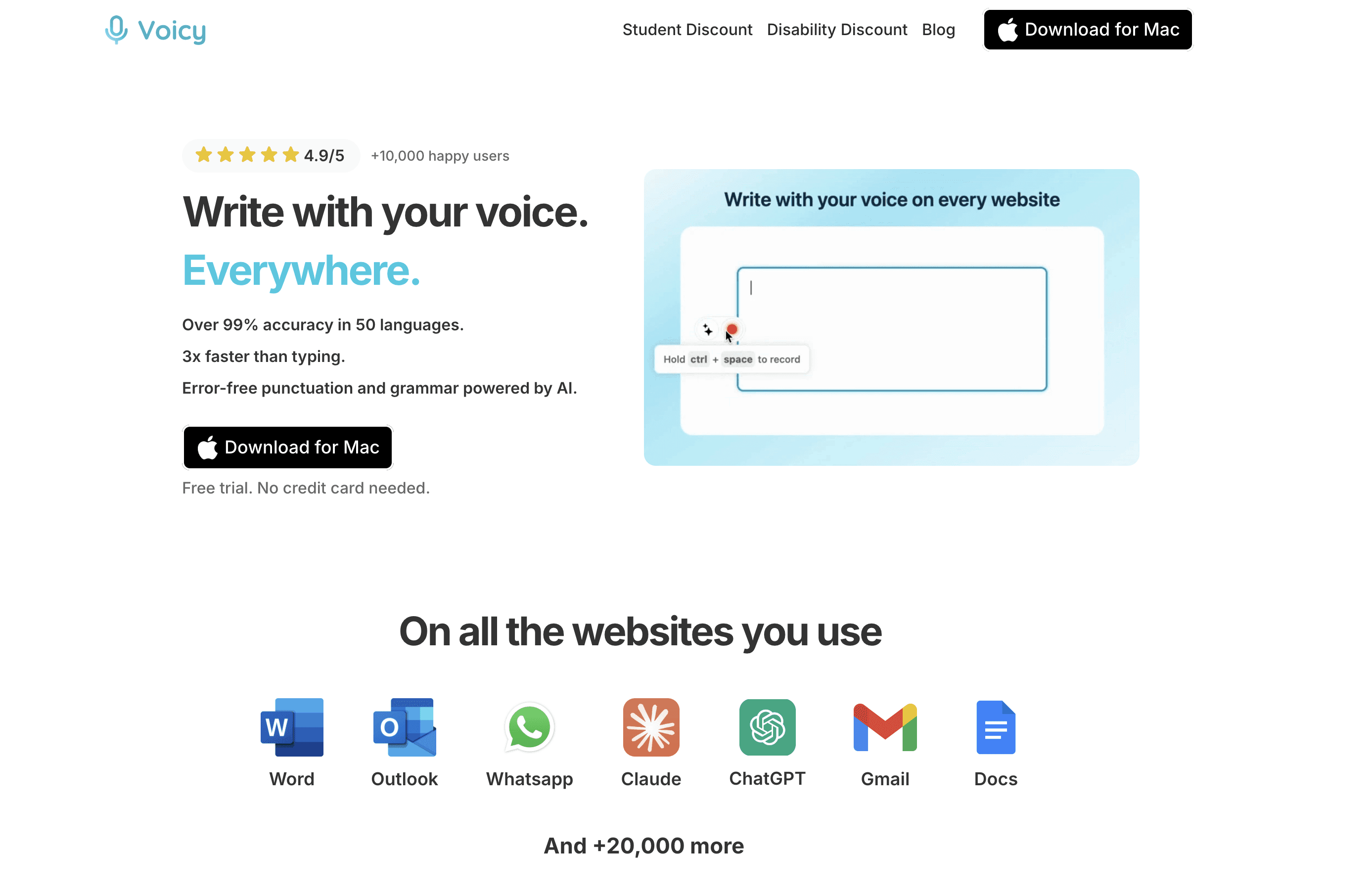
Voicy is the easiest Ubuntu speech to text option if you want to start writing by voice today. It is built for live dictation and file upload transcription, so it covers both quick writing and recorded audio.
Use it when you want to dictate into everyday places like Gmail, Google Docs, ChatGPT, Slack, Discord, Notion, Linear, GitHub, or a browser text box. On Linux, that matters because a lot of work happens in the browser rather than one native office app.
The tradeoff is clear. Voicy is cloud-based, so it is not the right choice if you need local-only transcription. It also is not fully free. There is a free trial, then pricing is $8.49/month, $82/year, or $260 lifetime.
For the direct Linux flow, start with the Voicy Linux dictation guide. If you already know you want it, use the Linux download page.
Quick Voicy setup on Ubuntu
Go to Voicy for Linux.
Start the free trial or use the Linux download flow.
Allow microphone access when your browser or desktop asks.
Pick your main language and test one short paragraph.
Try it in the real places you write: Firefox, Chrome, Gmail, Docs, ChatGPT, VS Code comments, or support tools.
Do one real test before judging accuracy. A laptop mic in a noisy room can make any speech-to-text app look worse than it is.
2. Google Docs Voice Typing: Best Free Browser Option
Google Docs Voice Typing is the easiest free place to test voice typing on Ubuntu. Open Google Docs in Chrome or Chromium, create a document, then use Tools > Voice typing.
It is a good fit for students, quick drafts, blog notes, and simple reports. It also avoids Linux package setup, which is nice if you just want to see whether dictation helps.
The downside is that it mostly lives inside Google Docs. It is not a system-wide dictation layer for Thunderbird, LibreOffice, VS Code, Slack, or random browser forms. If your writing lives outside Docs, you will feel that limit fast.
Quick Google Docs setup on Ubuntu
Install or open Chrome or Chromium.
Open Google Docs and create a blank document.
Choose Tools > Voice typing.
Allow microphone access.
Click the microphone and speak a short test sentence.
If the mic does not work, check Ubuntu Settings > Sound > Input first. Then check browser microphone permissions for docs.google.com.
3. Speech Note: Best Offline Ubuntu Speech to Text App
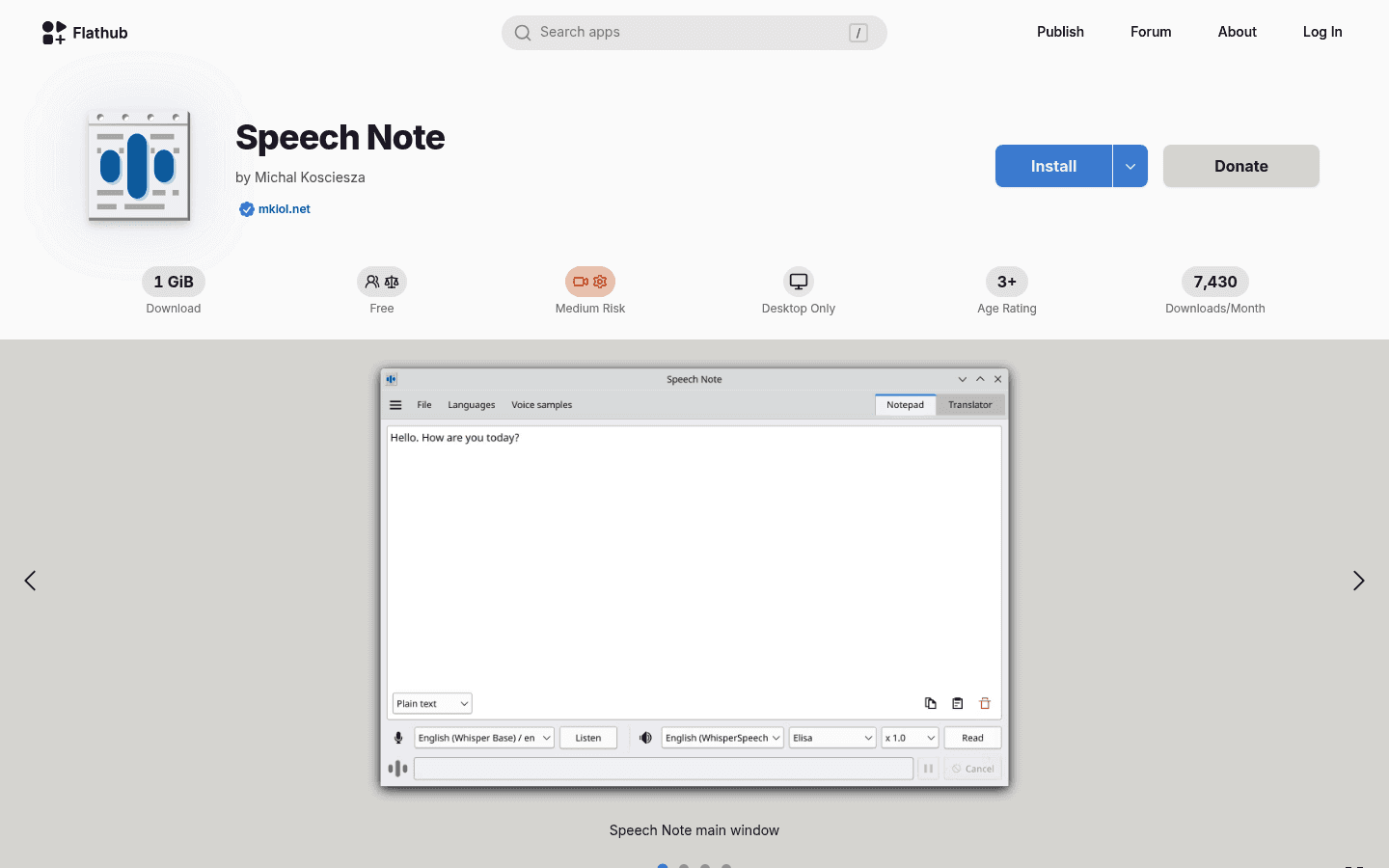
Speech Note is one of the most practical offline speech-to-text apps for Linux desktop users. It is available through Flathub, which makes it a natural fit for Ubuntu, Debian, Fedora, Arch, and Linux Mint users who already use Flatpak.
Speech Note can use local speech recognition models. That makes it appealing if you want offline transcription, private notes, or a tool that does not depend on a cloud service.
The catch is setup. You may need to install Flatpak, choose a model, download model files, and test a few settings. That is normal for offline Linux dictation, but it is not as quick as opening a browser tool.
Quick Speech Note setup on Ubuntu
Install Flatpak if it is not already installed.
Add Flathub by following the Flatpak Ubuntu setup guide.
Install Speech Note from Flathub.
Open the app, pick a speech recognition model, and download it.
Record a short sample before using it for long notes.
Choose smaller models first if your laptop is older. Bigger models can be more accurate, but they may feel slow on low-power hardware.
4. nerd-dictation: Best for Terminal-First Linux Users
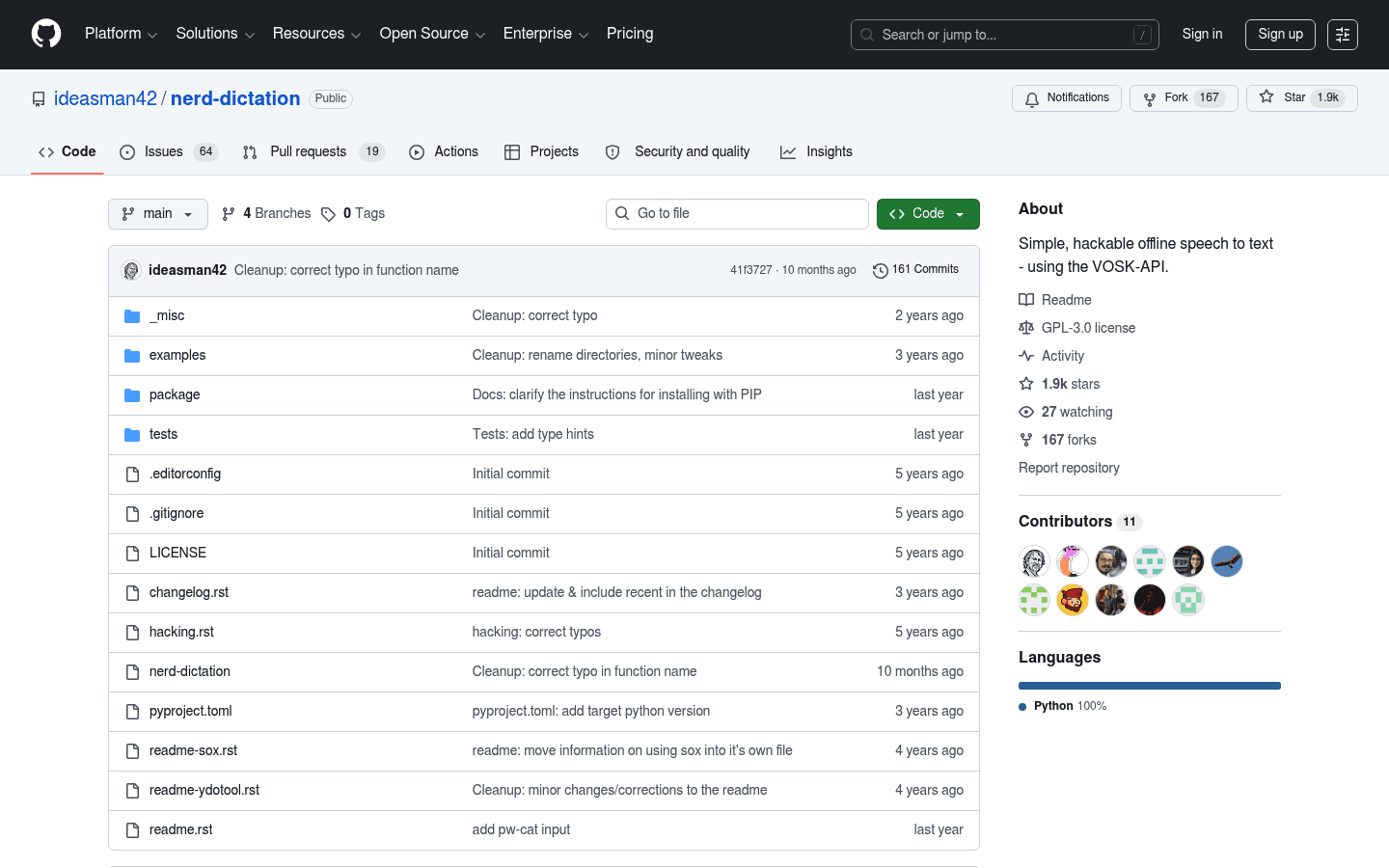
nerd-dictation is for people who like Linux because it is scriptable. It uses local speech recognition and can type into the active window, which makes it more flexible than a transcription-only tool.
This is a good option if you are comfortable with packages, command-line setup, keyboard shortcuts, and debugging audio devices. Developers, sysadmins, and keyboard-heavy writers may like it.
It is not the best first choice for a non-technical Ubuntu user. Setup can include dependencies, models, window focus issues, and shortcut binding. When it works, it feels very Linux. When it breaks, you are reading GitHub issues.
5. whisper.cpp: Best Base for Local Transcription
whisper.cpp is a fast local implementation of OpenAI Whisper-style speech recognition. It is popular because it can run on regular machines and does not need a cloud API for basic local transcription.
Use whisper.cpp if you want to transcribe audio files locally, build your own workflow, or test different models on Ubuntu. It is also useful if you care about control and repeatability more than a polished app.
The downside is convenience. whisper.cpp is not a finished daily dictation app with a friendly Ubuntu onboarding flow. You may need to compile it, download models, pass audio files through commands, and wire the output into your own scripts.
6. Built-In Linux Dictation: Useful to Watch, Limited Today
Ubuntu and GNOME speech-to-text work is improving, and projects like Ubuntu's Myna show that local desktop dictation is moving in the right direction. That is good news for Linux users.
For most current Ubuntu installs, though, built-in dictation is not yet the dependable choice for daily work. You should still plan around Voicy, Google Docs, Speech Note, nerd-dictation, or whisper.cpp if you need speech to text now.
Fedora, Debian, Arch, and Mint users are in a similar place. Package names and desktop defaults vary, but the decision is the same: browser/cloud convenience, offline app control, or command-line flexibility.
Ubuntu Setup Checklist Before You Blame the App
Most Ubuntu dictation problems start with audio, not the speech model. Check these before switching tools.
Input device: Open Settings > Sound > Input and select the mic you actually use.
Input level: Speak normally and make sure the input meter moves without clipping.
Browser permissions: In Chrome, Chromium, or Firefox, allow microphone access for the site you are using.
Wayland versus X11: Some Linux dictation tools behave differently depending on the display session. If typing into other apps fails, test the other session.
Noise: Close loud fans, move away from café noise, or use a headset mic.
Language: Pick the language or dialect you actually speak. Do not leave this on a random default.
Cloud vs Offline Dictation on Ubuntu
Cloud dictation is usually easier. A tool like Voicy can handle setup, models, and updates for you, which is why it is the better starting point for many everyday writers.
Offline dictation gives you more privacy and control. Speech Note, nerd-dictation, and whisper.cpp can be better when you do not want audio sent to a cloud service, or when you need a local workflow for sensitive work.
The honest answer is that neither side is perfect. Cloud tools need trust and an internet connection. Offline tools need setup time, storage, CPU power, and more patience when something breaks.
Which Ubuntu Speech to Text Option Should You Pick?
Pick Voicy if you want the easiest daily speech-to-text workflow on Ubuntu and you are fine with cloud-based transcription after a free trial. It is the best fit for people who write in many apps and also need file upload transcription.
Pick Google Docs Voice Typing if you want a free browser test and mostly write inside Docs. Pick Speech Note if you want a local desktop app. Pick nerd-dictation or whisper.cpp if you like building your own Linux workflow.
For a broader Linux comparison, read Speech to Text on Linux. For the conversion path, use Dictation for Linux or go straight to Download Voicy for Linux.
FAQ
Does Ubuntu have built-in speech to text?
Most current Ubuntu desktops do not have a polished built-in speech-to-text tool that works everywhere like Windows Voice Access or Apple Dictation. Ubuntu desktop speech-to-text work is improving, but most users still use browser tools, cloud dictation apps, or local Whisper-based tools.
What is the easiest speech-to-text app for Ubuntu?
The easiest option for many Ubuntu users is Voicy, because it is made for daily dictation and file upload transcription without heavy Linux setup. It is cloud-based and paid after a free trial.
What is the best free Ubuntu dictation option?
The best free starting point is Google Docs Voice Typing in Chrome or Chromium. It is useful for drafting in Docs, but it is not a system-wide Ubuntu dictation tool.
Can I do offline speech to text on Ubuntu?
Yes. Speech Note, nerd-dictation, and whisper.cpp can support local or offline workflows. Expect more setup than cloud dictation.
Is Voicy local-only on Ubuntu?
No. Voicy uses cloud-based transcription. That helps make setup easier, but it is not the right choice if your requirement is local-only speech processing.
Does Voicy support file upload transcription on Linux?
Yes. Voicy supports live dictation and file upload transcription. That makes it useful when you want to dictate fresh text and also transcribe recorded audio.
Why is my Ubuntu microphone not working for dictation?
Check Settings > Sound > Input, then check browser or app microphone permissions. Also test your mic in a simple recorder app. If the input meter does not move there, the dictation app is not the main problem.
Does Google Docs Voice Typing work on Ubuntu?
Yes, Google Docs Voice Typing can work on Ubuntu through Chrome or Chromium. It is best for writing in Google Docs, not for dictating into every Linux app.
Should I use Wayland or X11 for Ubuntu dictation?
For browser-based tools, either can be fine. For tools that need to type into other apps, X11 may be easier in some setups. If app-wide dictation fails on Wayland, test an X11 session before giving up.
Is whisper.cpp good for Ubuntu dictation?
whisper.cpp is strong for local transcription and custom workflows, but it is not a complete beginner-friendly dictation app by itself. It is best if you are comfortable with command-line setup.


