




Summary of the article
Google Docs Voice Typing: Best free place to start if you already write assignments in Google Docs.
Voicy: Best for students who need dictation across essays, browser fields, notes, and AI tools.
Microsoft Word Dictate: Best for school workflows built around Word and Microsoft 365.
Dragon: Best for students who rely on dictation heavily and need a more serious setup.
Ghotit Real Writer & Reader: Best if spelling support matters as much as dictation.
Texthelp Read&Write: Best school-friendly option if you want dictation plus reading support in one toolkit.
If you want the short answer, the best dictation software for students with dyslexia depends on where the writing bottleneck is. If typing and spelling are the main blockers, start with Google Docs Voice Typing or Word Dictate. If you need cleaner cross-app output, stronger workflow coverage, or easier revision, move up to Voicy or Dragon.
The best dictation software for students with dyslexia should do one simple thing well. It should help you get your ideas out before spelling, typing speed, or writing fatigue slows you down.
A lot of search results for this topic are broad assistive-tech lists. They mix reading apps, note tools, and school accommodations together. That is useful, but it does not answer the tighter question: which dictation tools actually help a student write classwork, homework, essays, and notes with less friction?
This guide stays focused on that question. I looked at the tools that show up across current dyslexia and speech-to-text roundups, then filtered them for student reality: cost, ease of setup, writing support, and whether the tool helps once you leave a single document and bounce into the rest of your school workflow.
How we picked the best dictation software for students with dyslexia
Students with dyslexia often need more than raw speech recognition.
Low friction: You should be able to start speaking fast, not spend an hour setting things up.
Writing support: Good dictation should reduce spelling pressure and cleanup work.
School workflow fit: Essays, forms, note apps, LMS fields, and browser tools all matter.
Accessibility value: Some students need dictation for convenience. Others need it to participate fully and keep up.
Reasonable tradeoffs: Free is great, but not if the tool only works in one place and breaks your flow.
Current ranking pages from school disability centers and dyslexia guides consistently point students toward Google Docs Voice Typing, Microsoft Dictate, Dragon, and broader school support suites. The gap is that most of those pages do not compare them head-to-head for actual student writing tasks. That is where this article goes deeper.
What students with dyslexia usually need from dictation software
Fast first drafts: Speaking can help you capture ideas while they are still clear.
Less spelling stress: You can focus on meaning first, then edit later.
Support across tools: School writing rarely stays in one app all day.
Built-in structure: Punctuation, formatting help, or readback support can cut revision time.
Confidence: The right tool lets your written output sound closer to how well you actually think.
If you want a broader accessibility toolkit too, see our guide to the best apps for dyslexia. For this post, we are narrowing in on dictation only.
1. Google Docs Voice Typing, best free option for students with dyslexia
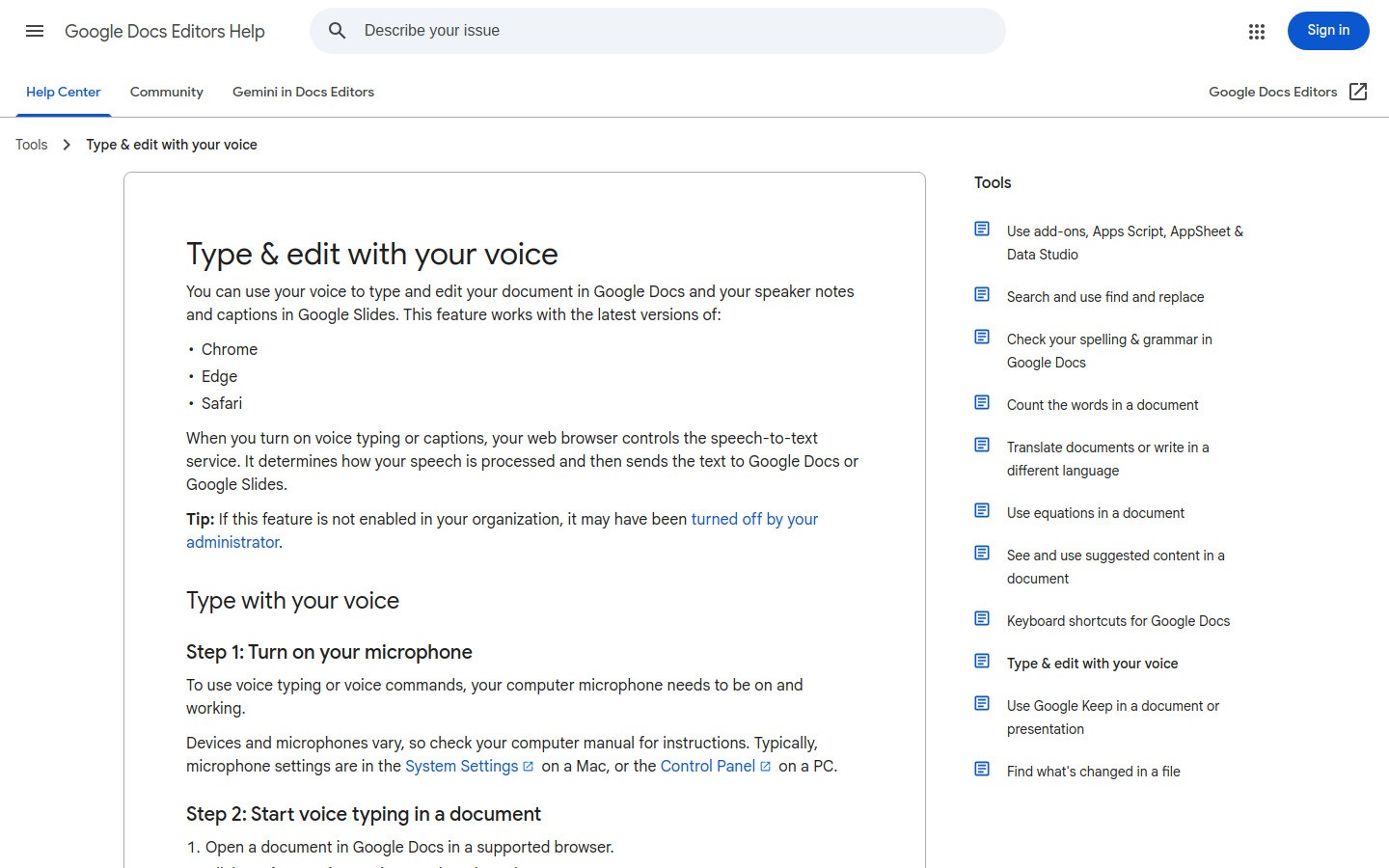
Google Docs Voice Typing is still the easiest free starting point for many students with dyslexia. If your school already uses Google Docs, you can test it in minutes and start speaking into a real assignment right away.
Its biggest strength is access. You do not need to convince a parent, teacher, or disability office to buy anything first. That makes it a practical first step when you are still figuring out whether dictation helps your writing process.
Best for: Students who already draft papers in Google Docs and want a zero-cost way to reduce typing load.
What stands out:
Free and built into a familiar tool
Good for essays, short assignments, and study notes
Easy to test with school accounts and Chromebooks
Limits: It mostly shines inside Docs. If you need dictation in browser forms, email, or other apps, the wall shows up fast. Cleanup can also take more effort than with newer AI-assisted tools.
Helpful link: If this is already part of your workflow, our guide to speech to text in Google Docs goes deeper.
2. Voicy, best for cross-app school writing
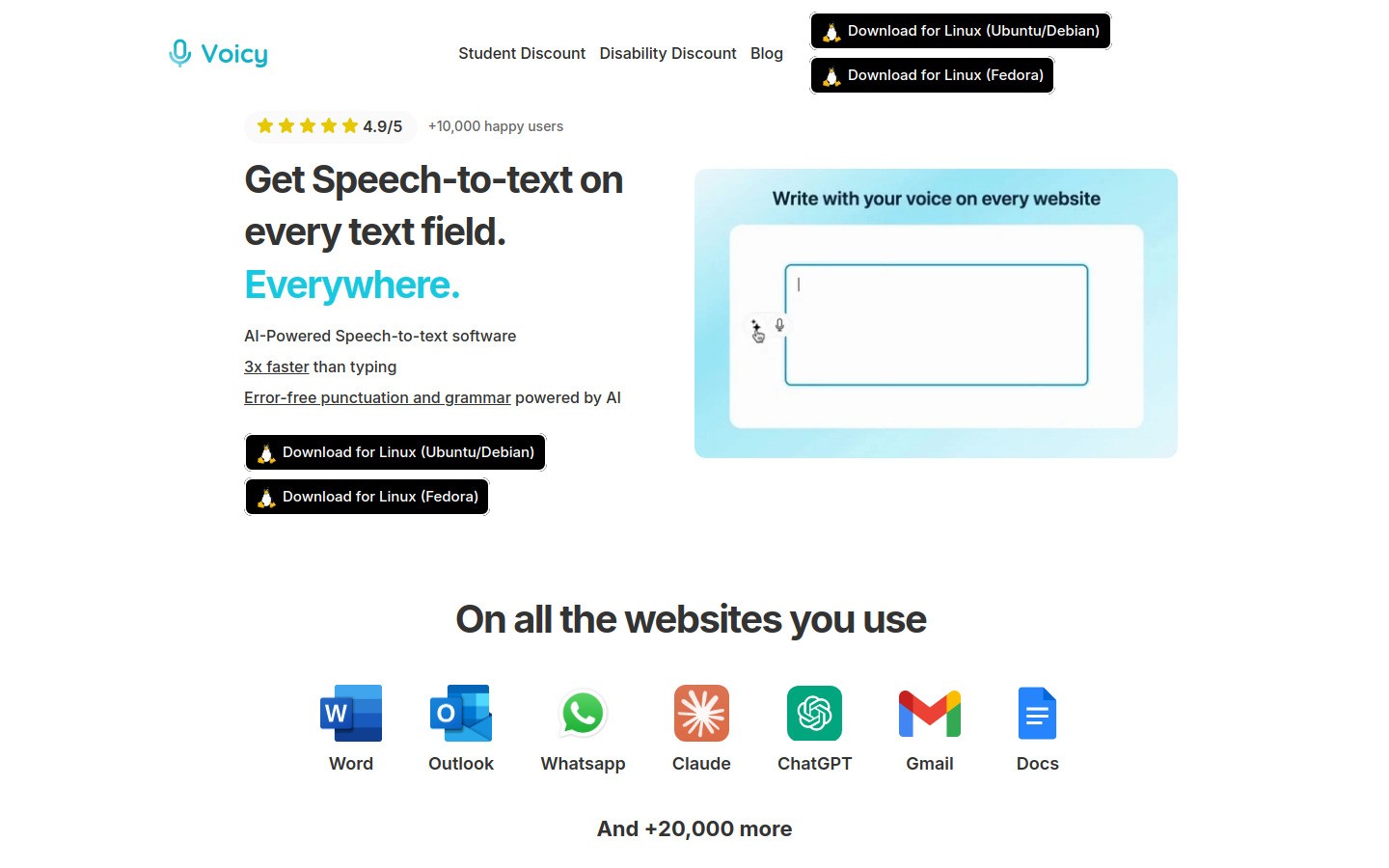
Voicy makes the most sense when school writing does not stay in one place. Maybe you brainstorm in Notion, answer questions in a learning portal, clean up a draft in ChatGPT, and then paste the final version into Docs or Word. That kind of workflow is common now.
For students with dyslexia, that matters because the writing struggle is often not just typing. It is switching contexts, losing momentum, and having to rework messy text again and again. Voicy helps by working on Mac, Windows, and as a browser extension, with cloud-based transcription and built-in cleanup that can make spoken drafts easier to use right away.
Best for: Students who need one dictation habit that follows them across apps, tabs, and writing tasks.
What stands out:
Works on Mac, Windows, and browser extension
Free trial available
Helps with essays, notes, prompts, emails, and form fields
Cleaner output than many basic built-in tools
Limits: It is not fully free, and it is cloud-based, so it is not the right fit if you need an offline-only dictation workflow.
Pricing: $8.49/month, $82/year, or $260 lifetime.
Helpful internal links: If you draft ideas by voice inside AI tools, see speech to text in ChatGPT and speech to text in Claude. If you take class notes in Notion, that workflow is worth a look too.
3. Microsoft Word Dictate, best for Word-based accommodations and school workflows
A lot of schools already live inside Microsoft 365. If your assignments, accommodations, or teacher comments all happen in Word, Microsoft Word Dictate is the built-in choice that makes the most sense.
This is especially useful for students with dyslexia who already receive school support through Word, OneNote, or Immersive Reader. You stay inside the same environment instead of adding another app on top.
Best for: Students whose writing support already centers on Word or Microsoft 365.
What stands out:
Built into software many schools already provide
Good fit for longer assignments and formal submissions
Pairs well with Microsoft reading and accessibility tools
Limits: It solves the Word problem well, but not the whole cross-app writing day. If your school work spills into browsers, chat tools, and AI tools, you may outgrow it.
Helpful note: Students who need extra reading support can pair this with Microsoft Immersive Reader.
4. Dragon, best for intensive dictation needs
Dragon is still the heavyweight name in dictation, and there is a reason disability resource offices keep mentioning it. For students with dyslexia who rely on dictation every day, not just now and then, Dragon can still be worth serious consideration.
This is not the casual pick. It is better for high-volume writing, deeper voice-driven workflows, and cases where dictation is a core academic accommodation instead of a productivity experiment.
Best for: Students who use dictation as a major accessibility support and need more than a lightweight built-in tool.
What stands out:
Long-standing reputation for serious dictation use
Often recommended in disability support settings
Stronger fit for long writing sessions than most free tools
Limits: More cost, more setup, and more commitment. For many students, it is too much tool unless dictation is central to how they work.
5. Ghotit Real Writer & Reader, best for spelling-aware writing support
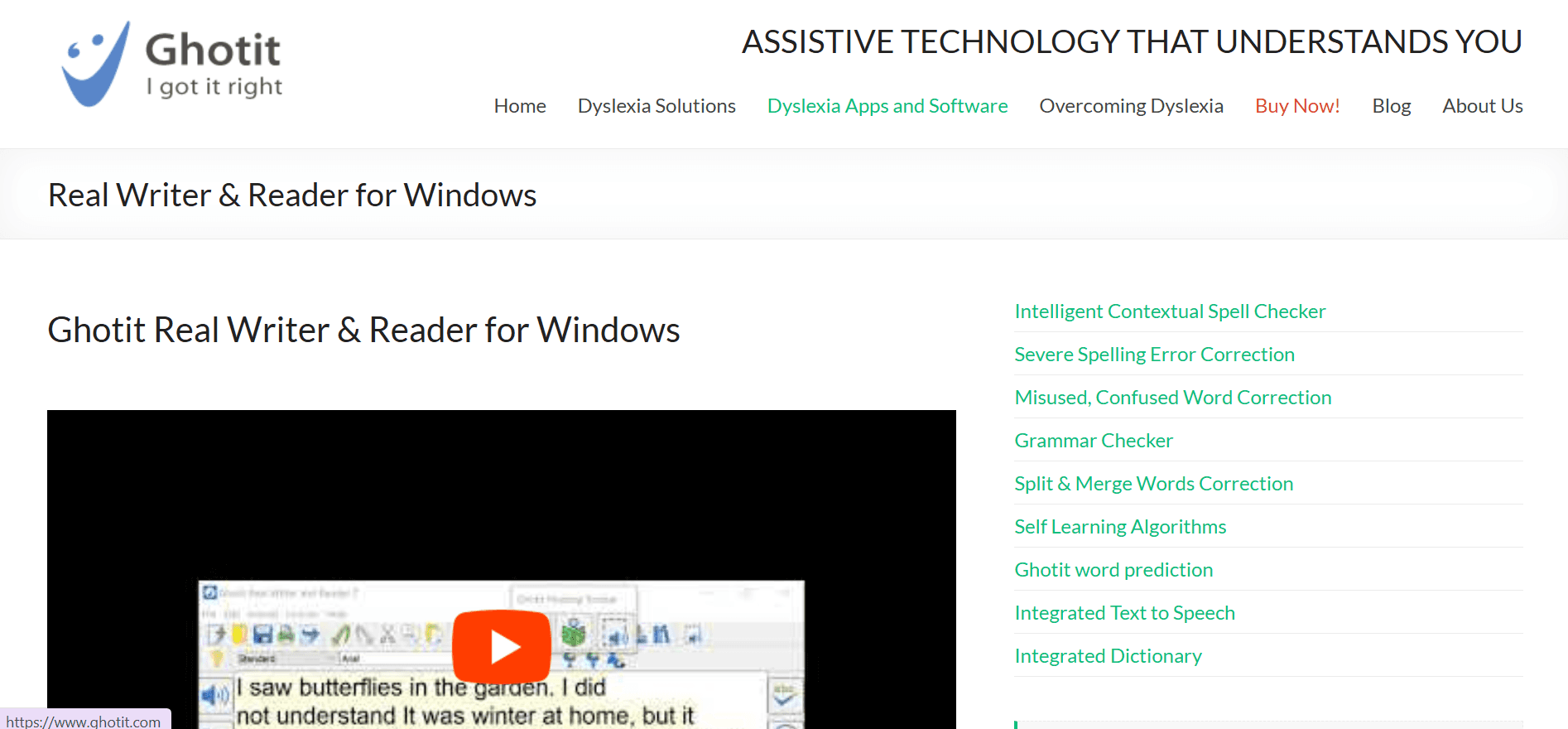
Ghotit is not the first name most general dictation roundups lead with, but it deserves attention here because students with dyslexia often need more than speech-to-text alone. They also need smarter help with spelling patterns, confused words, and writing cleanup.
That makes Ghotit a strong fit if dictation helps you get words down, but revision is still painful. It is built specifically around dyslexic writing patterns, which gives it a different angle from broad office dictation tools.
Best for: Students who want writing support tuned to dyslexic spelling and grammar problems, not just speech recognition.
What stands out:
Dyslexia-aware spelling and grammar corrections
Useful support when readback and revision matter
Can complement a broader dictation workflow
Limits: It is less of a simple one-click dictation pick and more of a writing-support tool. Some students will still prefer a more direct speech-first app.
6. Texthelp Read&Write, best all-in-one school support suite with dictation
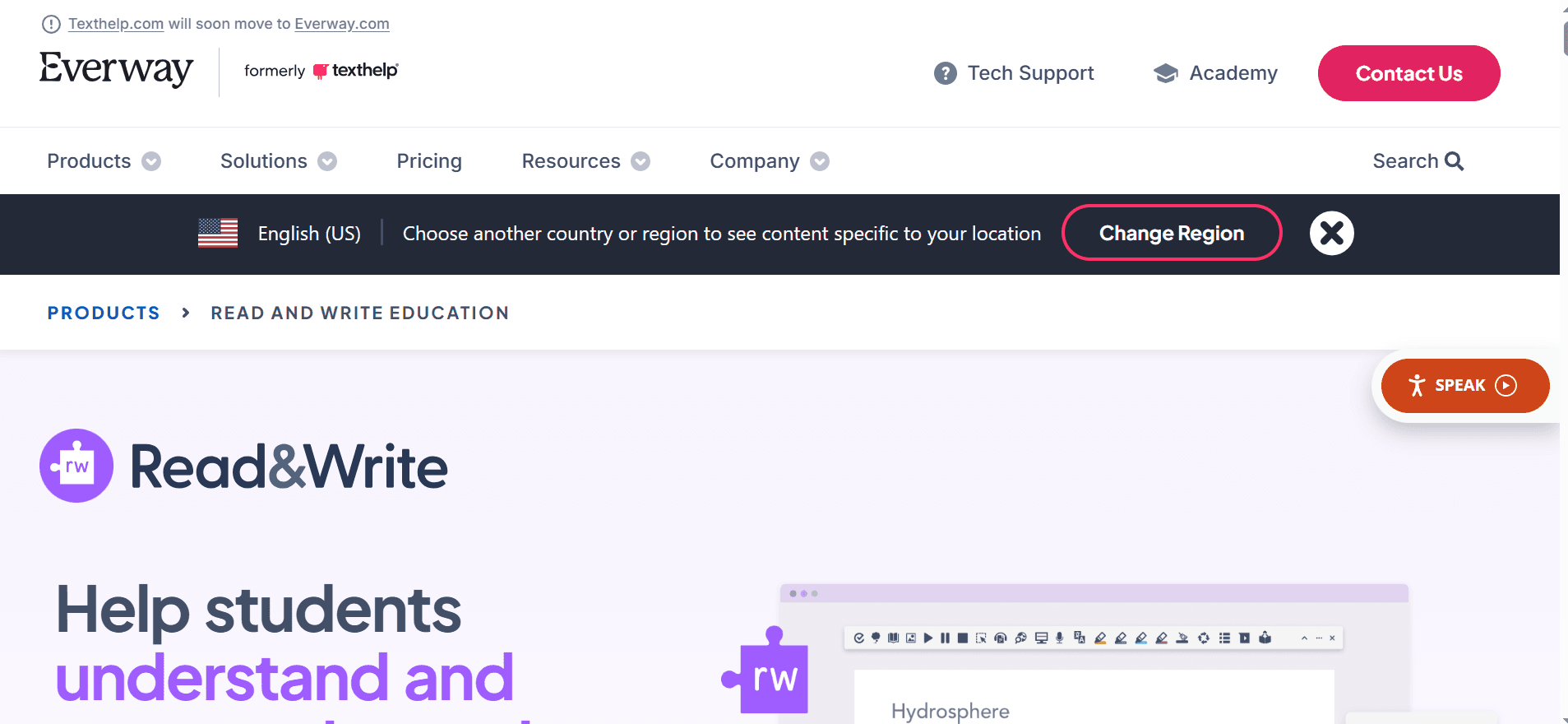
Read&Write is often adopted at the school or district level, which changes the buying decision. If your school already offers it, this may be one of the highest-value options on the list because you get dictation plus reading and study support in one package.
For students with dyslexia, that combo matters. You may need dictation for written output, but also text-to-speech, vocabulary support, or OCR for classroom materials. Read&Write covers more of that stack than a pure dictation tool.
Best for: Students who want dictation plus reading support, especially when the school already provides access.
What stands out:
Combines dictation, read-aloud, and study support
Common in school accommodation setups
Good fit when one tool needs to cover multiple learning needs
Limits: For students who only want simple speech-to-text, it can feel heavier than necessary. It also makes the most sense when access comes through school.
Quick comparison table
Tool | Best for | Main drawback |
|---|---|---|
Free drafting in Google Docs | Mostly limited to Docs | |
Cross-app student writing | Paid after free trial, cloud-based | |
Word-based school work | Less helpful outside Microsoft apps | |
Heavy accessibility use | Higher cost and setup | |
Spelling-aware writing help | Less direct as a pure dictation tool | |
School-wide support suite | Can feel heavy for simple dictation needs |
Which dictation software should students with dyslexia choose?
Here is the simple version.
Start with Google Docs Voice Typing if you want a free test and already write in Docs.
Pick Word Dictate if your accommodations and assignments already live in Microsoft 365.
Pick Voicy if your writing day jumps across browsers, notes, AI tools, and forms.
Pick Dragon if dictation is a serious accessibility need, not a nice-to-have.
Pick Ghotit or Read&Write if spelling support and reading support matter alongside dictation.
Final take
The best dictation software for students with dyslexia is the one that removes friction from real school work. That usually means choosing a tool that matches your actual bottleneck, not just the most famous brand.
If you want the safest free starting point, use Google Docs Voice Typing. If your writing happens all over the place and you want cleaner voice-to-text across your workflow, Voicy is the more flexible option. If you need school-grade support that goes beyond dictation, Read&Write and Dragon are stronger long-term candidates.
If you want more voice-first writing ideas, start with our guide to voice typing apps.


